前言

多年使用Unity经验的朋友对于列表单元肯定很熟悉,每个公司也都有着自己的一套单元格设计。本章节博客着重学习Unity里列表单元格框架的设计和实现,深入学习不同单元格框架的设计优劣。

列表

什么是列表了?
可以滚动,支持创建多个基于特定模板显示的单元格容器。

列表的功能需求(**(√)**表示本人已经实现的部分)?

  1. 滚动显示(支持滚动到指定位置)(√)
  2. 动态添加(支持任何位置添加元素)(√)
  3. 循环列表(支持从头滚到尾再接着滚动到头的循环方式)
  4. 不同大小单元格显示(支持自适应大小或者自定义传单元格大小)(√)
  5. 多种列表类型显示(e.g. 横向,竖向,横向网格,竖向网格等)(√)
  6. 单元格构造自定义传参**(√)**
  7. 自定义滚动动画**(√)**
  8. 不同单元格朝向(e.g. 从左往右或从右往左。从上往下或者从下往上。)(√)
  9. 单元格矫正(最终单元格会滚动到某个最近的单元格位置)(√)
  10. 单元格对象池(e.g. 单元格逻辑对象(Object)对象池。单元格实体对象(GameObject)对象池。)(√)
  11. 单元格嵌套滚动(e.g. 嵌套不同方向的单元格容器滚动支持)(√)
  12. 本地单元格模拟创建查看效果(e.g. Inspector支持快速模拟查看排版等)(√)

单元格容器

这里关于单元格容器,这里主要实现了两套:

  1. 支持不同滚动方向不同初始化朝向支持不同大小(手动传Size或者自动计算Size)嵌套滚动单元格的一套通用单元格容器。
  2. 支持两侧深度滚动显示的单元格容器(这一套实现的效果比较特别所以单独实现的)
    其中本人主要以第一套(以前在公司学习到的一套实现方案,后来在此基础上扩展支持了很多功能)为重点来学习实战。

单元格实现分析

这里通过学习了解市面上常见的单元格实现来了解常见的单元格实现方案:

LoopScrollRect

LoopScrollRect
这一套是钱康来大佬编写分享的一套支持循环列表的实现方案。
通过查看源码,可以了解到,这一套实现核心是基于ContentSizeFitter,LayoutGroup和LayoutElement相关组件来实现动态计算单元格位置显示循环滚动以及不同大小等效果的。
亮点分析:

  1. 使用了原生Scroller,但并不依赖原生ScrolRect那套来计算滚动,这样为支持循环列表打下了基础。
  2. 单元格位置数据与单元格逻辑对象分离,可以做到动态计算单元格显示时只有需要显示的才有逻辑单元格对象(避免New大量的单元格)

缺点分析:

  1. 虽然基于LayoutGroup和LayoutElement,但并非正向通过他们的排版功能得到不同单元格大小显示,而是反向设置LayoutElement来通过LayoutUtility.GetPreferredHeight()等接口方法来实现正确的计算滚动排版。这儿也就意味着做不到自动计算单元格大小的功能。
  2. 单元格显示是通过SendMessage的形式触发,感觉这种方式效率可能不如直接调用接口方法来的快(个人感觉)。
    核心获取单元格大小的代码:
1
2
3
4
5
6
7
8
9
10
11
12
13
protected override float GetSize(RectTransform item)
{
float size = contentSpacing;
if (m_GridLayout != null)
{
size += m_GridLayout.cellSize.y;
}
else
{
size += LayoutUtility.GetPreferredHeight(item);
}
return size;
}

单元格初始化显示触发代码:

1
2
3
4
public override void ProvideData(Transform transform, int idx)
{
transform.SendMessage("ScrollCellIndex", idx);
}

FancyScrollView

FancyScrollView
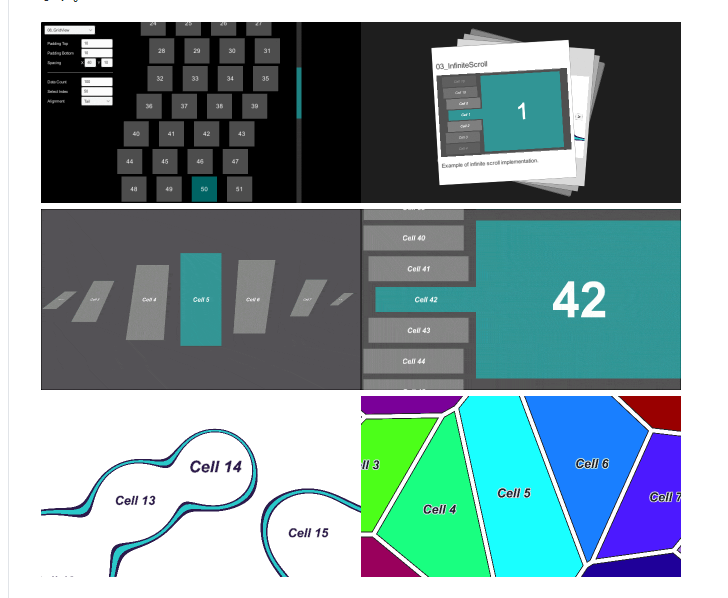
FancyScrollViewExhibition
这一套是在UWA上看到的,貌似是日本开发者开发的。
通过上面的效果图可以看到,这一套实现了很强大的结合自定义动画或者Shader的单元格容器框架。
通过查看源代码可以发现,这一套非常强大的一点是通过自定义实现Scroller强大的滚动单元格容器需要的滚动相关的计算和回调支持。
上次代码只需要通过ScrollView和Scroller接口设置显示数据以及单元格模板等就能做到很好的单元格容器滚动效果。
亮点分析:

  1. 没有依赖原生Scroller,自定义实现了Scroller,可以更加容易的支持循环列表。
  2. 动态计算显示与否是通过当前滚动到的位置来判定,而单元格位置信息并没有耦合到单元格对象里,这样可以做到逻辑对象数量等于最大可显示的数量。
  3. 更新显示回调(UpdatePosition)里有传入位置数据,可以基于位置数据做动画(Animator)或者Shader相关的表现展示
  4. 不依赖于Scroller,LayoutGroup等组件,开销更低

缺点分析:

  1. 单元格不支持不同大小,都是按预制件统一大小来计算

super-scrollview

ugui-super-scrollview-example
这一套是Unity Asset Store里出售的一套滚动单元格插件。
让我们先来一张效果图展示:
SuperScrollViewExhibition
从上面可以看到,SuperScrollView可以做到很多效果(e.g. 翻页,动态加载,动态大小变化,滚动到指定位置,动态增删单元格,不同朝向单元格容器显示……)
基本上能想到的单元格容器效果,这个插件都支持。
接下来让我们结合源码和实例来分析下这一套单元格容器的好坏:
亮点分析:

  1. 单元格位置数据与逻辑对象分离,可以有效的减少逻辑单元格对象数量
  2. 自定义的单元格大小抽象,可以方便的自定义传入不同大小的单元格并显示
  3. 支持不同朝向的单元格容器显示(核心是反向初始化和计算单元格位置显示)

缺点分析:

  1. 使用了ScrollRect部分功能(特别是容器滚动部分),这一点导致要做循环列表就很困难

后续本人的单元格容器很大程度上跟SuperScrollView更相近(指功能设计上而非代码设计)。

实战单元格容器

通过学习了解市面上的单元格容器实现,可以看到有几个比较重要的点:

  1. 不依赖于ScrollRect滚动,自定义分离单元格位置数据和单元格逻辑对象,是实现循环列表和减少逻辑单元格对象数量的关键。
  2. 大部分都不支持自动计算大小,需要手动计算传递单元格大小,相对来说没那么方便,但开销会小。

接下来让我们看看博主实战最终实现的效果(主要讲解第一套单元格):
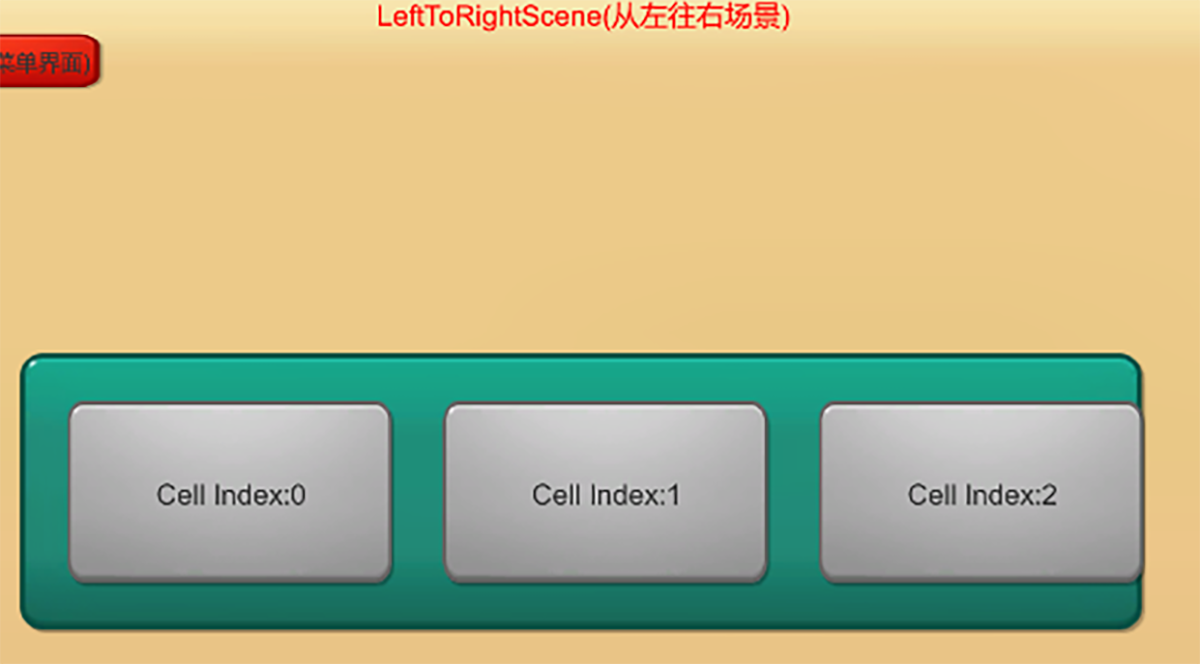
LeftToRightScene

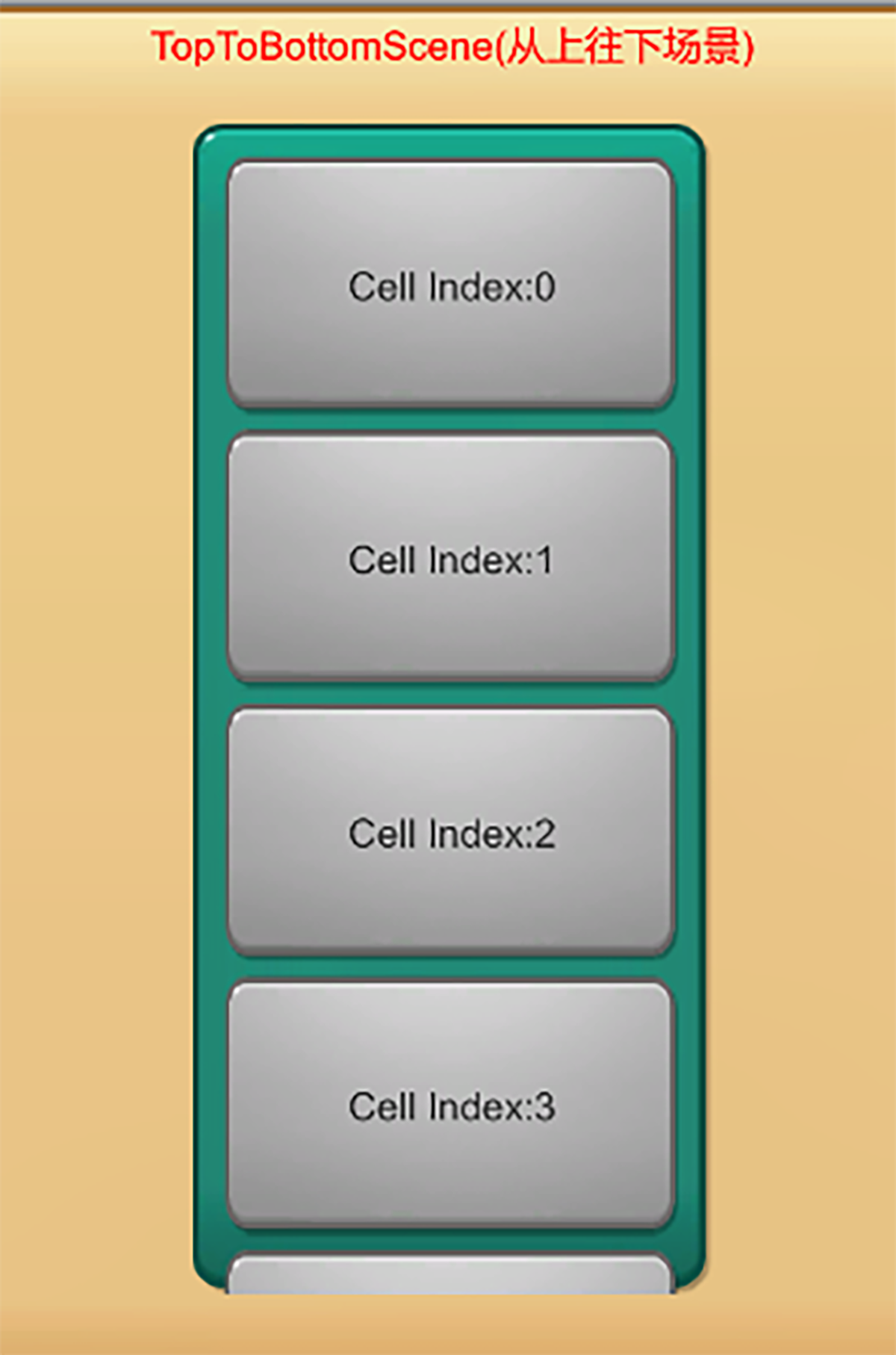
TopToBottomScene

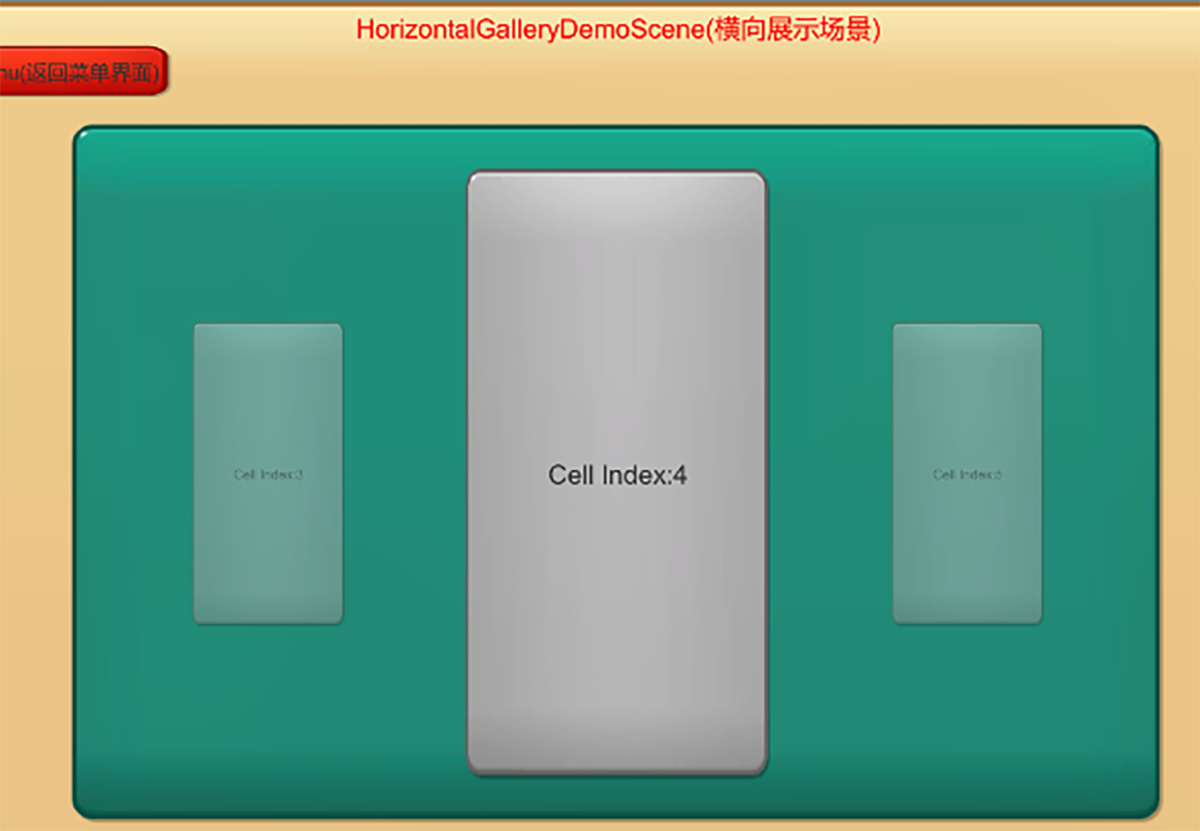
HorizontalGalleryDemoScene

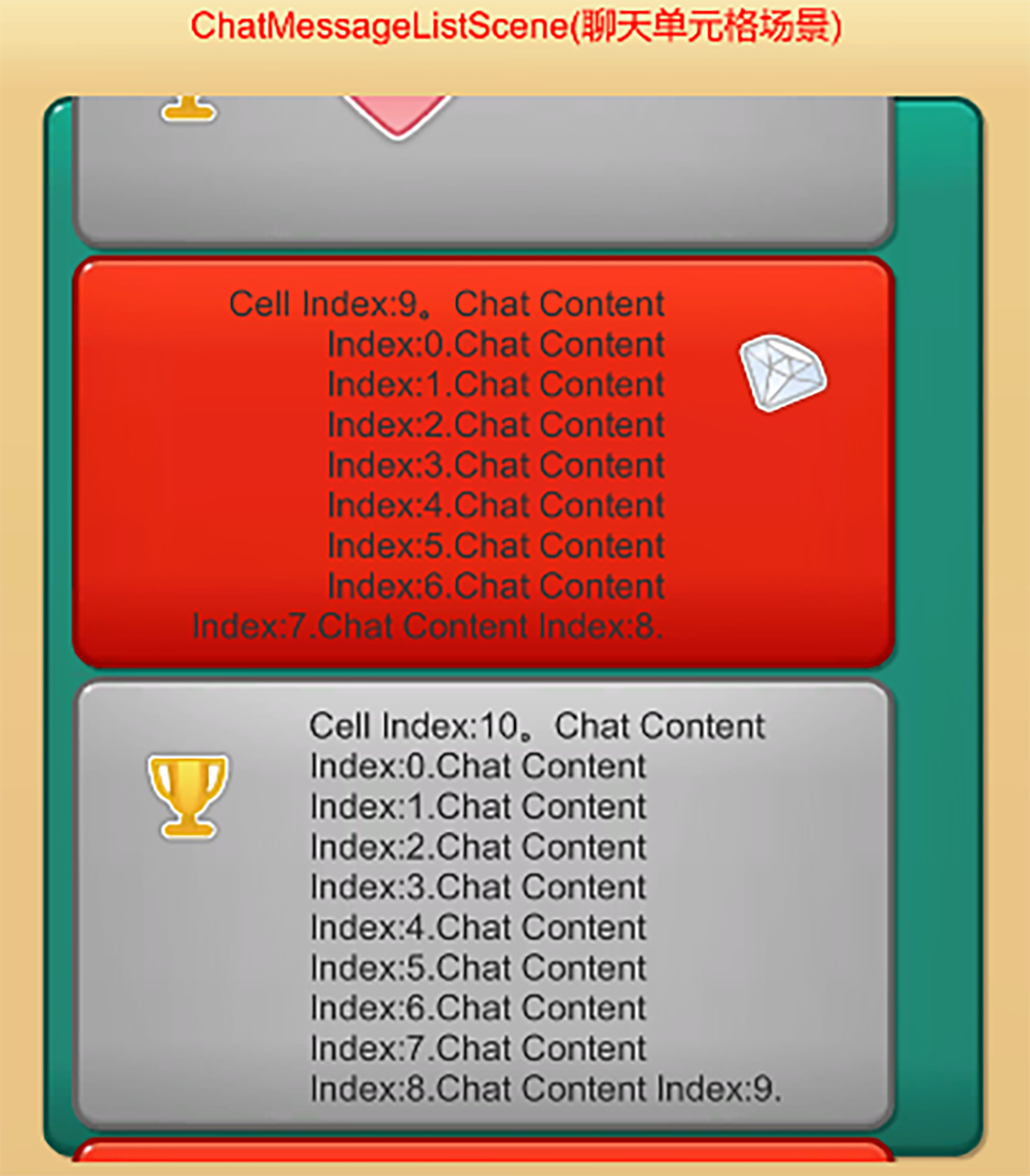
ChatMessageListScene

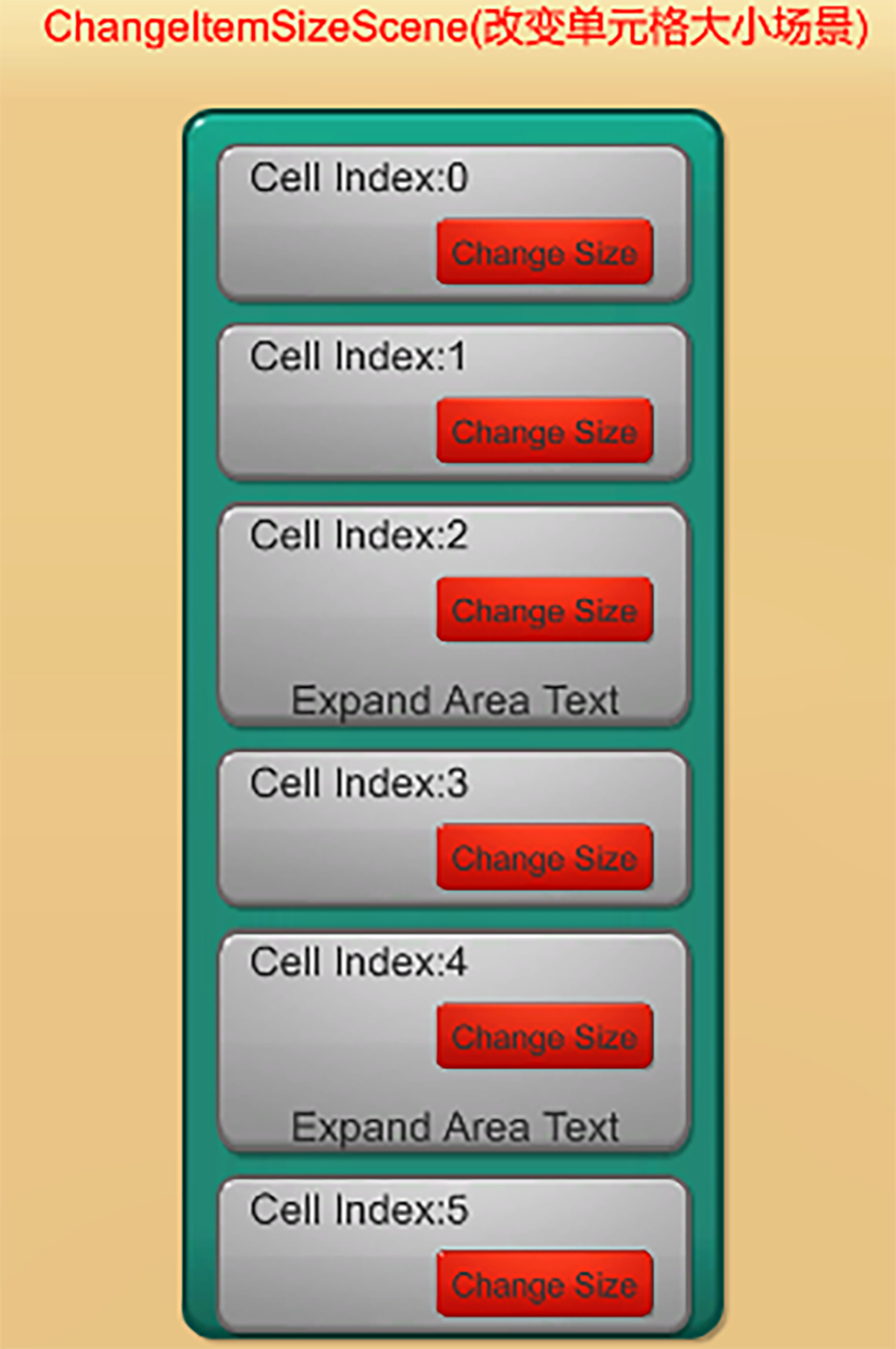
ChangeItemSizeScene

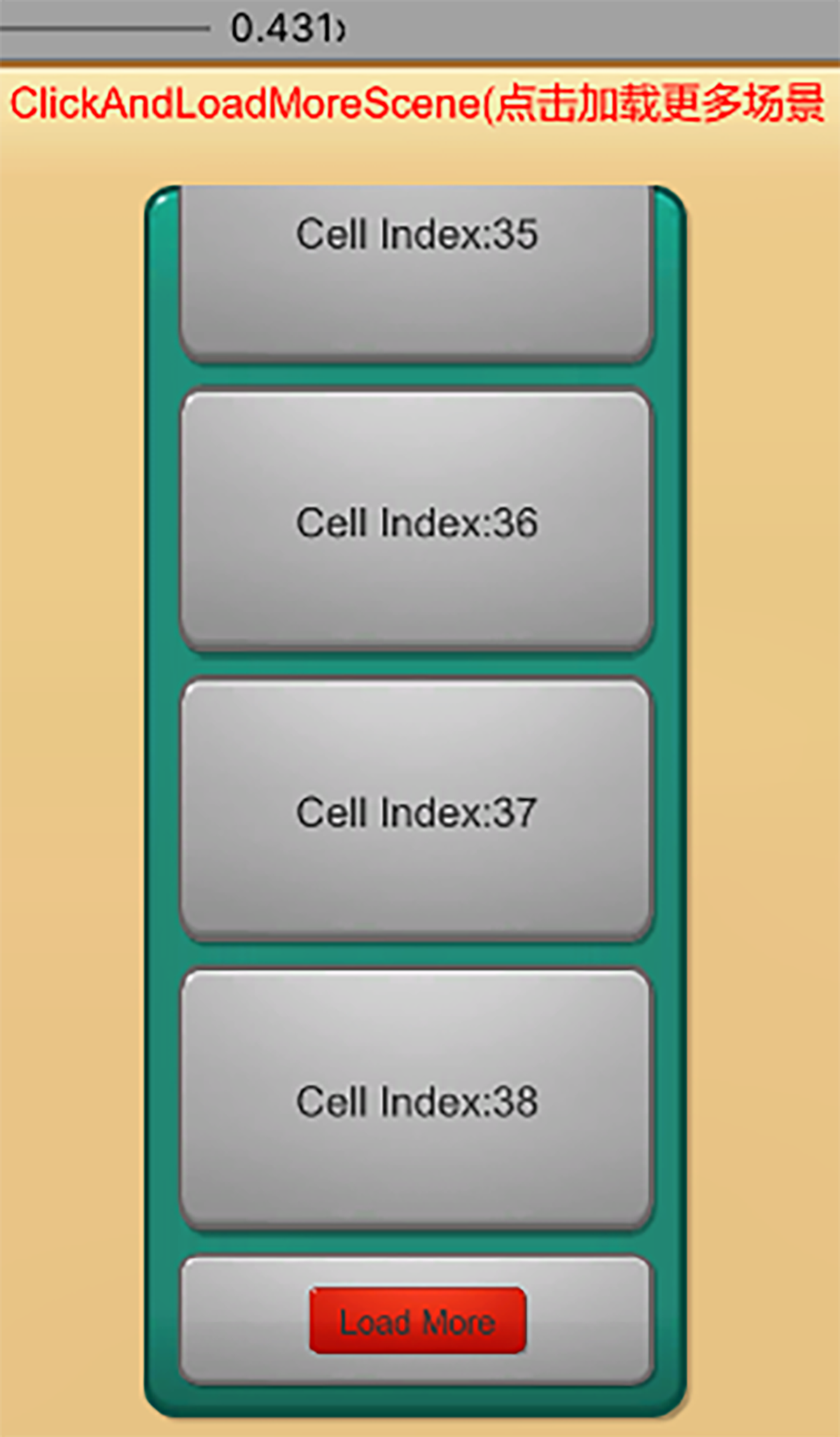
ClickAndLoadMoreScene

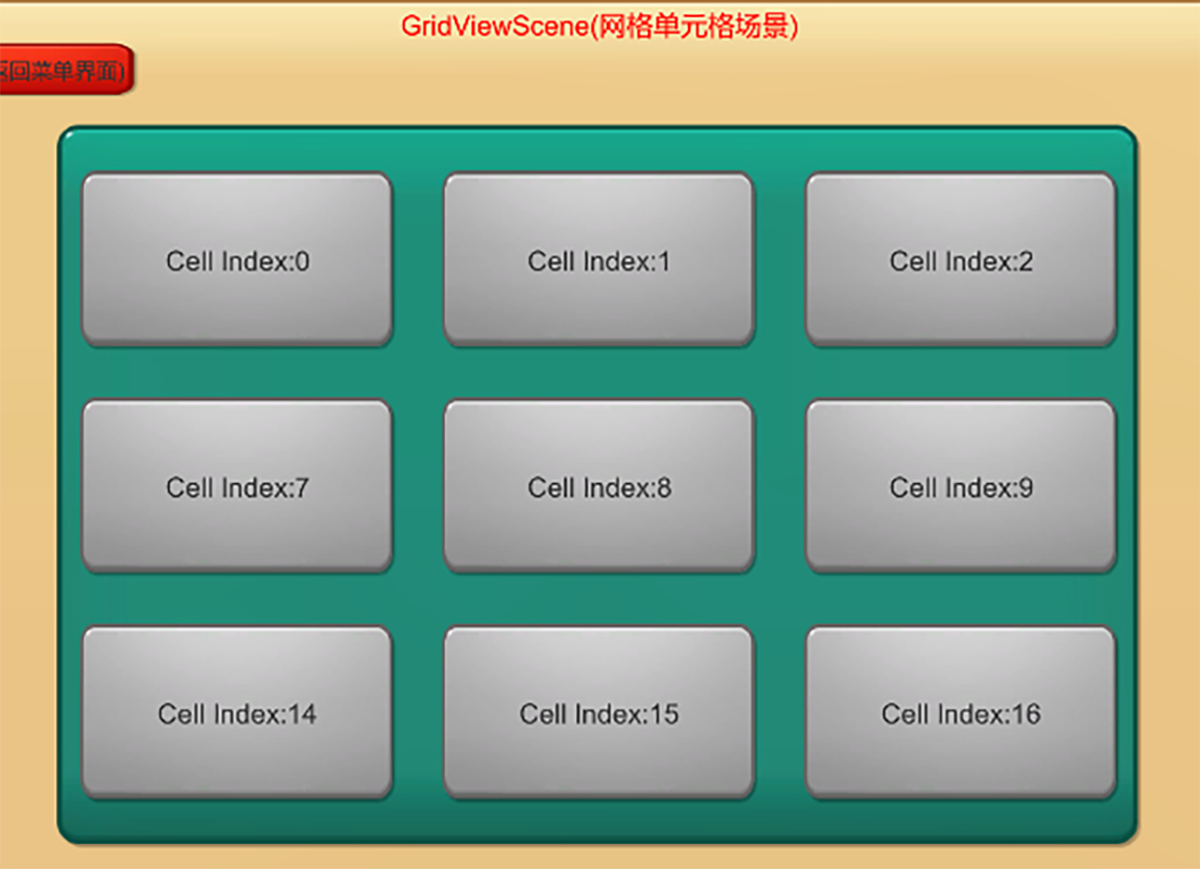
GridViewScene

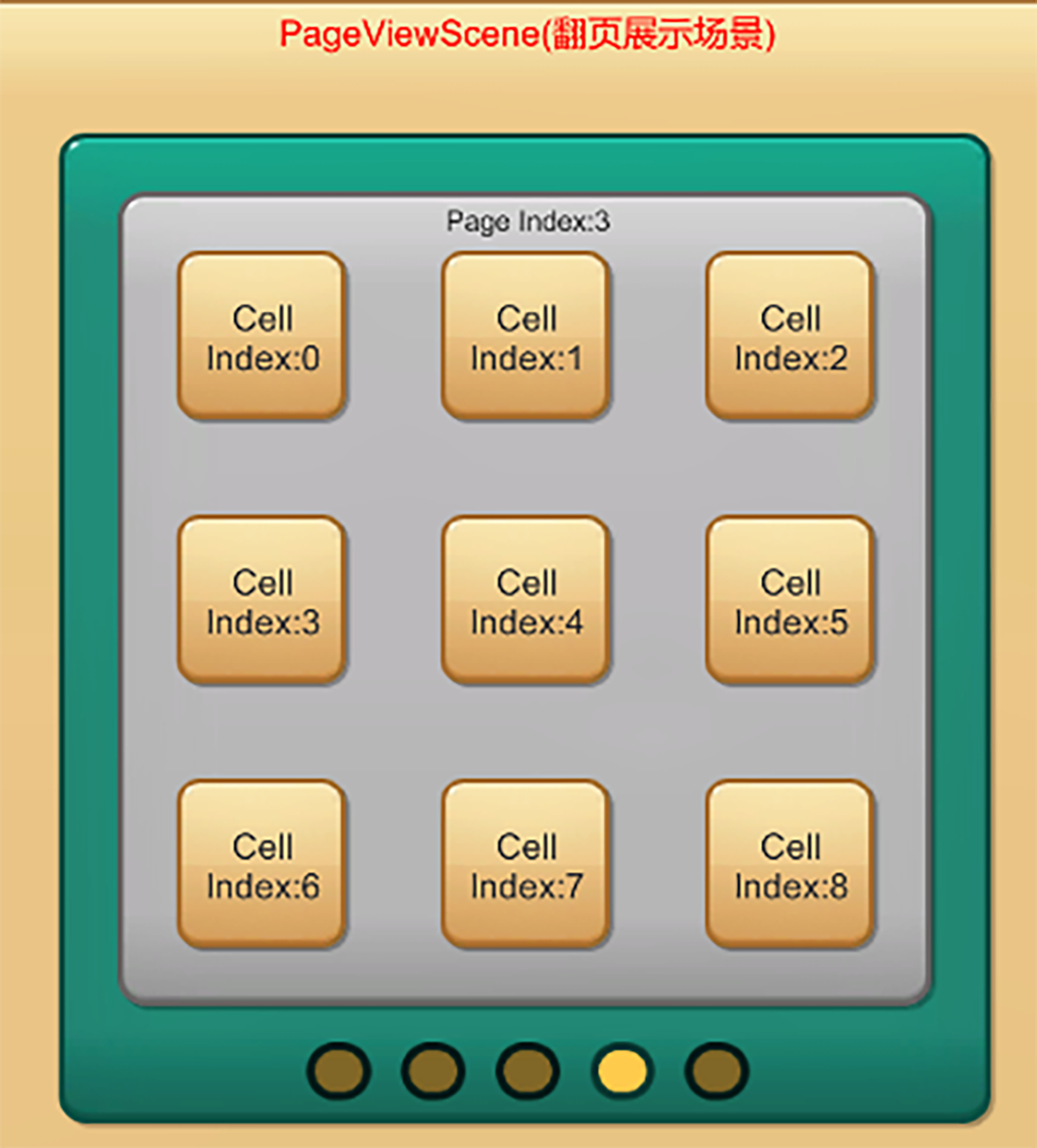
PageViewScene

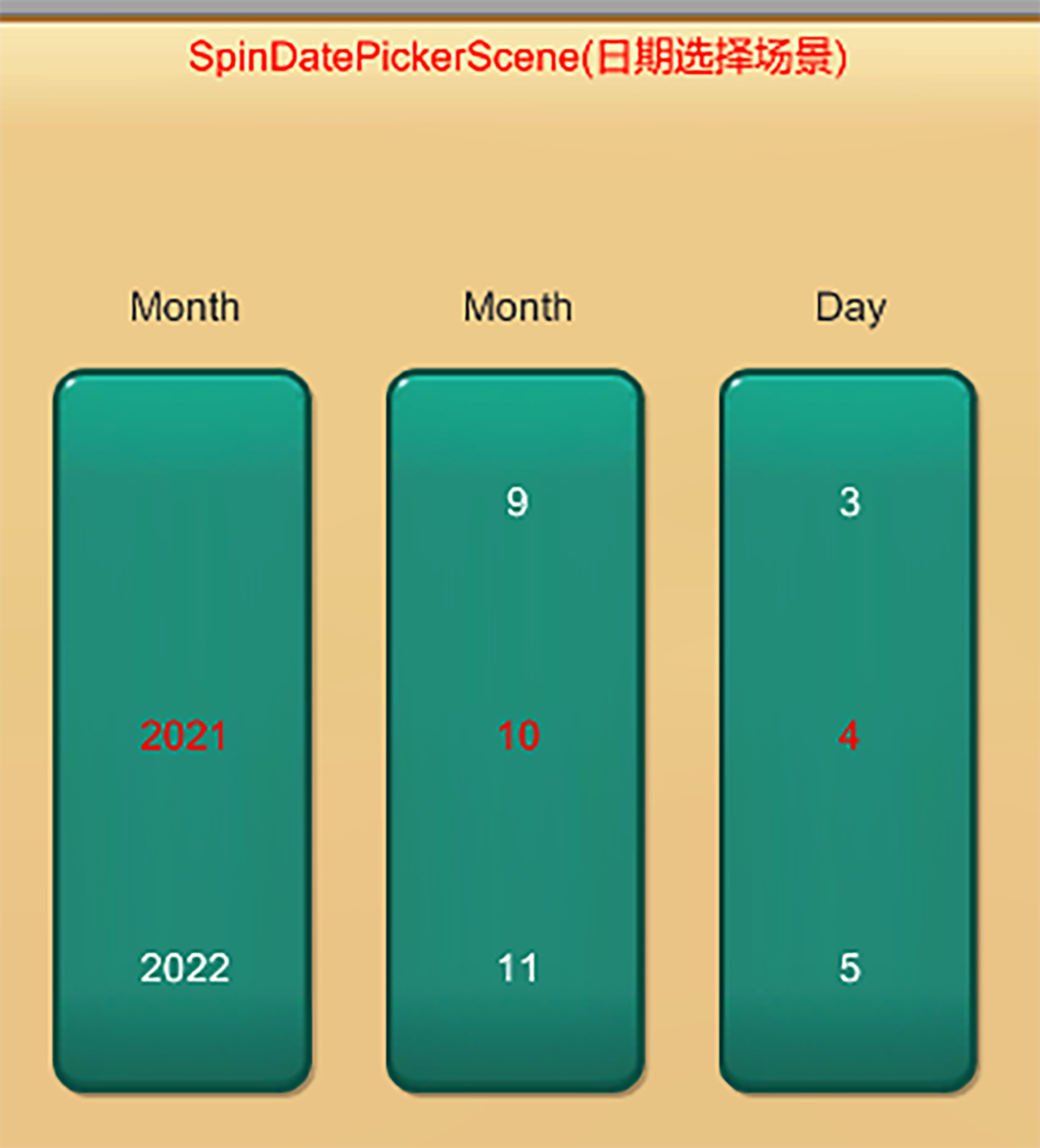
SpinDatePickerScene

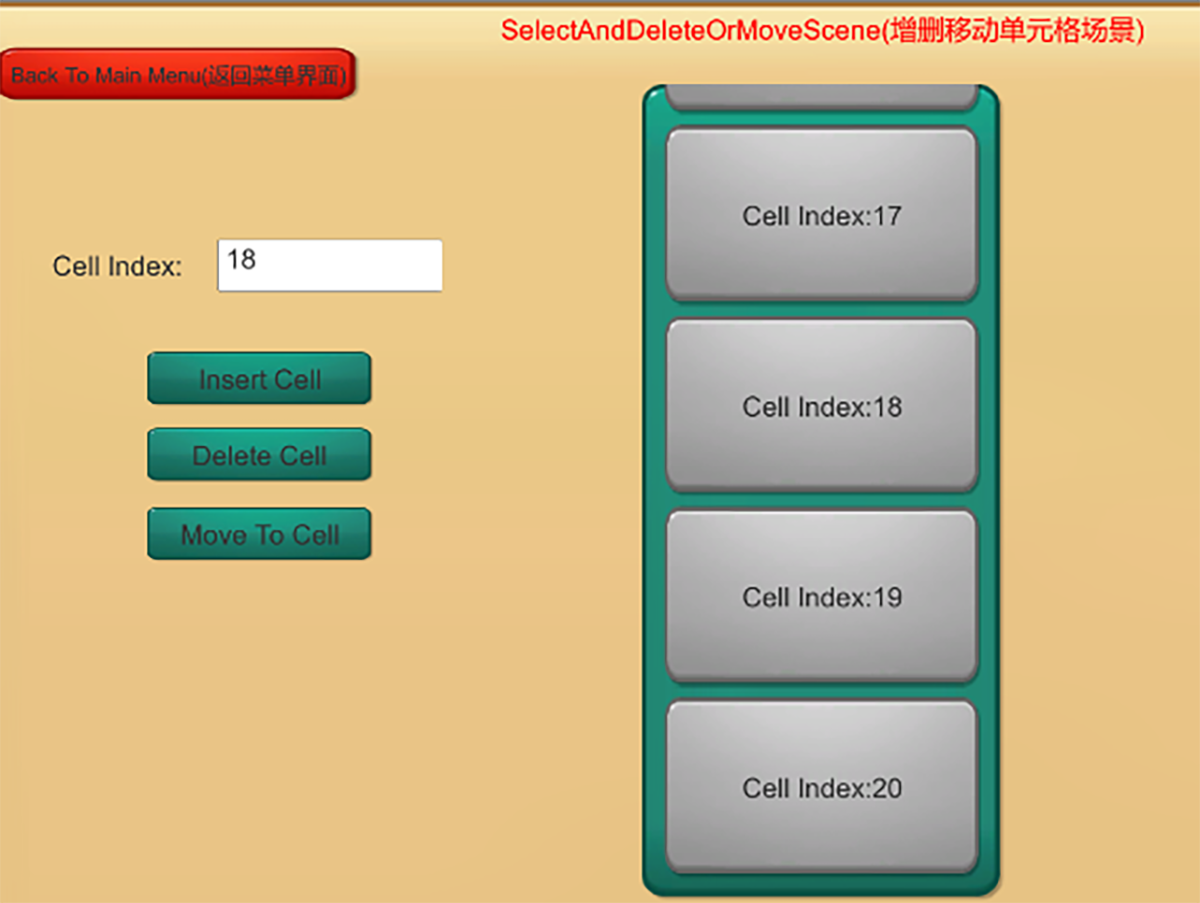
SelectAndDeleteOrMoveScene

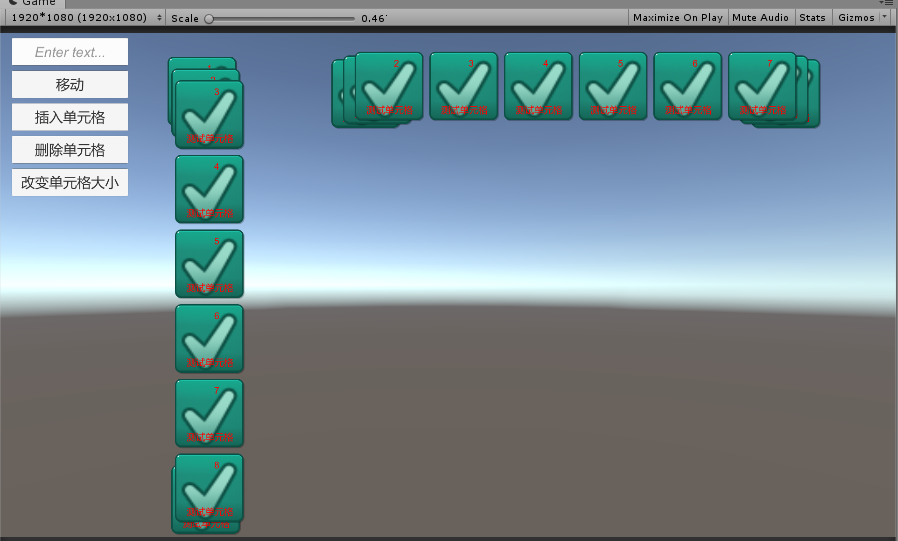
上面展示了我支持的各类单元格容器,比如横向单元格容器,竖向单元格容器,横向网格单元格容器,竖向网格单元格容器,动态大小等各种用法。
DepthScrollExhibition
第三章图主要展示的是另一套单元格容器,支持左右两侧指定深度滚动的单元格容器。

Note:

基于ContentSizeFitter和LayoutGroup的自动计算大小测试性能开销比较大最后决定不予支持了。

深入讲解

让我们通过横向单元格的面板来大致了解下单元格都支持哪些功能:
!(HorizontalContainerInspector)(/img/Unity/CellContainer/HorizontalContainerInspector.png)
从面板上可以看出,博主的单元格容器主要支持了以下几个功能:

  1. 单元格滚动自动矫正以及相关速度设置(最终确保滚动到单元格正中心位置)
  2. 支持不同朝向的单元格创建显示
  3. 支持嵌套单元格容器(不同朝向的单元格容器可以嵌套滚动)
  4. 支持单元格的间距和初始位置排版设置
  5. 支持设置多预制件用于绑定不同逻辑单元格对象显示在同一个单元格容器下
  6. 支持编辑器下快速模拟创建单元格查看排版

单元格容器核心实现原理:

  1. 通过手动传单元格大小或者自动计算单元格大小来得到每个单元格的大小数据
  2. 通过累加计算出总的可滚动Content大小,同时计算出单元格的抽象单元格位置
  3. 结合IBeginDragHandler, IDragHandler, IEndDragHandler接口来判定拖拽状态(比如是否开始或结束拖拽,拖拽方向等),以及实现嵌套单元格的拖拽事件判定以及分发
  4. Content结合ScrollRect来实现滚动回调(OnValueChanged)触发滚动计算判定,结合单元格的抽象位置来判定每个单元格的显隐状态。同时判定是否满足单元格矫正条件
  5. 通过IEndDragHandler响应结束拖拽时判定是否需要执行单元格矫正
  6. 向上层暴露OnShow,OnVisibleScroll,MoveTOIndex,OnHide等接口来实现单元格逻辑流程显示回收(BaseScrollContainer:bindContainerCallBack()接口传递)

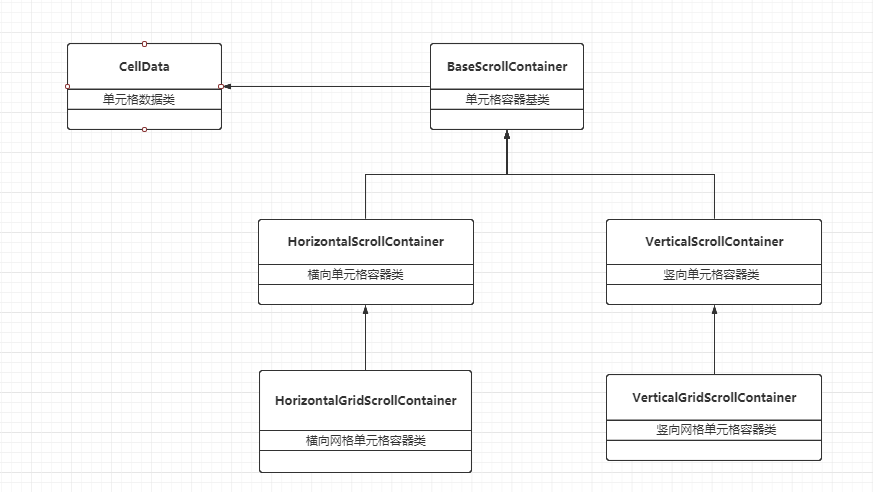
结合UML类图来理解下单元格容器的设计:
CellContainerUML

首先先放一段完整的创建单元格显示的事例代码,后续会一一讲解具体实现细节流程:

1
2
3
4
5
6
7
8
9
10
11
12
13
14
15
16
17
RightToLeftContainer.bindContainerCallBack(onCellShow);
RightToLeftContainer.setCellDatasByCellCount(20);

/// <summary>
/// 单元格显示回调
/// </summary>
/// <param name="cellindex"></param>
/// <param name="cellinstance"></param>
private void onCellShow(int cellindex, GameObject cellinstance)
{
var toptobottomcell = cellinstance.GetComponent<ShowCellIndexCell>();
if (toptobottomcell == null)
{
toptobottomcell = cellinstance.AddComponent<ShowCellIndexCell>();
}
toptobottomcell.init(cellindex);
}

接下来让我们看看单元格容器的细节实现:
CellData.cs(单元格相关抽象

1
2
3
4
5
6
7
8
9
10
11
12
13
14
15
16
17
18
19
20
21
22
23
24
25
26
27
28
29
30
31
32
33
34
35
36
37
38
39
40
41
42
43
44
45
46
47
48
49
50
51
52
53
54
55
56
57
58
59
60
61
62
63
64
65
66
67
68
69
70
71
72
73
74
75
76
77
78
79
80
81
82
83
84
85
86
87
88
89
90
91
92
93
94
95
96
97
98
99
100
101
102
103
104
105
106
107
108
109
110
111
112
113
114
115
116
117
118
119
120
121
122
123
124
125
126
127
public class CellData : IRecycle
{
/// <summary>
/// 当前Cell索引
/// </summary>
public int CellIndex
{
get;
set;
}

/// <summary>
/// 拥有者单元格
/// </summary>
protected BaseScrollContainer mOwnerContainer;

/// <summary>
/// Cell实例对象
/// </summary>
public GameObject CellGO
{
get;
protected set;
}

/// <summary>
/// Cell实例对象的RectTransform
/// </summary>
public RectTransform CellGORectTransform
{
get;
protected set;
}

/// <summary>
/// 单元格大小(宽和高)
/// </summary>
private Vector2 mCellSize;

/// <summary>
/// 单元格预制件索引
/// </summary>
public int CellPrefabIndex
{
get;
private set;
}


......

public void onCreate()
{
//Debug.Log("NewCellData:onCreate()");
}


public void onDispose()
{
//Debug.Log("NewCellData:onDispose()");
CellIndex = -1;
mOwnerContainer = null;
CellGO = null;
CellGORectTransform = null;
CellPrefabIndex = -1;
mCellSize = Vector2.zero;
mRectPos = Vector2.zero;
mRectAbsPos = Vector2.zero;
CellRect.Set(0.0f, 0.0f, 0.0f, 0.0f);
}

public CellData()
{
CellIndex = -1;
mOwnerContainer = null;
CellGO = null;
CellGORectTransform = null;
CellPrefabIndex = -1;
mCellSize = Vector2.zero;
mRectPos = Vector2.zero;
mRectAbsPos = Vector2.zero;
CellRect.Set(0.0f, 0.0f, 0.0f, 0.0f);
}

/// <summary>
/// 初始化单元格实例对象
/// </summary>
/// <param name="cellinstance"></param>
public void init(GameObject cellinstance)
{
if(cellinstance != null)
{
CellGO = cellinstance;
// 不同单元格容器公用同一个模板对象可能会出现锚点不一致问题,所以每次强制设置
CellGORectTransform = CellGO.transform as RectTransform;
CellGORectTransform.anchorMax = AnchorMax;
CellGORectTransform.anchorMin = AnchorMin;
CellGORectTransform.pivot = Pivot;
updateCellSizeAndPosition();
if (!CellGO.activeSelf)
{
CellGO.SetActive(true);
}
}
else
{
CellGO = null;
CellGORectTransform = null;
}
}

/// <summary>
/// Cell数据清除
/// </summary>
public void clear()
{
mOwnerContainer = null;
CellGO = null;
CellGORectTransform = null;
mCellSize = Vector2.zero;
mRectPos = Vector2.zero;
CellRect = Rect.zero;
ObjectPool.Singleton.push<CellData>(this);
}

......
}

上面列举了单元格参与容器显示判定计算比较重要的成员变量以及生命周期函数,可以看出单元格的大小和位置以及显示区域信息会用作单元格容器滚动时的判定数据,从而判定是否需要显示特定单元格。

从前面的事例代码可以看到单元格的创建可以手动指定单元格大小,不传会用默认预制件大小

设定单元格容器回调后触发setCellDatasByCellCount()等设置容器数量相关接口后,触发单元格以及单元格容器相关数据的初始化和判定以及滚动判定监听:
BaseScrollContainer.cs(单元格容器基类)

1
2
3
4
5
6
7
8
9
10
11
12
13
14
15
16
17
18
19
20
21
22
23
24
25
26
27
28
29
30
31
32
33
34
35
36
37
38
39
40
41
42
43
44
45
46
47
48
49
50
51
52
53
54
55
56
57
58
59
60
61
62
63
64
65
66
67
68
69
70
71
// Use this for initialization
public virtual void Start()
{
ScrollRect.onValueChanged.AddListener(onScrollChanged);
TryCorrectData();
}

/// <summary>
/// 滚动回调刷新Cell显示
/// </summary>
/// <param name="scrollpos"></param>
protected override void onScrollChanged(Vector2 scrollpos)
{
if (mCellDatas != null)
{
updateScrollValue();
mMaskRect.x = mAvalibleScrollDistance * ScrollRect.horizontalNormalizedPosition;
for (int i = 0; i < mCellDatas.Count; i++)
{
onCellDisplay(i);
}
checkCellPostionCorrect(mCurrentScrollDir);
}
}

/// <summary>
/// Set container celldatas by pass data
/// 设置Container的cell数据通过列表数据
/// </summary>
/// <param name="prefabindexlist">预制件索引列表</param>
/// <param width="cellsizelist">单元格大小列表(为空表示采用预制件默认大小)</param>
/// <param name="scrollnormalizedposition">单元格初始滚动位置</param>
public void setCellDatasByDataList(List<int> prefabindexlist, List<Vector2> cellsizelist = null, Vector2? scrollnormalizedposition = null)
{
var celldatalist = createNormalCellDataList(prefabindexlist, cellsizelist);
setCellDatas(celldatalist, scrollnormalizedposition);
}

/// <summary>
/// Set container celldatas by pass cell count
/// 设置Container的cell数据通过单元格数量
/// </summary>
/// <param name="prefabindexlist">预制件索引列表</param>
/// <param width="cellsizelist">单元格大小列表(为空表示采用预制件默认大小)</param>
/// <param name="scrollnormalizedposition">单元格初始滚动位置</param>
public void setCellDatasByCellCount(int cellcount, Vector2? scrollnormalizedposition = null)
{
var celldatalist = createNormalCellDataListWithCount(cellcount);
setCellDatas(celldatalist, scrollnormalizedposition);
}

/// <summary>
/// Set container celldatas by pass celldata list
/// 设置Container的cell数据
/// </summary>
/// <param name="celldatas">所有的Cell数据</param>
/// <param name="scrollnormalizedposition">单元格初始滚动位置</param>
public void setCellDatas(List<CellData> celldatas, Vector2? scrollnormalizedposition = null)
{
......
}

/// <summary>
/// Update container relative datas
/// 更新容器数据
/// </summary>
/// <param name="scrollnormalizaedposition">单元格初始滚动位置</param>
/// <param name="keeprectcontentpos">是否保持rect content的相对位置(优先于scrollnormalizaedposition)</param>
protected abstract void updateContainerData(Vector2? scrollnormalizaedposition = null, bool keeprectcontentpos = false);

......

因为单元格的流程和细节还是比较多,这里讲解的不太全面,很多地方没有说到,但考虑到项目还在用这两套单元格滚动,所以展示不打算放出源码,等未来实际成熟再分享源码。

亮点分析:

  1. 支持嵌套单元格滚动(通过判定滚动方向手动向上传递滚动事件实现)
  2. 支持手动传Size
  3. 支持不同单元格模板以及不同单元格逻辑对象的显示

缺点分析:

  1. 滚动单元格依赖于ScrollRect的滚动机制需要一开始就计算出总的单元格大小之和,导致很难支持循环列表。
  2. 滚动列表要一开始就知道单元格的大小,导致一开始如果有过多的动态大小会导致单元格初始化前的计算开销过大。

未来优化

  1. 设计成支持纯虚拟的滚动列表,可以在滚动时再请求单元格大小信息做到动态更新ScrollRect滚动容器大小,动态单元格大小在初始化时的开销过大。
  2. 设计成不基于ScrollRect的滚动机制,为实现循环列表做准备

—————————-2021/4/20更新开始——————————-

开始着手分离单元格位置和单元格逻辑对象优化单元格逻辑对象过多问题,确保只需创建可见的单元格逻辑对象,减少不必要的逻辑对象创建开销。(已设计成回调似方式来优化逻辑对象问题)

—————————-2021/4/20更新结束——————————-

Note:

  1. 源代码里默认带了一套组件绑定(结合代码生成)的方案,感兴趣的朋友可以自己了解下
  2. 源代码里也默认带了ObjectPool和GameObjectPool两种对象池的实现,感兴趣的朋友可以自己了解下

Github地址

ScrollContainer

Reference

LoopScrollRect
FancyScrollView
ugui-super-scrollview-example
Unity3D研究院之ContentSizeFitter同步立即响应回调

前言

游戏开发过程中我们经常会需要访问一些指定节点,组件和脚本。

常规方式会通过编写GetChild(?)和GetComponent()代码的方式去获取节点和组件,但这样对于开发来说并不高效同时运行时的GetChild(?)和GetComponent()也是有运行开销的。

为了寻求更高效,高性能和便捷的方式,这里引出组件绑定的工具方案。

实现一套通用的组件绑定方案,为未来游戏快速开发打下基础。

组件绑定原理

  1. 通过Object数组实现通用类型的组件绑定存储
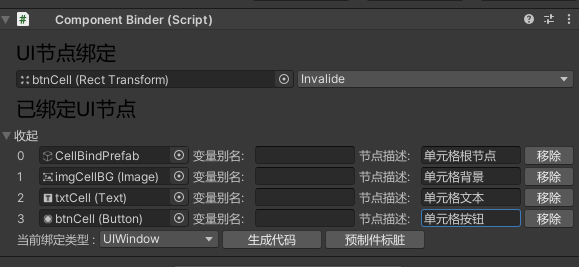
  2. 通过自定义Inspector实现绑定对象,绑定对象组件绑定选择以及模板类型选择,代码生成等UI操作界面
  3. 通过模板+代码生成实现组件绑定的自定义快速代码生成(通过生成partial代码不入侵原始逻辑代码)
  4. 结合自定义ScriptableObject自定义不同模板类型的不同代码输出目录实现自定义代码目录输出设置

功能实现

  1. 支持通节点不同组件的绑定
  2. 支持节点自定义变量名和注释定义
  3. 支持自定义代码模板的选择生成
  4. 支持组件绑定代码不入侵功能代码(利用partial class)功能生成代码
  5. 支持不同模板类型代码生成输出目录设置

实战实现

组件绑定脚本

1
2
3
4
5
6
7
8
9
10
11
12
13
14
15
16
/// <summary>
/// 节点绑定类
/// </summary>
[DisallowMultipleComponent]
public class ComponentBinder : MonoBehaviour
{
/// <summary>
/// 绑定类型索引值
/// </summary>
public int BindCodeTypeIndex;

/// <summary>
/// UI节点数据
/// </summary>
public List<ComponentBindData> NodeDatas = new List<ComponentBindData>();
}
1
2
3
4
5
6
7
8
9
10
11
12
13
14
15
16
17
18
19
20
21
22
23
24
25
26
27
28
29
30
/// <summary>
/// 组件绑定节点信息
/// </summary>
[Serializable]
public class ComponentBindData
{
/// <summary>
/// 节点对象
/// </summary>
[SerializeField]
public UnityEngine.Object NodeTarget;

/// <summary>
/// 变量别名(用于生成代码)
/// </summary>
[SerializeField]
public string VariableAlias;

/// <summary>
/// 节点描述
/// </summary>
[SerializeField]
public string NodeDes;

public ComponentBindData(UnityEngine.Object target)
{
NodeTarget = target;
NodeDes = string.Empty;
}
}

从上面的可以看出节点组件和脚本的数据绑定核心是通过脚本序列化Object[]数组以及相关数据的方式实现绑定节点数据存储的。

组件绑定自定义面板

1
2
3
4
5
6
7
8
9
/// <summary>
/// 组件绑定自定义Editor
/// </summary>
[CustomEditor(typeof(ComponentBinder))]
[CanEditMultipleObjects]
public class ComponentBinderEditor : Editor
{
******
}

这部分代码主要是实现ComponentBinder的Inspector自定义GUI显示,从而实现我们想要的自定义UI操作。

组件绑定模板代码生成

1
2
3
4
5
6
7
/// <summary>
/// CompoenntBinder代码生成工具
/// </summary>
public static class ComponentBinderCodeGenerator
{
******
}
1
2
3
4
5
6
7
/// <summary>
/// 模板数据处理类
/// </summary>
public class TTemplate
{
******
}

此文件主要是通过自定义选择的模板文件***.txt结合TTemplate工具类实现模板文件txt里的内容自定义生成输出我们想要的代码。

窗口模板文件示例:

1
2
3
4
5
6
7
8
9
10
11
12
13
14
15
16
17
18
19
20
21
22
23
24
25
26
27
28
29
30
31
32
33
34
35
36
37
38
39
40
41
42
43
44
45
46
47
48
49
50
51
52
53
54
55
/*
* Description: #FileName#.cs
* Author: #Author#
* Create Date: #CreatedDate#
*/

using UnityEngine;
using UnityEngine.UI;
using TH.Modules.UI;

namespace Game.Modules.UI
{
/// <summary>
/// #ClassName#窗口
/// </summary>
public class #ClassName# : BaseWindow
{
public #ClassName#()
{

}

/// <summary>
/// 添加监听
/// </summary>
protected override void addListeners()
{
base.addListeners();
}

/// <summary>
/// 窗口显示
/// </summary>
protected override void onShow()
{
base.onShow();
}

/// <summary>
/// 移除监听
/// </summary>
protected override void removeListeners()
{
base.removeListeners();
}

/// <summary>
/// 窗口销毁
/// </summary>
protected override void onDestroy()
{
base.onDestroy();
}
}
}

窗口组件绑定模板示例:

1
2
3
4
5
6
7
8
9
10
11
12
13
14
15
16
17
18
19
20
21
22
23
24
25
26
27
28
29
30
31
32
33
34
35
36
37
38
39
40
41
42
/*
* Description: #FileName#.cs
* Author: #Author#
* Create Date: #CreatedDate#
*/

using UnityEngine;
using UnityEngine.UI;
using TH.Modules.UI;

namespace Game.Modules.UI
{
/// <summary>
/// #ClassName#窗口的组件绑定
/// </summary>
public partial class #ClassName#
{
#MEMBER_DEFINITION_LOOP#
/// <summary> #NodeDes# /// </summary>
private #NodeType# #NodeName#;#MEMBER_DEFINITION_LOOP#

/// <summary>
/// 缓存组件
/// </summary>
protected override void cacheComponents()
{
base.cacheComponents();
#MEMBER_INIT_LOOP#
#NodeName# = #NodeMemberName#.NodeDatas[#NodeIndex#].NodeTarget as #NodeType#;#MEMBER_INIT_LOOP#
}

/// <summary>
/// 释放组件
/// </summary>
protected override void disposeComponents()
{
base.disposeComponents();
#MEMBER_DISPOSE_LOOP#
#NodeName# = null;#MEMBER_DISPOSE_LOOP#
}
}
}

其他模板生成参考文件:

CellUIBinder.txt,CellUITemplate.txt,GameObjectUIBinder.txt

组件绑定设置

1
2
3
4
5
6
7
8
9
/// <summary>
/// ComponentBindSetting.cs
/// 组件绑定设置数据
/// </summary>
[CreateAssetMenu(fileName = "ComponentBinderSetting", menuName = "ScriptableObjects/ComponentBinderSetting", order = 1)]
public class ComponentBinderSetting : ScriptableObject
{
******
}
1
2
3
4
5
6
7
8
9
10
/// <summary>
/// ComponentBinderSettingEditor.cs
/// 组件绑定自定义Editor
/// </summary>
[CustomEditor(typeof(ComponentBinderSetting))]
[DisallowMultipleComponent]
public class ComponentBinderSettingEditor : Editor
{
******
}

实战使用

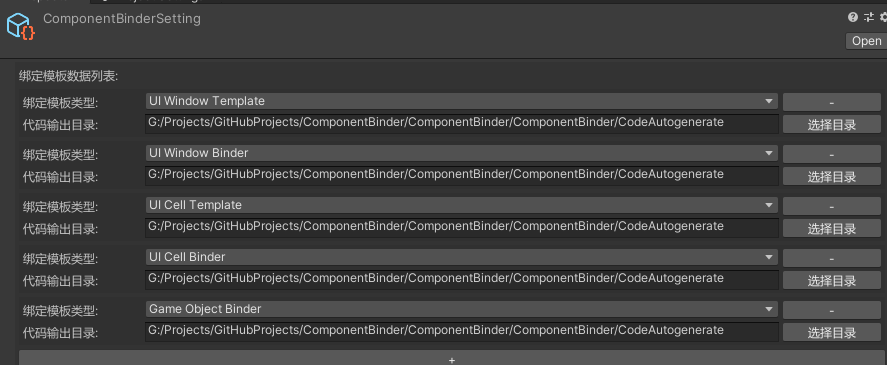
  • 组件绑定设置

    ComponentBinderSettingUI

    通过自定义模板类型的代码输出路径设置实现自定义代码输出设置

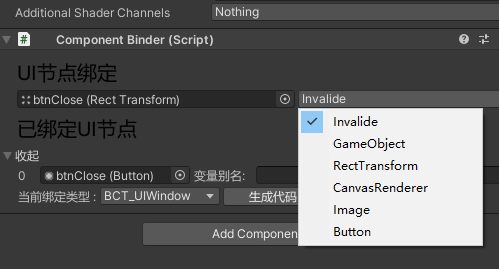
  • 组件绑定选择

    ComponentBindChosenUI

    1. 支持通节点不同组件的绑定
    2. 支持节点自定义变量名和注释定义
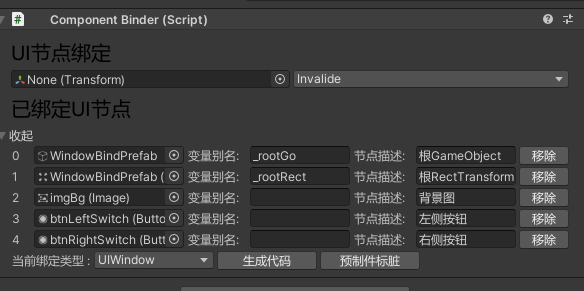
  • 自定义绑定节点代码注释

    CustomScriptNotation

  • 窗口模板组件绑定设置以及代码生成

    WindowTemplateBindUsing

    1
    2
    3
    4
    5
    6
    7
    8
    9
    10
    11
    12
    13
    14
    15
    16
    17
    18
    19
    20
    21
    22
    23
    24
    25
    26
    27
    28
    29
    30
    31
    32
    33
    34
    35
    36
    37
    38
    39
    40
    41
    42
    43
    44
    45
    46
    47
    48
    49
    50
    51
    52
    53
    54
    55
    56
    /*
    * Description: WindowBindPrefab.cs
    * Author: TONYTANG
    * Create Date: 2022//05/29
    */

    using UnityEngine;
    using UnityEngine.UI;
    using TH.Modules.UI;

    namespace Game.Modules.UI
    {
    /// <summary>
    /// WindowBindPrefab窗口
    /// </summary>
    public class WindowBindPrefab : BaseWindow
    {
    public WindowBindPrefab()
    {

    }

    /// <summary>
    /// 添加监听
    /// </summary>
    protected override void addListeners()
    {
    base.addListeners();
    }

    /// <summary>
    /// 窗口显示
    /// </summary>
    protected override void onShow()
    {
    base.onShow();
    }

    /// <summary>
    /// 移除监听
    /// </summary>
    protected override void removeListeners()
    {
    base.removeListeners();
    }

    /// <summary>
    /// 窗口销毁
    /// </summary>
    protected override void onDestroy()
    {
    base.onDestroy();
    }
    }
    }

    1
    2
    3
    4
    5
    6
    7
    8
    9
    10
    11
    12
    13
    14
    15
    16
    17
    18
    19
    20
    21
    22
    23
    24
    25
    26
    27
    28
    29
    30
    31
    32
    33
    34
    35
    36
    37
    38
    39
    40
    41
    42
    43
    44
    45
    46
    47
    48
    49
    50
    51
    52
    53
    54
    55
    56
    57
    58
    /*
    * Description: WindowBindPrefabBinder.cs
    * Author: TONYTANG
    * Create Date: 2022//05/29
    */

    using UnityEngine;
    using UnityEngine.UI;
    using TH.Modules.UI;

    namespace Game.Modules.UI
    {
    /// <summary>
    /// WindowBindPrefab窗口的组件绑定
    /// </summary>
    public partial class WindowBindPrefab
    {

    /// <summary> 根GameObject /// </summary>
    private GameObject _rootGo;
    /// <summary> 根RectTransform /// </summary>
    private RectTransform _rootRect;
    /// <summary> 背景图 /// </summary>
    private Image imgBg;
    /// <summary> 左侧按钮 /// </summary>
    private Button btnLeftSwitch;
    /// <summary> 右侧按钮 /// </summary>
    private Button btnRightSwitch;

    /// <summary>
    /// 缓存组件
    /// </summary>
    protected override void cacheComponents()
    {
    base.cacheComponents();

    _rootGo = mComponentBinder.NodeDatas[0].NodeTarget as GameObject;
    _rootRect = mComponentBinder.NodeDatas[1].NodeTarget as RectTransform;
    imgBg = mComponentBinder.NodeDatas[2].NodeTarget as Image;
    btnLeftSwitch = mComponentBinder.NodeDatas[3].NodeTarget as Button;
    btnRightSwitch = mComponentBinder.NodeDatas[4].NodeTarget as Button;
    }

    /// <summary>
    /// 释放组件
    /// </summary>
    protected override void disposeComponents()
    {
    base.disposeComponents();

    _rootGo = null;
    _rootRect = null;
    imgBg = null;
    btnLeftSwitch = null;
    btnRightSwitch = null;
    }
    }
    }

    更多的代码生成示例,参考Github源代码工程。

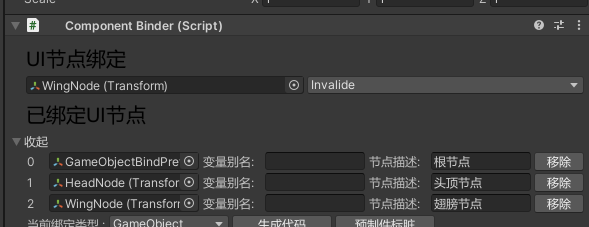
    GameObjectBinderUI

    CellBinderUI

重点知识

  1. 利用自定义UI结合Object[]实现自定义组件绑定数据序列化
  2. 利用代码生成使用partial实现组件绑定代码无缝插入工程代码实现快速替换和访问

Github

ComponentBinder

前言

本章节博客是在使用一段时间Dotween后,对于Dotween是如何实现各种不同的缓动类型效果比较好奇。从本片博客会了解线性方程与线性代数之间的关系,以及数学(线性方程)在缓动中的实际应用和数学公式是如何输出显示的。本博客着重于学习数学在插值动画上的运用学习,博客末尾会给出实战的Git地址。

数学

在开始之前,让我们先来了解下如何编写网页版数学公式,然后用于我们的MarkDown中显示。

紧接着我们来回顾和学习了解,线性方程和线性代数各自的概念以及他们之间的关系。

数学公式

考虑到MarkDown或者网页显示数学公式都要有额外的插件支持,所以这里采用独立第三方制作公式显示,然后截图使用图片的形式来显示到MarkDown和网页上。

公式制作

通过搜索了解到LaTeX,是一种基于TeX的排版系统

LateX表达数学公式支持两种方式:

  1. inline mode(is used to write formulas that are part of a text)

    inline mode采用以下分隔符:

    \( \), $ $or\begin{math} \end{math}

  2. display mode(is used to write expressions that are not part of a text or paragraph, and are therefore put on separate lines.)

由于LateX规则过于庞大,所以这里只是简单的用到什么查什么。

更多更详细的学习参考:

Latex数学公式编写介绍

接下来只是以简单的二元一次方程组为示例,来学习LateX的数学表达结构:

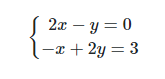
先来看看最终要的效果:

XianXingFangCheng

实战:

这简单的二元一次方程,涉及到如下几个概念:

直接上最终LateX代码:

1
2
3
4
5
6
\usepackage{amsmath}

\begin{align*}
& \left( 2x - y = 0 \right) \\
& \left( -x + 2y = 3 \right)
\end{align*}

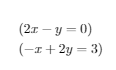
输出效果:

LateXXianXingFangCheng

上面没有找到如何输出{符号,忘知道的朋友告知。

上面这种表达方式,我们可以理解成方程组的行表达形式

在线编写LateX网址

上面那个LateX网址是收费的,其次是完全自己写LateX语法符号来编写数学公式。后来发现了更加可视化容易编写数学公式的在线免费网站,有兴趣的可以了解下:

mathcha

只需要按照规则输入符号就能打出想要的数学公式效果。

公式可视化

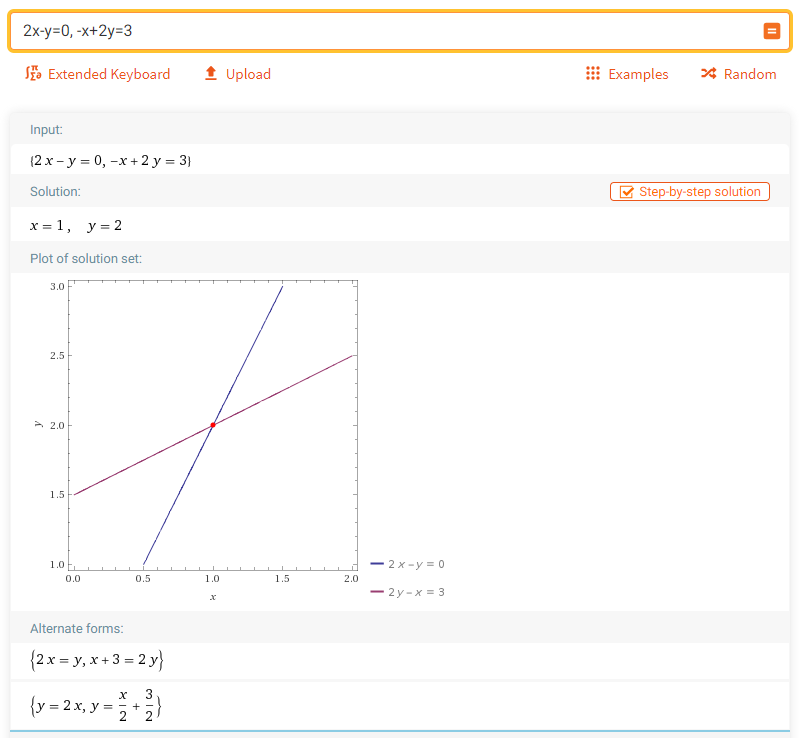
解决了函数编写输出,那么肯定希望更直观的看到函数的二维坐标系绘图,这里我找到一个在线绘制数学函数的网站:

WolframAlpha

MathmaticVisualization

线性方程

线性方程,这个应该是初中学习的知识,参考前面的示例来回顾一下:

LateXXianXingFangCheng

方程组又称联立方程,是两个或两个以上含有多个[未知数]联立得到的[集]。未知数的值称为方程组的**[根],求方程组根的过程称为解方程组**。

这里就不深入探讨了,总之就是解方程组。这里我们更关注的是方程组是如何和线性代数关联上的。

线性代数

线性代数是关于向量空间的一个数学分支。它包括对线、面和子空间的研究,同时也涉及到所有的向量空间的一般性质。

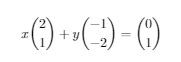
前面的二元一次方程示例用不同的角度来思考和表达。

列表达形式如下:

1
2
3
\begin{equation}
x \binom{2}{1} + y \binom{-1}{-2} = \binom{0}{3}
\end{equation}

效果:

XianXingFangChengMatrixStyle

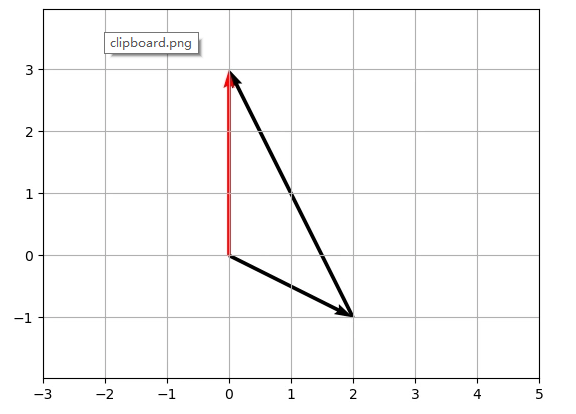
结合二维坐标系:

ColumePictureXianXingFangCheng

图中是以向量的概念来绘制方程组图像,可以看到矩阵的概念已经呼之欲出了。

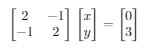
以矩阵的概念来表达如下:

1
2
3
4
5
6
7
8
9
10
11
12
13
14
\qquad \qquad \qquad \qquad \qquad \quad
$\begin{bmatrix}
2 & -1 \\
-1 & 2
\end{bmatrix}$
$\begin{bmatrix}
x \\
y
\end{bmatrix}$
=
$\begin{bmatrix}
0 \\
3
\end{bmatrix}$

效果:

XianXingFangChengRealMatrixStyle

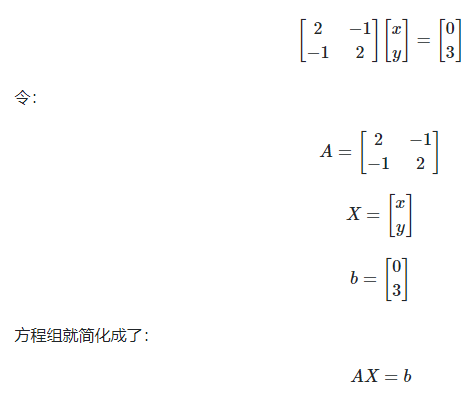
以下截图来源

JianHuaMatrix

可以看出落实到矩阵的概念上,就是对于向量的矩阵变换问题了。向量X通过矩阵A的变换变换到b。

矩阵变换正是线性代数中的一部分。

矩阵可以帮助我们对于复杂的多维函数方程更方便的构造和求解。

更多在线学习参考:

方程组的几何解释

插值

相比前面的数学基础概念,总算进入更有趣的实战环节了。

插值缓动效果是指游戏里一些需要缓慢变化的动画效果(e.g. 移动位置插值,透明度变化插值,颜色变化插值等)。

一般来说在Unity里要实现插值,我们会直接通过类似Update(e.g. Update或Coroutine)的形式去累加时间,然后通过Unity提供的插值函数来获取当前插值的进度值,最终使用这个进度值参与插值运算得出最终插值效果。

所以我们会看到类似以下的代码:

1
2
3
4
5
6
7
8
9
10
11
12
13
14
15
16
17
18
19
20
21
22
23
24
25
26
27
28
29
30
31
32
33
34
35
36
37
38
39
40
41
42
43
44
45
46
47
48
49
50
51
52
53
54
55
56
57
58
59
60
61
62
63
64
65
66
67
68
69
70
using System.Collections;
using UnityEngine;

/// <summary>
/// Lerp挂载基类
/// </summary>
public class LerpBaseMono : MonoBehaviour {

/// <summary>
/// Lerp时长
/// </summary>
public float LerpDurationTime = 2.0f;

/// <summary>
/// 当前Lerp类型
/// </summary>
protected ELerpType mLerpType = ELerpType.None;

// Use this for initialization
void Start () {
DoLerpPrepation();
StartCoroutine(LerpCoroutine());
}

/// <summary>
/// 执行Lerp准备工作
/// </summary>
protected virtual void DoLerpPrepation()
{

}

/// <summary>
/// Lerp携程
/// </summary>
/// <returns></returns>
protected IEnumerator LerpCoroutine()
{
var starttime = Time.time;
var endtime = starttime + LerpDurationTime;
while(Time.time < endtime)
{
DoLerp(starttime, endtime, Time.time);
yield return null;
}
DoLerp(starttime, endtime, Time.time);
}

/// <summary>
/// 执行Lerp
/// </summary>
/// <param name="starttime"></param>
/// <param name="endtime"></param>
/// <param name="currenttime"></param>
protected virtual void DoLerp(float starttime, float endtime, float currenttime)
{
var t = Mathf.InverseLerp(starttime, endtime, currenttime);
Debug.Log($"开始时间:{starttime}结束时间:{endtime}当前时间:{currenttime}当前缓动值:{t}");
DoRealLerp(t);
}

/// <summary>
/// 执行真实Lerp效果
/// </summary>
/// <param name="t">缓动进度(0-1)</param>
protected virtual void DoRealLerp(float t)
{

}
}

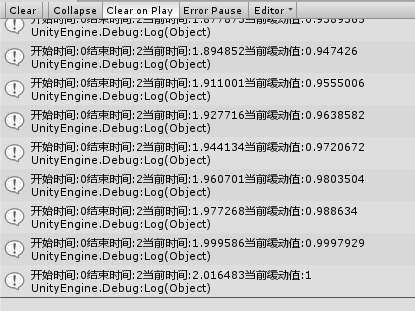
输出如下:

UnityLerpOutput

接下来有了缓动的插值t,我们就可以做不同的缓动动画效果了。

上面的代码已经为挂载不同的缓动效果做了设计准备,接下来让我们实现三个简单的缓动效果:

  1. 位移缓动
1
2
3
4
5
6
7
8
9
10
11
12
13
14
15
16
17
18
19
20
21
22
23
24
25
26
27
28
29
30
31
32
33
34
35
36

/// <summary>
/// PositionLerpMono.cs
/// 位置Lerp组件
/// </summary>
public class PositionLerpMono : LerpBaseMono
{
/// <summary>
/// 结束位置
/// </summary>
public Vector3 EndPos = Vector3.zero;

/// <summary>
/// 开始位置
/// </summary>
protected Vector3 mStartPos;

/// <summary>
/// 执行Lerp准备工作
/// </summary>
protected override void DoLerpPrepation()
{
base.DoLerpPrepation();
mLerpType = ELerpType.LerpPosition;
mStartPos = transform.localPosition;
}

/// <summary>
/// 执行真实Lerp效果
/// </summary>
/// <param name="t">缓动进度(0-1)</param>
protected override void DoRealLerp(float t)
{
transform.localPosition = Vector3.LerpUnclamped(mStartPos, EndPos, t);
}
}
  1. 缩放缓动
1
2
3
4
5
6
7
8
9
10
11
12
13
14
15
16
17
18
19
20
21
22
23
24
25
26
27
28
29
30
31
32
33
34
35
/// <summary>
/// ScaleLerpMono.cs
/// 缩放缓动组件
/// </summary>
public class ScaleLerpMono : LerpBaseMono
{
/// <summary>
/// 结束缩放值
/// </summary>
public Vector3 EndScale = Vector3.one;

/// <summary>
/// 开始缩放值
/// </summary>
protected Vector3 mStartScale;

/// <summary>
/// 执行Lerp准备工作
/// </summary>
protected override void DoLerpPrepation()
{
base.DoLerpPrepation();
mLerpType = ELerpType.LerpScale;
mStartScale = transform.localScale;
}

/// <summary>
/// 执行真实Lerp效果
/// </summary>
/// <param name="t">缓动进度(0-1)</param>
protected override void DoRealLerp(float t)
{
transform.localScale = Vector3.LerpUnclamped(mStartScale, EndScale, t);
}
}
  1. 透明度缓动
1
2
3
4
5
6
7
8
9
10
11
12
13
14
15
16
17
18
19
20
21
22
23
24
25
26
27
28
29
30
31
32
33
34
35
36
37
38
39
40
41
42
43
/// <summary>
/// AlphaLerpMono.cs
/// 透明度缓动组件
/// </summary>
[RequireComponent(typeof(Graphic))]
public class AlphaLerpMono : LerpBaseMono
{
/// <summary>
/// 结束透明度
/// </summary>
public float EndAlpha = 0.0f;

/// <summary>
/// Graphic组件
/// </summary>
protected Graphic mGraphicComponent;

/// <summary>
/// 开始透明度
/// </summary>
protected float mStartAlpha;

/// <summary>
/// 执行Lerp准备工作
/// </summary>
protected override void DoLerpPrepation()
{
base.DoLerpPrepation();
mGraphicComponent = GetComponent<Graphic>();
mStartAlpha = mGraphicComponent.color.a;
}

/// <summary>
/// 执行真实Lerp效果
/// </summary>
/// <param name="t">缓动进度(0-1)</param>
protected override void DoRealLerp(float t)
{
var oldcolor = mGraphicComponent.color;
oldcolor.a = Mathf.Lerp(mStartAlpha, this.EndAlpha, t);
mGraphicComponent.color = oldcolor;
}
}

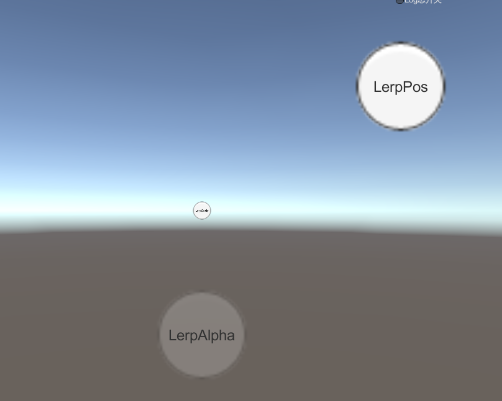
效果如下:

LerpScreenShort

通过上面可以看到我们已经实现了一个简陋版的不同Lerp效果的插值动画。

插值线性方程

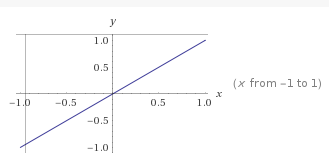
接下来就要引入之前提到的线性方程了,从上面可以看出DoRealLerp里的参数t决定了缓动效果的最终进度值,现阶段t的值是通过世间累加然后Lerp插值到0-1的,也就是说是线性的速度。

1
var t = Mathf.InverseLerp(starttime, endtime, currenttime);

这里的线性速度换成线性方程的话,可以理解成y=x

y=x函数图

也就是说如果我们把t的变化速度函数修改成其他的线性方程,那就能达到同样的Lerp效果以不同的插值函数来表现。

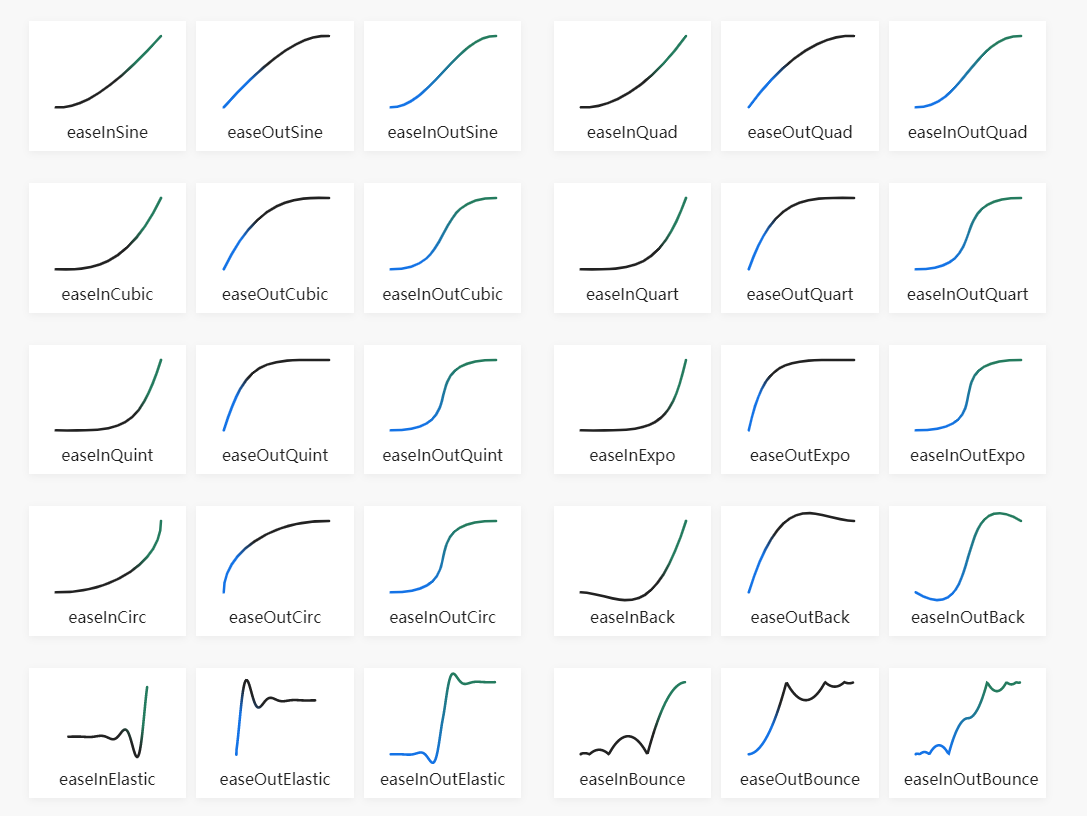
让我们先通过easings.net来预览下插值函数大概长什么样:

EaseLerpFunction

这里核心思想是想替换t的插值计算方式,这里关于插值函数的代码就直接采用Github上现成的了:

EasingFunctions.cs

修改基类代码如下:

1
2
3
4
5
6
7
8
9
10
11
12
13
14
15
16
17
18
19
20
21
22
23
24
25
26
27
28
29
30
31
32
33
34
35
36
37
38
39
40
41
42
43
44
45
46
47
48
49
50
51
52
53
54
55
56
57
58
59
60
61
62
63
64
65
66
67
68
69
/// <summary>
/// Lerp挂载基类
/// </summary>
public class LerpBaseMono : MonoBehaviour {

/// <summary>
/// Lerp时长
/// </summary>
public float LerpDurationTime = 2.0f;

/// <summary>
/// 缓动类型
/// </summary>
public EasingFunction.Ease EaseType = EasingFunction.Ease.Linear;

// Use this for initialization
void Start () {
StartCoroutine(LerpCoroutine());
}

/// <summary>
/// 执行Lerp准备工作
/// </summary>
protected virtual void DoLerpPrepation()
{

}

/// <summary>
/// Lerp携程
/// </summary>
/// <returns></returns>
protected IEnumerator LerpCoroutine()
{
DoLerpPrepation();
var starttime = Time.time;
var endtime = starttime + LerpDurationTime;
while(Time.time < endtime)
{
DoLerp(starttime, endtime, Time.time);
yield return null;
}
DoLerp(starttime, endtime, Time.time);
}

/// <summary>
/// 执行Lerp
/// </summary>
/// <param name="starttime"></param>
/// <param name="endtime"></param>
/// <param name="currenttime"></param>
protected virtual void DoLerp(float starttime, float endtime, float currenttime)
{
var t = Mathf.InverseLerp(starttime, endtime, currenttime);
var easefunc = EasingFunction.GetEasingFunction(EaseType);
t = easefunc(0, 1, t);
//Debug.Log($"缓动类型:{this.EaseType}开始时间:{starttime}结束时间:{endtime}当前时间:{currenttime}当前缓动值:{t}");
DoRealLerp(t);
}

/// <summary>
/// 执行真实Lerp效果
/// </summary>
/// <param name="t">缓动进度(0-1)</param>
protected virtual void DoRealLerp(float t)
{

}
}

这样一来我们就成功的替换了缓动的线性方程,且限定了缓动值t在0-1范围内,实现了不同缓动速度的t。

让我们来看看最终效果:

EasingFuncLerpPos

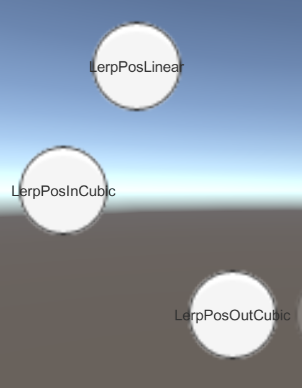
正如我们预期的那样,同样的终点和持续时间,三个不同缓动类型(线性方程)的移动插值,表现出了不一样的速度变化。

插值组件

上面我们的缓动组件已经雏形已经有了,接下来就是重新好好设计重构以下我们的缓动组件来达到通过挂在缓动组件能快速得到类似Dotween一样的代码效果。

用过Dotween都知道Dotween通过扩展方法的形式和泛型的形式,方便的支持了快速调用动画接口,接下来来看看Dotween几个大的概念设计:

Tweener是单个动画对象的抽象。

Sequence是多个动画Tweener的组合管理抽象。

所以借助于Tweener和Sequence再加上内部插值缓动的Ease的支持,能快速的触发各种缓动方程的动画组合拼接。

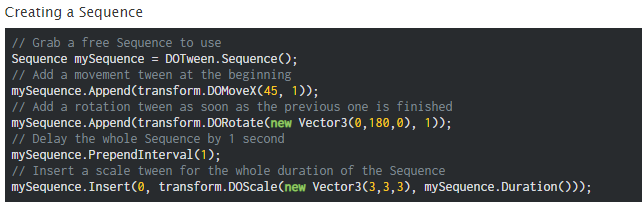
这里就不详细讲解Dotween的学习使用了,这里放一张官网Sequence的代码示例来感受一下,Dotween是如何快捷高效的支持多种缓动方程多个动画效果的编写的:

DotweenSequenceUsing

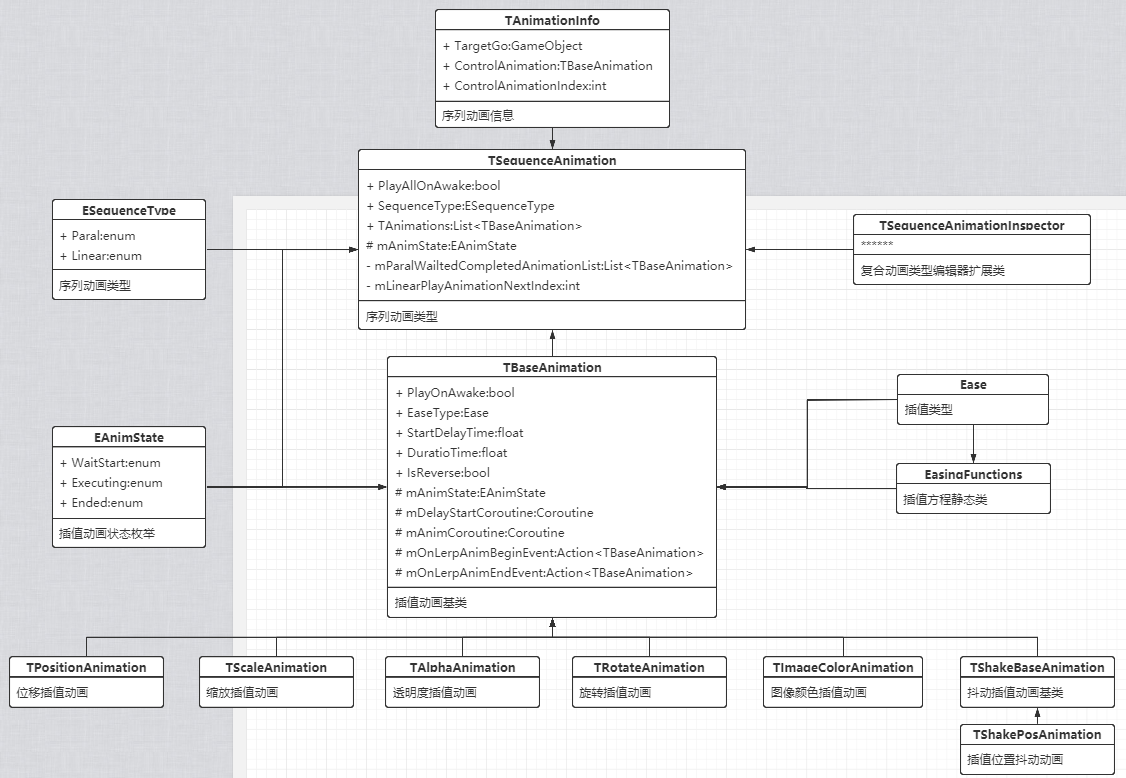
接下来参考Dotween的设计,我将动画组件UML设计如下:

TAnimationUML

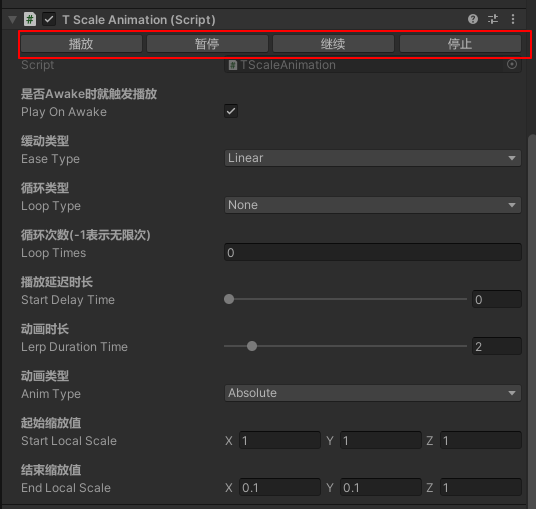
编辑器面板扩展模拟播放:

InspectorSimulation

可以把上面的设计理解成组件版的简陋Dotween:

  • TBaseAnimation.cs

    所有插值动画的基类(抽象网络插值动画的流程以及基础支持),支持是否Awake时自动播放,插值类型,延迟时间,持续时间,循环类型设置等基础设置

  • TBaseAnimationEditor.cs

    插值动画自定义面板,核心扩展支持了Editor快速模拟播放,暂停,继续,停止按钮功能。

  • TSequenceAnimation.cs

    序列动画抽象,负责像Dotween的Sequence一样管理一系列TBaseAnimation的整体播放效果(比如线性播放和并发播放,目前仅支持单次或无限循环播放两种方式)

  • TSequenceAnimationEditor.cs

    序列动画的自定义面板,核心是通过SerializeObject和SerializeProperty编写支持Undo的自定义序列动画面板,同时支持了Editor快速模拟播放,暂停,继续,停止按钮功能。

  • EasingFunctions.cs

    Git上找的关于不同插值动画类型的核心函数方程定义,把时间插值比列通过不同的函数方程计算出不同的插值系数,从而实现不同的插值方程式的插值动画效果

  • TPositionAnimation.cs, TScaleAnimation.cs, TAlphaAnimation.cs ……

    落实到具体的插值动画类型的实现类

总结

  1. 通过起始时间,结束时间,当前时间我们可以计算出当前的插值比例。然后通过数学方程将插值比例使用不同的数学方程转换成我们不同插值类型的插值比例从而得到我们想要的不同函数插值效果。
  2. 组件式的插值动画相比之下没有纯代码(e.g. Dotween)那么高效和可控,但重用性高,方便快速制作简单的程序化动画。
  3. SerializeObject和SerializeProperty的使用就好比对象和反射属性之间的概念和关系,使用SerializeObject和SerilizeProperty能方便的使用Unity的Undo系统。

Git地址

Ease Component

Reference

Animation & Easing functions in Unity (Tween)

Easing functions

EasingFunctions GitHub

Dotween

DOTween 动画引擎仿写

线性代数

方程组的几何解释

线性代数与方程的关系(笔记)

LATEX

在线编写LateX网址

Latex数学公式编写介绍

WolframAlpha

前言

本篇文章是为了记录学习Unity官方最新推出的嵌套预制件工作流的相关知识,深入理解新版嵌套预制件的设计思路与使用工作流。

达到以下几个目标:

  1. 理解新版嵌套预制件带来的好处
  2. 如何避免Unity版本升级过程中预制件相关操作工具不兼容等问题。
  3. 设计新的预制件相关工具时考虑新老版本预制件工作流问题。

Prefab

首先我们先来了解下什么是预制件(Prefab)?
**Unity’s Prefab system allows you to create, configure, and store a GameObject complete with all its components, property values, and child GameObjects
as a reusable Asset. The Prefab Asset acts as a template from which you can create new Prefab instances in the SceneA Scene contains the environments and menus of your game. Think of each unique Scene file as a unique level. In each Scene, you place your environments, obstacles, and decorations, essentially designing and building your game in pieces. More info
See in Glossary.

根据官网的介绍我们可以得知,在Unity中Prefab和纹理,材质,音效一样都是一种资源格式,预制件(Prefab)其实是一个资源载体(e.g. GameObject包含层级以及多种Component脚本做成的重用实体对象),为了方便重复使用做好的资源模版。

老版本预制件系统问题:

  1. 不支持嵌套预制件
  2. 不支持变体预制件(后续会介绍)

新版本预制件很好的解决了上面说到的两个问题。

新版预制件在Unity 2018.3推出
新版预制件主要由以下三个部分组成:

  1. 嵌套预制件
  2. 预制件变体
  3. 预制件模式

接下来挨个学习上面三个部分。

Note:
新版Prefab是一种Asset,但打开处理的时候更多的是一种对Content的封装的概念,打开Prefab Mode是指打开Prefab浏览编辑Prefab Content

嵌套预制件

嵌套预制件顾名思义是指预制件之间是允许引用使用的关系而不是完全独立复制使用的概念。
老版本预制件系统就是采用复制实体引用的方式。
而新版嵌套预制件是采用真实预制件引用的方式。

嵌套预制件举例说明:
预制件A里用到了预制件B,如果我们修改预制件B,那么预制件A应该是自动更新变化。

嵌套预制件实战:
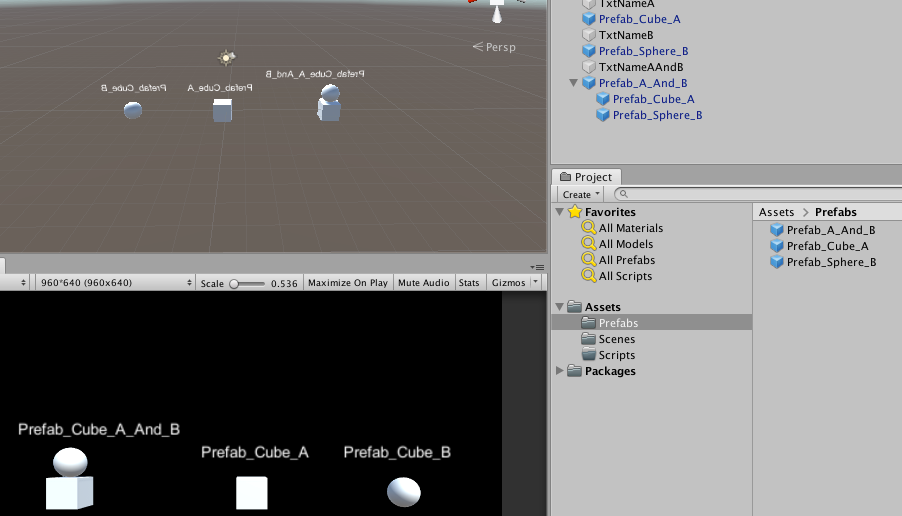
如下所示,我们制作了三个预制件,分别是Prefab_Cube_A,Prefab_Sphere_B以及Prefab_A_And_B,其中前两者是独立的预制件,最后一个是使用前两个预制件拼接而成的新的预制件。
NestedPrefabExample

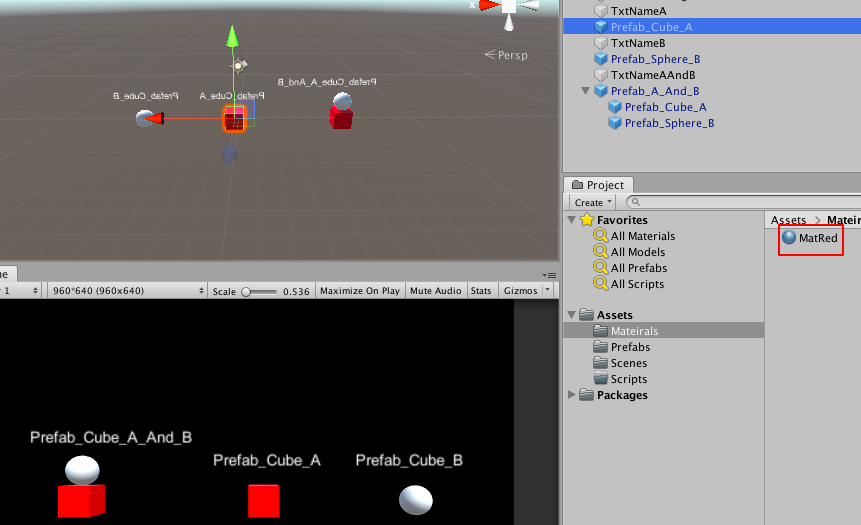
可以看到嵌套的预制件在新的预制件下是蓝色的(意味着是关联了特定预制件的意思),为了验证嵌套预制件,我简单的修改Prefab_Cube_A颜色来达到实现我们预期的嵌套预制件是引用关系的验证:
NestedPrefabChangeMat
可以看到我们只修改了预制件Prefab_Cube_A的材质,但嵌套使用该预制件的Prefab_A_And_B里的Prefab_A也跟着变化了,这就是前面所提到的嵌套预制件的概念(嵌套引用关系而非实例化新个体)

预制件变体

预制件变体的概念类似于编程里继承的概念,继承属性的同时,父预制件的修改也会影响到子预制件变体。

预制件变体不仅继承了父预制件的状态数据,还跟父预制件是强制关联的。
举例说明:
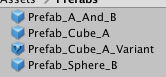
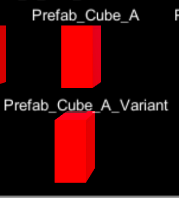
通过预制件A创建预制件变体A2,当我们改变A时,A2继承的相同属性会跟着变化
NestedPrefabPrefabVariant
NestedPrefabChangeVariantParent

适用情况:

  1. 需要在个别Prefab基础上做少许做成预制件使用,同时需要同步父预制件修改的情况下。

Note:

  1. 预制件变体可以理解成封装了一层Prefab的Prefab Asset
  2. 预制件变体的Content根节点时Prefab而Prefab的Content根节点时GameObject

新版预制件工作流

Prefab有两种状态:

  1. Prefab Asset(Prefab资源)
  2. Prefab Instance(Prefab实例对象–场景里是蓝色的)
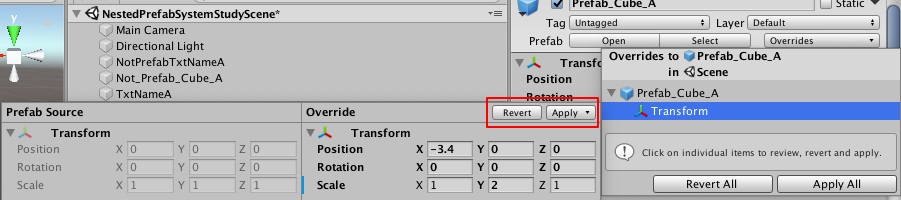
    Prefab Instance和Prefab Asset之间是关联着的,跟老版预制件里的概念是一致的。我们可以通过修改Prefab Instance然后把改变Apply到Prefab Asset上。新版预制件有区别的是支持Component级别的Apply和Revert。
    NestedPrefabComponentApply

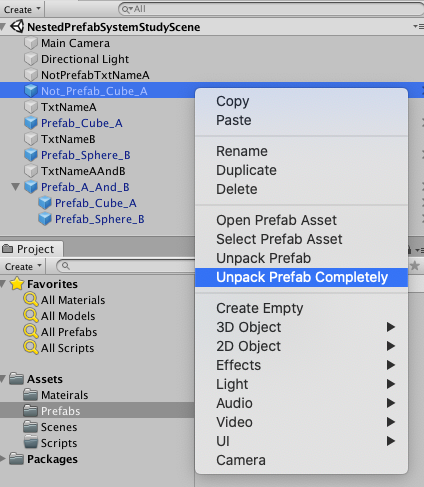
还有一种独立于预制件的状态:实例对象
UnpackPrefabInstance
于预制件无关的实体对象是黑色的而非蓝色:
NestedPrefabUnpackPrefabColor
这里的Unpack相当于解除了Prefab Asset关联直接访问预制件的Content(Prefab Content后续会说到,在新版预制件里很重要的一个概念)

新版预制件有一个新的概念叫做预制件模式,修改并Apply修改到Prefab Asset上有两种方式:

  1. 直接打开Prefab Mode编辑
  2. 修改Prefab Instance后Apply到Prefab Asset上

这里重点讲解学习Prefab Mode:
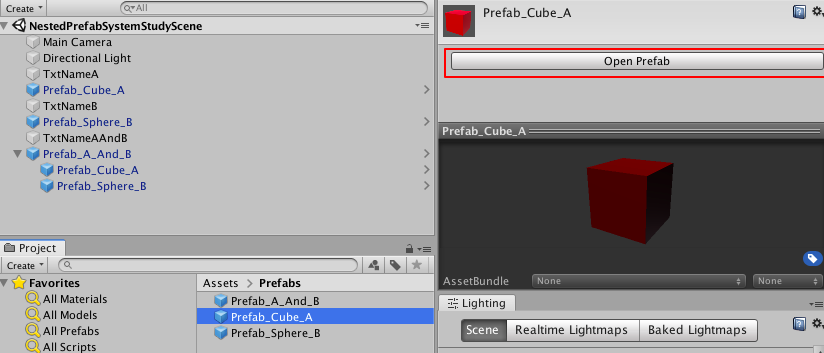
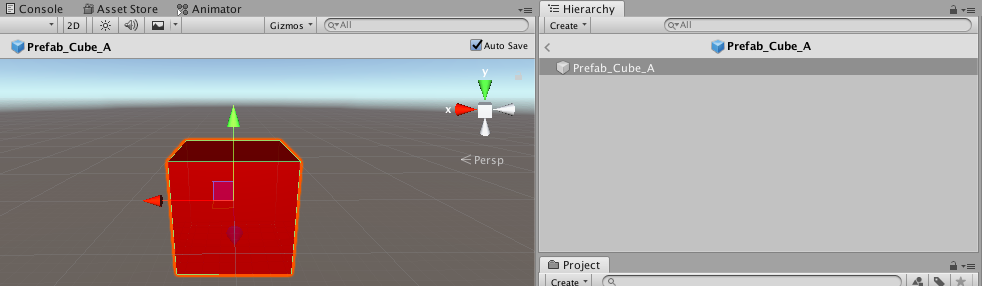
Prefab Mode类似单独打开了一个修改预制件的场景,进入新的预制件场景才能看到预制件里的内容,这一点概念很重要
NestedPrefabOpenPrefabMode
NestedPrefabMode
在Prefab Mode下的修改可以通过保存和Undo操作来实现保存到Prefab Asset和撤销操作的效果。

了解了新版Prefab的Prefab Mode概念后,让我们结合相关API来制作一些新版Prefab的处理操作工具来深入理解:
需求:
检查指定Prefab里是否有无效的脚本挂在(Missing Script)并清除所有无效挂在脚本后保存Prefab Asset
NestedPrefabMissingScriptMono

相关API:

  1. AssetDatabase(处理Asset的工具类接口)
  2. Selection(处理Asset资源选中工具类接口)

步骤:

  1. 选中Prefab Asset
  2. 判定是否是选中Prefab Asset
  3. 打开Prefab Mode
  4. 查找并删除所有Missing Script
  5. 保存Prefab Asset并退出Prefab Mode
    实现:
    RemovePrefabMissingScriptTool.cs
1
2
3
4
5
6
7
8
9
10
11
12
13
14
15
16
17
18
19
20
21
22
23
24
25
26
27
28
29
30
31
32
33
34
35
36
37
38
39
40
41
42
43
44
45
46
47
48
49
50
51
52
53
54
55
56
57
58
59
60
61
62
63
64
65
66
67
68
69
70
71
72
73
74
75
76
77
78
79
80
81
82
83
84
85
86
87
88
89
90
91
92
93
94
95
96
using System.Collections;
using System.Collections.Generic;
using UnityEditor;
using UnityEngine;

/// <summary>
/// 删除预制件无效脚本引用工具
/// </summary>
public class RemovePrefabMissingScriptTool
{
[MenuItem("Tools/Assets/移除Missing脚本 #&s", false)]
public static void RemoveAllMissingScripts()
{
// 1. 选中Prefab Asset
var selections = Selection.GetFiltered(typeof(Object), SelectionMode.Assets | SelectionMode.DeepAssets);
Debug.Log($"选中有效数量:{selections.Length}");
foreach (var selection in selections)
{
if(IsPrefabAsset(selection))
{
RemovePrefabAllMissingScripts(selection as GameObject);
}
else
{
Debug.LogError($"不符合预制件要求的Asset:{selection.name}");
}
}
AssetDatabase.SaveAssets();
}

/// <summary>
/// 是否是预制件资源
/// </summary>
/// <param name="obj"></param>
/// <returns></returns>
private static bool IsPrefabAsset(Object obj)
{
if(obj is GameObject)
{
var assetpath = AssetDatabase.GetAssetPath(obj);
return !string.IsNullOrEmpty(assetpath);
}
else
{
return false;
}
}

/// <summary>
/// 移除预制件Asset所有无效的脚本
/// </summary>
private static void RemovePrefabAllMissingScripts(GameObject go)
{
// 3. 打开Prefab Mode
// 4. 查找并删除所有Missing Script
// 5. 保存Prefab Asset并推出Prefab Mode)
var assetpath = AssetDatabase.GetAssetPath(go);
var contentsRoot = PrefabUtility.LoadPrefabContents(assetpath);
RemoveAllMissingScripts(contentsRoot);
PrefabUtility.SaveAsPrefabAsset(contentsRoot, assetpath);
PrefabUtility.UnloadPrefabContents(contentsRoot);
}

/// <summary>
/// 移除无效的脚本
/// </summary>
private static void RemoveAllMissingScripts(GameObject go)
{
Component[] components = go.GetComponents<Component>();
var r = 0;
var serializedObject = new SerializedObject(go);
var prop = serializedObject.FindProperty("m_Component");
for (int i = 0; i < components.Length; i++)
{
if (components[i] == null)
{
string s = go.name;
Transform t = go.transform;
while (t.parent != null)
{
s = t.parent.name +"/"+s;
t = t.parent;
}
Debug.Log (s + " has an empty script attached in position: " + i, go);

prop.DeleteArrayElementAtIndex(i - r);
r++;
}
}
serializedObject.ApplyModifiedProperties();
foreach (Transform childT in go.transform)
{
RemoveAllMissingScripts(childT.gameObject);
}
}
}

核心思想是因为Missing Component本来就为Null无法向常规Component那样DestroyImmediate,需要通过SerializedObject去获取Component的方式删除指定位置的Component。

此脚本只针对单个预制件内容进行修改,嵌套预制件需要通过批量多选的方式实现各自移除各自身上的Missing Script来实现移除所有Missing脚本。

了解了Prefab Mode的存在,那么如何监听Prefab Mode的打开关闭生命周期了?
这里我们需要用到PrefabStage API(新版Prefab Mode下打开保存相关生命周期工具类接口)
这里只是简单的做个API实验,看看PrefabStage是否起作用。
PrefabStageListener.cs

1
2
3
4
5
6
7
8
9
10
11
12
13
14
15
16
17
18
19
20
21
22
23
24
25
26
27
28
29
30
31
32
33
34
35
36
37
38
39
40
41
42
43
44
45
46
47
48
49
50
51
52
53
54
55
56
57
58
59
60
61
62
63
64
65
using System.Collections;
using System.Collections.Generic;
using UnityEditor.Experimental.SceneManagement;
using UnityEngine;

/// <summary>
/// 新版预制件生命周期监听
/// </summary>
[ExecuteInEditMode]
public class PrefabStageListener : MonoBehaviour
{
private void Start()
{
PrefabStage.prefabSaved += OnPrefabSaved;
PrefabStage.prefabSaving += OnPrefabSaving;
PrefabStage.prefabStageOpened += OnPrefabOpened;
PrefabStage.prefabStageClosing += OnPrefabClosing;
}

private void OnDestroy()
{
PrefabStage.prefabSaved -= OnPrefabSaved;
PrefabStage.prefabSaving -= OnPrefabSaving;
PrefabStage.prefabStageOpened -= OnPrefabOpened;
PrefabStage.prefabStageClosing -= OnPrefabClosing;
}

/// <summary>
/// 响应预制件内容保存完毕
/// </summary>
/// <param name="go"></param>
private void OnPrefabSaved(GameObject go)
{
Debug.Log("预制件内容保存完毕!");
}

/// <summary>
/// 响应预制件内容保存
/// </summary>
/// <param name="go"></param>
private void OnPrefabSaving(GameObject go)
{
Debug.Log("预制件内容保存!");
}

/// <summary>
/// 响应预制件内容打开
/// </summary>
/// <param name="prefabstage"></param>
private void OnPrefabOpened(PrefabStage prefabstage)
{
Debug.Log("打开预制件内容!");
Debug.Log($"预制件:{prefabstage.prefabAssetPath} 内容阶段:{prefabstage.stageHandle}");
}

/// <summary>
/// 响应预制件内容关闭
/// </summary>
/// <param name="prefabstage"></param>
private void OnPrefabClosing(PrefabStage prefabstage)
{
Debug.Log("关闭预制件内容!");
Debug.Log($"预制件:{prefabstage.prefabAssetPath} 内容阶段:{prefabstage.stageHandle}");
}
}

结果:
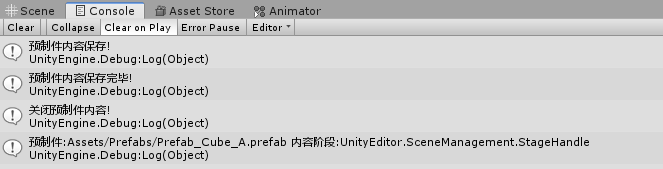
PrefabStageListener
PrefabStage.prefabStageOpened全局监听不起作用(原因未知,忘知道的朋友告知)。PrefabStage.prefabStageClosing能正确工作。

Note:
Prefab Mode模式下修改叫做Save而非Apply,因为已经处于Prefab Content模式下了

进阶

PrefabUtility(操作处理Prefab的工具类接口)

更多学习,待续……

结论

  1. 支持嵌套预制件,能更高效的利用预制件,节约预制件的资源大小
  2. 支持预制件变体,能更高效的制作只有细微变化且有关联的相关预制件,增加开发效率
  3. 新版预制件最大区别就是提出了Prefab Mode的概念,让预制件在一个独立的环境进行编辑,进入Prefab Mode编辑的是Prefab Content而非Prefab本身。

引用

Prefabs Manual
详解新版Unity中可嵌套的Prefab系统
Introducing the new prefab workflow - Unity at GDC 2019
Unite LA 2018 - Introducing the New Prefab Workflow

前言

本篇文章是为了记录学习Unity官方一些好的第三方插件,作为基础的学习了解,为未来遇到问题思考解决方案时拓宽思路。

Sprite Atlas

依然从What,Why,How三个角度了学习了解Sprite Atlas。

What

Sprite Atlas是官方Sprite Packer的升级版本,是为了更好的解决图集打包加载问题而开发的,而图集是为了解决Draw Call问题。

Why

老版Unity的时候,图集打包功能(SpritePacker,打Tag的方式)并不完善,更多的是采用第三方好比TexturePacker打包图集在放到Unity项目里的工作流。

Sprite Atlas主要提供了以下三个功能:
1.创建、编辑图集以及设定图集参数
2.添加图集Variant(变种)
3.运行时访问图集

新版Sprite Atals已经很完善了,考虑到以下几个原因,决定学习官方的打包图集工具跟着官方走:

  1. TexturePacker是付费的,Sprite Atlas免费
  2. Sprite Atlas是官方的,跟官方走一般来说不会错
  3. Spritre Atlas已经成熟可以商用的级别

How

使用Sprite Atlas之前,我们需要打开Sprite Atlas功能开关:
Edit -> Project Setting -> Editor -> Sprite Packer -> Mode(Always Enable)
EnableSpriteAtlas

创建、编辑图集以及设定图集参数

在Sprite Atlas里Sprite Atlas是作为一种资源(Asset)存在。
创建Sprite Atlas:
右键 -> Sprite Atlas

选中创建的Sprite Atlas我们能看到相关设置:
SpriteAtlasSetting
这里的设置基本都和图集打包相关,这里就不一一详解了。
详情参见官网:
Sprite Atlas

点击Sprite Atlas -> Pack Preview即可查看打包后的结果:
PackPreview

这里关于Include in Build这个参数要详细说明一下,这个参数会决定一下几方面:

  1. 影响使用SpriteAtlas图集资源的资源是如何关联SpriteAtlas的(会决定使用该SpriteAtlas资源加载时加载哪一个图集资源–这里指的是有图集Variant的情况)
  2. 影响SpriteAtlas是否需要采用Later Bind(触不触发SpriteAtlasManager.atlasRequested接口,通过这个接口结合图集Variant我们可以做到例如不同平台加载不同图集的适配)。反之勾选Include in Build在依赖使用时会自动加载依赖的Sprite Atlas。
    这里貌似有些Unity版本有个Bug,勾选Include in Build会导致资源打包冗余
    IncludeInBuildCauseRedundancySpriteAtlasTexture

针对第一条详情参考:
Resolving different Sprite Atlas scenarios

Note:

  1. Sprite Atlas支持Objects for Packing设置文件夹
  2. 参与打包的图片必须设置成Sprite(2D and UI)格式
  3. Include in Build会影响SpriteAtlas的选择(比如是否要使用Later Bind等)

添加图集Variant(变种)

什么是图集Variant?
A Variant Sprite Atlas is a type of Sprite Atlas that does not contain its own list of selected Textures as it has no Objects for Packing list in its properties. Instead, it receives a copy of the content from the Sprite Atlas set as its Master Atlas.
图集Variant是指不能指定打包内容的图集,图集Variant内容来源于复制指定的Master图集。

图集Variant的适用场景?
图集Variant的主要目的是为了用于不同分辨率设备适配不同图集来实现,内存和效果的可控。

图集Variant设置适用:
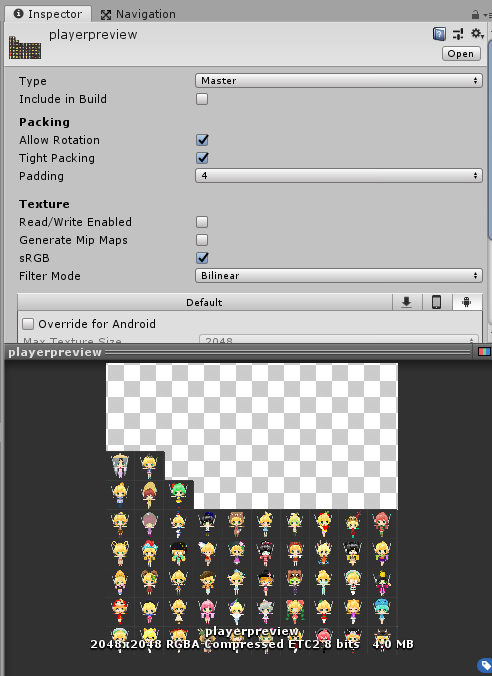
SpriteAtlasVariants
可以看到我们创建一个SpriteAtlas把Type设置成Variant后,然后指定Master Atlas,最后通过调节Scale为0.5我们得到了比playerpreview图集小一倍大小的图集效果。

结论:

图集变体是类似Mipmap的东西,通过多打包多个不同大小的图集到游戏里,Unity自动帮我们选择合适的图集来加载,从而做到高分辨率机型加载高分辨率的,低分辨率机型加载低分辨率的,典型的空间换时间做法

Note:

  1. 要想只打包使用图集Variant,需要把图集Variant的Include in Build打开,把图集Master的Include in Build关闭

运行时访问图集

Sprite Atlas作为一种资源开放给用户,支持在脚本中直接访问,还可以通过名字获取图集中的精灵。

这里我们采用设置不勾选Include in Build的设置打包SpriteAtlas

接下来我们通过SpriteAtlas接口访问打包AB后的Sprite Atlas里的图片资源试试:
首先让我们看看SpriteAtlas打包AB后的的资源数据:
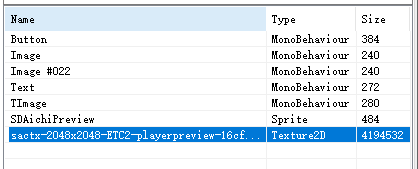
SpriteAtlasAssetBundlePreview
可以看到SpriteAtlas作为资源参与AB打包,里面包含了SpriteAtlas,图集Texture2D以及Sprite数据。

这里我们看看UI预制件引用SpriteAtlas看看依赖打包的情况:
UIPrefabReferenceNotIncludeBuildSpriteAtlas
从上面可以看出UI窗口预制件包含了依赖的Sprite(这里和以前不一样,以前是不会包含依赖的Sprite的,会直接通过依赖关系加载依赖AB实现自动还原),个人猜测这个和后续讲到的SpriteAtlas的Later Bind有关。

加载UI窗口预制件后发现Sprite Missing了:
UIPrefabSpriteMissing
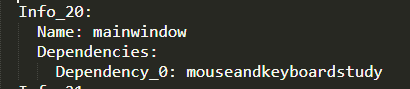
通过查看依赖文件我发现依赖信息是没有对SpriteAtlas的依赖信息的。不知道这算不算是一个Bug还是设计如此,因为没有依赖信息对资源加载管理会造成问题,忘知道的朋友告知。
UIPrefabDepencency

问题:

  1. 加载使用SpriteAtlas的UI Prefab,SpriteAtlas会自动加载进内存且没有依赖信息。但如果此时主动加载了Sprite Atlas并主动强制卸载该Sprite Atlas的AB会导致UI Prefab使用的Sprite Atlas也跟随被清除。从这里看出UI Prefab对Sprite Atlas的依赖信息是有必要的,不然没法正确的管理资源加载。

这里引申出了SpriteAtlas一个很重要的功能,Later Bind

Note:

  1. 图集的被动(依赖)加载管理会有使用该图集的资源所决定(比如UI Prefab使用了SpriteAtlas,两个分别打包AB,这时加载UI Prefab后SpriteAtlas会自动加载进内存,而UI Prefab卸载以后,SpriteAtlas没有其他主动加载该SpriteAtlas的会自动卸载。)
Later Bind

SpritePacker时代“图集”我们是看不到的,因为设计者的初衷是想让开发者完全不用考虑图集的事。但是,这跟游戏开发时的动态加载图集时矛盾的!我们要动态加载就必须要知道atlas名字和sprite名,这样才能在 运行时动态的找到一张sprite!所以U3D程序员必须要清楚的知道你当前界面用的是哪atlas的哪个sprite。但是按照SpritePacker的做法他的初衷应该是想把图集干掉(干掉的意思让开发者不用关心),只需要考虑sprite即可,但是这是行不通的!
**SpriteAtlas其实就是为了解决上面说的问题而发布的功能。通过它我们可以将atlas和UIprefab“解耦”。同时,在Unity编辑器状态下我们仍然可以利用未打成SpriteAtlas的Sprite进行开发。等开发完成我们再发布成SpriteAtlas。**Unity提供了所谓“延迟绑定”(late bind)的技术来让我们实现这个功能。

AtlasManager.cs

1
2
3
4
5
6
7
8
9
10
11
12
13
14
15
16
17
18
19
20
21
22
23
24
25
26
27
28
29
public class AtlasManager : SingletonTemplate<AtlasManager>
{
public AtlasManager()
{
DIYLog.Log("添加SpriteAtals图集延时绑定回调!");
SpriteAtlasManager.atlasRequested += onAtlasRequested;
}

/// <summary>
/// 响应SpriteAtlas图集加载回调
/// </summary>
/// <param name="atlasname"></param>
/// <param name="callback"></param>
private void onAtlasRequested(string atlasname, Action<SpriteAtlas> callback)
{
DIYLog.Log($"加载SpriteAtlas:{atlasname}");
// Later Bind -- 依赖使用SpriteAtlas的加载都会触发这里
ResourceModuleManager.Singleton.requstResource(
atlasname,
(abi) =>
{
DIYLog.Log($"Later Bind加载SpriteAtlas:{atlasname}");
var sa = abi.loadAsset<SpriteAtlas>(atlasname);
callback(sa);
});
}

******
}

在加载使用SpriteAtlas(仅当设置成不勾选Include in Build)的相关资源时(比如UI Prefab)上诉回调会被触发完成对SpriteAtlas的加载,确保引用的Sprite能正确显示。同时这一机制就允许我们做到不同平台的不同图集资源加载适配这样的功能。

疑问:

  1. Later Bind只是加载SpriteAtlas提供的一个回调接口(无论是主动还是被动(依赖)加载),回调接口内只知道加载了指定的SpriteAtlas却不知道具体的详细用法,这样一来基于对象绑定和索引计数的资源管理系统就无法正确的加载管理了(因为被动(依赖)加载得不到SpriteAtlas的依赖信息)。

个人方案:

  1. 当前这套基于对象绑定和索引计数的方案暂时没想到好的方案,可能需要对SpriteAtals的资源管理单独做一套管理策略来支持Later Bind的用法。有更好方案的朋友,望告知。
注意事项
  1. 开启Sprite Packer的设置Sprite Packer -> Mode(Always Enable)只决定图集合成时机(比如是运行时还是打包时还是编辑器时)。
  2. Sprite Atlas支持Objects for Packing设置文件夹
  3. 参与打包的图片必须设置成Sprite(2D and UI)格式
  4. Include in Build会影响SpriteAtlas图集资源的资源是如何关联SpriteAtlas(比如影响是否需要使用Later Bind,不勾选需要使用Later Bind否则会报警告)
相关概念
  1. Sprite Atlas把图集打包的概念延迟到特定时刻(比如打包或者打包AB)而编辑模式依然可以使用原始Sprite工作,总的来说就是延时自动化打包图集时机+允许使用原始Sprite的概念。
  2. Include in Build设置主要是看有没有动态适配加载图集需求,有的话就建议不勾选,然后结合Later Bind来做动态图集加载适配。反之勾选Include in Build在依赖使用时会自动加载依赖使用的Sprite Atals。
  3. Include in Build其次还会影响Sprite Atlas变体使用的选择。
  4. SpriteAtlas到了Unity 2018 LTS版本感觉才稳定些,建议使用稳定版本的SpriteAtlas
  5. Later Bind不会区分主动加载还是被动(依赖)加载SpriteAtlas,都会统一回调,要使用Later Bind机制的需要取消勾选Include in Build并解决SpriteAtlas的资源加载管理问题(在沿用原来的对象绑定和索引计数的资源管理方案基础上本人暂时没有好的方案)
  6. Sprite Atlas无论够不够选Include in Build打包AB都得不到Sprite Atlas的依赖信息,感觉这是一个bug
Bug记录
  1. 勾选Include in Build会导致资源打包冗余(部分Unity版本比如Unity2018.4.1f1),建议升级到LTS版本
结论

SpriteAtlas虽然解决了Atlas和UIPrefab的解耦,同时提供了图集变体的概念来解决适配图集适配方案,但也带来了一些新的问题要解决(e.g. 要解决没有依赖信息的SpriteAtals基础上做到正确的资源加载管理)。

——————————–2021/20/12更新开始————————————–

正确使用姿势参考:

【Unity游戏开发】SpriteAtlas与AssetBundle最佳食用方案

简单来说:

  1. SpriteAtlas 勾选Include in build
  2. SpriteAtlas不设置AB打包
  3. 直接当做单Sprite一样加载

——————————–2021/20/12更新结束————————————–

Timeline

Timeline to create cinematic content, game-play sequences, audio sequences, and complex particle effects.

官方介绍Timeline可以用于制作类似电影过场表现的工具。

Timeline分为两个部分:

  1. Timeline Asset(数据)
  2. Timeline instance(数据关联实体对象)

Timeline Asset

介绍

Timeline Asset: Stores the tracks, clips, and recorded animations without links to the specific GameObjects being animated.

通过介绍可以看出Timeline Asset是类似于Animation Clip一样的资源文件可以用于录制动画但不需要关联到特定的物体上

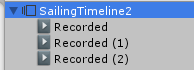
Timeline Asset记录的动画数据是以子节点资源的形式挂载在Timeline Asset下的:

TimelineAssetHierachy

Note:
前面说的不需要关联到特定的物体上是指不需要像AnimationClip那样动画是针对指定物体制作的(挂给其他物体用不了该动画),Timeline可以通过PlayableDirector动态关联动画对象。

分类

Timeline Asset是以Track为最小单位。

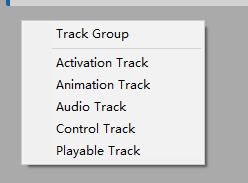
主要支持以下几种Track:

  1. Track Group(仅分层管理用)
  2. Activation Track(激活物体Track)
  3. Animation Track(动画Track)
  4. Audio Track(音频Track)
  5. Control Track(时间相关的控制)
  6. Playable Track(自定义Track)

TimelineComponent

这里我们着重学习Playable Track,自定义的一些表现行为都是通过Playable Track来做的。其他几个就不一一讲解了。

Playable Track

自定义Playable Track需要知道两个东西:

  1. PlayableAsset(用于支持Timeline创建和显示自定义PlayableAsset数据定义)
  2. PlayableBehaviour(用于Playable实际的生命周期等逻辑实现)

示例:

1
2
3
4
5
// 枚举事件定义
public enum EEventId
{
DefaultEvent = 1, // 默认事件
}
1
2
3
4
5
6
7
8
9
10
11
12
13
14
15
16
17
18
19
/// <summary>
/// 事件分发器Asset
/// </summary>
[System.Serializable]
public class EventDispatcherAsset : PlayableAsset
{
/// <summary>
/// 事件
/// </summary>
public EEventId EventId = EEventId.DefaultEvent;

// Factory method that generates a playable based on this asset
public override Playable CreatePlayable(PlayableGraph graph, GameObject go)
{
var playable = ScriptPlayable<EventDispatcherPlayable>.Create(graph);
playable.GetBehaviour().EventId = EventId;
return playable;
}
}
1
2
3
4
5
6
7
8
9
10
11
12
13
14
15
16
17
18
19
20
21
22
23
24
25
26
27
28
29
30
31
32
33
34
35
36
37
38
39
40
41
42
43
44
45
46
/// <summary>
/// 事件分发器Playable
/// </summary>
public class EventDispatcherPlayable : PlayableBehaviour
{
/// <summary>
/// 事件
/// </summary>
[Header("事件")]
public EEventId EventId = EEventId.DefaultEvent;

// Called when the owning graph starts playing
// Playable开始执行时
public override void OnGraphStart(Playable playable)
{

}

// Called when the owning graph stops playing
// Playable停止执行时
public override void OnGraphStop(Playable playable)
{

}

// Called when the state of the playable is set to Play
// 触发Playable执行时
public override void OnBehaviourPlay(Playable playable, FrameData info)
{
Debug.Log(string.Format("OnBehaviourPlay() 分发事件 : {0}", EventId));
}

// Called when the state of the playable is set to Paused
// Playable暂停执行时
public override void OnBehaviourPause(Playable playable, FrameData info)
{

}

// Called each frame while the state is set to Play
// Playable更新执行时
public override void PrepareFrame(Playable playable, FrameData info)
{

}
}

TimelineCustomPlayable

代码不复杂就不详细介绍了。通过上面的代码,我们支持了一个创建自定义分发事件的Playable Track,而这个自定义的事件分发就可以用作我们Timeline和游戏逻辑之间的一个桥梁,帮助我们在Timeline播放的过程中自定义响应做一些表现。

Timeline instance

介绍

Timeline instance: Stores links to the specific GameObjects being animated or affected by the Timeline Asset. These links, referred to as bindings, are saved to the Scene.

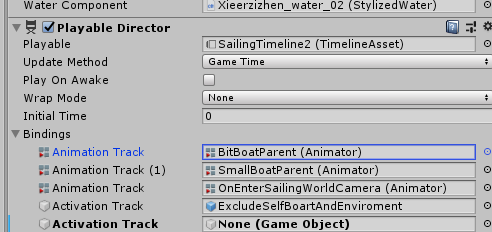
要想关联场景物体和Timeline Asset让我们制作的电影过场动起来,我们需要创建Timeline instance(这里指的Playable Director组件)。

TimelinePlayableDirectorInspector

可以看到我们通过Timeline Asset录制的动画是通过Playable Director的Bindings动态关联到了场景物体上。

Note:
因为Timeline Asset是纯数据,Timeline instance决定了数据关联的对象,所以我们可以重用Timeline Asset对不同的物体做动画表现。

Timeline类设计

Playable

The Playables API provides a way to create tools, effects or other gameplay mechanisms by organizing and evaluating data sources in a tree-like structure known as the PlayableGraph. The PlayableGraph allows you to mix, blend, and modify multiple data sources, and play them through a single output.

从介绍个人的理解,Playable是一套可自定义数据处理流程成树状结构的工具。而自定义出来的树状结构数据就叫做PlayableGraph(后续会讲到)。而Timeline的核心正是Playable。

使用Playables API的好处:

  • The Playables API allows for dynamic animation blending. This means that objects in the scenes
    could provide their own animations. For example, animations for weapons, chests, and traps could be dynamically added to the PlayableGraph and used for a certain duration.
  • The Playables API allows you to easily play a single animation without the overhead involved in creating and managing an AnimatorController asset.
  • The Playables API allows users to dynamically create blending graphs and control the blending weights directly frame by frame.
  • A PlayableGraph can be created at runtime, adding playable node as needed, based on conditions. Instead of having a huge “one-size-fit-all” graph where nodes are enabled and disabled, the PlayableGraph can be tailored to fit the requirements of the current situation.

官网上介绍了Playable的不少好处,从介绍可以看出最大的好处就是运行时自定义组装数据处理流程,避免离线构建一套过于臃肿的数据定义(比如AnimatorController)

Note:

  1. Playable是Struct而非Class,为了避免内存分配导致GC
  2. Playable和PlayableOutput没有提供太多方法,而是通过PlayableExtension和PlayableOutputExtension用扩展方法的方式来提供的方法

PlayableGraph

The PlayableGraph defines a set of playable outputs that are bound to a GameObject or component. The PlayableGraph also defines a set of playables and their relationships. Figure 1 provides an example.

The PlayableGraph is responsible for the life cycle of its playables and their outputs. Use the PlayableGraph to create, connect, and destroy playables.

从上面的介绍,个人理解,PlayableGraph是一个自定义数据处理流程的完整单位,负责自定义数据处理流程里的节点定义,关联,以及生命周期。PlayableGraph是由Plyable(e.g.Playable,MixPlayable)+PlayableOuput组成。

PlayableAsset

A base class for assets that can be used to instantiate a Playable at runtime.

PlayableAsset是自定义Playable时定义数据Asset的基类。

PlayableBehaviour

PlayableBehaviour is the base class from which every custom playable script derives.

PlayableBehaviour是自定义Playable时定义行为实现的脚本基类。

PlayableOutput

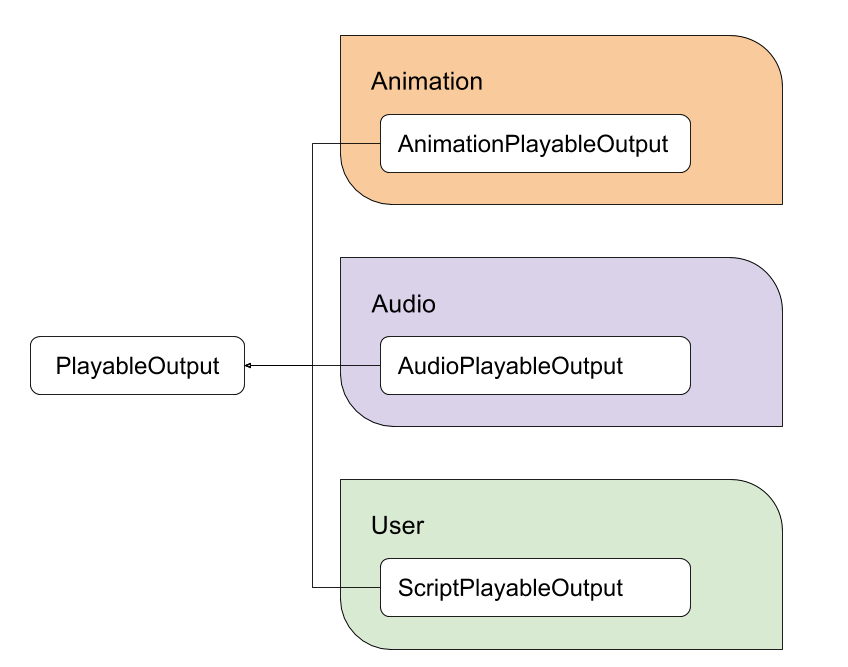
个人理解是定义Playable里面的输出节点。所有的输入节点最后连接成树状结构后连到输出节点上,执行出自定义行为的输出表现。

参考下图:

PlayableOutputPreview

PlayableBinding

Struct that holds information regarding an output of a PlayableAsset. PlayableAssets specify the type of outputs it supports using PlayableBindings.

看介绍PlayableBinding是用于定义并持有PlayableAsset的数据输出信息。

ExposedReference

Creates a type whos value is resolvable at runtime. ExposedReference is a generic type that can be used to create references to Scene objects and resolve their actual values at runtime and by using a context object. This can be used by assets, such as a ScriptableObject or PlayableAsset to create references to Scene objects.

从介绍可以看出,ExposedReference是用于创建一个类型(其值在运行时处理绑定的)。用于解决PlayableAsset引用场景对象组件数据等问题。

辅助工具(GraphVisualizer)

The PlayableGraph Visualizer is a tool that displays the PlayableGraphs in the scene. It can be used in both Play and Edit mode and will always reflect the current state of the graph.

因为Playable的设计很庞大,里面有很多类和概念,为了方便理解Playable设计和使用可视化的查看构建出来的PlayableGraph显得额外有用,而PlayableGraph Visualizer正是这么一款工具。

接下来我们结合GraphVisualizer动态通过代码创建模拟用Playable API实现动画Animator Controller里的动画状态机类似的效果,从而深入学习理解Playable里各个类的设计和使用。

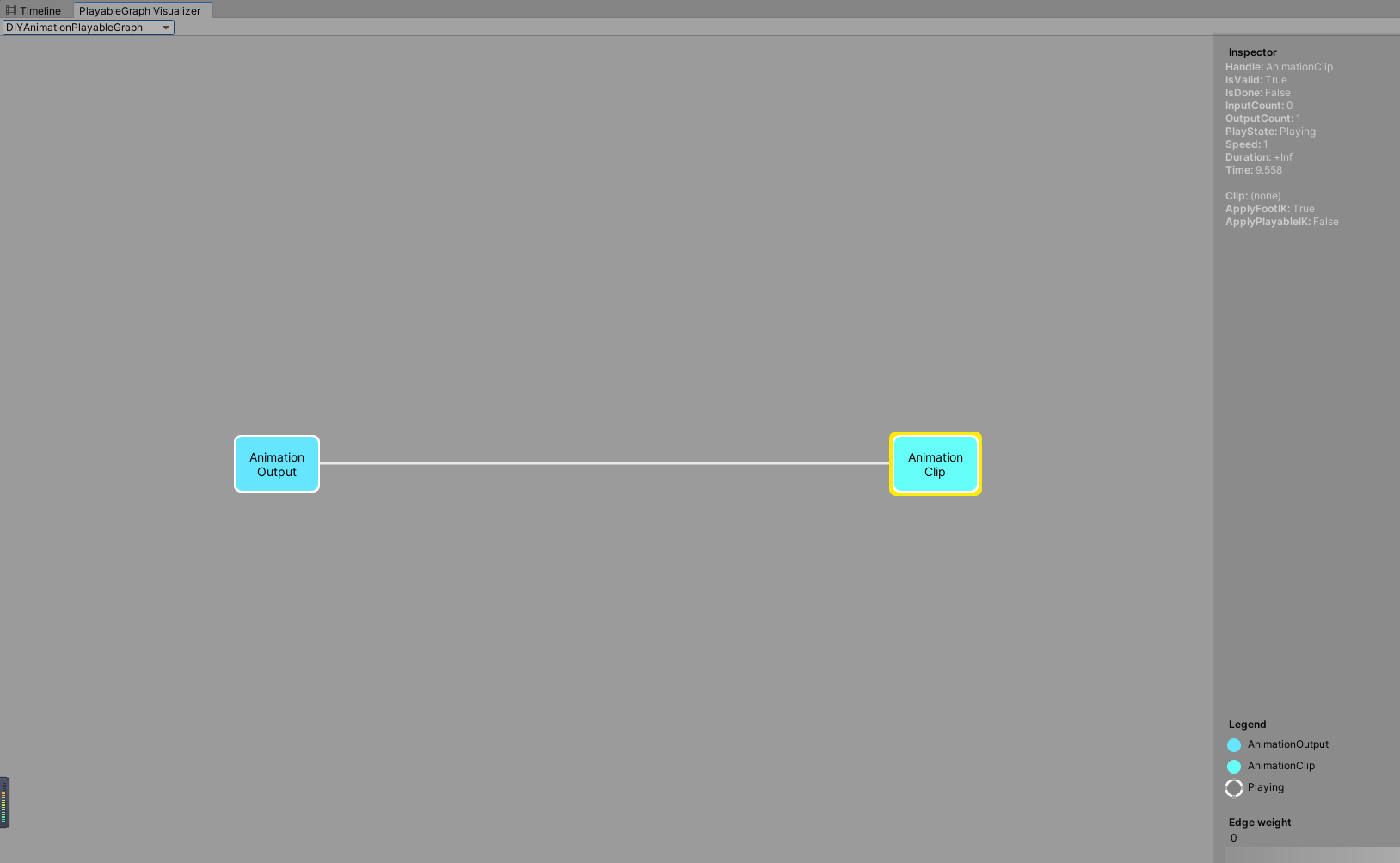
单AnimationClip单AniamtionOuput的动画播放
1
2
3
4
5
6
7
8
9
10
// 创建动画播放PlayableGraph
mCustomGraph = PlayableGraph.Create("DIYAnimationPlayableGraph");
// 创建动画播放PlyableGraph的PlayableOutput
var animoutput = AnimationPlayableOutput.Create(mCustomGraph, "AnimationOutput", CustomAnimator1);
// 创建动画播放PlyableGraph的动画Playable
var animationclipplayable = AnimationClipPlayable.Create(mCustomGraph, CustomAnimationClip1);
// 设置动画播放PlayableOutput的关联Playable
animoutput.SetSourcePlayable(animationclipplayable);
// 播放创建的PlayableGraph
mCustomGraph.Play();

通过上面的代码我们动态创建了1个PlayableGraph,1个动画Plyable,1个动画PlayableOutput作为动画播放输出,并设置他们之间的关联,运行代码打开PlayableGraphVisualizer就可以查看到生成的单动画Clip播放PlayableGraph图了。

PlayableGraphVisualizerPreview

多AnimationClip混合
1
2
3
4
5
6
7
8
9
10
11
12
13
14
15
16
// 创建动画播放PlayableGraph
mCustomGraph = PlayableGraph.Create("DIYAnimationPlayableGraph");
// 创建动画播放PlyableGraph的PlayableOutput
var animationOutput = AnimationPlayableOutput.Create(mCustomGraph, "AnimationOutput", CustomAnimator1);
// 创建动画播放混合Playable(设置两个输入Playable)
mAnimationMixerPlayable = AnimationMixerPlayable.Create(mCustomGraph, 2);
// 关联动画混合Playable到PlaybleOutput作为唯一输入
animationOutput.SetSourcePlayable(mAnimationMixerPlayable);
// 创建动画播放PlyableGraph的动画播放Playable1和Playable2
var animationClipPlayable1 = AnimationClipPlayable.Create(mCustomGraph, CustomAnimationClip1);
var animationClipPlayable2 = AnimationClipPlayable.Create(mCustomGraph, CustomAnimationClip2);
// 关联动画播放Playable1和Playable2作为动画混合Playable的输入连接(分别连接输入0和输入1接口)
mCustomGraph.Connect(animationClipPlayable1, 0, mAnimationMixerPlayable, 0);
mCustomGraph.Connect(animationClipPlayable2, 0, mAnimationMixerPlayable, 1);
// 播放创建的PlayableGraph
mCustomGraph.Play();

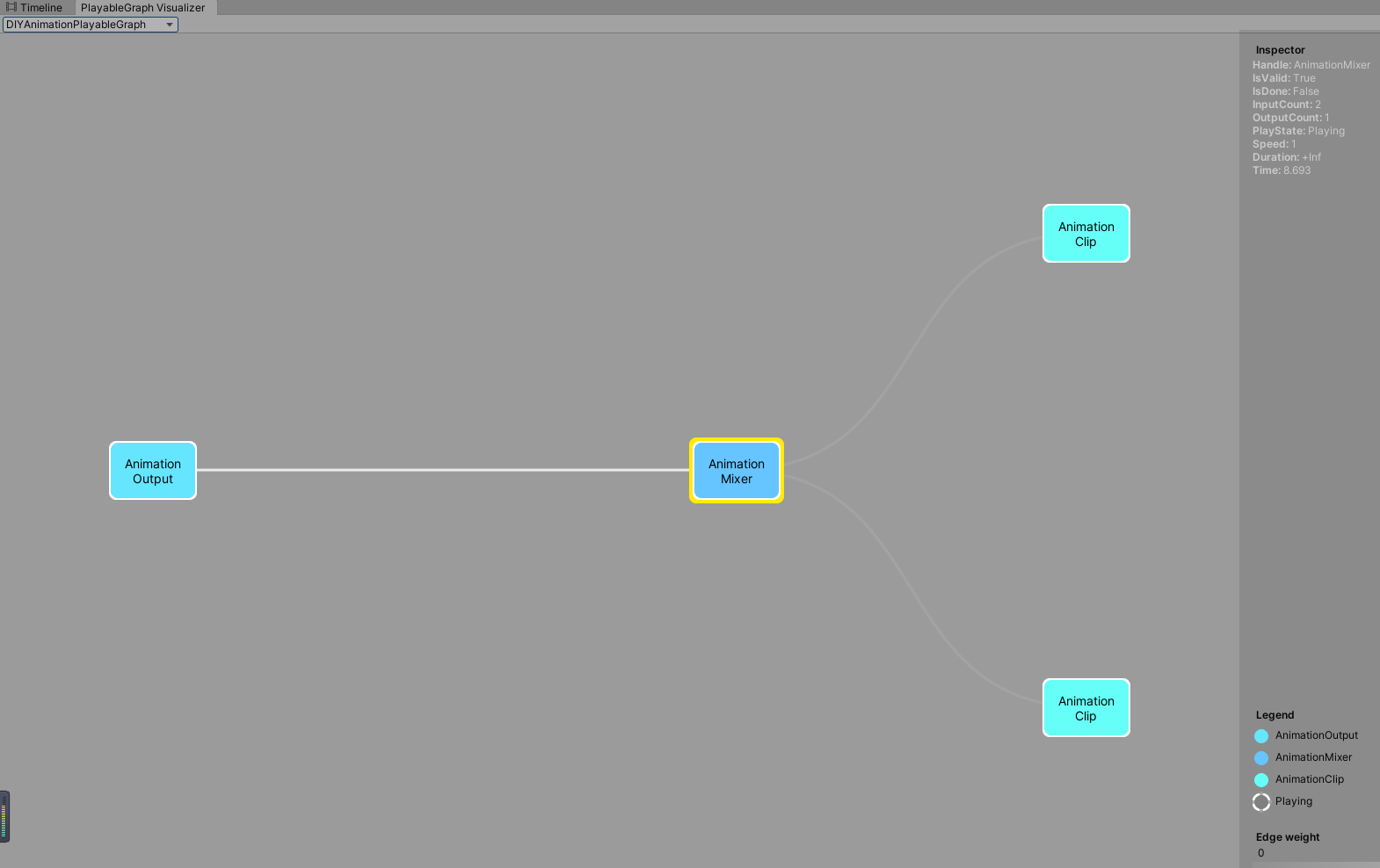
通过上面的代码我们动态创建了一个PlayableGraph,2个动画Plyable作为基础输入,1个动画混合Playable作为混合节点,1个动画PlayableOutput作为动画播放输出,并设置他们之间的关联,运行代码打开PlayableGraphVisualizer就可以查看到生成的动画混合播放PlayableGraph图了。

AnimationClipMixPreview

多AnimationClip多AnimationOuput

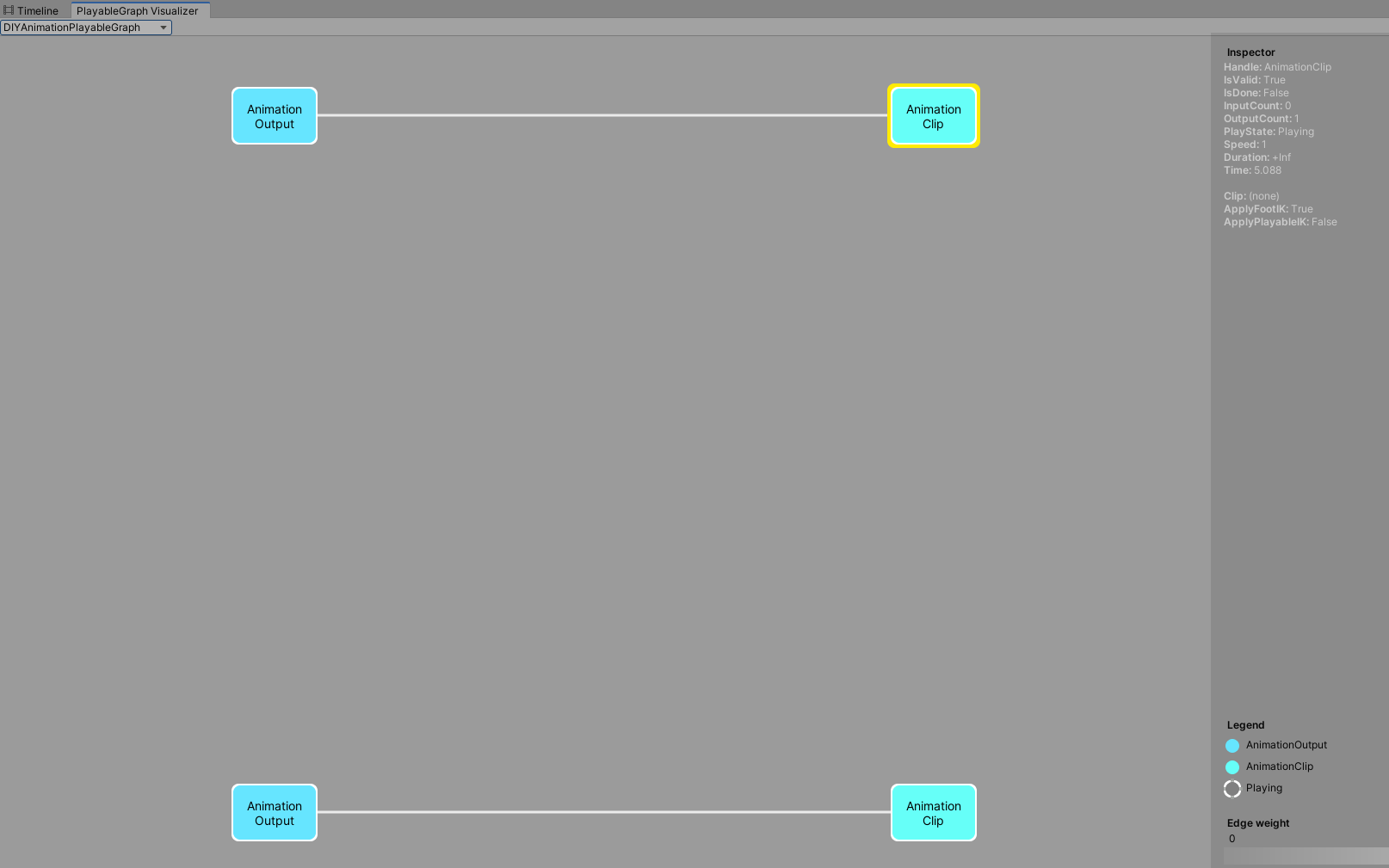
一个PlayableGraph是可以拥有多个PlayableOutput输出的

1
2
3
4
5
6
7
8
9
10
11
12
13
14
// 创建动画播放PlayableGraph
mCustomGraph = PlayableGraph.Create("DIYAnimationPlayableGraph");
// 创建动画播放PlyableGraph的PlayableOutput1和PlayableOutput2
var animationOutput1 = AnimationPlayableOutput.Create(mCustomGraph, "AnimationOutput1", CustomAnimator1);
var animationOutput2 = AnimationPlayableOutput.Create(mCustomGraph, "AnimationOutput2", CustomAnimator2);
// 创建动画播放PlyableGraph的动画播放Playable1和Playable2
var animationClipPlayable1 = AnimationClipPlayable.Create(mCustomGraph, CustomAnimationClip1);
var animationClipPlayable2 = AnimationClipPlayable.Create(mCustomGraph, CustomAnimationClip2);
// 关联动画播放Playable1到动画播放PlaybleOutput1
// 关联动画播放Playable2到动画播放PlaybleOutput2
animationOutput1.SetSourcePlayable(animationClipPlayable1);
animationOutput2.SetSourcePlayable(animationClipPlayable2);
// 播放创建的PlayableGraph
mCustomGraph.Play();

通过上面的代码我们动态创建了一个PlayableGraph,2个动画Plyable对应2个动画PlayableOutput动画播放输出的输入,并设置他们之间的关联,运行代码打开PlayableGraphVisualizer就可以查看到生成的动画混合播放PlayableGraph图了。

MultipleAnimationInputAndOutputPreview

多AnimationClip混合并控制权重加播放状态

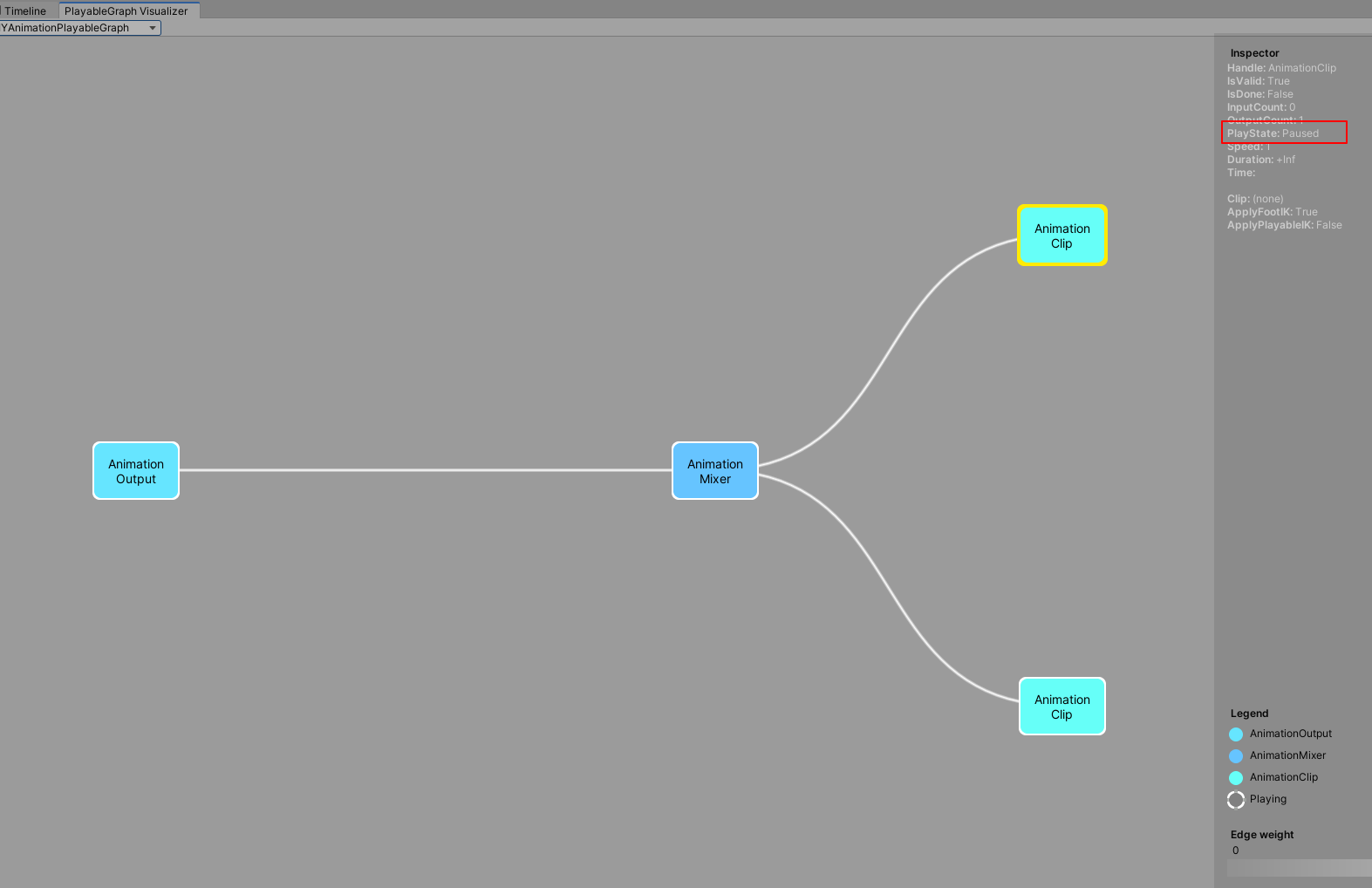
不同的Playable是可以设置混合权重加播放状态的

1
2
3
4
5
6
7
8
9
10
11
12
13
14
15
16
17
18
19
20
// 创建动画播放PlayableGraph
mCustomGraph = PlayableGraph.Create("DIYAnimationPlayableGraph");
// 创建动画播放PlyableGraph的PlayableOutput
var animationOutput = AnimationPlayableOutput.Create(mCustomGraph, "AnimationOutput1", CustomAnimator1);
// 创建动画混合Playable
mAnimationMixerPlayable = AnimationMixerPlayable.Create(mCustomGraph, 2);
// 设置动画混合Playalbe作为动画播放输出Playable
animationOutput.SetSourcePlayable(mAnimationMixerPlayable);
// 创建动画播放PlyableGraph的动画播放Playable1和Playable2
var animationClipPlayable1 = AnimationClipPlayable.Create(mCustomGraph, CustomAnimationClip1);
var animationClipPlayable2 = AnimationClipPlayable.Create(mCustomGraph, CustomAnimationClip2);
// 设置动画混合输入和权重
mCustomGraph.Connect(animationClipPlayable1, 0, mAnimationMixerPlayable, 0);
mCustomGraph.Connect(animationClipPlayable2, 0, mAnimationMixerPlayable, 1);
mAnimationMixerPlayable.SetInputWeight(0, 1.0f);
mAnimationMixerPlayable.SetInputWeight(1, 1.0f);
// 暂停动画播放Playable1
animationClipPlayable1.Pause();
// 播放创建的PlayableGraph
mCustomGraph.Play();

通过上面的代码我们动态创建了一个PlayableGraph,2个动画Plyable作为动画混合Playable的输入,1个动画混合Playable作为动画播放输出的输入,1个PlayableOutput作为动画播放输出,并设置他们之间的关联和权重,并把其中一个动画播放Playable设置成暂停状态,运行代码打开PlayableGraphVisualizer就可以查看到生成的动画混合播放PlayableGraph图了。

MultipleAnimationBlendAndSetPlayableState

Note:

  1. 父Playable的播放状态设置会影响所有子节点Playable播放状态

Timeline实战

通过上面有了基础的知识后,接下来我们以实战的方式深入学习Timeline。

  • 目标
  1. 人物模型移动(Timeline自带)+人物模型动画播放(Timeline自带)+镜头移动(Cinemachine+Timeline)+2D对话+3D气泡对话的剧情表现+特效播放(Timeline自带)+音乐播放控制(扩展自定义Track,方便走自己的音效播放接口)
  2. 支持Timeline Editor拖拽预览+运行时播放预览
  • 功能开发
  1. 音乐播放控制(扩展自定义Track,方便走自己的音效播放接口)
  2. Timeline模型移动控制Track(TimeLine支持)
  3. 学习Cinemachine扩展Timeline的Track使用控制镜头移动表现
  4. 实现2D气泡对话+3D对话功能
  5. 扩展Timneline实现2D气泡对话Track+3D对话Track
  6. 动态创建实体对象的自定义Track绑定控制(如何实现?)
  • 准备工作
  1. Package Manager里安装Cinemachine模块
  2. 下载导入模型特效音效等相关资源

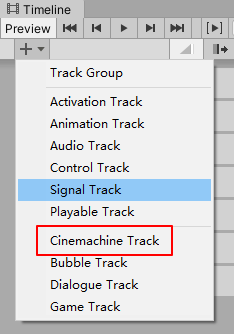
安装好Cinemachine后,打开Timeline里面就会看到多了Cinemachine的Track,从而就可以在Timeline里使用Cinemachine相关的扩展功能了:

TimelineCinemachineTrack

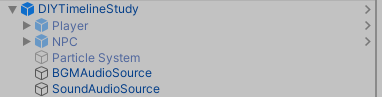
首先我们先放一下我们自定义制作的Timeline的预制件结构:

CustomTimelinePrefabHierachyPreview


音乐播放控制Track

CustomAduioTrack.cs(自定义音乐播放Track)

1
2
3
4
5
6
7
8
9
/// <summary>
/// CustomAudioTrack.cs
/// 自定义音效Track
/// </summary>
[TrackClipType(typeof(CustomAudioAsset))]
public class CustomAudioTrack : PlayableTrack
{

}

CustomAudioAsset.cs(自定义音乐播放Asset数据结构)

1
2
3
4
5
6
7
8
9
10
11
12
13
14
15
16
17
18
19
20
21
22
23
24
25
26
27
28
29
30
31
32
33
34
35
36
37
38
39
40
41
42
43
44
45
46
47
48
49
/// <summary>
/// CustomAudioAsset.cs
/// 自定义音效播放Asset
/// </summary>
public class CustomAudioAsset : BaseGameAsset, ITimelineClipAsset
{
/// <summary>
/// 音效类型
/// </summary>
public enum AudioType
{
Bgm = 1, // 背景音乐
Sound = 2, // 音效
}

/// <summary>
/// 音效播放组件
/// </summary>
public ExposedReference<AudioSource> SourceAudio;

/// <summary>
/// 播放的音效类型
/// </summary>
public AudioType PlayedAudioType = AudioType.Bgm;

/// <summary>
/// 音效资源路径
/// </summary>
public string AudioPath;

/// <summary>
/// 不支持重叠
/// </summary>
public ClipCaps clipCaps
{
get { return ClipCaps.None; }
}

public override Playable CreatePlayable(PlayableGraph graph, GameObject owner)
{
var playable = ScriptPlayable<CustomAudioBehaviour>.Create(graph);
var audiobehaviour = playable.GetBehaviour();
audiobehaviour.Name = Name;
audiobehaviour.SourceAudio = SourceAudio.Resolve(graph.GetResolver());
audiobehaviour.PlayedAudioType = PlayedAudioType;
audiobehaviour.AudioPath = AudioPath;
return playable;
}
}

CustomAudioBehaviour.cs(自定义音乐播放行为)

1
2
3
4
5
6
7
8
9
10
11
12
13
14
15
16
17
18
19
20
21
22
23
24
25
26
27
28
29
30
31
32
33
34
35
36
37
38
39
40
41
42
43
44
45
46
47
48
49
50
51
52
53
54
55
56
57
58
59
60
61
62
63
64
65
66
67
68
69
70
71
72
73
/// <summary>
/// CustomAudioBehaviour.cs
/// 自定义音效播放Behaviour
/// </summary>
public class CustomAudioBehaviour : BaseGameBehaviour
{
/// <summary>
/// 音效播放组件
/// </summary>
public AudioSource SourceAudio;

/// <summary>
/// 播放的音效类型
/// </summary>
public CustomAudioAsset.AudioType PlayedAudioType;

/// <summary>
/// 音效资源路径
/// </summary>
public string AudioPath;

/// <summary>
/// 是否正在播放音乐
/// </summary>
private bool mIsPlayingAudio;

public override void OnBehaviourPlay(Playable playable, FrameData info)
{
Debug.Log($"AudioBehaviour:OnBehaviourPlay() 执行指令:{Name}");
}

// Called each frame while the state is set to Play
// Playable更新执行时
public override void ProcessFrame(Playable playable, FrameData info, object playerData)
{
TryPlayAudio();
}

// Called when the state of the playable is set to Paused
// Playable暂停执行时
public override void OnBehaviourPause(Playable playable, FrameData info)
{
Debug.Log($"AudioBehaviour:OnBehaviourPause() 执行指令:{Name}");
if(SourceAudio != null && SourceAudio.clip != null)
{
SourceAudio.clip = null;
}
mIsPlayingAudio = false;
}

/// <summary>
/// 尝试执行音乐播放
/// </summary>
private void TryPlayAudio()
{
if(mIsPlayingAudio == false && SourceAudio != null)
{
if (PlayedAudioType == CustomAudioAsset.AudioType.Bgm)
{
// TODO: 走背景音乐播放接口
SourceAudio.clip = Resources.Load<AudioClip>(AudioPath);
SourceAudio.Play();
}
else if (PlayedAudioType == CustomAudioAsset.AudioType.Sound)
{
// TODO: 走音效播放接口
SourceAudio.clip = Resources.Load<AudioClip>(AudioPath);
SourceAudio.Play();
}
mIsPlayingAudio = true;
}
}
}

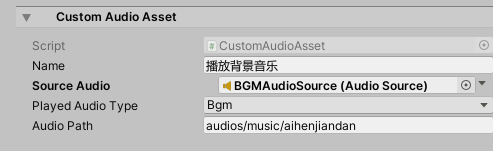
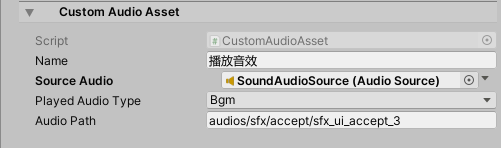
接下来看下我们自定义的音效播放Track和音乐Asset的使用面板效果:

CustomAudioTrackPreview

CustomAudioAssetBGMInspector

CustomAudioAssetSoundInspector

从上面可以看到,我们通过ExposedReference的方式,挂载绑定了场景里的AudioSource作为背景音乐和音效播放组件。

接下来为了避免每一个CustomAudioAsset都自己去指定AudioSource绑定组件,我们可以通过在CustomAudioTrack来支持在Track统一指定AudioSource。

CustomAudioTrack.cs

1
2
3
4
5
6
7
8
9
10
/// <summary>
/// CustomAudioTrack.cs
/// 自定义音效Track
/// </summary>
[TrackClipType(typeof(CustomAudioAsset))]
[TrackBindingType(typeof(AudioSource))]
public class CustomAudioTrack : PlayableTrack
{

}

CustomAudioBehaviour.cs

1
2
3
4
5
6
7
8
9
10
11
12
13
14
15
16
17
18
19
20
21
22
23
24
25
26
/// <summary>
/// CustomAudioBehaviour.cs
/// 自定义音效播放Behaviour
/// </summary>
public class CustomAudioBehaviour : BaseGameBehaviour
{
******

/// <summary>
/// 音效播放组件
/// </summary>
private AudioSource mSourceAudio;

// Called each frame while the state is set to Play
// Playable更新执行时
public override void ProcessFrame(Playable playable, FrameData info, object playerData)
{
if(mSourceAudio == null)
{
mSourceAudio = playerData as AudioSource;
}
TryPlayAudio();
}

******
}

CustomAudioTrack通过声明TrackBindingType(typeof(AudioSource))指定Track可以绑定AudioSource组件。

CustomAudioBehaviour通过在运行时ProcessFrame里动态使用Track上指定的AudioSource组件作为音乐播放组件来实现CustomAudioBehaviour采用Track统一绑定组件的的效果。

CustomAudioTrackWithAudioSourceBindingPreview

进阶

Unity使用Cinemachine和Timeline入门
Cinemachine and Timeline

Cinemachine

Timeline可以看做是自定义展示效果的工具,而Cinemachine可以看做是多摄像机的一套完整控制表现的工具。

更多的Cinemachine学习见后面

Cinemachine

Powering cameras for films and games

根据官网的简单介绍可以看出,Cinemachine是官方出的一款摄像机强大的控制系统,通过该系统,我们可以轻松的做到电影或者游戏级别的摄像机功能以及表现。

博主这里考虑学习使用Cinemachine的一个重大原因是,做赛车游戏,希望有一个稳定(不抖动)跟随的摄像机。(自己写的效果有抖动问题)

Cinemachine里有两个重要的组件和概念:

  1. Cinemachine Brain
  2. Virtual Cameras

Cinemachine Brain

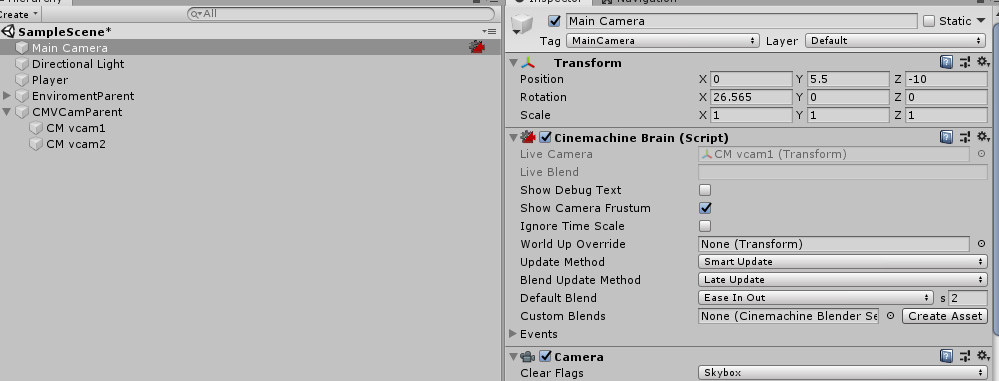
The Cinemachine Brain is a component in the Unity Camera itself. Cinemachine Brain monitors all active Virtual Cameras in the Scene. To specify the next live Virtual Camera, you activate or deactivate the desired Virtual Camera’s game object.

从上面的介绍可以看出,Cinemachine Brain组件式挂载在摄像机对象上的一个组件,负责管理所有Virual Camera,同一时间只有一个Virtual Camera起作用用于主摄像机,优先选择Priority高的已激活Virutal Camera作为当前起作用的摄像机,优先级相同的情况下看哪个Virtual Camera后激活优先。

CinemachineBrain

关于Cinemachine Brain的详细参数介绍,这里就不深入探讨了,感兴趣的朋友参考文档去自行了解。

Note:

  1. Timeline重写了Cinemachine Brain的Priority系统可以更好的控制摄像机达到更精准的摄像机控制。

Virtual Cameras

Cinemachine does not create new cameras. Instead, it directs a single Unity camera for multiple shots. You compose these shots with Virtual Cameras. Virtual Cameras move and rotate the Unity camera and control its settings.

从上面的介绍可以知道,Cinemachine里的Virtual Cameras并非真正的Camera组件,而是一个抽象概念,而这个抽象的Virtuel Cameras会去负责控制真正的摄像机达到预定的效果。

每一个Virtual Cameras都会对应一个GameObject和一个CinemachineVirtualCamera组件脚本:

CinemachineVirtualCamera

Virtual Camera States

Virtual Camera有三种状态:

  1. Live:The virtual camera is actively controlling the Unity Camera. The virtual camera is tracking its targets and being updated every frame.
  2. Standby: The virtual camera is tracking its targets and being updated every frame, but no Unity Camera is actively being controlled by it. This is the state of a virtual camera that is enabled in the scene but perhaps at a lower priority than the Live virtual camera.
  3. Disabled: The virtual camera is present but disabled in the scene. It is not actively tracking its targets and so consumes no processing power. However, the virtual camera can be made live from the Timeline.

从介绍可以看到Live是指当前Virtual Camera优先级最高起作用的那个。而Standby是优先级低于当前起作用的Virtual Camera但没有Disable的Virtual Camera,这些摄像机逻辑上依然会更新跟随自己设定的对象,但不会影响真实摄像机运作。最后Disabled是即低于当前最高优先级Virtual Camera也没有激活的Virtual Camera,这类摄像机不会有任何运行开销,逻辑层面也不会在继续跟随自己的目标对象。

Virtual Camera Params

关于Virtual Camera的细节参数学习,接下来学习几个重要的参数,更多的细节参考:

Cinemachine overview

Priority正如前面提到的,决定了Virtual Camera在Cinemachine Brain里的选择优先级。

FollowLook At两个参数分别决定了摄像机的跟随对象和对焦对象,这两个参数是常规游戏类型里都需要的概念,好比博主当前要做的赛车游戏,Follow和Look At对象都是赛车就能做到跟随和聚焦赛车的效果。

Body属性提供了Virtual Camera对于摄像机移动的算法选择,从而达到适配各种游戏类型的摄像机镜头移动要求。

CinemachineBodyProperties

这里博主的赛车游戏默认选择Transposer来达到平滑跟随效果。

Aim属性提供了Virtual Camera对于佘香即旋转的算法选择,从而达到适配各种游戏类型的摄像机镜头选择要求。

CinemachineAimProperties

BodyAim通过细节的参数调整能实现各种角度以及各种游戏类型需求的摄像机跟随聚焦效果,这里博主暂时就不深入学习讨论了,有兴趣的可以参考文档去了解细节。

那么Virtual Camera的聚焦效果是如何实现的了?

了解聚焦效果之前有几个重钙的概念需要了解:

  1. Dead zone: The area of the frame that Cinemachine keeps the target in.

  2. Soft zone: If the target enters this region of the frame, the camera will re-orient to put it back in the dead zone. It will do this slowly or quickly, according to the time specified in the Damping settings.

  3. Screen: The screen position of the center of the dead zone. 0.5 is the center of the screen.

  4. Damping: Simulates the lag that a real camera operator introduces while operating a heavy physical camera. Damping specifies quickly or slowly the camera reacts when the target enters the soft zone while the camera tracks the target. Use small numbers to simulate a more responsive camera, rapidly moving or aiming the camera to keep the target in the dead zone. Larger numbers simulate heavier cameras, The larger the value, the more Cinemachine allows the target to enter the soft zone.

CinemachineZone

Dead Zone, Soft Zone, Screen参数在Body和Aim的属性面板上有体现,他们决定了摄像机是如何应对Look At对象走出指定区域时响应变化以及如何确保Look At对象在指定区域内的。

Cinemachine Camera Types

Unity Cinemachine自带了很多种摄像机用于不同的游戏种类:

CinemachineCameraTypes

不同的摄像机种类适用于不同的游戏类型。

Virtual Camera

Virtual Camera在前面的介绍已经提过了,这里就不再重复了,后续的摄像机类型大部分也是基于Virtual Camera的,只是在Virtual Camera的基础上实现了一套各自摄像机管理方式从而达到不同的摄像机类型效果。

FreeLook Camera

此类摄像机没有基于Virtual Camera而是单独挂载了一个Cinemachine Free Look的脚本实现的。

A Cinemachine Camera geared towards a 3rd person camera experience. The camera orbits around its subject with three separate camera rigs defining rings around the target. Each rig has its own radius, height offset, composer, and lens settings. Depending on the camera’s position along the spline connecting these three rigs, these settings are interpolated to give the final camera position and state.

从介绍可以看出,FreeLook Camera是用于第三人称围绕目标对象旋转控制的一套摄像机类型(比如第三人称RPG等游戏,有围绕主角相关的摄像机旋转控制等)。

State-Driven Camera

这里的State指的是Animator里的State,通过State-Drive Camera我们可以轻易的实现Animator State和Virtual Camera选择的绑定。这样就能轻易实现Walk状态用什么Virtual Camera,Idle状态使用什么Virtual Camera的效果。

更多的摄像机类型参考:

About Cinemachine

这里还值得一提的是摄像机限定移动范围和摄像机被障碍物主档导致目标对象不可见时Cinemachine提供的一种解决方案:

Collision Avoidance and Shot Evaluation

CinemachineCollider

An add-on module for Cinemachine Virtual Camera that post-processes the final position of the virtual camera. Based on the supplied settings, the Collider will attempt to preserve the line of sight with the LookAt target of the virtual camera by moving away from objects that will obstruct the view.

简单来说CinemachineCollider是通过相关设置,通过射线检测评估出当前摄像机最优的位置,从而避免被障碍物遮挡视线等问题。

Note:

  1. The collider uses Physics Raycasts to do these things, hence obstacles in the scene must have collider volumes in order to be visible to the CinemachineCollider.

CinemachineConfiner

An add-on module for Cinemachine Virtual Camera that post-processes the final position of the virtual camera. It will confine the virtual camera’s position to the volume specified in the Bounding Volume field.

从介绍可以看出CinemachineConfiner相比CinemachineCollider,这是一个单纯限制摄像机运动范围的组件,更加轻量,没有过多多射线检测评估等过程,用于简单的限制摄像机运动范围,此组件更佳。

Note:

  1. This is less resource-intensive than CinemachineCollider, but it does not perform shot evaluation.

实战

实战前,先让我们明确下个人的摄像机需求,需求明确了才能更加正确的使用Cinemachine达到效果。

摄像机需求:

  1. 支持相机单独控制操作
  2. 支持相机限定移动范围操作
  3. 支持相机锁定目标操作
  4. 支持相机锁定目标和自由操作自由切换操作
  5. 支持相机锁定目标操作回调上层逻辑(用于配合逻辑层做事情)
  6. 场景摄像机支持多个摄像机同时控制(比如:MainCamera和3D UI Camera)

待续……

TextMeshPro

What

TextMesh Pro is the ultimate text solution for Unity. It’s the perfect replacement for Unity’s UI Text and the legacy Text Mesh.

TextMeshPro原本是第三方个人编写的一款更优的Unity文本替代方案,后被Unity官方收购。

Why

使用TextMeshPro替代原生文本的原因有很多:

  1. TMP使用了SDF(Signed Distance Field)技术达到不失真的放大缩小渲染
  2. TMP自带实现了图文混排(通过富文本打Tag的形式)以及很多文本所需的功能(e.g. 字间距,自定义字体大小,段落格式,对齐方式等)
  3. TMP使用Shader去实现更好的文本表现效果(类似PS的一些效果)满足文本需求

缺点:

  1. 不支持动态字体(看网上说是TMP1.4支持动态字体(Generating Settings),但我在Unity2018.4.1.f1上导入的TMP没有找到动态字体设置的入口,望知道的朋友告知一声在哪里设置),需要生成对应的字体纹理库(对于文字多的比如中文来说有很大的内存压力)

SDF(Signed Distance Field)介绍:
一个空间区域的SDF函数定义为,从空间中任意给定的一点到该区域边界的距离,SDF函数值的符号取决于该点在区域的内部还是外部,外部为正,内部为负。

这里可以简单的理解成TMP通过函数式的定义方式(类似矢量图的定义方式)来解决像素图放大模糊的问题来渲染出可动态放大缩小不模糊的图像。深入理解参考下面的链接:函数式编程与 Signed Distance Field

How

TMP需要通过TMP提供的字体库制作工具制作所需的对应字体文件:
FontAssetCreatePanel
如果想要使用图文混排还需要自己制作SpriteAsset:
SpriteAssetCreatePanel
制作好后创建TextMeshPro组件后指定需要使用的Font Asset和Sprite Asset即可:
TextMeshProAssignFontAssetAndSpriteAsset

最终效果:
TextMeshProUsing
TextMeshPro同一个Font Asset需要制作不同的渲染效果需要通过制作不同的Material来实现:
CreateFontAssetMaterial

然后在针对新创建的Material Asset调整Shader和具体效果即可,创建完成后就可以在Font Asset的材质下拉列表里选择需要使用的效果:
FontAssetMaterialChosen

关于TextMeshPro的默认相关设置(e.g. 默认创建的Font Asset,默认Fallback到的Font Asset等)是通过TMP Settings文件里的设置来完成的:
TMPSettings

Note:

  1. TMP的Fallback的使用是在原始设定的Font Asset里找不到对应文字时的一种回退安全机制,官方的建议是真正使用的Font Asset采用高分率图集,Fallback的Font Asset采用低分辨率图集。

引用

Sprite Atlas

Sprite Atlas
Master and Variant Sprite Atlases
Variant Sprite Atlas
Sprite Atlas workflow
Preparing Sprite Atlases for distribution
Sprite Packer Modes
Unity2017新功能之Sprite Atlas详解
UGUI的图集处理方式-SpriteAtlas的前世今生

Timeline

Unity–Timeline自定义PlayableTrack
Unity2017中Timeline的简单使用方法
Unity使用Cinemachine和Timeline入门

graph-visualizer

Timeline

xtending Timeline: A Practical Guide

Creative Scripting for Timeline

Playable API:定制你的动画系统

Playables API

The PlayableGraph

ScriptPlayable and PlayableBehaviour

Playables Examples

TextMesh Pro

TextMesh Pro
函数式编程与 Signed Distance Field
Unity游戏开发——TextMeshPro的使用
在Unity 2018中充分使用TextMesh Pro
Making the most of TextMesh Pro in Unity 2018

Cinemachine

Cinemachine overview

Cinemachine Learn

数据库

数据存储对于游戏开发来说是必不可少的,在常规的游戏开发中,后端服务器会采用MySQL(关系型数据库),**MongoDB(非关系型数据库)**等作为数据库存储。

关于关系型和菲关系型数据库的学习理解参考:

网络通信和服务器学习

本章节是在没有后端但又有玩家数据存储需求的前提下诞生的,通过调研**SQLite(关系型数据库)**正是定位本地高效数据库而非CS结构的数据库,所以本章节通过深入学习SQLite,弄懂如何正确高效的把本地玩家数据存储到本地数据库。

SQLite

What

首先来看看SQLite官网的一个介绍:
SQLite is not directly comparable to client/server SQL database engines such as MySQL, Oracle, PostgreSQL, or SQL Server since SQLite is trying to solve a different problem.
Client/server SQL database engines strive to implement a shared repository of enterprise data. They emphasize scalability, concurrency, centralization, and control. SQLite strives to provide local data storage for individual applications and devices. SQLite emphasizes economy, efficiency, reliability, independence, and simplicity.
SQLite does not compete with client/server databases. SQLite competes with fopen().

从上面的介绍可以看出,SQLite(C语言编写的库)虽然也是关系型数据库,但他的定位和MySQL不一样,定位的是本地高效数据库而非CS结构的数据库。

Why

那么什么时候适用于SQLite?什么时候适用于MySQL(CS)了?
SQLite官网也给出了明确的介绍,详情参见官网SQLite
这里只列举下官网介绍的什么时候适用于MYSQL:

  1. Client/Server Applications(CS结构的程序–需要大量客户端服务器通信存储)
  2. High-volume Websites(高吞吐量的网站)
  3. Very large datasets(数据存储量大–数据大)
  4. High Concurrency(高并发–很多人同时写入)

How

这里本人明确了暂时是打算用于单机版游戏的本地数据库,所以倾向于用SQLite来做。
接下来会接触以下几个知识点:

  1. Unity(游戏开发引擎)
  2. SQLite4Unity3d(第三方给Unity封装好的SQLite库–支持Window,Android(ARM64貌似也支持了)和IOS)
  3. Navicat(可视化数据库工具)
  4. SQL(数据库查询语言)

目标:

  1. 编写一个数据库操作UI界面,支持数据库的增删改查操作(方便学习使用SQLite4Unity3d提供的接口访问SQLite数据库)
  2. 利用Navicat查看Window本地存储的数据库数据(学会Navicat的基本使用和数据库SQL相关操作)
  3. 打包编译Window和Android版本到真机上查看效果(确保多平台的兼容性)

SQLite4Unity3d实战

环境准备:
Unity版本:2018.4.8f1
SQLite4Unity3d: SQLite4Unity3d
Navivat: Navicat Premium
SQL:SQL学习1 or SQL学习2

Note:

  1. SQLite4Unity3d uses only the synchronous part of sqlite-net, so all the calls to the database are synchronous.(SQLite4Unity3d有这么一句官方提示,可以看出所有的数据库操作都是同步的。这里考虑到都是单机本地存储同时数据量也不会很大,所以同步异步不是很重要,所以并不影响个人使用。)

PC实战

接下来结合SQLite4Unity3d来实战学习数据库的增删改查等操作。
第1步
创建空的Unity工程,制作简单的交互UI
SQLiteUserInterface

第2步
拷贝SQLite相关库文件:
SQLitePlugin
还要拷贝SQLite.cs(SQLite4Unity3d作者封装的访问SQLite的相关接口)
通过查看SQLite.cs的源代码可以看出,作者封装的这一层通过CS层多抽象了一层数据库访问(增删改查)和表格数据结构,然后结合反射(反射查找对应类的数据库)和Linq(实现快速的数据库查询)来实现通用的数据访问。

第3步
定义数据库表结构:

1
2
3
4
5
6
7
8
9
10
11
12
13
14
15
16
/// <summary>
/// 玩家信息
/// </summary>
public class Player
{
[PrimaryKey]
public int UID { get; set; }
public string FirstName { get; set; }
public string LastName { get; set; }
public int Age { get; set; }

public override string ToString()
{
return $"[Player: UId={UID}, FirstName={FirstName}, LastName={LastName}, Age={Age}]";
}
}

第4步
建立SQLite数据库连接(不存在的话会根据Flag决定是否自动创建):

1
2
3
DatabaseFolderPath = $"{Application.persistentDataPath}/";
// 建立数据库连接
mSQLiteConnect = new SQLiteConnection($"{DatabaseFolderPath}/{DatabaseName}", SQLiteOpenFlags.ReadWrite | SQLiteOpenFlags.Create);

可以看到本来StreamingAssets目录下没有数据库文件的这一下就创建成功了。
CreateDatabase

第5步
数据库里创建玩家表:

1
mSQLiteConnect.CreateTable<Player>();

CreatePlayerTable
因为还没有数据所以看不到数据打印,通过Navicat打开数据库,我们可以看到已经成功创建了Player表:
PlayerTableView

第6步
玩家表插入玩家数据:

1
2
3
4
5
6
7
8
9
10
11
12
13
14
15
16
17
18
19
20
21
22
23
24
25
26
27
28
29
30
31
32
33
34
35
mSQLiteConnect.Insert(new Player
{
UID = 1,
FirstName = "Huan",
LastName = "Tang",
Age = 29,
});
mSQLiteConnect.Insert(new Player
{
UID = 3,
FirstName = "XiaoYun",
LastName = "Zhou",
Age = 28,
});
mSQLiteConnect.Insert(new Player
{
UID = 2,
FirstName = "Jiang",
LastName = "Fan",
Age = 28,
});
mSQLiteConnect.Insert(new Player
{
UID = 5,
FirstName = "ZhenLiang",
LastName = "Li",
Age = 29,
});
mSQLiteConnect.Insert(new Player
{
UID = 4,
FirstName = "XiaoLin",
LastName = "Kuang",
Age = 28,
});

InsertPlayerTableData

第7步
玩家表删除指定玩家ID数据:

1
mSQLiteConnect.Delete<Player>(deleteuid);

DeletePlayerTableData

第7步
玩家表修改指定玩家Age数据:

1
2
valideplayer.Age = newage;
mSQLiteConnect.Update(valideplayer);

ModifyPlayerTableAgeData

第8步
删除玩家表所有数据:

1
var rownumber = mSQLiteConnect.DeleteAll<Player>();

DeleteAllPlayerTableData
可以看到我们成功删除了玩家表里的所有数据,接下来用Navicat验证下数据库里的情况:
DatabaseAfterDeleteAllPlayerTableData

第9步
删除数据库里的玩家表:

1
var rownumberaffected = mSQLiteConnect.DropTable<Player>();

DeletePlayerTable
删除玩家表后通过Navicat查看数据库:
DatabaseViewAfterDeletePlayerTable
通过查看源码,我们可以看到,DraopTable底层实际是通过调用SQL的Drop语句来实现删除表的:

1
2
3
4
5
6
7
8
9
10
11
/// <summary>
/// Executes a "drop table" on the database. This is non-recoverable.
/// </summary>
public int DropTable<T>()
{
var map = GetMapping (typeof (T));

var query = string.Format("drop table if exists \"{0}\"", map.TableName);

return Execute (query);
}

关于SQL更多学习参考:
SQL 教程
SQL Tutorial
可以看到通过使用SQLite4Unity3d的SQLite.cs相关的接口,成功的实现了对于数据库的创建,以及数据库表的创建,增删改查等操作。

第10步
关闭数据库连接:

1
mSQLiteConnect.Close();

Android实战

为了验证SQLite4Unity3d的跨平台能力,接下来打包验证真机:
Android真机数据库操作:
AndroidSQLiteUsing

Android真机数据库文件查看(本人使用的ES文件浏览器):
![DatabaseViewAfterOperation]/img/Database/DatabaseViewAfterOperation.png)

Android真机数据库详细信息PC查看:
AndroidDatabaseView

可以看到Android真机上数据库的一些基础操作都成功了的。IOS这里就暂时不验证了,根据Github上的介绍理论上是支持的。

Note:

  1. 真机可读取目录修改为Application.persistentDataPath,因为Application.streamingAssetsPath在真机上是只读目录。
  2. 真机使用ES文件浏览器来查看程序目录下的数据库文件

SQLite4Unity3d进阶

学习了SQLite4Unity3d的基础使用,接下来要考虑的是实战使用时,如何封装一层数据库管理,方便游戏里的所有数据库数据都成功的加载读取修改保存。

这里主要是对于SQLite.cs的简单封装,用于支持多数据库创建,以及数据库创建路径管理,以及自定义数据库表的封装访问。

上代码之前,先简单看下封装的代码设计:

  • DatabaseManager.cs(对多数据库创建访问以及路径规划进行封装支持)
  • BaseDatabase.cs(数据库基类抽象–实现对数据库操作进行封装)
  • BaseTableData.cs(数据库表数据基类抽象–实现对数据库表操作进行封装)
  • BaseIntTableData.cs(int做主键的表数据抽象–实现对int主键表的操作封装)
  • BaseStringTableData.cs(string做主键的表数据抽象–实现对string主键表的操作封装)

DatabaseManager.cs

1
2
3
4
5
6
7
8
9
10
11
12
13
14
15
16
17
18
19
20
21
22
23
24
25
26
27
28
29
30
31
32
33
34
35
36
37
38
39
40
41
42
43
44
45
46
47
48
49
50
51
52
53
54
55
56
57
58
59
60
61
62
63
64
65
66
67
68
69
70
71
72
73
74
75
76
77
78
79
80
81
82
83
84
85
86
87
88
89
90
91
92
93
94
95
96
97
98
99
100
101
102
103
104
105
106
107
108
109
110
111
112
113
114
115
116
117
118
119
120
121
122
123
124
125
126
127
128
129
130
131
132
133
134
135
136
137
138
139
140
141
142
143
144
145
146
147
148
149
150
151
152
153
154
155
namespace TH.Modules.Data
{
/// <summary>
/// 数据库管理类
/// 主要功能如下:
/// 1. 数据库路径处理(数据库存储管理)
/// 2. 多数据库支持
/// 3. 数据库连接,关闭,CUID操作等操作依然使用SQLite的封装
/// </summary>
public class DatabaseManager : SingletonTemplate<DatabaseManager>
{
/// <summary>
/// 数据库文件夹地址
/// </summary>
private readonly static string DatabaseFolderPath = Application.persistentDataPath + "/Database/";

/// <summary>
/// 已连接的数据库映射Map
/// Key为数据库名,Value为对应的数据库连接
/// </summary>
private Dictionary<string, SQLiteConnection> ConnectedDatabaseMap;

public DatabaseManager()
{
//检查数据库文件目录是否存在
if(!Directory.Exists(DatabaseFolderPath))
{
Directory.CreateDirectory(DatabaseFolderPath);
}
ConnectedDatabaseMap = new Dictionary<string, SQLiteConnection>();
}

/// <summary>
/// 打开数据库连接
/// </summary>
/// <param name="databasename"></param>
/// <param name="openflags"></param>
/// <param name="storeDateTimeAsTicks"></param>
public void openDatabase(string databasename, SQLiteOpenFlags openflags = SQLiteOpenFlags.ReadWrite | SQLiteOpenFlags.Create, bool storeDateTimeAsTicks = false)
{
if(!isDatabaseConnected(databasename))
{
var databasepath = DatabaseFolderPath + databasename;
var connection = new SQLiteConnection(databasepath, openflags, storeDateTimeAsTicks);
ConnectedDatabaseMap.Add(databasename, connection);
Debug.Log($"连接数据库:{databasename}");
}
else
{
Debug.Log($"数据库:{databasename}已连接,请勿重复连接!");
}
}

/// <summary>
/// 获取指定数据库连接
/// </summary>
/// <param name="databasename"></param>
/// <returns></returns>
public SQLiteConnection getDatabaseConnection(string databasename)
{
SQLiteConnection connection;
if (ConnectedDatabaseMap.TryGetValue(databasename, out connection))
{
return connection;
}
else
{
return null;
}
}

/// <summary>
/// 关闭数据库连接
/// </summary>
/// <param name="databasename"></param>
public void closeDatabase(string databasename)
{
SQLiteConnection connection;
if(ConnectedDatabaseMap.TryGetValue(databasename, out connection))
{
connection.Close();
ConnectedDatabaseMap.Remove(databasename);
Debug.Log($"关闭数据库:{databasename}");
}
else
{
Debug.LogError($"未连接数据库:{databasename},关闭失败!");
}
}

/// <summary>
/// 关闭所有已连接的数据库
/// </summary>
public void closeAllDatabase()
{
foreach (var databasename in ConnectedDatabaseMap.Keys)
{
closeDatabase(databasename);
}
}

/// <summary>
/// 清除
/// </summary>
public void clear()
{
closeAllDatabase();
}

/// <summary>
/// 指定数据库是否已连接
/// </summary>
/// <param name="databasename"></param>
/// <returns></returns>
private bool isDatabaseConnected(string databasename)
{
return ConnectedDatabaseMap.ContainsKey(databasename);
}

#region 辅助方法
/// <summary>
/// 获取指定数据库表的所有数据
/// </summary>
/// <typeparam name="T"></typeparam>
/// <param name="databasename">数据库名</param>
/// <returns></returns>
public string getTableAllDatasInOneString<T>(string databasename) where T : new()
{
SQLiteConnection sqliteconnection = getDatabaseConnection(databasename);
if (sqliteconnection != null)
{
var querytable = sqliteconnection.Table<T>();
if (querytable != null)
{
var result = string.Empty;
foreach (var data in querytable)
{
result += data.ToString();
result += "\n";
}
return result;
}
else
{
return string.Empty;
}
}
else
{
return string.Empty;
}
}
#endregion
}
}

TODO:

  1. 现阶段是默认存在包外的persistentDataPath,对于数据库如何做好加密管理避免被轻易修改,这个问题还有待学习思考。
  2. 数据库表是否存在还没找到方式判定(暂时是从流程上确保表存在的)

BaseDatabase.cs

1
2
3
4
5
6
7
8
9
10
11
12
13
14
15
16
17
18
19
20
21
22
23
24
25
26
27
28
29
30
31
32
33
34
35
36
37
38
39
40
41
42
43
44
45
46
47
48
49
50
51
52
53
54
55
56
57
58
59
60
61
62
63
64
65
66
67
68
69
70
71
72
73
74
75
76
77
78
79
80
81
82
83
84
85
86
87
88
89
90
91
92
93
94
95
96
97
98
99
100
101
102
103
104
105
106
107
108
109
110
111
112
113
114
115
116
117
118
119
120
121
122
123
124
125
126
127
128
129
130
131
132
133
134
135
136
137
138
139
140
141
142
143
144
145
146
147
148
149
150
151
152
153
154
155
156
157
158
159
160
161
162
163
164
165
166
167
168
169
170
171
172
173
174
175
176
177
178
179
180
181
182
183
184
185
186
187
188
189
190
191
192
193
194
195
196
197
198
199
200
201
202
203
204
205
206
207
208
209
210
211
212
213
214
215
216
217
218
219
220
221
222
223
224
225
226
227
228
229
230
231
232
233
234
235
236
237
238
239
240
241
242
243
244
245
246
247
248
249
250
251
252
253
254
255
256
257
258
259
260
261
262
263
264
265
266
267
268
269
270
271
272
273
274
275
276
277
278
279
280
281
282
283
284
285
286
287
288
289
290
291
292
293
294
295
296
297
298
299
300
301
302
303
304
305
306
307
308
309
310
311
312
313
314
315
316
317
318
319
320
321
322
323
324
325
326
327
328
329
330
331
332
333
334
335
336
337
338
339
340
341
342
343
344
345
346
347
348
349
350
351
352
namespace TH.Modules.Data
{
/// <summary>
/// BaseDatabase.cs
/// 数据库基类抽象
/// Note:
/// 子类自行实现单例模式方便访问
/// </summary>
public abstract class BaseDatabase
{
/// <summary>
/// 数据库连接
/// </summary>
protected SQLiteConnection mSQLiteConnect;

/// <summary>
/// 数据库名
/// </summary>
public virtual string DatabaseName
{
get
{
return $"{GetType().Name}.db";
}
}

protected BaseDatabase()
{

}

/// <summary>
/// 加载数据库
/// </summary>
public void LoadDatabase()
{
mSQLiteConnect = DatabaseManager.Singleton.openDatabase(DatabaseName);
}

/// <summary>
/// 数据库是否已连接
/// </summary>
/// <returns></returns>
public bool IsConnected()
{
return mSQLiteConnect != null;
}

///// <summary>
///// 指定表是否存在
///// </summary>
///// <typeparam name="T"></typeparam>
///// <returns></returns>
//public bool IsTableExist<T>() where T : BaseTableData, new()
//{
// if (!IsConnected())
// {
// Debug.LogError($"数据库:{DatabaseName}未连接,访问类名:{typeof(T).Name}表是否存在失败!");
// return false;
// }
// // TODO: 找到方法判定是否存在
// return false;
//}

/// <summary>
/// 创建指定数据库表
/// </summary>
/// <typeparam name="T"></typeparam>
/// <returns></returns>
public bool CreateTable<T>() where T : BaseTableData, new()
{
if(!IsConnected())
{
Debug.LogError($"数据库:{DatabaseName}未连接,创建类名:{typeof(T).Name}表失败!");
return false;
}
//if(!IsTableExist<T>())
//{
// Debug.LogError($"数据库:{DatabaseName},类名:{typeof(T).Name}表已存在,请勿重复创建!");
// return false;
//}
mSQLiteConnect.CreateTable<T>();
return true;
}

/// <summary>
/// 插入指定int主键的表数据(如果表不存在则创建表)
/// </summary>
/// <typeparam name="T"></typeparam>
/// <returns></returns>
public bool InsertDataI<T>(T data) where T : BaseIntTableData, new()
{
if (!IsConnected())
{
Debug.LogError($"数据库:{DatabaseName}未连接,插入类名:{typeof(T).Name}表数据失败!");
return false;
}
//if (!IsTableExist<T>())
//{
// CreateTable<T>();
//}
mSQLiteConnect.Insert(data);
return true;
}

/// <summary>
/// 插入指定int主键的表数据(如果表不存在则创建表,如果主键存在则覆盖更新)
/// </summary>
/// <typeparam name="T"></typeparam>
/// <returns></returns>
public bool InsertOrReplaceDataI<T>(T data) where T : BaseIntTableData, new()
{
if (!IsConnected())
{
Debug.LogError($"数据库:{DatabaseName}未连接,插入类名:{typeof(T).Name}表数据失败!");
return false;
}
//if (!IsTableExist<T>())
//{
// CreateTable<T>();
//}
mSQLiteConnect.InsertOrReplace(data);
return true;
}

/// <summary>
/// 插入指定int主键的表数据(如果表不存在则创建表)
/// </summary>
/// <typeparam name="T"></typeparam>
/// <returns></returns>
public bool InsertDataS<T>(T data) where T : BaseStringTableData, new()
{
if (!IsConnected())
{
Debug.LogError($"数据库:{DatabaseName}未连接,插入类名:{typeof(T).Name}表数据失败!");
return false;
}
//if (!IsTableExist<T>())
//{
// CreateTable<T>();
//}
mSQLiteConnect.Insert(data);
return true;
}

/// <summary>
/// 插入指定string主键的表数据(如果表不存在则创建表,如果主键存在则覆盖更新)
/// </summary>
/// <typeparam name="T"></typeparam>
/// <returns></returns>
public bool InsertOrReplaceDataS<T>(T data) where T : BaseStringTableData, new()
{
if (!IsConnected())
{
Debug.LogError($"数据库:{DatabaseName}未连接,插入类名:{typeof(T).Name}表数据失败!");
return false;
}
//if (!IsTableExist<T>())
//{
// CreateTable<T>();
//}
mSQLiteConnect.InsertOrReplace(data);
return true;
}

/// <summary>
/// 删除指定UID的表数据(整形主键)
/// </summary>
/// <typeparam name="T"></typeparam>
/// <returns></returns>
public bool DeleteDataByUIDI<T>(int uid) where T : BaseIntTableData, new()
{
if (!IsConnected())
{
Debug.LogError($"数据库:{DatabaseName}未连接,删除类名:{typeof(T).Name}表UID:{uid}数据失败!");
return false;
}
var deletedNumber = mSQLiteConnect.Delete<T>(uid);
Debug.Log($"数据库:{DatabaseName},删除类名:{typeof(T).Name}表UID:{uid}数量:{deletedNumber}");
return deletedNumber > 0;
}

/// <summary>
/// 删除指定UID的表数据(字符串主键)
/// </summary>
/// <typeparam name="T"></typeparam>
/// <returns></returns>
public bool DeleteDataByUIDS<T>(string uid) where T : BaseStringTableData, new()
{
if (!IsConnected())
{
Debug.LogError($"数据库:{DatabaseName}未连接,删除类名:{typeof(T).Name}表数据失败!");
return false;
}
var deletedNumber = mSQLiteConnect.Delete<T>(uid);
Debug.Log($"数据库:{DatabaseName},删除类名:{typeof(T).Name}表UID:{uid}数量:{deletedNumber}");
return deletedNumber > 0;
}

/// <summary>
/// 更新指定int主键的表数据(如果表不存在则创建表)
/// </summary>
/// <typeparam name="T"></typeparam>
/// <returns></returns>
public bool UpdateDataI<T>(T data) where T : BaseIntTableData, new()
{
if (!IsConnected())
{
Debug.LogError($"数据库:{DatabaseName}未连接,插入类名:{typeof(T).Name}表数据失败!");
return false;
}
//if (!IsTableExist<T>())
//{
// CreateTable<T>();
//}
var updatedNumber = mSQLiteConnect.Update(data);
Debug.Log($"数据库:{DatabaseName},更新类名:{typeof(T).Name}表UID:{data.UID}数量:{updatedNumber}");
return updatedNumber > 0;
}

/// <summary>
/// 更新指定string主键的表数据(如果表不存在则创建表)
/// </summary>
/// <typeparam name="T"></typeparam>
/// <returns></returns>
public bool UpdateDataS<T>(T data) where T : BaseStringTableData, new()
{
if (!IsConnected())
{
Debug.LogError($"数据库:{DatabaseName}未连接,插入类名:{typeof(T).Name}表数据失败!");
return false;
}
//if (!IsTableExist<T>())
//{
// CreateTable<T>();
//}
var updatedNumber = mSQLiteConnect.Update(data);
Debug.Log($"数据库:{DatabaseName},更新类名:{typeof(T).Name}表UID:{data.UID}数量:{updatedNumber}");
return updatedNumber > 0;
}

/// <summary>
/// 获取指定UID的表数据(整形主键)
/// </summary>
/// <typeparam name="T"></typeparam>
/// <returns></returns>
public T GetDataByUIDI<T>(int uid) where T : BaseIntTableData, new()
{
if (!IsConnected())
{
Debug.LogError($"数据库:{DatabaseName}未连接,获取类名:{typeof(T).Name}表数据失败!");
return null;
}
var data = mSQLiteConnect.Find<T>((databaseTable) => databaseTable.UID == uid);
if (data == null)
{
Debug.LogError($"数据库:{DatabaseName},获取类名:{typeof(T).Name}的UID:{uid}表数据不存在!");
return null;
}
return data;
}

/// <summary>
/// 获取指定UID的表数据(字符串主键)
/// </summary>
/// <typeparam name="T"></typeparam>
/// <returns></returns>
public T GetDataByUIDS<T>(string uid) where T : BaseStringTableData, new()
{
if (!IsConnected())
{
Debug.LogError($"数据库:{DatabaseName}未连接,获取类名:{typeof(T).Name}表数据失败!");
return null;
}
var data = mSQLiteConnect.Find<T>((databaseTable) => databaseTable.UID == uid);
if (data == null)
{
Debug.LogError($"数据库:{DatabaseName},获取类名:{typeof(T).Name}的UID:{uid}表数据不存在!");
return null;
}
return data;
}


/// <summary>
/// 获取指定表所有数据
/// </summary>
/// <typeparam name="T"></typeparam>
/// <returns></returns>
public TableQuery<T> GetAllData<T>() where T : BaseTableData, new()
{
if (!IsConnected())
{
Debug.LogError($"数据库:{DatabaseName}未连接,获取类名:{typeof(T).Name}表数据失败!");
return null;
}
var tbData = mSQLiteConnect.Table<T>();
if (tbData == null)
{
Debug.LogError($"数据库:{DatabaseName},获取类名:{typeof(T).Name}表所有数据不存在!");
return null;
}
return tbData;
}

/// <summary>
/// 删除指定表所有数据
/// </summary>
/// <returns></returns>
public int DeleteTableAll<T>() where T : BaseTableData, new()
{
if (!IsConnected())
{
Debug.LogError($"数据库:{DatabaseName}未连接,删除类名:{typeof(T).Name}表所有数据失败!");
return 0;
}
//if (!IsTableExist<T>())
//{
// Debug.LogError($"数据库:{DatabaseName},删除类名:{typeof(T).Name}表不存在,删除所有数据失败!");
// return 0;
//}
var deletedNumber = mSQLiteConnect.DeleteAll<T>();
Debug.Log($"数据库:{DatabaseName},删除类名:{typeof(T).Name}表所有数据数量:{deletedNumber}");
return deletedNumber;
}

/// <summary>
/// 删除指定表
/// </summary>
/// <returns></returns>
public int DeleteTable<T>() where T : BaseTableData, new()
{
if (!IsConnected())
{
Debug.LogError($"数据库:{DatabaseName}未连接,删除类名:{typeof(T).Name}表失败!");
return 0;
}
var deletedNumber = mSQLiteConnect.DropTable<T>();
Debug.Log($"数据库:{DatabaseName},删除类名:{typeof(T).Name}表数量:{deletedNumber}");
return deletedNumber;
}

/// <summary>
/// 关闭数据库
/// </summary>
public void CloseDatabase()
{
DatabaseManager.Singleton.closeDatabase(DatabaseName);
mSQLiteConnect = null;
}
}
}

BaseTableData.cs

1
2
3
4
5
6
7
8
9
10
11
12
13
14
15
16
17
18
19
20
21
22
23
24
25
26
27
28
29
30
31
32
33
namespace TH.Modules.Data
{
/// <summary>
/// BaseTableData.cs
/// 数据库表数据基类抽象
/// </summary>
public abstract class BaseTableData
{
/// <summary>
/// 表名
/// </summary>
public string TableName
{
get
{
return GetType().Name;
}
}

public BaseTableData()
{

}

/// <summary>
/// 打印数据
/// </summary>
public override string ToString()
{
return $"[TableName:{TableName}]";
}
}
}

BaseIntTableData.cs

1
2
3
4
5
6
7
8
9
10
11
12
13
14
15
16
17
18
19
20
21
22
23
24
25
26
27
28
29
30
31
32
33
34
35
36
37
38
39
40
41
namespace TH.Modules.Data
{
/// <summary>
/// BaseIntTableData.cs
/// Int做主键的表数据抽象
/// </summary>
public abstract class BaseIntTableData : BaseTableData
{
/// <summary>
/// 主键UID
/// </summary>
[PrimaryKey]
public int UID
{
get;
set;
}

public BaseIntTableData() : base()
{

}

/// <summary>
/// 构造函数
/// </summary>
/// <param name="uid"></param>
public BaseIntTableData(int uid) : base()
{
UID = uid;
}

/// <summary>
/// 打印所有表数据
/// </summary>
public override string ToString()
{
return $"[TableName:{TableName} UID:{UID}]";
}
}
}

BaseStringTableData.cs

1
2
3
4
5
6
7
8
9
10
11
12
13
14
15
16
17
18
19
20
21
22
23
24
25
26
27
28
29
30
31
32
33
34
35
36
37
38
namespace TH.Modules.Data
{
/// <summary>
/// BaseStringTableData.cs
/// string做主键的表数据抽象
/// </summary>
public abstract class BaseStringTableData : BaseTableData
{
[PrimaryKey]
public string UID
{
get;
set;
}

public BaseStringTableData() : base()
{

}

/// <summary>
/// 构造函数
/// </summary>
/// <param name="uid"></param>
public BaseStringTableData(string uid) : base()
{
UID = uid;
}

/// <summary>
/// 打印数据
/// </summary>
public override string ToString()
{
return $"[TableName:{TableName} UID:{UID}]";
}
}
}

GameDatabase.cs(自定义游戏数据库)

1
2
3
4
5
6
7
8
9
10
11
12
13
14
15
16
17
18
19
20
21
22
23
24
25
26
27
28
/// <summary>
/// GameDatabase.cs
/// 游戏数据库
/// </summary>
public class GameDatabase : BaseDatabase
{
/// <summary>
/// 单例对象
/// </summary>
public static GameDatabase Singleton
{
get
{
if(mSingleton != null)
{
return mSingleton;
}
mSingleton = new GameDatabase();
return mSingleton;
}
}
private static GameDatabase mSingleton;

public GameDatabase() : base()
{

}
}

Player.cs(自定义玩家数据表结构)

1
2
3
4
5
6
7
8
9
10
11
12
13
14
15
16
17
18
19
20
21
22
23
24
25
26
27
28
29
30
31
32
33
34
35
36
37
38
39
40
41
42
43
44
45
46
47
48
49
50
51
52
53
54
55
56
57
58
59
60
61
/// <summary>
/// 玩家信息表成员结构
/// </summary>
public class Player : BaseIntTableData
{
/// <summary>
///
/// </summary>
public string FirstName
{
get;
set;
}

/// <summary>
///
/// </summary>
public string LastName
{
get;
set;
}

/// <summary>
/// 年龄
/// </summary>
[Indexed]
public int Age
{
get;
set;
}

public Player() : base()
{

}

/// <summary>
/// 构造函数
/// </summary>
/// <param name="uid"></param>
/// <param name="firstName"></param>
/// <param name="lastName"></param>
/// <param name="age"></param>
public Player(int uid, string firstName, string lastName, int age) : base(uid)
{
FirstName = firstName;
LastName = lastName;
Age = age;
}

/// <summary>
/// 打印数据
/// </summary>
/// <returns></returns>
public override string ToString()
{
return $"[Player: UID={UID}, FirstName={FirstName}, LastName={LastName}, Age={Age}]";
}
}

进阶版的实战代码见Github源码:

SQLiteStudy

结论

  1. SQLite适用于非CS结构,存储数据量不大,不会多人并发操作数据库的情况(好比单机游戏的数据库)。
  2. 数据量大或者多人操作频繁或者需要CS架构支持,更适合MySQL+Redis
  3. SQLite4Unity3d通过反射和Linq对SQLite的封装实现了对于SQL无感和ORM(Object Relational Mapping)数据库访问方式。
  4. SQLite4Unity3d支持多平台,适合单机游戏数据存储

Reference

SQLite4Unity3d

Github地址

SQLiteStudy

前言

本章节是为了记录学习游戏开发过程中的服务器搭建以及前后端网络通信相关的知识点,游戏开发中联网是必不可少的,无论是从游戏热更新(服务器通知版本以及热更相关信息),还是游戏社交(微信分享,联机组队),还是防破解(服务器校验)都离不开网络通信和服务器。

本人是前端程序,对后端服务器开发几乎一窍不通,本篇文章也算是为了开阔自己的眼界,同时也是为了未来自己的游戏有网络这一块的支持需要对服务器搭建以及网络通信要有所了解。本文着重点不在于高效和优美的框架设计,着眼于基础的网络通信和服务器搭建,而这正是此篇博客的初衷。

  • 目标
  1. 理解游戏服务器工作原理
  2. 理解不同服务器框架的优劣,选择合适的服务器框架
  3. 学会搭建基础的游戏服务器,具备基础的数据存储功能(本文重点)
  4. 掌握网络通信知识,搭建前后端通信框架,支持前后端通信(本文重点)

服务器

那么什么是服务器了?

个人简单的理解,可以把服务器理解成运行在远程电脑上,通过网络对客户端提供服务(数据处理,数据存储读取,消息转发等)的机器或者软件。

了解服务器架构:

游戏服务器架构的演进简史

从上面可以看出服务器有以下几个基础功能:

  1. 对于游戏数据和玩家数据的存储(数据存储)
  2. 对玩家数据进行数据广播和同步(消息通信)
  3. 把一部分游戏逻辑在服务器上运算,做好验证,防止外挂(服务器验证)
  4. 服务器架构设计(容灾,性能,扩容等)

第三点涉及到前后端框架设计(帧同步 or 状态同步等),第四点更与服务器端密切相关,本文着眼点是前两点,第三点和第四点作为未来学习的一个知识点,。

数据存储

关系型数据库

关系数据库(英语:Relational database),是创建在关系模型基础上的数据库,借助于集合代数等数学概念和方法来处理数据库中的数据。现实世界中的各种实体以及实体之间的各种联系均用关系模型来表示。

个人简单的理解,关系数据库大概就是以前学SQL的时候,数据库里通过表来抽象实体数据,表之间通过ID映射关联起来的概念(e.g. 比如数据库里有两张表,一张员工表,一张员工数据表。员工表用于抽象员工ID,员工名字,员工薪资等信息。而员工数据用于存储员工ID,员工入职日期等信息。然后两张表示通过员工ID来映射关联起来。)。

典型的关系型数据库:
MySQL

典型的关系型数据查询语言:
SQL

这里还值得一提的一个本地数据库:
SQLite

详细的MYSQL和SQLite对比参考:
SQLite和MySQL数据库的区别与应用

SQLite

SQLite学习详情参考

非关系型数据库

NoSQL是对不同于传统的关系数据库的数据库管理系统的统称。两者存在许多显著的不同点,其中最重要的是NoSQL不使用SQL作为查询语言。其数据存储可以不需要固定的表格模式,也经常会避免使用SQL的JOIN操作,一般有水平可扩展性的特征。

看了上面Wiki的介绍,本人其实还是一知半解,等待后续深入学习理解非关系型数据库。

有了关系型数据库为什么还需要非关系型数据库了?
当代典型的关系数据库在一些数据敏感的应用中表现了糟糕的性能,例如为巨量文档创建索引、高流量网站的网页服务,以及发送流式媒体。关系型数据库的典型实现主要被调整用于执行规模小而读写频繁,或者大批量极少写访问的事务。NoSQL的结构通常提供弱一致性的保证,如最终一致性,或交易仅限于单个的数据项。不过,有些系统,提供完整的ACID保证在某些情况​​下,增加了补充中间件层(例如:CloudTPS)

典型的菲关系型数据库:
MongoDB,Redis

数据库选择

关系数据库还是NoSQL数据库
数据库选择历程
游戏服务器存储系统设计
本人对数据库的经验还停留在学校学习SQL的时候,也可以理解成使用过一点关系型数据库。
这里是想深入理解关系和非关系之间的区别,同时为选择游戏开发时使用的数据库类型做知识储备。以下理解的不对的地方,忘指出。

结合上面两篇文章的学习理解,个人理解关系型数据库(e.g. MySQL)适用于读写不频繁(面向表级别的锁定),需要强大的查询(SQL)功能。
而非关系型数据库(e.g. Redis)适用于频繁读写(性能要求高 – Redis是Ke-Vlaue结构,且面向内存的存储模型(使用RDB和AOF做持久化)),需要高扩展性。

结合网上的学习理解,使用Redis(做内存Cache)+MySQL(做稳定的数据库存储查询)利用各自优势使用在不同模块来实现高性能的服务器存储设计是比较高效合理的。

这里本人出于学习目的,暂定以关系型数据库(MySQL)作为服务器数据库存储介质,暂时不考虑Redis。

出于单机游戏数据库存储学习,暂时以关系型数据库(SQLite)作为本地数据库存储介质。

后期Redis进阶学习:
Redis 教程

消息通信

消息通信是本篇文章的重点,首先让我们理一理实现消息通信前我们需要做些什么?

  1. 联网方式(选择通信协议,比如: TCP || UPD)
  2. 数据格式定义(会影响数据编码和解析,比如: Protobuf)
  3. 数据收发(涉及到网络通信监听,比如: Socket编程)
  4. 数据解析(涉及到二进制数据写入和读取,一般来说都不会明文传输)

一般来说消息通信的流程如下:

  1. 服务器启动了网络监听(比如通过Socket监听固定端口等待客户端连接)
  2. 客户端通过Socket连接服务器端口
  3. 指定前后端消息协议(Protobuf),基于协议封装消息数据
  4. 客户端通过封装二进制消息数据通过Socket传递给服务器
  5. 服务器接受到二进制数据通过对应方式解析消息后返回客户端消息
  6. 客户端做出对应表现

联网方式

了解联网方式之前,我们需要知道一些相关的网络知识。

以前学计算机网络课程时,印象最深的就是网络的OSI七层分类:

OSI模型

这里我们主要关注的是以下两层:

  1. 会话层

    负责在数据传输中设置和维护计算机网络中两台计算机之间的通信连接。这一层是负责网络连接的,比如我们通过Socket启动端口监听

  2. 传输层

    把传输表头(TH)加至数据以形成数据包。传输表头包含了所使用的协议等发送信息。例如:传输控制协议(TCP)等。这一层负责添加网络协议相关信息,比如根据不同网络协议(TCP or UDP)用不同的方式处理丢包问题

更详细的网络相关知识介绍参考:

TCP和UDP的区别

这里我们只要知道TCP(Transmission Control Protocol,传输控制协议)协议是面向连接的可靠传输协议,有三次握手过程。而UDP(User Data Protocol,用户数据报协议)协议是无连接不可靠协议

传输协议选择?
TCP
理由:

  1. 游戏对网络数据准确性要求较高

数据格式定义

这里的数据格式指的是网络消息数据格式定义。

在完成了客户端和服务器基础网络数据传输能力(TPC)后,我们必须定义一个统一的消息定义(即数据格式)和消息处理的方式,这样客户端和服务器端才能正常的解析网络数据。

数据格式需求:

  1. 知道数据大小
  2. 知道数据类型
  3. 知道如何序列化和反序列化数据

基础的数据格式定义如下:

  1. 数据长度(short - 2字节) – 用于存储消息数据长度
  2. 消息ID(short - 2字节) – 用于区分消息类型
  3. 二进制数据(Protobuf) – 用于序列化和反序列化数据

数据收发

有了TCP网络数据传输的能力后,我们还需要网络通信的能力。
网路通信方式选择?
Socket

数据解析

数据的解析就是前面提到的数据序列化和反序列化的能力。

数据解析协议选择?
Protobuf
理由:

  1. 强大的生态圈,多语言支持,数据前后兼容性,强大序列化反序列化能力等

服务器验证

为什么需要验证?

单机游戏不联网很容易有外挂的一个原因就是本地数据(本地存储或者只存在内存中)很容易被串改且无法验证正确性,比如通过修改内存数据(e.g. 数值挂),修改游戏运行速度(e.g. 加速挂)

解决这一问题的关键正式服务器验证,把所有的数据都存储在服务器上,所有的数据修改都必须通过服务器校验才能通过,这样一来客户端伪造数据就能被识别出来从而防止部分外挂。

服务器验证的应用场景?

服务器验证有一点很重要的应用就是服务器运行战斗逻辑,确保所有客户端结果一致性。

这一点涉及到前后端同步框架相关的知识,详情参考:

两种同步模式:状态同步和帧同步

这里直接借用博客里的一些定义来加深基础理解:

什么是同步?

所谓同步,就是要多个客户端表现效果是一致,数据是一致。

什么是状态同步?

状态同步下,客户端更像是一个服务端数据的表现层。以服务器通知为准。

什么是帧同步?

帧同步下,通信就比较简单了,服务端只转发操作,不做任何逻辑处理。

FrameSync

状态同步和帧同步的区别?

最大的区别就是战斗核心逻辑写在哪,状态同步的战斗逻辑在服务端,帧同步的战斗逻辑在客户端。

这里只是简单的引用上面博主的部分说明来加深理解,更深入学习请参考前面给出的博客链接。

服务器从零开发

前面是对于服务器相关理论知识的一些基础知识的学习实战。接下来为了真正做到开发一个可用的服务器,接下来打算从零开发搭建一个可用的服务器用于个人独立游戏(最重要的目的是从中学习到服务器相关的知识以及用到自己的游戏中来)。

服务器语言选择

作为一个服务器知识几乎为零的前端小白(用到过的语言为C#,C++,Lua,Python,Java–其中C#和Lua是现在用的最多的),打算入门服务器开发(主要用于个人游戏开发),所以在语言选择上主要是希望易上手,性能也还行。在高并发方面要求不高。

对于相对熟悉C#和Lua的博主来说能使用**C#**开发服务器的是比较合适的。

未来的语言学习要针对开发的游戏类型对服务器的性能要求等来分析再做具体选型。

结合网上的资料,了解到:

11种服务器编程语言对比(附游戏服务器框架) 2020.06

服务器开源框架

选择一个好的开源框架作为服务器开发入门来说是必不可少的,这里了解基于C#的服务器框架比较少,有一个ET的服务器框架比较出名,但ET看起来过于庞大,入门起来可能比较难,所以这里暂时没有考虑。

未来的学习方向可能不限语言,不一定是ET也可能是别的语言的服务器框架。

现阶段打算先从0开始打通服务器和客户端的流程,所以打断用C#自己写一套简易版的服务器来熟悉整个服务器开发。

网络通信

网络通信是指通过网络进行数据传输处理的能力。为了实现网络通信,我们需要借助于TCP( or UDP or **)协议进行数据传输,借助Socket进行端口监听,从而实现网络通信的能力。

联网方式选择?
TCP协议 + Socket
理由:

  1. 游戏开发对网络稳定性要求较高,所以选择以TCP作为网络传输协议。

数据格式定义选择?
Protobuf
理由:

  1. 强大的生态圈,多语言支持,数据前后兼容性,强大序列化反序列化能力等

前后端通信模式选择?
帧同步
理由:

  1. 现阶段只是为了实现前后端的通信能力,只是希望后端提供消息处理和数据存储的功能,暂时不考虑反外挂,服务器验证等问题,所以选择更适合以后端转发通知的CS模式的帧同步。

联网通信实现

二进制抽象类

联网通信免不了对二进制数据的写入,所以在实现TPC和Socket网络连接传输消息之前,我们需要实现一个对二进制数据进行读取和写入工具类实现。

以下代码参考至:
Unity3D —— Socket通信(C#)

ByteBufferWriter.cs

1
2
3
4
5
6
7
8
9
10
11
12
13
14
15
16
17
18
19
20
21
22
23
24
25
26
27
28
29
30
31
32
33
34
35
36
37
38
39
40
41
42
43
44
45
46
47
48
49
50
51
52
53
54
55
56
57
58
59
60
61
62
63
64
65
66
67
68
69
70
71
72
73
74
75
76
77
78
79
80
81
82
83
84
85
86
87
88
89
90
91
92
93
94
/*
* Description: ByteBufferWriter.cs
* Author: TONYTANG
* Create Date: 2019/07/14
*/

using System.Collections;
using System.Collections.Generic;
using System.IO;
using UnityEngine;

namespace Net
{
/// <summary>
/// ByteBufferWriter.cs
/// 二进制写入抽象类
/// </summary>
public class ByteBufferWriter
{
// Note:
// 注意大小端问题
// BinaryWriter和BinaryReader都是小端读写

/// <summary>
/// 内存写入类
/// </summary>
private MemoryStream mMemoryStream;

/// <summary>
/// 二进制流写入类
/// </summary>
private BinaryWriter mBinaryWriter;

public ByteBufferWriter()
{
mMemoryStream = new MemoryStream();
mBinaryWriter = new BinaryWriter(mMemoryStream);
}

public ByteBufferWriter(byte[] data)
{
if(data != null)
{
mMemoryStream = new MemoryStream(data);
mBinaryWriter = new BinaryWriter(mMemoryStream);
}
else
{
mMemoryStream = new MemoryStream();
mBinaryWriter = new BinaryWriter(mMemoryStream);
}
}

/// <summary>
/// 关闭二进制读取写入
/// </summary>
public void Close()
{
mBinaryWriter.Close();
mMemoryStream.Close();
mBinaryWriter = null;
mMemoryStream = null;
}

/// <summary>
/// 写入一个字节数据
/// </summary>
/// <param name="v"></param>
public void WriteByte(byte v)
{
mBinaryWriter.Write(v);
}

******

/// <summary>
/// 获取字节数据
/// </summary>
/// <returns></returns>
public byte[] ToBytes()
{
mBinaryWriter.Flush();
return mMemoryStream.ToArray();
}

/// <summary>
/// 写入数据
/// </summary>
public void Flush()
{
mBinaryWriter.Flush();
}
}
}

ByteBufferReader.cs

1
2
3
4
5
6
7
8
9
10
11
12
13
14
15
16
17
18
19
20
21
22
23
24
25
26
27
28
29
30
31
32
33
34
35
36
37
38
39
40
41
42
43
44
45
46
47
48
49
50
51
52
53
54
55
56
57
58
59
60
61
62
63
64
65
66
67
68
69
70
71
72
73
74
75
/*
* Description: ByteBufferReader.cs
* Author: TONYTANG
* Create Date: 2019/07/14
*/

using System.Collections;
using System.Collections.Generic;
using System.IO;
using UnityEngine;

namespace Net
{
/// <summary>
/// ByteBufferReader.cs
/// 二进制读取抽象类
/// </summary>
public class ByteBufferReader
{
// Note:
// 注意大小端问题
// BinaryWriter和BinaryReader都是小端读写

/// <summary>
/// 内存写入类
/// </summary>
private MemoryStream mMemoryStream;

/// <summary>
/// 二进制流读取类
/// </summary>
private BinaryReader mBinaryReader;

public ByteBufferReader()
{
mMemoryStream = new MemoryStream();
mBinaryReader = new BinaryReader(mMemoryStream);
}

public ByteBufferReader(byte[] data)
{
if(data != null)
{
mMemoryStream = new MemoryStream(data);
mBinaryReader = new BinaryReader(mMemoryStream);
}
else
{
mMemoryStream = new MemoryStream();
mBinaryReader = new BinaryReader(mMemoryStream);
}
}

/// <summary>
/// 关闭二进制读取写入
/// </summary>
public void Close()
{
mBinaryReader.Close();
mMemoryStream.Close();
mBinaryReader = null;
mMemoryStream = null;
}

/// <summary>
/// 读取一个字节数据
/// </summary>
public byte ReadByte()
{
return mBinaryReader.ReadByte();
}

******
}
}

测试用例:
NetMessage.cs

1
2
3
4
5
6
7
8
9
10
11
12
13
14
15
16
17
18
19
20
21
22
23
24
25
26
27
28
29
30
31
32
33
34
35
36
37
38
39
40
41
42
43
44
45
46
47
48
49
50
51
52
53
54
55
56
57
58
59
60
61
62
63
64
65
using System;
using System.Collections.Generic;

namespace Net
{
/// <summary>
/// 网络消息抽象类
/// </summary>
public class NetMessage
{
/// <summary>
/// 消息ID
/// </summary>
public ushort MessageID
{
get;
private set;
}

/// <summary>
/// 消息二进制数据
/// </summary>
public byte[] MessageData
{
get;
private set;
}

/// <summary>
/// 消息长度
/// </summary>
public ushort MessageLength
{
get;
private set;
}

private NetMessage()
{

}

public NetMessage(ushort messageid, byte[] messagedata)
{
MessageID = messageid;
MessageData = messagedata;
MessageLength = (ushort)messagedata.Length;
}
}
}

NetMessage msg = new NetMessage(1, Encoding.UTF8.GetBytes("我是消息内容"));
ByteBufferWriter bbw = new ByteBufferWriter();
bbw.WriteShort(msg.MessageLength);
bbw.WriteShort(msg.MessageID);
bbw.WriteBytes(msg.MessageData);
var bytesdata = bbw.ToBytes();
bbw.Close();
ByteBufferReader bbb = new ByteBufferReader(bytesdata);
var msglength = bbb.ReadShort();
var msgid = bbb.ReadShort();
var msgcontent = bbb.ReadBytes(msglength);
Debug.Log("msglength = " + msglength);
Debug.Log("msgid = " + msgid);
Debug.Log("MessageContent = " + Encoding.UTF8.GetString(msgcontent));

输出:
ByteBufferOutput

注意问题:

  1. 大小端问题(前后端写入和读取字节的大小端方式必须一致)

大小端知识:
理解字节序
浅谈字节序(Byte Order)及其相关操作

网络通信

TCP + Socket
流程:

  1. 启动服务器端套接字监听等待客户端连接
  2. 服务器端启动线程监听客户端消息
  3. 启动客户端套接字连接服务器套接字端口
  4. 客户端启动消息发送线程等待向服务器发送客户端消息
  5. 服务器端接受并返回客户端消息
  6. 客户端处理服务器端消息

NetConnector.cs(网络连接抽象类)

1
2
3
4
5
6
7
8
9
10
11
12
13
14
15
16
17
18
19
20
21
22
23
24
25
26
27
28
29
30
31
32
33
34
35
36
37
38
39
40
41
42
43
44
45
46
47
48
49
50
51
52
53
54
55
56
57
58
59
60
61
62
63
64
65
66
67
68
69
70
71
72
73
74
75
76
77
78
79
80
81
82
83
84
85
86
87
88
89
90
91
92
93
94
95
96
97
98
99
100
101
102
103
104
105
106
107
108
109
110
111
112
113
114
115
116
117
118
119
120
121
122
/// <summary>
/// 网络连接抽象类
/// </summary>
public class NetConnector
{
/// <summary>
/// IP地址
/// </summary>
public string IpAddress
{
get;
private set;
}

/// <summary>
/// 端口号
/// </summary>
public int Port
{
get;
private set;
}

/// <summary>
/// 网络套接字
/// </summary>
public Socket NetSocket
{
get;
private set;
}

/// <summary>
/// 是否连接成功
/// </summary>
public bool IsConnected
{
get;
private set;
}

/// <summary>
/// IP地址
/// </summary>
public IPAddress IP
{
get;
private set;
}

/// <summary>
/// IP以及端口地址
/// </summary>
public IPEndPoint IPEndPoint
{
get;
private set;
}

public NetConnector()
{
NetSocket = new Socket(AddressFamily.InterNetwork, SocketType.Stream, ProtocolType.Tcp);
IsConnected = false;
}

public NetConnector(ProtocolType protocoltype = ProtocolType.Tcp)
{
NetSocket = new Socket(AddressFamily.InterNetwork, SocketType.Stream, protocoltype);
IsConnected = false;
}

/// <summary>
/// 监听指定ip和端口地址
/// </summary>
/// <param name="ipaddress"></param>
/// <param name="port"></param>
public void ListenTo(string ipaddress, int port)
{
IpAddress = ipaddress;
Port = port;
IP = IPAddress.Parse(IpAddress);
IPEndPoint = new IPEndPoint(IP, Port);
NetSocket.Bind(IPEndPoint);
NetSocket.Listen((int)SocketOptionName.MaxConnections);
Console.WriteLine("启动监听{0}成功", NetSocket.LocalEndPoint.ToString());
}

/// <summary>
/// 连接指定地址
/// </summary>
/// <param name="ipaddress"></param>
/// <param name="port"></param>
public bool ConnectTo(string ipaddress, int port)
{
IpAddress = ipaddress;
Port = port;
IP = IPAddress.Parse(IpAddress);
IPEndPoint = new IPEndPoint(IP, Port);

try
{
// 连接指定地址
NetSocket.Connect(IPEndPoint);
IsConnected = true;
}
catch
{
IsConnected = false;
}
return IsConnected;
}

/// <summary>
/// 断开连接
/// </summary>
public void Close()
{
IsConnected = false;
NetSocket.Shutdown(SocketShutdown.Both);
NetSocket.Close();
}
}

NetServer.cs(网络服务器抽象类)

1
2
3
4
5
6
7
8
9
10
11
12
13
14
15
16
17
18
19
20
21
22
23
24
25
26
27
28
29
30
31
32
33
34
35
36
37
38
39
40
41
42
43
44
45
46
47
48
49
50
51
52
53
54
55
56
57
58
59
60
61
62
63
64
65
66
67
68
69
70
71
72
73
74
75
76
77
78
79
80
81
82
83
84
85
86
87
88
89
90
91
92
93
94
95
96
97
98
99
100
101
102
103
104
105
106
107
108
109
110
111
112
113
114
115
116
117
118
119
120
121
122
123
124
125
126
127
128
129
130
131
132
133
134
135
136
137
138
139
140
141
142
143
144
145
/// <summary>
/// 网络服务器抽象类
/// </summary>
public class NetServer : SingletonTemplate<NetServer>
{
/// <summary>
/// 服务器是否启动
/// </summary>
public bool IsServerStart
{
get;
private set;
}

/// <summary>
/// 网络连接器
/// </summary>
private static NetConnector mNetConnector;

/// <summary>
/// 限定长度的客户端消息接受二进制数组
/// </summary>
private static byte[] ClientMsg = new byte[1024 * 1024];

public NetServer()
{
mNetConnector = new NetConnector();
IsServerStart = false;
}

public NetServer(ProtocolType protocoltype = ProtocolType.Tcp)
{
mNetConnector = new NetConnector(protocoltype);
IsServerStart = false;
}

/// <summary>
/// 启动服务器端口监听
/// </summary>
public void StartServer()
{
if(IsServerStart == false)
{
// 启动服务器端口监听以及等待客户端连接线程
IsServerStart = true;
mNetConnector.ListenTo("192.168.1.3", 8888);
Thread clientconnectthread = new Thread(ClientConnectListener);
clientconnectthread.Start();
}
else
{
Console.WriteLine("服务器端已启动!");
}
}

/// <summary>
/// 发送消息到客户端
/// </summary>
/// <param name="msg"></param>
public void SendMessage(NetMessage msg)
{
//clientsocket.Send(WriteMessage(msg));
}

/// <summary>
/// 客户端连接请求监听线程
/// </summary>
private void ClientConnectListener()
{
while(true)
{
// 检查是否有客户端连接(阻塞的)
Socket clientsocket = mNetConnector.NetSocket.Accept();
Console.WriteLine("客户端{0}成功连接", clientsocket.RemoteEndPoint.ToString());
// 想客户端发送连接成功数据(这里的二进制数据可以换成Protobuf序列化的)
NetMessage netmsg = new NetMessage(1, Encoding.UTF8.GetBytes("连接成功!"));
clientsocket.Send(WriteMessage(netmsg));
// 为连接的客户端创建接受消息的线程
Thread resmsgthread = new Thread(ReceiveMessage);
resmsgthread.Start(clientsocket);
}
}

/// <summary>
/// 写入网络传输所需数据
/// 1. 数据长度(short - 2字节) -- 用于存储消息数据长度
/// 2. 消息ID(short - 2字节) -- 用于区分消息类型
/// 3. 二进制数据(Protobuf) -- 用于序列化和反序列化数据
/// </summary>
/// <param name="netmsg"></param>
private byte[] WriteMessage(NetMessage netmsg)
{
ByteBufferWriter bbw = new ByteBufferWriter();
bbw.WriteShort(netmsg.MessageLength);
bbw.WriteShort(netmsg.MessageID);
bbw.WriteBytes(netmsg.MessageData);
bbw.Flush();
var bytesdata = bbw.ToBytes();
bbw.Close();
return bytesdata;
}

/// <summary>
/// 接受客户端消息
/// </summary>
/// <param name="clientsocket"></param>
private void ReceiveMessage(object clientsocket)
{
Socket cltsocket = (Socket)clientsocket;
while(true)
{
try
{
int receivenumber = cltsocket.Receive(ClientMsg);
if(receivenumber == 0)
{
Console.WriteLine("客户端 : {0}断开了连接!", cltsocket.RemoteEndPoint.ToString());
cltsocket.Shutdown(SocketShutdown.Both);
cltsocket.Close();
break;
}
else
{
Console.WriteLine(string.Format("接收客户端{0}消息, 长度为{1}", cltsocket.RemoteEndPoint.ToString(), receivenumber));
ByteBufferReader bbr = new ByteBufferReader(ClientMsg);
// 消息数据长度
int msglen = bbr.ReadShort();
// 消息id
int msgid = bbr.ReadShort();
// 数据二进制内容
byte[] msgdata = bbr.ReadBytes(msglen);
var msgcontent = Encoding.UTF8.GetString(msgdata);
Console.WriteLine(string.Format("消息数据长度 : {0} 消息ID : {1} 消息数据内容:{2}", msglen, msgid, msgcontent));
}
}
catch (Exception ex)
{
Console.WriteLine(ex.Message);
cltsocket.Shutdown(SocketShutdown.Both);
cltsocket.Close();
break;
}
}
}
}

NetClient.cs(网络客户端抽象)

1
2
3
4
5
6
7
8
9
10
11
12
13
14
15
16
17
18
19
20
21
22
23
24
25
26
27
28
29
30
31
32
33
34
35
36
37
38
39
40
41
42
43
44
45
46
47
48
49
50
51
52
53
54
55
56
57
58
59
60
61
62
63
64
65
66
67
68
69
70
71
72
73
74
75
76
77
78
79
80
81
82
83
84
85
86
87
88
89
90
91
92
93
94
95
96
97
98
99
100
101
102
103
104
105
106
107
108
109
110
111
112
113
114
115
116
117
118
119
120
121
122
123
124
125
126
127
128
129
130
131
132
133
134
135
136
137
138
139
140
141
142
143
144
145
146
147
148
149
150
151
152
153
154
155
156
157
158
159
160
161
162
163
164
165
166
167
168
169
170
171
172
173
174
175
/// <summary>
/// NetClient.cs
/// 网络客户端抽象
/// </summary>
public class NetClient : SingletonTemplate<NetClient>
{
/// <summary>
/// 服务器端的二进制数据缓存区
/// </summary>
private static byte[] ServerMsg = new byte[1024 * 1024];

/// <summary>
/// 客户端网络连接器
/// </summary>
private NetConnector mNetConnector;

/// <summary>
/// 是否已连接服务器
/// </summary>
public bool IsServerConnected
{
get
{
return mNetConnector.IsConnected;
}
}

/// <summary>
/// 消息接受线程
/// </summary>
private Thread mMsgReceiveThread;

public NetClient()
{
mNetConnector = new NetConnector();
mMsgReceiveThread = null;
}

public NetClient(ProtocolType protocoltype = ProtocolType.Tcp)
{
mNetConnector = new NetConnector(protocoltype);
mMsgReceiveThread = null;
}

/// <summary>
/// 连接服务器
/// </summary>
/// <param name="ip">ip地址</param>
/// <param name="port">端口号</param>
public void ConnectToServer(string ipaddress, int port)
{
if(IsServerConnected)
{
mNetConnector.Close();
}
try
{
// 连接服务器
mNetConnector.ConnectTo(ipaddress, port);
Debug.Log(string.Format("连接服务器:{0}成功!", mNetConnector.IPEndPoint.ToString()));
}
catch
{
Debug.Log(string.Format("连接服务器:{0}失败!", mNetConnector.IPEndPoint.ToString()));
}

if (IsServerConnected)
{
// 启动客户端线程去监听接受服务器消息
mMsgReceiveThread = new Thread(ReceiveMessage);
mMsgReceiveThread.Start(mNetConnector.NetSocket);
}
}

/// <summary>
/// 断开连接
/// </summary>
public void Close()
{
if (IsServerConnected)
{
Debug.Log(string.Format("断开服务器地址 : {0}连接!", mNetConnector.NetSocket.RemoteEndPoint.ToString()));
mNetConnector.Close();
}
}

/// <summary>
/// 发送消息到服务器
/// </summary>
/// <param name="msg"></param>
public void SendMessage(NetMessage msg)
{
if (IsServerConnected == false)
{
Debug.Log("服务器未连接成功,无法发送数据!");
return;
}
else
{
try
{
mNetConnector.NetSocket.Send(WriteMessage(msg));
}
catch
{
mNetConnector.Close();
}
}
}


/// <summary>
/// 写入网络传输所需数据
/// 1. 数据长度(short - 2字节) -- 用于存储消息数据长度
/// 2. 消息ID(short - 2字节) -- 用于区分消息类型
/// 3. 二进制数据(Protobuf) -- 用于序列化和反序列化数据
/// </summary>
/// <param name="netmsg"></param>
private byte[] WriteMessage(NetMessage netmsg)
{
ByteBufferWriter bbw = new ByteBufferWriter();
bbw.WriteShort(netmsg.MessageLength);
bbw.WriteShort(netmsg.MessageID);
bbw.WriteBytes(netmsg.MessageData);
bbw.Flush();
var bytesdata = bbw.ToBytes();
bbw.Close();
return bytesdata;
}

/// <summary>
/// 服务器连接消息接受监听线程
/// </summary>
private void ReceiveMessage(object clientsocket)
{
Socket cltsocket = (Socket)clientsocket;
while (true)
{
try
{
if(mNetConnector.IsConnected)
{
if(mNetConnector.NetSocket.Available > 0)
{
int receivenumber = cltsocket.Receive(ServerMsg);
if (receivenumber == 0)
{
Debug.Log(string.Format("服务器端 : {0}断开了连接!", cltsocket.RemoteEndPoint.ToString()));
break;
}
else
{
ByteBufferReader bbr = new ByteBufferReader(ServerMsg);
var msglength = bbr.ReadShort();
var msgid = bbr.ReadShort();
var msgdata = bbr.ReadBytes(msglength);
string msgcontent = Encoding.UTF8.GetString(msgdata);
Debug.Log(string.Format("服务器返回数据: 消息ID : {0} 消息长度 : {1} 消息内容 : {2}", msgid, msglength, msgcontent));
}
}
}
else
{
break;
}
}
catch (Exception ex)
{
Debug.Log(ex.Message);
mNetConnector.NetSocket.Close();
break;
}
}
}
}

NetMessage.cs(网络消息格式抽象)

1
2
3
4
5
6
7
8
9
10
11
12
13
14
15
16
17
18
19
20
21
22
23
24
25
26
27
28
29
30
31
32
33
34
35
36
37
38
39
40
41
42
43
44
/// <summary>
/// 网络消息抽象类
/// </summary>
public class NetMessage
{
/// <summary>
/// 消息ID
/// </summary>
public ushort MessageID
{
get;
private set;
}

/// <summary>
/// 消息二进制数据
/// </summary>
public byte[] MessageData
{
get;
private set;
}

/// <summary>
/// 消息长度
/// </summary>
public ushort MessageLength
{
get;
private set;
}

private NetMessage()
{

}

public NetMessage(ushort messageid, byte[] messagedata)
{
MessageID = messageid;
MessageData = messagedata;
MessageLength = (ushort)messagedata.Length;
}
}

测试用例:

  1. 启动服务器
1
2
NetServer.Singleton.StartServer();
Console.ReadLine();
  1. 启动客户端
1
2
NetClient.Singleton.ConnectToServer("192.168.1.3", 8888);
NetClient.Singleton.SendMessage(new NetMessage(2, Encoding.UTF8.GetBytes("测试客户端发送给服务器!")));

服务器端输出:
ServerOutput

客户端输出:
ClientOutput

可以看到通过Socket编程,我们使用TPC连接成功将消息从客户端发送到服务器以及服务器发送到客户端进行处理。NetMessage的简单封装是为了上层逻辑能区分收到的是什么消息以及消息数据有多少,基于byte[]的存储让我们可以快速的切换数据序列化和反序列化的方式(为后面使用Protobuf打下基础)。

待续……

数据格式解析

服务器

数据库Redis

Reference

进阶

对于网络框架的设计和理论知识进阶学习:
教你从头写游戏服务器框架

基础知识

关系数据库
NoSQL
关系数据库还是NoSQL数据库
数据库选择历程
Redis
SQLite
SQLite和MySQL数据库的区别与应用
两种同步模式:状态同步和帧同步
游戏服务器架构的演进简史
TCP和UDP的区别
OSI模型

相关资料

SQL 教程
SQL Tutorial

实战讲解

我们来用Unity做一个局域网游戏(上)
Unity3D —— Socket通信(C#)
Unity网络服务器搭建【中高级】
教你从头写游戏服务器框架

unity3d联网游戏:客户端与服务器端的交互

IOShootGameDemo

其他

11种服务器编程语言对比(附游戏服务器框架) 2020.06

NoahGameFrame

前言

本篇文章是为了记录学习使用Unity第三方插件Odin,通过深入学习Odin,加快平时我们编写编辑器工具的效率。

Odin

Odin是一款可以帮助我们快速制作友好编辑器界面的工具。

功能特性

Serialize Anything

那么什么是序列化?
熟悉二进制导表工具和Proto协议数据发送解析的话,对序列化不会陌生。
从平时我们编写代码的角度来说序列化就是把数据对象存储成二进制(序列化)的过程,然后再通过读取二进制数据能构造出原始对象(反序列化)。

接下来看看Unity官方对序列化的定义:
Serialization is the automatic process of transforming data structures or object states into a format that Unity can store and reconstruct later.(序列化就是将数据结构或对象状态转换成可供Unity保存和随后重建的自动化处理过程。)

官方的序列化远比我们平常说的数据对象序列化更宏大:

  1. 文件的保存/读取,包括Scene、Asset、AssetBundle,以及自定义的ScriptableObject等。
  2. Inspector窗口
  3. 编辑器重加载脚本脚本
  4. Prefab
  5. Instantiation
    所有这些都是通过Unity序列化和反序列化来完成的。

Unity序列化有一套规则,这里就不详细介绍了,详情查看官网:
Script Serialization

众所周知,Unity官方序列化并非所有类型都支持,比如:Dictionary,OOP多态。
这些限制让我们在编写代码时受到诸多限制,而我们一般是通过特定的处理方式去支持这些缺失的特性(e.g. 通过两个List去模拟Dictionary的序列化或者通过自定义序列化去支持OOP多态)
详情查看:
Unity插件开发基础—浅谈序列化系统

所以这里再引出Odin的一大特性:
Serialize Anything(所有序列化都支持(e.g. Dictionary,OOP多态问题等))
这一大特性就已经是相当的强大了,这也是我们采用Odin能够快速编写更加友好的编辑器界面工具的一大原因。

Note:
Odin’s serialization is currently supported on all platforms, save Universal Windows Platform without IL2CPP..

实战

While Odin by default injects itself into the inspector for every type that doesn’t already have a custom editor defined, the serialization system is more conservative than that. You always have to explicitly decide to make use of Odin’s serialization system.

  1. 开启Odin代码Inspector
1
2
3
4
5
6
7
8
9
10
11
12
public class SerializeStudy : MonoBehaviour
{
/// <summary>
/// Unity自身不支持序列化的Dictionary
/// </summary>
public Dictionary<int, string> SerializeDictionary = new Dictionary<int, string>();

/// <summary>
/// Unity自身支持序列化的List
/// </summary>
public List<string> SerializeNormalList = new List<string>();
}

UnityListSerializationUI
可以看到默认的Dictionary是不支持序列化的,同时默认的List面板是长上面那样的。

接下来我们通过打开Odin序列化再来对比下区别:
Tools -> Odin Inspector -> Preference -> Editor Types -> User Types
指定我们自定义的SerializeStudy类使用Odin的序列化:
TurnOnCustomClassOdinSerialization
再次对比查看序列化面板:
TurnOnOdinSerializationListUI
可以看到List默认的面板显示已经变成了Odin自定义的了,但是Dictionary依然没有被序列化显示出来,因为我们只是指定了SerializeStudy类使用Odin的Inspector,但还未指定SerializeStudy使用Odin的序列化。

  1. 指定使用Odin序列化
    要支持Dictionary使用Odin的序列化,我们需要显示指定(继承至SerializedMonoBehaviour or SerializedScriptableObject)使用Odin的序列化:
1
2
3
4
public class SerializeStudy : SerializedMonoBehaviour
{
******
}

OdinSerializationUI
可以看到我们成功的使用Odin序列化了Dictionary且采用Odin自定义的Inspector显示。

这里再展现一个Odin二维数组类型的序列化使用,从这个可以看出Odin的强大之处:

1
2
3
4
5
6
7
public class SerializeStudy : SerializedMonoBehaviour
{
/// <summary>
/// Unity的自身不支持的二维数组
/// </summary>
public bool[,] TwoDimensionArray = new bool[5, 5];
}

OdinSerializationTwoDimensionArrayUI
可以看到一句简单的定义在Odin序列化和Odin自定义Inspector的帮助下,帮助我们快速构建和支持了Dictionary和二维数组的序列化,这对于我们构建自己的编辑器可以说是如有神助,而这正式Odin的强大之处。

Note:
关于OOP多态序列化问题,本人测试和Unity插件开发基础—浅谈序列化系统文章里的测试结果不一致(Unity自带序列化支持多态),本人使用的是2017.4.3f1,所以这里就不实战Odin的OOP多态功能了。

New Attributes

这里的Attribute指的是C#语言里的那个标签Attribute。
A core feature of Odin is how easy it makes it to change the appearance of your scripts in the editor - essentially letting you create powerful, complex custom editors at a whim merely by applying a few attributes to your members.

在不使用Odin前,我们一般是类通过自定义CustomEditor的形式去自定义Editor UI或者是直接通过继承EditorWindow去编写Editor UI工具,主要是通过EditorGUILayout,GUILayout一系列的类来手动完成布局和排版显示等功能。
使用Odin后,我们可以通过Odin提供的Attribute可以快速影响我们自定义脚本的Editor表现,帮助我们快速创建友好的可视化界面。

实战

  1. PropertyOrder(快速指定面板显示顺序)
    Unity默认排序是跟Public可序列化成员变量定义的顺序挂钩的:
1
2
3
4
5
6
public class AttributeStudy : MonoBehaviour
{
public int Second;

public int First;
}

UnitySerializationOrderUI
通过Odin的PropertyOrder属性我们可以快速的指定排版顺序

1
2
3
4
5
6
7
8
public class AttributeStudy : MonoBehaviour
{
[PropertyOrder(2)]
public int Second;

[PropertyOrder(1)]
public int First;
}

OdinPropertyOrderUI
2. ValueDropdown属性(显示指定成员变量下拉可选值)

1
2
3
4
5
6
7
8
9
10
11
public class AttributeStudy : MonoBehaviour
{
[ValueDropdown("DropDownListString")]
public string DropDownListStringName;

private List<string> DropDownListString = new List<string>(){
"Tony",
"Tang",
"Huan",
};
}

OdinValueDropDownAttributeUI
3. TabGroup属性(指定序列化显示分组)

1
2
3
4
5
6
7
8
9
10
11
12
13
14
15
16
17
18
19
20
21
public class AttributeStudy : MonoBehaviour
{
[TabGroup("Normal List Tab")]
[PropertyOrder(2)]
public List<string> NormalListString = new List<string>(){
"Tony2",
"Tang2",
"Huan2",
};

[TabGroup("Drop Down Tab")]
[PropertyOrder(1)]
[ValueDropdown("DropDownListString")]
public string DropDownListStringName;

private List<string> DropDownListString = new List<string>(){
"Tony1",
"Tang1",
"Huan1",
};
}

OdinTabGroupAttributeUI
4. MetaAttributes属性(e.g. ValidateInput, Required 验证序列化数据输入)

1
2
3
4
5
6
7
8
9
10
11
12
13
public class AttributeStudy : MonoBehaviour
{
[ValidateInput("IsGreaterThanZero")]
public int GreaterThanZero;

private bool IsGreaterThanZero(int value)
{
return value > 0;
}

[Required]
public GameObject RequiredValue;
}

OdinValideInputAndRequiredAttributeUI
这里就不所有都一一举例了,从上面可以看出,借助于Odin的Attribute和序列化以及Ordin自定义的Inspector,可以快速帮助我们管理UI排版以及编写高效准确的UI。
更多Attribute详情:
Odin Attributes
Odin官方给的Demo(Assets\Plugins\Sirenix\Demos\Attributes Overview.unitypackage)

Effortless Integration

容易集成这一特性从前面的Serialize Anything和Attribute的简单易用其实已经不言而喻了。

接下来主要学习Odin是如何帮助我们快速创建自定义窗口UI显示的。

  1. Odin普通编辑器窗口
    一般来说我们要自定义窗口UI,我们会继承EditorWindow然后结合EditorGUILayout和GUILayout之类的类来定义窗口UI的显示排版以及逻辑处理。
    基础的Odin窗口需要继承至OdinEditorWindow:
1
2
3
4
5
6
7
8
9
10
11
12
13
14
15
16
17
public class CustomClassInfoDisplayOdinEditorWindow : OdinEditorWindow
{
public class CustomClass
{
public int Index;
public string Name;
public GameObject Go;
}

[MenuItem("/TonyTang/Tools/OdinEditorWindow/MyFirstOdinEditorWindow")]
private static void OpenWindow()
{
var window = GetWindow<CustomClassInfoDisplayOdinEditorWindow>();
}

public List<CustomClass> CustomClassListData = new List<CustomClass>();
}

OdinEditorWindowCustomClassInfoDisplayUI
​ 可以看到借助于继承OdinEditorWindow,我们不再需要重写OnGUI之后去自己定义GUI排版显示以及数据处理,直接编写public可序列化变量就能达到快速显示UI操作交互界面。

  1. Odin带菜单栏的自定义编辑器窗口
    1. 带菜单栏的Odin窗口需要继承至OdinMenuEditorWindow
    2. OdinMenuTree用于创建窗口菜单管理
    3. OdinMenuItem用于创建自定义菜单节点(重写OnDrawMenuItem可自定义菜单节点显示)
    4. 自定义类结合Odin Attribute做自定义显示界面
1
2
3
4
5
6
7
8
9
10
11
12
13
14
15
16
17
18
19
20
21
22
23
24
25
26
27
28
29
30
31
32
33
34
35
36
37
38
39
40
41
42
43
44
45
46
47
48
49
50
51
52
53
54
55
56
57
58
59
60
61
62
63
64
65
66
67
68
69
70
71
72
73
74
75
76
77
78
79
80
81
82
83
84
85
86
87
88
89
90
91
92
93
94
95
96
97
98
99
100
101
102
103
104
105
106
107
108
109
110
111
112
113
114
115
116
117
118
119
120
121
122
123
124
125
126
127
128
129
130
131
132
133
134
135
136
137
138
139
140
141
142
143
144
145
146
147
148
using Sirenix.OdinInspector;
using Sirenix.OdinInspector.Editor;
using Sirenix.Utilities;
using System;
using System.Collections;
using UnityEditor;
using UnityEngine;

/// <summary>
/// 自定义含菜单的Odin窗口
/// </summary>
public class CustomOdinMenuEditorWindow : OdinMenuEditorWindow
{
/// <summary>
/// 自定义的OdinMenuItem类
/// </summary>
public class CustomMenuItem : OdinMenuItem
{
/// <summary>
/// 自定义OdinMenuItem类的数据抽象类
/// </summary>
public class CustomMenuItemContentClass
{
public int Index;
public string Name;
public GameObject Go;
public bool CheckOn;

public CustomMenuItemContentClass(int index, string name, GameObject go, bool checkon)
{
Index = index;
Name = name;
Go = go;
CheckOn = checkon;
}
}

public CustomMenuItem(OdinMenuTree tree, string name, IList value) : base(tree, name, value)
{
}

public CustomMenuItem(OdinMenuTree tree, string name, object value) : base(tree, name, value)
{
}
}

/// <summary>
/// 自定义显示界面的OdinMenuItem类
/// </summary>
public class CustomDrawMenuItem : OdinMenuItem
{
/// <summary>
/// 自定义显示界面OdinMenuItem类的数据抽象类
/// </summary>
public class CustomDrawMenuItemContentClass
{
//利用Odin Attribute排版显示UI
[FoldoutGroup("自定义折叠组")]
public int Index;
[FoldoutGroup("自定义折叠组")]
public string Name;
[FoldoutGroup("自定义折叠组")]
public GameObject Go;
[FoldoutGroup("自定义折叠组")]
public bool CheckOn;

public CustomDrawMenuItemContentClass(int index, string name, GameObject go, bool checkon)
{
Index = index;
Name = name;
Go = go;
CheckOn = checkon;
}
}

/// <summary>
/// 自行保存需要显示的数据
/// </summary>
private CustomDrawMenuItemContentClass mCustomDrawMenuData;

public CustomDrawMenuItem(OdinMenuTree tree, string name, CustomDrawMenuItemContentClass data) : base(tree, name, data)
{
mCustomDrawMenuData = data;
}

public CustomDrawMenuItem(OdinMenuTree tree, string name, IList value) : base(tree, name, value)
{

}

public CustomDrawMenuItem(OdinMenuTree tree, string name, object value) : base(tree, name, value)
{

}

/// <summary>
/// 自定义MenuItem显示
/// </summary>
/// <param name="rect"></param>
/// <param name="labelRect"></param>
protected override void OnDrawMenuItem(Rect rect, Rect labelRect)
{
labelRect.x -= 16;
this.mCustomDrawMenuData.CheckOn = GUI.Toggle(labelRect.AlignMiddle(18).AlignLeft(16), this.mCustomDrawMenuData.CheckOn, GUIContent.none);
}
}

[MenuItem("TonyTang/Tools/OdinMenuEditorWindow/CustomOdinMenuEditorWindow")]
private static void OpenWindow()
{
var window = GetWindow<CustomOdinMenuEditorWindow>();
}

protected override OdinMenuTree BuildMenuTree()
{
var menutree = new OdinMenuTree(true);

var custommenustyle = new OdinMenuStyle
{
BorderPadding = 0f,
AlignTriangleLeft = true,
TriangleSize = 16f,
TrianglePadding = 0f,
Offset = 20f,
Height = 23,
IconPadding = 0f,
BorderAlpha = 0.323f
};

menutree.DefaultMenuStyle = custommenustyle;
//添加菜单风格控制显示菜单
menutree.AddObjectAtPath("菜单风格", custommenustyle);

//添加MenuItem节点
var custommenuitemdata = new CustomMenuItem.CustomMenuItemContentClass(1, "CustomMenuItemContentClass", null, false);
var custommenuitemobj = new CustomMenuItem(menutree, "默认菜单子子节点名", custommenuitemdata);
menutree.AddMenuItemAtPath("菜单子节点1", custommenuitemobj);

var customdrawmenuitemdata = new CustomDrawMenuItem.CustomDrawMenuItemContentClass(1, "CustomDrawMenuItemContentClass", null, false);
var customdrawmenuitemobj = new CustomDrawMenuItem(menutree, "自定义菜单子子节点名", customdrawmenuitemdata);
menutree.AddMenuItemAtPath("菜单子节点2", customdrawmenuitemobj);


menutree.EnumerateTree().AddThumbnailIcons().SortMenuItemsByName();

return menutree;
}
}

OdinCustomMenuStyleUI
可以看到借助于Odin我们很轻松的创建定义了复杂的编辑器窗口UI显示,不再需要手动通过EditorGUILayout去编写排版,开发效率大大提升,编写出来的UI也更加美观。

这里就不再一一学习使用Odin相关特性,详情查询:
Code Reference
Odin官方给的Demo(Assets\Plugins\Sirenix\Demos\Editor Windows.unitypackage)

Extendable

在了解Odin的高度扩展性之前,我们需要了解Odin的Drawer机制。

The single most important part of understanding how Odin’s drawing system works, is understanding the drawing chain. In Odin, any single property is not drawn by a single drawer; instead each property has many drawers assigned to it.

从上面可以看到,理解Odin drawing system工作机制,我们需要了解Odin的drawing chain(绘制链)。在Odin里每一个显示在面板的Property(这里的Property不等价于C#里的Property)都不是单一一个drawer绘制出来的而是许多个drawers的连续绘制的结果。

首先Odin提供我们了一个叫ShowDrawerChain的Attibute属性,可视化的显示二楼每一个Property的绘制Drawer组合(每一个Drawer有一个优先级,优先级高的在前面)。

OdinShowDrawerChainAttribute

从上图可以看出,我们定义一个int的可序列化字段,通过Odin绘制出来需要三个Drawer:

  1. PropertyContextMenuDrawer (并不做任何的绘制,只做了右键Content Menu显示的检查)
  2. PrimitiveValueConflictDrawer (检查值冲突(比如多选时有不一样的值类型))
  3. Int32Drawer(最终负责绘制int值面板显示的Drawer)

理解了Odin绘制Property是通过连续的多个Drawer组合的形式后,让我们来学习了解Odin里不同种类的Drawer是如何组成Odin的Drawer绘制机制的。

  1. Value Drawers(继承至OdinValueDrawer,优先级(0, 0, 1),类型默认的Drawer)
  2. Attribute Drawers(继承至OdinAttributeDrawer,优先级(0, 0, 1000),Attibute绘制)
  3. Attribute Value Drawers(Value Drawers和Atrribute Drawers两者的结合)
  4. Group Drawers(继承至PropertyGroupAttribute,不同于前面三个Drawers,Group Drawers是负责一组Property的指定绘制方式)
  5. Gemeric Drawers(泛型 – 解决显示指定Drawers类型信息的问题)

这里不过多的去纠结Odin底层源代码设计和实现,只是通过了解Odin的绘制设计方式来加深对Odin使用的理解,便于应用到实际工程里去解决具体问题。

更多学习请参考Odin里的Demo和官方文档。

Note:

Note that all drawers in Odin are always strongly typed, and do not allow type polymorphism.(Odin里的Drawer是强类型,不支持多态)

官方使用建议

Getting Started

实战

目标

  1. 编写一个基于Odin的游戏模块的文档说明编辑器工具(Odin)
  2. 自动根据编译信息反射生成最新类型和字段信息(反射判定)
  3. 提供字段可编写自定义介绍的内容并存储共享(ScriptableObject存储共享)
  4. 提供类型,枚举搜索查看功能

先上最终效果图(这里只挑个别展示,主要是学习编写过程中Odin的小知识和小技巧):

  1. 模块文档整体界面
    ModuleDocIntroductionUI
  2. 基础类型说明
    ModuleDocBasicTypeIntroductionUI
  3. Effect详情
    ModuleDocEffectTypeDetailUI

实现

接下来主要从三个方面来学习讲解上面文档工具通过Odin编写所需要注意的技巧和实现。

  1. Odin自定义编辑器菜单实现
  2. Odin自定义类型+Odin自定义编辑器布局显示实现
  3. 自定义编辑器数据序列化存储

自定义编辑器菜单

自定义菜单主要是通过继承Odin的OdinMenuEditorWindow类然后结合自定义OdinMenuTree + 自定义OdinMenuStyle来实现自定义的菜单布局加风格显示。

1
2
3
4
5
6
7
8
9
10
11
12
13
14
15
16
17
18
19
20
21
22
23
24
25
26
27
28
29
30
31
32
33
34
35
36
37
38
39
40
41
42
43
44
45
46
47
48
49
50
51
52
53
54
55
56
57
58
59
60
61
62
63
64
65
66
/*
* Description: GameModuleDocumentEditorWindow.cs
* Author: TANGHUAN
* Create Date: 2019/06/04
*/

using Sirenix.OdinInspector;
using Sirenix.OdinInspector.Editor;
using Sirenix.Utilities.Editor;
using System;
using System.Collections.Generic;
using UnityEditor;
using UnityEngine;

/// <summary>
/// 游戏模块文档编辑器窗口
/// </summary>
public class GameModuleDocumentEditorWindow : OdinMenuEditorWindow
{
public static OdinMenuStyle MenuStyle = new OdinMenuStyle
{
BorderPadding = 0f,
AlignTriangleLeft = true,
TriangleSize = 16f,
TrianglePadding = 0f,
Offset = 20f,
Height = 30,
IconPadding = 0f,
BorderAlpha = 0.323f
};

*******

protected override OdinMenuTree BuildMenuTree()
{
DocDataUtility.CheckAndCreateFolder(DocDataUtility.DocumentDataSaveFolderPath);
LoadAllData();

var menutree = new OdinMenuTree(true);
menutree.DefaultMenuStyle = MenuStyle;

menutree.AddObjectAtPath("游戏模块文档", IntroductionEditorWindowData);
menutree.AddObjectAtPath("游戏模块文档/模块菜单", null);
menutree.AddObjectAtPath("游戏模块文档/模块菜单/基础类型说明", DataTypeIntroEditorWindowData);
menutree.AddObjectAtPath("游戏模块文档/模块菜单/Effect模块", EffectModuleIntroEditorWindowData);
//menutree.AddObjectAtPath("游戏模块文档/模块菜单/Effect模块/Effect基础配置介绍", EffectModuleBasicConfigEditorWindowData);
menutree.AddObjectAtPath("游戏模块文档/模块菜单/Effect模块/Effect", EffectIntroEditorWindowData);
menutree.AddObjectAtPath("游戏模块文档/模块菜单/Effect模块/Effect/Effect预览", EffectPreviewEditorWindowData);
menutree.AddObjectAtPath("游戏模块文档/模块菜单/Effect模块/Effect/Effect查询", EffectQueryEditorWindowData);
menutree.AddObjectAtPath("游戏模块文档/模块菜单/Effect模块/Effect/Effect详情", EffectDetailEditorWindowData);
menutree.AddObjectAtPath("游戏模块文档/模块菜单/Effect模块/EffectView", EffectViewIntroEditorWindowData);
menutree.AddObjectAtPath("游戏模块文档/模块菜单/Effect模块/EffectView/EffectView预览", EffectViewPreviewEditorWindowData);
menutree.AddObjectAtPath("游戏模块文档/模块菜单/Effect模块/EffectView/EffectView查询", EffectViewQueryEditorWindowData);
menutree.AddObjectAtPath("游戏模块文档/模块菜单/Effect模块/EffectView/EffectView详情", EffectViewDetailEditorWindowData);

return menutree;
}

[MenuItem("TonyTang/Tools/GameModuleDocument/GameModuleDocumentMenuEditorWindow")]
private static void OpenWindow()
{
var window = GetWindow<GameModuleDocumentEditorWindow>();
}

******
}

代码已经很清晰了,这里就不详细说明了。
通过继承OdinMenuEditorWindow重写BuildMenuTree()方法,使用OdinMenuTree自定义菜单栏,配合自定义OdinMenuStyle决定惨淡显示风格。

自定义编辑器布局

自定义编辑器布局主要是通过使用Odin的OdinEditorWindow + Odin自定义序列化类型显示 + Odin序列化标签来实现的。

Effect详细信息自定义窗口部分代码(工作原因,不方便放出全部代码,这里只用作学习记录分享Odin的使用):

1
2
3
4
5
6
7
8
9
10
11
12
13
14
15
16
17
18
19
20
21
22
23
24
25
26
27
28
29
30
31
32
33
34
35
36
37
38
39
40
41
42
43
44
45
46
47
48
49
50
51
52
53
54
55
56
57
58
59
60
61
62
63
64
65
66
67
68
69
70
71
72
73
74
75
76
77
78
79
80
81
82
83
84
85
86
87
88
89
90
91
92
93
94
95
96
97
98
99
100
101
102
103
104
105
106
107
108
109
110
111
112
113
114
115
116
117
118
119
120
121
122
123
124
125
126
127
128
129
130
131
132
133
134
135
136
137
138
139
140
141
142
143
144
145
146
147
/*
* Description: EffectDetailEditorWindow.cs
* Author: TONYTANG
* Create Date: 2019/06/04
*/

using Sirenix.OdinInspector;
using Sirenix.OdinInspector.Editor;
using System;
using System.Collections;
using System.Collections.Generic;
using System.Reflection;
using UnityEngine;

/// <summary>
/// EffectDetailEditorWindow.cs
/// Effect详情窗口
/// </summary>
[TypeInfoBox("子类不会显示父类字段信息!要查询父类字段信息直接查询父类类型!")]
public class EffectDetailEditorWindow : OdinEditorWindow
{
public class EffectDetailData
{
/// <summary>
/// Effect参数说明数据
/// </summary>
public class EffectDetailParamDesData
{
/// <summary>
/// 参数类型信息
/// </summary>
[LabelText("")]
[VerticalGroup("参数类型")]
[TableColumnWidth(150, Resizable = false)]
[ReadOnly]
public string ParamType;
/// <summary>
/// 参数名
/// </summary>
[LabelText("")]
[VerticalGroup("参数名")]
[TableColumnWidth(150, Resizable = false)]
[ReadOnly]
public string ParamName = "参数名";
/// <summary>
/// 参数介绍
/// </summary>
[LabelText("")]
[VerticalGroup("参数介绍")]
[TextArea]
public string ParamIntro;

/// <summary>
/// 参数额外信息
/// </summary>
[LabelText("")]
[VerticalGroup("参数额外信息")]
[TextArea(3, 6)]
public string ParamExtraInfo;
}

/// <summary>
/// Effect名
/// </summary>
[LabelText("Effect名")]
[VerticalGroup("基础信息")]
[TableColumnWidth(220, Resizable = false)]
[ReadOnly]
public string EffectName;

/// <summary>
/// Effect父类名字
/// </summary>
[LabelText("父Effect名")]
[VerticalGroup("基础信息")]
[TableColumnWidth(220, Resizable = false)]
[ReadOnly]
public string ParentTypeName;

/// <summary>
/// Effect参数说明数据
/// </summary>
[LabelText("")]
[VerticalGroup("参数详细信息")]
[TableList(DrawScrollView = false, IsReadOnly = true)]
public List<EffectDetailParamDesData> EffectParamDesDetailList = new List<EffectDetailParamDesData>();
}

/// <summary>
/// Effect详细数据列表
/// </summary>
[LabelText("Effect详细数据")]
[TabGroup("Effect参数详情")]
[TableList(DrawScrollView = true, MaxScrollViewHeight = 800, MinScrollViewHeight = 800, IsReadOnly = true)]
public List<EffectDetailData> EffectDetailDataList = new List<EffectDetailData>();

/// <summary>
/// 枚举说明数据
/// </summary>
public class EffectEnumData
{
/// <summary>
/// 参数类型信息
/// </summary>
[LabelText("")]
[VerticalGroup("枚举类型全名")]
[HideInInspector]
[ReadOnly]
public string QualifiedEnumType;

/// <summary>
/// 参数类型信息
/// </summary>
[LabelText("")]
[VerticalGroup("枚举名")]
[ReadOnly]
public string EnumType;

/// <summary>
/// 枚举可选值
/// </summary>
[LabelText("")]
[VerticalGroup("枚举可选值")]
[ListDrawerSettings(HideAddButton = true, HideRemoveButton = true)]
public string[] EnumValues;

/// <summary>
/// 枚举值说明
/// </summary>
[LabelText("")]
[VerticalGroup("枚举值说明")]
[TextArea]
public string EnumValueDecs;
}

/// <summary>
/// 枚举详细数据列表
/// </summary>
[LabelText("枚举详细数据")]
[TabGroup("枚举详情")]
[TableList(DrawScrollView = true, MaxScrollViewHeight = 800, MinScrollViewHeight = 500, IsReadOnly = true)]
public List<EffectEnumData> EffectEnumDataList = new List<EffectEnumData>();

******
}
  • OdinEditorWindow实现了基于Odin的自定义编辑器入口。
1
public class EffectDetailEditorWindow : OdinEditorWindow
  • 结合自定义类型 + Public类型成员定义决定自定义编辑器显示内容。
1
2
3
4
5
6
7
8
9
10
11
12
13
public class EffectDetailData
{
******
}

public List<EffectDetailData> EffectDetailDataList = new List<EffectDetailData>();

public class EffectEnumData
{
******
}

public List<EffectEnumData> EffectEnumDataList = new List<EffectEnumData>();
  • 自定义类型需要序列化显示的参数结合Odin序列化标签实现指定方式显示字段。
1
2
3
4
5
6
7
[LabelText("枚举详细数据")]
[VerticalGroup("枚举类型全名")]
[HideInInspector]
[ReadOnly]
[TableColumnWidth(220, Resizable = false)]
[TabGroup("枚举详情")]
[TableList(DrawScrollView = true, MaxScrollViewHeight = 800, MinScrollViewHeight = 500, IsReadOnly = true)]
LabelText -- 表示显示标题
VerticalGroup -- 表示显示分组
HideInInspector -- 表示不显示在编辑器上
ReadOnly -- 表示字段只读不可编辑
TableColumnWidth -- 表示字段单列显示宽度
TabGroup -- 表示标签页分组
TableList -- 表示按表格列表形式显示(DrawScrollView = true, MaxScrollViewHeight = 800, MinScrollViewHeight = 500, IsReadOnly = true -- 是TableList里的细节显示控制)
更多标签详情查看官网:
[OdinDocumentation](https://odininspector.com/documentation)

数据序列化存储

数据序列化存储主要是采用Odin + Unity ScriptableObject
Odin的OdinEditorWindow是继承至EditorWindow,而EditorWindow是继承至ScriptableObject,所以我们直接按序列化ScriptableObject的方式序列化OdinEditorWindow即可。

1
2
3
4
5
6
7
8
9
10
11
12
13
14
15
16
17
18
19
20
21
22
23
24
25
26
27
28
29
30
31
32
33
/// <summary>
/// 加载指定文档数据
/// </summary>
/// <typeparam name="T"></typeparam>
/// <param name="datafullpath"></param>
/// <returns></returns>
public static T LoadDocumentData<T>(string datafullpath) where T : ScriptableObject
{
if(File.Exists(datafullpath))
{
Debug.Log(string.Format("{0}数据加载成功!", datafullpath));
return AssetDatabase.LoadAssetAtPath<T>(datafullpath);
}
else
{
Debug.Log(string.Format("{0}数据不存在!", datafullpath));
return null;
}
}

/// <summary>
/// 存储指定文档数据
/// </summary>
/// <typeparam name="T"></typeparam>
/// <param name="documentdata"></param>
/// <param name="datafullpath"></param>
/// <returns></returns>
public static void SaveDocumentData<T>(T documentdata, string datafullpath) where T : ScriptableObject
{
AssetDatabase.CreateAsset(documentdata, datafullpath);
AssetDatabase.SaveAssets();
Debug.Log(string.Format("保存资源:{0}完成!", documentdata));
}

Reference

Odin Asset Store链接
Odin官网
Script Serialization
Unity插件开发基础—浅谈序列化系统
OdinDocumentation

前言

本篇文章是为了记录学习游戏开发过程中,版本强更和资源热更相关知识。

关于资源AssetBundle加载模块相关学习参考:
Unity Resource Manager
AssetBundle资源打包加载管理

热更新

首先还是让我们从What,Why,How三个点来学习理解热更新。

What

什么是热更新?
从前端的角度来说,我个人理解热更新是指无需通过商店审核上传最新版本就能通过游戏内热更下载最新资源和代码的形式更新最新功能。

从服务器的角度来说,可能是无需关闭服务器,不停机状态下修复漏洞,更新资源等,重点是更新逻辑代码。

本人是前端程序,所以侧重点是前端热更这一块,而非服务器热更新。
接下来主要以以下三点来深入学习:

  1. 版本强更(类似于商店下载最新版本的完整包安装更新)
  2. 资源热更(游戏内资源热更新下载替换本地游戏内容)
  3. 代码热更(游戏内代码热更新下载替换本地游戏代码内容)

Why

为什么需要热更新?

  1. 商店审核时间不可控(紧急bug严重修复时会造成阻碍)
  2. 手机游戏更新频繁,改善用户更新体验(不必每次都走商店版本强更)
  3. 快速修复bug和更新功能

How

接下来会针对前面提到的三点来分别讨论:
针对版本强更和资源热更,先来看一下我整理的流程图:
HotUpdateFlowChat

版本强更

版本强更主要是游戏内通过服务器获取最新版本号判定当前游戏版本是否需要更新,然后引导用户更新(可以是引导到对应商店下载,也可以是直接游戏内直接下载安装包)最新的包。

  1. 引导到对应商店下载
    问题:
    需要判断出用户当前下载的安装包是从哪个应用商店下载的,然后跳转到对应商店,如果玩家不是从应用商店下载或者说玩家本地没有对应应用商店,那么就会出现无法成功跳转对应应用商店的情况。
    方案:
    考虑到Android应用商店繁多,基于上述问题,这里我们采用第二种方案,直接引导游戏内CDN下载最新包的形式强更版本(这里指的Android,IOS官方AppStore只有一个本地肯定有AppStore,直接跳转AppStore即可)
  2. 游戏内直接下载(cdn下载)
    游戏内直接下载可以通过下载对应CDN(不同渠道分不同CDN地址即可划分渠道)上的安装包覆盖安装即可。

实战

Android:
通过查询相关资料,了解到Android APK安装在Android N(7)之前主要是通过Itent结合File的形式。
Android N(7)之后主要是通过FileProvider组件

CS层热更下载APK代码:

1
2
3
4
5
6
7
8
9
10
11
12
13
14
15
16
17
18
19
20
21
22
23
24
25
26
27
28
29
30
31
32
33
34
35
36
string testresourceurl = "*/HotUpdate.apk";
var webrequest = UnityWebRequest.Get(testresourceurl);
yield return webrequest.SendWebRequest();
if (webrequest.isNetworkError)
{
Debug.LogError(string.Format("{0}安装包下载出错!", testresourceurl));
Debug.LogError(webrequest.error);
if (webrequest.isHttpError)
{
Debug.LogError(string.Format("responseCode : ", webrequest.responseCode));
}
}
else
{
Debug.Log(string.Format("{0} webrequest.isDone:{1}!", testresourceurl, webrequest.isDone));
Debug.Log(string.Format("{0}安装包下载完成!", testresourceurl));
var downloadfilefolderpath = Application.persistentDataPath + "/download/";
var downloadfilesavepath = downloadfilefolderpath + "app.apk";
Debug.Log("downloadfilefolderpath = " + downloadfilefolderpath);
Debug.Log("downloadfilesavepath = " + downloadfilesavepath);
if(!Directory.Exists(downloadfilefolderpath))
{
Directory.CreateDirectory(downloadfilefolderpath);
}
if (File.Exists(downloadfilesavepath))
{
File.Delete(downloadfilesavepath);
}
using (var fs = File.Create(downloadfilesavepath))
{
fs.Write(webrequest.downloadHandler.data, 0, webrequest.downloadHandler.data.Length);
fs.Flush();
fs.Close();
Debug.Log(downloadfilesavepath + "文件写入完成!");
}
}

原生APK安装代码:

1
2
3
4
5
6
7
8
9
10
11
12
13
14
15
Intent install = new Intent(Intent.ACTION_VIEW);
install.setFlags(Intent.FLAG_ACTIVITY_NEW_TASK);
File apkFile = new File(mContext.getExternalFilesDir(null).getPath() + "/download/" + "app.apk");

Uri uri = null;
if (Build.VERSION.SDK_INT >= Build.VERSION_CODES.N) {
install.setFlags(Intent.FLAG_GRANT_READ_URI_PERMISSION);
install.addFlags(Intent.FLAG_GRANT_WRITE_URI_PERMISSION);
install.addFlags(Intent.FLAG_GRANT_READ_URI_PERMISSION);
uri = FileProvider.getUriForFile(mContext, mPackagename + ".fileprovider", apkFile);
} else {
uri = Uri.fromFile(apkFile);
}
install.setDataAndType(uri, "application/vnd.android.package-archive");
startActivity(install);

AndroidMainifest.xml定义相关FileProvider:
res下新建xml目录以及file_paths.xml文件
AndroidHotUpdateFilePath

1
2
3
4
5
6
7
8
9
10
//强更部分
<provider
android:name="android.support.v4.content.FileProvider"
android:authorities="应用包名.fileprovider"
android:exported="false"
android:grantUriPermissions="true">
<meta-data
android:name="android.support.FILE_PROVIDER_PATHS"
android:resource="@xml/file_paths"/>
</provider>

配置file_paths.xml:

1
2
3
4
5
6
7
8
9
10
11
12
<?xml version="1.0" encoding="utf-8"?>
<resources>
//下载安装包目录
<paths>
<external-path
name="download"
path="" />
<external-files-path
name="download"
path="" />
</paths>
</resources>

AndroidManifest.xml权限相关设置:

1
2
3
<uses-permission android:name="android.permission.WRITE_EXTERNAL_STORAGE" />
<uses-permission android:name="android.permission.READ_EXTERNAL_STORAGE" />
<uses-permission android:name="android.permission.REQUEST_INSTALL_PACKAGES"/>

Android相关路径定义知识:
以下内容来源:
关于 Android 7.0 适配中 FileProvider 部分的总结
:内部存储空间应用私有目录下的 files/ 目录,等同于 Context.getFilesDir() 所获取的目录路径;

:内部存储空间应用私有目录下的 cache/ 目录,等同于 Context.getCacheDir() 所获取的目录路径;

:外部存储空间根目录,等同于 Environment.getExternalStorageDirectory() 所获取的目录路径;

:外部存储空间应用私有目录下的 files/ 目录,等同于 Context.getExternalFilesDir(null) 所获取的目录路径;

:外部存储空间应用私有目录下的 cache/ 目录,等同于 Context.getExternalCacheDir();

最后让我们来看下运行效果:
运行界面
下载安装包
版本强更安装

注意事项:

  1. 下载保存APK时需要android.permission.WRITE_EXTERNAL_STORAGE权限
  2. 安装APK时需要android.permission.REQUEST_INSTALL_PACKAGES和android.permission.READ_EXTERNAL_STORAGE权限
  3. Android 6.0以后敏感权限需要主动请求
  4. 从Android 7.0开始,系统修改了安全机制: 限定应用在默认情况下只能访问自身应用数据。所以当我们想通过File对象访问其它package数据时,就需要借助于ContentProvider、FileProvider这些组件,否则会报FileUriExposedException异常。
  5. Android下载和读取安装APK的目录需要是有可读写权限的外部存储目录(e.g. Application.persistentDataPath || Application.temporaryCachePath)

IOS:
IOS正版只有AppStore(暂时不考虑越狱渠道),所以IOS直接打开应用商店跳转即可。
IOS跳转AppStore商店的代码就简单很多了:

1
Application.OpenURL("itms-apps://itunes.apple.com/app/id" + appID);

Android打开商店的代码和IOS类似:

1
Application.OpenURL("market://details?id=" + appID);

Note:
IOS appID可以通过itunes的链接获取到,比如我们的游戏链接为:https://itunes.apple.com/app/id1238589899,1238589899 为IOS的appID
google play 的ID通过商店链接获取到,比如我们的游戏链接为:https://play.google.com/store/apps/details?id=com.oasis.movten.android, com.oasis.movten.android 为 Android的appID

资源热更

资源热更是指在游戏内直接下载最新资源,然后本地游戏通过使用最新下载的资源更新到最新的游戏资源并使用。

资源热更下载老版本Unity提供了WWW接口,但这个接口官方已经不推荐使用了,取而代之的是UnityWebRequest(http访问资源服务器的形式)。

资源下载跟前面提到的版本强更APK下载是一个意思,只不过需要通过比较本地更新的资源数据和服务器上的资源数据对比出需要更新的资源列表。这里不厌其烦的再放一次版本强更和资源热更的流程图加深印象:
HotUpdateFlowChat
代码这里就不贴了,感兴趣的可以直接上Git下载了解:
AssetBundleLoadManager

热更新辅助工具

Tools->HotUpdate->热更新操作工具

HotUpdateToolsUI

主要分为以下4个步骤:

  1. 版本资源文件MD5计算(文件名格式:MD5+版本号+资源版本号+平台+时间戳+.txt)

    AssetBundleMD5Caculation

  2. 对比两个版本的MD5文件信息得出需要热更新的AB文件信息

  3. 执行热更新AB准备操作自动复制需要热更新的AB到热更新准备目录(然后手动拷贝需要强更或热更的资源到真正的热更新目录)

  4. 执行热更新准备操作,生成热更新所需的最新资源热更新信息文件(ResourceUpdateList.txt)和服务器最新版本信息文件(ServerVersionConfig.json)

代码热更

代码热更和版本强更不一样,版本强更一般来说是通过更新下载完整的包来实现整个游戏功能版本更新,而代码热更是指我们通过技术手段(e.g. XLua, ILRuntime, ToLua ……),通过热更代码的形式实现热更功能代码。

主流的方式有两种:

  1. Lua(Lua方案)
    Lua是解析执行,有自己的虚拟机,对于代码热更有天然的优势,我们完全可以以资源热更(AssetBundle)的形式热更Lua代码。
  2. ILRuntime(CS方案)
    这里不是非常了解ILRuntime底层原理,想了解详情的可以参考官网:ILRuntime项目为基于C#的平台(例如Unity)提供了一个纯C#实现,快速、方便且可靠的IL运行时,使得能够在不支持JIT的硬件环境(如iOS)能够实现代码的热更新
    但ILRuntime有一点很大的优势就是开发期也是用CS语言,不用写Lua。

这里因为项目主要用到了XLua,所以后续都是以XLua作为代码热更来学习。
选XLua的原因主要有以下几点:

  1. 腾讯开源,有大公司支持,稳定
  2. 除了支持纯Lua开发,还支持CS通过改写Lua的形式热修复Bug

Note:

  1. 苹果禁止了C#的部分反射操作,禁止JIT(即时编译,程序运行时创建并运行新代码),不允许逻辑热更新,只允许使用AssetBundle进行资源热更新。

XLua

官网:
XLua

待续……

资源服务器

前面提到的版本强更和资源热更都离不开资源服务器,这里说的资源服务器是指静态资源服务器,接下来通过实战学习了解静态资源服务器相关的概念以及静态资源服务器选择和使用。

静态资源服务器:

我们把资源放到指定静态资源服务器上,静态资源服务器开启Http或者其他的连接服务,允许用户通过对应方式(Http或者其他)去访问拉取服务器资源。(个人理解,如果有误欢迎指出)

静态资源服务器是资源热更的一个前提。

CND:

内容分发网络(英语:Content delivery network或Content distribution network,缩写CDN)是指一种透过互联网互相连接的计算机网络系统,利用最靠近每位用户的服务器,更快、更可靠地将音乐、图片、影片、应用程序及其他文件发送给用户,来提供高性能、可扩展性及低成本的网络内容传递给用户。

从上面可以看出CDN是独立于静态资源服务器,网络传输层的一个概念,主要目的是为了加快和提供高性能的资源传输。

实战

这里我选择了阿里云的OSS作为静态资源服务器。

OSS详情:

阿里云对象存储服务(Object Storage Service,简称 OSS)为您提供基于网络的数据存取服务。使用 OSS,您可以通过网络随时存储和调用包括文本、图片、音频和视频等在内的各种非结构化数据文件。

OSS静态资源服务器搭建:

  1. 注册阿里云账号
  2. 账号实名认证
  3. 开通OSS服务
  4. 创建Bucket
  5. 上传文件

OSS详细使用说明

待续……

Reference

Unity手游之路手游资源热更新策略探讨
Unity 大版本更新之APK的下载与覆盖安装
Unity3D热更新方案总结
使用Intent安装APK方法(兼容Android N)
关于 Android 7.0 适配中 FileProvider 部分的总结
Unity app 如何打开商店

Git

AssetBundleLoadManager

前言

本章节主要目的是学习记录游戏开发中各个模块里的优化知识,深入理解项目设计里的各种底层知识点,避免前期不考虑后期优化成灾的情况。

Note:

  1. 此处并不是要宣扬优化,项目初期不推崇过度优化毕竟产品做出来才是王道,而是通过深入理解核心知识点在项目初期做出正确的设计来避免没必要的后期优化。

UI模块

深入深度学习Unity UI(UGUI)模块的使用,优化,原理知识等。

UI基础

UI核心概念

Canvases are responsible for combining their constituent geometry into batches, generating the appropriate render commands and sending these to Unity’s Graphics system. All of this is done in native C++ code, and is called a rebatch or a batch build.

Geometry is provided to Canvases by Canvas Renderer components.

从前面可以看出UGUI的绘制是以画布为单位的,子Canvas也就是嵌套的关系,大部分情况子Canvas脏了只会触发子Canvas的网格重建不会触发父Canvas的网格重建。

When composing user interfaces in Unity UI, keep in mind that all geometry drawn by a Canvas will be drawn in the Transparent queue.(UGUI的Canvas绘制实在Transpanrent Queue里)

A Graphic is a base class provided by the Unity UI C# library. It is the base class for all Unity UI C# classes that provide drawable geometry to the Canvas system. Most built-in Unity UI Graphics are implemented via the MaskableGraphic subclass, which allows them to be masked via the IMaskable interface.(UGUI里Graphic是提供Canvas里可绘制单位的基类,大部分UGUI组件继承至MaskableGraphic,为了支持Mask过滤。)

The updates of Layout and Graphic components is called a rebuild.(网格重建是因为排版或者Graphic组件有更新导致的,比如UI位置变化(排版),UI图片变化(组件变化))

  1. Batch Building Process(Canvases)
    The batch building process is the process whereby a Canvas combines the meshes representing its UI elements and generates the appropriate rendering commands to send to Unity’s graphics pipeline. The results of this process are cached and reused until the Canvas is marked as dirty, which occurs whenever there is a change to one of its constituent meshes.(网格合并是为了将Canvas下的元素合并到一个网格数据里缓存起来直到UI被标记脏时。主要是为了减少DrawCall,减少GPU压力)
  2. Rebuild Process(Graphics)
    The Rebuild process is where the layout and meshes of Unity UI’s C# Graphic components are recalculated.(网格重建是因为Canvas下的UI有排版或者Graphic组件有变化触发的,目的是为了重新计算绘制所需的网格数据)

Whenever any drawable UI element on a given Canvas changes, the Canvas must re-run the batch building process. This process re-analyzes every drawable UI element on the Canvas, regardless of whether it has changed or not. (任何的可绘制UI变化都会导致Canvas重新执行网格合并,因为Mesh有变化了)

UI合批规则

UI顺序:
Unity UIs are constructed back-to-front, with objects’ order in the hierarchy determining their sort order.
UI是从后往前结合节点层级(Hierarchy)判定的出序列号的,相邻序列号的会检测是否能合批。所以我们要注意合批打断问题(比如相邻节点没有使用同一个图集,材质。相邻UI节点重叠问题等。)

详细学习参考:
Unity 之 UGUI 小总结

UI射线

UI射线响应需要满足下面几个条件:

  1. 目标UI是激活状态
  2. 点击区域是目标UI区域
  3. 目标UI对象本身或父节点有ICanvasRaycastFilter组件设置允许raycast

优化Raycast方案:

  1. 减少不必要的UI响应Raycast(关闭不必要的UI Raycast Target设置)

Note:
Unity 5.4之前有个Bug是即使没有input输入也会每帧检查Raycast造成额外开销。

常见问题

UI的几个常见问题如下:

  1. Excessive GPU fragment shader utilization (i.e. fill-rate overutilization)(过度使用GPU – 片元Shader的使用显示,比如填充率过高)
  2. Excessive CPU time spent rebuilding a Canvas batch(过度使用CPU – Canvas网格重建和合并)
  3. Excessive numbers of rebuilds of Canvas batches (over-dirtying)(过度高频率的触发Canvas网格重建和合并 – 比如大量的动态元素)
  4. Excessive CPU time spent generating vertices (usually from text)(过度的使用CPU – 生成过多的顶点数据,比如文本顶点数量)

从上面可以看出优化UI主要从两个方面下手:

  • CPU(减少Canvas频繁的合并,减少生成过多的顶点数量)
  • GPU(减少Drawcall和填充率)

Profile Tool

  1. Unity Profiler
  2. Unity Frame Debugger
  3. Xcode Intruments
  4. Xcode Frame Debugger
    详情参考:
    Unity UI Profiling Tools

优化建议

  1. 减少不可见UI – 比如全屏不透明UI显示时隐藏背后UI
  2. 简化UI结构 – 比如减少不必要节点 不要使用混合GameObject节点等
  3. 关闭不可见Camera – 比如全屏不透明UI显示时隐藏其他不必要Camera
  4. 划分多Canvas+动静分离 – 比如不同的窗口放到不同的Canvas下避免互相影响。动的元素放在一个Canvas下,静的元素放在一个Canvas下,避免动的元素影响静态元素的网格重建
  5. 使用最新版TextMeshPro来替换原生Text方案(TMP使用SDF技术支持不失真的动态字体大小变化)

Note:

  1. UGUI的Text的文字顶点绘制是单个文字就是一个独立的四边形网格(造成顶点数多)
  2. UGUI的Text动态字体对于不同的大小或者风格(粗体细体)是按不同的文字来处理的(容易造成Canvas的重绘(动态字体纹理重新生成))
  3. 文本变化是会触发网格重建和合并的(因为文本网格数据变化了)

实战

通过前面的学习,我们知道了UI的开销主要在Rebatch和Rebuild上。前者可以理解成通过UGUI合批规则把Canvas下的UI合并到指定数量的DrawCall传递到GPU去。后者可以理解成UI变化后重新计算Mesh。

UI优化的关键也就不言而喻了:

  1. 减少Rebatch
    Canvas没有标记dirty或者Canvas下没有UI Mesh有变化时不会触发Rebatch。
    这也就是为什么要划分Canvas且采用动静分离的原因,目的就是把经常变化的UI分离到单独的Canvas,减少静态UI部分的Rebatch开销。

  2. 减少Rebuild

  3. 降低隐藏激活开销(这一点主要是对于UI显示状态变化时的一种优化)

    根据UWA 六月直播季 | 6.29 Unity UI模块中的优化案例精讲的建议,UGUI最好采用Canvas Group设置Alpha为0的方式来避免SetActive带来的开销以及避免隐藏时的渲染开销

Note:
Unity 5.2版本Unity大力优化了UI Batch部分。

资源模块

资源分很多,比如纹理贴图,图集,材质,Shader,字体,音效,模型,动画等等等。接下来我会针对特定部分来学习针对性的优化知识点。

纹理资源

这里说的纹理资源同时也包含了图集,图集也可以理解成纹理的一种。

字体

待续……

音效

待续……

引用

Relative Study

TextMeshPro相关学习

Unity Conception Part

A guide to optimizing Unity UI
Fundamentals of Unity UI
Unity UI Profiling Tools
Fill-rate, Canvases and input
Optimizing UI Controls
Other UI Optimization Techniques and Tips

Other Part

关于Unity中的UGUI优化,你可能遇到这些问题
Unity 之 UGUI 小总结

UWA 六月直播季 | 6.29 Unity UI模块中的优化案例精讲