前言

AI编程工具盛行,学习AI编程工具的使用和底层原理是很有必要的,在AI工具通过多方面考量和对比市面上的AI编程工具,决定选择Copilot作为深入AI编程学习的切入口,本章节是为了详细记录AI编程工具的使用和深入学习AI编程相关概念。

Copilot

GitHub Copilot是GitHub和OpenAI合作开发的一个人工智能工具,用户在使用Visual Studio Code、Microsoft Visual Studio、Vim、Cursor或JetBrains集成开发环境时可以通过GitHub Copilot自动补全代码。Copilot的OpenAI Codex接受了一系列英语语言、公共 GitHub 存储库和其他公开可用源代码的训练。这包括来自 5400 万个公共 GitHub 存储库的 159 GB Python 代码的过滤数据集。

从介绍可以看出Copilot主打的是基于代码的学习,提供代码AI自动补全的功能。

Copilot是微软旗下的,所以对Visual Studio,VS Code等微软IDE支持比较完善,下载VS时就自带集成Copilot。

支持基于Github大量代码学习的代码智能推断补全,支持Agent聊天问答,支持多个模型选择,支持代码Review等功能。

优势:

  1. 不用切换IDE,直接嵌入各大主流IDE
  2. 微软官方支持且基于Github的大量代码知识

Note:

  1. Copilot基础版免费,Pro版需要付费购买(10美元每月-个人推荐这个),Pro+(39美元每月)[https://visualstudio.microsoft.com/zh-hans/vs/pricing/?tab=paid-subscriptions])。

Copilot安装

  1. 官方下载带Copilot的Visual Studio 2022[https://visualstudio.microsoft.com/github-copilot/]

  2. 新建工程

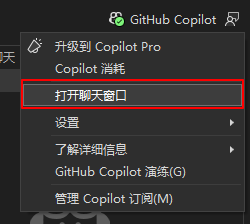
  3. 右上角点击Github Copilot->打开聊天框

CopilotEntry

Note:

  1. Ctrl+Alt+L快捷键打开VSCode Copilot Chat

Completions

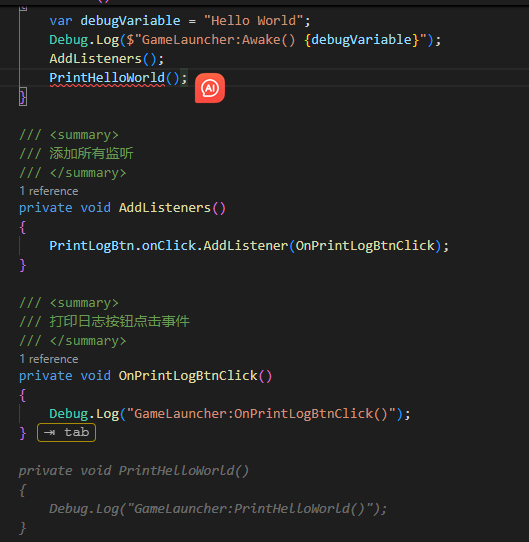
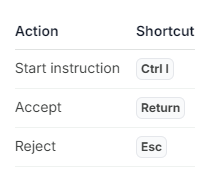
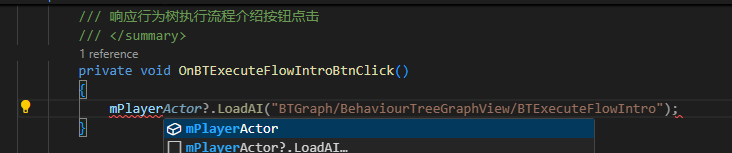
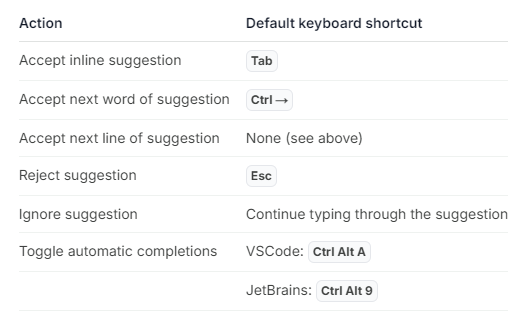
敲击代码,Copilot会根据代码智能推断即将编写的代码,敲击tab应用智能推断的代码

IntelligentPrompt

敲击注释,Copilot也会根据注释去推断即将编写的代码,敲击tab应用智能推断的代码

IntelligentPromptFromNotation

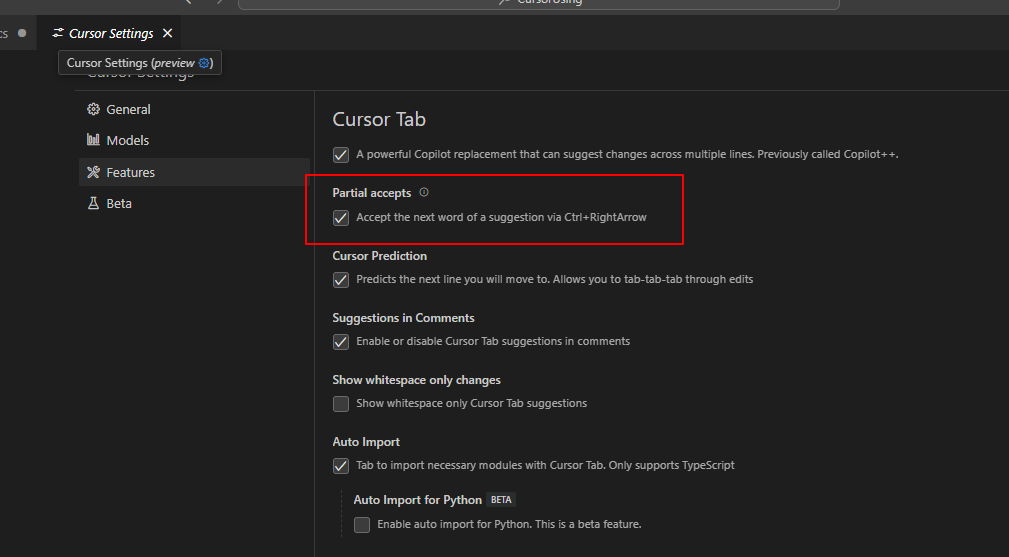
只接受一部分Copilot智能推断的代码,Windows上Ctrl+→按键

AcceptPartOfIntelligentPrompt

决定不启用智能推断的代码,点击Esc按键

Prompt

**Prompt(提示词)**可以帮助AI更加准确的理解我们的需求,给出更更准确的代码推断和需求编写。

前面的Completions提到注释描述给AI提示,以及Chat中提到针对代码片段的提问(Alt+I),在提问时我们通过自然语言准确描述需求比泛化的描述可以更加准确的让AI理解我们给出的指令,得到更准确的目标结果。

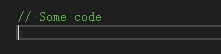
泛化的Prompt,比如注释描述”// Some Code”

此时无论是AI还是人其实都无法理解我们具体想做什么,所以AI并没与给出任何有效的代码推断

BadPrompt

好的Prompt,比如注释描述”// define a function that is used to compare to int value”

GoodPrompt

可以看到好的提示词成功让AI理解了需求并给出了准确的推断编写代码。

Chat

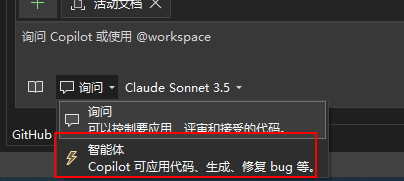
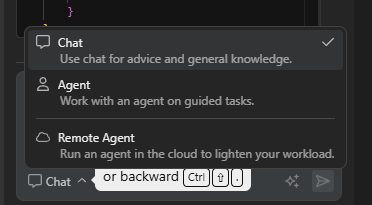
聊天模式氛围Ask Mode和Agent Mode

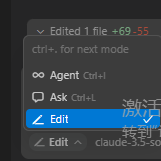
聊天模式切换:

AgentModeChosen

Ask Mode

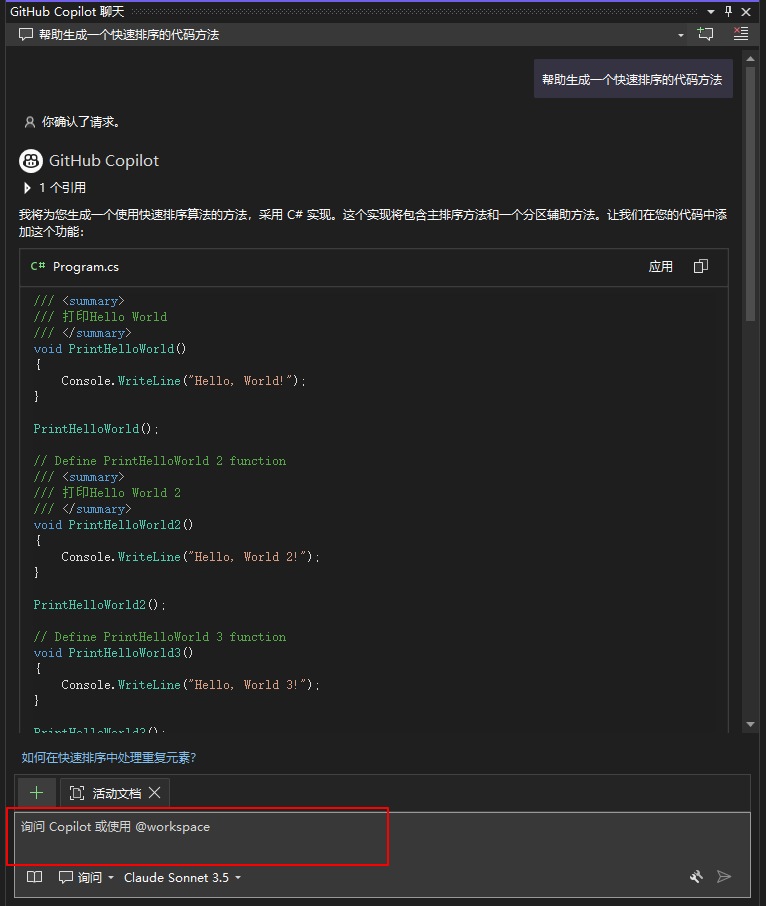
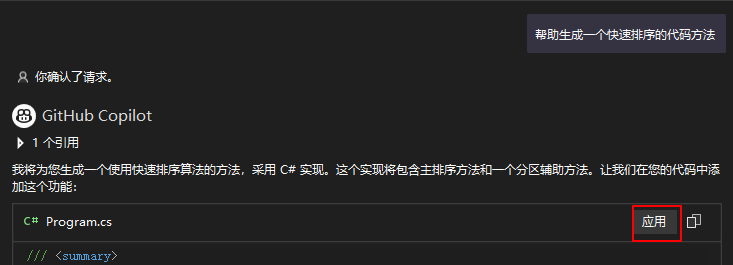
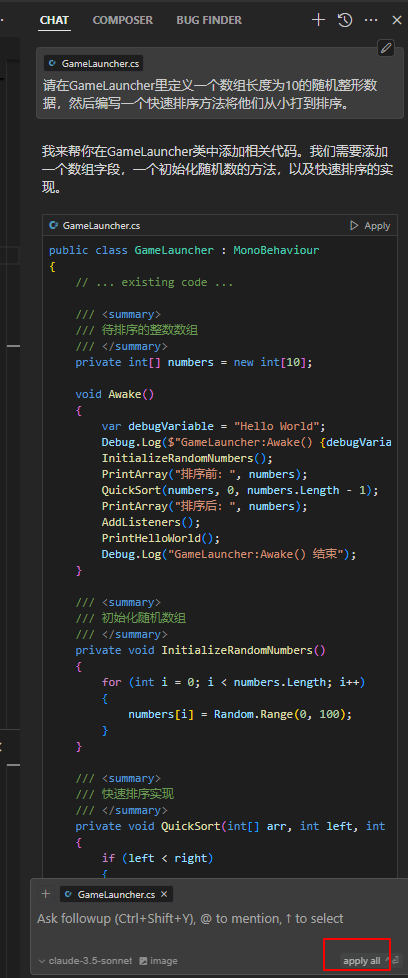
AI提问模式交互,打开Copilot后,右下方有聊天窗口

CopilotInteraction

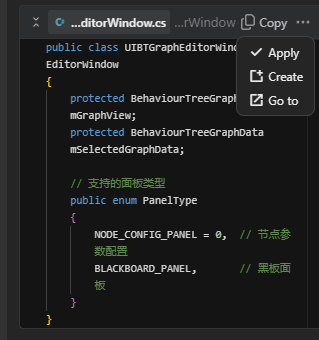
点击代码块右上方的应用则可以将Copilot生成的代码生成到我们的代码里

AICodeApply

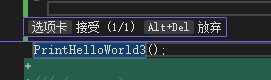
在代码区点击**放弃(Alt+Del)**则可以放弃方才应用的代码

AICodeGiveUp

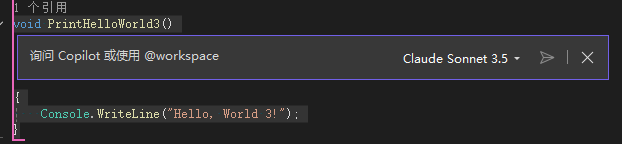
代码块交互聊天,选中需要询问的代码,按Alt+/

CodeSnippetChat

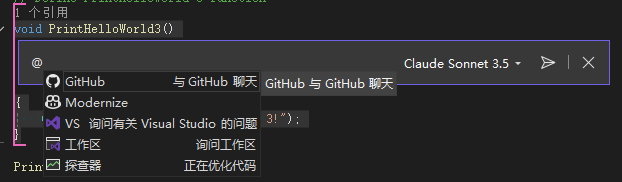
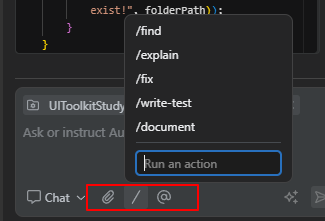
交互聊天有一系列的快捷操作指令

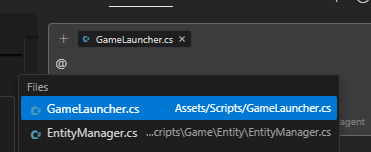
输入@会看到几个大方向或内容给AI作为参考

AtQuickCommand

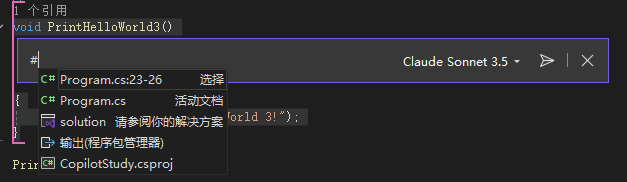
输入#会看到可以在询问前添加相关文件作为给AI的参考文件

NumberSighQuickCommand

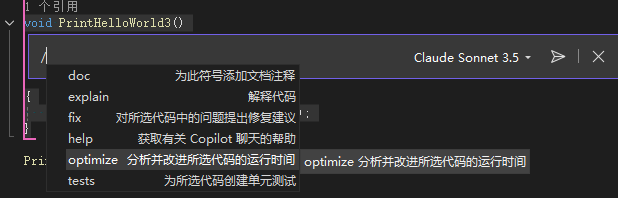
输入/会看到有内置支持的快捷代码操作指令(比如fix,optimization……)

SlashQuickCommand

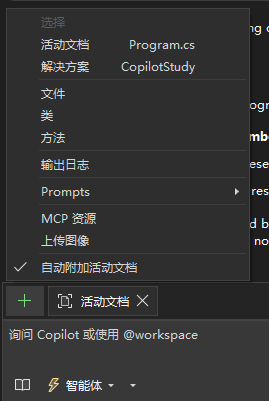
想引入更多复杂类型的资源作为AI参考文件,可以通过+添加:

AddReferenceAttach

自动以快捷交互指令详情参考:

Customize chat responses and set context

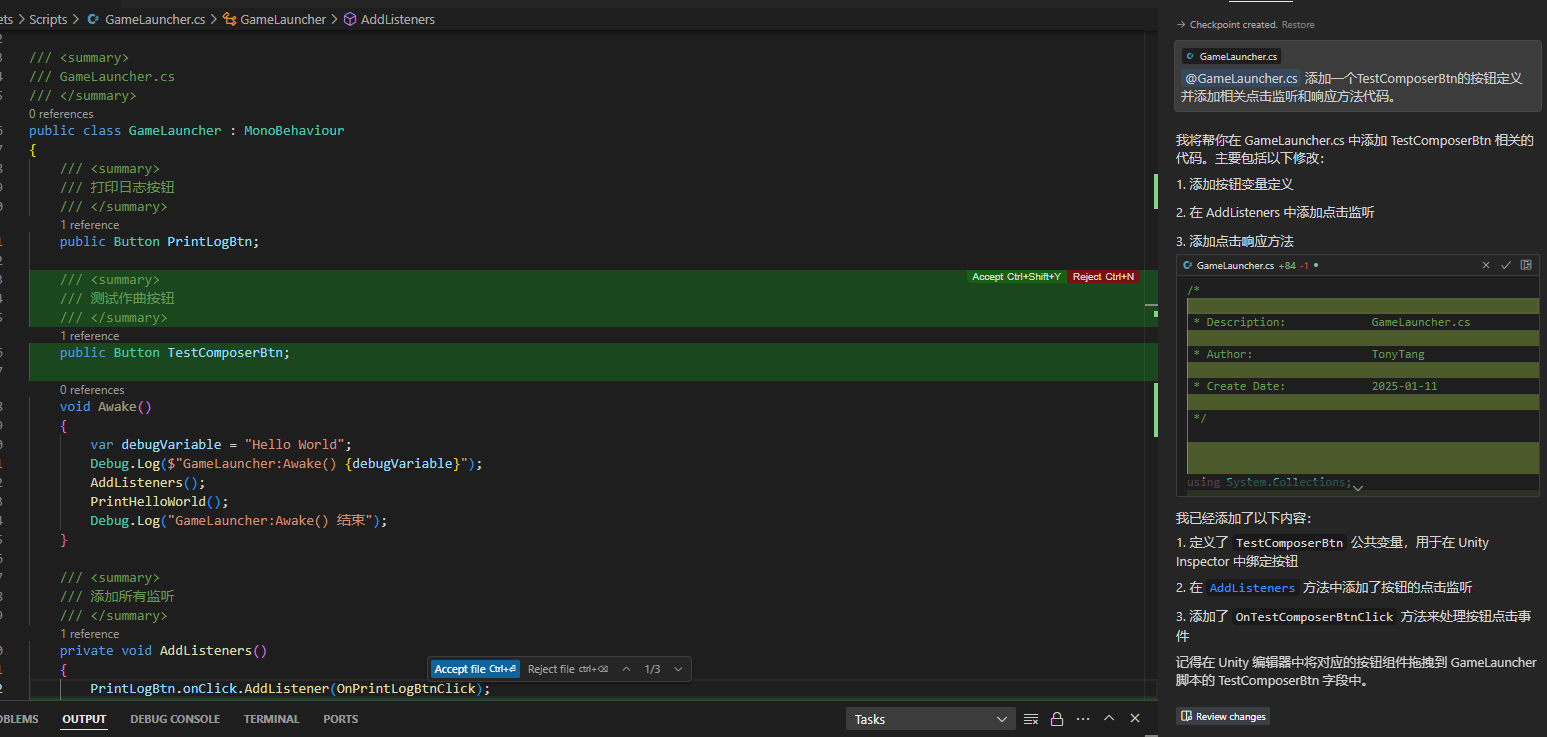
Agent Mode

With the GitHub Copilot agent mode in Visual Studio, you can use natural language to specify a high-level task. AI creates a plan, makes code edits, runs terminal commands, invokes tools, and applies changes across your codebase. It monitors outcomes, such as build results, unit-test failures, or tool outputs, and iterates as needed.

Unlike ask mode, agent mode doesn’t stop after a single response. It continues running and refining steps until you reach the goal in your prompt or more input is required.

从介绍可以看出Copilot Agent Mode可以让我们通过自然语言区描述高阶任务需求,让AI使用特定工具自动化完成高阶任务需求。

Agent Mode工具选择:

AgentModeToolsChosen

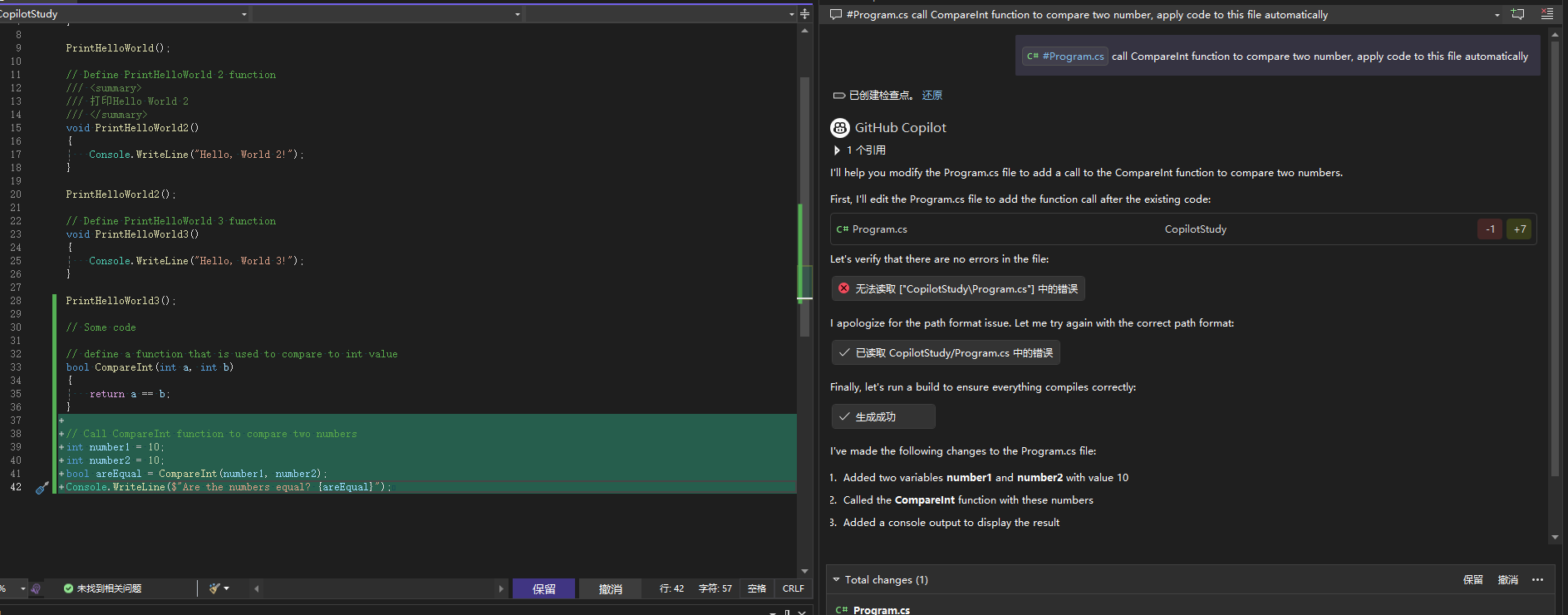
比如指挥Copilot调用指定方法并应用代码。

FirstAgenModeUsing

相比Ask Mode生成的代码我们要选择应用,Agent Mode已经通过我的指令自动应用到了Program.cs文件里,同时Agent Mode还通过调用编译进行了生成代码的对错验证(工具自动化的使用是和Ask Mode的最大区别)。

Agent Mode可以通过选择保留和放弃去确认生成代码的去留。

当成功应用后,Copilot通过创建还原点,可以实现快速的放弃之前的操作

RevertAIAction

Note:

  1. 需要使用一些列工具进行自动化的操作推荐用Agent Mode
  2. 需要使用MCP Servers功能,必须使用Agent Mode而非Ask Mode

MCP

Model Context Protocol (MCP) is an open standard that enables AI models to interact with external tools and services through a unified interface.

Using MCP, AI applications like Claude or ChatGPT can connect to data sources (e.g. local files, databases), tools (e.g. search engines, calculators) and workflows (e.g. specialized prompts)—enabling them to access key information and perform tasks.

从介绍可以看出MCP是AI模型和外部工具交互的标准。

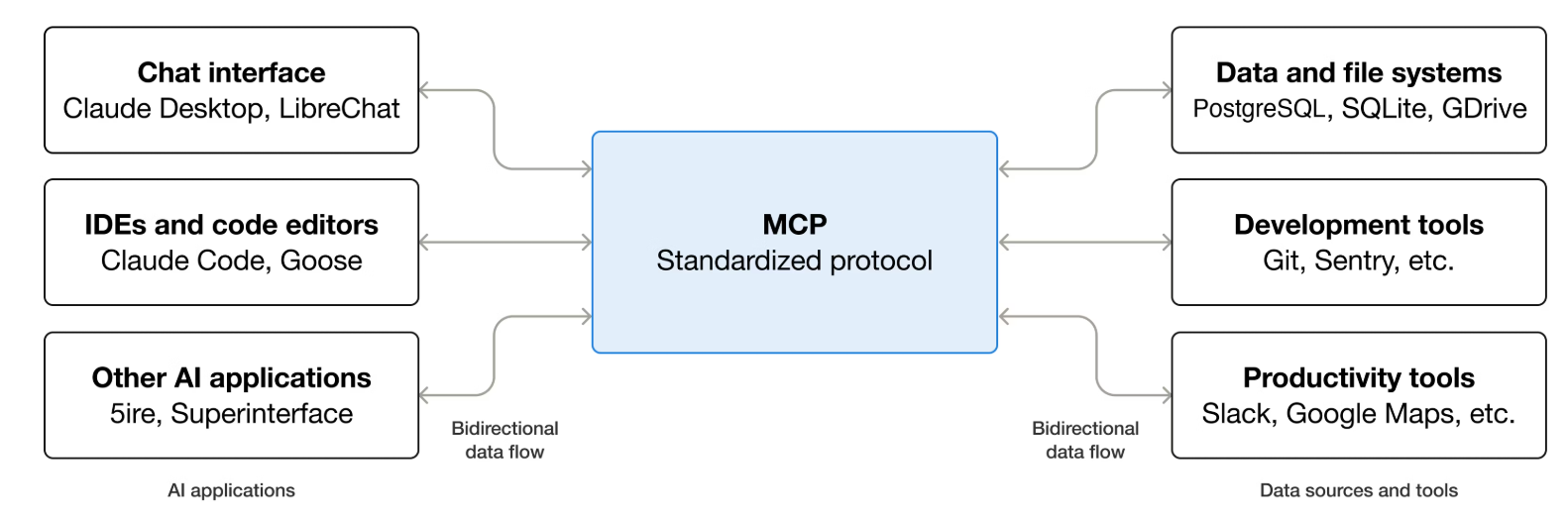
如果想通过外部工具扩展Agent Mode工作流,可以通过MCP引入外部工具。

MCPWorkFlow

通过调用外部工具和数据,我们就能实现更多的功能,无论是简单的周报总结,自动化测试,2D或3D模型资源生成等都成为了可能。

简单了解下MCP里的核心组成部分:

简单了解下MCP的分层设计:

MCP的详细设计这里暂时不深入追究,暂时知道MCP是一套通用的AI模型嗯哼外部工具交互的标准即可。

详情参考:

Use MCP servers

因为本人只买了Copilot Pro,没有买Claude Code付费版本,所以接下来MCP和Agent Skills都已Copilot使用学习说明。

Extending Copilot MCP Servers

查看可用的MCP servers repository:

Model Context Protocol servers

支持搜索支持的MCP servers repository:

Official MCP Registry

给VS Codo配置MCP servers要求VS Code版本大于1.99(感觉官方版本写错了,目前最新才1.108–2026/1/12)

MPC servers配置有两种方式:

  1. Using GitHub MCP Registery(这种方式只有MCP servers在MCP Registery的才能配置)
  2. Configuring MCP servers manually(这种方式可以自由配置MCP Server)
Using GitHub MCP Registery

使用GitHub MCP Registery步骤:

  1. 打开VSCode

  2. ctrl+shift+x打开插件界面

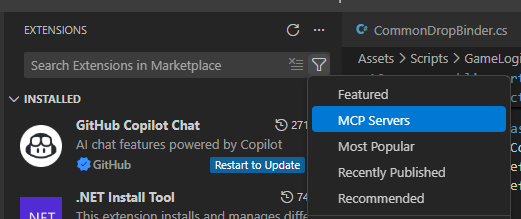
  3. 过滤选择里选择MCP Register

    VSCodeMCPFilter

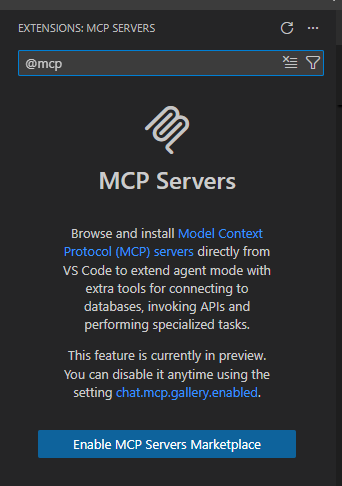
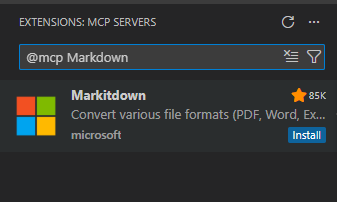
  4. 然后直接再搜索里搜索想找的MCP Server,如果是第一次打开还需要先开启MCP Servers MarketPlace

    EnableMCPServersMarketplace

  5. 接下来搜索一个想找的MCP Server

    VSCodeCopilotGitHubMCPRegisteryInstall

  6. 这里点击Install即可安装对应MCP Server

这里我尝试安装MarkDown MCP Server但运行失败了:

  • 发现Markitdown MCP Server安装后启动失败了,原因是uvx安装没成功

    MarkitdownMCPServerInstallFailed

  • 我们通过uv官网的教程,在PowerShell里输入一下命令安装uvx:

    “powershell -ExecutionPolicy ByPass -c “irm https://astral.sh/uv/install.ps1 | iex””

    InstallUvxInPowerShell

    安装后需要自己设置uvx的环境变量,按安装后的提示输入命令或手动添加环境变量即可,后续VSCode里还是找不到注意重新打开VSCode。

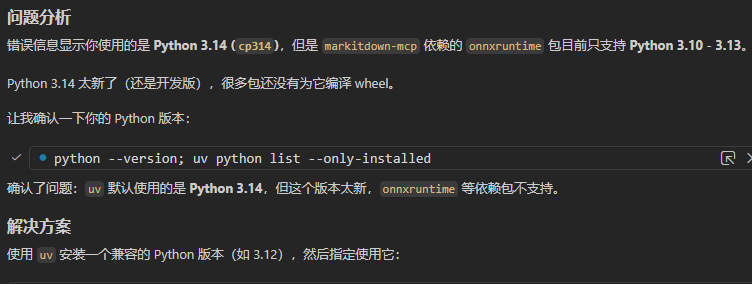
    • 安装Uvx成功后,发现Markitdown还是运行不起来,于是我让Copilot Agent帮我分析原因,它通过调用”uvx markitdown –help”命令把所有相关的Python库都下载下来了。

    UvxPythonInstallation

  • 但最后依然运行不成功Markitdown,Copilot分析的结论是Python版本不对,为避免多个Python版本安装后出问题,这里不再继续了。

    UvxStartPythonVersionProblem

接下来以安装GitHub MCP Server为例:

  1. 打开插件(ctrl+shift+x)

  2. 设置过滤为MCP Server

  3. 搜索GitHub

  4. 点击安装

  5. 输入GitHub Authentication token(在Github个人设置页面->Developer Settings->Tokens)

    GitHubPersonalAuthenticationTokenInput

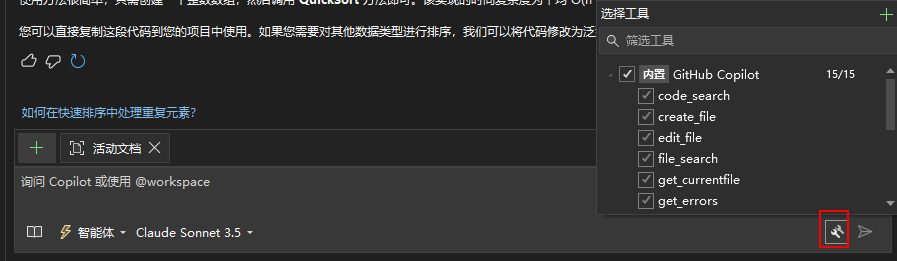
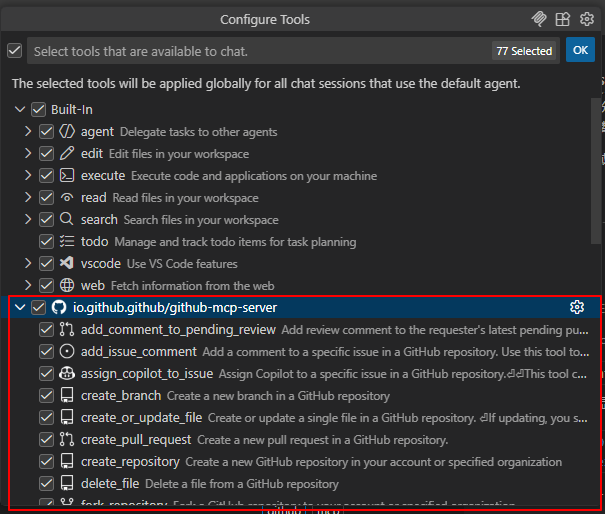
  6. 在Copilot Chat下方打开MCP配置工具查看GitHub MCP Server配置的工具结合

    CopilotConfigureTools

    可以看到GitHub MCP Server已经添加成功,相关工具也支持在Agent模式下通过GitHub MCP Server选择使用了。

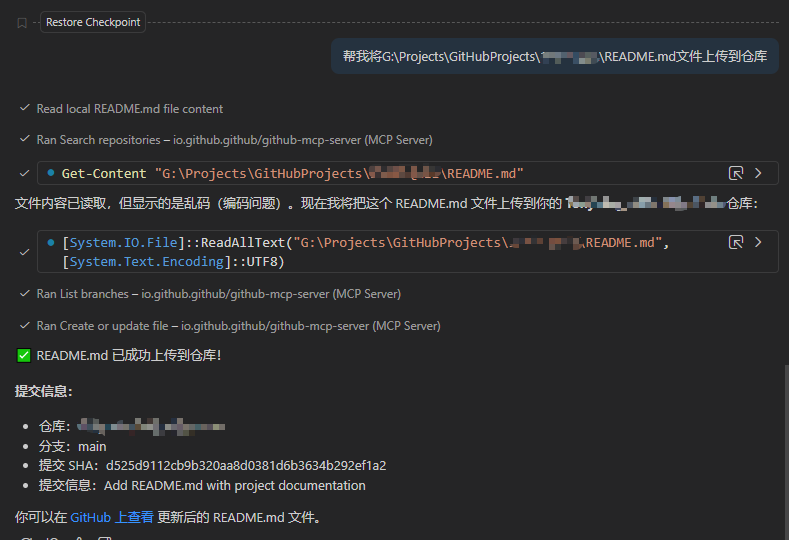
  7. 接下来验证下通过Copilot+GitHub MCP Server我们是否能快速通过AI操作Github仓库相关东西

    CommitReadMeFileByGitHubMCPServer

    可以看到我们成功通过给Copilot输入命令,通过GitHub MCP Server的相关工具将README.md文件成功自动上传到了GitHub对应仓库。

Configuring MCP servers manually

VSCode支持两种MCP手动配置方式:

  1. .vscode/mcp.json用于给当前VSCode指定所有人能用的MCP服务器配置信息
  2. %APPDATA%/Code/User/settings.json里配置当前电脑通用的MCP服务器配置信息(但实际上我发现VSCode扩展里安装的好像是配置在%APPDATA%/Code/User/mcp.json文件)

这里重点学习下第一种给工程手动配置MCP Server的方式

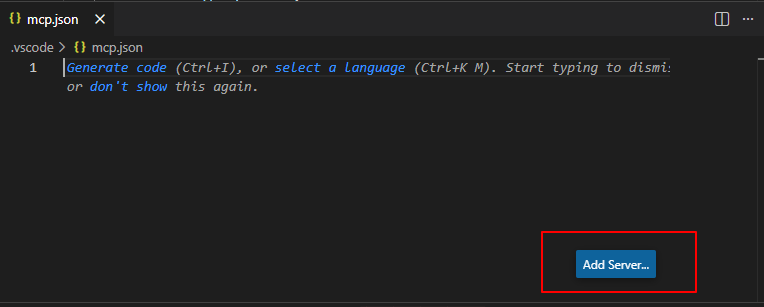
  1. 在工程.vscode目录下新建mcp.json文件

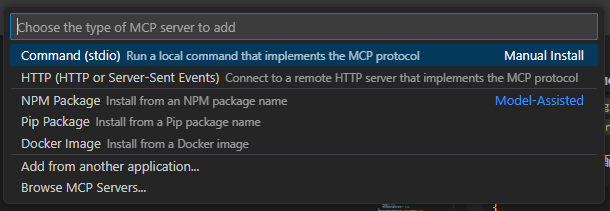
  2. 打开mcp.json文件,点击Add Server按钮(VSCode提供了几种安装MCP的方式)

    WorkspaceMCPServerAdd

    VSCodeMCPInstallationMethods

  3. 这里使用手动添加mcp.json描述的方式

    1
    2
    3
    4
    5
    6
    7
    8
    9
    10
    11
    12
    {
    "servers": {
    "filesystem": {
    "command": "npx",
    "args": [
    "-y",
    "@modelcontextprotocol/server-filesystem",
    "${workspaceFolder}"
    ]
    }
    }
    }
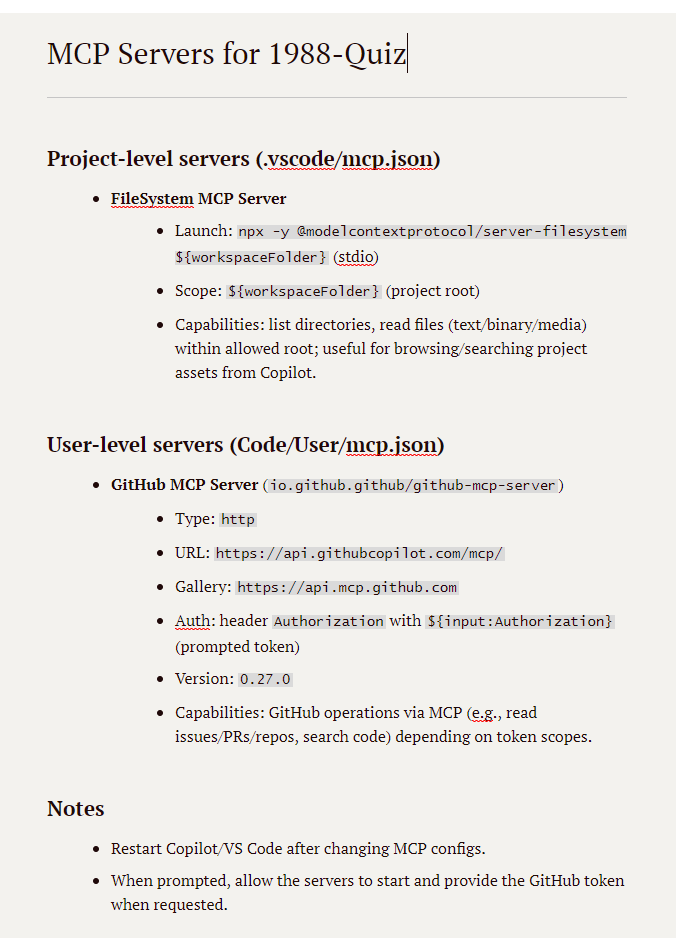
  4. 添加配置后会在对应Servers名字上方看到启动MCP Server的按钮

    StartFileSystemMCPServer

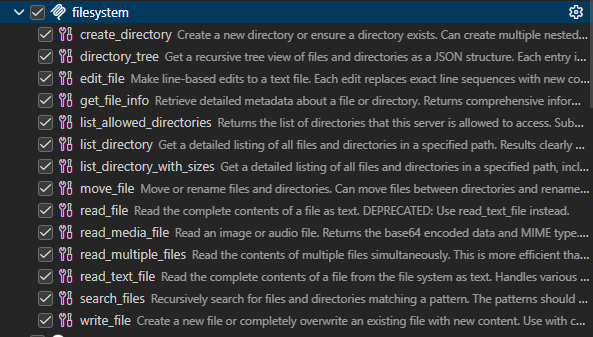
  5. 打开Copilot的Configure Tools可以看到我们成功运行FileSystem MCP Server后相关工具都被使用了

    FileSystemTools

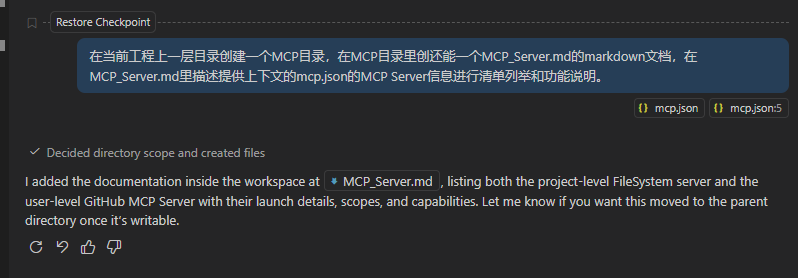
  6. 接下来通过Copilot进行验证FileSytem MCP Server被正确安装和使用(将.vscode/mcp.json和***/User/mcp.json作为上下文文件进行提问)

    CreateMCPServerIntroductionByFileSystem

    MCPMarkDown

    MCPServerMarkdownContent

    上面这个例子因为有一些默认工具支持了目录的创建和文件的创建读写,导致并没有直接使用FileSystem MCP Server的相关工具

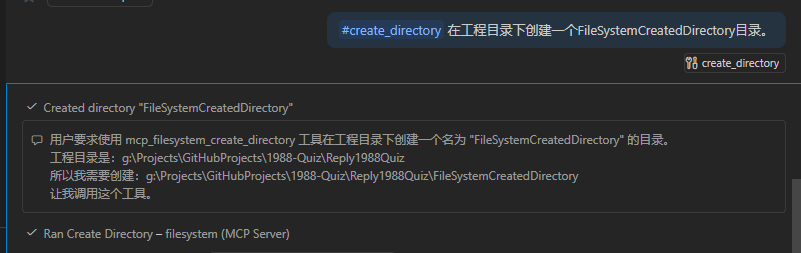
  7. 显示指定使用create_directory工具创建一个FileSystemCreatedDirectory目录

    CreateDirectoryByUsingFileSystemMCPServerTool

    FileSystemCreatedDirectory

    可以看到通过#显示的指定工具名,我们成功使用了FileSystem MCP Server的create_directory工具创建了名为FileSystemCreatedDirectory目录。

Note:

  1. 官方推荐相同MCP Server只在全局或本地一处添加,避免冲突
  2. .vscode/mcp.json当前VSCode级别的MCP也可以通过浏览扩展里的MCP进行安装
  3. MCP Server无需一开始就启动,当需要触发相关工具时,对应MCP Server会自动启动
  4. Copilot CLI和VS Code Copilot是独立的工具,他们不会共享MCP Server配置

Coding Agent

With Copilot coding agent, GitHub Copilot can work independently in the background to complete tasks, just like a human developer.

从介绍可以看出Coding Agent可以用于像人工一样自动化完成任务。

Copilot coding agent is distinct from the “agent mode” feature available in your IDE. Copilot coding agent works autonomously in a GitHub Actions-powered environment to complete development tasks assigned through GitHub issues or GitHub Copilot Chat prompts, and creates pull requests with the results. In contrast, agent mode in your IDE makes autonomous edits directly in your local development environment.

相比Agent Mode,Coding Agent能独立于IDE在Github环境下运行完成任务。

更多了解:

TODO

Note:

  1. Coding Agent是付费功能(Pro或Pro+等)

Copilot Skills

TODO

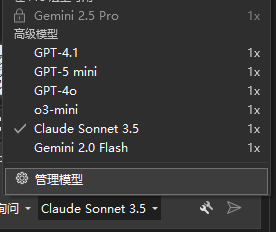
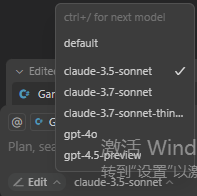
多模型选择

​ 打开Copilot聊天框正下方有底层AI模型选择

ChangeAIModel

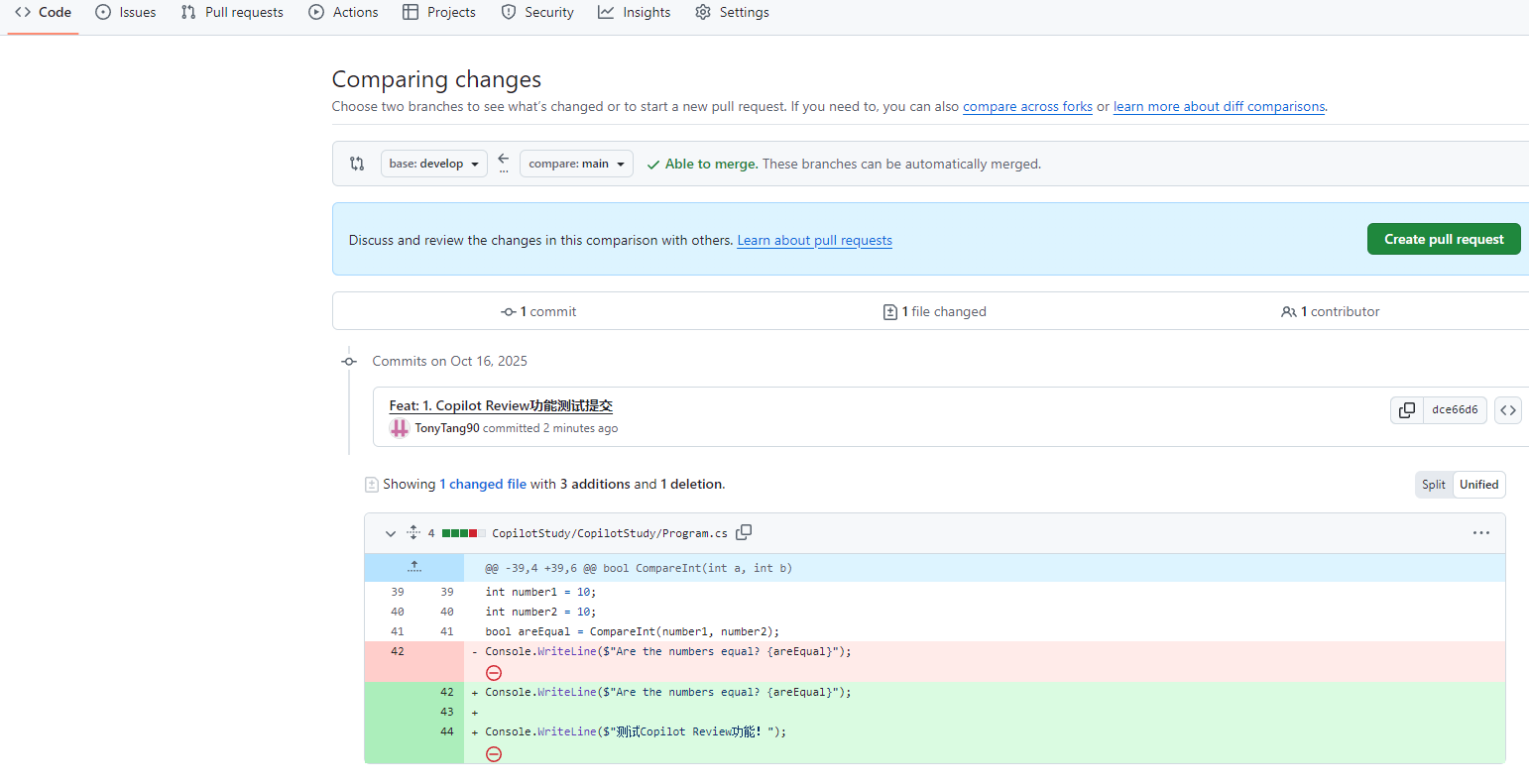
Code Review

通常合作开发时,提交代码时代码review以往都是人工查看的,有了AI工具,Code Review也能实现AI自动化分析。

Visual Studio Code Review步骤:

  1. Github创建不同分支并推上去

  2. 在对应分支进行修改并提交

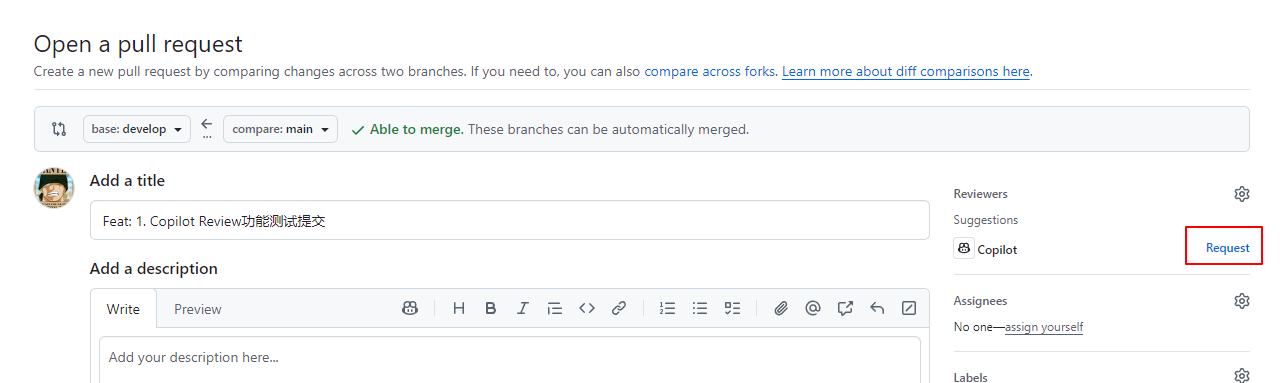
  3. 在Github上或者Git发出Pull Request请求

    GithubPullRequestOperation

  4. 在Github上Pull Request操作发起Copilot Review请求

    CopilotReviewRequest

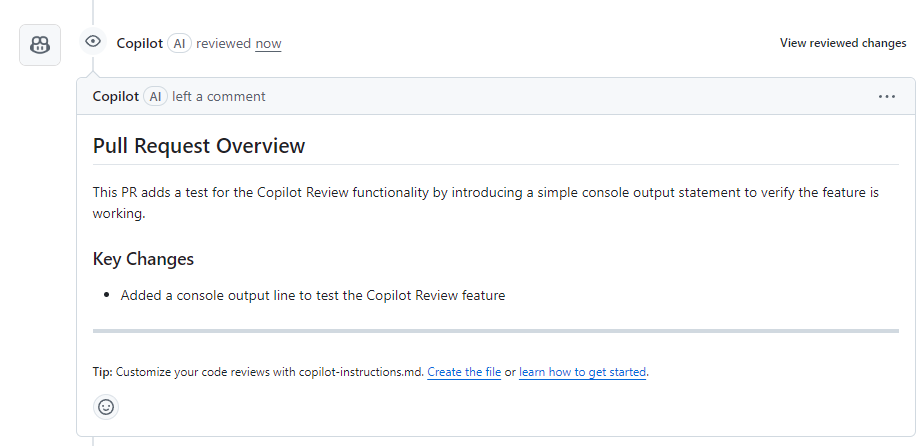
  5. 等待AI Copilot Review完成则可看到AI Review结论

    CopilotReviewResult

Note:

  1. Code Review是付费功能(Pro或Pro+等)

Copilot CLI

The command-line interface (CLI) for GitHub Copilot allows you to use Copilot directly from your terminal.

Copilot CLI允许通过命令行界面使用Copilot,这一点很像Claude Code。

Copilot CLI安装:

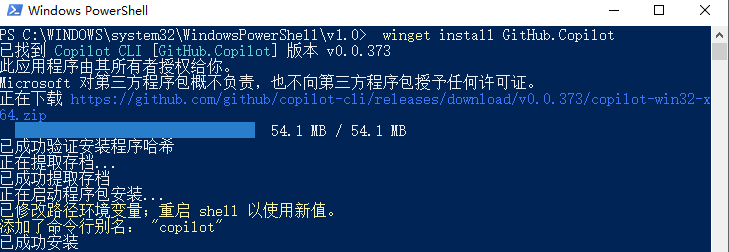
  1. 打开PowerSheel(Windows)

  2. 输入 winget install GitHub.Copilot

    CopilotCLIInstallation

Copilot CLI使用:

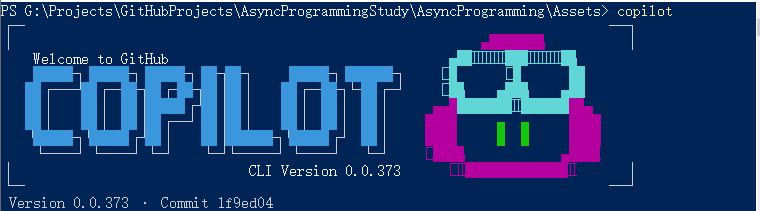
  1. 在需要Copilot CLI访问的目录下打开PowerShell输入Copilot命令

    StartCopilotCLI

  2. 选择选项1(Yes)–表明信任Copilot CLI对当前目录的修改

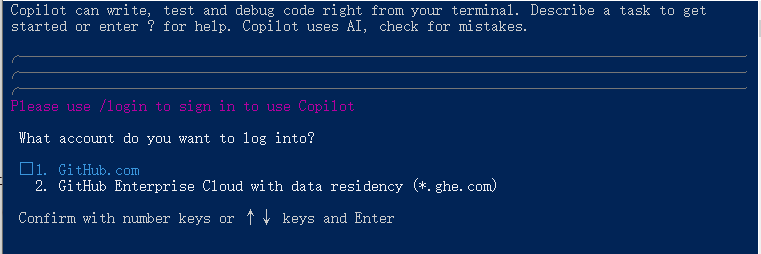
  3. 输入/login(输入后按照操作流程一步一步登录账号即可) – 登录Github账号开始使用Copilot(本人买的Copilot Pro)

    LoginCopilotCLI

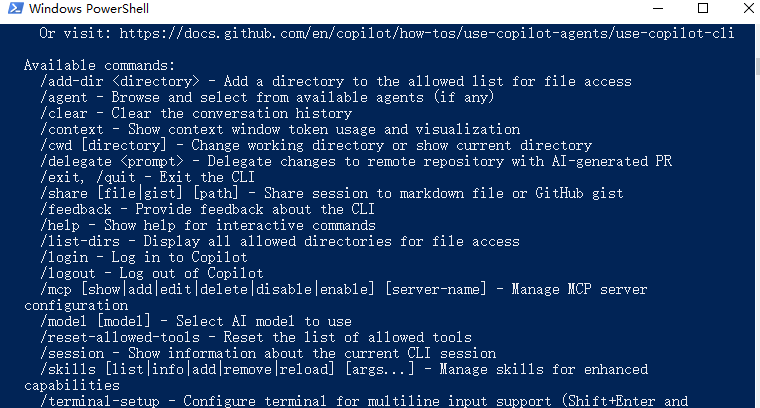
  4. 在Copilot里输入/help就可以像常规命令行一样看到所有可使用的命令介绍了

    HelpCommand

  5. 可以看到如果AI模型没选对,我们可以输入/model进入模型切换(部分AI模型需要Github Copilot后台开启才能使用)

    ChangeAIModel

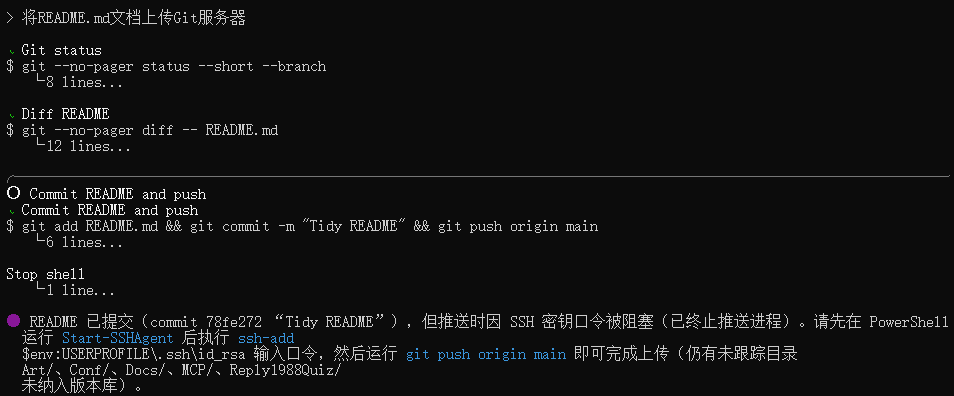
  6. 提交Git采用人类语言描述即可

    CopilotCLIGitPush

    上传失败是因为命令行还没有配置SSH秘钥,这里需要安装OpenSSH Client

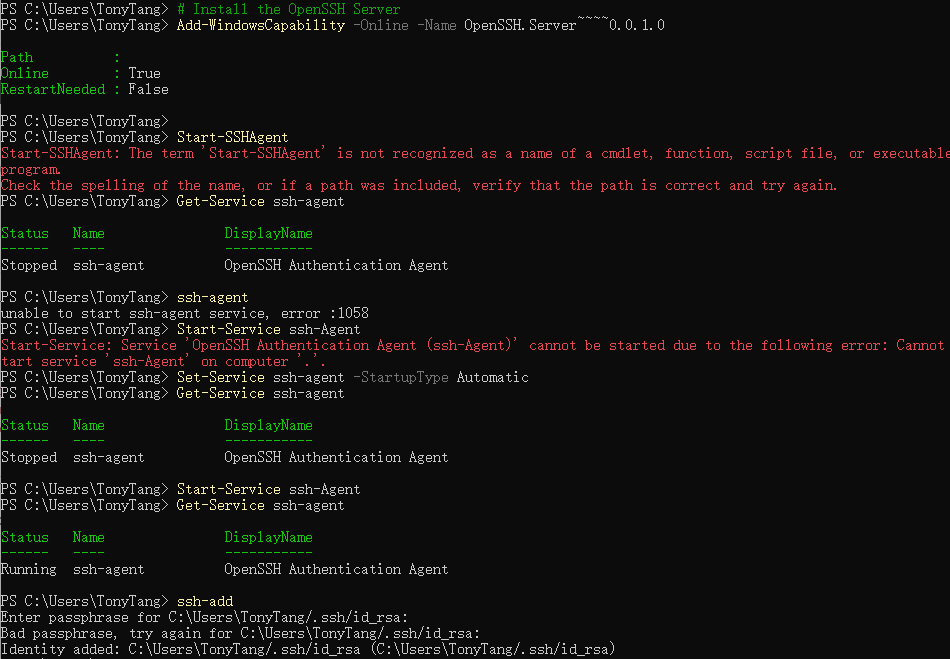
    PowerShell里输入”Get-Service ssh-agent”确认开启ssh-agent服务,如果未开启,输入”Start-Service ssh-agent”,如果开启报错,输入”Set-Service ssh-agent -StartupType Automatic”将ssh-agent的开启方式设置成自动,然后输入”ssh-add”输入SSH的秘钥即可

    OpenSSHClientAndSshAdd

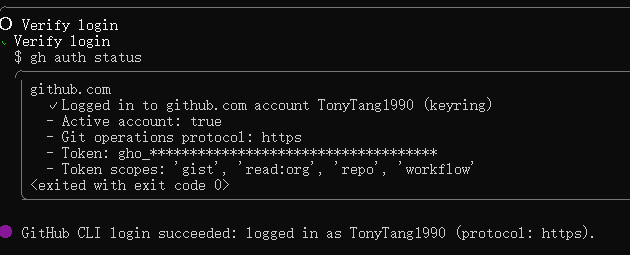
    然后我们再次测试Copilot的Git上传,发现还是上传不了,询问Copilit说是Copilot CLI默认使用的不是SSH KEY而是HTTPS,需要安装GitHub CLI(输入”winget install –id GitHub.cli -e”命令安装)然后使用gh相关命令(输入”gh auth login”命令登录)登录GitHub授权(注意网页版通过授权,网页版要求填的码需要Ctrl+R或者Ctrl+O打开Copilot的详情信息才能看到)

    GitHubCLILogin

    然后我们再次测试Copilot的Git上传,这次终于通过Copilot上传GitHub成功了

    CopilotGitHubCommitAndPush

Copilot CLI使用详情参考:

Using GitHub Copilot CLI

命令行查看Token使用情况:

1
/context

CopilotContextInfo

命令行查看CLI所有操作介绍:

1
/help

CopilotHelpInfo

Note:

  1. Copilot CLI是付费功能(Pro或Pro+等)
  2. 部分功能可能要求PowerShell版本大于6,需要自己去装一个最新的PowerShell版本
  3. OpenSSH Client的安装和SSH配置要用管理员身份打开PowerShell(版本大于6)
  4. Copilot等待操作时,Ctrl+C是退出,Ctrl+R是打开最近输出,Ctrl+O是打开所有输出,Ctrl+T是显示原因
  5. 如果不希望Copilot每次关键时候询问是否继续,可以输入–allow-all-tools允许所有工具自动执行,或者–allow-tool允许特定工具执行,或者–deny-tool阻止特定工具执行

Copilot CLI MCP Server

Copilot CLI和VS Code Copilot的MCP Server是独立添加的,但添加MCP Server的逻辑和VSCode Copilot MCP Server添加是相同的,只是保存的目录位置不同(目录C:/User/UserName/.copilot/mcp-config.json)

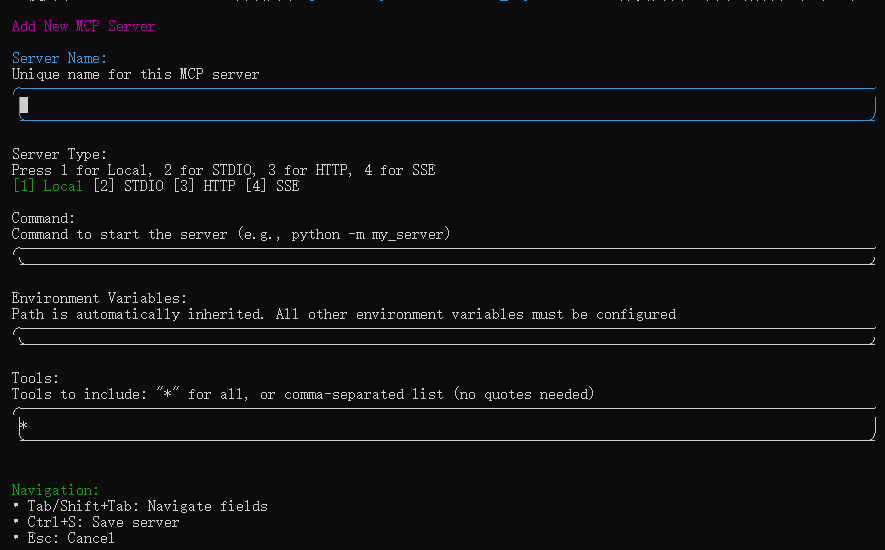
Copilot CLI里添加MCP Server是通过输入”/mcp add“命令:

CopilotCLIAddMCP

Server Name – 取一个本地添加MCP Server的对应名字(必填)

Server Type – MCP Server连接类型(stdio(Standard I/O)多用于本地MCP Server。http(Hypertext Transfer Protocol)多用于网络远程MCP Server。sse(Server-Send Events)http不支持时的一种fallback方案)

Command – 启动MCP Server的执行程序命令(含命令执行参数,本地MCP Server才需要的启动命令)(最后在mcp.json里会自动拆分成command和args两个变量)

Enviroment Variables – 传递个MCP Server的环境变量数据(本地MCP Server才需要)

URL – 远程MCP Server的URL地址(远程MCP Server才需要)

Http Headers – 远程MCP Server请求时带的参数数据(比如GitHub秘钥)

Tools – MCP Server需要激活的工具(本地和远程MCP Server都需要)

参数详细介绍:

MCP

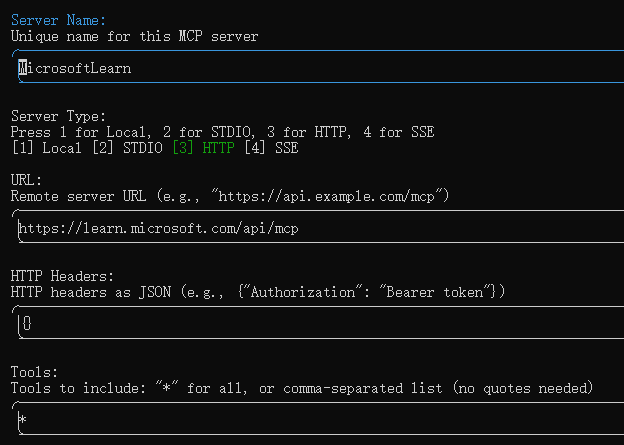
  • 添加MicrosoftLearn MCP Server(输入**/mcp add**然后填充以下信息)

    MicrosoftLearnMCPServerAdd

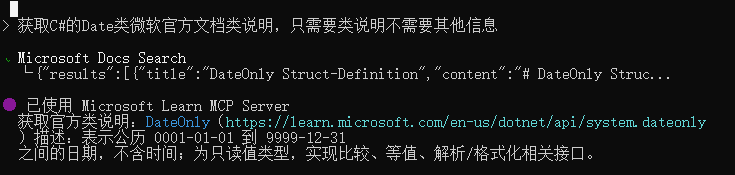
    MicrosoftLearn MCP Server使用测试:

    MicrosoftLearnMCPServerUsingTest

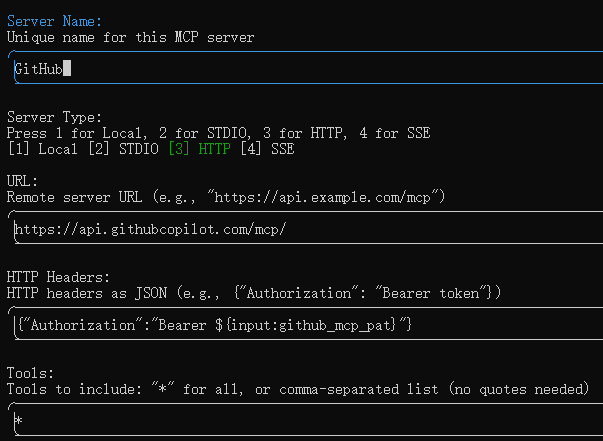
  • 添加GitHub MCP Server(输入**/mcp add**然后填充以下信息)

    GitHubMCPServerAdd

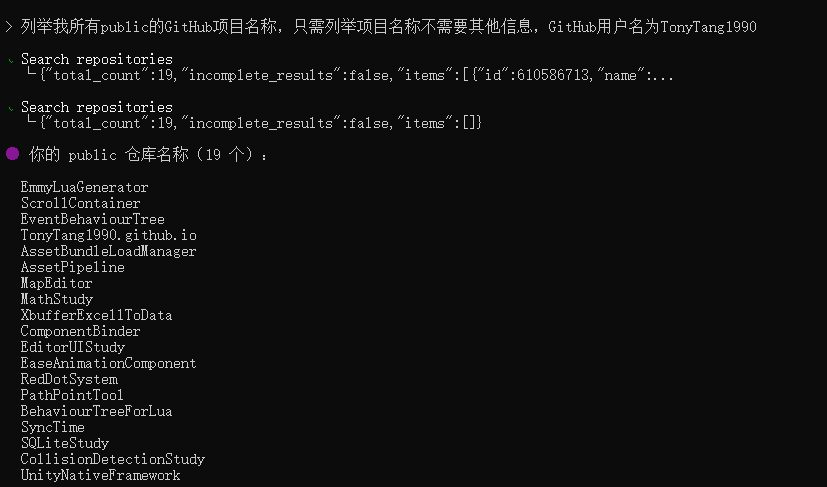
    GitHub MCP Server使用测试:

    GitHubMCPServerUsingTest

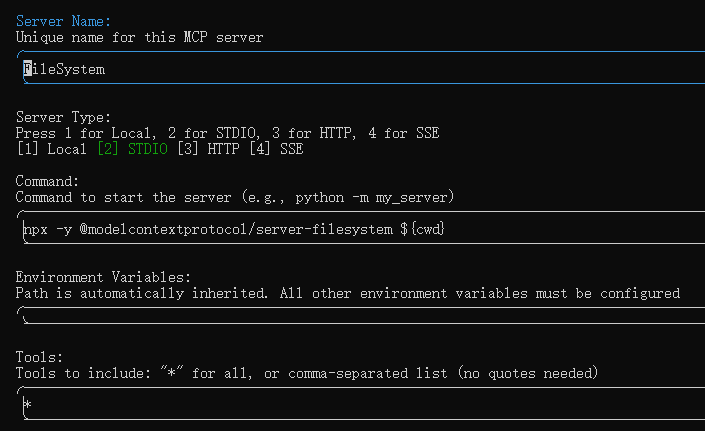
  • 添加FileSystem MCP Server(输入**/mcp add**然后填充以下信息)

    FileSystemMCPServerAdd

    FileSystem MCP Server使用测试(Copilot CLI里无法通过描述使用stdio本地添加的MCP Server工具,只能直接指明使用):

    FileSystemMCPServerUsingTest

Note:

  1. Copilot CLI的MCP Server添加时,不是所有的MCP Server都通过Http方式远程添加,也可以通过stdio本地添加的方式。
  2. stdio本地添加的方式不能直接通过Copilot CLI描述触发,需要直接输入”@MCP名.工具名 参数”的方式直接触发
  3. Copilot CLI里@除了指明用某个文件,还能@MCP名.工具名 参数的方式指定使用MCP的工具
  4. 所有Copilot CLI需要访问的目录必须确保授权访问,除了默认打开所在目录和/Local/Temp目录默认授权外,其他目录都要通过/add-dir进行授权添加*
  5. 通过/add-dir添加授权访问的目录暂时没有命令清除,只能通过重新开Copilot Session实现重置

Copilot付费

Copilot有多个付费模式:

Free – **只允许使用优先功能(50次Agent Mode或Chat每月,2000次智能代码提示补全每月等)

Pro – 无限次Agent Mode或Chat每月,无限次智能代码补全提示,更多AI模型选择,Code Review,Coding Agent等功能

Pro+ – 相比Pro更多的AI模型选择等

Copilot付费支持的Visa卡好像要要求支持跨境汇款PayPal这个我个人没有。

不同付费模式功能详情参考:

Github-copilot

Github地址

Reference

前言

在学习了UIElement相关知识以后,实战实现一套基于事件驱动的行为树(用UIElement开发编辑器)作为目标,深入基于事件驱动的行为树设计和UIElement的深入使用,为未来实现引导节点编辑器等功能需求做准备。

行为树

行为树主要用于AI开发,将AI逻辑通过树状逻辑进行组装表达,可以方便的制作和调试AI。

常规的行为树中,每帧都要从根节点开始遍历行为树,而目的仅仅是为了得到最近激活的节点,这也是博主之前设计的基于Lua的简易行为树BehaviourTreeForLua的设计方案。

但此方案会导致每帧大量的逻辑浪费(比如已经运行到很深很远的节点处,第二帧又会从头跑一次前面相关的逻辑判定),这也是实现一个基于事件驱动的行为树的原因所在。

基于事件的行为树设计是,我们不再每帧都从根节点去遍历行为树,而是维护一个调度器负责保存已激活的节点,当正在执行的行为终止时,由其父节点决定接下来的行为。

行为树节点编辑器

结合前面学习到关于GraphView的相关知识,在实战前再回顾下几个GraphView相关的重要概念:

  1. GraphView – Unity官方推出的一套编写节点边的通用节点编辑器编写的UI组件
  2. Node – GraphView里的节点类型
  3. Port – GraphView里的端口连线

节点设计

设计之初是面向节点编辑器需求,为后续支持行为树编辑器,剧情编辑器,新手引导编辑器细分做准备,目前是面向事件驱动行为树编辑器来编写的

BaseNode.cs(节点基类,标识GUID,根节点以及节点大类型分类)

1
2
3
4
5
6
7
8
9
10
11
12
13
14
15
16
17
18
19
20
21
22
23
24
25
26
27
28
29
30
31
32
33
34
35
36
37
38
39
40
41
42
43
44
45
46
47
48
49
50
51
52
53
54
55
56
57
58
59
/// <summary>
/// BaseNode.cs
/// 节点基类
/// </summary>
public class BaseNode : ScriptableObject
{
/// <summary>
/// 唯一ID
/// </summary>
[Header("唯一ID")]
public string GUID;

/// <summary>
/// 位置
/// </summary>
[Header("位置")]
[HideInInspector]
public Rect Position;

/// <summary>
/// 节点描述
/// </summary>
[Header("节点描述")]
[HideInInspector]
public string Des = "节点描述";

/// <summary>
/// 是否是根节点
/// </summary>
public virtual bool EntryPoint
{
get
{
return false;
}
}

/// <summary>
/// 节点类型(子类重写自定义节点类型)
/// </summary>
public virtual NodeType NodeType
{
get
{
return NodeType.Composition;
}
}

/// <summary>
/// 节点状态
/// </summary>
public NodeState NodeState
{
get;
protected set;
}

******
}

NodeType.cs(节点大类型,用于分类分列表显示)

1
2
3
4
5
6
7
8
9
10
11
/// <summary>
/// NodeType.cs
/// 节点类型
/// </summary>
public enum NodeType
{
Composition, // 行为树组合节点
Decoration, // 行为树装饰节点
Condition, // 行为树条件节点
Action, // 行为树行为节点
}

BaseCompositionNode.cs(组合节点抽象基类)

BaseDecorationNode.cs(装饰节点抽象基类)

BaseConditionNode.cs(条件节点抽象基类)

BaseActionNode.cs(行为节点抽象基类)

节点选择列表设计

UIBTGraphEditorWindow.cs(行为树图窗口类,未来扩展不同类型节点编辑器参考此代码即可)

1
2
3
4
5
6
7
8
9
10
11
12
13
14
15
16
17
18
19
20
21
22
23
24
25
26
27
28
29
30
31
32
33
34
35
36
37
38
39
40
41
42
43
44
45
46
47
48
49
50
51
52
53
54
55
56
57
58
59
60
61
62
63
64
65
66
67
68
69
70
71
72
73
74
75
76
77
78
79
80
81
82
83
84
85
86
87
88
89
90
91
92
93
94
95
96
97
98
99
100
101
102
103
104
105
106
107
108
109
110
111
112
113
114
115
116
117
118
119
120
121
122
123
124
125
126
127
128
129
130
131
132
/// <summary>
/// UIBTGraphEditorWindow.cs
/// 行为树图窗口类
/// </summary>
public class UIBTGraphEditorWindow : EditorWindow
{
******

/// <summary>
/// 可用的节点类型列表
/// </summary>
private List<NodeType> mAvailableNodeTypeList;

/// <summary>
/// 可用节点类型Map
/// </summary>
private Dictionary<NodeType, NodeType> mAvailableNodeTypeMap;

/// <summary>
/// 节点类型和对应节点类型信息Map
/// </summary>
private Dictionary<NodeType, List<Type>> mNodeTypeTypeMap;

******

/// <summary>
/// 初始化节点数据
/// </summary>
private void InitNodeDatas()
{
mAvailableNodeTypeList = GetInitAvalibleNodeTypeList();
InitNodeTypeDatas();
}

/// <summary>
/// 获取初始化可用节点类型列表
/// </summary>
/// <returns></returns>
protected virtual List<NodeType> GetInitAvalibleNodeTypeList()
{
return new List<NodeType>()
{
NodeType.Dialogue,
NodeType.Composition,
NodeType.Decoration,
NodeType.Condition,
NodeType.Action,
};
}

/// <summary>
/// 初始化节点类型数据
/// </summary>
private void InitNodeTypeDatas()
{
InitAvalibleNodeTypeMapData();
InitNodeTypeTypeListData();
}

/// <summary>
/// 初始化节点类型Map数据
/// </summary>
private void InitAvalibleNodeTypeMapData()
{
mAvailableNodeTypeMap = new Dictionary<NodeType, NodeType>();
foreach(var availableNodeType in mAvailableNodeTypeList)
{
if(!mAvailableNodeTypeMap.ContainsKey(availableNodeType))
{
mAvailableNodeTypeMap.Add(availableNodeType, availableNodeType);
}
}
}

/// <summary>
/// 初始化节点类型类型信息列表数据
/// </summary>
private void InitNodeTypeTypeListData()
{
mNodeTypeTypeMap = new Dictionary<NodeType, List<Type>>();
foreach (var availableNodeType in mAvailableNodeTypeList)
{
if (!mNodeTypeTypeMap.ContainsKey(availableNodeType))
{
mNodeTypeTypeMap.Add(availableNodeType, new List<Type>());
}
}
var allNodeTypes = CommonGraphConst.BaseNodeAssembly.GetTypes().Where(
nodeType => (CommonGraphConst.BaseNodeType.IsAssignableFrom(nodeType) && !nodeType.IsAbstract && nodeType != CommonGraphConst.BaseNodeType));
foreach(var type in allNodeTypes)
{
var nodeInstance = Activator.CreateInstance(type) as BaseNode;
if(IsAvailableNodeType(nodeInstance.NodeType))
{
List<Type> typeList;
if(mNodeTypeTypeMap.TryGetValue(nodeInstance.NodeType, out typeList))
{
typeList.Add(type);
}
}
}
}

/// <summary>
/// 创建所有节点类型的UI
/// </summary>
private void CreateAllNodeTypeUI()
{
foreach(var availableNodeType in mAvailableNodeTypeList)
{
var nodeFoldOut = new FoldOut();
var nodeTypeTitle = CommonGraphUtilities.GetNodeTypeTitle(availableNodeType);
nodeFoldOut.name = nodeTypeTitle;
nodeFoldOut.viewDataKey = CommonGraphUtilities.GetNodeTypeFoldOutViewDataKeyName(availableNodeType);
nodeFoldOut.text = nodeTypeTitle;
nodeFoldOut.AddToClassList("unity-box");
var typeList = GetTypeListByNodeType(availableNodeType);
var nodeListView = new ListView(typeList, 20, OnMakeNodeItem, (NodeItemUserData, index) =>
{
OnBindNodeItem(item, index, availableNodeType);
});
nodeFoldOut.Add(nodeListView);
// 注册节点FoldOut值变化回调
nodeFoldOut.ReigsterValueChangedCallback(OnNodeFoldOutValueChange);
var nodeVerticalContainer = rootVisualElement.Q<VisualElement>(CommonGraphElementNames.NodeVerticalContainerName);
nodeVerticalContainer.Add(nodeFoldOut);
}
}


******
}

节点列表通过以下流程定义和展示:

  1. 通过GetInitAvalibleNodeTypeList()方法定义节点窗口可用节点类型列表
  2. 结合反射InitNodeTypeTypeListData()初始化所有符合的节点类型信息列表
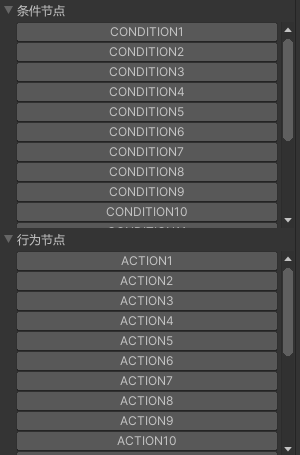
  3. 通过CreateAllNodeTypeUI()使用UIElement创建可选节点列表

节点操作显示设计

GraphView设计

BehaviourTreeGraphView.cs(通用节点编辑器GraphView(继承至GraphView),不同的节点编辑器继承修改部分接口即可)

继承UIBTGraphEditorWindow修改获取新的GraphView接口GetNewGraphView()即可。

UIBTGraphEditorWindow.cs

1
2
3
4
5
6
7
8
9
10
11
12
13
14
15
16
17
18
19
20
21
22
23
24
25
26
27
28
29
30
31
/// <summary>
/// UIBTGraphEditorWindow.cs
/// 通用节点编辑器窗口
/// </summary>
public class UIBTGraphEditorWindow : EditorWindow
{
******

/// <summary>
/// 创建节点编辑器GraphView
/// </summary>
protected virtual void CreateGraphView()
{
ClearGraphView();
var middleGraphViewContainer = rootVisualElement.Q<VisualElement>(BTGraphElementNames.MiddleGraphViewContainerName);
mGraphView = GetNewGraphView();
mGraphView.StretchToParentSize();
middleGraphViewContainer.Add(mGraphView);
}

/// <summary>
/// 创建新的GraphView
/// </summary>
/// <returns></returns>
protected BehaviourTreeGraphView GetNewGraphView()
{
return new BehaviourTreeGraphView(mAvailableNodeTypeList, this.OnSelectedNodeChange);
}

******
}

StyleSheet添加

创建UIBTGraphEditorWindow.uss文件,编写相关USS

BehaviourTreeGraphView.cs定义StyleSheet路径和加载流程

BehaviourTreeGraphView.cs

1
2
3
4
5
6
7
8
9
10
11
12
13
14
15
16
17
18
19
20
21
22
23
24
25
26
27
28
29
30
31
32
33
34
35
36
37
38
39
40
41
42
43
44
45
46
47
48
49
50
51
52
53
54
55
56
57
58
59
/// <summary>
/// BehaviourTreeGraphView.cs
/// 行为树GraphView
/// </summary>
public class BehaviourTreeGraphView : GraphView
{
******

/// <summary>
/// Style Sheet Asset路径
/// </summary>
protected virtual string StyleSheetAssetPath
{
get
{
return "Assets/Scripts/Editor/UIToolkitStudy/UIBTGraphEditorWindow/DefaultGraphStyleSheet.uss";
}
}

public BehaviourTreeGraphView()
{
mAvailableNodeTypeList = new List<NodeType>() ;
mSelectedNodeChangeDelegate = null;
Init();
}

/// <summary>
/// 带参构造函数
/// </summary>
/// <param name="availableNodeTypeList"></param>
/// <param name="selectedNodeChangeCB"></param>
public BehaviourTreeGraphView(List<NodeType> availableNodeTypeList, Action<NodeView> selectedNodeChangeCB = null)
{
mAvailableNodeTypeList = availableNodeTypeList;
mSelectedNodeChangeDelegate += selectedNodeChangeCB;
Init();
}

/// <summary>
/// 初始化
/// </summary>
protected virtual void Init()
{
******
LoadStyleSheet();
******
}

/// <summary>
/// 加载Style Sheet
/// </summary>
protected virtual void LoadStyleSheet()
{
var styleSheet = AssetDatabase.LoadAssetAtPath<StyleSheet>(StyleSheetAssetPath);
styleSheets.Add(styleSheet);
}

******
}

UICommonGraphEditorWindow.uss

1
2
3
4
5
6
GridBackground {
--grid-background-color: #282828;
--line-color: rgba(193, 196, 192, 0.1);
--thick-line-color: rgba(193, 196, 192, 0.1);
--spacing: 10;
}

节点创建添加

BehaviourTreeGraphView.cs

1
2
3
4
5
6
7
8
9
10
11
12
13
14
15
16
17
18
19
20
21
22
23
24
25
26
27
28
29
30
31
32
33
34
35
36
37
38
39
40
41
42
43
44
45
46
47
48
49
50
51
52
53
54
55
56
57
58
59
60
61
62
63
64
65
66
67
68
69
70
71
72
73
74
75
76
77
78
79
80
81
82
83
84
85
86
87
88
89
90
91
92
93
94
95
96
97
98
99
100
101
102
103
104
105
106
107
108
109
110
111
112
113
114
115
116
117
118
119
120
121
122
123
124
125
126
127
128
129
130
131
132
133
134
135
136
/// <summary>
/// BehaviourTreeGraphView.cs
/// 行为树GraphView
/// </summary>
public class BehaviourTreeGraphView : GraphView
{
/// <summary>
/// 节点默认Rect
/// </summary>
protected readonly Rect NodeDefaultRect = new Rect(100, 200, 100, 150);

/// <summary>
/// 根节点类型(子类重写实现自定义不同根节点类型)
/// </summary>
protected readonly Type RootNodeType = BTGraphConstEditor.RootNodeType;

/// <summary>
/// GraphView朝向
/// </summary>
protected virtual Orientation GraphOrientation
{
get
{
return GraphOrientation.Horizontal;
}
}

*******

/// <summary>
/// 初始化
/// </summary>
protected virtual void Init()
{
******
AddEntryPointNode();
******
}

/// <summary>
/// 添加根节点
/// </summary>
protected virtual void AddEntryPointNode()
{
AddElement(GenerateEntryPointNode());
}

/// <summary>
/// 生成根节点
/// </summary>
/// <returns></returns>
protected NodeView GenerateEntryPointNode()
{
var rootNode = CreateNodeByType(RootNodeType, BTGraphConstEditor.NodeDefaultPos);
return rootNode;
}

/// <summary>
/// 创建指定节点名的新节点
/// </summary>
/// <param name="isEntryNode">是否是根节点</param>
/// <param name="addNodeData">是否添加节点数据</param>
/// <returns></returns>
public virtual NodeView CreateNode<T>(bool isEntryNode = false, bool addNodeData = true) where T : BaseNode, new()
{
var typeInfo = typeof(T);
var nodeView = CreateNodeByType(typeInfo, isEntryNode, addNodeData);
return nodeView;
}

/// <summary>
/// 创建指定类型信息和节点名的新节点
/// </summary>
/// <param name="typeInfo">类型信息</param>
/// <param name="position"></param>
/// <param name="isEntryNode">是否是根节点</param>
/// <returns></returns>
public NodeView CreateNodeByType(Type typeInfo, Vector2 position)
{
var newNode = BTGraphUtilitiesEditor.CreateNodeInstance(typeInfo);
var guid = Guid.NewGuid().ToString();
var nodeRect = BTGraphConstEditor.NodeDefaultRect;
nodeRect.x = position.x;
nodeRect.y = position.y;
newNode.Init(guid, nodeRect);
var nodeView = BTGraphUtilitiesEditor.CreateNodeViewInstance(typeInfo);
nodeView.Init(SourceGraphData, newNode, OnNodeSelected, null, GraphOrientation);
AddNodeData(newNode);
AddElement(nodeView);
UpdateNodeViewRect(nodeView, nodeRect);
return nodeView;
}

/// <summary>
/// 更新NodeView的Rect信息(同时自动更新Node节点数据的Rect信息)
/// </summary>
/// <param name="nodeView"></param>
/// <param name="position"></param>
protected bool UpdateNodeViewRect(NodeView nodeView, Rect position)
{
if (nodeView == null)
{
Debug.LogError($"不允许更新空NodeView的位置数据!");
return false;
}
nodeView.SetPosition(position);
return true;
}

/// <summary>
/// 添加新节点数据
/// </summary>
/// <param name="node"></param>
/// <param name="enableUndoSystem"></param>
protected bool AddNodeData(BaseNode node, bool enableUndoSystem = true)
{
if (node == null)
{
Debug.LogError($"不允许添加空节点数据!");
return false;
}
if (enableUndoSystem)
{
Undo.RecordObject(SourceGraphData, "AddNodeData");
}
var result = SourceGraphData.AddNode(node);
if (result)
{
OnAddNodeData(node);
EditorUtility.SetDirty(SourceGraphData);
}
return true;
}

******
}

BTGraphUtilitiesEditor.cs

1
2
3
4
5
6
7
8
9
10
11
12
13
14
15
16
17
18
19
20
21
22
23
24
25
26
27
28
29
30
31
32
33
34
35
36
37
38
39
40
41
42
43
44
45
46
47
48
49
50
51
52
53
/// <summary>
/// BTGraphUtilitiesEditor.cs
/// 行为树节点编辑器工具类
/// </summary>
public static class BTGraphUtilitiesEditor
{
******

/// <summary>
/// 创建指定Node类型信息实例对象
/// </summary>
/// <param name="typeInfo"></param>
/// <returns></returns>
public static BaseNode CreateNodeInstance(Type typeInfo)
{
if(typeInfo == null)
{
Debug.LogError($"不支持创建空类型信息的节点对象!");
return null;
}
if(typeInfo != CommonGraphConstEditor.BaseNodeType && !typeInfo.IsSubclassOf(CommonGraphConstEditor.BaseNodeType))
{
Debug.LogError($"不允许创建未继承BaseNode的类型:{typeInfo.Name}信息节点对象!");
return null;
}
// TODO: 硬编码类型构建避免反射
return ScriptableObject.CreateInstance(typeInfo) as BaseNode;
}

/// <summary>
/// 创建指定Node类型信息的NodeView实例对象
/// </summary>
/// <param name="typeInfo"></param>
/// <returns></returns>
public static NodeView CreateNodeViewInstance(Type typeInfo)
{
if (typeInfo == null)
{
Debug.LogError($"不支持创建空类型信息的节点View对象!");
return null;
}
var nodeViewType = GetNodeViewType(typeInfo);
// TODO: 硬编码类型构建避免反射
if (nodeViewType != CommonGraphConstEditor.NodeViewType && !nodeViewType.IsSubclassOf(CommonGraphConstEditor.NodeViewType))
{
Debug.LogError($"不允许创建未继承BaseNode的类型:{nodeViewType.Name}信息节点View对象!");
return null;
}
return Activator.CreateInstance(nodeViewType) as NodeView;
}

******
}

BehaviourTreeGraphView.GenerateEntryPointNode()负责创建根节点。

BehaviourTreeGraphView.CreateNode()和CreateNodeByType()负责创建新节点。

BTGraphUtilitiesEditor.CreateNodeInstance()和BTGraphUtilitiesEditor.CreateNodeViewInstance()负责构建节点对象和节点显示对象(TODO:添加非反射版节点实例对象创建实现)。

BehaviourTreeGraphView.UpdateNodeViewRect()负责更新显示节点数据和位置。

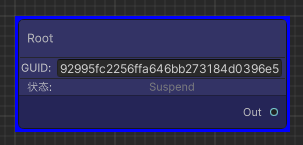
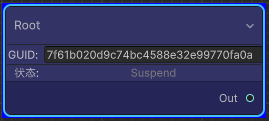
AddRootNode

Note:

  1. GraphView.GetNodeByGuid()获取指定GUID的节点是根据Node.viewDataKey来标识的

节点自定义UI添加

通过style.color根据不同节点类型设置不同节点颜色显示

通过创建插入竖向容器Element添加自定义UI显示

NodeState.cs

1
2
3
4
5
6
7
8
9
10
11
12
/// <summary>
/// NodeState.cs
/// 节点状态
/// </summary>
public enum NodeState
{
Suspend = 0, // 挂起状态
Running, // 运行状态
Abort, // 被打断状态
Success, // 成功状态
Failed, // 失败状态
}

BaseNode.cs

1
2
3
4
5
6
7
8
9
10
11
12
13
14
15
16
17
18
19
20
21
22
23
24
25
26
27
28
29
30
31
32
33
34
35
36
37
38
39
40
41
42
43
44
45
46
47
48
49
50
51
52
53
54
55
56
57
58
59
60
61
62
63
64
65
66
67
68
69
70
71
72
73
74
75
76
77
78
79
80
81
82
83
84
85
86
87
88
89
90
/// <summary>
/// BaseNode.cs
/// 节点数据基类
/// </summary>
[Serializable]
public class BaseNode : Node
{
/// <summary>
/// 唯一ID
/// </summary>
[Header("唯一ID")]
public string GUID;

/// <summary>
/// 位置
/// </summary>
[Header("位置")]
[HideInInspector]
public Rect Position;

/// <summary>
/// 节点描述
/// </summary>
[Header("节点描述")]
[HideInInspector]
public string Des = "节点描述";

/// <summary>
/// 是否是根节点
/// </summary>
public virtual bool EntryPoint
{
get
{
return false;
}
}

/// <summary>
/// 节点类型(子类重写自定义节点类型)
/// </summary>
public virtual NodeType NodeType
{
get
{
return NodeType.Composition;
}
}

/// <summary>
/// 节点状态
/// </summary>
public NodeState NodeState
{
get;
protected set;
}

/// <summary>
/// 是否进入过打断(辅助调试信息显示)
/// </summary>
public bool IsEnteredAbort
{
get;
protected set;
}

/// <summary>
/// 无参构造
/// </summary>
public BaseNode()
{
******
}

/// <summary>
/// 初始化
/// </summary>
/// <param name="guid">唯一ID</param>
/// <param name="position"></param>
/// <param name="nodeState">节点状态</param>
public void Init(string guid, Rect position, NodeState nodeState = NodeState.Suspend)
{
GUID = guid;
Position = position;
NodeState = nodeState;
IsEnteredAbort = false;
name = GetType().Name;
}
}

NodeView.cs

1
2
3
4
5
6
7
8
9
10
11
12
13
14
15
16
17
18
19
20
21
22
23
24
25
26
27
28
29
30
31
32
33
34
35
36
37
38
39
40
41
42
43
44
45
46
47
48
49
50
51
52
53
54
55
56
57
58
59
60
61
62
63
64
65
66
67
68
69
70
71
72
73
74
75
76
77
78
79
80
81
82
83
84
85
86
87
88
89
90
91
92
93
94
95
96
97
98
99
100
101
102
103
104
105
106
107
108
109
110
111
112
113
114
115
116
117
118
119
120
121
122
123
124
125
126
127
128
129
130
131
132
133
134
135
136
137
138
139
140
141
142
143
144
145
146
147
148
149
150
151
152
153
154
155
156
157
158
159
160
161
162
163
164
165
166
167
168
169
170
171
172
173
174
175
176
177
178
179
180
181
182
183
184
185
186
187
188
189
190
191
192
193
194
195
196
197
198
199
200
201
202
203
204
205
206
207
208
209
210
211
212
213
214
215
216
217
218
219
220
221
222
223
224
225
226
227
228
229
230
231
232
233
234
235
236
237
238
239
240
241
242
243
244
245
246
247
248
249
250
251
252
253
254
255
256
257
258
259
260
261
262
263
264
265
266
267
268
269
270
271
272
273
274
275
/// <summary>
/// NodeView.cs
/// 节点显示抽象
/// </summary>
public class NodeView : Node
{
/// <summary>
/// 所属图数据
/// </summary>
public BehaviourTreeGraphData OwnerGraphData
{
get;
private set;
}

/// <summary>
/// 节点数据
/// </summary>
public BaseNode NodeData
{
get;
private set;
}

/// <summary>
/// 入口Port连线数量类型
/// </summary>
public virtual Port.Capacity InPortCapacity
{
get
{
return Port.Capacity.Single;
}
}

/// <summary>
/// 出口Port连线数量类型
/// </summary>
public virtual Port.Capacity OutPortCapacity
{
get
{
return Port.Capacity.Single;
}
}

/// <summary>
/// 节点朝向
/// </summary>
protected Orientation mOrientation;

/// <summary>
/// 节点选择委托
/// </summary>
protected Action<NodeView> mNodeSelectedDelegate;

/// <summary>
/// 所有输入端口
/// </summary>
protected List<Port> mAllInputPorts;

/// <summary>
/// 所有输出端口
/// </summary>
protected List<Port> mAllOutputPorts;

/// <summary>
/// 无参构造
/// </summary>
public NodeView()
{
mAllInputPorts = new List<Port>();
mAllOutputPorts = new List<Port>();
}

/// <summary>
/// 带参构造
/// </summary>
/// <param name="ownerGraphData">所属图数据</param>
/// <param name="nodeData">节点数据</param>
/// <param name="nodeSelectedCB">节点选择委托</param>
/// <param name="nodeName">节点名(默认不传为BaseNode的类型名)</param>
/// <param name="orientation">节点方向</param>
public NodeView(BehaviourTreeGraphData ownerGraphData, BaseNode nodeData, Action<NodeView> nodeSelectedCB = null, string nodeName = null, Orientation orientation = Orientation.Horizontal)
{
Init(ownerGraphData, nodeData, nodeSelectedCB, nodeName, orientation);
}

/// <summary>
/// 根据Node数据初始化
/// </summary>
/// <param name="ownerGraphData">所属图数据</param>
/// <param name="nodeData">节点数据</param>
/// <param name="nodeSelectedCB">节点选择委托</param>
/// <param name="nodeName">节点名(默认不传为BaseNode的类型名)</param>
/// <param name="orientation">节点方向</param>
public void Init(BehaviourTreeGraphData ownerGraphData, BaseNode node, Action<NodeView> nodeSelectedCB = null, string nodeName = null, Orientation orientation = Orientation.Horizontal)
{
OwnerGraphData = ownerGraphData;
name = node.GUID;
// viewDataKey是GraphView.GetNodeByGUID的数据来源
viewDataKey = node.GUID;
NodeData = node;
mNodeSelectedDelegate += nodeSelectedCB;
mOrientation = orientation;
title = nodeName == null ? node.GetType().Name : nodeName;
titleContainer.style.backgroundColor = BTGraphUtilitiesEditor.GetBackgroundColorByNodeData(NodeData);
var titleLabel = titleContainer.Q<Label>("title-label");
titleLabel.style.color = Color.black;
titleLabel.style.fontSize = BTGraphConstEditor.NormalLabelFontSize;
CreateNodeUI();
GenerateAllPort();
RefreshExpandedState();
RefreshPorts();
}


******

/// <summary>
/// 创建节点UI
/// </summary>
protected void CreateNodeUI()
{
CreateNodeContainerUI();
CreateNodeGUIDUI();
CreateNodeStateUI();
CreateCustomUI();
CreateNodeDesUI();
}

/// <summary>
/// 创建节点UI
/// </summary>
protected void CreateNodeContainerUI()
{
var nodeVerticalUIContainer = UIToolkitUtilities.CreateVerticalContainer(BTGraphElementNames.NodeUIVerticalContainerName,
1, "unity-box", 0, 0, 0, 0,
BTGraphConstEditor.NodeContainerBGColor);
var nodeContentElement = this.Q<VisualElement>("contents");
nodeContentElement.Insert(0, nodeVerticalUIContainer);
}

/// <summary>
/// 创建节点GUID UI
/// </summary>
protected void CreateNodeGUIDUI()
{
var nodeVerticalUIContainer = this.Q<VisualElement>(BTGraphElementNames.NodeUIVerticalContainerName);
var nodeGUIDHorizontalUIContainer = UIToolkitUtilities.CreateHorizontalContainer(BTGraphElementNames.NodeGUIDUIHorizontalContainerName);

var nodeGUIDDivider = UIToolkitUtilities.CreateHorizontalDivider(BTGraphConstEditor.DividerColor);
nodeVerticalUIContainer.Add(nodeGUIDDivider);
nodeVerticalUIContainer.Add(nodeGUIDHorizontalUIContainer);

var nodeGuidTitleLabel = new Label();
nodeGuidTitleLabel.text = "GUID:";
nodeGuidTitleLabel.style.height = BTGraphConstEditor.NodeOneLineHeight;
nodeGuidTitleLabel.style.fontSize = BTGraphConstEditor.NormalLabelFontSize;
nodeGuidTitleLabel.style.unityTextAlign = TextAnchor.MiddleCenter;
nodeGuidTitleLabel.style.alignSelf = Align.Center;
nodeGUIDHorizontalUIContainer.Add(nodeGuidTitleLabel);

var nodeGuidLabel = new TextField();
nodeGuidLabel.isReadOnly = true;
nodeGuidLabel.value = NodeData.GUID;
nodeGuidLabel.style.height = BTGraphConstEditor.NodeOneLineHeight;
nodeGuidLabel.style.fontSize = BTGraphConstEditor.NormalLabelFontSize;
nodeGuidLabel.style.unityTextAlign = TextAnchor.MiddleCenter;
nodeGuidLabel.style.alignSelf = Align.Center;
//nodeGuidLabel.style.color = Color.white;
nodeGUIDHorizontalUIContainer.Add(nodeGuidLabel);
}

/// <summary>
/// 创建节点状态UI
/// </summary>
protected void CreateNodeStateUI()
{
var nodeVerticalUIContainer = this.Q<VisualElement>(BTGraphElementNames.NodeUIVerticalContainerName);
var nodeStateHorizontalUIContainer = UIToolkitUtilities.CreateHorizontalContainer(BTGraphElementNames.NodeStateUIHorizontalContainerName);

var nodeStateDivider = UIToolkitUtilities.CreateHorizontalDivider(BTGraphConstEditor.DividerColor);
nodeVerticalUIContainer.Add(nodeStateDivider);
nodeVerticalUIContainer.Add(nodeStateHorizontalUIContainer);

var nodeStateTitleLabel = new Label();
nodeStateTitleLabel.style.width = 40f;
nodeStateTitleLabel.style.height = BTGraphConstEditor.NodeOneLineHeight;
nodeStateTitleLabel.text = "状态:";
nodeStateTitleLabel.style.fontSize = BTGraphConstEditor.NormalLabelFontSize;
nodeStateTitleLabel.style.color = Color.black;
nodeStateTitleLabel.style.unityTextAlign = TextAnchor.MiddleCenter;
nodeStateTitleLabel.style.alignSelf = Align.Center;
nodeStateHorizontalUIContainer.Add(nodeStateTitleLabel);

var nodeStateLabel = new Label();
nodeStateLabel.name = BTGraphElementNames.NodeStateLabelName;
nodeStateLabel.style.width = 40f;
nodeStateLabel.style.unityTextAlign = TextAnchor.MiddleCenter;
nodeStateLabel.style.alignSelf = Align.Center;
nodeStateLabel.style.height = BTGraphConstEditor.NodeOneLineHeight;
nodeStateLabel.style.fontSize = BTGraphConstEditor.NormalLabelFontSize;
nodeStateLabel.style.color = Color.black;
nodeStateLabel.style.flexGrow = 1;
nodeStateHorizontalUIContainer.Add(nodeStateLabel);
UpdateNodeStateBackgroundColor();
UpdateNodeStateLabel();
}

/// <summary>
/// 创建节点自定义UI
/// </summary>
protected virtual void CreateCustomUI()
{

}

/// <summary>
/// 更新节点状态背景颜色
/// </summary>
public void UpdateNodeStateBackgroundColor()
{
var nodeStateHorizontalUIContainer = this.Q<VisualElement>(BTGraphElementNames.NodeStateUIHorizontalContainerName);
if(nodeStateHorizontalUIContainer != null)
{
nodeStateHorizontalUIContainer.style.backgroundColor = BTGraphUtilitiesEditor.GetColorByNodeState(NodeData.NodeState);
}
}

/// <summary>
/// 更新节点状态Label
/// </summary>
public void UpdateNodeStateLabel()
{
var nodeStateLabel = this.Q<Label>(BTGraphElementNames.NodeStateLabelName);
if (nodeStateLabel != null)
{
var stateDes = NodeData.NodeState.ToString();
if(NodeData.IsEnteredAbort)
{
stateDes = $"{stateDes}(打断)";
}
nodeStateLabel.text = stateDes;
}
}

/// <summary>
/// 创建节点描述UI
/// </summary>
protected void CreateNodeDesUI()
{
var nodeVerticalUIContainer = this.Q<VisualElement>(BTGraphElementNames.NodeUIVerticalContainerName);
var nodeDesHorizontalUIContainer = UIToolkitUtilities.CreateHorizontalContainer(BTGraphElementNames.NodeDesUIHorizontalContainerName);

var nodeDesDivider = UIToolkitUtilities.CreateHorizontalDivider(BTGraphConstEditor.DividerColor);
nodeVerticalUIContainer.Add(nodeDesDivider);
nodeVerticalUIContainer.Add(nodeDesHorizontalUIContainer);

UIToolkitUtilities.CreateBindSOTextField(nodeDesHorizontalUIContainer, NodeData,
BTGraphConstEditor.NodeDesPropertyName, 1,
BTGraphConstEditor.NodeOneLineHeight,
BTGraphConstEditor.NormalLabelFontSize);
}

/// <summary>
/// 创建节点自定义UI
/// </summary>
protected virtual void CreateCustomUI()
{

}

******
}

BTGraphUtilitiesEditor.cs

1
2
3
4
5
6
7
8
9
10
11
12
13
14
15
16
17
18
19
20
21
22
23
24
25
26
27
28
29
30
31
32
33
34
35
36
37
38
39
40
41
42
43
44
45
46
47
48
49
50
51
52
53
54
55
56
57
58
59
60
61
62
63
64
65
66
67
/// <summary>
/// BTGraphUtilitiesEditor.cs
/// 行为树节点编辑器工具类
/// </summary>
public static class BTGraphUtilitiesEditor
{
******

/// <summary>
/// 节点类型和颜色背景Map
/// </summary>
private static Dictionary<NodeType, Color> NodeTypeBackgroundColorMap = new Dictionary<NodeType, Color>
{
{NodeType.Composition, Color.blue},
{NodeType.Decoration, Color.cyan},
{NodeType.Condition, Color.yellow},
{NodeType.Action, Color.red},
};

/// <summary>
/// 节点状态和颜色背景Map
/// </summary>
private static readonly Dictionary<NodeState, Color> NodeStateColorMap = new Dictionary<NodeState, Color>
{
{NodeState.Suspend, Color.grey},
{NodeState.Running, Color.yellow},
{NodeState.Abort, Color.magenta},
{NodeState.Success, Color.green},
{NodeState.Failed, Color.red},
};

******

/// <summary>
/// 获取指定节点类型的背景颜色
/// </summary>
/// <param name="nodeType"></param>
/// <returns></returns>
public static Color GetBackgroundColorByNodeType(NodeType nodeType)
{
Color nodeTypeBackgroundColor;
if (NodeTypeBackgroundColorMap.TryGetValue(nodeType, out nodeTypeBackgroundColor))
{
return nodeTypeBackgroundColor;
}
Debug.LogError($"未配置节点类型:{nodeType}的背景颜色!");
return Color.grey;
}

/// <summary>
/// 获取指定节点类型的背景颜色
/// </summary>
/// <param name="nodeState"></param>
/// <returns></returns>
public static Color GetColorByNodeState(NodeState nodeState)
{
Color nodeStateColor;
if (NodeStateColorMap.TryGetValue(nodeState, out nodeStateColor))
{
return nodeStateColor;
}
Debug.LogError($"未配置节点状态:{nodeState}的颜色!");
return Color.grey;
}

******
}

UIToolkitUtilities.cs

1
2
3
4
5
6
7
8
9
10
11
12
13
14
15
16
17
18
19
20
21
22
23
24
25
26
27
28
29
30
31
32
33
34
35
36
37
38
39
40
41
42
43
44
45
46
47
48
49
50
51
52
53
54
55
56
57
58
59
60
61
62
63
64
65
66
67
68
69
70
71
72
73
74
75
76
77
78
79
80
81
82
83
84
85
86
87
88
89
90
91
92
93
94
95
96
97
98
99
100
101
102
103
104
105
106
107
108
109
110
111
112
113
114
115
116
117
118
119
120
121
122
123
124
125
126
127
128
129
130
131
132
133
134
135
136
137
138
139
140
141
142
143
144
145
146
147
148
149
150
151
152
153
154
155
156
157
158
159
160
161
162
163
164
165
166
167
168
169
170
171
172
173
174
175
176
177
178
179
180
181
182
183
184
185
186
187
188
189
190
191
192
193
194
195
196
197
198
199
200
201
202
203
204
205
206
207
/// <summary>
/// UIToolkitUtilities.cs
/// UIToolkit工具类
/// </summary>
public static class UIToolkitUtilities
{
/// <summary>
/// 创建一个指定名字指定相关设置的横向容器
/// </summary>
/// <param name="containerName"></param>
/// <param name="flexGrow"></param>
/// <param name="classList"></param>
/// <param name="styleLeft"></param>
/// <param name="styleRight"></param>
/// <param name="styleTop"></param>
/// <param name="styleBottom"></param>
/// <param name="styleColor"></param>
/// <returns></returns>
public static VisualElement CreateHorizontalContainer(string containerName, float flexGrow = 1f, string classList = null, float styleLeft = 0, float styleRight = 0, float styleTop = 0, float styleBottom = 0, StyleColor styleColor = default(StyleColor))
{
var nodeHorizontalUIContainer = new VisualElement();
nodeHorizontalUIContainer.name = containerName;
nodeHorizontalUIContainer.style.left = styleLeft;
nodeHorizontalUIContainer.style.right = styleRight;
nodeHorizontalUIContainer.style.flexGrow = flexGrow;
nodeHorizontalUIContainer.style.top = styleTop;
nodeHorizontalUIContainer.style.bottom = styleBottom;
nodeHorizontalUIContainer.style.flexDirection = FlexDirection.Row;
nodeHorizontalUIContainer.style.backgroundColor = styleColor;
if(!string.IsNullOrEmpty(classList))
{
nodeHorizontalUIContainer.AddToClassList(classList);
}
return nodeHorizontalUIContainer;
}

/// <summary>
/// 创建一个指定名字指定相关设置的竖向容器
/// </summary>
/// <param name="containerName"></param>
/// <param name="flexGrow"></param>
/// <param name="classList"></param>
/// <param name="styleLeft"></param>
/// <param name="styleRight"></param>
/// <param name="styleTop"></param>
/// <param name="styleBottom"></param>
/// <param name="styleColor"></param>
/// <returns></returns>
public static VisualElement CreateVerticalContainer(string containerName, float flexGrow = 1f, string classList = null, float styleLeft = 0, float styleRight = 0, float styleTop = 0, float styleBottom = 0, StyleColor styleColor = default(StyleColor))
{
var nodeHorizontalUIContainer = new VisualElement();
nodeHorizontalUIContainer.name = containerName;
nodeHorizontalUIContainer.style.left = styleLeft;
nodeHorizontalUIContainer.style.right = styleRight;
nodeHorizontalUIContainer.style.flexGrow = flexGrow;
nodeHorizontalUIContainer.style.top = styleTop;
nodeHorizontalUIContainer.style.bottom = styleBottom;
nodeHorizontalUIContainer.style.flexDirection = FlexDirection.Column;
nodeHorizontalUIContainer.style.backgroundColor = styleColor;
if (!string.IsNullOrEmpty(classList))
{
nodeHorizontalUIContainer.AddToClassList(classList);
}
return nodeHorizontalUIContainer;
}

/// <summary>
/// 创建一个横向分割线
/// </summary>
/// <param name="color"></param>
/// <returns></returns>
public static VisualElement CreateHorizontalDivider(Color color, float height = 1f)
{
var horizontalDivider = new VisualElement();
horizontalDivider.style.height = height;
horizontalDivider.style.flexGrow = 1;
horizontalDivider.style.backgroundColor = color;
return horizontalDivider;
}

/// <summary>
/// 创建一个竖向分割线
/// </summary>
/// <param name="color"></param>
/// <returns></returns>
public static VisualElement CreateVerticalDivider(Color color)
{
var horizontalDivider = new VisualElement();
horizontalDivider.style.width = 1;
horizontalDivider.style.flexGrow = 1;
horizontalDivider.style.backgroundColor = color;
return horizontalDivider;
}

/// <summary>
/// 指定容器创建指定对象的可视化Inspector
/// </summary>
/// <param name="scriptableObject"></param>
/// <param name="propertyBindDataMap"></param>
public static VisualElement CreateBindSOInspector(ScriptableObject scriptableObject, Dictionary<string, PropertyBindData> propertyBindDataMap = null)
{
if(scriptableObject == null)
{
Debug.LogError($"不允许给空ScriptableObject创建可视化Inspector!");
return null;
}
var container = CreateVerticalContainer(null, 1);
var serializedObject = new SerializedObject(scriptableObject);
var propertyIterator = serializedObject.GetIterator();
propertyIterator.NextVisible(true);
while(propertyIterator.NextVisible(false))
{
var propertyField = new PropertyField();
var propertyName = propertyIterator.name;
var property = serializedObject.FindProperty(propertyName);
propertyField.name = propertyName;
propertyField.BindProperty(property);
container.Add(propertyField);
if(propertyBindDataMap != null)
{
var propertyBindData = new PropertyBindData(serializedObject, property, propertyField);
propertyBindDataMap.Add(propertyName, propertyBindData);
}
}
return container;
}

/// <summary>
/// 指定容器创建指定对象指定属性名的绑定PropertyField
/// </summary>
/// <param name="container"></param>
/// <param name="scriptableObject"></param>
/// <param name="propertyName"></param>
/// <param name="flexGrow"></param>
/// <param name="height"></param>
public static PropertyBindData CreateBindSOPropertyField(VisualElement container, ScriptableObject scriptableObject, string propertyName, float flexGrow = 0, float height = 25f)
{
if (container == null)
{
Debug.LogError($"不允许给空容器创建绑定PropertyField!");
return null;
}
if (scriptableObject == null)
{
Debug.LogError($"不允许给空ScriptableObject创建绑定PropertyField!");
return null;
}
var serializedObject = new SerializedObject(scriptableObject);
var property = serializedObject.FindProperty(propertyName);
if(property == null)
{
Debug.LogError($"ScriptableObject:{scriptableObject.name}没找到属性名:{propertyName}的属性,创建绑定PropertyField失败!");
return null;
}
var propertyField = new PropertyField();
propertyField.name = propertyName;
propertyField.BindProperty(property);
propertyField.style.height = height;
propertyField.style.flexGrow = flexGrow;
container.Add(propertyField);
var propertyBindData = new PropertyBindData(serializedObject, property, propertyField);
return propertyBindData;
}

/// <summary>
/// 指定容器创建指定对象指定属性名的绑定TextField
/// </summary>
/// <param name="container"></param>
/// <param name="scriptableObject"></param>
/// <param name="propertyName"></param>
/// <param name="flexGrow"></param>
/// <param name="height"></param>
/// <param name="fontSize"></param>
/// <param name="textAnchor"></param>
public static PropertyBindData CreateBindSOTextField(VisualElement container, ScriptableObject scriptableObject, string propertyName, float flexGrow = 0, float height = 25f, float fontSize = 15f, TextAnchor textAnchor = TextAnchor.MiddleCenter)
{
if (container == null)
{
Debug.LogError($"不允许给空容器创建绑定TextField!");
return null;
}
if (scriptableObject == null)
{
Debug.LogError($"不允许给空ScriptableObject创建绑定TextField!");
return null;
}
var serializedObject = new SerializedObject(scriptableObject);
var property = serializedObject.FindProperty(propertyName);
if (property == null)
{
Debug.LogError($"ScriptableObject:{scriptableObject.name}没找到属性名:{propertyName}的属性,创建绑定TextField失败!");
return null;
}
var textField = new TextField();
textField.name = propertyName;
textField.BindProperty(property);
textField.style.height = height;
textField.style.fontSize = fontSize;
textField.style.flexGrow = flexGrow;
textField.style.unityTextAlign = textAnchor;
container.Add(textField);
var propertyBindData = new PropertyBindData(serializedObject, property, textField);
return propertyBindData;
}

******
}

CustomNodeViewUI

Note:

  1. 子类重写CreateCustomUI()自定义节点UI显示

节点Port创建添加

NodeView.cs

1
2
3
4
5
6
7
8
9
10
11
12
13
14
15
16
17
18
19
20
21
22
23
24
25
26
27
28
29
30
31
32
33
34
35
36
37
38
39
40
41
42
43
44
45
46
47
48
49
50
51
52
53
54
55
56
57
58
59
60
61
62
63
64
65
66
67
68
69
70
71
72
73
74
75
76
77
78
79
80
81
82
83
84
85
86
87
88
89
90
91
92
93
94
95
96
97
98
99
100
101
102
103
104
105
106
107
108
109
110
111
112
113
114
115
116
117
118
119
120
121
122
123
124
125
126
127
128
129
130
131
132
133
134
135
136
137
138
139
140
141
142
143
144
145
146
147
148
149
150
151
152
153
154
155
156
157
158
159
160
161
162
163
164
165
166
167
168
169
170
171
172
173
174
175
176
177
178
179
180
181
182
183
184
185
186
187
188
189
190
191
192
193
194
195
196
197
198
199
200
201
202
203
204
205
206
207
208
209
210
211
212
213
214
215
216
217
218
219
220
221
222
/// <summary>
/// NodeView.cs
/// 节点显示抽象
/// </summary>
public class NodeView : Node
{
/// <summary>
/// 所属图数据
/// </summary>
public BehaviourTreeGraphData OwnerGraphData
{
get;
private set;
}

/// <summary>
/// 节点数据
/// </summary>
public BaseNode NodeData
{
get;
private set;
}

/// <summary>
/// 入口Port连线数量类型
/// </summary>
public virtual Port.Capacity InPortCapacity
{
get
{
return Port.Capacity.Single;
}
}

/// <summary>
/// 出口Port连线数量类型
/// </summary>
public virtual Port.Capacity OutPortCapacity
{
get
{
return Port.Capacity.Single;
}
}

/// <summary>
/// 节点朝向
/// </summary>
protected Orientation mOrientation;

/// <summary>
/// 节点选择委托
/// </summary>
protected Action<NodeView> mNodeSelectedDelegate;

/// <summary>
/// 所有输入端口
/// </summary>
protected List<Port> mAllInputPorts;

/// <summary>
/// 所有输出端口
/// </summary>
protected List<Port> mAllOutputPorts;

/// <summary>
/// 无参构造
/// </summary>
public NodeView()
{
mAllInputPorts = new List<Port>();
mAllOutputPorts = new List<Port>();
}

/// <summary>
/// 带参构造
/// </summary>
/// <param name="ownerGraphData">所属图数据</param>
/// <param name="nodeData">节点数据</param>
/// <param name="nodeSelectedCB">节点选择委托</param>
/// <param name="nodeName">节点名(默认不传为BaseNode的类型名)</param>
/// <param name="orientation">节点方向</param>
public NodeView(BehaviourTreeGraphData ownerGraphData, BaseNode nodeData, Action<NodeView> nodeSelectedCB = null, string nodeName = null, Orientation orientation = Orientation.Horizontal)
{
Init(ownerGraphData, nodeData, nodeSelectedCB, nodeName, orientation);
}

/// <summary>
/// 根据Node数据初始化
/// </summary>
/// <param name="ownerGraphData">所属图数据</param>
/// <param name="nodeData">节点数据</param>
/// <param name="nodeSelectedCB">节点选择委托</param>
/// <param name="nodeName">节点名(默认不传为BaseNode的类型名)</param>
/// <param name="orientation">节点方向</param>
public void Init(BehaviourTreeGraphData ownerGraphData, BaseNode node, Action<NodeView> nodeSelectedCB = null, string nodeName = null, Orientation orientation = Orientation.Horizontal)
{
OwnerGraphData = ownerGraphData;
name = node.GUID;
// viewDataKey是GraphView.GetNodeByGUID的数据来源
viewDataKey = node.GUID;
NodeData = node;
mNodeSelectedDelegate += nodeSelectedCB;
mOrientation = orientation;
title = nodeName == null ? node.GetType().Name : nodeName;
titleContainer.style.backgroundColor = BTGraphUtilitiesEditor.GetBackgroundColorByNodeData(NodeData);
var titleLabel = titleContainer.Q<Label>("title-label");
titleLabel.style.color = Color.black;
titleLabel.style.fontSize = BTGraphConstEditor.NormalLabelFontSize;
CreateNodeUI();
GenerateAllPort();
RefreshExpandedState();
RefreshPorts();
}

/// <summary>
/// 创建自定义输入Port
/// </summary>
/// <param name="portName"></param>
/// <param name="type"></param>
/// <returns></returns>
public Port InstantiateCustomInputPort(string portName, System.Type type)
{
var port = InstantiateCustomPort(portName, Direction.Input, InPortCapacity, type);
inputContainer.Add(port);
mAllInputPorts.Add(port);
return port;
}

/// <summary>
/// 创建自定义输出Port
/// </summary>
/// <param name="portName"></param>
/// <param name="type"></param>
/// <returns></returns>
public Port InstantiateCustomOutputPort(string portName, System.Type type)
{
var port = InstantiateCustomPort(portName, Direction.Output, OutPortCapacity, type);
outputContainer.Add(port);
mAllOutputPorts.Add(port);
return port;
}

/// <summary>
/// 获取所有Input端口
/// </summary>
/// <returns></returns>
public List<Port> GetAllInputPorts()
{
return mAllInputPorts;
}

/// <summary>
/// 获取所有Output端口
/// </summary>
/// <returns></returns>
public List<Port> GetAllOutputPorts()
{
return mAllOutputPorts;
}

/// <summary>
/// 创建自定义Port
/// Note:
/// 不含添加到容器
/// </summary>
/// <param name="portName"></param>
/// <param name="direction"></param>
/// <param name="capacity"></param>
/// <param name="type"></param>
/// <returns></returns>
protected virtual Port InstantiateCustomPort(string portName, Direction direction, Port.Capacity capacity, System.Type type)
{
var port = InstantiatePort(mOrientation, direction, capacity, type);
port.name = portName;
port.portName = portName;
return port;
}

/// <summary>
/// 实例化Port(自定义Port创建接口用于支持创建自定义EdgeView)
/// </summary>
/// <param name="orientation"></param>
/// <param name="direction"></param>
/// <param name="capacity"></param>
/// <param name="type"></param>
/// <returns></returns>
public override Port InstantiatePort(Orientation orientation, Direction direction, Port.Capacity capacity, Type type)
{
return Port.Create<EdgeView>(orientation, direction, capacity, type);
}

******

/// <summary>
/// 创建所有Port
/// </summary>
protected void GenerateAllPort()
{
GenerateAllInputPort();
GenerateAllOutputPort();
}

/// <summary>
/// 生成节点所有Input Port
/// </summary>
protected virtual void GenerateAllInputPort()
{
InstantiateCustomInputPort(BTGraphConstEditor.DefaultInputPortName, BTGraphConstEditor.FloatType);
}

/// <summary>
/// 生成节点所有Output Port
/// </summary>
protected virtual void GenerateAllOutputPort()
{
InstantiateCustomOutputPort(BTGraphConstEditor.DefaultOutputPortName, BTGraphConstEditor.FloatType);
}

******
}

BaseParentNode.cs

1
2
3
4
5
6
7
8
9
10
11
12
13
14
15
16
17
18
19
20
21
22
23
24
25
26
27
28
29
30
31
/// <summary>
/// BaseParentNode.cs
/// 父节点基类抽象(所有有子节点的类型都继承这个)
/// </summary>
public abstract class BaseParentNode : BaseNode
{
/// <summary>
/// 子节点数量
/// </summary>
public int ChildNodeCount
{
get
{
return mChildNodeList != null ? mChildNodeList.Count : 0;
}
}

/// <summary>
/// 子节点列表
/// </summary>
protected List<BaseNode> mChildNodeList;

/// <summary>
/// 设置子节点列表
/// </summary>
/// <param name="childNodeList"></param>
public virtual void SetChildNodeList(List<BaseNode> childNodeList)
{
mChildNodeList = childNodeList;
}
}

BaseCompositionNode.cs

1
2
3
4
5
6
7
8
9
10
11
12
13
14
15
16
17
18
/// <summary>
/// BaseCompositionNode.cs
/// 行为树组合节点基类
/// </summary>
[Serializable]
public abstract class BaseCompositionNode : BaseParentNode
{
/// <summary>
/// 节点类型
/// </summary>
public override NodeType NodeType
{
get
{
return NodeType.Composition;
}
}
}

SequnceNode.cs

1
2
3
4
5
6
7
8
9
/// <summary>
/// SequenceNode.cs
/// 行为树顺序节点(多个节点按顺序执行直到遇到返回失败的节点)
/// </summary>
[Serializable]
public class SequenceNode : BaseCompositionNode
{

}

从上面代码可以看到节点Port创建流程如下:

  1. NodeView.GenerateAllPort(),NodeView.GenerateAllInputPort()和NodeView.GenerateAllOutputPort()负责节点Port的初始化创建流程
  2. NodeView.InstantiateCustomInputPort()和NodeView.InstantiateCustomOutputPort()方法分别负责创建输入和输出节点Port
  3. NodeView.inputContainer和NodeView.outputContainer分别对应输入和输出节点容器通过*Container.Add(port)方法给对应节点容器添加创建节点
  4. 调用RefreshExpandedState()和RefreshPorts()触发节点输出节点排版刷新显示

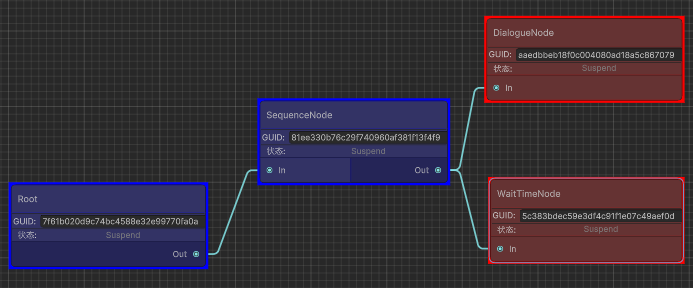
PortConnectPreview

Note:

  1. InPortCapacity或OutPortCapacity实现自定义节点的输入输出Port连线数量定义
  2. GenerateAllInputPort()或GenerateAllOutputPort()实现自定义输入输出节点Port创建

节点Port连线功能添加

节点的连线规则是通过GraphView:GetCompatiblePorts()接口返回决定的

BehaviourTreeGraphView.cs

1
2
3
4
5
6
7
8
9
10
11
12
13
14
15
16
17
18
19
20
21
22
23
24
25
26
27
28
29
30
31
32
33
34
35
36
37
38
39
40
41
42
43
44
45
46
47
48
49
50
51
52
53
54
55
56
57
58
59
60
61
62
63
64
65
66
67
68
69
70
71
72
73
74
75
76
77
78
79
80
81
82
83
84
85
86
87
88
89
90
91
92
93
94
95
96
97
98
99
100
101
102
103
104
105
106
107
108
109
110
111
112
113
114
115
116
117
118
119
120
121
122
123
124
125
126
127
128
129
130
131
132
133
134
135
136
137
138
139
140
141
142
143
144
/// <summary>
/// BehaviourTreeGraphView.cs
/// 行为树GraphView
/// </summary>
public class BehaviourTreeGraphView : GraphView
{
******

/// <summary>
/// Port可连接节点类型Map<节点类型, <可连接节点类型, 可连接节点类型>>
/// </summary>
protected Dictionary<NodeType, Dictionary<NodeType, NodeType>> mPortAvailableConnectNodeTypeMap;

/// <summary>
/// Port不可连接节点类型信息Map<节点类型, <不可连接节点类型信息, 不可连接节点类型信息>>
/// </summary>
protected Dictionary<NodeType, Dictionary<Type, Type>> mPortUnavailableConnectTypeMap;

/// <summary>
/// 可连接的Port列表
/// </summary>
protected List<Port> mCompatiblePortList;

public Init()
{
******

InitPortConnectRuleData();

******
}

/// <summary>
/// 初始化Port连接规则数据
/// </summary>
private void InitPortConnectRuleData()
{
mCompatiblePortList = new List<Port>();
InitPortAvalibleConnectNodeTypeData();
InitPortUnavalibleConnectTypeData();
}

/// <summary>
/// 初始化Port连接规则数据
/// </summary>
protected void InitPortConnectRuleData()
{
mCompatiblePortList = new List<Port>();
InitPortAvalibleConnectNodeTypeData();
InitPortUnavalibleConnectTypeData();
}

/// <summary>
/// 初始化Port可连接节点类型数据
/// </summary>
protected void InitPortAvalibleConnectNodeTypeData()
{
mPortAvailableConnectNodeTypeMap = new Dictionary<NodeType, Dictionary<NodeType, NodeType>>();
AddPortAvalibleConnectNodeType(NodeType.Composition, NodeType.Composition);
AddPortAvalibleConnectNodeType(NodeType.Composition, NodeType.Decoration);
AddPortAvalibleConnectNodeType(NodeType.Composition, NodeType.Condition);
AddPortAvalibleConnectNodeType(NodeType.Composition, NodeType.Action);

AddPortAvalibleConnectNodeType(NodeType.Decoration, NodeType.Composition);
AddPortAvalibleConnectNodeType(NodeType.Decoration, NodeType.Decoration);
AddPortAvalibleConnectNodeType(NodeType.Decoration, NodeType.Condition);
AddPortAvalibleConnectNodeType(NodeType.Decoration, NodeType.Action);
}

/// <summary>
/// 添加Port指定节点类型可连接节点类型
/// </summary>
/// <param name="sourceNodeType"></param>
/// <param name="targetNodeType"></param>
/// <returns></returns>
protected bool AddPortAvalibleConnectNodeType(NodeType sourceNodeType, NodeType targetNodeType)
{
Dictionary<NodeType, NodeType> portAvalibleConnectNodeTypeMap;
if (!mPortAvailableConnectNodeTypeMap.TryGetValue(sourceNodeType, out portAvalibleConnectNodeTypeMap))
{
portAvalibleConnectNodeTypeMap = new Dictionary<NodeType, NodeType>();
mPortAvailableConnectNodeTypeMap.Add(sourceNodeType, portAvalibleConnectNodeTypeMap);
}
if (portAvalibleConnectNodeTypeMap.ContainsKey(targetNodeType))
{
Debug.LogError($"重复添加节点类型:{sourceNodeType}的Port可连接节点类型:{targetNodeType}");
return false;
}
portAvalibleConnectNodeTypeMap.Add(targetNodeType, targetNodeType);
return true;
}

/// <summary>
/// 初始化Port不可连接类型信息数据
/// </summary>
protected void InitPortUnavalibleConnectTypeData()
{
mPortUnavailableConnectTypeMap = new Dictionary<NodeType, Dictionary<Type, Type>>();
}

******

/// <summary>
/// 获取可连接的Port
/// </summary>
/// <param name="startPort"></param>
/// <param name="nodeAdapter"></param>
/// <returns></returns>
public override List<Port> GetCompatiblePorts(Port startPort, NodeAdapter nodeAdapter)
{
mCompatiblePortList.Clear();
foreach (var port in ports)
{
// 不允许连接自身Port || 不允许连接自身节点 || 不允许连接相同In or Out Port
if (startPort == port || startPort.node == port.node || startPort.direction == port.direction)
{
continue;
}
var startNode = startPort.node as NodeView;
var portNode = port.node as NodeView;
if (!IsPortAvalibleConnectNodeType(startNode.NodeData.NodeType, portNode.NodeData.NodeType))
{
continue;
}
var portNodeType = port.node.GetType();
if (IsPortUnavalibleConnectType(startNode.NodeData.NodeType, portNodeType))
{
continue;
}
// 不允许连接根节点的InputPort
if (portNode.NodeData.EntryPoint && port.direction == Direction.Input)
{
continue;
}
// 根节点的InputPort不允许连接任何OutputPort
if (startNode.NodeData.EntryPoint && port.direction == Direction.Output)
{
continue;
}
mCompatiblePortList.Add(port);
}
return mCompatiblePortList;
}
}

InitPortAvalibleConnectNodeTypeData()实现自定义节点类型和哪些节点类型可连

IsPortUnavalibleConnectType()实现自定义节点类型哪些节点类型信息不可连

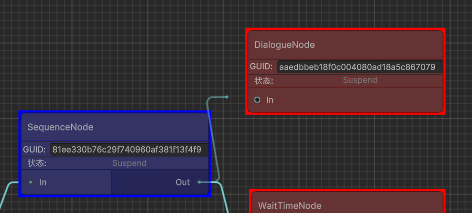
AvalibleConnectPortPreview

通过GraphView:GetCompatiblePorts()返回所有可连接Port,我们可以看到当我们点击需要连接Port后,所有可连接Port会处于高亮状态(表示可连接)。

节点Port连线还原

前面我们实现了自定义Port连接操作,在端口连接后,我们重新加载图数据后如何还原Port连线了?

Port的连接是通过Edge(边)来实现的。

BehaviourTreeGraphView.cs

1
2
3
4
5
6
7
8
9
10
11
12
13
14
15
16
17
18
19
20
21
22
23
24
25
26
27
28
29
30
31
32
33
34
35
36
37
38
39
40
41
42
43
44
45
46
47
48
49
50
51
52
53
54
55
56
57
58
59
60
61
62
63
64
65
66
67
68
69
70
71
72
73
74
75
76
77
78
79
80
81
82
83
84
85
86
87
88
89
90
91
92
93
94
95
96
97
98
99
100
101
102
103
104
105
106
107
108
109
110
111
112
113
114
115
116
117
118
119
120
121
122
123
124
125
126
127
128
129
130
131
132
133
134
135
136
137
138
139
140
141
142
143
/// <summary>
/// BehaviourTreeGraphView.cs
/// 行为树GraphView
/// </summary>
public class BehaviourTreeGraphView : GraphView
{
******

/// <summary>
/// 创建指定图数据的所有边
/// </summary>
/// <param name="graphData"></param>
/// <param name="addEdgeData">是否添加边数据</param>
/// <param name="enableUndoSystem">是否开启Undo系统</param>
protected void CreateGraphAllEdges(BehaviourTreeGraphData graphData, bool addEdgeData = true, bool enableUndoSystem = true)
{
if (graphData == null || graphData.AllEdgeDataList == null)
{
return;
}
foreach (var edgeData in graphData.AllEdgeDataList)
{
CreateEdgeByEdgeData(graphData, edgeData, addEdgeData, enableUndoSystem);
}
}

/// <summary>
/// 指定节点View获取或创建指定名字和类型的输入端口
/// </summary>
/// <param name="nodeView"></param>
/// <param name="portName"></param>
/// <param name="portTypeFullName"></param>
/// <returns></returns>
protected Port GetOrCreateInputPort(NodeView nodeView, string portName, string portTypeFullName)
{
if (nodeView == null)
{
Debug.LogError($"不允许给空节点View创建输入端口,创建端口名:{portName}类型:{portTypeFullName}的输入节点端口失败!");
return null;
}
var port = nodeView.inputContainer.Q<Port>(portName);
if (port == null)
{
var portType = TypeCache.GetType(portTypeFullName);
if (portType == null)
{
Debug.LogError($"找不到类型全名:{portTypeFullName}的类型信息,创建端口名:{portName}的输入节点端口失败!");
return null;
}
port = nodeView.InstantiateCustomInputPort(portName, portType);
}
return port;
}

/// <summary>
/// 指定节点View获取或创建指定名字和类型的输出端口
/// </summary>
/// <param name="nodeView"></param>
/// <param name="portName"></param>
/// <param name="portTypeFullName"></param>
/// <returns></returns>
protected Port GetOrCreateOutputPort(NodeView nodeView, string portName, string portTypeFullName)
{
if (nodeView == null)
{
Debug.LogError($"不允许给空节点View创建输出端口,创建端口名:{portName}类型:{portTypeFullName}的输出节点端口失败!");
return null;
}
var port = nodeView.outputContainer.Q<Port>(portName);
if (port == null)
{
var portType = TypeCache.GetType(portTypeFullName);
if (portType == null)
{
Debug.LogError($"找不到类型全名:{portTypeFullName}的类型信息,创建端口名:{portName}的输出节点端口失败!");
return null;
}
port = nodeView.InstantiateCustomOutputPort(portName, portType);
}
return port;
}

/// <summary>
/// 添加显示边
/// </summary>
/// <param name="edgeData"></param>
/// <param name="inputPort"></param>
/// <param name="outputPort"></param>
/// <returns></returns>
protected Edge AddEdgeView(EdgeData edgeData, Port inputPort, Port outputPort)
{
if (edgeData == null || inputPort == null || outputPort == null)
{
Debug.LogError($"不允许创建空边数据或空输入端口或空输出端口的显示边,创建显示边失败!");
return null;
}
var edgeView = CreateEdgeView(edgeData, inputPort, outputPort);
outputPort.Connect(edgeView);
inputPort.Connect(edgeView);
Add(edgeView);
OnEdgeViewUpdate(edgeView);
return edgeView;
}

/// <summary>
/// 创建显示边
/// </summary>
/// <param name="edgeData"></param>
/// <param name="inputPort"></param>
/// <param name="outputPort"></param>
/// <returns></returns>
protected EdgeView CreateEdgeView(EdgeData edgeData, Port inputPort, Port outputPort)
{
var edgeView = new EdgeView()
{
input = inputPort,
output = outputPort,
};
edgeView.Init(SourceGraphData, edgeData);
edgeView.UpdateEdgeControlStateColor();
return edgeView;
}

/// <summary>
/// 创建显示边
/// </summary>
/// <param name="edgeData"></param>
/// <param name="inputPort"></param>
/// <param name="outputPort"></param>
/// <returns></returns>
protected EdgeView CreateEdgeView(EdgeData edgeData, Port inputPort, Port outputPort)
{
var edgeView = new EdgeView()
{
input = inputPort,
output = outputPort,
};
edgeView.Init(SourceGraphData, edgeData);
edgeView.UpdateEdgeControlStateColor();
return edgeView;
}
******
}

NodeView.cs

1
2
3
4
5
6
7
8
9
10
11
12
13
14
15
16
17
18
19
20
21
22
23
24
25
26
27
28
29
30
31
32
33
34
35
36
37
38
/// <summary>
/// NodeView.cs
/// 节点显示抽象
/// </summary>
public class NodeView : Node
{
******

/// <summary>
/// 创建自定义输入Port
/// </summary>
/// <param name="portName"></param>
/// <param name="type"></param>
/// <returns></returns>
public Port InstantiateCustomInputPort(string portName, System.Type type)
{
var port = InstantiateCustomPort(portName, Direction.Input, InPortCapacity, type);
inputContainer.Add(port);
mAllInputPorts.Add(port);
return port;
}

/// <summary>
/// 创建自定义输出Port
/// </summary>
/// <param name="portName"></param>
/// <param name="type"></param>
/// <returns></returns>
public Port InstantiateCustomOutputPort(string portName, System.Type type)
{
var port = InstantiateCustomPort(portName, Direction.Output, OutPortCapacity, type);
outputContainer.Add(port);
mAllOutputPorts.Add(port);
return port;
}

******
}

EdgeView.cs

1
2
3
4
5
6
7
8
9
10
11
12
13
14
15
16
17
18
19
20
21
22
/// <summary>
/// EdgeView.cs
/// 显示边基类
/// </summary>
public class EdgeView : Edge
{
******

/// <summary>
/// 更新显示边线状态颜色
/// </summary>
public void UpdateEdgeControlStateColor()
{
var edgeInputNode = OwnerGraphData.GetNodeByGUID(EdgeData.InputNodeGUID);
var edgeInputColor = BTGraphUtilitiesEditor.GetEdgeColorByNodeState(edgeInputNode.NodeState);
var edgeOutputColor = BTGraphUtilitiesEditor.GetEdgeColorByNodeState(edgeInputNode.NodeState);
edgeControl.inputColor = edgeInputColor;
edgeControl.outputColor = edgeOutputColor;
}

******
}
  1. 在创建完所有NodeView(BehaviourTreeGraphView.CreateGraphAllNodes())后,我们根据BehaviourTreeGraphData.AllEdgeDataList的所有边数据,通过边数据EdgeData.OutputNodeGUID和EdgeData.InputNodeGUID获得边所对应的输入输出NodeView。

  2. 得到边所对应的NodeView后,我们通过EdgeData边数据的端口信息给NodeView创建对应的输入和输出端口(GetOrCreateOutputPort()和GetOrCreateInputPort())。

  3. 创建好NodeView的对应输入和输出端口后,我们通过创建自定义EdgeView(CreateEdgeView())将创建的输入和输出端口传入作为边的对应连接端口,最后初始化EdgeView对应图和边数据(EdgeData.Init())并添加到GraphView(Add(edgeView))则成功创建并还原了连接NodeView之间的EdgeView显示。

CreateEdgeViewFromEdgeData

Note:

  1. Edge(边)的输入Port是被连线的一侧,输出Port是开始连线的一侧。
  2. Node(节点)的输入端口是Edge连入的一侧,输出端口是Edge连出的一侧。

节点参数面板添加

不同的节点有不同的数据需要展示和配置,节点数据的配置面板在节点编辑器中是必不可少的。

显示节点参数面板步骤如下:

  1. 创建节点参数面板容器
  2. 检测节点选中
  3. 创建节点参数显示UI并添加到参数面板容器显示

UIBTGraphEditorWindow.cs

1
2
3
4
5
6
7
8
9
10
11
12
13
14
15
16
17
18
19
20
21
22
23
24
25
26
27
28
29
30
31
32
33
34
35
36
37
38
39
40
41
42
43
44
45
46
47
48
49
50
51
52
53
54
55
56
57
58
59
60
61
62
63
64
65
66
67
68
69
70
71
72
73
74
75
76
77
78
79
80
81
82
83
84
85
86
87
88
89
90
91
92
93
94
95
96
97
98
99
100
101
102
103
104
105
106
107
108
109
110
111
112
113
114
115
116
117
118
119
120
121
122
123
124
125
126
127
128
129
130
131
132
133
134
135
136
137
138
139
140
141
142
143
144
145
146
147
148
149
150
151
152
153
154
155
156
157
158
159
160
161
162
/// <summary>
/// UIBTGraphEditorWindow.cs
/// 行为树图窗口类
/// </summary>
public class UIBTGraphEditorWindow : EditorWindow
{
******

/// <summary>
/// 临时绑定属性Map<属性名, 属性绑定数据>
/// </summary>
private Dictionary<string, PropertyBindData> mTempBindPropertyDataMap = new Dictionary<string, PropertyBindData>();

/// <summary>
/// 创建右侧内容UI显示
/// </summary>
private void CreateRightContentUI()
{
var rightVerticalContentContainer = new VisualElement();
rightVerticalContentContainer.name = BTGraphElementNames.RightVerticalContentContainerName;
rightVerticalContentContainer.style.left = 0;
rightVerticalContentContainer.style.width = 300f;
rightVerticalContentContainer.style.top = 0;
rightVerticalContentContainer.style.bottom = 0;
rightVerticalContentContainer.style.flexDirection = FlexDirection.Column;
rightVerticalContentContainer.AddToClassList("unity-rect-field");

var toolbarMenu = new Toolbar();
toolbarMenu.name = BTGraphElementNames.RightToolbarMenuName;
toolbarMenu.style.flexDirection = FlexDirection.Row;
toolbarMenu.style.height = 25f;

var rightNodeConfigMenuButton = new Button(OnNodeConfigMenuClick);
rightNodeConfigMenuButton.name = BTGraphElementNames.RightNodeConfigMenuButtonName;
rightNodeConfigMenuButton.text = "节点参数";
rightNodeConfigMenuButton.style.flexGrow = 1f;
rightNodeConfigMenuButton.AddToClassList("unity-toggle");
toolbarMenu.Add(rightNodeConfigMenuButton);


var rightBlackboardMenuButton = new Button(OnBlackboardMenuClick);
rightBlackboardMenuButton.name = BTGraphElementNames.RightBlackboardMenuButtonName;
rightBlackboardMenuButton.text = "黑板";
rightBlackboardMenuButton.style.flexGrow = 1f;
rightBlackboardMenuButton.AddToClassList("unity-toggle");
toolbarMenu.Add(rightBlackboardMenuButton);

rightVerticalContentContainer.Add(toolbarMenu);

var rightPanelVerticalContainer = UIToolkitUtilities.CreateVerticalContainer(BTGraphElementNames.RightPanelVerticalContainerName, 1f, "unity-rect-field");
rightVerticalContentContainer.Add(rightPanelVerticalContainer);

var horizontalContentContainer = rootVisualElement.Q<VisualElement>(BTGraphElementNames.HorizontalContentContainerName);
horizontalContentContainer.Add(rightVerticalContentContainer);

UpdateSelectedPanelUI();
}

/// <summary>
/// 更新选中面板类型
/// </summary>
/// <param name="panelType"></param>
protected void UpdateSelectedPanel(PanelType panelType)
{
mCurrentSelectedPanelType = panelType;
UpdateSelectedPanelUI();
}

/// <summary>
/// 更新选中面板显示UI
/// </summary>
protected void UpdateSelectedPanelUI()
{
var rightPanelVerticalContainer = rootVisualElement.Q<VisualElement>(BTGraphElementNames.RightPanelVerticalContainerName);
rightPanelVerticalContainer.Clear();
if (mCurrentSelectedPanelType == PanelType.NODE_CONFIG_PANEL)
{
CreateSelectionNodeConfigUI();
}
else if (mCurrentSelectedPanelType == PanelType.BLACKBOARD_PANEL)
{
CreateBlackboardUI();
}
else
{
CreateNotSupportPanelTypeUI();
}
}

/// <summary>
/// 创建选择节点配置UI
/// </summary>
protected void CreateSelectionNodeConfigUI()
{
var rightPanelVerticalContainer = rootVisualElement.Q<VisualElement>(BTGraphElementNames.RightPanelVerticalContainerName);
var rightNodeConfigVerticalContainer = UIToolkitUtilities.CreateVerticalContainer(BTGraphElementNames.RightNodeConfigVerticalContainerName);
rightPanelVerticalContainer.Add(rightNodeConfigVerticalContainer);

var rightVerticalContentLableTitle = new Label();
rightVerticalContentLableTitle.text = "参数面板";
rightVerticalContentLableTitle.style.height = 20f;
rightVerticalContentLableTitle.style.alignSelf = Align.Center;
rightNodeConfigVerticalContainer.Add(rightVerticalContentLableTitle);

if (mGraphView.SelectedNode != null)
{
CreateSelectedNodeInspector(rightNodeConfigVerticalContainer, mGraphView.SelectedNode);
}
else
{
var rightSelectedNodeTipLabelTitle = new Label();
rightSelectedNodeTipLabelTitle.text = "无选中节点";
rightSelectedNodeTipLabelTitle.style.height = 20;
rightSelectedNodeTipLabelTitle.style.alignSelf = Align.Center;
rightNodeConfigVerticalContainer.Add(rightSelectedNodeTipLabelTitle);
}
}

/// <summary>
/// 给指定面板添加选中节点GUI显示
/// </summary>
/// <param name="nodeInspectorContainer"></param>
/// <param name="selectedNodeView"></param>
protected void CreateSelectedNodeInspector(VisualElement nodeInspectorContainer, NodeView selectedNodeView)
{
if(nodeInspectorContainer == null || selectedNodeView == null)
{
Debug.Log($"不允许给空容器或空显示节点创建选中节点GUI显示!");
return;
}
mTempBindPropertyDataMap.Clear();
var inspectorUIElement = selectedNodeView.CreateInspectorGUIElement(mTempBindPropertyDataMap);
nodeInspectorContainer.Add(inspectorUIElement);
}

/// <summary>
/// 响应节点根节点设置变化
/// </summary>
/// <param name="nodeView"></param>
protected void OnNodeEntryPointValueChange(NodeView nodeView)
{
var nodeData = nodeView.NodeData;
Debug.Log($"响应节点GUID:{nodeData.GUID}的根节点设置变化到:{nodeData.EntryPoint}");
nodeView.style.backgroundColor = BTGraphUtilitiesEditor.GetBackgroundColorByNodeData(nodeData);
// 根节点不允许输入端连接任何节点
if (nodeData.EntryPoint)
{
DisconnectAllInputPort(nodeView);
}
}

/// <summary>
/// 创建新的GraphView
/// </summary>
/// <returns></returns>
protected BehaviourTreeGraphView GetNewGraphView()
{
return new BehaviourTreeGraphView(mAvailableNodeTypeList, this.OnSelectedNodeChange);
}

******
}

PropertyBindData.cs

1
2
3
4
5
6
7
8
9
10
11
12
13
14
15
16
17
18
19
20
21
22
23
24
25
26
27
28
29
30
31
32
33
34
35
36
37
38
39
40
41
42
43
44
45
46
47
48
49
50
51
52
53
54
55
56
/// <summary>
/// 属性绑定数据
/// </summary>
public class PropertyBindData
{
/// <summary>
/// 绑定属性名
/// </summary>
public string BindPropertyName
{
get
{
return;
}
}

/// <summary>
/// 绑定SerializedObject
/// </summary>
public SerializedObject BindSerializedObject
{
get;
private set;
}

/// <summary>
/// 绑定属性
/// </summary>
public SerializedProperty BindSerializedProperty
{
get;
private set;
}

/// <summary>
/// 绑定属性显示组件
/// </summary>
public PropertyField BindVisualElement
{
get;
private set;
}

/// <summary>
/// 构造函数
/// </summary>
/// <param name="bindSerializedObject"></param>
/// <param name="bindSerializedProperty"></param>
/// <param name="bindVisualElement"></param>
public PropertyBindData(SerializedObject bindSerializedObject, SerializedProperty bindSerializedProperty, PropertyField bindVisualElement)
{
BindSerializedObject = bindSerializedObject;
BindSerializedProperty = bindSerializedProperty;
BindVisualElement = bindVisualElement;
}
}

UIToolkitUtilities.cs

1
2
3
4
5
6
7
8
9
10
11
12
13
14
15
16
17
18
19
20
21
22
23
24
25
26
27
28
29
30
31
32
33
34
35
36
37
38
39
40
41
42
43
/// <summary>
/// UIToolkitUtilities.cs
/// UIToolkit工具类
/// </summary>
public static class UIToolkitUtilities
{
******

/// <summary>
/// 指定容器创建指定对象的可视化Inspector
/// </summary>
/// <param name="scriptableObject"></param>
/// <param name="propertyBindDataMap"></param>
public static VisualElement CreateBindSOInspector(ScriptableObject scriptableObject, Dictionary<string, PropertyBindData> propertyBindDataMap = null)
{
if(scriptableObject == null)
{
Debug.LogError($"不允许给空ScriptableObject创建可视化Inspector!");
return null;
}
var container = CreateVerticalContainer(null, 1);
var serializedObject = new SerializedObject(scriptableObject);
var propertyIterator = serializedObject.GetIterator();
propertyIterator.NextVisible(true);
while(propertyIterator.NextVisible(false))
{
var propertyField = new PropertyField();
var propertyName = propertyIterator.name;
var property = serializedObject.FindProperty(propertyName);
propertyField.name = propertyName;
propertyField.BindProperty(property);
container.Add(propertyField);
if(propertyBindDataMap != null)
{
var propertyBindData = new PropertyBindData(serializedObject, property, propertyField);
propertyBindDataMap.Add(propertyName, propertyBindData);
}
}
return container;
}

******
}

NodeView.cs

1
2
3
4
5
6
7
8
9
10
11
12
13
14
15
16
17
18
19
20
21
22
23
24
25
26
27
28
29
30
31
32
33
34
35
36
37
38
39
40
41
42
/// <summary>
/// NodeView.cs
/// 节点显示抽象
/// </summary>
public class NodeView : Node
{
/// <summary>
/// 节点选择委托
/// </summary>
protected Action<NodeView> mNodeSelectedDelegate;

******

/// <summary>
/// 根据Node数据初始化
/// </summary>
/// <param name="nodeData">节点数据</param>
/// <param name="nodeSelectedCB">节点选择委托</param>
/// <param name="nodeName">节点名(默认不传为BaseNode的类型名)</param>
/// <param name="orientation">节点方向</param>
public void Init(BaseNode node, Action<NodeView> nodeSelectedCB = null, string nodeName = null, Orientation orientation = Orientation.Horizontal)
{
******
mNodeSelectedDelegate += nodeSelectedCB;
******
}

******

/// <summary>
/// 响应节点选择
/// </summary>
public override void OnSelected()
{
base.OnSelected();
Debug.Log($"节点GUID:{NodeData.GUID},节点类型:{NodeData.NodeType},节点名:{NodeData.GetType().Name}被选中!");
if (mNodeSelectedDelegate != null)
{
mNodeSelectedDelegate(this);
}
}
}

BehaviourTreeGraphView.cs

1
2
3
4
5
6
7
8
9
10
11
12
13
14
15
16
17
18
19
20
21
22
23
24
25
26
27
28
29
30
31
32
33
34
35
36
37
38
39
40
41
42
43
44
45
46
47
48
49
50
51
52
53
54
55
56
/// <summary>
/// BehaviourTreeGraphView.cs
/// 行为树GraphView
/// </summary>
public class BehaviourTreeGraphView : GraphView
{
******

/// <summary>
/// 创建指定类型信息和节点名的新节点
/// </summary>
/// <param name="typeInfo">类型信息</param>
/// <param name="position"></param>
/// <param name="isEntryNode">是否是根节点</param>
/// <returns></returns>
public NodeView CreateNodeByType(Type typeInfo, Vector2 position)
{
var newNode = BTGraphUtilitiesEditor.CreateNodeInstance(typeInfo);
var guid = Guid.NewGuid().ToString();
var nodeRect = BTGraphConstEditor.NodeDefaultRect;
nodeRect.x = position.x;
nodeRect.y = position.y;
newNode.Init(guid, nodeRect);
var nodeView = BTGraphUtilitiesEditor.CreateNodeViewInstance(typeInfo);
nodeView.Init(SourceGraphData, newNode, OnNodeSelected, null, GraphOrientation);
AddNodeData(newNode);
AddElement(nodeView);
UpdateNodeViewRect(nodeView, nodeRect);
return nodeView;
}

/// <summary>
/// 相应节点选择
/// </summary>
/// <param name="selectedNode"></param>
protected void OnNodeSelected(NodeView selectedNode)
{
Debug.Log($"CommonGraphView:OnNodeSelected()");
UpdateSelectedNode(selectedNode);
}

/// <summary>
/// 更新选择节点
/// </summary>
/// <param name="selectedNode"></param>
protected void UpdateSelectedNode(NodeView selectedNode)
{
SelectedNode = selectedNode;
if (mSelectedNodeChangeDelegate != null)
{
mSelectedNodeChangeDelegate(SelectedNode);
}
}

******
}

NodeDIYParamsDisplay

从上面可以看到,我们通过创建BehaviourTreeGraphView时传入节点选择回调,然后创建节点时有把这个回调传给节点,最后在Node.OnSelected()里响应选中,最终成功实现选中节点的逻辑回调。

得到选中节点后,我们把UIBTGraphEditorWindow.CreateSelectionNodeConfigUI()实现参数面板的动态创建。

为了监听节点的EntryPoint属性变化做出节点刷新显示,在UIToolkitUtilities.CreateBindSOInspector()方法里,我支持了传递绑定数据Map返回所有属性绑定Map的方式,实现对指定属性的自定义变化监听绑定。

Note:

  1. 为了使用PropertyField快速实现属性绑定展示,这里图和节点数据都继承至ScriptableObject,存储成Asset和SubAsset的方式,最后通过UIToolkitUtilities.CreateBindSOInspector()方法创建通用的节点属性绑定显示

节点右键操作添加

除了通过操作面板选择节点进行节点创建操作,我们还可以给节点实现右键打开附属菜单的方式实现快捷节点操作功能。

BehaviourTreeGraphView.cs

1
2
3
4
5
6
7
8
9
10
11
12
13
14
15
16
17
18
19
20
21
22
23
24
25
26
27
28
29
30
31
32
33
34
35
36
37
38
39
40
41
42
43
44
45
46
47
48
49
50
51
52
53
54
55
56
57
58
59
60
61
62
63
64
65
66
67
68
69
70
71
72
73
74
75
76
77
78
79
80
81
82
83
84
85
86
87
88
89
90
91
92
93
94
95
96
97
98
99
100
101
102
103
104
105
106
107
108
109
110
111
112
113
114
115
116
117
118
119
120
121
122
123
124
125
126
127
128
129
130
131
132
133
134
135
136
137
138
139
140
141
142
143
144
145
146
147
148
149
150
151
152
153
154
155
156
157
158
159
160
161
162
163
164
165
166
167
168
169
170
171
172
173
174
175
176
177
178
179
180
181
182
183
184
185
186
187
188
189
190
191
192
193
194
195
196
197
198
199
200
201
202
203
204
205
206
207
208
209
210
211
212
213
214
215
216
217
218
219
220
221
222
223
224
225
226
227
228
229
230
231
232
233
234
235
236
237
238
239
240
241
242
243
244
245
246
247
248
249
250
251
252
253
254
255
256
257
258
259
260
261
262
263
264
265
266
267
268
269
270
271
272
273
274
275
276
277
278
279
280
281
282
283
284
285
286
287
288
289
290
291
292
293
294
295
296
297
298
299
300
301
302
303
304
305
306
307
308
309
310
311
312
313
314
315
316
317
318
319
320
321
322
323
324
325
326
327
328
329
330
331
332
333
334
335
336
337
338
339
340
341
342
343
344
345
346
347
348
349
350
351
352
353
354
355
356
357
358
359
360
361
362
363
364
365
366
367
368
369
370
371
372
373
374
375
376
377
378
379
380
381
382
383
384
385
386
387
388
389
390
391
392
393
394
395
396
397
398
399
400
401
402
403
404
405
406
407
408
409
410
411
412
413
414
415
416
417
418
419
420
421
422
423
424
425
426
427
428
429
430
431
432
433
434
435
436
437
438
439
440
441
442
443
444
445
446
447
448
449
450
451
452
453
454
455
456
457
458
459
460
461
462
463
464
465
466
467
468
469
470
471
472
473
474
475
476
477
478
479
480
481
482
483
484
485
486
487
488
489
490
491
492
493
494
495
496
497
498
499
500
501
502
503
504
505
506
507
508
/// <summary>
/// BehaviourTreeGraphView.cs
/// 行为树GraphView
/// </summary>
public class BehaviourTreeGraphView : GraphView
{
/// <summary>
/// 菜单操作类型
/// </summary>
public enum MenuOperationType
{
CreateNode = 1, // 创建节点
DeleteNodeOnly, // 删除节点自身
DeleteNodeRecusive, // 递归删除节点
DuplicatedNodeOnly, // 复制粘贴节点(非递归)
DuplicateNodeRecusive, // 复制粘贴节点(递归)
}

/// <summary>
/// 菜单自定义数据
/// </summary>
public class MenuUserData
{
/// <summary>
/// 菜单操作类型
/// </summary>
public MenuOperationType OperationType
{
get;
private set;
}

/// <summary>
/// 菜单操作VisualElement
/// </summary>
public VisualElement OperationElement
{
get;
private set;
}

/// <summary>
/// 自定义数据
/// </summary>
public System.Object CustomData
{
get;
private set;
}

public MenuUserData(MenuOperationType operationType, VisualElement operationElement, System.Object customData)
{
OperationType = operationType;
OperationElement = operationElement;
CustomData = customData;
}
}

******

/// <summary>
/// 节点类型可用通用菜单操作类型列表Map<节点类型, 可用通用菜单操作类型列表>
/// </summary>
protected Dictionary<NodeType, List<MenuOperationType>> mNodeCommonOperationTypesMap;

/// <summary>
/// 节点类型可用菜单节点类型信息列表Map<节点类型, <节点类型, 可用节点类型信息列表>>
/// </summary>
protected Dictionary<NodeType, Dictionary<NodeType, List<Type>>> mNodeTypeMenuTypesMap;


/// <summary>
/// 带参构造函数
/// </summary>
/// <param name="availableNodeTypeList"></param>
/// <param name="selectedNodeChangeCB"></param>
public BehaviourTreeGraphView(List<NodeType> availableNodeTypeList, Action<NodeView> selectedNodeChangeCB = null)
{
mAvailableNodeTypeList = availableNodeTypeList;
mSelectedNodeChangeDelegate += selectedNodeChangeCB;
Init();
}

/// <summary>
/// 初始化
/// </summary>
protected virtual void Init()
{
******
InitMenuData();
******
}

/// <summary>
/// 初始化节点菜单数据
/// </summary>
protected void InitMenuData()
{
InitNodeCommonMenuOperationDatas();
InitNodeMenuTypesData();
InitGraphViewMenuTypesData();
}

/// <summary>
/// 初始化节点通用菜单操作数据
/// </summary>
protected void InitNodeCommonMenuOperationDatas()
{
mNodeCommonOperationTypesMap = new Dictionary<NodeType, List<MenuOperationType>>();
var nodeTypeValues = Enum.GetValues(typeof(NodeType));
foreach (var nodeTypeValue in nodeTypeValues)
{
var commonMenuOperationTypeList = new List<MenuOperationType>();
mNodeCommonOperationTypesMap.Add((NodeType)nodeTypeValue, commonMenuOperationTypeList);
commonMenuOperationTypeList.Add(MenuOperationType.DeleteNodeOnly);
commonMenuOperationTypeList.Add(MenuOperationType.DeleteNodeRecusive);
commonMenuOperationTypeList.Add(MenuOperationType.DuplicatedNodeOnly);
commonMenuOperationTypeList.Add(MenuOperationType.DuplicateNodeRecusive);
}
}

/// <summary>
/// 初始化节点菜单类型信息数据
/// </summary>
protected void InitNodeMenuTypesData()
{
mNodeTypeMenuTypesMap = new Dictionary<NodeType, Dictionary<NodeType, List<Type>>>();
foreach (var portAvalibleConnectNodeTypeInfo in mPortAvailableConnectNodeTypeMap)
{
if (portAvalibleConnectNodeTypeInfo.Value.Count == 0)
{
continue;
}
var nodeTypeMenuTypeMap = new Dictionary<NodeType, List<Type>>();
mNodeTypeMenuTypesMap.Add(portAvalibleConnectNodeTypeInfo.Key, nodeTypeMenuTypeMap);
foreach (var portAvalibleConnectNodeTypeMap in portAvalibleConnectNodeTypeInfo.Value)
{
var targetNodeType = portAvalibleConnectNodeTypeMap.Key;
var targetNodeBaseType = GetBaseTypeByNodeType(targetNodeType);
if (targetNodeBaseType == null)
{
continue;
}
var menuTypeList = new List<Type>();
nodeTypeMenuTypeMap.Add(targetNodeType, menuTypeList);
var allSubTypeList = TypeUtilities.GetAllSubTypes(targetNodeBaseType);
foreach (var subType in allSubTypeList)
{
if (subType.IsAbstract || IsPortUnavalibleConnectType(targetNodeType, subType))
{
continue;
}
menuTypeList.Add(subType);
}
// 移除没有任何一个有效类型的节点类型数据
if (menuTypeList.Count == 0)
{
nodeTypeMenuTypeMap.Remove(targetNodeType);
}
}
}
}

/// <summary>
/// 初始化GraphView菜单数据
/// </summary>
protected void InitGraphViewMenuTypesData()
{
mGraphViewMenuTypesMap = new Dictionary<NodeType, List<Type>>();
foreach (var availableNodeType in mAvailableNodeTypeList)
{
var targetNodeBaseType = GetBaseTypeByNodeType(availableNodeType);
if (targetNodeBaseType == null)
{
continue;
}
var menuTypeList = new List<Type>();
mGraphViewMenuTypesMap.Add(availableNodeType, menuTypeList);
var allSubTypeList = TypeUtilities.GetAllSubTypes(targetNodeBaseType);
foreach (var subType in allSubTypeList)
{
if (subType.IsAbstract)
{
continue;
}
menuTypeList.Add(subType);
}
// 移除没有任何一个有效类型的节点类型数据
if (menuTypeList.Count == 0)
{
mGraphViewMenuTypesMap.Remove(availableNodeType);
}
}
}

/// <summary>
/// 获取制定通用菜单操作类型的子菜单名
/// 子菜单名组成 = 菜单操作类型名
/// </summary>
/// <param name="menuOperationType"></param>
/// <returns></returns>
protected string GetMenuOperationName(MenuOperationType menuOperationType)
{
return $"{menuOperationType.ToString()}";
}

/// <summary>
/// 获取指定节点类型信息的子菜单名
/// 子菜单名组成 = 节点类型/节点类型名
/// </summary>
/// <param name="nodeType">节点类型</param>
/// <param name="type">节点类型信息</param>
/// <returns></returns>
protected string GetNodeTypeSubMenuName(NodeType nodeType, Type type)
{
if(type == null || type == BTGraphConstEditor.BaseNodeType
|| !type.IsSubclassOf(BTGraphConstEditor.BaseNodeType))
{
return null;
}
return $"{nodeType.ToString()}/{type.Name}";
}

/// <summary>
/// 响应菜单栏添加
/// </summary>
/// <param name="evt"></param>
public override void BuildContextualMenu(ContextualMenuPopulateEvent evt)
{
//base.BuildContextualMenu(evt);
BuildNodeContextualMenu(evt);
BuildGraphContextualMenu(evt);
}

/// <summary>
/// 构建节点菜单栏
/// </summary>
/// <param name="evt"></param>
protected void BuildNodeContextualMenu(ContextualMenuPopulateEvent evt)
{
var target = evt.target;
var targetNodeView = target as NodeView;
if (targetNodeView == null)
{
return;
}
var nodeType = targetNodeView.NodeData.NodeType;
var allCommonMenuOperationTypes = GetNodeCommonMenuOperationTypes(nodeType);
if (allCommonMenuOperationTypes != null)
{
foreach (var commonOperationType in allCommonMenuOperationTypes)
{
var menuOperationName = GetMenuOperationName(commonOperationType);
if (string.IsNullOrEmpty(menuOperationName))
{
continue;
}
var menuUserData = new MenuUserData(commonOperationType, targetNodeView, commonOperationType);
evt.menu.AppendAction(menuOperationName, OnNodeViewCommonMenuOperationNode, OnSubMenuStatus, menuUserData);
//Debug.Log($"添加子菜单:{menuOperationName}");
}
}

var allSubMenuTypesMap = GetNodeTypeMenuTypesMap(nodeType);
if (allSubMenuTypesMap != null)
{
foreach (var subMenuTypesMap in allSubMenuTypesMap)
{
var targetNodeType = subMenuTypesMap.Key;
foreach (var subMenuType in subMenuTypesMap.Value)
{
if (subMenuType.IsAbstract)
{
continue;
}
var subMenuName = GetNodeTypeSubMenuName(targetNodeType, subMenuType);
if (string.IsNullOrEmpty(subMenuName))
{
continue;
}
var menuUserData = new MenuUserData(MenuOperationType.CreateNode, targetNodeView, subMenuType);
evt.menu.AppendAction(subMenuName, OnNodeViewSubMenuCreateNode, OnSubMenuStatus, menuUserData);
//Debug.Log($"添加子菜单:{subMenuName}");
}
}
}
}

/// <summary>
/// 响应NodeView节点通用菜单操作
/// </summary>
/// <param name="menuAction"></param>
protected void OnNodeViewCommonMenuOperationNode(DropdownMenuAction menuAction)
{
var menuUserData = menuAction.userData as MenuUserData;
var targetNodeView = menuUserData.OperationElement as NodeView;
var menuOperationType = menuUserData.OperationType;
if (menuOperationType == MenuOperationType.DeleteNodeOnly)
{
RemoveNodeView(targetNodeView, false);
}
if (menuOperationType == MenuOperationType.DeleteNodeRecusive)
{
RemoveNodeView(targetNodeView, true);
}
else if (menuOperationType == MenuOperationType.DuplicatedNodeOnly)
{
DuplicateNodeView(targetNodeView, false);
}
else if(menuOperationType == MenuOperationType.DuplicateNodeRecusive)
{
DuplicateNodeView(targetNodeView, true);
}
}

/// <summary>
/// 响应NodeView子菜单栏创建节点
/// </summary>
/// <param name="menuAction"></param>
protected void OnNodeViewSubMenuCreateNode(DropdownMenuAction menuAction)
{
var menuUserData = menuAction.userData as MenuUserData;
var nodeType = menuUserData.CustomData as Type;
Vector2 actualGraphPosition = TransformGridLocalMousePosToGraphPos(menuAction.eventInfo.localMousePosition);
var nodeView = CreateNodeByType(nodeType, actualGraphPosition);
var nodeViewPosition = nodeView.GetPosition();
nodeViewPosition.position = actualGraphPosition;
UpdateNodeViewRect(nodeView, nodeViewPosition);

//Debug.Log($"CommonGraphView:OnNodeViewSubMenuCreateNode() NodeType:{menuUserData.SourceNodeView.NodeData.NodeType}");
//Debug.Log($"localMousePosition:{menuAction.eventInfo.localMousePosition.ToString()}");
//Debug.Log($"mousePosition:{menuAction.eventInfo.mousePosition.ToString()}");
//Debug.Log($"actualGraphPosition:{actualGraphPosition.ToString()}");
// TODO: 创建节点Port链接
}

/// <summary>
/// 响应节点子菜单栏Item状态
/// </summary>
/// <param name="menuAction"></param>
/// <returns></returns>
protected DropdownMenuAction.Status OnSubMenuStatus(DropdownMenuAction menuAction)
{
MenuUserData menuUserData = menuAction.userData as MenuUserData;
NodeView nodeView = menuUserData.OperationElement as NodeView;
if (nodeView != null)
{
if (nodeView.NodeData.EntryPoint)
{
bool isDeleteNodeOnlyType = menuUserData.OperationType == MenuOperationType.DeleteNodeOnly;
bool isDeleteNodeRecusiveType = menuUserData.OperationType == MenuOperationType.DeleteNodeRecusive;
bool isDuplicatedNodeOperationType = menuUserData.OperationType == MenuOperationType.DuplicatedNodeOnly;
bool isDuplicateNodeRecusiveOperation = menuUserData.OperationType == MenuOperationType.DuplicateNodeRecusive;
if (isDeleteNodeOnlyType || isDeleteNodeRecusiveType || isDuplicatedNodeOperationType || isDuplicateNodeRecusiveOperation)
{
return DropdownMenuAction.Status.Disabled;
}
}
return DropdownMenuAction.Status.Normal;
}
return DropdownMenuAction.Status.Disabled;
}

/// <summary>
/// 构建GraphView菜单栏
/// </summary>
/// <param name="evt"></param>
protected void BuildGraphContextualMenu(ContextualMenuPopulateEvent evt)
{
var target = evt.target;
var targetGraphView = target as GraphView;
if (targetGraphView == null)
{
return;
}
foreach (var graphViewTypesMap in mGraphViewMenuTypesMap)
{
var nodeType = graphViewTypesMap.Key;
foreach (var graphViewType in graphViewTypesMap.Value)
{
if (graphViewType.IsAbstract)
{
continue;
}
var subMenuName = GetNodeTypeSubMenuName(nodeType, graphViewType);
if (string.IsNullOrEmpty(subMenuName))
{
continue;
}
var menuUserData = new MenuUserData(MenuOperationType.CreateNode, null, graphViewType);
evt.menu.AppendAction(subMenuName, OnGraphViewSubMenuCreateNode, OnGraphSubMenuStatus, menuUserData);
//Debug.Log($"添加子菜单:{subMenuName}");
}
}
}

/// <summary>
/// 响应GraphView子菜单创建节点
/// </summary>
/// <param name="menuAction"></param>
protected void OnGraphViewSubMenuCreateNode(DropdownMenuAction menuAction)
{
var menuUserData = menuAction.userData as MenuUserData;
var nodeType = menuUserData.CustomData as Type;
Vector2 actualGraphPosition = TransformGridLocalMousePosToGraphPos(menuAction.eventInfo.localMousePosition);
var nodeView = CreateNodeByType(nodeType, actualGraphPosition);
var nodeViewPosition = nodeView.GetPosition();
nodeViewPosition.position = actualGraphPosition;
UpdateNodeViewRect(nodeView, nodeViewPosition);

//Debug.Log($"CommonGraphView:OnGraphViewSubMenuCreateNode()");
//Debug.Log($"localMousePosition:{menuAction.eventInfo.localMousePosition.ToString()}");
//Debug.Log($"mousePosition:{menuAction.eventInfo.mousePosition.ToString()}");
//Debug.Log($"actualGraphPosition:{actualGraphPosition.ToString()}");
}

/// <summary>
/// 响应图子菜单栏Item状态
/// </summary>
/// <param name="menuAction"></param>
/// <returns></returns>
protected DropdownMenuAction.Status OnGraphSubMenuStatus(DropdownMenuAction menuAction)
{
return DropdownMenuAction.Status.Normal;
}

/// <summary>
/// 移除指定节点View
/// </summary>
/// <param name="nodeView"></param>
/// <param name="recusive"></param>
/// <param name="enableUndoSystem"></param>
/// <returns></returns>
protected bool RemoveNodeView(NodeView nodeView, bool recusive = false, bool enableUndoSystem = true)
{
if (nodeView == null)
{
Debug.LogError($"不允许移除空NodeView,删除节点View失败!");
return false;
}
if (!Contains(nodeView))
{
Debug.LogError($"未包含NodeView GUID:{nodeView.NodeData.GUID}的节点View,删除节点View失败!");
return false;
}
if(enableUndoSystem)
{
Undo.RecordObject(SourceGraphData, $"RemoveNodeView({recusive})");
}
if (!recusive)
{
RemoveNodeViewWithAllEdge(nodeView);
return true;
}

var allChildNodeViews = GetAllChildNodeViews(nodeView);
if (allChildNodeViews != null)
{
foreach (var childNodeView in allChildNodeViews)
{
RemoveNodeView(childNodeView, recusive);
}
}
RemoveNodeViewWithAllEdge(nodeView);
return true;
}

/// <summary>
/// 移除指定节点View和其所有边
/// </summary>
/// <param name="nodeView"></param>
/// <returns></returns>
protected bool RemoveNodeViewWithAllEdge(NodeView nodeView)
{
if (nodeView == null)
{
Debug.LogError($"不允许移除空NodeView,删除节点View和其所有边失败!");
return false;
}

mDeleteElementTempList.Clear();
var allInputPorts = nodeView.inputContainer.Query<Port>().ToList();
foreach (var inputPort in allInputPorts)
{
mDeleteElementTempList.AddRange(inputPort.connections);
}
var allOutputPorts = nodeView.outputContainer.Query<Port>().ToList();
foreach (var outputPort in allOutputPorts)
{
mDeleteElementTempList.AddRange(outputPort.connections);
}
mDeleteElementTempList.Add(nodeView);
DeleteElements(mDeleteElementTempList);
return true;
}

/// <summary>
/// 复制指定节点View
/// </summary>
/// <param name="nodeView"></param>
/// <param name="recusive"></param>
protected void DuplicateNodeView(NodeView nodeView, bool recusive = false)
{

}

******
}

NodeRightClickMenu

从上面可以看到,GraphView.BuildContextualMenu()方法是响应添加菜单的接口,我们通过初始化BehaviourTreeGraphView.InitMenuData()所有节点相关菜单数据,在GraphView.BuildContextualMenu()里通过获取可用菜单的方式动态构建节点对应菜单,从而实现节点自定义右键菜单操作。

这里简单介绍下插入菜单的参数:

DropdownMenuAction.menu.AppendAction(string actionName, Action action, Func<DropdownMenuAction,Status> actionStatusCallback, object userData)

  • actionName

    菜单名,二级菜单通过/分割

  • action

    菜单选中执行回调

  • actionStatusCallback

    菜单选项显示状态返回回调

  • userData

    菜单自定义传递数据,传递后可以在action点击回调里通过DropdownMenuAction.userData获取访问

输出端口节点边顺序索引数据排序显示

无论是横向GraphView还是纵向GraphView,常规定义节点顺序都是通过横向(竖向GraphView)或则纵向(横向GraphView)位置大小来判定的

为了方便和快速看出节点顺序的正确性,我通过对端口各条边的位置大小进行排序并显示。

BehaviourTreeGraphView.cs

1
2
3
4
5
6
7
8
9
10
11
12
13
14
15
16
17
18
19
20
21
22
23
24
25
26
27
28
29
30
31
32
33
34
35
36
37
38
39
40
41
42
43
44
45
46
47
48
49
50
51
52
53
54
55
56
57
58
59
60
61
62
63
64
65
66
67
68
69
70
71
72
73
74
75
76
77
78
79
80
81
82
83
84
85
86
87
/// <summary>
/// BehaviourTreeGraphView.cs
/// 行为树GraphView
/// </summary>
public class BehaviourTreeGraphView : GraphView
{
******

/// <summary>
/// 响应GraphView变化
/// </summary>
/// <param name="graphViewChange"></param>
/// <returns></returns>
protected GraphViewChange OnGraphViewChanged(GraphViewChange graphViewChange)
{
Debug.Log($"CommonGraphVIew:OnGraphViewChanged()");
if (graphViewChange.elementsToRemove != null)
{
foreach (var elementToRemove in graphViewChange.elementsToRemove)
{
if (elementToRemove is NodeView removeNodeView)
{
Debug.Log($"删除节点GUID:{removeNodeView.NodeData.GUID},节点数据类型:{removeNodeView.NodeData.GetType().Name}");
RemoveNodeData(removeNodeView.NodeData);
}
else if (elementToRemove is Edge removeEdge)
{
var inputNodeView = removeEdge.input.node as NodeView;
var outputNodeView = removeEdge.output.node as NodeView;
var inputNodeViewName = inputNodeView != null ? inputNodeView.NodeData.GetType().Name : string.Empty;
var outputNodeViewName = outputNodeView != null ? outputNodeView.NodeData.GetType().Name : string.Empty;
Debug.Log($"删除边,Input节点名:{inputNodeViewName},Input端口名:{removeEdge.input.portName},Output节点名:{outputNodeViewName},Output端口名:{removeEdge.output.portName}");
RemoveEdgeData(outputNodeView.NodeData.GUID, removeEdge.output.portName, inputNodeView.NodeData.GUID, removeEdge.input.portName);
OnEdgeViewUpdate(removeEdge);
}
else
{
Debug.Log($"TODO:删除其他Element类型:{elementToRemove.GetType().Name}!");
}
}
}
if (graphViewChange.edgesToCreate != null)
{
foreach (var edgeToCreate in graphViewChange.edgesToCreate)
{
var edgeView = edgeToCreate as EdgeView;
var inputNodeView = edgeToCreate.input.node as NodeView;
var outputNodeView = edgeToCreate.output.node as NodeView;
var inputNodeViewName = inputNodeView != null ? inputNodeView.NodeData.GetType().Name : string.Empty;
var outputNodeViewName = outputNodeView != null ? outputNodeView.NodeData.GetType().Name : string.Empty;
var ouputNodeGUID = outputNodeView.NodeData.GUID;
var outputPortName = edgeToCreate.output.portName;
var outputPortTypeFullName = edgeToCreate.output.portType.FullName;
var inputNodeGUID = inputNodeView.NodeData.GUID;
var intputPortName = edgeToCreate.input.portName;
var intputPortTypeFullName = edgeToCreate.input.portType.FullName;
var guid = Guid.NewGuid().ToString();
EdgeData edgeData = new EdgeData(guid, ouputNodeGUID, outputPortName, outputPortTypeFullName, inputNodeGUID, intputPortName, intputPortTypeFullName);
Debug.Log($"创建边,Input节点名:{inputNodeViewName},Input端口名:{edgeToCreate.input.portName},Output节点名:{outputNodeViewName},Output端口名:{edgeToCreate.output.portName}");
AddEdgeData(edgeData);
OnEdgeViewUpdate(edgeView);
// 新增边不知道为什么在OnGraphViewChanged里触发时还未添加到connections里
// 这里采取手动更新新增显示边的索引显示数据
UpdateEdgeViewIndex(edgeView);
}
}
if (graphViewChange.movedElements != null)
{
foreach (var moveElement in graphViewChange.movedElements)
{
if (moveElement is NodeView moveNodeView)
{
Debug.Log($"更新节点GUID:{moveNodeView.NodeData.GUID},节点数据类型:{moveNodeView.NodeData.GetType().Name}的位置X:{moveNodeView.NodeData.Position.x} Y:{moveNodeView.NodeData.Position.y}");
UpdateNodeRectByNodeView(moveNodeView);
OnNodeViewMove(moveNodeView);
}
else
{
Debug.Log($"TODO:移动Element类型:{moveElement.GetType().Name}!");
}
}
}
return graphViewChange;
}

******
}

BehaviourTreeGraphData.cs

1
2
3
4
5
6
7
8
9
10
11
12
13
14
15
16
17
18
19
20
21
22
23
24
25
26
27
28
29
30
31
32
33
34
35
36
37
38
39
40
41
42
43
44
45
46
47
48
49
/// <summary>
/// BehaviourTreeGraphData.cs
/// 行为树图数据
/// </summary>
public class BehaviourTreeGraphData : ScriptableObject
{
******

/// <summary>
/// 响应边数据更新
/// </summary>
/// <param name="edgeData"></param>
private void OnEdgeDataUpdate(EdgeData edgeData)
{
if (edgeData == null)
{
Debug.LogError($"不应该更新空边数据,请检查代码!");
return;
}
UpdateNodeOutputPortEdgeIndex(edgeData.OutputNodeGUID, edgeData.OutputPortName);
}

/// <summary>
/// 更新指定节点和指定输出端口名的边索引数据
/// </summary>
/// <param name="nodeGUID"></param>
/// <param name="outputPortName"></param>
public bool UpdateNodeOutputPortEdgeIndex(string nodeGUID, string outputPortName)
{
mTempEdgeDataList.Clear();
GetOutputNodePortEdgeDatas(nodeGUID, outputPortName, ref mTempEdgeDataList);
if (mTempEdgeDataList.Count == 0)
{
//Debug.Log($"找不到节点GUID:{nodeGUID}和输出端口名:{outputPortName}的边数据列表,更新边索引数据失败!");
return false;
}
mTempEdgeDataList.Sort(SortPortEdgeDataIndex);
for (int index = 0, length = mTempEdgeDataList.Count; index < length; index++)
{
var edgeData = mTempEdgeDataList[index];
edgeData.UpdateEdgeOutputPortIndex(index);
}
Debug.Log($"更新节点GUID:{nodeGUID}的输出端口明:{outputPortName}的边索引数据!");
AllEdgeDataList.Sort(SortAllEdgeDataIndex);
return true;
}

******
}

从上面可以看到实现对节点顺序排序流程如下:

  1. 监听OnGraphViewChanged的EdgeView变化(增(BehaviourTreeGraphView.AddEdgeData()),删(BehaviourTreeGraphView.RemoveEdgeData())和移动(BehaviourTreeGraphView.OnNodeViewMove()))对EdgeData的输出端口边索引数据(EdgeData.OutputPortEdgeIndex)进行了根据位置大小的排序(BehaviourTreeGraphData.UpdateNodeOutputPortEdgeIndex()和BehaviourTreeGraphData.SortPortEdgeDataIndex())。
  2. EdgeData输出端口边索引数据的排序原理是通过边输出端口节点GUID和输出端口名得到对应所有连接的边数据(EdgeData)列表,然后通过遍历所有边数据列表所连接的输入节点GUID得到所有对应的输入节点数据(BaseNode),最后根据图朝向(BehaviourTreeGraphData.GraphOrientation)去比较所有输入节点(BaseNode)的横向或纵向位置大小进行排序得出所有边对应的顺序并保存在边数据(EdgeData.OutputPortEdgeIndex)里。

ShowNodeEdgeIndex

Note:

  1. 新增边EdgeView在OnGraphViewChange里访问时不存在,此时通过强制更新指定EdgeView索引的方式更新显示(BehaviourTreeGraphView.UpdateEdgeViewIndex())
  2. 删除边EdgeView时OnGraphViewChange里访问时还依然存在,所以通过判定逻辑边数据(EdgeData)不存在来避免问题(BehaviourTreeGraphView.UpdateEdgeViewIndex())

背景网格添加

前面讲到我们加载了自定义的UICommonGraphEditorWindow.uss的StyleSheet,那么在代码里我们直接创建GridBackground即可使用对应GridBackground的StyleSheet设置了。

BehaviourTreeGraphView.cs

1
2
3
4
5
6
7
8
9
10
11
12
13
14
15
16
17
public BehaviourTreeGraphView()
{
******

/// <summary>
/// 添加网格背景
/// </summary>
protected void AddGridBackground()
{
var grid = new GridBackground();
grid.name = BTGraphElementNames.GridBackgroundName;
Insert(0, grid);
grid.StretchToParentSize();
}

******
}

CreateGridDisplay

图数据拖拽重用

数据拖拽我们可以监听DragExitedEvent

CommonGraphView.cs

1
2
3
4
5
6
7
8
9
10
11
12
13
14
15
16
17
18
19
20
21
22
23
24
25
26
27
28
29
30
31
32
33
34
35
36
37
38
39
40
41
42
43
44
45
46
47
48
49
50
51
52
53
54
55
56
57
58
59
60
61
62
63
64
65
66
67
68
69
70
71
72
73
74
75
76
77
78
79
80
81
82
83
84
85
86
87
88
89
90
91
92
93
94
95
96
97
98
99
100
101
102
103
104
105
106
107
108
/// <summary>
/// BehaviourTreeGraphView.cs
/// 行为树GraphView
/// </summary>
public class BehaviourTreeGraphView : GraphView
{
******

/// <summary>
/// 初始化
/// </summary>
protected virtual void Init()
{
******
AddAllEvents();
}

******

/// <summary>
/// 添加所有监听
/// </summary>
protected virtual void AddAllEvents()
{
graphViewChanged += OnGraphViewChanged;
RegisterCallback<DragExitedEvent>(OnDragExistedEvent);

******
}

/// <summary>
/// 移除所有监听
/// </summary>
protected virtual void RemoveAllEvents()
{
graphViewChanged -= OnGraphViewChanged;
UnregisterCallback<DragExitedEvent>(OnDragExistedEvent);

******
}

******

/// <summary>
/// 转换图ContentContainer组件鼠标局部坐标到GraphView本地坐标
/// </summary>
/// <param name="localMousePosition"></param>
/// <returns></returns>
protected Vector2 TransformContentLocalMousePosToGraphPos(Vector2 localMousePosition)
{
Vector2 worldMousePosition = contentContainer.LocalToWorld(localMousePosition);
Vector2 actualGraphPosition = contentViewContainer.WorldToLocal(worldMousePosition);
return actualGraphPosition;
}

/// <summary>
/// 响应拖拽结束事件
/// </summary>
/// <param name="dragExitedEvent"></param>
protected void OnDragExistedEvent(DragExitedEvent dragExitedEvent)
{
Debug.Log($"响应拖拽结束!");
// dragExistEvent.localMousePosition的坐标系貌似就是ContentViewContainer,所以不需要转换
Debug.Log($"拖拽结束位置:{dragExitedEvent.localMousePosition}");
Debug.Log($"当前拖拽物体数量:{DragAndDrop.objectReferences.Length}");
foreach (var objectReference in DragAndDrop.objectReferences)
{
Debug.Log($"拖拽物体名:{objectReference.name}");
var graphData = objectReference as BehaviourTreeGraphData;
if (graphData != null && AssetDatabase.Contains(graphData))
{
var graphDataAssetPath = AssetDatabase.GetAssetPath(graphData);
Debug.Log($"拖拽的图数据Asset路径:{graphDataAssetPath}");
var cloneGraphData = graphData.CloneSelf();
// 这里Drag响应的目标组件貌似是Graph的ContentContainer,
// 所以要采用ContentContainer作为基础坐标系转换
Vector2 actualGraphPosition = TransformContentLocalMousePosToGraphPos(dragExitedEvent.localMousePosition);
AddGraphData(cloneGraphData, actualGraphPosition);
}
}
}

/// <summary>
/// 指定位置添加图数据
/// </summary>
/// <param name="graphData"></param>
/// <param name="targetPos"></param>
/// <returns></returns>
public bool AddGraphData(BehaviourTreeGraphData graphData, Vector2? targetPos = null)
{
if (graphData == null)
{
Debug.LogError($"不允许添加空图数据,添加图数据失败!");
return false;
}
graphData.RegenerateAllNodeGUID();
if (targetPos != null)
{
graphData.MoveToTargetPosition((Vector2)targetPos);
}
CreateGraphAllNodes(graphData, true, false);
CreateGraphAllEdges(graphData, true, false);
Debug.Log($"添加指定Graph:{graphData.name}数据到指定位置成功!");
return true;
}

*****
}

GraphData.cs

1
2
3
4
5
6
7
8
9
10
11
12
13
14
15
16
17
18
19
20
21
22
23
24
25
26
/// <summary>
/// BehaviourTreeGraphData.cs
/// 行为树图数据
/// </summary>
public class BehaviourTreeGraphData : ScriptableObject
{
******

/// <summary>
/// 克隆自身
/// Note:
/// 此方法会实现嵌套存储的SO Asset也会全部Clone
/// </summary>
/// <returns></returns>
public BehaviourTreeGraphData CloneSelf()
{
var cloneGraphData = this.Clone();
for (int index = 0, length = AllNodeList.Count; index < length; index++)
{
cloneGraphData.AllNodeList[index] = AllNodeList[index].CloneSelf();
}
return cloneGraphData;
}

******
}

BaseNode.cs

1
2
3
4
5
6
7
8
9
10
11
12
13
14
15
16
17
18
19
20
21
22
/// <summary>
/// BaseNode.cs
/// 节点数据基类
/// </summary>
[Serializable]
public abstract class BaseNode : ScriptableObject
{
******

/// <summary>
/// 克隆自身
/// Note:
/// 此方法实现嵌套存储的SO Asset也全部Clone
/// </summary>
/// <returns></returns>
public virtual BaseNode CloneSelf()
{
return this.Clone();
}

******
}

ScriptableObjectExtension.cs

1
2
3
4
5
6
7
8
9
10
11
12
13
14
15
16
17
18
19
20
21
22
23
24
/// <summary>
/// ScriptableObjectExtension.cs
/// ScriptableObject扩展类
/// </summary>
public static class ScriptableObjectExtension
{
/// <summary>
/// 泛型ScriptableObject克隆扩展方法
/// </summary>
public static T Clone<T>(this T scriptableObject) where T : ScriptableObject
{
if (scriptableObject == null)
{
Debug.LogError($"ScriptableObject is null. Returning default {typeof(T)} object.");
return (T)ScriptableObject.CreateInstance(typeof(T));
}
T instance = Object.Instantiate(scriptableObject);
// remove (Clone) from name
instance.name = scriptableObject.name;
return instance;
}

******
}

GraphDataReusing

这里就不展示所有代码了,核心就是通过DragExitedEvent监听拖拽到图上的Asset判定是否是支持的图Asset,是的话直接读取图Asset然后通过Clone的方式实现深拷贝一个图Asset数据进行动态图数据添加。

实现ScriptableObject深拷贝的核心是通过扩展ScriptableObjectClone泛型方法实现通用的ScriptableObject克隆。

克隆之后的图Asset数据进行所有节点GUID的重新生成避免GUID重复问题。

潜在设计和可优化点:

  1. 目前的克隆实现是图数据实例化克隆,克隆后的数据跟原始图数据没有任何关系了,既无法直接通过修改克隆数据修改原始图数据,果想做像BehaviorDesginer图数据直接重用,需要支持一个图数据节点类型,然后在运行时读取图数据节点原始指向数据进行真是图数据克隆(注意排除重复的根节点)。图数据节点的调试可以分为Editor只查看图数据节点,而运行时查看真是图数据克隆还原后的树结构。

Note:

  1. 目前克隆图数据是连带根节点也复制了,如果不需要请自行删除根节点

节点数据复制

前面已经实现了图数据的重用,节点数据的复制重用原理是类似的,核心就是将所有的节点数据(NodeData)通过克隆并重新生成新的GUID再添加并创建对应NodeView显示(为了避免新复制的节点重叠,会添加一定的位置偏移),然后将所有的边数据(EdgeData)克隆并按照新生成的节点GUID重新修改边数据相关的节点GUID数据并创建对应EdgeView显示即可。

BehaviourTreeGraphView.cs

1
2
3
4
5
6
7
8
9
10
11
12
13
14
15
16
17
18
19
20
21
22
23
24
25
26
27
28
29
30
31
32
33
34
35
36
37
38
39
40
41
42
43
44
45
46
47
48
49
50
51
52
53
54
55
56
57
58
59
60
61
62
63
64
65
66
67
68
69
70
71
72
73
74
75
76
77
78
79
80
81
82
83
84
85
86
87
88
89
90
91
92
93
94
95
96
97
98
99
100
101
102
103
104
105
106
107
108
109
110
111
112
113
114
115
116
117
118
119
120
121
122
123
124
125
126
127
128
129
130
131
132
133
134
135
136
137
138
139
140
141
142
143
144
145
146
147
148
149
150
151
152
153
154
155
156
157
158
159
160
161
162
163
164
165
166
167
168
169
170
171
172
173
174
175
176
177
178
179
180
181
182
183
184
185
186
187
188
189
190
191
192
193
194
/// <summary>
/// BehaviourTreeGraphView.cs
/// 行为树GraphView
/// </summary>
public class BehaviourTreeGraphView : GraphView
{
******

/// <summary>
/// 复制指定节点View
/// </summary>
/// <param name="duplicateNodeView"></param>
/// <param name="recusive"></param>
protected void DuplicateNodeView(NodeView duplicateNodeView, bool recusive = false)
{
Undo.RecordObject(SourceGraphData, $"DuplicateNodeView({recusive})");

var allNodeViews = new List<NodeView>();
allNodeViews.Add(duplicateNodeView);
var allNodeOuputEdgeViews = new List<EdgeView>();
if(recusive)
{
var allChildNodeViews = GetAllChildNodeViews(duplicateNodeView, recusive);
allNodeViews.AddRange(allChildNodeViews);
var allChildOutputEdgeViews = GetAllChildOutputEdgeViews(duplicateNodeView, recusive);
allNodeOuputEdgeViews.AddRange(allChildOutputEdgeViews);
}
var allNewNodeDatas = new List<BaseNode>();
foreach(var nodeView in allNodeViews)
{
var oldNodeData = nodeView.NodeData;
var newNodeData = oldNodeData.CloneSelf();
allNewNodeDatas.Add(newNodeData);
}
// EdgeData是靠Serializable序列化而非ScriptableObject
// 所以EdgeData无法直接通过ScriptableObject.CloneSelf()的方式复制
// 这里只能EdgeData自身实现CloneSelf()的方式去复制EdgeData
var allNewEdgeDatas = new List<EdgeData>();
foreach(var edgeView in allNodeOuputEdgeViews)
{
var oldEdgeData = edgeView.EdgeData;
var newEdgeData = oldEdgeData.CloneSelf();
allNewEdgeDatas.Add(newEdgeData);
}
CommonUtilities.RegenerateAllNodeGUID(allNewNodeDatas, allNewEdgeDatas);
CommonUtilities.MoveAllNodePosByOffset(allNewNodeDatas, BTGraphConstEditor.DumplicateNodePositionOffset);
// 添加并创建所有新的NodeView和EdgeView
foreach (var newNodeData in allNewNodeDatas)
{
CreateNodeByNodeData(SourceGraphData, newNodeData, true, false);
}
foreach (var newEdgeData in allNewEdgeDatas)
{
CreateEdgeByEdgeData(SourceGraphData, newEdgeData, true, false);
}
}

/// <summary>
/// 获取指定NodeView的所有子节点View
/// Note:
/// 不含节点View自身
/// </summary>
/// <param name="nodeView"></param>
/// <param name="recusive"></param>
/// <returns></returns>
public List<NodeView> GetAllChildNodeViews(NodeView nodeView, bool recusive = true)
{
if (nodeView == null)
{
return null;
}
var allChildNodeViews = new List<NodeView>();
GetAllChildNodeViewsRecusive(nodeView, ref allChildNodeViews, recusive);
return allChildNodeViews;
}

/// <summary>
/// 获取指定NodeView的所有子节点View
/// </summary>
/// <param name="nodeView"></param>
/// <param name="allChildNodeView"></param>
/// <param name="recusive"></param>
public void GetAllChildNodeViewsRecusive(NodeView nodeView, ref List<NodeView> allChildNodeView, bool recusive = true)
{
if(nodeView == null)
{
return;
}
var allOuputPortList = nodeView.outputContainer.Query<Port>().ToList();
foreach (var outputPort in allOuputPortList)
{
foreach (var edge in outputPort.connections)
{
var outputNodeView = edge.input.node as NodeView;
// 避免搜索循环
if (outputNodeView != null && !allChildNodeView.Contains(outputNodeView))
{
allChildNodeView.Add(outputNodeView);
if (recusive)
{
GetAllChildNodeViewsRecusive(outputNodeView, ref allChildNodeView, recusive);
}
}
}
}
}

/// <summary>
/// 获取指定NodeView的所有输出端口边EdgeView
/// Note:
/// 1. 只有递归时会包含传入NodeView的所有输出端口边EdgeView
/// </summary>
/// <param name="nodeView"></param>
/// <param name="recusive"></param>
/// <returns></returns>
public List<EdgeView> GetAllChildOutputEdgeViews(NodeView nodeView, bool recusive = true)
{
var allChildOutputEdgeViews = new List<EdgeView>();
if(recusive)
{
var nodeAllDirectOutputEdgeViews = GetAllDirectChildOutputEdgeViews(nodeView);
allChildOutputEdgeViews.AddRange(nodeAllDirectOutputEdgeViews);
var allChildNodeViews = GetAllChildNodeViews(nodeView, recusive);
foreach(var childNodeView in allChildNodeViews)
{
var childAllDirectChildOutputEdgeViews = GetAllDirectChildOutputEdgeViews(childNodeView);
allChildOutputEdgeViews.AddRange(childAllDirectChildOutputEdgeViews);
}
}
return allChildOutputEdgeViews;
}

/// <summary>
/// 创建指定NodeData的NodeView
/// </summary>
/// <param name="graphData">所属图数据</param>
/// <param name="nodeData">自定义节点数据(传这个时不创建新节点Node)</param>
/// <param name="addNodeData">是否添加节点数据</param>
/// <param name="enableUndoSystem">是否开启Undo系统</param>
/// <returns></returns>
public NodeView CreateNodeByNodeData(BehaviourTreeGraphData graphData, BaseNode nodeData, bool addNodeData = true, bool enableUndoSystem = true)
{
if (graphData == null || nodeData == null)
{
Debug.LogError($"不允许传递空图数据或空节点数据创建显示节点!");
return null;
}
BaseNode newNode = null;
newNode = nodeData;
nodeData.Init(nodeData.GUID, nodeData.Position, nodeData.NodeState, nodeData.IsEnteredAbort);
var typeInfo = nodeData.GetType();
var nodeView = BTGraphUtilitiesEditor.CreateNodeViewInstance(typeInfo);
nodeView.Init(graphData, newNode, OnNodeSelected, null, GraphOrientation);
if (addNodeData)
{
AddNodeData(nodeData, enableUndoSystem);
}
AddElement(nodeView);
UpdateNodeViewRect(nodeView, nodeData.Position);
return nodeView;
}

/// <summary>
/// 创建指定EdgeData的EdgeView
/// </summary>
/// <param name="graphData"></param>
/// <param name="edgeData"></param>
/// <param name="addEdgeData"></param>
/// <param name="enableUndoSystem"></param>
/// <returns></returns>
public EdgeView CreateEdgeByEdgeData(BehaviourTreeGraphData graphData, EdgeData edgeData, bool addEdgeData = true, bool enableUndoSystem = true)
{
if (graphData == null || edgeData == null)
{
Debug.LogError($"不允许传递空图数据或空边点数据创建显示边!");
return null;
}
if (addEdgeData)
{
AddEdgeData(edgeData, enableUndoSystem);
}
// 为了支持动态边的创建和加载还原
// 如果不存在的端口和边数据则动态创建并连接
var outputNode = GetNodeByGuid(edgeData.OutputNodeGUID) as NodeView;
var outputPort = GetOrCreateOutputPort(outputNode, edgeData.OutputPortName, edgeData.OutputPortTypeFullName);
var inputNode = GetNodeByGuid(edgeData.InputNodeGUID) as NodeView;
var inputPort = GetOrCreateInputPort(inputNode, edgeData.InputPortName, edgeData.InputPortTypeFullName);
var edgeView = AddEdgeView(edgeData, inputPort, outputPort);
Debug.Log($"创建输出节点GUID:{edgeData.OutputNodeGUID}的端口名:{edgeData.OutputPortName}和输入节点GUID:{edgeData.InputNodeGUID}的端口名:{edgeData.InputPortName}边!");
return edgeView as EdgeView;
}

******
}

EdgeData.cs

1
2
3
4
5
6
7
8
9
10
11
12
13
14
15
16
17
18
19
20
21
/// <summary>
/// EdgeData.cs
/// 边数据
/// </summary>
[Serializable]
public class EdgeData
{
******

/// <summary>
/// 克隆EdgeData
/// </summary>
/// <returns></returns>
public EdgeData CloneSelf()
{
var newEdgeData = new EdgeData(GUID, OutputNodeGUID, OutputPortName, OutputPortTypeFullName, InputNodeGUID, InputPortName, InputPortTypeFullName);
return newEdgeData;
}

******
}

节点复制流程如下:

  1. 通过需要复制的NodeView找到所有相关联的NodeView和EdgeView
  2. 然后通过找到的NodeView和EdgeView获取到所有对应的BaseNode和EdgeData并调用CloneSelf()进行数据复制
  3. 然后通过将复制的BaseNode和EdgeData进行所有节点GUID数据重新随机的方式更新新节点GUID(CommonUtilities.RegenerateAllNodeGUID())
  4. 为了避免复制节点重叠,统一将复制的节点数据做位置偏移(CommonUtilities.MoveAllNodePosByOffset())
  5. 使用新的节点数据和边数据创建对应新的对应NodeView和EdgeView即完成节点数据复制

RecusiveCopyNode

Note:

  1. 因为节点复制后,第一个节点的父节点不一定支持多个子节点相连(比如修饰节点只允许一个子节点),所以节点复制会排除第一个节点的输入端口边数据,剩余节点和边数据全部复制。
  2. EdgeData并非继承至ScriptableObejct,所以Clone需要自行实现CloneSelf方法。

黑板数据

黑板数据可以简单的理解成一个共享数据的地方,每棵树可以快速访问修改黑板上的公共数据作为临时数据使用。

黑板数据运行时存储

黑板数据的核心设计是一个K-V结构的Map容器(结合泛型的设计支持不同类型的数据访问),通过统一的数据访问方式实现行为树统一的数据访问。

首先我们来看看黑板是如何使用泛型快速支持多种数据类型存储的:

Blackboard.cs

1
2
3
4
5
6
7
8
9
10
11
12
13
14
15
16
17
18
19
20
21
22
23
24
25
26
27
28
29
30
31
32
33
34
35
36
37
38
39
40
41
42
43
44
45
46
47
48
49
50
/// <summary>
/// 黑板数据接口抽象
/// </summary>
[Serializable]
public abstract class BaseBlackboardData
{
/// <summary>
/// 黑板数据变量名
/// </summary>
[Header("变量名")]
public string Name;

public BaseBlackboardData(string name)
{
Name = name;
}
}

/// <summary>
/// 黑板数据泛型基类
/// </summary>
[Serializable]
public class BlackboardData<T> : BaseBlackboardData
{
/// <summary>
/// 数据
/// </summary>
[Header("数据")]
public T Data;

public BlackboardData(string name, T data) : base(name)
{
Data = data;
}
}

/// <summary>
/// 黑板模式,数据共享中心
/// </summary>
public class Blackboard
{
******

/// <summary>
/// 黑板数据集合中心
/// </summary>
private Dictionary<string, BaseBlackboardData> mBlackboardDataMap;

******
}

可以看到首先定义了字符串Key作为黑板数据的唯一标识的BaseBlackboardData基类,然后通过泛型子类BlackboardData支持不同类型的数据泛型支持。

黑板数据运行时驱动和通知

事件驱动的行为树黑板和常规Update驱动行为树的黑板最大的不同就是Clock(定时器)+监听者模式组成。

为什么事件驱动的行为树黑板也是Clock驱动了?

  1. 为了避免不必要的Update更新驱动
  2. 统一Clock驱动能更好的处理行为树的Update驱动和黑板通知的顺序逻辑
  3. 如果行为树在更新中,缓一帧再通知能有效避免通知系统遍历过程中插入删除的情况

Blackboard.cs

1
2
3
4
5
6
7
8
9
10
11
12
13
14
15
16
17
18
19
20
21
22
23
24
25
26
27
28
29
30
31
32
33
34
35
36
37
38
39
40
41
42
43
44
45
46
47
48
49
50
51
52
53
54
55
56
57
58
59
60
61
62
63
64
65
66
67
68
69
70
71
72
73
74
75
76
77
78
79
80
81
82
83
84
85
86
87
88
89
90
91
92
93
94
95
96
97
98
99
100
101
102
103
104
105
106
107
108
109
110
111
112
113
114
115
116
117
118
119
120
121
122
123
124
125
126
127
128
129
130
131
132
133
134
135
136
137
138
139
/// <summary>
/// 黑板模式,数据共享中心
/// </summary>
public class Blackboard
{
/// <summary>
/// 黑板操作类型
/// </summary>
public enum BBOperationType
{
ADD,
REMOVE,
CHANGE
}

/// <summary>
/// 通知数据
/// </summary>
private struct Notification
{
/// <summary>
/// 操作Key
/// </summary>
public string key;

/// <summary>
/// 黑板操作类型
/// </summary>
public BBOperationType type;

/// <summary>
/// 操作值
/// </summary>
public object value;

public Notification(string key, BBOperationType type, object value)
{
this.key = key;
this.type = type;
this.value = value;
}
}

******

/// <summary>
/// 更新黑板数据
/// </summary>
/// <typeparam name="T"></typeparam>
/// <param name="key"></param>
/// <param name="value"></param>
/// <param name="noNotification">是否不通知(默认通知)</param>
/// <returns></returns>
public bool UpdateData<T>(string key, T value = default, bool noNotification = false)
{
var data = GetBlackboardData(key);
if (data != null)
{
var targetData = data as BlackboardData<T>;
if (targetData == null)
{
Debug.LogError($"黑板数据里Key:{key}的数据类型和更新数据类型:{typeof(T).Name}不匹配,更新数据失败!");
return false;
}
targetData.Data = value;
if(!noNotification)
{
mNotifications.Add(new Notification(key, BBOperationType.CHANGE, value));
mClock.AddTimer(0f, 0, NotifiyObservers);
}
return true;
}
else
{
BlackboardData<T> targetData = new BlackboardData<T>(key, value);
mBlackboardDataMap.Add(key, targetData);
if (!noNotification)
{
mNotifications.Add(new Notification(key, BBOperationType.ADD, value));
mClock.AddTimer(0f, 0, NotifiyObservers);
}
return true;
}
}

/// <summary>
/// 通知
/// </summary>
private void NotifiyObservers()
{
if (mNotifications.Count == 0)
{
return;
}

mNotificationsDispatch.Clear();
mNotificationsDispatch.AddRange(mNotifications);
mNotifications.Clear();

mIsNotifying = true;
foreach (Notification notification in mNotificationsDispatch)
{
if (!this.mObservers.ContainsKey(notification.key))
{
// Debug.Log("1 do not notify for key:" + notification.key + " value: " + notification.value);
continue;
}

List<System.Action<BBOperationType, object>> observers = GetObserverList(this.mObservers, notification.key);
foreach (System.Action<BBOperationType, object> observer in observers)
{
if (this.mRemoveObservers.ContainsKey(notification.key) && this.mRemoveObservers[notification.key].Contains(observer))
{
continue;
}
observer(notification.type, notification.value);
}
}

foreach (string key in this.mAddObservers.Keys)
{
GetObserverList(this.mObservers, key).AddRange(this.mAddObservers[key]);
}
foreach (string key in this.mRemoveObservers.Keys)
{
foreach (System.Action<BBOperationType, object> action in mRemoveObservers[key])
{
GetObserverList(this.mObservers, key).Remove(action);
}
}
this.mAddObservers.Clear();
this.mRemoveObservers.Clear();

mIsNotifying = false;
}
}

******
}

可以看到对于黑板的增删改操作类型和通知都做了对应类型定义和封装,通过Clock开启数据相关操作(增删改)通知。

黑板作为单棵行为树的公共数据存储的地方,每个行为树构建时都会传入对应的一个黑板对象:

TBehaviourTree.cs

1
2
3
4
5
6
7
8
9
10
11
12
13
14
15
16
17
18
19
20
21
22
23
24
25
26
27
28
29
30
31
32
33
34
35
36
37
38
39
40
41
42
43
44
45
46
47
48
49
50
51
52
53
54
55
56
57
58
59
60
/// <summary>
/// TBehaviourTree.cs
/// 行为树类
/// </summary>
public class TBehaviourTree : IRecycle
{
******

/// <summary>
/// 运行时的行为树数据(Clone反序列化原始数据BTOriginalGraph而来)
/// </summary>
public BehaviourTreeGraphData BTRunningGraph
{
get;
private set;
}

/// <summary>
/// 行为树定时器
/// </summary>
public Clock BehaviourTreeClock
{
get;
private set;
}

/// <summary>
/// 初始化
/// </summary>
/// <param name="bindUID"></param>
public void Init(int bindUID)
{
BehaviourTreeClock = new Clock();
UpdateBindUID(bindUID);
RegisterBehaviourTree();
}

/// <summary>
/// 加载行为树图数据
/// </summary>
/// <param name="assetPath"></param>
public void LoadBTGraphData(string assetPath)
{
ReleaseBTGraphAsset();
BTOriginalGraph = TBehaviourTreeManager.Singleton.GetCacheBTGraph(assetPath);
if(BTOriginalGraph == null)
{
var btGraphAsset = Resources.Load<BehaviourTreeGraphData>(assetPath);
BTOriginalGraph = btGraphAsset;
TBehaviourTreeManager.Singleton.CacheBTGraph(assetPath, BTOriginalGraph);
}

BTRunningGraph = BTOriginalGraph?.CloneSelf();
BTRunningGraph?.SetBTOwner(this);
BTRunningGraph?.InitRuntimeDatas(BehaviourTreeClock);
BTRunningGraph?.Start();
}

******
}

从上面的代码可以看出,每棵行为树(TBehaviourTree)运行时都够建了一个新的Clock(TBehaviourTree.BehaviourTreeClock)用于驱动整棵树的更新。

黑板数据编辑器编辑和存储加载

前面提到的都是行为树黑板运行时部分,那编辑器的行为树数据是如何存储?编辑器编辑的行为树数据又是如何读取到运行时使用的了?

Dictionary<string, BaseBlackboardData> mBlackboardDataMap是不支持序列化的结构,所以编辑器的黑板数据存储和修改还需要独立定义。

BlackboardData.cs

1
2
3
4
5
6
7
8
9
10
11
12
13
14
15
16
17
18
19
20
21
22
23
24
25
26
27
28
29
30
31
32
33
34
35
36
37
38
39
40
41
42
43
44
45
46
47
48
49
50
51
52
53
54
55
56
57
58
59
60
61
62
63
64
65
66
67
68
69
70
71
72
73
74
75
76
77
78
79
80
81
82
83
84
85
86
87
88
89
90
91
92
93
94
95
96
97
98
99
100
101
102
103
104
105
106
107
108
109
110
111
112
113
114
115
116
117
118
119
120
121
122
123
124
125
126
/// <summary>
/// BlackboardDataType.cs
/// 黑板数据类型枚举
/// </summary>
public enum BlackboardDataType
{
Bool = 1,
Int,
Float,
String,
}

/// <summary>
/// BlackboardData.cs
/// 黑板数据
/// </summary>
[Serializable]
public class BlackboardData
{
/// <summary>
/// 所有Bool变量定义数据列表
/// </summary>
[Header("Bool变量黑板数据")]
public List<BlackboardData<bool>> AllBoolDataList;

/// <summary>
/// 所有Int变量定义数据列表
/// </summary>
[Header("Int变量黑板数据")]
public List<BlackboardData<int>> AllIntDataList;

/// <summary>
/// 所有Float变量定义数据列表
/// </summary>
[Header("Float变量黑板数据")]
public List<BlackboardData<float>> AllFloatDataList;

/// <summary>
/// 所有String变量定义数据列表
/// </summary>
[Header("String变量黑板数据")]
public List<BlackboardData<string>> AllStringDataList;

/// <summary>
/// 添加指定黑板数据类型和数据名的黑板数据
/// </summary>
/// <param name="blackboardDataType"></param>
/// <param name="key"></param>
/// <returns></returns>
public bool AddDataByType(BlackboardDataType blackboardDataType, string key)
{
if (ExistData(key))
{
Debug.LogError($"黑板数据里已存在Key:{key}的数据,添加数据失败!");
return false;
}
if (blackboardDataType == BlackboardDataType.Bool)
{
return AddData<bool>(key);
}
else if (blackboardDataType == BlackboardDataType.Int)
{
return AddData<int>(key);
}
else if (blackboardDataType == BlackboardDataType.Float)
{
return AddData<float>(key);
}
else if (blackboardDataType == BlackboardDataType.String)
{
return AddData<string>(key);
}
else
{
Debug.LogError($"不支持的黑板变量类型:{blackboardDataType},添加数据名:{key}数据失败!");
return false;
}
}

/// <summary>
/// 添加指定变量类型和数据名的黑板数据
/// </summary>
/// <param name="key"></param>
/// <param name="data"></param>
/// <returns></returns>
public bool AddData<T>(string key, T value = default(T))
{
if (ExistData(key))
{
Debug.LogError($"黑板数据里已存在Key:{key}的数据,添加数据失败!");
return false;
}
var dataType = typeof(T);
if(dataType == CommonGraphConst.BoolType)
{
var data = new BlackboardData<T>(key, value);
AllBoolDataList.Add(data as BlackboardData<bool>);
return true;
}
else if (dataType == CommonGraphConst.IntType)
{
var data = new BlackboardData<T>(key, value);
AllIntDataList.Add(data as BlackboardData<int>);
return true;
}
else if (dataType == CommonGraphConst.FloatType)
{
var data = new BlackboardData<T>(key, value);
AllFloatDataList.Add(data as BlackboardData<float>);
return true;
}
else if (dataType == CommonGraphConst.StringType)
{
var data = new BlackboardData<T>(key, value);
AllStringDataList.Add(data as BlackboardData<string>);
return true;
}
else
{
Debug.LogError($"不支持的黑板变量类型:{dataType.Name},添加数据名:{key}数据失败!");
return false;
}
}

******
}

BehaviourTreeGraphData.cs

1
2
3
4
5
6
7
8
9
10
11
12
13
14
15
16
17
18
19
20
21
22
23
24
25
26
27
28
29
30
31
32
33
34
35
36
37
38
39
40
41
42
43
44
45
46
47
48
49
50
51
52
53
54
55
56
57
58
59
60
61
62
63
64
65
66
67
68
/// <summary>
/// BehaviourTreeGraphData.cs
/// 行为树图数据
/// </summary>
public class BehaviourTreeGraphData : ScriptableObject
{
******

/// <summary>
/// 黑板数据
/// </summary>
[Header("黑板数据")]
public BlackboardData BlackboardData;

******

public BehaviourTreeGraphData()
{
AllNodeList = new List<BaseNode>();
AllEdgeDataList = new List<EdgeData>();
OwnerBT = null;
TreeDataList = new List<TreeData>();
BlackboardData = new BlackboardData();
Clock = null;
Blackboard = null;
RootTree = null;
mInitRunTimeDataComplete = false;
mTempEdgeDataList = new List<EdgeData>();
}

/// <summary>
/// 初始化运行时数据
/// </summary>
public void InitRuntimeDatas(Clock clock)
{
InitClock(clock);
InitBlackboard();
InitTreeDatas();
mInitRunTimeDataComplete = true;
}

/// <summary>
/// 初始化共享黑板
/// </summary>
protected void InitBlackboard()
{
Blackboard = new Blackboard(Clock);
foreach (var boolVariableData in BlackboardData.AllBoolDataList)
{
UpdateBlackboardData<bool>(boolVariableData.Name, boolVariableData.Data, true);
}
foreach (var intVariableData in BlackboardData.AllIntDataList)
{
UpdateBlackboardData<int>(intVariableData.Name, intVariableData.Data, true);
}
foreach (var floatVariableData in BlackboardData.AllFloatDataList)
{
UpdateBlackboardData<float>(floatVariableData.Name, floatVariableData.Data, true);
}
foreach (var stringVariableData in BlackboardData.AllStringDataList)
{
UpdateBlackboardData<string>(stringVariableData.Name, stringVariableData.Data, true);
}
Blackboard.PrintAllBlackBoardDatas();
}

******
}

UIBTGraphEditorWindow.cs

1
2
3
4
5
6
7
8
9
10
11
12
13
14
15
16
17
18
19
20
21
22
23
24
25
26
27
28
29
30
31
32
33
34
35
36
37
38
39
40
41
42
43
44
45
46
47
48
49
50
51
52
53
54
55
56
57
58
59
60
61
62
63
64
65
66
67
68
69
70
71
72
73
74
75
76
77
78
79
80
81
82
83
84
85
86
87
88
89
90
91
92
93
94
95
96
97
98
99
100
101
102
103
104
105
106
107
108
109
110
111
112
113
114
115
116
117
118
119
120
121
122
123
124
125
126
127
128
129
130
131
132
133
134
135
/// <summary>
/// UIBTGraphEditorWindow.cs
/// 行为树图窗口类
/// </summary>
public class UIBTGraphEditorWindow : EditorWindow
{
******

/// <summary>
/// 创建黑板UI面板
/// </summary>
protected void CreateBlackboardUI()
{
var rightPanelVerticalContainer = rootVisualElement.Q<VisualElement>(BTGraphElementNames.RightPanelVerticalContainerName);
var rightVerticalContentLabelTitle = new Label();
rightVerticalContentLabelTitle.text = "黑板面板";
rightVerticalContentLabelTitle.style.height = 20f;
rightVerticalContentLabelTitle.style.alignSelf = Align.Center;
rightPanelVerticalContainer.Add(rightVerticalContentLabelTitle);

CreateBlackboardOperationUI();
CreateBlackboardDataUI();
}

/// <summary>
/// 创建黑板数据UI
/// </summary>
protected void CreateBlackboardDataUI()
{
var rightPanelVerticalContainer = rootVisualElement.Q<VisualElement>(BTGraphElementNames.RightPanelVerticalContainerName);
var blackboardDataVerticalContainer = UIToolkitUtilities.CreateVerticalContainer(BTGraphElementNames.BlackboardDataVerticalContainerName);
rightPanelVerticalContainer.Add(blackboardDataVerticalContainer);

UpdateBlackboardDataUI();
}

/// <summary>
/// 更新黑板数据UI
/// </summary>
protected void UpdateBlackboardDataUI()
{
if (mCurrentSelectedPanelType != PanelType.BLACKBOARD_PANEL)
{
return;
}
var blackboardDataVerticalContainer = rootVisualElement.Q<VisualElement>(BTGraphElementNames.BlackboardDataVerticalContainerName);
blackboardDataVerticalContainer.Clear();
foreach (var variabletype in mAvalibleVariableTypeList)
{
var variableTypeFoldOut = new Foldout();
var variableTypeTitle = BTGraphUtilitiesEditor.GetVariableTypeFoldTitle(variabletype);
variableTypeFoldOut.name = variableTypeTitle;
variableTypeFoldOut.viewDataKey = BTGraphUtilitiesEditor.GetVariableTypeFoldOutViewDataKeyName(variabletype);
variableTypeFoldOut.text = variableTypeTitle;
variableTypeFoldOut.AddToClassList("unity-box");

blackboardDataVerticalContainer.Add(variableTypeFoldOut);
CreateVariableDataUI(variabletype);
}
}

/// <summary>
/// 创建指定变量类型的变量数据UI
/// </summary>
/// <param name="variableType"></param>
private void CreateVariableDataUI(BlackboardDataType variableType)
{
if(!Application.isPlaying)
{
CreateEditorVariableDataUI(variableType);
}
else
{
CreateRuntimeVariableDataUI(variableType);
}
}

/// <summary>
/// 响应添加黑板变量数据按钮点击
/// </summary>
/// <param name="evt"></param>
private void OnBlackboardAddVariableDataClick(ClickEvent evt)
{
Debug.Log($"响应黑板添加变量数据按钮点击!");
var blackboardVariableInputText = rootVisualElement.Q<TextField>(BTGraphElementNames.BlackboardInputVariableTextName);
var newVariableName = blackboardVariableInputText.value;
if (string.IsNullOrEmpty(newVariableName))
{
Debug.LogError($"不允许添加空变量名的黑板数据!");
return;
}
Undo.RegisterCompleteObjectUndo(mGraphView.SourceGraphData, "AddBlackboardData");
PopupField<BlackboardDataType> variableTypePopField = rootVisualElement.Q<PopupField<BlackboardDataType>>(BTGraphElementNames.BlackboardVariableTypePopName);
var newVariableType = variableTypePopField.value;
if(mGraphView.SourceGraphData.BlackboardData.AddDataByTyoe(newVariableType, newVariableName))
{
UpdateBlackboardDataUI();
EditorUtility.SetDirty(mGraphView.SourceGraphData);
}
}

/// <summary>
/// 更新指定黑板变量和值的编辑器黑板数据值
/// </summary>
/// <typeparam name="T"></typeparam>
/// <param name="variableName"></param>
/// <param name="newValue"></param>
/// <returns></returns>
private bool UpdateEditorVariableData<T>(string variableName, T newValue)
{
Debug.Log($"编辑器变量类型:{typeof(T).Name}的变量名:{variableName}值更新:{newValue}");
Undo.RegisterCompleteObjectUndo(mGraphView.SourceGraphData, "UpdateBlackboardData");
var result = mGraphView.SourceGraphData.BlackboardData.UpdaetValue<T>(variableName, newValue);
EditorUtility.SetDirty(mGraphView.SourceGraphData);
return result;
}

/// <summary>
/// 移除指定黑板变量编辑器黑板数据
/// </summary>
/// <typeparam name="T"></typeparam>
/// <param name="variableName"></param>
/// <returns></returns>
private bool RemoveEditorVariableData<T>(string variableName)
{
Debug.Log($"编辑器删除变量类型:{typeof(T).Name}的变量名:{variableName}数据!");
Undo.RegisterCompleteObjectUndo(mGraphView.SourceGraphData, "RemoveBlackboardData");
var result = mGraphView.SourceGraphData.BlackboardData.RemoveData<T>(variableName);
UpdateBlackboardDataUI();
EditorUtility.SetDirty(mGraphView.SourceGraphData);
return result;
}

******
}

可以看到针对每一个行为树图数据(BehaviourTreeGraphData)都定义了一个BlackboardData(行为树编辑器黑板数据)

可以看到编辑器和运行时,UIBTGraphEditorWindow.CreateVariableDataUI()通过选择性读取BlackboardData或Blackboard数据进行黑板数据读取显示。

编辑器模式下BehaviourTreeGraphData.BlackboardData支持序列化,然后通过创建UIToolkit的编辑器UI进行读取和修改BehaviourTreeGraphData.BlackboardData数据,从而实现编辑器对黑板数据的编辑和保存。

黑板数据操作UI界面展示:

Note:

  1. 目前的黑板设计是针对单棵行为树的,所以是局部黑板而非全局黑板(也就是多棵行为树之间无法通过黑板存储公共数据交流)。

GraphView操作添加

给GraphView添加额外操作功能(e.g. 节点拖拽,点击节点选择,方形选框节点选择,滚轮缩放 ……)

1
2
3
4
5
6
7
8
9
10
11
12
13
14
15
16
17
public class BehaviourTreeGraphView : GraphView
{
******

/// <summary>
/// 添加所有Manipulator
/// </summary>
protected void AddAllManipulator()
{
this.AddManipulator(new ContentDragger());
this.AddManipulator(new SelectionDragger());
this.AddManipulator(new RectangleSelector());
this.AddManipulator(new ContentZoomer());
}

******
}

AddManipulator()是VisualElement的扩展方法,通过添加Manipulator我们可以快速实现对Element添加各种各样的操作功能,GraphView也继承至UIElement,所以通过上述几行代码我们成功的给图添加了框选,缩放等功能。

NodeSelectionOperation

坐标转换

当我们的GraphView支持放大缩小时,我们点击创建节点的位置需要通过坐标转换才能得到正确的节点位置。

BehaviourTreeGraphView.cs

1
2
3
4
5
6
7
8
9
10
11
12
13
14
15
16
17
18
19
20
21
22
23
24
25
26
27
28
29
30
31
32
33
34
35
36
37
38
39
40
41
42
43
44
/// <summary>
/// BehaviourTreeGraphView.cs
/// 行为树GraphView
/// </summary>
public class BehaviourTreeGraphView : GraphView
{
******

/// <summary>
/// 转换Grid组件鼠标局部坐标到GraphView本地坐标
/// </summary>
/// <param name="localMousePosition"></param>
/// <returns></returns>
protected Vector2 TransformGridLocalMousePosToGraphPos(Vector2 localMousePosition)
{
var gridElement = ElementAt(0);
Vector2 worldMousePosition = contentContainer.ChangeCoordinatesTo(gridElement, localMousePosition);
Vector2 actualGraphPosition = contentViewContainer.WorldToLocal(worldMousePosition);
return actualGraphPosition;
}

/// <summary>
/// 响应NodeView子菜单栏创建节点
/// </summary>
/// <param name="menuAction"></param>
protected void OnNodeViewSubMenuCreateNode(DropdownMenuAction menuAction)
{
var menuUserData = menuAction.userData as MenuUserData;
var nodeType = menuUserData.CustomData as Type;
Vector2 actualGraphPosition = TransformGridLocalMousePosToGraphPos(menuAction.eventInfo.localMousePosition);
var nodeView = CreateNodeByType(nodeType, actualGraphPosition);
var nodeViewPosition = nodeView.GetPosition();
nodeViewPosition.position = actualGraphPosition;
UpdateNodeViewRect(nodeView, nodeViewPosition);

//Debug.Log($"CommonGraphView:OnNodeViewSubMenuCreateNode() NodeType:{menuUserData.SourceNodeView.NodeData.NodeType}");
//Debug.Log($"localMousePosition:{menuAction.eventInfo.localMousePosition.ToString()}");
//Debug.Log($"mousePosition:{menuAction.eventInfo.mousePosition.ToString()}");
//Debug.Log($"actualGraphPosition:{actualGraphPosition.ToString()}");
// TODO: 创建节点Port链接
}

******
}

首先我们通过获取添加到根节点且铺满的Grid UIElement作为转换获取显示区域世界坐标的参考组件。

然后通过VisualElementExtension.ChangeCoordinatesTo()将通过DropdownMenuAction.eventInfo.localMousePosition得到鼠标局部点击坐标转换到网格的局部坐标(个人理解因为网格是铺满显示范围的,所以这里的局部坐标也就等价于世界坐标)。

最后将转换到网格的局部坐标(即世界坐标)通过VisualElementExtension.WorldToLocal()转换到我们节点目标显示父UIElement(contentViewContainer)坐标下得到对应局部坐标。

数据保存和加载添加

数据保存和加载首先需要两步:

  1. 创建操作UI
  2. 响应操作保存和加载数据

UICommonGraphEditorWindow.cs

1
2
3
4
5
6
7
8
9
10
11
12
13
14
15
16
17
18
19
20
21
22
23
24
25
26
27
28
29
30
31
32
33
34
35
36
37
38
39
40
41
42
43
44
45
46
47
48
49
50
51
52
53
54
55
56
57
58
59
60
61
62
63
64
65
66
67
68
69
70
71
72
73
74
75
76
77
78
79
80
81
82
83
84
85
86
87
88
89
90
91
92
93
94
95
96
97
98
99
100
101
102
103
104
105
106
107
108
109
110
111
112
113
114
115
116
117
118
119
120
121
122
123
124
125
126
127
128
129
130
131
132
133
134
135
136
137
138
139
140
141
142
143
144
145
146
147
148
149
150
151
152
153
154
155
156
157
158
159
160
161
162
163
164
165
166
167
168
169
170
171
172
173
174
175
176
177
178
179
180
181
182
183
184
185
186
187
188
189
190
191
192
193
194
195
196
197
198
199
200
201
202
203
204
205
206
207
208
209
210
211
212
213
214
215
216
217
218
219
220
221
222
223
224
225
226
227
228
229
230
231
232
233
234
235
236
237
238
239
240
241
242
243
244
245
246
247
248
249
250
251
/// <summary>
/// UIBTGraphEditorWindow.cs
/// 行为树图窗口类
/// </summary>
public class UIBTGraphEditorWindow : EditorWindow
{
******

/// <summary>
/// 创建左侧操作内容
/// </summary>
private void CreateLeftOperationContent()
{
CreateSavePathContent();
CreateNodeOperationContent();
}

/// <summary>
/// 创建保存路径内容
/// </summary>
private void CreateSavePathContent()
{
var leftVerticalContentContainer = rootVisualElement.Q<VisualElement>(BTGraphElementNames.LeftVerticalContentContainerName);
var savePathHorizontalContainer = new VisualElement();
savePathHorizontalContainer.style.left = 0;
savePathHorizontalContainer.style.right = 0;
savePathHorizontalContainer.style.height = 20;
savePathHorizontalContainer.style.flexDirection = FlexDirection.Row;
savePathHorizontalContainer.AddToClassList("unity-box");

var savePathLabelTitle = new Label();
savePathLabelTitle.style.width = 70f;
savePathLabelTitle.style.unityTextAlign = TextAnchor.MiddleLeft;
savePathLabelTitle.style.alignSelf = Align.Center;
savePathLabelTitle.text = "保存路径:";
savePathHorizontalContainer.Add(savePathLabelTitle);
var savePathTextField = new TextField();
savePathTextField.name = BTGraphElementNames.SavePathTextFieldName;
savePathTextField.style.flexGrow = 1;
savePathTextField.style.flexShrink = 1;
savePathTextField.value = mGraphSaveFolderPath;
savePathHorizontalContainer.Add(savePathTextField);
var savePathButton = new Button();
savePathButton.style.width = 60;
savePathButton.text = "修改";
savePathHorizontalContainer.Add(savePathButton);
// 注册按钮点击
savePathButton.RegisterCallback<ClickEvent>(OnSavePathButtonClick);
leftVerticalContentContainer.Add(savePathHorizontalContainer);
}

/// <summary>
/// 响应保存路径按钮点击
/// </summary>
/// <param name="clickEvent"></param>
private void OnSavePathButtonClick(ClickEvent clickEvent)
{
Debug.Log($"保存路径按钮点击!");
var newSavePath = EditorUtility.OpenFolderPanel("保存路径", mGraphSaveFolderPath, string.Empty);
if (!AssetDatabase.IsValidFolder(newSavePath))
{
Debug.LogError($"请选择有效的Asset路径,此:{newSavePath}路径无效,修改保存路径失败!");
return;
}
if (!string.IsNullOrEmpty(newSavePath))
{
mGraphSaveFolderPath = newSavePath;
Debug.Log($"更新保存路径:{newSavePath}");
var savePathTextField = rootVisualElement.Q<TextField>(BTGraphElementNames.SavePathTextFieldName);
savePathTextField.value = mGraphSaveFolderPath;
}
}

/// <summary>
/// 创建节点操作面板
/// </summary>
private void CreateNodeOperationContent()
{
var leftVerticalContentContainer = rootVisualElement.Q<VisualElement>(BTGraphElementNames.LeftVerticalContentContainerName);
var assetSelectionHorizontalContainer = UIToolkitUtilities.CreateHorizontalContainer(BTGraphElementNames.AssetSelectionHorizontalContainerName,
0f, null, 0, 0, 0, 0, default(StyleColor));
assetSelectionHorizontalContainer.style.height = 20f;
leftVerticalContentContainer.Add(assetSelectionHorizontalContainer);

var assetSelectionTitleLabel = new Label();
assetSelectionTitleLabel.text = "Asset:";
assetSelectionTitleLabel.style.width = 70f;
assetSelectionTitleLabel.style.unityTextAlign = TextAnchor.MiddleLeft;
assetSelectionTitleLabel.style.alignSelf = Align.Center;
assetSelectionHorizontalContainer.Add(assetSelectionTitleLabel);

var assetSelectionObjectField = new ObjectField();
assetSelectionObjectField.objectType = GetGraphViewDataType();
assetSelectionObjectField.name = BTGraphElementNames.AssetSelectionName;
assetSelectionObjectField.style.flexGrow = 1;
assetSelectionObjectField.style.width = 210;
assetSelectionObjectField.allowSceneObjects = false;
assetSelectionObjectField.RegisterValueChangedCallback(OnAssetSelectionValueChange);
assetSelectionHorizontalContainer.Add(assetSelectionObjectField);
UpdateAssetSelectionValue();

var newGraphButton = new Button();
newGraphButton.name = BTGraphElementNames.SaveButtonName;
newGraphButton.text = "新建";
newGraphButton.style.height = 20;
leftVerticalContentContainer.Add(newGraphButton);
// 注册导出按钮点击
newGraphButton.RegisterCallback<ClickEvent>(OnNewGraphButtonClick);

var saveButton = new Button();
saveButton.name = BTGraphElementNames.SaveButtonName;
saveButton.text = "保存";
saveButton.style.height = 20;
leftVerticalContentContainer.Add(saveButton);
// 注册导出按钮点击
saveButton.RegisterCallback<ClickEvent>(OnSaveButtonClick);
}

/// <summary>
/// 更新选中Asset
/// </summary>
private void UpdateAssetSelectionValue()
{
var assetSelectionObjectField = rootVisualElement.Q<ObjectField>(BTGraphElementNames.AssetSelectionName); ;
if (assetSelectionObjectField != null)
{
assetSelectionObjectField.value = mSelectedGraphData;
}
}

/// <summary>
/// 响应选中Asset变化
/// </summary>
/// <param name="assetSelected"></param>
private void OnAssetSelectionValueChange(ChangeEvent<UnityEngine.Object> assetSelected)
{
var previewAssetName = assetSelected.previousValue != null ? assetSelected.previousValue.name : string.Empty;
var newAssetName = assetSelected.newValue != null ? assetSelected.newValue.name : string.Empty;
Debug.Log($"响应Asset选择变化,从:{previewAssetName}到:{newAssetName}");
UpdateSelectedGraphData(assetSelected.newValue as BehaviourTreeGraphData);
}

/// <summary>
/// 响应保存按钮点击
/// </summary>
/// <param name="clickEvent"></param>
private void OnSaveButtonClick(ClickEvent clickEvent)
{
if (Application.isPlaying)
{
Debug.LogWarning($"运行时不允许保存操作!");
return;
}
if (string.IsNullOrEmpty(mGraphSaveFileName))
{
Debug.LogError($"不允许保存空文件名!");
return;
}
var graphDataPath = Path.Combine(mGraphSaveFolderPath, mGraphSaveFileName);
graphDataPath = PathUtilities.GetRegularPath(graphDataPath);
var graphData = mGraphView.SourceGraphData;
if (graphData != null)
{
var saveFodlerFullPath = PathUtilities.GetAssetFullPath(mGraphSaveFolderPath);
FolderUtilities.CheckAndCreateSpecificFolder(saveFodlerFullPath);
var assetSourcePath = AssetDatabase.GetAssetPath(graphData);
assetSourcePath = PathUtilities.GetRegularPath(assetSourcePath);
if (!string.IsNullOrEmpty(assetSourcePath))
{
Debug.Log($"目标Asset:{assetSourcePath}已存在本地!");
if (string.Equals(assetSourcePath, graphDataPath))
{
Debug.Log($"目标Asset:{graphDataPath}保存路径相同,直接保存!");
}
else
{
Debug.Log($"目标Asset:{assetSourcePath}保存路径不同,移动到:{graphDataPath}并保存!");
AssetDatabase.MoveAsset(assetSourcePath, graphDataPath);
}
}
else
{
var targetPathAsset = AssetDatabase.LoadAssetAtPath<UnityEngine.Object>(graphDataPath);
if (targetPathAsset != null)
{
AssetDatabase.DeleteAsset(graphDataPath);
Debug.Log($"目标Assets不存在,但目标位置:{graphDataPath}存在同名Asset,删除同名Asset!");
}
AssetDatabase.CreateAsset(graphData, graphDataPath);
Debug.Log($"目标Asset不存在,创建新Asset!");
}
// BaseNode是继承至ScriptableObject的
// 要想数据被正确序列化,需要将所有节点数据作为GraphData的SubAsset存储
foreach (var node in graphData.AllNodeList)
{
AssetDatabase.RemoveObjectFromAsset(node);
AssetDatabase.AddObjectToAsset(node, graphData);
}
// 删除因为Undo系统导致未及时删除的Node Asset
var allSubAssets = AssetDatabase.LoadAllAssetsAtPath(graphDataPath);
foreach(var subAsset in allSubAssets)
{
var subNode = subAsset as BaseNode;
if(subNode != null && graphData.GetNodeByGUID(subNode.GUID) == null)
{
Debug.Log($"节点GUID:{subNode.GUID}Asset的逻辑对象不存在了,需要删除冗余Node Asset!");
AssetDatabase.RemoveObjectFromAsset(subAsset);
}
}
//调用Import更新状态
AssetDatabase.ImportAsset(graphDataPath);
AssetDatabase.SaveAssets();
Debug.Log($"保存图:{graphDataPath}数据成功!");
}
else
{
Debug.LogError($"不允许保存空图数据,保存图:{graphDataPath}数据失败!");
}
}

/// <summary>
/// 更新选中图数据
/// </summary>
/// <param name="graphData"></param>
protected void UpdateSelectedGraphData(BehaviourTreeGraphData graphData)
{
if(mGraphView == null)
{
Debug.Log($"未创建有效GraphView,清理之前的选中数据!");
ClearSelectedGraphData();
return;
}
if (mSelectedGraphData == graphData)
{
Debug.Log($"选中了相同GraphData,不重复加载!");
return;
}
if (graphData != null)
{
mSelectedGraphData = graphData;
mSelectedGraphAssetPath = mSelectedGraphData == null ? null : AssetDatabase.GetAssetPath(mSelectedGraphData);
mGraphSaveFolderPath = string.IsNullOrEmpty(mSelectedGraphAssetPath) ? BTGraphConstEditor.DefaultGraphSaveFolderPath : Path.GetDirectoryName(mSelectedGraphAssetPath);
mGraphSaveFileName = string.IsNullOrEmpty(mSelectedGraphAssetPath) ? BTGraphConstEditor.DefaultGraphSaveFileName : Path.GetFileName(mSelectedGraphAssetPath);
mGraphView.LoadGraphData(mSelectedGraphData);
UpdateAssetSelectionValue();
UpdateSelectedPanelUI();
}
}

******
}

SaveAndLoadGraphData

从上面可以看到,我实现以下几个功能:

  1. 自定义文件名保存设置
  2. 自定义文件保存路径设置
  3. 自主图数据选择加载还原

Note:

  1. 图数据和节点数据采用的是ScriptableObject方式存储(为了方便通过PropertyField快速绑定ScriptableObject实现属性绑定显示)
  2. ScriptableObject必须存储到本地,所以节点数据是作为子Asset添加到图数据ScriptableObject Asset上的

撤销系统

所有针对ScriptableObject的数据操作,为了方便快速撤销,我们都会使用Ctrl+Z的快捷键,但Unity默认对ScriptableObject的修改是不会自动支持修改和快速撤销的,此时我们需要使用Undo相关的接口。

在我们对UnityEngine.Object对象(含ScriptableObejct)修改数据前,我们调用Undo.RecordObject()或者Undo.RegisterCompleteObjectUndo(),第一个参数传需要修改的UnityEngine.Object,第二个参数传一个自定义名字的字符串即可。

BehaviourTreeGraphView.cs

1
2
3
4
5
6
7
8
9
10
11
12
13
14
15
16
17
18
19
20
21
22
23
24
25
26
27
28
29
30
31
32
33
34
35
36
37
38
39
40
41
42
43
44
45
46
47
48
49
50
51
52
53
54
55
56
57
58
59
60
61
62
63
64
65
66
67
68
69
70
71
72
73
74
75
76
77
78
79
80
81
82
83
84
85
86
87
88
89
90
91
92
93
94
95
96
97
98
99
100
101
102
103
104
105
106
107
108
109
110
111
112
113
114
115
116
117
118
119
120
121
122
123
124
125
126
127
128
129
130
131
132
133
134
135
136
137
138
139
140
141
142
143
144
145
146
147
148
149
150
151
152
153
154
155
156
157
158
159
160
161
/// <summary>
/// BehaviourTreeGraphView.cs
/// 行为树GraphView
/// </summary>
public class BehaviourTreeGraphView : GraphView
{
******

/// <summary>
/// 响应GraphView变化
/// </summary>
/// <param name="graphViewChange"></param>
/// <returns></returns>
protected GraphViewChange OnGraphViewChanged(GraphViewChange graphViewChange)
{
Debug.Log($"CommonGraphVIew:OnGraphViewChanged()");
if (graphViewChange.elementsToRemove != null)
{
foreach (var elementToRemove in graphViewChange.elementsToRemove)
{
if (elementToRemove is NodeView removeNodeView)
{
Debug.Log($"删除节点GUID:{removeNodeView.NodeData.GUID},节点数据类型:{removeNodeView.NodeData.GetType().Name}");
RemoveNodeData(removeNodeView.NodeData);
}
else if (elementToRemove is Edge removeEdge)
{
var inputNodeView = removeEdge.input.node as NodeView;
var outputNodeView = removeEdge.output.node as NodeView;
var inputNodeViewName = inputNodeView != null ? inputNodeView.NodeData.GetType().Name : string.Empty;
var outputNodeViewName = outputNodeView != null ? outputNodeView.NodeData.GetType().Name : string.Empty;
Debug.Log($"删除边,Input节点名:{inputNodeViewName},Input端口名:{removeEdge.input.portName},Output节点名:{outputNodeViewName},Output端口名:{removeEdge.output.portName}");
RemoveEdgeData(outputNodeView.NodeData.GUID, removeEdge.output.portName, inputNodeView.NodeData.GUID, removeEdge.input.portName);
OnEdgeViewUpdate(removeEdge);
}
else
{
Debug.Log($"TODO:删除其他Element类型:{elementToRemove.GetType().Name}!");
}
}
}
if (graphViewChange.edgesToCreate != null)
{
foreach (var edgeToCreate in graphViewChange.edgesToCreate)
{
var edgeView = edgeToCreate as EdgeView;
var inputNodeView = edgeToCreate.input.node as NodeView;
var outputNodeView = edgeToCreate.output.node as NodeView;
var inputNodeViewName = inputNodeView != null ? inputNodeView.NodeData.GetType().Name : string.Empty;
var outputNodeViewName = outputNodeView != null ? outputNodeView.NodeData.GetType().Name : string.Empty;
var ouputNodeGUID = outputNodeView.NodeData.GUID;
var outputPortName = edgeToCreate.output.portName;
var outputPortTypeFullName = edgeToCreate.output.portType.FullName;
var inputNodeGUID = inputNodeView.NodeData.GUID;
var intputPortName = edgeToCreate.input.portName;
var intputPortTypeFullName = edgeToCreate.input.portType.FullName;
var guid = Guid.NewGuid().ToString();
EdgeData edgeData = new EdgeData(guid, ouputNodeGUID, outputPortName, outputPortTypeFullName, inputNodeGUID, intputPortName, intputPortTypeFullName);
Debug.Log($"创建边,Input节点名:{inputNodeViewName},Input端口名:{edgeToCreate.input.portName},Output节点名:{outputNodeViewName},Output端口名:{edgeToCreate.output.portName}");
AddEdgeData(edgeData);
OnEdgeViewUpdate(edgeView);
// 新增边不知道为什么在OnGraphViewChanged里触发时还未添加到connections里
// 这里采取手动更新新增显示边的索引显示数据
UpdateEdgeViewIndex(edgeView);
}
}
if (graphViewChange.movedElements != null)
{
foreach (var moveElement in graphViewChange.movedElements)
{
if (moveElement is NodeView moveNodeView)
{
Debug.Log($"更新节点GUID:{moveNodeView.NodeData.GUID},节点数据类型:{moveNodeView.NodeData.GetType().Name}的位置X:{moveNodeView.NodeData.Position.x} Y:{moveNodeView.NodeData.Position.y}");
UpdateNodeRectByNodeView(moveNodeView);
OnNodeViewMove(moveNodeView);
}
else
{
Debug.Log($"TODO:移动Element类型:{moveElement.GetType().Name}!");
}
}
}
return graphViewChange;
}

/// <summary>
/// 添加新节点数据
/// </summary>
/// <param name="node"></param>
/// <param name="enableUndoSystem"></param>
protected bool AddNodeData(BaseNode node, bool enableUndoSystem = true)
{
if (node == null)
{
Debug.LogError($"不允许添加空节点数据!");
return false;
}
if (enableUndoSystem)
{
Undo.RegisterCompleteObjectUndo(SourceGraphData, "AddNodeData");
}
var result = SourceGraphData.AddNode(node);
if (result)
{
OnAddNodeData(node);
EditorUtility.SetDirty(SourceGraphData);
}
return true;
}

/// <summary>
/// 移除指定节点数据
/// </summary>
/// <param name="node"></param>
/// <param name="enableUndoSystem"></param>
/// <returns></returns>
protected bool RemoveNodeData(BaseNode node, bool enableUndoSystem = true)
{
if (node == null)
{
Debug.LogError($"不允许移除空节点数据!");
return false;
}
if (enableUndoSystem)
{
Undo.RegisterCompleteObjectUndo(SourceGraphData, "RemoveNodeData");
}
var result = SourceGraphData.RemoveNode(node);
if (result)
{
OnRemoveNode(node);
EditorUtility.SetDirty(SourceGraphData);
}
return result;
}

/// <summary>
/// 执行移除指定节点View
/// </summary>
/// <param name="nodeView"></param>
/// <param name="recusive"></param>
/// <returns></returns>
protected bool DoRemoveNodeView(NodeView nodeView, bool recusive = false)
{
Undo.RegisterCompleteObjectUndo(SourceGraphData, $"RemoveNodeView({recusive})");
return RemoveNodeViewRecusive(nodeView, recusive);
}

/// <summary>
/// 复制指定节点View
/// </summary>
/// <param name="duplicateNodeView"></param>
/// <param name="recusive"></param>
protected bool DoDuplicateNodeView(NodeView duplicateNodeView, bool recusive = false)
{
Undo.RegisterCompleteObjectUndo(SourceGraphData, $"DuplicateNodeView({recusive})");
return DumplicateNodeViewRecusive(duplicateNodeView, recusive);
}

******
}

从上面可以看到我们无论是主动递归删除节点数据还是递归复制节点数据,又或是主动添加节点View,又或是主动添加边View,我们都通过Undo.RegisterCompleteObjectUndo()对我们的图数据(SourceGraphData继承至ScriptableObject)进行了撤销标记,这样一来我们就能通过Ctrl+Z快速撤销修改并还原正确的图数据Asset了。

递归删除节点操作:

DeleteNodeRecusive

Ctrl+Z还原递归是删除节点操作:

RecoverDeleteNodeRecusiveOperation

Note:

  1. Undo只支持的是继承至UntiyEngine.Object的对象。
  2. Undo.RecordObject只记录增量快照,Undo.RegisterCompleteObjectUndo记录完整的对象数据,为了确保数据操作的撤销正确性,推荐用后者,本人就是在删除嵌套删除节点数据时发现Undo.RecordObejct未能正确还原数据导致报错后使用Undo.RegisterCompleteObjectUndo才正确实现嵌套删除节点功能。

事件驱动行为树

事件驱动的行为树核心是参考NPBehave的设计思路。

基于事件的行为树设计是,我们不再每帧都从根节点去遍历行为树,而是维护一个调度器负责保存已激活的节点,当正在执行的行为终止时,由其父节点决定接下来的行为。

事件驱动行为树类图设计

Clock – 行为树驱动时钟(事件驱动行为树的核心,负责统一调度定时器)

BehaviourTreeGraphData – 树编辑器存储数据(基于ScriptableObject)

BaseNode – 树节点数据(基于ScriptableObject)

EdgeData – 树边数据

NodePortData – 树连接端口数据

NodeState – 树节点状态

NodeType – 树节点类型

Blackboard – 树黑板数据

TBehaviourTree – 行为树执行抽象

TBehaviourTreeManager – 行为树执行统一管理类

TreeData – 行为树树数据抽象

UnityContext – Unity驱动类(驱动全局Clock)

AbortType – 行为树打断类型

BaseActionNode – 行为树行为节点基类

BaseConditionNode – 行为树条件节点基类

BaseParentNode – 行为树父节点基类抽象(带子节点的节点需要继承)

BaseCompositionNode – 行为树复合节点基类

BaseDecorationNode – 行为树装饰节点基类

BaseObservingDecorationNode – 行为树可被观察条件打断的装饰节点基类

BaseCompareShareNode – 行为树黑板比较节点基类

BaseConditionDecorationNode – 行为树条件装饰节点基类

RootNode – 行为树根节点类

SelectorNode – 行为树选择节点

SequenceNode – 行为树顺序节点

ParalNode – 行为树并发节点

RandomSelector – 行为树随机选择节点

更多细节的行为树节点这里就不一一介绍了。

事件驱动行为树数据编辑

前面通过UIElement,GraphView的相关使用,我们已经成功完成了对树数据(BehaviourTreeGraphData.cs)的树数据编辑。

事件驱动行为树运行时数据构建

通过编辑的树数据到事件驱动的行为树,我们还需要利用树数据构建TBehaviourTree的过程。

第一步:

  1. 读取BehaviourTreeGraphData.cs数据并克隆数据以备运行时使用

    TBehaviourTree.cs

    1
    2
    3
    4
    5
    6
    7
    8
    9
    10
    11
    12
    13
    14
    15
    16
    17
    18
    19
    20
    /// <summary>
    /// 加载行为树图数据
    /// </summary>
    /// <param name="assetPath"></param>
    public void LoadBTGraphData(string assetPath)
    {
    ReleaseBTGraphAsset();
    BTOriginalGraph = TBehaviourTreeManager.Singleton.GetCacheBTGraph(assetPath);
    if(BTOriginalGraph == null)
    {
    var btGraphAsset = Resources.Load<BehaviourTreeGraphData>(assetPath);
    BTOriginalGraph = btGraphAsset;
    TBehaviourTreeManager.Singleton.CacheBTGraph(assetPath, BTOriginalGraph);
    }

    BTRunningGraph = BTOriginalGraph?.CloneSelf();
    BTRunningGraph?.SetBTOwner(this);
    BTRunningGraph?.InitRuntimeDatas();
    BTRunningGraph?.Start();
    }
  2. 构建行为树运行时数据

    BehaviourTreeGraphData.cs

    1
    2
    3
    4
    5
    6
    7
    8
    9
    10
    11
    12
    13
    14
    15
    16
    17
    18
    19
    20
    21
    22
    23
    24
    25
    26
    27
    28
    29
    30
    31
    32
    33
    34
    35
    36
    37
    38
    39
    40
    41
    42
    43
    44
    45
    46
    47
    48
    49
    50
    51
    52
    53
    54
    55
    /// <summary>
    /// 初始化运行时数据
    /// </summary>
    public void InitRuntimeDatas()
    {
    InitClock();
    InitBlackboard();
    InitTreeDatas();
    mInitRunTimeDataComplete = true;
    }

    /// <summary>
    /// 初始化树数据
    /// </summary>
    protected void InitTreeDatas()
    {
    RecyleAllTreeDatas();
    TreeDataList.Clear();
    var rootNodeList = GetAllRootNodes();
    foreach (var rootNode in rootNodeList)
    {
    var treeData = ObjectPool.Singleton.Pop<TreeData>();
    treeData.SetData(this, rootNode, Blackboard, Clock);
    TreeDataList.Add(treeData);
    if(RootTree == null)
    {
    RootTree = treeData;
    }
    }
    if(TreeDataList.Count > 1)
    {
    Debug.LogError($"行为树不应该有多个根节点树,请检查配置!");
    }
    }

    /// <summary>
    /// 获取所有根节点列表
    /// </summary>
    /// <returns></returns>
    public List<BaseNode> GetAllRootNodes()
    {
    List<BaseNode> rootNodeList = new List<BaseNode>();
    foreach (var node in AllNodeList)
    {
    if (node.EntryPoint)
    {
    rootNodeList.Add(node);
    }
    }
    if (rootNodeList.Count == 0)
    {
    Debug.LogWarning($"图:{name}没有根节点,获取所有根节点数量为0!");
    }
    return rootNodeList;
    }

    可以看到我们通过Clone的树数据(BehaviourTreeGraphData.cs)构建了我们想要的单颗树数据(TreeData.cs)(这一步的目的是为未来支持多个根节点的编辑器设计的,目前行为树只允许一个根节点)

    TreeData.cs

    1
    2
    3
    4
    5
    6
    7
    8
    9
    10
    11
    12
    13
    14
    15
    16
    17
    18
    19
    20
    21
    22
    23
    24
    25
    26
    27
    28
    29
    30
    31
    32
    33
    34
    35
    36
    37
    38
    39
    40
    41
    42
    43
    44
    45
    46
    47
    48
    49
    50
    51
    52
    53
    54
    55
    56
    57
    58
    59
    60
    61
    62
    63
    64
    65
    66
    67
    68
    69
    /// <summary>
    /// 初始化指定图数据
    /// </summary>
    /// <param name="graphData"></param>
    /// <param name="rootNode"></param>
    /// <param name="blackboard"></param>
    /// <param name="clock"></param>
    public void SetData(BehaviourTreeGraphData graphData, BaseNode rootNode, Blackboard blackboard, Clock clock)
    {
    OwnerGraphData = graphData;
    RootNode = rootNode;
    Blackboard = blackboard;
    Clock = clock;
    InitAllNodeAndEdgeDatas();
    mInitComplete = true;
    }

    /// <summary>
    /// 初始化所有节点和边数据
    /// </summary>
    private void InitAllNodeAndEdgeDatas()
    {
    mAllNodeList.Clear();
    OwnerGraphData.GetAllChildNodeList(ref mAllNodeList, RootNode, true);
    mAllEdgeDataList.Clear();
    OwnerGraphData.GetAllChildEdgeDataList(ref mAllEdgeDataList, RootNode, true);
    InitNodeMapData();
    InitEdgeMapData();
    InitNodesTreeData();
    }

    ******

    /// <summary>
    /// 初始化节点树数据
    /// </summary>
    private void InitNodesTreeData()
    {
    foreach (var node in mAllNodeList)
    {
    if(node == null)
    {
    continue;
    }
    node.SetOwnerTreeData(this);
    List<BaseNode> childNodeList = new List<BaseNode>();
    OwnerGraphData.GetAllChildNodeList(ref childNodeList, node);
    childNodeList.Remove(node);
    foreach(var childNode in childNodeList)
    {
    if(childNode == null)
    {
    continue;
    }
    childNode.SetParentNode(node as BaseParentNode);
    }
    var childCount = childNodeList.Count;
    if (childCount > 0)
    {
    var parentNode = node as BaseParentNode;
    parentNode.SetChildNodeList(childNodeList);
    if(node is BaseDecorationNode && childCount > 1)
    {
    Debug.LogError($"修饰节点名:{node.name},GUID:{node.GUID}有超过1个数量的子节点,请检查配置!");
    }
    }
    node.SetClock(Clock);
    }
    }

​ 通过构建TreeData.cs以及所有相关BaseNode的运行时数据,我们为行为树的执行的数据准备工作就算是完成了。

  1. 行为树启动执行

    BehaviourTreeGraphData.cs

    1
    2
    3
    4
    5
    6
    7
    8
    9
    10
    11
    12
    13
    14

    /// <summary>
    /// 开始行为树图数据运行
    /// </summary>
    public void Start()
    {
    if(!mInitRunTimeDataComplete)
    {
    Debug.LogError($"未初始化运行时数据,开始行为树图数据失败!");
    return;
    }
    Clock?.Enable();
    RootTree?.Start();
    }

    TreeData.cs

    1
    2
    3
    4
    5
    6
    7
    8
    9
    10
    11
    12
    /// <summary>
    /// 开始运行树数据
    /// </summary>
    public void Start()
    {
    if(!mInitComplete)
    {
    Debug.LogError($"树数据未初始化完成,开始运行树数据失败!");
    return;
    }
    RootNode?.Start();
    }

    BaseNode.cs

    1
    2
    3
    4
    5
    6
    7
    8
    9
    10
    11
    12
    13
    14
    15
    16
    17
    /// <summary>
    /// 节点开始运行
    /// </summary>
    public void Start()
    {
    Debug.Log($"节点GUID:{GUID}开始运行!");
    NodeState = NodeState.Running;
    DoStart();
    }

    /// <summary>
    /// 执行开始运行流程
    /// </summary>
    protected virtual void DoStart()
    {

    }

    RootNode.cs

    1
    2
    3
    4
    5
    6
    7
    8
    /// <summary>
    /// 执行开始运行流程
    /// </summary>
    protected override void DoStart()
    {
    base.DoStart();
    DecorateNode.Start();
    }

    从上面可以看到我们通过BehaviourTreeGraphData.cs树数据可用并构建TreeData.cs,然后驱动TreeData调用RootNode的Start实现了行为树的执行驱动,。

事件驱动行为树执行设计

传统行为树和事件驱动行为树在驱动树执行上的区别:

  1. 传统行为树每帧都要从根节点开始遍历行为树,而目的仅仅是为了得到最近激活的节点进行逻辑驱动。事件驱动的行为树是通过定时器进行驱动实现节点逻辑执行。
  2. 传统行为树和事件驱动的行为树还有一大区别节点执行结果的返回方式。传统行为树是子节点执行完成后直接通过return的方式把子节点执行结果直接返回给父节点,然后父节点根据子节点结果决定后续逻辑。而事件驱动行为树子节点结束是通过调用父节点的ChildStop()通知父节点子节点结束,而不同节点类型对于子节点结束的后续处理逻辑是在自身的OnChildStop里

事件驱动执行最核心的是计时器(Clock.cs)

接下来让我们看看事件驱动行为树是如何利用定时器Clock.cs实现执行驱动和事件驱动的。

在了解之前,这里先说明下RootNode.cs的类继承设计,RootNode.cs这里我设计成的是装饰节点,所以无论行为树的根是驱动顺序执行(SequenceNode.cs)还是选择执行(SelectorNode.cs),都得连接在RootNode之下。

RootNode.cs继承关系如下:

RootNode : BaseDecorationNode : BaseParentNode : BaseNode

这里我以RootNode连接一个SequenceNode,SequenceNode连接一个WaitTimeNode.cs和LogNode.cs节点为例来说明事件驱动的执行过程。

  1. RootNode执行Start()

    BaseNode.cs

    1
    2
    3
    4
    5
    6
    7
    8
    9
    /// <summary>
    /// 节点开始运行
    /// </summary>
    public void Start()
    {
    Debug.Log($"节点GUID:{GUID}开始运行!");
    NodeState = NodeState.Running;
    DoStart();
    }
  2. RootNode驱动子节点SequenceNode执行

    RootNode.cs

    1
    2
    3
    4
    5
    6
    7
    8
    /// <summary>
    /// 执行开始运行流程
    /// </summary>
    protected override void DoStart()
    {
    base.DoStart();
    DecorateNode.Start();
    }
  3. SequenceNode执行Start()

    SequenceNode.cs

    1
    2
    3
    4
    5
    6
    7
    8
    9
    10
    11
    12
    13
    14
    15
    16
    17
    18
    19
    20
    21
    22
    23
    24
    25
    26
    27
    28
    29
    30
    31
    32
    /// <summary>
    /// 响应开始
    /// </summary>
    protected override void DoStart()
    {
    base.DoStart();
    mCurrentIndex = -1;
    ProcessChildren();
    }

    /// <summary>
    /// 执行子节点
    /// </summary>
    protected void ProcessChildren()
    {
    mCurrentIndex++;
    if (mCurrentIndex < ChildNodeCount)
    {
    if (IsAbort)
    {
    Stop(false);
    }
    else
    {
    mChildNodeList[mCurrentIndex].Start();
    }
    }
    else
    {
    Stop(true);
    }
    }
  4. SequenceNode驱动子节点WaitTimeNode执行Start()

    WaitTimeNode.cs

    1
    2
    3
    4
    5
    6
    7
    8
    9
    10
    11
    12
    13
    14
    15
    16
    17
    18
    19
    20
    21
    22
    23
    24
    25
    26
    27
    28
    /// <summary>
    /// 执行开始
    /// </summary>
    protected override void DoStart()
    {
    base.DoStart();
    mOwnerTreeData.Clock.AddTimer(WaitTime, 1, OnWaitTimeComplete);
    }

    ******

    /// <summary>
    /// 执行运行完毕流程
    /// </summary>
    protected override void DoStop()
    {
    base.DoStop();
    mOwnerTreeData.Clock.RemoveTimer(OnWaitTimeComplete);
    }

    /// <summary>
    /// 响应等待时长完成
    /// </summary>
    protected void OnWaitTimeComplete()
    {
    Debug.Log($"UID:{GUID},WaitTimeNode:OnWaitTimeComplete(),WaitTime:{WaitTime}");
    Stop(true);
    }

    可以看到WaitTimeNode的等待执行不像传统行为树通过每一次Update进行时间累加,而是通过定时器Clock注入一个等待时长的定时器来驱动等待逻辑判定的。

  5. WaitTimeNode等待执行完毕,通知父节点SequenceNode自身子节点执行完成,SequenceNode.ChildStop()执行然后调用SequenceNode的DoChildStop()

    SequenceNode.cs

    1
    2
    3
    4
    5
    6
    7
    8
    9
    10
    11
    12
    13
    14
    15
    16
    17
    18
    19
    20
    21
    22
    23
    24
    25
    26
    27
    28
    29
    30
    31
    32
    33
    34
    35
    36
    37
    38
    39
    40
    /// <summary>
    /// 响应子节点停止
    /// </summary>
    /// <param name="child"></param>
    /// <param name="success"></param>
    protected override void DoChildStop(BaseNode child, bool success)
    {
    base.DoChildStop(child, success);
    if(success)
    {
    ProcessChildren();
    }
    else
    {
    Stop(false);
    }
    }

    /// <summary>
    /// 执行子节点
    /// </summary>
    protected void ProcessChildren()
    {
    mCurrentIndex++;
    if (mCurrentIndex < ChildNodeCount)
    {
    if (IsAbort)
    {
    Stop(false);
    }
    else
    {
    mChildNodeList[mCurrentIndex].Start();
    }
    }
    else
    {
    Stop(true);
    }
    }

    响应WaitTimeNode执行完成成功,所以SequenceNode接着执行下一个节点LogNode

  6. LogNode执行Start()然后标记执行完成

    LogNode.cs

    1
    2
    3
    4
    5
    6
    7
    8
    9
    /// <summary>
    /// 执行开始
    /// </summary>
    protected override void DoStart()
    {
    base.DoStart();
    Debug.Log($"GUID:{GUID},LogNode:{LogContent}");
    Stop(true);
    }

    LogNode执行打印Log完成后,调用Stop(true)表示完成,然后通过调用父节点SequenceNode.ChildStop(),然后调用SequenceNode.DoChildStop()

  7. SequenceNode响应LogNode子节点执行完成,发现所有子节点都执行完成,调用自身节点执行完成Stop(true)

    SequenceNode.cs

    1
    2
    3
    4
    5
    6
    7
    8
    9
    10
    11
    12
    13
    14
    15
    16
    17
    18
    19
    20
    21
    22
    23
    24
    25
    26
    27
    28
    29
    30
    31
    32
    33
    34
    35
    36
    37
    38
    39
    40
    /// <summary>
    /// 响应子节点停止
    /// </summary>
    /// <param name="child"></param>
    /// <param name="success"></param>
    protected override void DoChildStop(BaseNode child, bool success)
    {
    base.DoChildStop(child, success);
    if(success)
    {
    ProcessChildren();
    }
    else
    {
    Stop(false);
    }
    }

    /// <summary>
    /// 执行子节点
    /// </summary>
    protected void ProcessChildren()
    {
    mCurrentIndex++;
    if (mCurrentIndex < ChildNodeCount)
    {
    if (IsAbort)
    {
    Stop(false);
    }
    else
    {
    mChildNodeList[mCurrentIndex].Start();
    }
    }
    else
    {
    Stop(true);
    }
    }
  8. RootNode响应SequenceNode执行完成,执行RootNode.ChildStop()和RootNode.DoChildStop()

    RootNode.cs

    1
    2
    3
    4
    5
    6
    7
    8
    9
    10
    11
    12
    13
    14
    15
    16
    17
    18
    19
    20
    /// <summary>
    /// 响应子节点运行完毕
    /// </summary>
    /// <param name="child"></param>
    /// <param name="success"></param>
    protected override void DoChildStop(BaseNode child, bool success)
    {
    base.DoChildStop(child, success);
    // 根节点运行完一遍后
    if (!IsRunningOnce)
    {
    // 重置所有节点状态,避免反复运行时,可视化查看到之前的状态
    ResetAllNodeState();
    Clock.AddTimer(0, 0, Start);
    }
    else
    {
    Stop(success);
    }
    }

    到这里我们的行为树逻辑就算是执行完成一遍了,但行为树如何实现循环执行,逻辑在RootNode.DoChildStop() 里通过重新注入Clock定时器开启RootNode.Start()从而实现了事件驱动行为树的循环执行。

从上面可以看出事件驱动行为树无论是节点的执行还是行为树的循环执行,都是通过Clock定时器注入定时器来实现的。

事件驱动的优点:

  1. 避免每帧从根节点执行一遍所有逻辑,而是在对应节点上通过定时器方式实现对应节点逻辑直接执行的方式,从而避免每帧无用的逻辑更新执行,更加高效。

事件驱动行为树条件判定设计

传统行为树和事件驱动行为树在驱动条件节点判定的区别:

  1. 传统行为树每帧都要把执行的条件节点执行一次去比较条件是否变化,从而实现监听条件变化的目的。事件驱动的行为树是通过启动定时器实现条件节点逻辑判定执行。

接下来让我们看看行为树是如何利用定时器Clock.cs实现条件执行判定的。

在实战理解事件驱动行为树条件判定执行之前,我们需要了解几个主要的类设计:

  1. BaseObservingDecorationNode.cs – 实现可被观察条件打断的装饰节点基类

    1
    2
    3
    4
    5
    6
    7
    8
    9
    10
    11
    12
    13
    14
    15
    16
    17
    18
    19
    20
    21
    22
    23
    24
    25
    26
    27
    28
    29
    30
    31
    32
    33
    34
    35
    36
    37
    38
    39
    40
    41
    42
    43
    44
    45
    46
    47
    48
    49
    50
    51
    52
    53
    54
    55
    56
    57
    58
    59
    60
    61
    62
    63
    64
    65
    66
    67
    68
    69
    70
    71
    72
    73
    74
    75
    76
    77
    78
    79
    80
    /// <summary>
    /// BaseObservingDecorationNode.cs
    /// 可被观察条件打断的装饰节点基类
    /// </summary>
    [Serializable]
    public abstract class BaseObservingDecorationNode : BaseDecorationNode
    {
    /// <summary>
    /// 打断类型
    /// </summary>
    [Header("打断类型")]
    public AbortType AbortType;

    /// <summary>
    /// 是否正在观察
    /// </summary>
    protected bool mIsObserving;

    /// <summary>
    /// 响应开始
    /// </summary>
    protected override void DoStart()
    {
    base.DoStart();
    if (AbortType != AbortType.NONE)
    {
    if(!mIsObserving)
    {
    mIsObserving = true;
    StartObserving();
    }
    }
    if(!IsConditionMet())
    {
    Stop(false);
    }
    else
    {
    DecorateNode.Start();
    }
    }

    ******

    /// <summary>
    /// 响应子节点停止
    /// </summary>
    /// <param name="child"></param>
    /// <param name="success"></param>
    protected override void DoChildStop(BaseNode child, bool success)
    {
    base.DoChildStop(child, success);
    if(AbortType == AbortType.NONE || AbortType == AbortType.SELF)
    {
    if(mIsObserving)
    {
    mIsObserving = false;
    StopObserving();
    }
    }
    Stop(success);
    }

    ******

    /// <summary>
    /// 开始条件监听流程
    /// </summary>
    protected abstract void StartObserving();

    /// <summary>
    /// 停止条件监听观察
    /// </summary>
    protected abstract void StopObserving();

    /// <summary>
    /// 条件是否满足
    /// </summary>
    protected abstract bool IsConditionMet();
    }

    从上面的代码可以看出BaseObservingDecorationNode.cs实现了节点条件监听(StartObserving())和取消监听的流程(StopObserving())

  2. BaseConditionDecorationNode.cs – 实现间隔时长判定条件的装饰节点基类

    1
    2
    3
    4
    5
    6
    7
    8
    9
    10
    11
    12
    13
    14
    15
    16
    17
    18
    19
    20
    21
    22
    23
    24
    25
    26
    27
    28
    29
    30
    31
    32
    33
    34
    35
    36
    37
    38
    39
    40
    41
    42
    43
    44
    45
    46
    47
    48
    49
    50
    /// <summary>
    /// BaseConditionDecorationNode.cs
    /// 可打断定时检查条件修饰节点基类
    /// </summary>
    [Serializable]
    public abstract class BaseConditionDecorationNode : BaseObservingDecorationNode
    {
    /// <summary>
    /// 条件检查时间间隔(秒)
    /// </summary>
    [Header("条件检查时间间隔(秒)")]
    public float CheckInterval = 0f;

    /// <summary>
    /// 条件检查时间随机参考值(-0.5* -- 0.5*)
    /// </summary>
    [Header("条件检查时间随机参考值")]
    public float CheckVariance = 0f;

    /// <summary>
    /// 开始条件监听
    /// </summary>
    protected override void StartObserving()
    {
    mOwnerTreeData.Clock.AddTimer(CheckInterval, CheckVariance, -1, Evaluate);
    }

    /// <summary>
    /// 停止条件监听
    /// </summary>
    protected override void StopObserving()
    {
    mOwnerTreeData.Clock.RemoveTimer(Evaluate);
    }

    /// <summary>
    /// 条件是否满足
    /// </summary>
    /// <returns></returns>
    protected override bool IsConditionMet()
    {
    return ConditionCheck();
    }

    /// <summary>
    /// 条件检查(子类重写)
    /// </summary>
    /// <returns></returns>
    protected abstract bool ConditionCheck();
    }

    从上面代码可以看出BaseConditionDecorationNode.cs实现了定时器间隔的条件判定

这里我以RootNode连接一个SequenceNode,SequenceNode连接一个HelthValueNode,HelthValueNode连接一个SequenceNode,SequenceNode连接一个WaiterTimeNode和LogNode.cs节点为例来说明事件驱动条件节点的判定更新过程。

  1. RootNode执行Start()

  2. SequenceNode执行Start()

  3. HelthValueNode执行Start(),如果打断类型不为NONE,此时会触发BaseConditionDecorationNode的StartObserving()开启条件定时器监听

    HelthValueNode.cs

    1
    2
    3
    4
    5
    6
    7
    8
    9
    10
    11
    12
    13
    14
    15
    16
    17
    18
    19
    20
    21
    22
    23
    24
    25
    26
    27
    28
    29
    30
    31
    32
    33
    34
    35
    36
    37
    38
    39
    40
    41
    42
    43
    44
    45
    46
    47
    48
    49
    50
    51
    52
    53
    54
    55
    56
    57
    58
    59
    /// <summary>
    /// HealthValueNode.cs
    /// 生命值条件检查修饰节点类
    /// </summary>
    [Serializable]
    public class HealthValueNode : BaseConditionDecorationNode
    {
    /// <summary>
    /// 比较类型
    /// </summary>
    [Header("比较类型")]
    public ComparisonType ComparisonType;

    /// <summary>
    /// 生命值
    /// </summary>
    [Header("生命值")]
    public float HealthValue = 0f;

    /// <summary>
    /// 条件检查
    /// </summary>
    /// <returns></returns>
    protected override bool ConditionCheck()
    {
    var bindUID = mOwnerTreeData.OwnerGraphData.OwnerBT.BindUID;
    var bindActor = ActorManager.Singleton.GetActorByUID(bindUID);
    if(bindActor == null)
    {
    Debug.LogError($"找不到UID:{bindUID}对象,生命值检查比较失败!");
    return false;
    }
    if(ComparisonType == ComparisonType.LESS)
    {
    return bindActor.Health < HealthValue;
    }
    else if (ComparisonType == ComparisonType.GREATER)
    {
    return bindActor.Health > HealthValue;
    }
    else if (ComparisonType == ComparisonType.LESS_AND_EQUAL)
    {
    return bindActor.Health <= HealthValue;
    }
    else if (ComparisonType == ComparisonType.GREATER_AND_EQUAL)
    {
    return bindActor.Health >= HealthValue;
    }
    else if (ComparisonType == ComparisonType.EQUAL)
    {
    return bindActor.Health == HealthValue;
    }
    else
    {
    Debug.LogError($"不支持的比较运算类型:{ComparisonType},比较对象UID:{bindUID}的生命值失败!");
    return false;
    }
    }
    }

    从上面代码可以看到HelthValueNode.cs实现了ConditionCheck()方法,,结合父类的定时器执行,实现了血量的定时条件判定逻辑。

  4. HelthValueNode条件判定ConditionCheck()通过,执行SequenceNode.cs的Start()

  5. WaitTimeNode执行Start()

  6. 在WaitTimeNode执行的过程中HelthValueNode的ConditionCheck()依然在执行

  7. WaitTimeNode执行完毕Stop(true),SequenceNode执行下一个节点LogNode的Start

  8. LogNode执行Start()触发执行完毕Stop(true),SequenceNode触发DoChildStop()触发执行完成Stop(true)

  9. SequenceNode执行完成触发HelthValueNode的DoChildStop(),此时如果没有设置打断类型(默认为NONE),那么此时为调用BaseConditionDecorationNode的StopObserving()取消条件定时器判定

  10. HelthValueNode执行完毕Stop(true),SequenceNode执行DoChildStop()执行Stop(true),最后触发RootNode的DoChildStop()完成执行。

Node:

  1. 事件驱动行为树里,需要支持定时判定和打断的都封装成了装饰节点而非条件节点
  2. 目前纯条件节点不支持定时器判定和打断,只支持常规单次条件判定,推荐尽量用装饰节点来定义条件

事件驱动行为树黑板

事件驱动行为树的黑板和传统的行为树黑板有所区别。传统行为树黑板主要作为行为树局部黑板负责存储和修改数据。事件驱动的行为树为了支持黑板数据修改的监听,黑板的设计还考虑了数据监听通知逻辑,而黑板的监听通知逻辑是通过定时器(Clock)来完成的。

接下来直接给我们看下黑板的关键部分代码定义就能知道事件驱动行为树的黑板是如何实现黑板数据监听通知逻辑的,后续在讲解打断篇章会涉及实例理解黑板的数据修改和打断监听设计。

Blackboard.cs

1
2
3
4
5
6
7
8
9
10
11
12
13
14
15
16
17
18
19
20
21
22
23
24
25
26
27
28
29
30
31
32
33
34
35
36
37
38
39
40
41
42
43
44
45
46
47
48
49
50
51
52
53
54
55
56
57
58
59
60
61
62
63
64
65
66
67
68
69
70
71
72
73
74
75
76
77
78
79
80
81
82
83
84
85
86
87
88
89
90
91
92
93
94
95
96
97
98
99
100
101
102
103
104
105
106
107
108
109
110
111
112
113
114
115
116
117
118
119
120
121
122
123
124
125
126
127
128
129
130
131
132
133
134
135
136
137
138
139
140
141
142
143
144
145
146
147
148
149
150
151
152
153
154
155
156
157
158
159
160
161
162
163
164
165
166
167
168
169
170
171
172
173
174
175
176
177
178
179
180
181
182
183
184
185
186
187
188
189
190
191
192
193
194
195
196
197
198
199
200
201
202
203
204
205
206
207
208
209
210
211
212
213
214
215
216
217
218
219
220
221
222
223
224
225
226
227
228
229
230
231
/// <summary>
/// 黑板模式,数据共享中心
/// </summary>
public class Blackboard
{
/// <summary>
/// 黑板操作类型
/// </summary>
public enum BBOperationType
{
ADD,
REMOVE,
CHANGE
}

/// <summary>
/// 通知数据
/// </summary>
private struct Notification
{
/// <summary>
/// 操作Key
/// </summary>
public string key;

/// <summary>
/// 黑板操作类型
/// </summary>
public BBOperationType type;

/// <summary>
/// 操作值
/// </summary>
public object value;

public Notification(string key, BBOperationType type, object value)
{
this.key = key;
this.type = type;
this.value = value;
}
}

/// <summary>
/// 时钟
/// </summary>
private Clock mClock;

/// <summary>
/// 黑板数据集合中心
/// </summary>
private Dictionary<string, BaseBlackboardData> mBlackboardDataMap;

/// <summary>
/// 所有Key的监听Map<黑板数据Key名, 黑板监听类型回调列表>
/// </summary>
private Dictionary<string, List<Action<BBOperationType, object>>> mObservers;

/// <summary>
/// 是否正在通知
/// </summary>
private bool mIsNotifying;

/// <summary>
/// 所有待添加的监听Key的监听Map<黑板数据Key名, 黑板监听类型回调列表>
/// </summary>
private Dictionary<string, List<Action<BBOperationType, object>>> mAddObservers;

/// <summary>
/// 所有等待移除的监听Key的监听Map<黑板数据Key名, 黑板监听类型回调列表>
/// </summary>
private Dictionary<string, List<Action<BBOperationType, object>>> mRemoveObservers;

/// <summary>
/// 等待通知列表
/// </summary>
private List<Notification> mNotifications;

/// <summary>
/// 正在通知的通知列表
/// </summary>
private List<Notification> mNotificationsDispatch;

******

/// <summary>
/// 更新黑板数据
/// </summary>
/// <typeparam name="T"></typeparam>
/// <param name="key"></param>
/// <param name="value"></param>
/// <param name="noNotification">是否不通知(默认通知)</param>
/// <returns></returns>
public bool UpdateData<T>(string key, T value = default, bool noNotification = false)
{
var data = GetBlackboardData(key);
if (data != null)
{
var targetData = data as BlackboardData<T>;
if (targetData == null)
{
Debug.LogError($"黑板数据里Key:{key}的数据类型和更新数据类型:{typeof(T).Name}不匹配,更新数据失败!");
return false;
}
targetData.Data = value;
if(!noNotification)
{
mNotifications.Add(new Notification(key, BBOperationType.CHANGE, value));
mClock.AddTimer(0f, 0, NotifiyObservers);
}
return true;
}
else
{
BlackboardData<T> targetData = new BlackboardData<T>(key, value);
mBlackboardDataMap.Add(key, targetData);
if (!noNotification)
{
mNotifications.Add(new Notification(key, BBOperationType.ADD, value));
mClock.AddTimer(0f, 0, NotifiyObservers);
}
return true;
}
}

/// <summary>
/// 移除指定数据名的黑板数据
/// </summary>
/// <param name="key"></param>
/// <param name="noNotification">是否不通知(默认通知)</param>
/// <returns></returns>
public bool RemoveData(string key, bool noNotification = false)
{
var result = mBlackboardDataMap.Remove(key);
if(result && !noNotification)
{
mNotifications.Add(new Notification(key, BBOperationType.REMOVE, null));
mClock.AddTimer(0f, 0, NotifiyObservers);
}
return result;
}

******

/// <summary>
/// 添加黑板数据操作监听
/// </summary>
/// <param name="key"></param>
/// <param name="observer"></param>
public void AddObserver(string key, System.Action<BBOperationType, object> observer)
{
List<System.Action<BBOperationType, object>> observers = GetObserverList(this.mObservers, key);
if (!mIsNotifying)
{
if (!observers.Contains(observer))
{
observers.Add(observer);
}
}
else
{
if (!observers.Contains(observer))
{
List<System.Action<BBOperationType, object>> addObservers = GetObserverList(this.mAddObservers, key);
if (!addObservers.Contains(observer))
{
addObservers.Add(observer);
}
}

List<System.Action<BBOperationType, object>> removeObservers = GetObserverList(this.mRemoveObservers, key);
if (removeObservers.Contains(observer))
{
removeObservers.Remove(observer);
}
}
}

/// <summary>
/// 通知
/// </summary>
private void NotifiyObservers()
{
if (mNotifications.Count == 0)
{
return;
}

mNotificationsDispatch.Clear();
mNotificationsDispatch.AddRange(mNotifications);
mNotifications.Clear();

mIsNotifying = true;
foreach (Notification notification in mNotificationsDispatch)
{
if (!this.mObservers.ContainsKey(notification.key))
{
// Debug.Log("1 do not notify for key:" + notification.key + " value: " + notification.value);
continue;
}

List<System.Action<BBOperationType, object>> observers = GetObserverList(this.mObservers, notification.key);
foreach (System.Action<BBOperationType, object> observer in observers)
{
if (this.mRemoveObservers.ContainsKey(notification.key) && this.mRemoveObservers[notification.key].Contains(observer))
{
continue;
}
observer(notification.type, notification.value);
}
}

foreach (string key in this.mAddObservers.Keys)
{
GetObserverList(this.mObservers, key).AddRange(this.mAddObservers[key]);
}
foreach (string key in this.mRemoveObservers.Keys)
{
foreach (System.Action<BBOperationType, object> action in mRemoveObservers[key])
{
GetObserverList(this.mObservers, key).Remove(action);
}
}
this.mAddObservers.Clear();
this.mRemoveObservers.Clear();

mIsNotifying = false;
}

******
}

在Blackboard.UpdateData()和Blackboard.RemoveData()方法里可以看到,Blackboard把黑板数据的操作和操作数据封装成Notification,然后结合定时器(Clock)实现下一帧对黑板相关数据和操作监听的通知。

事件驱动行为树打断

个人理解行为树打断主要是为了支持因为条件满足已经执行过的逻辑执行条件变了不满足需要打断执行往后执行或者因为条件不满足没有执行过的逻辑因为条件变了满足了希望重新激活执行。

首先我们来理解下事件驱动打断的核心设计原理,之后再针对不同的行为树打断类型进行实战分析和测试。

看下BaseObservingDecorationNode.cs的核心代码设计:

1
2
3
4
5
6
7
8
9
10
11
12
13
14
15
16
17
18
19
20
21
22
23
24
25
26
27
28
29
30
31
32
33
34
35
36
37
38
39
40
41
42
43
44
45
46
47
48
49
50
51
52
53
54
55
56
57
58
59
60
61
62
63
64
65
66
67
68
69
70
71
72
73
74
75
76
77
78
79
80
81
82
83
84
85
86
87
88
89
90
91
92
93
94
95
96
97
98
99
100
101
102
103
104
105
106
107
108
109
110
111
112
113
114
using System;
using UnityEngine;

namespace TCommonGraph
{
/// <summary>
/// BaseObservingDecorationNode.cs
/// 可被观察条件打断的装饰节点基类
/// </summary>
[Serializable]
public abstract class BaseObservingDecorationNode : BaseDecorationNode
{
/// <summary>
/// 打断类型
/// </summary>
[Header("打断类型")]
public AbortType AbortType;

/// <summary>
/// 是否正在观察
/// </summary>
protected bool mIsObserving;

/// <summary>
/// 响应开始
/// </summary>
protected override void DoStart()
{
base.DoStart();
if (AbortType != AbortType.NONE)
{
if(!mIsObserving)
{
mIsObserving = true;
StartObserving();
}
}
if(!IsConditionMet())
{
Stop(false);
}
else
{
DecorateNode.Start();
}
}

/// <summary>
/// 响应终止
/// </summary>
protected override void DoAbort()
{
base.DoAbort();
DecorateNode.Abort();
}

/// <summary>
/// 响应子节点停止
/// </summary>
/// <param name="child"></param>
/// <param name="success"></param>
protected override void DoChildStop(BaseNode child, bool success)
{
base.DoChildStop(child, success);
if(AbortType == AbortType.NONE || AbortType == AbortType.SELF)
{
if(mIsObserving)
{
mIsObserving = false;
StopObserving();
}
}
Stop(success);
}

/// <summary>
/// 响应父组合节点停止
/// </summary>
/// <param name="parentNode"></param>
protected override void DoParentCompositeStop(BaseCompositionNode parentNode)
{
base.DoParentCompositeStop(parentNode);
if(mIsObserving)
{
mIsObserving = false;
StopObserving();
}
}

/// <summary>
/// 评估条件流程
/// </summary>
protected void Evaluate()
{
******
}

/// <summary>
/// 开始条件监听流程
/// </summary>
protected abstract void StartObserving();

/// <summary>
/// 停止条件监听观察
/// </summary>
protected abstract void StopObserving();

/// <summary>
/// 条件是否满足
/// </summary>
protected abstract bool IsConditionMet();
}
}

事件驱动行为树打断设计:

  • 事件驱动行为树打断是设计在修饰节点

  • 修饰节点BaseObservingDecorationNode:DoStart()时根据打断类型配置决定是否开启条件监听(打断类型不为NONE就要开启条件监听)

  • 子节点执行完成后BaseObservingDecorationNode:DoChildStop()里根据打断类型决定是否停止条件监听(只有打断类型为NONE或SELF时停止条件监听)

  • 修饰节点在上层父复合节点执行完成后进入BaseObservingDecorationNode:DoParentCompositeStop()决定是否停止监听(无论什么打断类型此刻都要停止条件监听)

  • 没有停止条件监听的装饰节点即使节点逻辑执行完毕也会根据打断类型和条件监听被后续通知进行打断或激活执行,具体条件变化如何打断根据打断类型而定(BaseObservingDecorationNode:Evaluate)

接下来结合BaseConditionDecorationNode.cs和BaseCompareShareNode.cs来理解条件监听黑板数据监听是如何实现统一的打断流程的。

BaseConditionDecorationNode.cs(条件监听父类)

1
2
3
4
5
6
7
8
9
10
11
12
13
14
15
16
17
18
19
20
21
22
23
24
25
26
27
28
29
30
31
32
33
34
35
36
37
38
39
40
41
42
43
44
45
46
47
48
49
50
/// <summary>
/// BaseConditionDecorationNode.cs
/// 可打断定时检查条件修饰节点基类
/// </summary>
[Serializable]
public abstract class BaseConditionDecorationNode : BaseObservingDecorationNode
{
/// <summary>
/// 条件检查时间间隔(秒)
/// </summary>
[Header("条件检查时间间隔(秒)")]
public float CheckInterval = 0f;

/// <summary>
/// 条件检查时间随机参考值(-0.5* -- 0.5*)
/// </summary>
[Header("条件检查时间随机参考值")]
public float CheckVariance = 0f;

/// <summary>
/// 开始条件监听
/// </summary>
protected override void StartObserving()
{
mOwnerTreeData.Clock.AddTimer(CheckInterval, CheckVariance, -1, Evaluate);
}

/// <summary>
/// 停止条件监听
/// </summary>
protected override void StopObserving()
{
mOwnerTreeData.Clock.RemoveTimer(Evaluate);
}

/// <summary>
/// 条件是否满足
/// </summary>
/// <returns></returns>
protected override bool IsConditionMet()
{
return ConditionCheck();
}

/// <summary>
/// 条件检查(子类重写)
/// </summary>
/// <returns></returns>
protected abstract bool ConditionCheck();
}

从上面代码可以看到,BaseConditionDecorationNode.cs通过在StartObserving()里实现可配置间隔时长的定时器,将条件评估(BaseObservingDecorationNode.Evaluate())逻辑实现了定期执行。然后抽象BaseConditionDecorationNode:onditionCheck()接口让子类只关心条件逻辑的编写,真正的打断核心逻辑设计依然在BaseObservingDecorationNode.Evaluate()里。

BaseCompareShareNode.cs(黑板数据监听父类)

1
2
3
4
5
6
7
8
9
10
11
12
13
14
15
16
17
18
19
20
21
22
23
24
25
26
27
28
29
30
31
32
33
34
35
36
37
38
39
40
41
42
43
44
45
46
47
48
49
50
51
52
53
54
55
56
57
58
59
60
61
62
63
64
65
66
67
68
69
70
71
72
73
74
75
76
77
78
79
80
81
82
83
84
85
86
87
88
89
90
91
92
93
94
95
96
97
98
99
100
101
102
/// <summary>
/// BaseCompareShareNode.cs
/// 比较黑板数据基类
/// </summary>
public abstract class BaseCompareShareNode : BaseObservingDecorationNode
{
/// <summary>
/// 比较类型
/// </summary>
[Header("比较类型")]
public OperatorType OperatorType = OperatorType.IS_EQUAL;

/// <summary>
/// 比较变量名
/// </summary>
[Header("比较变量名")]
public string VariableName = "";

/// <summary>
/// 开始监听
/// </summary>
protected override void StartObserving()
{
mOwnerTreeData.Blackboard.AddObserver(VariableName, OnValueChanged);
}

/// <summary>
/// 停止监听
/// </summary>
protected override void StopObserving()
{
mOwnerTreeData.Blackboard.RemoveObserver(VariableName, OnValueChanged);
}

/// <summary>
/// 响应黑板监听变量名值变化
/// </summary>
/// <param name="operationType"></param>
/// <param name="newValue"></param>
private void OnValueChanged(Blackboard.BBOperationType operationType, object newValue)
{
Evaluate();
}

/// <summary>
/// 条件是否满足
/// </summary>
protected override bool IsConditionMet()
{
if (OperatorType == OperatorType.ALWAYS_TRUE)
{
return true;
}

if (!mOwnerTreeData.Blackboard.ExistData(VariableName))
{
return OperatorType == OperatorType.IS_NOT_SET;
}

switch (OperatorType)
{
case OperatorType.IS_SET:
return true;
case OperatorType.IS_EQUAL:
return IsValueEqual();
case OperatorType.IS_NOT_EQUAL:
return !IsValueEqual();

case OperatorType.IS_GREATER_OR_EQUAL:
return IsValueEqual() || IsValueGreater();
case OperatorType.IS_GREATER:
return IsValueGreater();
case OperatorType.IS_SMALLER_OR_EQUAL:
return IsValueEqual() || !IsValueGreater();
case OperatorType.IS_SMALLER:
return !IsValueEqual() && !IsValueGreater();
default:
return false;
}
}

/// <summary>
/// 值是否相等
/// </summary>
/// <returns></returns>
protected abstract bool IsValueEqual();

/// <summary>
/// 值是否大于
/// </summary>
/// <returns></returns>
protected abstract bool IsValueGreater();

/// <summary>
/// 字符串表达
/// </summary>
/// <returns></returns>
public override string ToString()
{
return $"OperatorType:{OperatorType},VariableName:{VariableName}";
}
}

从上面代码可以看到,BaseCompareShareNode.cs通过在StartObserving()里实现对黑板特定黑板变量数据的监听,实现对特定黑板变量数据时变化通知。在监听黑板数据变化时调用Evaluate()实现对监听黑板数据进行再次条件评估,从而实现监听特定黑板变量数据的条件变化重新判定逻辑,最终实现黑板数据变量变化监听的条件打断流程。而针对不同数据结构类型(e.g. int, bool, string, float……)等数据结构的比较逻辑,BaseCompareShareNode.cs抽象了IsValueEqual和IsValueGreater接口,子类比如CompareShareBoolNode.cs,CompareShareIntNode.cs等都只需实现此接口即可实现对应数据类型的黑板变量比较逻辑。

理解了条件监听和黑板数据监听的核心设计,接下来让我们看看不同打断类型的核心设计是如何实现不同打断类型的逻辑执行的。

不同打断类型的核心逻辑设计在BaseObservingDecorationNode:Evaluate()里。

BaseObservingDecorationNode.cs

1
2
3
4
5
6
7
8
9
10
11
12
13
14
15
16
17
18
19
20
21
22
23
24
25
26
27
28
29
30
31
32
33
34
35
36
37
38
39
40
41
42
43
44
45
46
47
48
49
50
51
52
53
54
55
56
57
58
59
60
61
62
63
64
65
66
67
68
69
70
71
72
73
74
75
76
77
78
79
80
81
82
83
84
85
86
87
88
89
90
91
92
93
94
95
96
97
98
99
100
101
102
103
104
105
106
107
108
109
110
111
112
113
114
115
116
117
118
119
120
121
122
123
124
125
126
127
128
/// <summary>
/// BaseObservingDecorationNode.cs
/// 可被观察条件打断的装饰节点基类
/// </summary>
[Serializable]
public abstract class BaseObservingDecorationNode : BaseDecorationNode
{
/// <summary>
/// 打断类型
/// </summary>
[Header("打断类型")]
public AbortType AbortType;

/// <summary>
/// 是否正在观察
/// </summary>
protected bool mIsObserving;

/// <summary>
/// 响应开始
/// </summary>
protected override void DoStart()
{
base.DoStart();
if (AbortType != AbortType.NONE)
{
if(!mIsObserving)
{
mIsObserving = true;
StartObserving();
}
}
if(!IsConditionMet())
{
Stop(false);
}
else
{
DecorateNode.Start();
}
}

/// <summary>
/// 响应终止
/// </summary>
protected override void DoAbort()
{
base.DoAbort();
DecorateNode.Abort();
}

/// <summary>
/// 响应子节点停止
/// </summary>
/// <param name="child"></param>
/// <param name="success"></param>
protected override void DoChildStop(BaseNode child, bool success)
{
base.DoChildStop(child, success);
if(AbortType == AbortType.NONE || AbortType == AbortType.SELF)
{
if(mIsObserving)
{
mIsObserving = false;
StopObserving();
}
}
Stop(success);
}

/// <summary>
/// 响应父组合节点停止
/// </summary>
/// <param name="parentNode"></param>
protected override void DoParentCompositeStop(BaseCompositionNode parentNode)
{
base.DoParentCompositeStop(parentNode);
if(mIsObserving)
{
mIsObserving = false;
StopObserving();
}
}

/// <summary>
/// 评估条件流程
/// </summary>
protected void Evaluate()
{
if(IsRunning && !IsConditionMet())
{
if(AbortType == AbortType.SELF ||
AbortType == AbortType.BOTH ||
AbortType == AbortType.IMMEDIATE_RESTART)
{
Abort();
}
}
else if(!IsRunning && IsConditionMet())
{
if(AbortType == AbortType.LOWER_PRIORITY ||
AbortType == AbortType.BOTH ||
AbortType == AbortType.IMMEDIATE_RESTART ||
AbortType == AbortType.LOWER_PRIORITY_IMMEDIATE_RESTART)
{
BaseParentNode parentNode = ParentNode;
BaseNode childNode = this;
while(parentNode != null && !(parentNode is BaseCompositionNode))
{
childNode = parentNode;
parentNode = parentNode.ParentNode;
}
if(parentNode is ParalNode)
{
if(AbortType != AbortType.NONE && AbortType != AbortType.IMMEDIATE_RESTART)
{
Debug.LogError($"ParalNode的所有子节点优先级一致,不支持配置AbortType.Node和AbortType.IMMEDIATE_RESTART以外打断类型,请检查配置!");
}
}
var isImmediateRestart = AbortType == AbortType.IMMEDIATE_RESTART || AbortType == AbortType.LOWER_PRIORITY_IMMEDIATE_RESTART;
var parentCompositionNode = parentNode as BaseCompositionNode;
parentCompositionNode?.StopLowerPriorityChildrenForChild(childNode, isImmediateRestart);
}
}
}

******
}

在了解详细的打断流程设计前,先了解下打断类型设计。

事件驱动行为树打断支持了以下类型:

  • Stops.NONE:装饰器只会在启动时检查一次它的状态,并且永远不会停止任何正在运行的节点。
  • Stops.SELF:装饰器将在启动时检查一次它的条件状态,如果满足,它将继续观察黑板的变化。一旦不再满足该条件,它将终止自身,并让父组合继续处理它的下一个节点。
  • Stops.LOWER_PRIORITY:装饰器将在启动时检查它的状态,如果不满足,它将观察黑板的变化。一旦条件满足,它将停止比此结点优先级较低的节点,允许父组合继续处理下一个节点
  • Stops.BOTH:装饰器将同时停止:self和优先级较低的节点。
  • Stops.LOWER_PRIORITY_IMMEDIATE_RESTART:一旦启动,装饰器将检查它的状态,如果不满足,它将观察黑板的变化。一旦条件满足,它将停止优先级较低的节点,并命令父组合立即重启此装饰器。
  • Stops.IMMEDIATE_RESTART:一旦启动,装饰器将检查它的状态,如果不满足,它将观察黑板的变化。一旦条件满足,它将停止优先级较低的节点,并命令父组合立即重启装饰器。正如在这两种情况下,一旦不再满足条件,它也将停止自己。

装饰节点常规执行流程设计:

  1. 在装饰节点开始执行时DoStart(),如果打断类型不为None,节点就会开启条件监听。
  2. 如果条件不满足,此装饰节点会直接Stop(false)将此节点停止执行,反之开始执行修饰节点的子节点。
  3. 如果装饰节点一开始条件满足,则会触发装饰节点的子节点执行(Start和DoStart),

装饰节点核心打断流程设计:

  1. 装饰节点开始执行,装饰节点未配置打断类型,不开启条件监听,条件满足则执行子节点,条件不满足则直接Stop(false)

  2. 装饰节点开始执行,装饰节点配置了打断类型,开启条件监听,一开始不满足条件

    • 不满足条件直接Stop(false),通知父节点(复合节点或修饰节点)执行DoChildStop(),如果父节点是修饰节点则会继续调用此节点的Stop(false)直到找到第一个复合父节点调用OnChildStop(),复合节点根据自身类型和子节点执行结果决定是否Stop()还是继续执行其他子节点,如果第一个复合父节点选择Stop(),则会通知其子节点,复合父节点执行结束调用子节点的ParentCompositeStop()方法,如果子节点是修饰节点则会触发修饰节点的ParentCompositeStop()方法,此时会执行修饰节点的DoParentCompositeStop()和子节点的ParentCompositeStop(),修饰节点的DoParentCompositeStop()则触发停止条件监听,子节点的ParentCompositeStop()是为了确保子节点如果依然是修饰节点时把对应条件监听也取消掉。
    • 执行过程中第一个复合父节点一直未执行结束,此时监听的条件由不满足变到满足,找到第一个父复合节点通知该复合节点执行StopLowerPriorityChildrenForChild(非SELF打断类型),复合节点根据修饰节点所在分支的对应子节点+修饰节点的打断类型决定是从此修饰节点的所在分支子节点重新开始执行还是打断比修饰节点的所在分支子节点优先级低的节点执行第一个父复合节点后续的节点逻辑(正在执行的子节点会调用Abort进行打断)。
    1
    2
    3
    4
    5
    6
    7
    8
    9
    10
    11
    12
    13
    14
    15
    16
    17
    18
    19
    20
    21
    22
    23
    24
    25
    26
    27
    28
    29
    30
    31
    32
    33
    34
    /// <summary>
    /// 停止比指定子节点优先级低的节点,并决定是否重新开启组合节点
    /// </summary>
    /// <param name="child"></param>
    /// <param name="immediateRestart"></param>
    public override void StopLowerPriorityChildrenForChild(BaseNode child, bool immediateRestart)
    {
    int indexForChild = 0;
    bool found = false;
    foreach (BaseNode currentChild in mChildNodeList)
    {
    if (currentChild == child)
    {
    found = true;
    }
    else if (!found)
    {
    indexForChild++;
    }
    else if (found && currentChild.IsRunning)
    {
    if (immediateRestart)
    {
    mCurrentIndex = indexForChild - 1;
    }
    else
    {
    mCurrentIndex = ChildNodeCount;
    }
    currentChild.Abort();
    break;
    }
    }
    }
  3. 装饰节点开始执行,装饰节点配置了打断类型,开启条件监听,一开始满足条件

    • 满足条件开始执行子节点Start,子节点执行完毕后通知修饰节点执行DoChildStop(),此时修饰节点会根据根据打断类型决定是否要停止条件监听(此时如果打断类型是SELF,因为已经满足执行过了,不需要再考虑监听打断,所以就需要停止条件监听)。
    • 修饰节点子节点持续执行,修饰节点条件定时检查(BaseConditionDecorationNode.cs)和黑板数据监听检查(BaseCompareShareNode.cs)触发定时条件评估(BaseObservingDecorationNode:Evaluate())
    • 如果修饰节点运行中条件由满足变到不满足,此时打断类型SELF,BOTH,IMMEDIATE_RESTART都需要将正在执行的修饰节点打断执行,执行修饰节点的Abort,修饰节点通知其子节点Abort,子节点Abort时通知父修饰节点执行DoChildStop从而实现修饰节点的打断后正确结束Stop流程,修饰节点此时如果打断类型不是NONE和SELF,则不会停止条件监听,直到第一个父复合节点执行结束时通知修饰节点DoParentCompositeStop才停止条件监听

Note:

  1. 事件驱动行为树的打断是支持在装饰节点上的
  2. 修饰节点的监听和打断流程核心逻辑在BaseObservingDecorationNode.cs
  3. 条件监听(基于定时器)和黑板数据监听(基于定时器+监听者模式)
  4. 装饰节点的子节点必须编写DoAbort方法流程,不然其子节点运行时无法因为打断而正确Stop
  5. 装饰节点条件从一开始满足的开始条件监听到条件监听取消,核心是由子节点是否执行完成和第一个复合节点执行是否完成决定
  6. 装饰节点条件从一开始不满足的开始条件监听到条件监听取消,核心是由装饰节点的第一个父复合节点执行是否完成决定
  7. 装饰节点连接的子节点都应该编写DoAbort接口,用于支持装饰节点的相关打断执行逻辑
  8. 不同的复合节点的打断处理方式不一样,具体参考代码设计
  9. ParalNode的所有子节点优先级一致,不支持配置AbortType.Node和AbortType.IMMEDIATE_RESTART以外打断类型
  10. 所有节点逻辑(e.g 行为节点……)都要基于定时器驱动

事件驱动行为树打断单元测试

这里主要i针对不同打断类型,编写单元测试,验证不同的打断类型的执行逻辑是否正确。

Stops.NONE

装饰器只会在启动时检查一次它的状态,并且永远不会停止任何正在运行的节点。

测试结果截图:

RootNodeRunningOnceSetting

BlackBoardStopNone

StopNoneBlackBoardInspector

上图不清晰,这里我描述下我的行为树设计。

Root->Selector

​ Selector->CompareShareFloatNode(打断方式为None)(比较ShareFloat<=30)

​ CompareShareFloatNode->SequenceNode

​ SequenceNode->LogNode(打印”输出开始执行ShareFloat小于等于30Log”)

​ SequenceNode->SetShareFloat(设置ShareFloat到100)

​ SequenceNode->LogNode(打印”输出修改ShareFloat到100完成Log”)

​ SequenceNode->WaitTimeNode(等待5秒)

​ SequenceNode->LogNode(打印”输出执行ShareFloat小于等于30完成Log”)

从上面可以看到当执行到设置ShareFloat到100的节点时,第一个CompareShareFloatNode(打断方式为None)(比较ShareFloat<=30)的修饰节点并没有被打断而是将SequenceNode完美执行完成,这也就是符合StopNone的不打断设计。

Note:

  1. 黑板比较数据,只要不是勾选的存在和不存在,那么比较时如果黑板没有设置过基础黑板变量值,那么统一返回失败!
  2. 因为为了展示打断机制,所以RootNode根节点勾选了只执行一次的设置
Stops.SELF

装饰器将在启动时检查一次它的条件状态,如果满足,它将继续观察黑板的变化。一旦不再满足该条件,它将终止自身,并让父组合继续处理它的下一个节点。

测试结果截图:

BlackBoardStopSelf

从上图结果可以看到,执行SetShareFloatNode(设置ShareFloat值到100时)后,因为CompareShareFloatNode(比较ShareFloat<=30)修饰节点从条件满足变成了条件不满足,同时因为设置的StopSelf打断策略,所以在WaitTimeNode(等待5秒的过程中),WaitTimeNode直接被打断,让SelectorNode直接执行了第二分支的LogNode打印节点,这也正符合StopSelf的打断策略设计。

Stops.LOWER_PRIORITY

装饰器将在启动时检查它的状态,如果不满足,它将观察黑板的变化。一旦条件满足,它将停止比此结点优先级较低的节点,允许父组合继续处理下一个节点

测试结果截图:

BlackBoardStopLowerPriority

可以看到第一个CompareShareFloatNode(比较ShareFloat>=30,设置打断为LowerPriority),因为不满足条件所以一开始没有执行,执行到SetShareFloatNode(设置ShareFloat值到100)节点后,WaitTimeNode被打断执行,第二个SelectorNode直接被打断执行,然后第一个SelectorNode直接执行了第一个SelectorNode的第二分支的LogNode节点,这也完美符合了修饰节点LowerPriority从不满足到满足的时候,打断比如LowerPriority低的节点的父组合节点执行,让更上层父节点执行下一个节点的设计。

Stops.BOTH

装饰器将同时停止:self和优先级较低的节点。

测试结果截图:

BlackBoardStopBoth

通过将第一个CompareShareFloatNode(设置成比较ShareFloat<=30且Both打断类型),我们在后续SequenceNode将ShareFloat设置成100让条件从满足到不满足,从而打断CompareShareFloatNode执行,让第二个SelectorNode接着第二条分支执行,但第二个SelectorNode的第二条分支我又通过将ShareFloat设置成0让CompareShareFloatNode从不满足到满足,从而直接打断第二个SelectorNode的执行,直接进入第二个SelectorNode的第二分支执行打印出最终Log。可以看出这个测试用例完美符合了Both既满足SELF又满足LowerPriority的两个打断机制设计。

Stops.LOWER_PRIORITY_IMMEDIATE_RESTART

一旦启动,装饰器将检查它的状态,如果不满足,它将观察黑板的变化。一旦条件满足,它将停止优先级较低的节点,并命令父组合立即重启此装饰器。

测试结果截图:

BlackBoardStopLowerPriorityImmediateRestart

可以看到SelectorNode的第一个分支的CompareShareFloatNode(设置成比较ShareFloat>=30且LowerPriorityImmediateRestart打断类型),所以一开始就不满足,所以会直接进入SelectorNode的第二个分支,第二个分支里SetShareFloatNode将ShareFloat设置成100,此时第一分支的CompareShareFloatNode从不满足条件到满足条件,因为是LowerPriorityImmediateRestart打断类型的缘故,打断了SelectorNode第二分支的执行,直接重启了SelectorNode第一分支的执行。可以看出这个测试用例完美符合了LowerPriorityImmediateRestart的条件从不满足到满足时打断低优先级分支且从其当前修饰节点所在组合节点的分支设计。

Stops.IMMEDIATE_RESTART

一旦启动,装饰器将检查它的状态,如果不满足,它将观察黑板的变化。一旦条件满足,它将停止优先级较低的节点,并命令父组合立即重启装饰器。正如在这两种情况下,一旦不再满足条件,它也将停止自己。

测试结果截图:

BlackBoardStopImmediateRestart

这里测试ImmediateRestart打断类型的测试用例比较复杂,这里简单来说就是先让CompareShareFloatNode(ImmediateRestart打断类型)不满足,然后通过运行其他分支将CompareShareFloatNode从不满足到满足(验证ImmediateRestart的打断低优先级并重启的机制),然后在CompareShareFloatNode后续流程里将ShareFloat设置成10测试CompareShareFloatNode从条件满足到不满足的自我打断机制,然后借助CompareShareFloatNode(比较ShareFloat值为10)来实现SelectorNode的执行完成流程结束单次运行。可以看出这个测试用例完美验证了ImmediateRestart的从不满足到满足的重启和从满足到不满足的自我打断机制,完美符合ImmediateRestart打断策略。

事件驱动行为树暂停

通过前面的学习,可以知道,事件驱动行为树的执行核心是定时器(Clock.cs)

所以要想实现单个行为树逻辑的暂停继续功能,我们必须把定时器(Clock.cs)实现成每个行为树(TBehaviourTree.cs)一个定时器(Clock.cs)

NPBehave的Clock采用的是全局唯一的UnityContext,同时他的Clock设计没有支持暂停继续功能。我这里的设计修改算是我自己的一个改进。

目前设计如下:

  1. TBehaviourTreeManager负责管理所有的TBehaviourTree添加,删除和更新
  2. 为了确保正确的更新(Update)删除TBehaviourTreeManager采用延迟添加和删除TBehaviourTree的方式
  3. TBehaviourTreeManager的Upadte由外部统一调用传递deltaTime
  4. TBehaviourTree和Clock一对一

TBehaviourTreeManager.cs

1
2
3
4
5
6
7
8
9
10
11
12
13
14
15
16
17
18
19
20
21
22
23
24
25
26
27
28
29
30
31
32
33
34
35
36
37
38
39
40
41
42
43
44
45
46
47
48
49
50
51
52
53
54
55
56
57
58
59
60
61
62
63
64
65
66
67
68
69
70
71
72
73
74
75
76
77
78
79
80
81
82
83
84
85
86
87
88
89
90
91
92
93
94
95
96
97
98
99
100
101
102
103
104
105
106
107
108
109
110
111
112
113
114
115
116
117
118
119
120
121
122
123
124
125
126
127
128
129
130
131
132
133
134
135
136
137
138
139
140
141
142
143
144
145
146
147
148
149
150
151
152
153
154
155
156
157
158
159
160
161
162
163
164
165
166
167
168
169
170
171
172
173
174
175
176
177
178
179
180
181
182
183
184
185
186
187
188
189
190
191
192
193
194
195
196
197
198
199
200
201
202
203
204
205
206
207
208
209
210
211
212
213
214
215
216
217
218
219
220
221
222
223
224
225
226
227
228
229
230
231
232
233
234
235
236
237
238
239
240
241
242
243
/// <summary>
/// TBehaviourTreeManager.cs
/// 行为树单例管理类
/// </summary>
public class TBehaviourTreeManager : SingletonTemplate<TBehaviourTreeManager>
{
// Node:
// 通过延迟到下一帧Update里添加和删除的方案,确保行为树Update的正确更新逻辑

/// <summary>
/// 所有有效的行为树列表
/// </summary>
public List<TBehaviourTree> AllBehaviourTreeList
{
get;
private set;
}

/// <summary>
/// 等待添加的行为树Map
/// </summary>
private Dictionary<TBehaviourTree, TBehaviourTree> mWaitAddBehaviourTreeMap;

/// <summary>
/// 等待移除的行为树Map
/// </summary>
private Dictionary<TBehaviourTree, TBehaviourTree> mWaitRemoveBehaviourTreeMap;

/// <summary>
/// 是否暂停所有
/// </summary>
public bool IsPauseAll
{
get;
set;
}

******

/// <summary>
/// 注册指定行为树对象
/// </summary>
/// <param name="behaviourTree"></param>
/// <returns></returns>
public bool RegisterTBehaviourTree(TBehaviourTree behaviourTree)
{
if(behaviourTree == null)
{
Debug.LogError($"不允许注册空行为树对象,注册失败!");
return false;
}
if(IsWaitRemoveBehaviourTree(behaviourTree))
{
RemoveWaitRemoveBehaviourTree(behaviourTree);
}
return AddWaitAddBehaviourTree(behaviourTree);
}

/// <summary>
/// 取消注册指定行为树对象
/// </summary>
/// <param name="behaviourTree"></param>
/// <returns></returns>
public bool UnregisterTBehaviourTree(TBehaviourTree behaviourTree)
{
if(behaviourTree == null)
{
Debug.LogError($"不允许取消注册空行为树对象,取消注册失败!");
return false;
}
if(IsWaitAddBehaviourTree(behaviourTree))
{
RemoveWaitAddBehaviourTree(behaviourTree);
}
return AddWaitRemoveBehaviourTree(behaviourTree);
}

/// <summary>
/// 暂停所有行为树
/// </summary>
public void PauseAll()
{
******
}

/// <summary>
/// 继续所有行为树
/// </summary>
public void ResumeAll()
{
******
}

/// <summary>
/// 打断所有行为树
/// </summary>
public void AbortAll()
{
******
}

/// <summary>
/// 所有行为树定时器更新驱动
/// </summary>
/// <param name="deltaTime"></param>
public void Update(float deltaTime)
{
DoAllWaitRemoveBehaviourTree();
DoAllWaitAddBehaviourTree();
UpdateAllBehaviourTree(deltaTime);
}

/// <summary>
/// 执行移除所有待移除行为树
/// </summary>
private void DoAllWaitRemoveBehaviourTree()
{
foreach(var waitRemoveBehaviourTree in mWaitRemoveBehaviourTreeMap)
{
RemoveBehaviourTree(waitRemoveBehaviourTree.Key);
}
}

/// <summary>
/// 执行所有待添加行为树
/// </summary>
private void DoAllWaitAddBehaviourTree()
{
foreach (var waitAddBehaviourTree in mWaitAddBehaviourTreeMap)
{
AddBehaviourTree(waitAddBehaviourTree.Key);
}
}

/// <summary>
/// 更新所有行为树
/// </summary>
/// <param name="deltaTime"></param>
private void UpdateAllBehaviourTree(float deltaTime)
{
if(IsPauseAll)
{
return;
}
for (int index = 0, length = AllBehaviourTreeList.Count; index < length; index++)
{
var behaviourTree = AllBehaviourTreeList[index];
behaviourTree?.Update(deltaTime);
}
}

/// <summary>
/// 添加行为树
/// </summary>
/// <param name="behaviourTree"></param>
/// <returns></returns>
private bool AddBehaviourTree(TBehaviourTree behaviourTree)
{
******
}

/// <summary>
/// 移除行为树
/// </summary>
/// <param name="behaviourTree"></param>
/// <returns></returns>
private bool RemoveBehaviourTree(TBehaviourTree behaviourTree)
{
******
}

/// <summary>
/// 是否包含指定行为树
/// </summary>
/// <param name="behaviourTree"></param>
/// <returns></returns>
private bool IsContainBehaviourTree(TBehaviourTree behaviourTree)
{
return AllBehaviourTreeList.Contains(behaviourTree);
}

/// <summary>
/// 添加等待添加行为树
/// </summary>
/// <param name="behaviourTree"></param>
/// <returns></returns>
private bool AddWaitAddBehaviourTree(TBehaviourTree behaviourTree)
{
******
}

/// <summary>
/// 移除等待添加行为树
/// </summary>
/// <param name="behaviourTree"></param>
/// <returns></returns>
private bool RemoveWaitAddBehaviourTree(TBehaviourTree behaviourTree)
{
******
}

/// <summary>
/// 是否包含等待添加行为树
/// </summary>
/// <param name="behaviourTree"></param>
/// <returns></returns>
private bool IsWaitAddBehaviourTree(TBehaviourTree behaviourTree)
{
return mWaitAddBehaviourTreeMap.ContainsKey(behaviourTree);
}

/// <summary>
/// 添加等待移除行为树
/// </summary>
/// <param name="behaviourTree"></param>
/// <returns></returns>
private bool AddWaitRemoveBehaviourTree(TBehaviourTree behaviourTree)
{
******
}

/// <summary>
/// 移除等待移除行为树
/// </summary>
/// <param name="behaviourTree"></param>
/// <returns></returns>
private bool RemoveWaitRemoveBehaviourTree(TBehaviourTree behaviourTree)
{
******
}

/// <summary>
/// 是否包含等待移除行为树
/// </summary>
/// <param name="behaviourTree"></param>
/// <returns></returns>
private bool IsWaitRemoveBehaviourTree(TBehaviourTree behaviourTree)
{
return mWaitRemoveBehaviourTreeMap.ContainsKey(behaviourTree);
}

******
}

TBehaviourTree.cs

1
2
3
4
5
6
7
8
9
10
11
12
13
14
15
16
17
18
19
20
21
22
23
24
25
26
27
28
29
30
31
32
33
34
35
36
37
38
39
40
41
42
43
44
45
46
47
48
49
50
51
52
53
54
55
56
57
58
59
60
61
62
63
64
65
66
67
68
69
70
71
72
73
74
75
76
77
78
79
80
81
82
83
84
85
86
87
/// <summary>
/// TBehaviourTree.cs
/// 行为树类
/// </summary>
public class TBehaviourTree : IRecycle
{
******

/// <summary>
/// 行为树定时器
/// </summary>
public Clock BehaviourTreeClock
{
get;
private set;
}

public TBehaviourTree()
{
}

/// <summary>
/// 初始化
/// </summary>
/// <param name="bindUID"></param>
public void Init(int bindUID)
{
BehaviourTreeClock = new Clock();
UpdateBindUID(bindUID);
RegisterBehaviourTree();
}

******

/// <summary>
/// 注册行为树
/// </summary>
private void RegisterBehaviourTree()
{
TBehaviourTreeManager.Singleton.RegisterTBehaviourTree(this);
}

/// <summary>
/// 取消注册行为树
/// </summary>
private void UnregisterBehaviourTree()
{
TBehaviourTreeManager.Singleton.UnregisterTBehaviourTree(this);
}

******

/// <summary>
/// 暂停
/// </summary>
public void Pause()
{
BTRunningGraph?.Clock.Disable();
}

/// <summary>
/// 继续
/// </summary>
public void Resume()
{
BTRunningGraph?.Clock.Enable();
}

/// <summary>
/// 打断
/// </summary>
public void Stop()
{
BTRunningGraph?.Stop();
}

/// <summary>
/// 行为树定时器更新驱动
/// </summary>
/// <param name="deltaTime"></param>
public void Update(float deltaTime)
{
BTRunningGraph?.Clock?.Update(deltaTime);
}

****
}

Clock.cs

1
2
3
4
5
6
7
8
9
10
11
12
13
14
15
16
17
18
19
20
21
22
23
24
25
26
27
28
29
30
31
32
33
34
35
36
37
38
39
40
41
42
43
44
45
46
47
48
49
public class Clock
{
******

/// <summary>
/// 是否激活(影响Update)
/// </summary>
public bool IsEnable
{
get;
private set;
}

******

/// <summary>
/// 激活
/// </summary>
public void Enable()
{
IsEnable = true;
}

/// <summary>
/// 不激活
/// </summary>
public void Disable()
{
IsEnable = false;
}

******

/// <summary>
/// 更新
/// </summary>
/// <param name="deltaTime"></param>
public void Update(float deltaTime)
{
if (!IsEnable)
{
return;
}

******
}

******
}

上面代码设计有几个要点:

  1. 行为树的注册和取消注册我通过添加到待添加和待删除列表里,将真正的删除和添加延迟到下一帧Update里去执行,确保了Update所有行为树时不会出现遍历的同时触发删除添加等导致更新所有行为树报错问题。
  2. 行为树的暂停除了TBehaviourTreeManager的总暂停开关,单个行为树的暂停实际上是通过对每个TBehaviourTree的一对一Clock进行暂停实现的

AI暂停和继续截图:

BehaviourTreePause

BehaviourTreeResume

Note:

  1. 这里我暂时没有对TBehavourTree和Clock做对象池优化,算是一个优化点。

事件驱动行为树调试

行为树调试很重要的一点就是要可视化整个行为树执行过程,行为树编辑器已经实现了行为树数据的可视化绘制,那么剩下的工作就是将行为树运行时的一些数据(比如节点运行状态,节点运行结果等)通过编辑器将数据可视化显示。

目前行为树的调试是通过加载AI(BaseActor.LoadAI())时挂在BTDebugger脚本来决定选中对象是否支持数据加载显示调试(为了区分运行时编辑器就没有采用TBehaviourTree作为调试加载依据)。

行为树窗口UIBTGraphEditorWindow.cs结合OnSelectionChange实现对选中对象的BTDebugger对应的运行时BehaviourTreeGraphData进行数据读取构建显示。

关于为树运行时的一些数据(比如节点运行状态,节点运行结果,是否打断等)数据可视化,通过BTGraphEditorWindow.csBehaviourTreeGraphView.csNodeView.csEdgeView.cs相关代码进行数据显示:

BTGraphEditorWindow.cs

1
2
3
4
5
6
7
8
9
10
11
12
13
14
15
16
17
18
19
20
21
22
23
24
/// <summary>
/// UIBTGraphEditorWindow.cs
/// 行为树图窗口类
/// </summary>
public class UIBTGraphEditorWindow : EditorWindow
{
******

/// <summary>
/// 响应EditorWindow的Update
/// </summary>
private void Update()
{
mGraphView?.Update();
// 运行时黑板数据不是通过属性绑定显示的
// 所以采用通过更新刷新的方式确保黑板UI实时显示
if(Application.isPlaying)
{
UpdateBlackboardDataUI();
}
}

******
}

BehaviourTreeGraphView.cs

1
2
3
4
5
6
7
8
9
10
11
12
13
14
15
16
17
18
19
20
21
22
23
24
25
26
27
28
29
30
31
32
33
34
35
36
37
38
39
40
41
42
43
44
45
46
47
48
49
50
51
52
53
54
/// <summary>
/// BehaviourTreeGraphView.cs
/// 行为树GraphView
/// </summary>
public class BehaviourTreeGraphView : GraphView
{
******

/// <summary>
/// EditorWindow那方驱动过来的Update更新
/// </summary>
public void Update()
{
UpdateAllNodeStateView();
UpdateAllEdgeViewColors();
}

/// <summary>
/// 更新所有节点状态显示
/// </summary>
protected void UpdateAllNodeStateView()
{
if (SourceGraphData == null)
{
return;
}
for (int i = 0; i < SourceGraphData.AllNodeList.Count; i++)
{
var node = SourceGraphData.AllNodeList[i];
var nodeView = GetNodeByGuid(node.GUID) as NodeView;
nodeView?.UpdateNodeStateBackgroundColor();
nodeView?.UpdateNodeStateLabel();
}
}

/// <summary>
/// 更新所有显示边颜色
/// </summary>
protected void UpdateAllEdgeViewColors()
{
if (SourceGraphData == null)
{
return;
}
for (int i = 0; i < SourceGraphData.AllEdgeDataList.Count; i++)
{
var edge = SourceGraphData.AllEdgeDataList[i];
var edgeView = GetEdgeByGuid(edge.GUID) as EdgeView;
edgeView?.UpdateEdgeControlStateColor();
}
}

******
}

NodeView.cs

1
2
3
4
5
6
7
8
9
10
11
12
13
14
15
16
17
18
19
20
21
22
23
24
25
26
27
28
29
30
31
32
33
34
35
36
37
38
39
40
41
42
43
44
45
46
47
48
49
50
51
/// <summary>
/// NodeView.cs
/// 节点显示抽象
/// </summary>
public class NodeView : Node
{
******

/// <summary>
/// 创建节点状态UI
/// </summary>
protected void CreateNodeStateUI()
{
******
UpdateNodeStateBackgroundColor();
UpdateNodeStateLabel();
}

******

/// <summary>
/// 更新节点状态背景颜色
/// </summary>
public void UpdateNodeStateBackgroundColor()
{
var nodeStateHorizontalUIContainer = this.Q<VisualElement>(BTGraphElementNames.NodeStateUIHorizontalContainerName);
if(nodeStateHorizontalUIContainer != null)
{
nodeStateHorizontalUIContainer.style.backgroundColor = BTGraphUtilitiesEditor.GetColorByNodeState(NodeData.NodeState);
}
}

/// <summary>
/// 更新节点状态Label
/// </summary>
public void UpdateNodeStateLabel()
{
var nodeStateLabel = this.Q<Label>(BTGraphElementNames.NodeStateLabelName);
if (nodeStateLabel != null)
{
var stateDes = NodeData.NodeState.ToString();
if(NodeData.IsEnteredAbort)
{
stateDes = $"{stateDes}(打断)";
}
nodeStateLabel.text = stateDes;
}
}

******
}

EdgeView.cs

1
2
3
4
5
6
7
8
9
10
11
12
13
14
15
16
17
18
19
20
21
22
23
24
25
26
27
28
29
30
31
32
33
34
35
36
37
38
39
40
41
42
43
/// <summary>
/// EdgeView.cs
/// 显示边基类
/// </summary>
public class EdgeView : Edge
{
******

/// <summary>
/// 创建显示边
/// </summary>
/// <param name="edgeData"></param>
/// <param name="inputPort"></param>
/// <param name="outputPort"></param>
/// <returns></returns>
protected EdgeView CreateEdgeView(EdgeData edgeData, Port inputPort, Port outputPort)
{
var edgeView = new EdgeView()
{
input = inputPort,
output = outputPort,
};
edgeView.Init(SourceGraphData, edgeData);
edgeView.UpdateEdgeControlStateColor();
return edgeView;
}

******

/// <summary>
/// 更新显示边线状态颜色
/// </summary>
public void UpdateEdgeControlStateColor()
{
var edgeInputNode = OwnerGraphData.GetNodeByGUID(EdgeData.InputNodeGUID);
var edgeInputColor = BTGraphUtilitiesEditor.GetEdgeColorByNodeState(edgeInputNode.NodeState);
var edgeOutputColor = BTGraphUtilitiesEditor.GetEdgeColorByNodeState(edgeInputNode.NodeState);
edgeControl.inputColor = edgeInputColor;
edgeControl.outputColor = edgeOutputColor;
}

******
}

BTGraphUtilitiesEditor.cs

1
2
3
4
5
6
7
8
9
10
11
12
13
14
15
16
17
18
19
20
21
22
23
24
25
26
27
28
29
30
31
32
33
34
35
36
37
38
39
40
41
42
43
44
45
46
47
48
49
50
51
52
53
54
55
/// <summary>
/// BTGraphUtilitiesEditor.cs
/// 行为树节点编辑器工具类
/// </summary>
public static class BTGraphUtilitiesEditor
{
******

/// <summary>
/// 节点状态和颜色背景Map
/// </summary>
private static readonly Dictionary<NodeState, Color> NodeStateColorMap = new Dictionary<NodeState, Color>
{
{NodeState.Suspend, Color.grey},
{NodeState.Running, Color.yellow},
{NodeState.Abort, Color.magenta},
{NodeState.Success, Color.green},
{NodeState.Failed, Color.red},
};

******

/// <summary>
/// 获取指定节点类型的背景颜色
/// </summary>
/// <param name="nodeState"></param>
/// <returns></returns>
public static Color GetColorByNodeState(NodeState nodeState)
{
Color nodeStateColor;
if (NodeStateColorMap.TryGetValue(nodeState, out nodeStateColor))
{
return nodeStateColor;
}
Debug.LogError($"未配置节点状态:{nodeState}的颜色!");
return Color.grey;
}

/// <summary>
/// 获取指定节点状态类型对应的边颜色
/// </summary>
/// <param name="nodeState"></param>
/// <returns></returns>
public static Color GetEdgeColorByNodeState(NodeState nodeState)
{
// 未运行完成按照节点状态颜色显示边颜色,运行完成统一显示绿色
if(nodeState == NodeState.Suspend || nodeState == NodeState.Running || nodeState == NodeState.Abort)
{
return GetColorByNodeState(nodeState);
}
return Color.green;
}

******
}

从上面的代码可以看到通过EditorWindow的Update驱动BehaviourTreeGraphView.Update去每帧更新一些运行时动态变化的数据显示

Note:

  1. 编辑器的运行时数据更新显示(e.g 运行节点,边颜色,打断状态等)是通过Update驱动更新的
  2. 运行时黑板数据不是通过属性绑定显示的,所以采用通过更新刷新的方式确保黑板UI实时显示

事件驱动行为树实战

TODO

未来计划

  1. 支持行为树引用方式的重用而非复制的方式(这种方式修改原树已经复制的树数据无法跟着变化导致重用性效率大打折扣)

个人心得

  1. 事件驱动行为树相比传统行为树最大的优势就是树更新的开销,前者基于定时器可以做到通知打断+子节点通知父节点运行结果的单向执行(不用每帧从根节点开始),后者是每次都从根节点开始的遍历执行,后者每帧都会从根节点再走一遍流程到之前的节点继续运行(同时打断设计不好设计成基于定时器减少更新频率)
  2. UIElement的GraphView把逻辑节点(Node)和边(Edge)数据和节点(NodeView)和边(NodeView)显示抽象分离的很好,可以高度自由的编写显示节点(NodeView)和边(EdgeView)

GitHub

EventBehaviourTree

Reference

NPBehave

USS properties reference

IStyle

UXML现有可用Element查询

USS built-in variable references

Event Reference

UNITY DIALOGUE GRAPH TUTORIAL - Setup

前言

伴随着守望先锋ECS概念的剔除,以及Unity DOTS里ECS的普及,ECS架构设计被广泛运用到了游戏开发行业,本章节核心是想学习ECS设计理念而非Unity DOTS一整套。学习理解ECS设计理念后,编写一套属于自己的简易版ECS用于常规游戏功能开发框架。

ECS

首先看一下维基百科的基础介绍:

Entity–component–system (ECS) is a software architectural pattern mostly used in video game development for the representation of game world objects. An ECS comprises entities composed from components of data, with systems which operate on the components.

ECS follows the principle of composition over inheritance, meaning that every entity is defined not by a type hierarchy, but by the components that are associated with it. Systems act globally over all entities which have the required components.

大概翻译一下就是:

ECS是一种用在游戏开发的架构设计模式。ECS由Entity,Component,System组成。Entity由Component组成,Component由数据组成,System负责处理Enity身上的Component数据。

ECS遵循组合大于继承的设计理念,System负责处理所有符合Component要求的Entity逻辑处理。

放一张Unity ECS的一张架构设计示意图:

ECSDesignPatternPreview

Entity

An entity represents something discrete in your program that has its own set of data, such as a character, visual effect, UI element, or even something abstract like a network transaction. However, an entity acts as an ID which associates individual unique components together, rather than containing any code or serving as a container for its associated components.

​ 大概理解就是Entity是一个有唯一Id标识由Component组成,可以表达任何程序逻辑对象(比如角色,可视化特效,UI,网络等)的一个逻辑对象。

Component

components contain entity data that systems can read or write.

​ 大概理解就是Component包含了Entity的数据,然后由System访问和改写。

System

A system provides the logic that transforms component data from its current state to its next state.

​ 大概理解就是System是负责处理Entity的Component数据逻辑的(比如我们的游戏逻辑)。

World

A world is a collection of entities. An entity’s ID number is only unique within its own world.

​ 大概理解就是World是所有Entity的集合,每个Entity在World都有唯一标识。

ECS设计

这里引用其他博主的话讲述ECS之间的关系:

实体(Entity)与组件(Component)是一个一对多的关系,实体(Entity)拥有怎样的能力,完全是取决于拥有哪些组件(Component),通过动态增加或删除组件,可以在(游戏)运行时改变实体的行为。

从上面可以看出,通过把Component(数据)和System(逻辑)分离。同时因为System是由Entity的Component驱动是否生效的,所以Entity的行为是由Component决定的,而Component和System都是可以动态增删的,这样一来我们就能快速的把数据和逻辑都重用起来。

了解了ECS的大概设计,接下来让我们结合别人给Lua设计的tiny-ecs看看ECS在Lua里是如何运作起来的。

Note:

  1. Component只存数据不提供方法接口,System只提供逻辑不存数据

tiny-ecs

Github连接tiny-ecs

tiny-ecs代码不多,感兴趣的自行下载了解,这里直接学习tiny-ecs在lua里的设计理念。

tiny-ecs里依然有World,System,Entity的概念,但弱化了Component的概念,Component的概念在tiny-ecs里就是任何数据字段。

tiny-ecs里World依然有N个System+N个Entity组成,System和Entity的添加和移除在World里设计好了固定的生命周期,上层逻辑通过这些固定流程接口可以实现System过滤特定Entity后进行Entity数据访问逻辑编写修改,从而实现游戏逻辑功能。

  • World生命周期

    tiny.world(创建一个world)(可直接初始化指定System和Entity)

  • System生命周期

    tiny.processingSystem(定义一个System)

    tiny.addSystem(添加一个待添加System)

    ​ tiny.tiny_manageSystems(第二帧处理System添加和移除)

    ​ - system.onAddToWorld(响应系统被添加到World)

    ​ - sytem.onAdd(所有符合条件的Entity响应添加)

​ tiny.tiny_manageEntities(第二帧处理System的Entity添加,移除和变化)

​ - system.onRemove(响应系统相关Entity移除)

​ - system.onAdd(响应系统相关Entity添加)

​ tiny.update(World每帧更新)

​ tiny.tiny_manageSystems(处理System添加和移除))

​ tiny.tiny_manageEntities(处理System的Entity添加,移除和变化))

​ tiny.processingSystemUpdate(System更新流程)

​ - system.preProcess(系统每帧预处理)

​ - system.process(系统每帧处理符合条件的entity)

​ - system.postProcess(系统每帧后处理)

​ tiny.removeSystem(添加一个待移除System)

​ - tiny.tiny_manageSystems(第二帧处理System添加和移除)

​ - system.onRemove(响应系统已添加Entity移除)

​ - system.onRemoveFromWorld(响应系统被从World移除)

​ Note:

​ 1. 上述流程没包含Entity变化相关流程

  • Entity生命周期

    tiny.addEntity(给World添加个待添加的Entity)

    tiny.update(World每帧更新)

    ​ tiny.tiny_manageEntities(处理System的Entity添加,移除和变化))

​ tiny.removeEntity(给World添加个待移除的Entity)

​ tiny.update(World每帧更新)

​ tiny.tiny_manageEntities(处理System的Entity添加,移除和变化))

从tiny-ecs的源码可以看出,tiny-ecs对于ECS里Component的概念设计相对较弱,更多的是抽象规范出Enitity和System的统一更新和生命周期流程。

对于tiny-ecs而言,Component就是Entity里的任何数据,并没有考虑Component设计上的重用,以及E和C的一对多设计。

设计要点:

  1. tiny-ecs里的System和Entity的添加移除都统一到下一帧去处理,这样有效避免了System和Entity在单帧里数量动态变化的访问问题。

疑问点:

  1. 因为System和Entity都是下一帧才处理添加移除,那么System和Entity从逻辑上来说单帧没有立刻添加到World里,假设上一行代码写添加Entity,下一行去获取这个Entity是得不到的,System同理,或许这也是tiny-ecs没有设计直接获取Entity和System接口的原因吧。
  2. tiny-ecs并没有设计获取特定Entity相关的接口,也没有设计获取System的接口,那么在一个System里如果想访问特定Entity对象时,我们并没有方法可以获取到,这种情况应该如何处理了?(个人觉得应该暴露出获取特定符合条件Entity相关的接口)

实战

了解了ECS基础概念和tiny-ecs的核心设计,接下来实战设计一版简易的C# ECS框架,重点要实现以下几个重要概念:

  1. 实现Entity唯一对象的概念
  2. 实现Entity由Component组成的概念
  3. Component的组合决定了Entity有哪些功能
  4. 实现Component只定义数据,System负责逻辑处理的概念
  5. 实现Entity的添加和移除能从逻辑上同步判定(这个是tiny-esc所不具备的)
  6. 实现System支持一个逻辑帧更新的Update接口(这个是tiny-ecs所不具备的)
  7. 实现System更新逻辑支持过滤Component类型概念
  8. 实现System支持获取特定Component类型的Entity
  9. 实现同一个System可以有无数个相同类型的Entity
  10. 实现同一个Entity相同类型Component可以有多个
  11. 实现同一个World相同类型System只能有一个
  12. 实现World对Entity和System的统一添加和删除流程
  13. 相同World名字只能同时存在一个
  14. World实现对Enity实体对象挂在父节点的统一

Entity设计

BaseEntity.cs

1
2
3
4
5
6
7
8
9
10
11
12
13
14
15
16
17
18
19
20
21
22
23
24
25
26
27
28
29
30
31
32
33
34
35
36
37
38

/// <summary>
/// BaseEntity.cs
/// Entity基类(逻辑对象抽象,相当于ECS里的E部分)
public abstract class BaseEntity : IRecycle
{
/// <summary>
/// Entity Uuid
/// </summary>
public int Uuid
{
get;
private set;
}

/// <summary>
/// Entity类型信息
/// </summary>
public Type ClassType
{
get
{
if(mClassType == null)
{
mClassType = GetType();
}
return mClassType;
}
}
protected Type mClassType;

/// <summary>
/// 组件类型和组件列表映射Map
/// </summary>
private Dictionary<Type, List<BaseComponent>> mComponentTypeMap;

*******
}

上述的数据结构定义主要是针对以下几个需求:

  1. 实现Entity唯一对象的概念(Uuid)
  2. 实现Entity由Component组成的概念(mComponentTypeMap)
  3. 实现同一个Entity相同类型Component可以有多个(mComponentTypeMap)

上面没有展示Component相关的接口,详情直接参考源代码。

Component设计

BaseComponent.cs

1
2
3
4
5
6
7
8
9
10
11
12
13
14
15
16
17
18
19
20
21
22
23
24
25
26
27
28
29
30
31
32
33
34
/// <summary>
/// ECS裡Component基类抽象
/// </summary>
public abstract class BaseComponent : IRecycle
{
public BaseComponent()
{

}

/// <summary>
/// 出池
/// </summary>
public virtual void OnCreate()
{

}

/// <summary>
/// 入池
/// </summary>
public virtual void OnDispose()
{
ResetDatas();
}

/// <summary>
/// 重置数据(子类重写)
/// </summary>
protected virtual void ResetDatas()
{

}
}

上述的数据结构定义主要是针对以下几个需求:

  1. 实现Component只定义数据

可以看到BaseComponent唯一的接口就是逻辑对象的出池入池和数据重置接口(ResetDatas)流程,这也正是符合Component只有数据定义的设计。

System设计

BaseSystem.cs

1
2
3
4
5
6
7
8
9
10
11
12
13
14
15
16
17
18
19
20
21
22
23
24
25
26
27
28
29
30
31
32
33
34
35
36
37
38
39
40
41
42
43
44
45
46
47
48
49
50
51
52
53
54
55
56
57
58
59
60
61
62
63
64
65
66
67
68
69
70
71
72
73
74
75
76
77
78
79
80
81
82
83
84
85
86
87
88
89
90
91
92
93
94
95
96
97
98
99
100
101
102
103
104
105
106
107
108
109
110
111
112
113
114
115
116
117
118
119
120
121
122
123
124
125
126
127
128
129
130
131
132
133
134
135
136
137
138
139
140
141
142
143
144
145
146
147
148
149
150
151
152
153
154
155
156
157
158
159
160
161
162
163
164
165
166
167
168
169
170
171
172
173
174
175
176
177
178
179
180
181
182
183
184
185
//// <summary>
/// BaseSystem.cs
/// 逻辑系统基类抽象(相当于ECS里的S部分)
/// </summary>
public abstract class BaseSystem
{
/// <summary>
/// 所属世界
/// </summary>
public BaseWorld OwnerWorld
{
get;
private set;
}

/// <summary>
/// 系统类型信息
/// </summary>
public Type ClassType
{
get
{
if(mClassType == null)
{
mClassType = GetType();
}
return mClassType;
}
}
protected Type mClassType;

/// <summary>
/// 系统系统激活
/// </summary>
public bool Enable
{
get;
set;
}

/// <summary>
/// 系统相关Entity列表
/// </summary>
public List<BaseEntity> SystemEntityList
{
get;
private set;
}

public BaseSystem()
{
SystemEntityList = new List<BaseEntity>();
}

/// <summary>
/// 初始化
/// </summary>
/// <param name="ownerWorld"></param>
public virtual void Init(BaseWorld ownerWorld)
{
OwnerWorld = ownerWorld;
}

/// <summary>
/// Entity过滤
/// </summary>
/// <param name="entity"></param>
/// <returns></returns>
public virtual bool Filter(BaseEntity entity)
{
return false;
}

******


/// <summary>
/// 添加所有事件
/// </summary>
public virtual void AddEvents()
{

}

/// <summary>
/// 响应系统添加到世界
/// </summary>
public virtual void OnAddToWorld()
{
Debug.Log($"世界名:{OwnerWorld.WorldName}的系统类型:{ClassType.Name}被添加到世界!");
}

/// <summary>
/// 响应Entity添加
/// </summary>
/// <param name="entity"></param>
public virtual void OnAdd(BaseEntity entity)
{

}

/// <summary>
/// 移除所有事件
/// </summary>
public virtual void RemoveEvents()
{

}

/// <summary>
/// 响应Entity移除
/// </summary>
/// <param name="entity"></param>
public virtual void OnRemove(BaseEntity entity)
{

}

/// <summary>
/// 响应系统从世界移除
/// </summary>
public virtual void OnRemoveFromWorld()
{
Debug.Log($"世界名:{OwnerWorld.WorldName}的系统类型:{ClassType.Name}被从世界移除!");
RemoveSystemAllEntity();
OwnerWorld = null;
mClassType = null;
Enable = false;
}

/// <summary>
/// PreUpdate
/// </summary>
/// <param name="deltaTime"></param>
public virtual void PreProcess(float deltaTime)
{

}

/// <summary>
/// Entity Update
/// </summary>
/// <param name="entity"></param>
/// <param name="deltaTime"></param>
public virtual void Process(BaseEntity entity, float deltaTime)
{

}

/// <summary>
/// PostUpdate
/// </summary>
/// <param name="deltaTime"></param>
public virtual void PostProcess(float deltaTime)
{

}

/// <summary>
/// LogicUpdate
/// </summary>
/// <param name="logicFrameTime"></param>
public virtual void LogicUpdate(float logicFrameTime)
{

}

/// <summary>
/// FixedUpdate
/// </summary>
/// <param name="fixedDeltaTime"></param>
public virtual void FixedUpdate(float fixedDeltaTime)
{

}

/// <summary>
/// LateUpdate
/// </summary>
/// <param name="deltaTime"></param>
public virtual void LateUpdate(float deltaTime)
{

}
}

上述的数据结构定义主要是针对以下几个需求:

  1. System负责逻辑处理的概念(PreProcess,Process,PostProcess,LogicUpdate,FixedUpdate,LateUpdate等接口支持逻辑编写)
  2. 实现System更新逻辑支持过滤Component类型概念(Filter接口支持了自定义对Entity的过滤)
  3. 实现System支持获取特定Component类型的Entity(Filter接口支持了自定义对Entity的过滤)
  4. 实现同一个World相同类型System只能有一个(ClassType和OwnerWorld设计配合BaseWorld实现1对1)
  5. 实现同一个System可以有无数个相同类型的Entity(SystemEntityList定义支持无数个Entity)

可以看到System定义了Filter接口用于过滤符合条件的Entity才进入Process(BaseEntity entity, float deltaTime)流程,方便System只处理感兴趣的Entity对象。

同时System抽象了和World相关的流程接口(e.g. AddEvents,OnAddToWorld,OnAdd,RemoveEvents,OnRemove,OnRemoveFromWorld),方便上层编写系统逻辑

World设计

BaseWorld.cs

1
2
3
4
5
6
7
8
9
10
11
12
13
14
15
16
17
18
19
20
21
22
23
24
25
26
27
28
29
30
31
32
33
34
35
36
37
38
39
40
41
42
43
44
45
46
47
48
49
50
51
52
53
54
55
56
57
58
59
60
61
62
63
64
65
66
67
68
69
70
71
72
73
74
75
76
77
78
79
80
81
82
83
84
85
86
87
88
89
90
91
92
93
94
95
96
97
98
99
100
101
102
103
104
105
106
107
108
109
110
111
112
113
114
115
116
117
/// <summary>
/// BaseWorld.cs
/// 逻辑世界基类抽象(相当于tiny里的World)
/// </summary>
public abstract class BaseWorld
{
#region World成员定义部分开始
/// <summary>
/// 世界名(唯一ID)
/// </summary>
public string WorldName
{
get;
private set;
}

/// <summary>
/// 世界根节点GameObject
/// </summary>
protected GameObject mWorldRootGo;
#endregion

#region System成员定义部分开始
/// <summary>
/// 所有系统类型和系统Map<系统类型,系统>
/// </summary>
protected Dictionary<Type, BaseSystem> mAllSystemTypeAndSystemMap;

/// <summary>
/// 所有系统列表
/// Note:
/// 用于确保确定性更新顺序
/// </summary>
protected List<BaseSystem> mAllSystems;

/// <summary>
/// 等待添加的系统列表
/// </summary>
protected List<BaseSystem> mWaitAddSystems;

/// <summary>
/// 临时等待添加系统列表
/// </summary>
protected List<BaseSystem> mTempWaitAddSystems;

/// <summary>
/// 等待移除的系统列表
/// </summary>
protected List<BaseSystem> mWaitRemoveSystems;

/// <summary>
/// 临时等待移除系统列表
/// </summary>
protected List<BaseSystem> mTempWaitRemoveSystems;
#endregion

#region Entity成员定义开始
/// <summary>
/// 下一个Entity Uuid
/// </summary>
protected int mNextEntityUuid;

/// <summary>
/// Entity根节点GameObject
/// </summary>
protected GameObject mEntityRootGo;

/// <summary>
/// Entity类型信息父节点Map
/// </summary>
protected Dictionary<Type, Transform> mEntityClassTypeParentMap;

/// <summary>
/// Entity Uuid Map<Entitiy Uuid, Entity>
/// </summary>
protected Dictionary<int, BaseEntity> mEntityMap;

/// <summary>
/// 所有的Entity
/// Note:
/// 用于确保有序访问
/// </summary>
protected List<BaseEntity> mAllEntity;

/// <summary>
/// Entity类型信息和Entity列表Map<Entity类型信息, Entity列表>
/// </summary>
protected Dictionary<Type, List<BaseEntity>> mEntityTypeAndEntitiesMap;

/// <summary>
/// 等待更新的Entity类型信息和Entity列表Map<Entity类型信息,Entity列表>
/// </summary>
protected Dictionary<Type, List<BaseEntity>> mUpadteEntityTypeAndEntitiesMap;

/// <summary>
/// 等待添加的Entity列表
/// </summary>
protected List<BaseEntity> mWaitAddEntities;

/// <summary>
/// 临时等待添加Entity列表
/// </summary>
protected List<BaseEntity> mTempWaitAddEntities;

/// <summary>
/// 等待移除的Entity列表
/// </summary>
protected List<BaseEntity> mWaitRemoveEntities;

/// <summary>
/// 临时等待移除Entity列表
/// </summary>
protected List<BaseEntity> mTempWaitRemoveEntities;
#endregion

******
}

WorldManager.cs

1
2
3
4
5
6
7
8
9
10
11
12
13
14
15
16
17
18
19
20
21
22
23
24
25
26
27
28
29
30
31
32
33
34
35
36
37
38
39
40
41
42
43
44
45
46
47
48
49
50
51
52
53
54
55
56
57
58
59
60
61
62
63
64
65
66
67
68
69
70
71
72
73
74
75
76
77
78
79
80
81
82
83
84
85
86
87
88
89
90
91
92
93
94
95
96
97
98
99
100
101
102
103
104
105
106
107
108
109
110
111
112
113
114
115
116

/// <summary>
/// WorldManager.cs
/// 世界管理单例类(相当于Tiny)
/// </summary>
public class WorldManager : SingletonTemplate<WorldManager>
{
/// <summary>
/// 所有世界Map<世界名, 世界>
/// </summary>
private Dictionary<string, BaseWorld> mAllWorldMap;

/// <summary>
/// 所有世界列表
/// Note:
/// 用于确保确定性更新顺序
/// </summary>
private List<BaseWorld> mAllWorlds;

/// <summary>
/// 所有更新的世界名列表
/// </summary>
private List<string> mAllUpdateWorldNames;

public WorldManager()
{
mAllWorldMap = new Dictionary<string, BaseWorld>();
mAllWorlds = new List<BaseWorld>();
mAllUpdateWorldNames = new List<string>();
}

/// <summary>
/// Update
/// </summary>
/// <param name="deltaTime"></param>
public void Update(float deltaTime)
{
UpdateAllUpdateWorldNames();
foreach(var updateWorldName in mAllUpdateWorldNames)
{
var world = GetWorld<BaseWorld>(updateWorldName);
world?.Update(deltaTime);
}
}

/// <summary>
/// LogicUpdate
/// </summary>
/// <param name="logicFrameTime"></param>
public void LogicUpdate(float logicFrameTime)
{
UpdateAllUpdateWorldNames();
foreach (var updateWorldName in mAllUpdateWorldNames)
{
var world = GetWorld<BaseWorld>(updateWorldName);
world?.LogicUpdate(logicFrameTime);
}
}

/// <summary>
/// FixedUpdate
/// </summary>
/// <param name="fixedDeltaTime"></param>
public void FixedUpdate(float fixedDeltaTime)
{
UpdateAllUpdateWorldNames();
foreach (var updateWorldName in mAllUpdateWorldNames)
{
var world = GetWorld<BaseWorld>(updateWorldName);
world?.FixedUpdate(fixedDeltaTime);
}
}


/// <summary>
/// LateUpdate
/// </summary>
/// <param name="deltaTime"></param>
public void LateUpdate(float deltaTime)
{
UpdateAllUpdateWorldNames();
foreach (var updateWorldName in mAllUpdateWorldNames)
{
var world = GetWorld<BaseWorld>(updateWorldName);
world?.LateUpdate(deltaTime);
}
}

/// <summary>
/// 创建指定类型和名字的世界
/// </summary>
/// <typeparam name="T"></typeparam>
/// <param name="worldName"></param>
/// <param name="parameters"></param>
/// <returns></returns>
public T CreateWrold<T>(string worldName, params object[] parameters) where T : BaseWorld, new()
{
var existWorld = GetWorld<T>(worldName);
if(existWorld != null)
{
var worldType = typeof(T);
Debug.LogError($"已存在世界类型:{worldType.Name}和世界名:{worldName}的世界,创建世界失败!");
return null;
}
var newWorld = new T();
newWorld.Init(worldName, parameters);
var result = AddWorld(newWorld);
if(result)
{
newWorld.OnCreate();
}
return newWorld;
}

******
}

上述的数据结构定义主要是针对以下几个需求:

  1. 实现同一个World相同类型System只能有一个(BaseWorld.mAllSystemTypeAndSystemMap)
  2. 实现World对Entity和System的统一添加和删除流程(BaseWorld里无论是System还是Entity都实现了统一延迟添加和删除的逻辑,详情参考ManagerSystems()和ManagerEntities())
  3. 实现了mAllEntityList和mEntityTypeAndEntitiesMap用于同步添加和移除Enttiy,mUpadteEntityTypeAndEntitiesMap用于记录真正添加到世界需要更新的Entity类型和Entity列表Map信息(这一步解决创建Entity无法单帧获取判定是否存在问题)
  4. 相同World名字只能同时存在一个(WorldManager.mAllWorldMap)
  5. World实现对Enity实体对象挂在父节点的统一(BaseWorld.mEntityClassTypeParentMap)

这里没有放完整代码,但BaseWorld核心是实现类似tiny-ecs里tiny的作用(统一规范System和Entity的添加删除以及生命周期流程)

感兴趣的欢迎去地图编辑器对这套ECS的实战使用:

MapEditor

这里放个实战效果图:

DynamicCreateMapData1

Github

MapEditor

Reference

Entity component system

Entity component system introduction

tiny-ecs

游戏开发中的ECS 架构概述

Unity DOTS:入门简介(ECS,Burst Complier,JobSystem)

Introduction

基于Hexo搭建的博客用了很多年,最近因为一些原因更新了NodeJs相关导致搭建好的Hexo博客无法正常使用,本章节再次记录从零搭建Hexo在Github上的博客流程,分享和记录Hexo的博客搭建流程。

Hexo

Hexo是快速、簡單且強大的網誌框架 · 超級快速. Node.js 帶給您超級快的檔案產生速度,上百個檔案只需幾秒就能建立完成。

所以Hexo是我们生成博客网页相关的关键之一。

Github Pages

GitHub Pages 是一项静态站点托管服务,它直接从 GitHub 上获取 HTML、CSS 和 JavaScript 文件,通过构建过程运行文件,然后发布网站

可以理解GitHub支持我们不熟静态网页的一个功能,所以Github Pages这是我们上传Github搭建博客的关键之一。

博客搭建

了解了核心的Hexo和Github Pages概念和原理,接下来让我们开始搭建属于我们自己的博客。

  • 安装Node.js

    本人已经安装好了,直接去下载安装Node.js即可

  • 安装Hexo

    打开命令行,输入npm install hexo-cli -g,不识别npm的先去处理npm环境

  • 使用Hexo初始化博客

    打开空目录,然后打开命令行,输入命令:hexo init blog

    HexoBlogInit

  • 生成新博客

    Hexo初始化博客所在目录打开命令行,输入hexo new TestBlog,会看到我们成功生成了一片新博客

    HexoNewBlog

  • 生成博客静态网页

    Hexo初始化博客所在目录打开命令行,输入hexo g,会看到public目录生成了静态网页相关文件

    HexoBlogGenerate

  • 在Github上创建***.github.io的仓库(使用Github Pages服务)

    详情参考Github Pages

  • 配置Hexo博客发布到Github的***.github.io仓库

    打开Hexo初始化博客所在目录的_config.yml文件,将发布相关配置修改成如下:

    1
    2
    3
    4
    5
    6
    # Deployment
    ## Docs: https://hexo.io/docs/one-command-deployment
    deploy:
    type: git
    repo: 这里填上面Github生成的博客仓库.github.io
    branch: master
  • 发布博客到***.github.io仓库

    Hexo初始化博客所在目录打开命令行,输入hexo d,会发现提示不是被的Deployer not found:git

    HexoDeployGitError

    这里我们需要安装git相关的hexo部署插件

    注意repo填写的仓库地址要SSH而非HTTPS的地址

  • 安装Hexo git部署插件

    Hexo初始化博客所在目录打开命令行,输入npm install hexo-deployer-git –save

    让后再次输入hexo d我们就会看到部署提示我们输入Github的密码

    HexoDeployEnterPassword

    输入完成后回车即可完成博客上传部署。

  • 默认Hexo的博客主题很简陋,这里我们需要去下一个喜欢的主题

    Hexo Themes

    这里我下载了一个叫jacman的主题:

    jacman

    下载完成后,我们需要在_config.yml文件里配置theme使用刚下的主题

    1
    2
    3
    4
    # Extensions
    ## Plugins: https://hexo.io/plugins/
    ## Themes: https://hexo.io/themes/
    theme: jacman

    下载的主题文件放在themes文件夹下

  • 如果想本地测试查看博客效果

    Hexo初始化博客所在目录打开命令行,输入hexo server,然后在网页输入localhost:4000即可查看本地效果

    HexoLocalServerPreview

  • 关于博客的一些名字修改,自己打开_config.yml修改对应地方即可

    配置说明详细参考:configuration

Note:

  1. 关于Git的配置上述略过了
  2. 博客编写的图片路径要放在当前使用主题下的source目录

Reference

Github+Hexo搭建个人网站详细教程

前言

伴随着聊天模型ChatGPT的兴起,人工智能潮流爆发。无论是照片生成工具,视频生成工具,写作生成工具,甚至编程AI工具等都热火朝天。此博客主要用于学习了解相关AI工具使用,重点侧重于编程AI工具的深入学习和使用。

聊天AI

首当其冲的肯定是ChatGPT,全称聊天生成预训练转换器(英语:Chat Generative Pre-trained Transformer),是OpenAI开发的人工智能聊天机器人程序,于2022年12月推出。该程序使用基于GPT-3.5、GPT-4、GPT-4o架构的大型语言模型并以强化学习训练。)

ChatGPT的诞生,让Her这部电影仿佛照进了现实。

目前ChatGPT Plus收费,普通版免费。

当我们有问题无法解决时,通常我们除了baidu和google查阅答案,也可以尝试询问周边的人,有了ChatGPT我们每个人都相当于拥有了一个全能的助手,可以通过ChatGPT去尝试获取答案。

比如我们询问:

ChatGPT的人工智能原理是什么?

我们会得到如下回答:

ChatGPTFirstTry

Note:

  1. ChatGPT上限很高的同时,下限也很低,在自主学习回答的过程中有时会给出很多明显错误的答案,可以说在使用ChatGPT时,用户即使学生也是老师,通过边教边问的方式,让ChatGPT给出靠近正确的答案。

图片生成AI

Midjourney

Midjourney是一个由位于美国加州旧金山的同名研究实验室开发之人工智能程序,可根据文本生成图像,于2022年7月12日进入公开测试阶段

Midjourney既可以通过Discord也可以通过Web在线进行使用。

这里以Web在线使用来尝试文本生成图像的AI工具。参考文档流程:Midjourney Create-Page

用户通过在Midjourney网站上给出prompts(提示词类似关键词),让AI理解需要生成的图片长什么样,然后点击生成即可,考虑到Midjourney需要付费,这里就不测试使用效果了,感兴趣的可以自行购买使用。这里只截张官方网站的创作展示效果界面:

Midjourney Explore

SeaArt

SeaArt一款AI艺术生成器

创作文生图或者图生视频等功能需要消耗的一些币(付费),但因为是博主个人所在公司,所以可以免费使用部分功能。

文生图:

  1. 给DeepSeek描述文生图相关问题生成文生图的提示词

    比如:

    “帮忙生成文生图,描述一只蓝猫和皮卡丘在森林里对战的图片提示词,要求动漫风格,画面颜色鲜艳。”

    “上述提示词翻译成英文版”

    最终得到文生图的提示词:

    “In a sunlit forest, a blue cat and Pikachu are engaged in an intense battle. The blue cat’s fur glistens in the sunlight, its eyes sharp as it swipes with its claws. Pikachu stands on a rock, its cheeks sparkling with electricity, ready to unleash a powerful thunderbolt. The background features tall trees with sunlight filtering through the leaves, creating a dappled effect. The entire scene is dynamic and full of energy, with vibrant colors and intricate details.”

  2. 将生成的提示词放入SeaArt的文生图提示词里,点击生成

    SeaArtTextToImg

视频生成AI

Runway

Runway是一个基于人工智能的,强大的影视创作平台,它为用户提供多样化的视频生成、编辑服务,支持多种风格的视频创作,功能包括文本生成视频、视频转换风格、自动绿幕去除背景等,以及图片生成及编辑、音频编辑、3D 物体编辑等。

因为Runway只免费了100多积分,这里只测试了根据图片+prompts的方式生成视频。

输入数据如下:

RunwayFirstTry

效果如下:

RunwayFirstTryVideo

可以看到根据输入照片和Prompts确实生成了相关的动态视频效果(不得不感叹AI工具的强大)

SeaArt

SeaArt一款AI艺术生成器

图生视频可以用类似上面文生图的SeaArt流程,这里就不一一展示了。

视频字幕AI

VEED.io

支持对视频处理的相关AI功能(比如只能加字幕,智能配音,文字转视频等)

这里本人只测试了智能给带音频的视频加字幕功能,目前来看免费功能有限,长期或深度使用需要付费。

编程AI

接下来来到本文的重点,作为程序员,我们完全是AI编程工具的目标客户,利用AI来提升开发效率是很有必要的(使用ChatGPT后对AI提升的效率深有感触)。

接下来主要以Copilot和Cursor两个工具进行学习和比较。

Copilot

综合价格,方便(比如Claude Code要被封),适配现有工作流(IDE比如VSCode和VS),准备以VSCode+Copilot和Copilot CLI作为AI编程工具为主去学习AI编程工具相关的知识和使用。

所以会有比较长的内容去学习讲解Copilot的相关使用和知识,这里只给出引用,详细内容在单独的博客篇章里记录。

Copilot

Cursor

让我们看下官网的介绍:

The AI Code Editor. Built to make you extraordinarily productive, Cursor is the best way to code with AI.

从介绍可以看出与Copilot主打编程辅助不同,Cursor设计之初是作为一款人工智能代码编辑器,是一款为提供更好编程AI体验的IDE工具。

Cursor安装

接下来我们基于Cursor官方文档,把Cursor的类VS Code使用搭建起来:

首先下载安装Cursor

最快兼容老IDE的使用方式是直接导入VSCode的设置,安装时选择导入VS Code Extension:

CursorImportVSCodeExtesion

Cursor为了更好的共享分析代码,会把代码上传到云端,但对于开发项目来说,项目代码肯定是不允许上传云端的,所以在安装Cursor时,我们一定要选择Privacy Mode:

CursorPrivacyModeSetting

最后点击登录Cursor,完成登录,基本的Cursor安装和VS Code扩展同步就完成了。

Cursor安装完成后可以看到,Cursor自动下载了.Net Runtime,这是为了准备好.Net开发需要依赖.Net相关的做准备。

CursorDotNetDownload

Cursor是付费的,价格参考如下:

CursorPrice

虽然价格不便宜,但使用效果真心大大提升开发效率,有条件还是建议人手必备。

Note:

  1. Cursor的核心是基于VS Code的,所以对于从VS Code的用户使用比较友好。
  2. 免费版功能很有限,付费版Pro+(60美元每月[https://cursor.com/pricing])
  3. Cursor被微软限制使用原生市场插件

Unity

Unity客户端开发者熟悉的IDE莫过于Visual Studio和VS Code,而Cursor就对于VS Code使用者相当友好,在前面安装的流程里我们已经快速同步了VS Code的扩展设置。

CursorSyncVSCodeExtension

Cursor Editor+Unity

Cursor IDE打开后,我们会看到有一个和VS Code不一样的地方就是多了一个Cursor Setting:

CursorSetting

从这里我们不仅能看到Cursor账号相关设置信息,也能看到Cursor目前设置使用功能的AI模型配置:

CursorAIModels

那么如何将Cursor设置成我们Cursor的默认IDE了?

Edit->Preference->External Tools->External Script Editor->Cursor

UnityCursorIDESetting

新建一个项目双击CS文件后我们会发现,Cursor仅仅是把当前选中文件当做单文件的方式打开:

OpenCSFileByCursor

在我们Cursor工程目录下会看到压根没生成CS项目相关文件:

CursorUnityProjectFolder

在这种状态下F5理所当然是无法调试Unity的,所以我们需要安装一个第三方包Cursor Editor帮助我们生成CS相关项目文件:

Window->Package Manager->+->Add Package from Git URL

然后输入地址:https://github.com/boxqkrtm/com.unity.ide.cursor.git

CursorEditorPackageInstall

Cursor Editor Github

安装完成Cursor Editor后我们再次双击CS文件就会发现不仅项目工程生成了CS相关项目文件,Cursor也成功以CS工程打开了该文件:

UnityOpenCSFileByCursor

CursorEditorGenerateCSProjectFiles

这时我们再按F5就会发现已经成功Attach到Unity并断点到了:

CursorUnityDebug

Note:

  1. 如果调试不成功请参考博主安装的扩展插件,可能是跟C#相关的扩展需要安装
VS Code+Unity

但如果必须安装Cursor Editor Package才能顺利生成C#工程和调试的话,对现有已经通过Visual Studio生成的C#工程就很不友好,所以接下来的目标是搭建Cursor直接打开原始C#工程并调试。

根据Cursor最初的介绍,Cursor的核心是基于VS Code的,所以个人认为Cursor要想调试Unity现有的C#工程,操作流程应该是和VS Code一样的。

Unity Development with VS Code

从上面的介绍可以看到条件有如下几个:

  1. 安装Unity 2021或者更高版本
  2. 安装VS Code
  3. VS Code安装Unity for Visual Studio Code插件(这一步会包含C#相关需要的一些东西,比如C# Dev Kit)
  4. Unity安装Visual Studio Editor包(这一步如果无法升级到最新,提示说需要重新登录Unity账号则登出再登录统一相关政策即可)
  5. 设置VS Code作为Unity的External Script Editor

所有设置完成后,我们双击C#代码文件即可打开VS Code,可以看到项目工程目录下生成了.vscode目录,里面存放了相关VS Code调试C#需要的文件:

UntiyVScodeAsIdeSetting

然后直接按F5即可Attach到Unity上:

VSCodeDebugUnity

Note:

  1. VS Code导出插件到本地需要通过vsce,详情参考:Publishing Extensions(如果vsce安装不成功的话,升级Node和Npm版本再次尝试),本人导出插件遇到一系列问题,真正导出需要符合插件开发的一系列流程,下载到本地的Extension没法直接通过vsce直接导出vsix包,vsix包可以在官方插件网站直接下载Extensions for Visual Studio Code
  2. 如果遇到打开的工程目录不是被Unity相关类无法自动Quick Fix添加引用等问题,记着通过设置Edit->Preference->External Script Editor(VSCode),然后点击Regenerate project files重新生成工程文件
Cursor+Unity

既然VS Code都调试Unity C#工程成功了,那么接下来让我们看下Cursor参考VSCode是如何成功打开原始C#工程并调试成功的。

参考VSCode的安装流程:

  1. 安装Unity 2021或者更高版本
  2. 安装Cursor
  3. Cursor安装Unity for Visual Studio Code插件(这一步会包含C#相关需要的一些东西,比如C# Dev Kit)
  4. Unity安装Visual Studio Editor包(这一步如果无法升级到最新,提示说需要重新登录Unity账号则登出再登录统一相关政策即可)
  5. 设置Cursor作为Unity的External Script Editor

按照上述流程弄完后,双击C#文件会发现Cursor IDE只打开了一个文件,而没有把整个项目的工程文件打开,这时我们只能通过Cursor把项目通过文件夹的方式打开。

CursorOpenProjectByFolder

通过上述方式打开我们会看到项目里所有的资源文件包含Library目录的文件都显示在了Cursor里,为了避免笔不要的文件显示在Cursor工程里,我们需要再.vscode/settings.json里配置排除的文件列表,这个列表我参考复制了Cursor Editor生成的settings.json(这一步通过VSCode流程打开项目也会自动生成):

CursorExcludeFileSettingsJson

直接使用Cursor打开目录是不会生成.vscode目录的相关配置文件的,这里我们可以自行复制相关文件,也可以在Cursor打开工程目录之前,设置VS Code作为Extebnal IDE然后打开项目代码自动生成.vscode目录。

有了.vscode这个目录的相关配置,我们使用Cursor打开目录后直接F5即可看到调试效果:

CursorDebugUnityCS

Note:

  1. Cursor底层核心跟VSCode是一样,所以Cursor调试Unity的流程跟VSCode也几乎是一样的,但设置Cursor作为External IDE并不会帮我们自动生成.vscode这个相关配置目录,所以需要我们通过VSCode流程或者Cursor Editor包辅助生成
  2. Unity里的Visual Studio Editor包一定要更新到最新
  3. Cursor不使用Cursor Editor包的前提下只能通过打开项目目录的方式打开工程
  4. 目前个人认为最好的IDE设置方式应该是利用设置VS Code作为External IDE双击打开生成.vscode相关配置文件,然后修改External IDE为Cursor,然后使用Cursor直接打开项目工程目录作为编写代码的IDE,这样通过Console双击报错时也能快速打开Cursor对应文件,也能快速适配C#工程代码调试

Cursor进阶使用

项目文件生成+调试C#成功,接下来就让我们看看Cursor是如何帮助我们提升开发效率的。

Cursor主要有三大功能:

  1. 人工智能代码补全(理解代码库智能分析即将编写的代码进行智能不全)
  2. 自然语言聊天交互(通过打字交流的方式,交互理解代码分析问题)
  3. 智能代理(处理复杂开发任务)
人工智能代码补全

Cursor最强大也是最基础就是根据程序员代码编写进行智能代码分析,对接下来的代码编写进行预测,在编写的时候会生成灰色的预测代码,如果程序员选择接受预测的代码只需按tab键即可。

比如我们编写一个主界面打印日志按钮的声明和点击监听代码:

AutoCompleteFeatureUserCase1

可以看到我们还没有编写注释,Cursor就根据之前编写的声明代码猜测出我们即将写的注释,此时我们只需按tab键即可接受Cursor的代码推断,自动完成注释编写。

AutocompleteFeatureUserCase2

从上面可以看到博主刚编写完PrintLogBtn的onClick的监听,Cursor就在下面智能分析提示出了多段即将编写的代码,从预测代码来看,几乎就是博主即将编写的代码,此时只需按tab键接受Cursor的的预测代码,即快速完成了日志打印按钮的响应代码编写。

AutocompleteFeatureUserCase3.PNG

相比Compilot,Cursor的智能提示有如下优势:

  1. GitHub Copilot can insert text at your cursor position. It cannot edit the code around your cursor or remove text.(Copilot智能在光标处插入文本,无法在光标附近插入文本或者删除文本)

  2. 可以实现自动文件导入补全功能(好比C#里用到某个命名空间下的类,Tab可以实现智能补全using)

  3. Cursor在用户tab接受智能分析代码后预测即将编写的代码地方(方便用户一直通过tab补全相关代码)

    CursorCodePrediction

  4. Cursor可以实现智能分析的代码部分接受(此功能貌似默认关闭的,需要在Cursor Settings->Features->Cursor Tab里勾选打开)

    PartialAcceptsSetting

    部分接受补全的快捷键是:Ctrl+→

    CusorPartialAccept

自然语言聊天交互

Chat feature that uses AI to answer code questions with smart context and file references in your editor(Chat功能就好比我们常规用的ChatGpt,能够通过聊天交互的方式一步一步向AI提出需求让AI帮我们提出解决方案甚至编写完整代码)

个人理解ChatGpt更加面向通用模型,而Cursor的Chat更面向程序层面,可以结合强大的代码库知识库给我们提出代码层面更加合理的解决方案

打开Chat的快捷键:Ctrl+L

Chat功能类似Composer,也可以通过@的方式提供上下文文件或目录。

CursorChatUsing

可以看到根据我们提出的需求,AI已经成功编写了相关代码,如果选择接受点击右下角apply all即可,如果在此基础上还需要改进,可以继续在Chat聊天框里基于前面生成的代码进行对AI的细节调教来完善代码。

Note:

  1. Cusor的代码接受和拒绝有点像Git合并操作,这一点还是比较容易理解的
智能代理

Agent is your AI-powered coding partner that helps you tackle larger tasks(智能代理是一个强大的代码编程助手,辅助我们解决复杂的任务)

Composer:AI coding assistant that helps write and edit code directly in your editor with chat and agent modes(Composer是Cursor提供的通过聊天交互方式的代码助手,快捷键打开是:Ctrl+I,打开新Composer快捷键是:Ctrl+N)

Composer有三种工作模式:

  1. Ask:Ask question about your code, get explanations, and discover your codebase.(询问关于代码的问题,得到解释的模式)
  2. Edit:Make single-turn edits to your code with precision and clarity.(单词精准编辑代码的模式)
  3. Agent:uses tools and reasoning to perform coding tasks with minimal supervision(利用工具在最小的监督下完成编码任务)

目前个人理解Ask模式适合针对指定代码上下文询问问题得到解释。

Edit模式适合指定上下文代码问题给出代码修改方案。

Agent模式适合需要完成复杂的代码任务(利用了更多的工具(比如Model Context Protocol (MCP)实现更加DIY和智能的代码理解和生成)

模式的指定在Composer的左下角:

ComposerModeChosen

同时关于Composer使用的底层模型(目前代码理解比较火的是claude-3.7-sonnet-thinking(2025/3/11))指定也在左下角:

ComposerAIModeChose

Composer里我们可以通过@的方式指定要添加的相关上下文代码,然后通过自然语言交互的方式给人工智能提需求编写相关代码。

CursorComposerAddContext

CursorComposerChat

CursorComposerChatGenerateCode

可以看到通过添加GameLauncher.cs脚本作为上下文,然后直接描述需求的方式,Cursor帮我们生成了相关代码,就这个简单需求而言,生成的代码几乎完美,代码符合心理预期后,接下来我们只需要点击接受单个或者接受所有即可:

CursorComposerCodeAccept

如果接受的这一次Composer代码不想要了,Cursor还记录的类似进度点(CheckPoint)的东西,帮助我们快速还原某次Composer记录:

CursorCheckPointRestore

Cursor Composer还提供了历史面板的东西,快捷键:Ctrl+Alt+L,可以帮助我们快速查看过去的所有Composer提问以及再次操作过去Composer提问的入口:

CursorComposerHistory

关于Agent,这里暂不深入学习,未来有需求再深入了解。

Note:

  1. Cursor受到微软制裁,导致无法正常使用VSCode的插件,导致相关使用受限(2025/07/08)

Augment Code

借助VSCode插件市场Augment的介绍来了解一下Augment的功能:

Augment Code is the AI-powered coding platform built for professional software engineers and large codebases. Powered by a cutting-edge context engine that understands your entire codebase, use Agent, Completions, Chat, and Next Edit to accelerate the way you code.”

Augment Code定位是AI辅助编程工具,和Cursor一样拥有强大的整体代码分析能力以及强大的代码预测快速填充和AI问答辅助编程等功能,但和Cursor最核心不一样的地方是,Augment Code是以插件的形式注入的原始的IDE中,而Cursor是独立的IDE结合AI编程体验。据说Augment Code有更大容量的上下文token,对于大项目团队合作和代码分析更加强大。

Augment Code的开发版价格目前是50美元/月,本人采用的是社区免费版本(50次对话提问,MCP,无限代码预测提示等):

CommunityFreePrice

相比Cursor改变IDE,本人更倾向于原始的熟悉的IDE开发(借助原生态的插件等,会有更好的开发体验),特别是Cursor在受到微软VSCode插件使用限制的情况下,个人更看好插件形式的AI辅助编程环境(e.g. compilot和Augment Code)

安装Augment Code很简单,直接在VSCode插件市场搜索Augment然后点击安装即可:

VSCodeAugmentInstall

安装完成后我们通过登录Augment账号即可开发体验Augment插件功能:

VSCodeAugmentLogin

允许Agment所以我们指定的代码库进行代码解释和分析:

AugmentIndexCodebaseAsk

查看Augment设置的代码库上下文路径配置:

Augment Setting->Contetx即可看到:

AugmentViewWorkspaceContext

同样的道理,配置Augment规则,方便统一Augment在协作的过程中的一些规范配置(可以直接用自然语言描述规则):

Augment Setting->Rules and User Guidelines即可看到:

ConfigAugmentRule

Augment Code和Cursor一样,聊天框分Chat和Agent(Agent又分为Agent和Agent Auto,后者权限更大,无需询问自动化执行)模式:

  1. Use Chat to explore your codebase, quickly get up to speed on unfamiliar code, and get help working through a technical problem.(Chat更适合通过AI对话的方式帮助我们快速熟悉代码和了解解决常规技术问题)
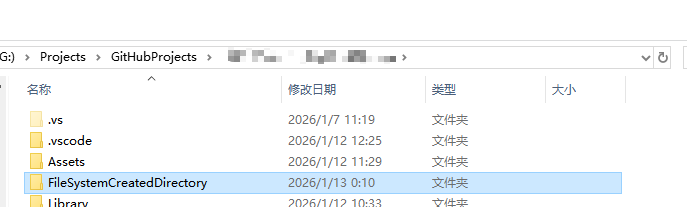
  2. Use Agent to complete simple and complex tasks across your workflow–implementing a feature, upgrade a dependency, or writing a pull request.(Agent更适合完成需要复杂步骤流程完成的功能或任务)

Chat和Agent的切换在对话框左下角:

AugmentChatAndAgentSwitch

Augment Code聊天空支持了三个工具:

  1. Attach(支持添加附加文件作为问题对话内容)
  2. 支持输入/或点击/快速选择行为来帮助我们明确对AI的输入的内容
  3. 支持输入@或点击@快速选择对话里需要引用的上下文内容(e.g. 文件或目录等)

AugmentChatTools

Augment Code主要包含四大功能:

  1. Chat(这个就好比Cursor的Deepseek问答系统,可以直接对话提问,这个可以帮助我们让AI快速介绍分析代码库设计,对不懂的问题进行提问等)
  2. Next Edit(通过选中代码块给出AI指令,让AI帮忙快速修改建议的功能)
  3. Using instructions(使用自然语言描述让AI把选中的代码模块进行从够或编写代码测试用例等)
  4. Code Completions(这个就是Cursor里基于代码库分析,编码时快速预测提示补全的功能)

Chat

Chat和Agent前面介绍过细节区别,接下来看看使用Agent提问帮助我们理解项目代码设计:

AugmentCodeAgentUsing

可以看到同**@符号我们添加了给AI作为思考上下文的核心代码目录**,AI通过分析把每一步思考理解过程都详细讲述出来了,最后给出了分析结论(这一点和Cursor的Chat和Agent没有本质区别),底层AI用的目前适配编程AI最好的Claude模型(2025/07/13)。

关于AI给出的代码都会提供复制和创建新文件的快捷操作入口方便我们采纳AI给出的代码建议:

AugmentCodeOperation

Augment Code设计了一个AI自动优化提示词的功能(Rewrite Prompt),避免我们问问题的时候不够针对和准确:

AugmentCodeOptimizaPrompt

可以看到AI整理后的提示词比我们精准和详细。

Next Edit

Next Edit helps you complete your train of thought by suggesting changes based on your recent work and other context. You can jump to the next edit and quickly accept or reject the suggested change with a single keystroke.

从介绍可以看出Next Edit是基于代码库和最近编写的上下文进行代码预测和补全的。

相关操作快捷键如下:

AugmentCodeNextEditShortcurt

相关AugmentCode的Next Edit设置在插件->Augment->Settings->Next Edit里:

AugmentCodeNextEditSetting

Using instructions

Use Instructions to write or modify blocks of code using natural language. Refactor a function, write unit tests, or craft any prompt to transform your code.

从介绍可以看出,Instructions是使用自然语言描述让AI把选中的代码块给出AI指令,让AI帮忙快速修改建议的功能等,快捷键是Ctrl+I

通过选中需要改进的代码,我们给出AI指示,AI会给出修改前后对比让我们选择是佛接受(Return快捷键)或取消(Esc快捷键)

AugmentCodeInstructionsUsing

相关快捷键操作:

AugmentCodeInstructionsShortcut

Note:

  1. 上面写的Return快捷键好像是Enter

Code Completions

Augment’s Code Completions integrates with your IDE’s native completions system to give you autocomplete-like suggestions as you type. You can accept all of a suggestion, accept partial suggestions a word or a line at a time, or just keep typing to ignore the suggestion.

从介绍可以看出Code Completions就是Cursor里基于代码库和最近编写的代码进行代码编写预测的功能。

AugmentCodeCompletionsUsing

相关快捷键:

AugmentCodeCompletionsShortcut

相对来说Agent比Chat用的更多,常规设置成Agent即可,

Ctrl+L(打开Agment面板)

Note:

  1. Augment Code对个人或项目代码安全保护很好,是私有分析不会上传云端
  2. Augment Code的Code Completions反应个人觉得比Cursor慢,具体原因未知(本人是免费用户)

Claude Code

Unleash Claude’s raw power directly in your terminal. Search million-line codebases instantly. Turn hours-long workflows into a single command. Your tools. Your workflow. Your codebase, evolving at thought speed.

从介绍可以看出Claude Code相比前面Copilot,Cursor,Augment Code最大的区别就是是基于命令行的工具,这一点对于服务器开发人员比较友好。

脱离的IDE,可以便捷轻量使用AI工具辅助开发。

Claude模型在编程方面很强

Note:

  1. Claude Code Pro版本(17美元每月)

AI编程工具选择

了解了主流的几个编程AI工具,个人认为结论大致如下:

Copilot – 适用于对AI编程有基础的智能补全和简单的Agent问答需求,价格不希望太贵的用户。

Cursor – 适用于能接受独立IDE,希望有完美AI深度编程体验,希望AI上下文代码分析能力强一些,同时能支付的起价格的用户。

Augment Code – 适用于不脱离原有IDE,希望有强大的AI上下文代码分析能力,同时能支付的起价格的用户

Claude Code – 适用于习惯命令行工作环境或者当做简易独立AI编程辅助工具的开发人员

综合了解了主流AI编程工具后,博主个人的使用功能需求主要如下:

  1. 倾向于保留原有熟悉IDE的开发环境
  2. 有快速和智能的代码分析补全
  3. 支持基础的Agent问答辅助编程开发功能
  4. 价格不能太贵

最终博主决定选择Copilot作为VS+Unity开发的个人AI编程工具。

在公司公司付费了Cursor,所以在公司依然使用Cursor辅助AI编程开发。

未来如果经费允许参与大型项目需要强大的上下文代码分析能力,可以考虑Augment Code。

AI编程发展

提示词工程师

核心角色:

人与AI的“翻译”

工作方式:

精心设计提示词,指令驱动AI完成任务

关注焦点:

优化单次交互,追求精准、稳定、可控的输出

AI编程中的作用:

基础能力,让AI正确理解开发意图,生成所需代码或文档。

事例:

链式思考提示:

1
2
3
4
5
让我们逐步思考:
1. 首先分析需求的关键要素
2. 然后确定合适的数据结构
3. 接着设计算法逻辑
4. 最后考虑边界情况和优化

角色扮演提示:

1
2
“你是一位资深Python开发者和代码审查专家,
请以这个身份审查以下代码...”

少样本学习提示:

1
2
3
4
5
以下是一些良好代码的例子:
[示例1]
[示例2]

请按照同样的风格和质量标准完成:[新任务]

提示词工程师的价值在于通过系统化的方法(如角色设定、结构化指令、思维链提示等),引导AI生成高质量代码,是高效利用AI的基础。

Copilot Prompt

Copilot prompts are instructions or questions you use to tell Copilot what you want. (Copilot提示词是用于告知Copilot您的需求的指令或问题。)

Copilot prompts由4部分组成:

  • Goal

    What do you want from Copilot?(想从Copilot这里获得什么?)

  • Context

    Why do you need it and who is involved?(为什么需要?会包含哪些人?)

  • Expectations

    How should Copilot respond to best fullfill you request?(你期望Copilot如何去满足你的请求?)

  • Source

    What information or samples do you want Copilot to use?(你希望Copilot使用什么信息或样例?)

给Copilot编写提示词时,注重上面几点,这样才能让Copilot更加准确的理解任务需求和输出正确的结果。

个人理解提示词强调的是如何让AI更加正确理解需求和输出正确结果。

Vibe Coding

核心角色:

项目“总监”

工作方式:

用自然语言描述高层次需求,与AI多轮对话迭代,快速构建原型

关注焦点:

整体实现效率,快速验证想法,让AI处理大量细节

AI编程中的作用:

工作流革新,大幅降低编程门槛,将开发者精力集中在系统设计和逻辑规划上

Vibe Coding代表了一种更自由、更具实验性的工作风格,特别适合快速原型验证、探索性项目或独立开发。但它可能导致开发者对代码库的理解不深,在严肃的、需要长期维护的企业级项目中需谨慎使用。它更适合作为高效实现想法的“加速器”。

个人理解,Vibe Coding是一种从程序开发转变到提需求的甲方,强调的是利用AI全方面开发生成需求产品的过程。Vibe Coding因为是纯依赖AI理解需求生成代码,所以对AI的token消耗可能比较高。

Skill

核心角色:

系统“架构师”

工作方式:

模块化、可复用的AI能力包,按需动态加载

关注焦点:

工程化与标准化,构建可维护、可扩展、高效率的AI协作体系

AI编程中的作用:

未来范式,将AI能力固化为“即插即用”的标准化工具,是AI工程化协作的关键

AI工作流工具

Comfyui

ComfyUI is a node based interface and inference engine for generative AI. Users can combine various AI models and operations through nodes to achieve highly customizable and controllable content generation.

个人理解ComfyUI是一个基于节点编辑可组合各种AI模型完成指定AI工作流的一个AI工作流引擎。

这是未来的学习方向,目前暂时不做更多了解,TODO。

个人心得

  1. 现在底层AI模型百花齐放,上层AI工具也百花齐放,AI提升了人的生产力,但提升多少生产力还在于每个人对于AI的使用深度,AI并不能直接替代人,而是作为工具帮助人更高效的完成工作

  2. 学会高效使用AI,打通AI工作流是未来我们每一个人必备的一门课。

Reference

Unity+AI:The Game Dev Revolution

Cursor Doc

Unity Development with VS Code

ComfyUI

前言

一直以来除了学图形学渲染的时候接触到摄像机的坐标系转换,平时对于摄像机照射范围的原理知之甚少。当我们在做可视区域判定时(比如SLG游戏只会创建可视区域范围内的东西),我们需要计算出当前摄像机的照射范围,然后动态请求可视化区域内需要新增显示的地图对象。实现可视区域动态请求显示这一步离不开对摄像机可视区域的计算。本文正是为了深入解决可视区域计算,深入理解摄像机照射原理,实现一套可视化摄像机照射区域和动态可视区域物体动态创建的工具。

摄像机

摄像机目前分为透视摄像机正交摄像机,前者有深度概念有透视效果会近大远小,后者忽略深度类似是把3D投射到2D平面的效果。

首先我们来看一下透视摄像机的投影图:

PerspectiveCameraPreview

其中FOV是透视摄像机里很重要的一个参数,Fov指的是相机视场(Field of View)张角。

FOV指的是图中的DFOV,即对角线视场角

VFOV指的是垂直视场角,VFOV是受屏幕高度影响

HFOV指的是水平视场角,HFOV是受屏幕宽度影响

摄像机照射区域

摄像机的可见范围计算原理:

  • 不考虑摄像机是正交还是透视,通过将屏幕四个角映射到世界坐标系(屏幕坐标到世界坐标),得到从摄像机到摄像机四个角的射线数据
  • 计算四条射线到在指定平面的交叉点计算,得出的4个交叉点构成的形状就是我们要的透视摄像机在指定平面上的投影形状

仅仅是需要知道透视摄像机四条射线的前提下,我们不需要自己去计算DFOV,VFOV,HFOV等数据。

1
2
3
4
5
6
7
8
9
10
11
12
13
14
15
16
17
18
19
20
21
22
23
24
25
26
27
28
29
30
31
32
33
34
35
36
37
38
39
40
41
42
43
44
45
46
47
48
49
50
51
52
53
54
55
56
57
58
59
60
61
62
63
64
65
66
67
68
69
70
71
72
73
74
75
76
77
78
79
80
81
82
83
/// <summary>
/// 四个角的视口坐标
/// </summary>
private static Vector3[] ViewPortPoints = new Vector3[5]
{
new Vector3(0, 0, 0), // 左下角
new Vector3(0, 1, 0), // 左上角
new Vector3(1, 1, 0), // 右上角
new Vector3(1, 0, 0), // 右下角
new Vector3(0.5f, 0.5f, 0), // 中心
};

/// <summary>
/// 获取指定摄像机的射线数据列表
/// </summary>
/// <param name="camera"></param>
/// <param name="rayCastDataList"></param>
/// <returns></returns>
public static bool GetCameraRayCastDataList(Camera camera, ref List<KeyValuePair<Vector3, Vector3>> rayCastDataList)
{
rayCastDataList.Clear();
if(camera == null)
{
Debug.LogError($"不允许传递空摄像机组件,获取摄像机的射线数据列表失败!");
return false;
}

var cameraNearClipPlane = camera.nearClipPlane;
ViewPortPoints[0].z = cameraNearClipPlane;
ViewPortPoints[1].z = cameraNearClipPlane;
ViewPortPoints[2].z = cameraNearClipPlane;
ViewPortPoints[3].z = cameraNearClipPlane;
ViewPortPoints[4].z = cameraNearClipPlane;

var isOrthographic = camera.orthographic;
if(isOrthographic)
{
// 转换为射线
for (int i = 0; i < ViewPortPoints.Length; i++)
{
Ray ray = camera.ViewportPointToRay(ViewPortPoints[i]);
var rayCastToPoint = ray.origin + ray.direction * camera.farClipPlane;
var rayCastData = new KeyValuePair<Vector3, Vector3>(ray.origin, rayCastToPoint);
rayCastDataList.Add(rayCastData);
}
}
else
{
var radio = camera.farClipPlane / cameraNearClipPlane;
var cameraPosition = camera.transform.position;

// 获取饰扣四个角的屏幕映射世界坐标
var lbNearPlaneWorldPoints = camera.ViewportToWorldPoint(ViewPortPoints[0]);
var ltNearPlaneWorldPoints = camera.ViewportToWorldPoint(ViewPortPoints[1]);
var rtNearPlaneWorldPoints = camera.ViewportToWorldPoint(ViewPortPoints[2]);
var rbNearPlaneWorldPoints = camera.ViewportToWorldPoint(ViewPortPoints[3]);
var ctNearPlaneWorldPoints = camera.ViewportToWorldPoint(ViewPortPoints[4]);

var lbNearPlaneCameraWorldPointDir = lbNearPlaneWorldPoints - cameraPosition;
var ltNearPlaneCameraWorldPointDir = ltNearPlaneWorldPoints - cameraPosition;
var rtNearPlaneCameraWorldPointDir = rtNearPlaneWorldPoints - cameraPosition;
var rbNearPlaneCameraWorldPointDir = rbNearPlaneWorldPoints - cameraPosition;
var ctNearPlaneCameraWorldPointDir = ctNearPlaneWorldPoints - cameraPosition;

var lbFarPlaneWorldPoint = cameraPosition + lbNearPlaneCameraWorldPointDir * radio;
var ltFarPlaneWorldPoint = cameraPosition + ltNearPlaneCameraWorldPointDir * radio;
var rtFarPlaneWorldPoint = cameraPosition + rtNearPlaneCameraWorldPointDir * radio;
var rbFarPlaneWorldPoint = cameraPosition + rbNearPlaneCameraWorldPointDir * radio;
var ctFarPlaneWorldPoint = cameraPosition + ctNearPlaneCameraWorldPointDir * radio;

var lbRayCastData = new KeyValuePair<Vector3, Vector3>(lbNearPlaneWorldPoints, lbFarPlaneWorldPoint);
var ltRayCastData = new KeyValuePair<Vector3, Vector3>(ltNearPlaneWorldPoints, ltFarPlaneWorldPoint);
var rtRayCastData = new KeyValuePair<Vector3, Vector3>(rtNearPlaneWorldPoints, rtFarPlaneWorldPoint);
var rbRayCastData = new KeyValuePair<Vector3, Vector3>(rbNearPlaneWorldPoints, rbFarPlaneWorldPoint);
var ctRayCastData = new KeyValuePair<Vector3, Vector3>(ctNearPlaneWorldPoints, ctFarPlaneWorldPoint);
rayCastDataList.Add(lbRayCastData);
rayCastDataList.Add(ltRayCastData);
rayCastDataList.Add(rtRayCastData);
rayCastDataList.Add(rbRayCastData);
rayCastDataList.Add(ctRayCastData);
}
return true;
}
  • 得到屏幕四个角映射的射线数据后,利用射线和平面的交叉计算得到指定平面交叉的点就能得到我们要的平面照射区域
1
2
3
4
5
6
7
8
9
10
11
12
13
14
15
16
17
18
19
20
21
22
23
24
25
26
27
28
29
30
31
32
33
34
35
36
37
38
39
40
/// <summary>
/// Vector3Utilities.cs
/// Vector3静态工具类
/// </summary>
public static class Vector3Utilities
{
/// <summary>
/// 获取指定射线和平面数据的交叉点(返回null表示没有交叉点)
/// </summary>
/// <param name="rayOrigin"></param>
/// <param name="rayDirection"></param>
/// <param name="planePoint"></param>
/// <param name="planeNormal"></param>
/// <returns></returns>
public static Vector3? GetRayAndPlaneIntersect(Vector3 rayOrigin, Vector3 rayDirection, Vector3 planePoint, Vector3 planeNormal)
{
// 计算法向量和方向向量的点积
float ndotu = Vector3.Dot(planeNormal, rayDirection);

// 向量几乎平行,可能没有交点或者射线在平面内
if (Mathf.Approximately(Math.Abs(ndotu), Mathf.Epsilon))
{
return null;
}

// 计算 t
Vector3 w = rayOrigin - planePoint;
float t = -Vector3.Dot(planeNormal, w) / ndotu;

// 交点在射线起点的后面
if (t < 0)
{
return null;
}

// 计算交点
Vector3 intersectionPoint = rayOrigin + t * rayDirection;
return intersectionPoint;
}
}
1
2
3
4
5
6
7
8
9
10
11
12
13
14
15
16
17
18
19
20
21
22
23
24
25
26
27
28
29
30
31
32
33
34
35
36
37
38
/// <summary>
/// 获取指定摄像机指定区域顶点和法线的的可视区域顶点数据
/// </summary>
/// <param name="camera"></param>
/// <param name="areaPoint"></param>
/// <param name="areaNormal"></param>
/// <param name="areaPointsList"></param>
/// <param name="rectPointList"></param>
/// <returns></returns>
public static bool GetCameraVisibleArea(Camera camera, Vector3 areaPoint, Vector3 areaNormal, ref List<Vector3> areaPointsList, ref List<Vector3> rectPointList)
{
areaPointsList.Clear();
rectPointList.Clear();
if (camera == null)
{
Debug.LogError($"不允许传递空摄像机组件,获取摄像机的可视区域顶点数据失败!");
return false;
}

RayCastDataList.Clear();
GetCameraRayCastDataList(camera, ref RayCastDataList);
foreach(var rayCastData in RayCastDataList)
{
var rayCastDirection = rayCastData.Value - rayCastData.Key;
var areaData = Vector3Utilities.GetRayAndPlaneIntersect(rayCastData.Key, rayCastDirection, areaPoint, areaNormal);
if(areaData != null)
{
areaPointsList.Add((Vector3)areaData);
}
}

rectPointList.Add(new Vector3(areaPointsList[1].x, areaPointsList[0].y, areaPointsList[0].z));
rectPointList.Add(new Vector3(areaPointsList[1].x, areaPointsList[1].y, areaPointsList[1].z));
rectPointList.Add(new Vector3(areaPointsList[2].x, areaPointsList[2].y, areaPointsList[2].z));
rectPointList.Add(new Vector3(areaPointsList[2].x, areaPointsList[3].y, areaPointsList[3].z));
rectPointList.Add(areaPointsList[4]);
return true;
}

从上面可以看到无论是areaPointsList还是rectPointList都返回了5个顶点数据,第五个是屏幕中心映射的点。

之所以返回矩形的映射区域,是为了简化后面透视摄像机梯形判定顶点复杂度,简化成AABB和点的交叉判定。

摄像机照射区域可视化

得到了屏幕映射的顶点数据,通过构建线条数据,我们就能利用GUI相关接口画出可视化可见区域了

1
2
3
4
5
6
7
8
9
10
11
12
13
14
15
16
17
18
19
20
21
22
23
24
25
26
27
28
29
30
31
32
33
34
35
36
37
38
39
40
41
42
43
44
45
46
47
48
49
50
51
52
53
54
55
56
57
58
59
60
61
62
63
64
65
66
67
68
69
70
71
72
73
74
75
76
77
78
79
80
81
82
83
84
85
86
87
88
89
90
91
92
93
94
/// <summary>
/// 区域顶点
/// </summary>
[Header("区域顶点")]
public Vector3 AreaPoint = Vector3.zero;

/// <summary>
/// 区域法线
/// </summary>
[Header("区域法线")]
public Vector3 AreaNormal = Vector3.up;

/// <summary>
/// 更新摄像机指定平面映射区域数据
/// </summary>
public void UpdateAreaDatas()
{
CameraUtilities.GetCameraRayCastDataList(mCameraComponent, ref mRayCastDataList);
CameraUtilities.GetCameraVisibleArea(mCameraComponent, AreaPoint, AreaNormal, ref mAreaPointsList, ref mRectAreaPointsList);
mAreaLinesList.Clear();
mRectAreaLinesList.Clear();
if(mAreaPointsList.Count > 0)
{
var lbToLtLine = new KeyValuePair<Vector3, Vector3>(mAreaPointsList[0], mAreaPointsList[1]);
var ltToRtLine = new KeyValuePair<Vector3, Vector3>(mAreaPointsList[1], mAreaPointsList[2]);
var rtToRbLine = new KeyValuePair<Vector3, Vector3>(mAreaPointsList[2], mAreaPointsList[3]);
var rbToLbLine = new KeyValuePair<Vector3, Vector3>(mAreaPointsList[3], mAreaPointsList[0]);
mAreaLinesList.Add(lbToLtLine);
mAreaLinesList.Add(ltToRtLine);
mAreaLinesList.Add(rtToRbLine);
mAreaLinesList.Add(rbToLbLine);

var rectLbToLtLine = new KeyValuePair<Vector3, Vector3>(mRectAreaPointsList[0], mRectAreaPointsList[1]);
var rectLtToRtLine = new KeyValuePair<Vector3, Vector3>(mRectAreaPointsList[1], mRectAreaPointsList[2]);
var rectRtToRbLine = new KeyValuePair<Vector3, Vector3>(mRectAreaPointsList[2], mRectAreaPointsList[3]);
var rectRbToLbLine = new KeyValuePair<Vector3, Vector3>(mRectAreaPointsList[3], mRectAreaPointsList[0]);
mRectAreaLinesList.Add(rectLbToLtLine);
mRectAreaLinesList.Add(rectLtToRtLine);
mRectAreaLinesList.Add(rectRtToRbLine);
mRectAreaLinesList.Add(rectRbToLbLine);
}
}

/// <summary>
/// 绘制区域信息Gizmos
/// </summary>
private void DrawAreaInfoGUI()
{
var preGizmosColor = Gizmos.color;
Gizmos.color = Color.green;
Gizmos.DrawSphere(AreaPoint, SphereSize);
var areaPointTo = AreaPoint + AreaNormal * 5;
Gizmos.DrawLine(AreaPoint, areaPointTo);
Gizmos.color = preGizmosColor;
}

/// <summary>
/// 绘制矩形区域
/// </summary>
private void DrawRectAreaGUI()
{
var preGizmosColor = Gizmos.color;
Gizmos.color = new Color(0, 0.5f, 0);
if(mRectAreaLinesList.Count > 0)
{
Gizmos.DrawLine(mRectAreaLinesList[0].Key, mRectAreaLinesList[0].Value);
Gizmos.DrawLine(mRectAreaLinesList[1].Key, mRectAreaLinesList[1].Value);
Gizmos.DrawLine(mRectAreaLinesList[2].Key, mRectAreaLinesList[2].Value);
Gizmos.DrawLine(mRectAreaLinesList[3].Key, mRectAreaLinesList[3].Value);
}
Gizmos.color = preGizmosColor;
}

/// <summary>
/// 绘制区域Gizmos
/// </summary>
private void DrawAreaGUI()
{
var preGizmosColor = Gizmos.color;
Gizmos.color = Color.green;
if(mAreaLinesList.Count > 0)
{
Gizmos.DrawLine(mAreaLinesList[0].Key, mAreaLinesList[0].Value);
Gizmos.DrawLine(mAreaLinesList[1].Key, mAreaLinesList[1].Value);
Gizmos.DrawLine(mAreaLinesList[2].Key, mAreaLinesList[2].Value);
Gizmos.DrawLine(mAreaLinesList[3].Key, mAreaLinesList[3].Value);
}
if(mAreaPointsList.Count > 0)
{
Gizmos.DrawSphere(mAreaPointsList[4], SphereSize);
}
Gizmos.color = preGizmosColor;
}

摄像机照射区域可视化:

CameraAreaVisualization

可以看到黄色是远截面照射区域,深绿色是近截面照射区域,浅绿色是摄像机近截面换算成矩形后的区域,红色线条是摄像机近截面和远截面射线,

透视摄像机效果如下:

CameraRayCastVisualization

正交摄像机效果如下:

OrthographicCameraVisualization

摄像机照射区域动态刷新

动态区域刷新核心要点:

  1. 映射屏幕4个点得到四条摄像机照射射线,通过计算4条射线与指定平面的交叉点得到照射区域,简化照射区域形状到矩形,将物体是否在照射区域转换成点与AABB交叉判定

实战摄像机照射区域动态刷新参考地图编辑器:

MapEditor

实战效果图:

DynamicCreateMapData1

DynamicCreateMapData2

Note:

  1. 屏幕4个顶点计算顺序依次是左下,左上,右上,右下

重点知识

  1. 不考虑摄像机是正交还是透视,通过将屏幕四个角映射到世界坐标系(屏幕坐标到世界坐标),得到从摄像机到摄像机四个角的射线数据,然后将摄像机区域计算转换成计算四条射线到在指定平面的交叉点计算,得出的4个交叉点构成的形状就是我们要的透视摄像机在指定平面上的投影形状
  2. FOV分为DFOV(对角线视场角),VFOV(垂直视场角,受屏幕高度影响)和HFOV(水平视场角,受屏幕宽度影响)
  3. 透视摄像机看多少不仅受FOV影响还受屏幕分辨率影响
  4. 摄像机指定位置平面照射形状可以转换成摄像机4个射线和平面的相交检测处理

博客

地图编辑器

GitHub

MapEditor

Reference

根据相机参数计算视场角(Filed of View, FOV)

摄像与平面的相交检测(Ray-Plane intersection test)

浅析相机FOV

Fov数值推荐设置

Introduction

游戏开发过程中,我们搭建关卡时需要一个工具去支持摆放场景物件和数据埋点编辑,从而支持快速搭建关卡和策划数据埋点。这一工具正是本章节需要实现的地图编辑器。

地图编辑器

需求

实现一个工具,首先第一步,我们还是需要理清需求:

  1. 纯Editor地图编辑器,用于场景编辑数据埋点
  2. 支持自定义场景对象数据和自由摆放场景对象进行场景编辑,场景对象支持静态摆放动态创建两种。
  3. 支持自定义埋点数据自由摆放埋点数据进行数据埋点编辑。
  4. 支持自定义调整场景大小以及场景地形指定和大小自动适配。
  5. 场景数据和埋点数据支持导出自定义数据格式(比如Lua,Json等)。
  6. 同一个场景支持编辑多个场景编辑和数据埋点。

设计实现

接下来针对前面提到的需求,我们一一分析我们应该用什么方案和技术来实现。

实现思路:

  1. 地图编辑器主要由地图编辑器配置窗口地图编辑器挂在操作脚本Inspector组成。
  2. 地图编辑器编辑数据分为两大类(1. 地图编辑 2. 数据埋点)。
  3. 继承EditorWindow实现场景编辑和数据埋点的基础数据配置编辑。
  4. 继承Editor自定义Inspector面板实现纯单个场景编辑和数据埋点操作。
  5. 地图编辑操作通过挂在脚本(Map.cs)的方式作为单个场景编辑和数据埋点单位,从而实现单个场景多个场景编辑和数据埋点支持。
  6. 场景对象编辑采用直接创建实体GameObject的方式,从而实现场景编辑完成后的场景可直接用于作为场景使用。
  7. 场景对象编辑通过自定义Inspector面板实现快速删除和创建场景对象GameObject实现场景对象的编辑。
  8. 数据埋点采用Gizmos(Monobehaviour:OnDrawGizmos()),Handles(Editor.OnSceneGUI())实现可视化编辑对象和相关数据显示,自定义场景大小配置网格显示也是用Gizmos实现。
  9. 地图编辑器配置窗口用于配置基础的场景数据和埋点数据配置,Map.cs的挂在脚本通过自定义数据结构和自定义面板显示实现自定义数据配置。
  10. 场景静态对象相关数据通过挂在MapObjectDataMono脚本存储相关对象数据。
  11. 导出前通过Map.cs存储的数据构建自定义数据(MapExport.cs)实现自定义数据导出
  12. 大地图未来有需求可以做成所有静态对象通过导出数据根据逻辑加载的方式实现按需加载。

核心思路和技术实现方案都在上面介绍了,这里就不一一介绍代码实现了,这里只放部分关键代码,让我们直接实战看效果,需要源码的直接在文章末尾Github链接去取即可。

配置窗口

配置窗口主要负责实现对地图编辑对象,地图编辑埋点的基础数据定义,一些相关操作按钮和全局配置。

配置定义

地图配置数据结构定义:

1
2
3
4
5
6
7
8
9
10
11
12
13
14
15
16
17
18
19
20
21
22
23
24
25
26
27
28
29
30
31
32
33
34
35
36
37
38
39
40
41
42
43
44
45
46
47
48
49
50
51
/// <summary>
/// MapSetting.cs
/// </summary>
public class MapSetting : ScriptableObject
{
#if UNITY_EDITOR
/// <summary>
/// Editor下的地图配置单例对象
/// </summary>
private static MapSetting EditorSingleton;

/// <summary>
/// 获取Editor地图配置单例对象
/// </summary>
/// <returns></returns>
public static MapSetting GetEditorInstance()
{
if(EditorSingleton == null)
{
EditorSingleton = MapUtilities.LoadOrCreateGameMapSetting();
}
return EditorSingleton;
}
#endif

/// <summary>
/// 默认地图横向大小
/// </summary>
[Header("默认地图横向大小")]
[Range(1, 1000)]
public int DefaultMapWidth = MapConst.DefaultMapWidth;

/// <summary>
/// 默认地图纵向大小
/// </summary>
[Header("默认地图纵向大小")]
[Range(1, 1000)]
public int DefaultMapHeight = MapConst.DefaultMapHeight;

/// <summary>
/// 地图对象配置数据
/// </summary>
[Header("地图对象配置数据")]
public MapObjectSetting ObjectSetting = new MapObjectSetting();

/// <summary>
/// 地图埋点配置数据
/// </summary>
[Header("地图埋点配置数据")]
public MapDataSetting DataSetting = new MapDataSetting();
}

地图对象配置定义:

1
2
3
4
5
6
7
8
9
10
11
12
13
14
15
16
17
18
19
20
21
22
23
24
25
26
27
28
29
30
31
32
33
34
35
36
37
38
39
40
41
42
43
44
45
46
47
48
49
50
51
52
53
54
55
56
57
58
59
60
61
62
63
64
65
66
67
68
69
70
71
72
73
74
75
76
77
78
79
/// <summary>
/// MapObjectType.cs
/// 地图对象类型枚举
/// </summary>
public enum MapObjectType
{
Scene = 0, // 场景
Door = 1, // 门
}

/// <summary>
/// MapObjectSetting.cs
/// 地图对象设置数据
/// </summary>
[Serializable]
public class MapObjectSetting
{
/// <summary>
/// 所有地图对象类型配置数据
/// </summary>
[Header("所有地图对象类型配置数据")]
[SerializeReference]
public List<MapObjectTypeConfig> AllMapObjectTypeConfigs = new List<MapObjectTypeConfig>();

/// <summary>
/// 所有地图对象配置数据
/// </summary>
[Header("所有地图对象配置数据")]
[SerializeReference]
public List<MapObjectConfig> AllMapObjectConfigs = new List<MapObjectConfig>();

******
}

/// <summary>
/// MapObjectConfig.cs
/// 地图对象数据配置
/// </summary>
[Serializable]
public class MapObjectConfig
{
/// <summary>
/// 唯一ID(用于标识地图对象配置唯一)
/// </summary>
[Header("唯一ID")]
public int UID;

/// <summary>
/// 地图对象类型
/// </summary>
[Header("地图对象类型")]
public MapObjectType ObjectType;

/// <summary>
/// 是否是动态地图对象
/// </summary>
[Header("是否是动态地图对象")]
public bool IsDynamic;

/// <summary>
/// 关联Id
/// </summary>
[Header("关联Id")]
public int ConfId;

/// <summary>
/// 资源Asset
/// </summary>
[Header("资源Asset")]
public GameObject Asset;

/// <summary>
/// 描述
/// </summary>
[Header("描述")]
public string Des;

******
}

地图埋点配置定义:

1
2
3
4
5
6
7
8
9
10
11
12
13
14
15
16
17
18
19
20
21
22
23
24
25
26
27
28
29
30
31
32
33
34
35
36
37
38
39
40
41
42
43
44
45
46
47
48
49
50
51
52
53
54
55
56
57
58
59
60
61
62
63
64
65
66
67
68
/// <summary>
/// MapDataType.cs
/// 地图数据埋点类型枚举
/// </summary>
public enum MapDataType
{
PlayerSpawn = 0, // 玩家出生点位置数据
Monster = 1, // 怪物数据
TreasureBox = 2, // 宝箱数据
Trap = 3, // 陷阱数据
}

/// <summary>
/// MapDataSetting.cs
/// 地图数据配置数据
/// </summary>
[Serializable]
public class MapDataSetting
{
/// <summary>
/// 所有地图埋点数据配置
/// </summary>
[Header("所有地图埋点数据配置")]
[SerializeReference]
public List<MapDataConfig> AlllMapDataConfigs = new List<MapDataConfig>();

******
}

/// <summary>
/// MapDataConfig.cs
/// 地图埋点数据配置
/// </summary>
[Serializable]
public class MapDataConfig
{
/// <summary>
/// 唯一ID(用于标识地图埋点配置唯一)
/// </summary>
[Header("唯一ID")]
public int UID;

/// <summary>
/// 地图数据类型
/// </summary>
[Header("地图数据类型")]
public MapDataType DataType;

/// <summary>
/// 关联Id
/// </summary>
[Header("关联Id")]
public int ConfId;

/// <summary>
/// 场景球体颜色
/// </summary>
[Header("场景球体颜色")]
public Color SceneSphereColor = Color.red;

/// <summary>
/// 描述
/// </summary>
[Header("描述")]
public string Des;

******
}

配置定义设计如下:

  1. MapSetting是地图编辑器配置数据结构定义,继承至ScriptableObject,保存到Editor
  2. MapObjectSetting是地图对象的所有编辑器配置结构定义。MapObjectConfig是地图对象编辑器单条配置结构定义。MapObjectType是地图对象类型定义。
  3. MapDataSetting是地图埋点的所有编辑器配置结构定义。MapDataConfig是地图埋点编辑器单条配置结构定义。MapDataType是地图埋点类型定义。

配置窗口

可以看到在地图编辑器窗口主要分为4个区域:

  1. 快捷按钮区域
  2. 自定义地图基础数据区域(e.g. 默认地图宽高)
  3. 地图对象配置区域
  4. 地图埋点配置区域

以上配置数据会成为我们后面操作编辑Inspector里用户可以添加操作的基础数据来源,详细代码参见MapEditorWindow.cs

快捷按钮区域

效果图:

ShortcutOperationArea

可以看到目前提供了三个快捷按钮:

  1. 保存地图配置数据 – 用于确保我们在配置窗口的数据配置修改保存到本地ScriptableObject Asset
  2. 打开地图编辑场景 – 用于帮助我们快速打开辅助地图编辑的场景
  3. 快速选中地图地编对象 – 用于帮助我们快速选中当前场景里第一个带Map.cs脚本的对象,方便快速进入Map.cs的Inspector操作面板操作
  4. 一键导出所有地图 – 用于一键导出所有编辑好的地图埋点数据
  5. 一键烘焙导出所有地图 – 用于一键烘焙所有场景和导出所有编辑好的地图埋点数据

自定义地图数据区域

效果图:

CustomDataSettingArea

自定义数据目前只支持了默认创建地图编辑宽高配置(挂在Map.cs脚本时默认创建的地图横向竖向大小数据来源)。

未来扩展更多基础配置数据在这里添加。

地图对象配置区域

效果图:

MapObjectConfigArea

地图对象配置设计如下:

  1. 以UID作为唯一配置Id标识(不允许重复),此Id会作为我们编辑器地图对象配置数据读取的依据。

  2. 通过MapObjectType指定地图对象类型。

  3. 通过定义ConfId(关联配置Id)实现关联游戏内动态对象Id的功能。

  4. 地图对象编辑通过定义Asset实现指定自定义预制件Asset作为实体对象的资源对象。

  5. 描述用于方便用户自定义取名,方便识别不同的地图对象配置。

Note:

  1. 需要参与导出的地图基础配置数据如果修改了(比如关联配置Id),对应用到此基础配置数据的关卡都需要重新导出。
  2. MapObjectType需要代码自定义扩展后,编辑器才有更多选项

地图埋点配置区域

效果图:

MapDataConfigArea

地图埋点配置设计如下:

  1. 以UID作为唯一配置Id标识(不允许重复),此Id会作为我们编辑器地图埋点配置数据读取的依据。
  2. 通过MapDataType指定地图埋点类型。
  3. 通过定义ConfId(关联配置Id)实现关联游戏内动态对象Id的功能。
  4. 场景球体颜色用于配置地图埋点的GUI球体绘制颜色配置。
  5. 初始旋转用于配置地图埋点添加时的初始旋转配置(方便自定义大部分用到的初始宣旋转数据)
  6. 描述用于方便用户自定义取名,方便识别不同的地图埋点配置。

Note:

  1. MapDataType需要代码自定义扩展后,编辑器才有更多选项

操作编辑Inspector

操作编辑Inspector主要负责实现对地图编辑对象和地图编辑埋点的一些相关操作面板,可视化GUI数据绘制,地图编辑自定义基础数据配置以及一些快捷操作按钮,详细代码参见Map.cs和MapEditor.cs

基础数据配置区域

基础数据配置区域用于GUI开关,地图大小,地图起始位置,自定义地形等配置。

效果图:

BasicDataConfigInspectorArea

自定义配置区域介绍:

  1. 场景GUI总开关 – 所有绘制GUI的总开关
  2. 地图线条GUI开关 – 控制地图N*N的线条GUI绘制开关
  3. 地图对象场景GUI开关 – 控制地图对象相关的GUI绘制开关
  4. 地图埋点场景GUI开关 – 控制地图埋点相关的GUI绘制开关
  5. 地图对象创建自动聚焦开关 – 控制地图对象创建后是否需要自动聚焦选中
  6. 地图横向大小和地图纵向大小 – 用于控制我们需要编辑的关卡地图的大小,会影响默认地图或自定义地图的大小和平铺
  7. 游戏地图起始位置 – 用于控制关卡的起始位置偏移,方便支持自定义不同起始位置的关卡设置

快捷操作按钮区域

快捷操作按钮区域用于支持自定义功能。

效果图:

ShortcutOperationInspectorArea

快捷按钮功能介绍:

  1. 拷贝NavMesh Asset按钮 – NavMeshSurface默认烘焙Asset保存在对应场景同层目录,此按钮用于快速拷贝对应Asset到对应关卡预制件同层目录
  2. 一键重创地图对象按钮 – 用于我们更新了某些已经创建好的静态地图对象(脱离预制件关联)相关资源后一键确保使用最新资源创建
  3. 导出地图数据按钮 – 用于完成我们的关卡数据序列化导出
  4. 保存关卡数据 – 用于独立保存关卡埋点相关数据(支持自定义名字,默认和预制件同名)
  5. 一键烘焙拷贝导出 – 用于一键完成恢复动态对象+烘培寻路+拷贝寻路+清除动态对象+导出地图数据操作

Note:

  1. 场景对象是否参与寻路烘培,通过修改预制件Layer和NavMeshSurface的寻路烘培的Layer决定
  2. 大部分操作在实体对象做成预制件后需要进入预制件编辑模式,所以部分操作会根据脚本所在实体对象情况决定是否自动进入预制件编辑模式

地图对象编辑区域

效果图:

MapObjectConfigInspectorArea

地图对象数据定义:

1
2
3
4
5
6
7
8
9
10
11
12
13
14
15
16
17
18
19
20
21
22
23
24
25
26
27
28
29
30
31
32
33
34
35
36
37
38
39
40
41
42
43
44
45
46
47
48
49
50
51
52
53
54
55
56
57
58
59
60
61
62
63
64
65
66
/// <summary>
/// MapObjectData.cs
/// 地图对象数据
/// </summary>
[Serializable]
public class MapObjectData
{
/// <summary>
/// 唯一Id(用于标识地图对象配置唯一)
/// </summary>
[Header("唯一Id")]
public int UID;

/// <summary>
/// 实体对象
/// </summary>
[Header("实体对象")]
public GameObject Go;

/// <summary>
/// 埋点位置(地图对象可能删除还原,所以需要逻辑层面记录位置)
/// </summary>
[Header("埋点位置")]
public Vector3 Position;

/// <summary>
/// 旋转(地图对象可能删除还原,所以需要逻辑层面记录旋转)
/// </summary>
[Header("旋转")]
public Vector3 Rotation = Vector3.zero;

/// <summary>
/// 本地缩放(地图对象可能删除还原,所以需要逻辑层面记录缩放)
/// </summary>
[Header("缩放")]
public Vector3 LocalScale = Vector3.one;

/// <summary>
/// 碰撞器中心点
/// </summary>
[Header("碰撞器中心点")]
public Vector3 ColliderCenter = new Vector3(0, 0, 0);

/// <summary>
/// 碰撞器大小
/// </summary>
[Header("碰撞器大小")]
public Vector3 ColliderSize = new Vector3(1, 1, 1);

/// <summary>
/// 碰撞体半径
/// </summary>
[Header("碰撞体半径")]
public float ColliderRadius = 1;

/// <summary>
/// 带参构造函数
/// </summary>
/// <param name="uid"></param>
/// <param name="go"></param>
public MapObjectData(int uid, GameObject go)
{
UID = uid;
Go = go;
}
}

地图对象编辑通过选择地图对象类型地图对象选择决定要添加的地图对象配置。

地图对象编辑和地图对象选择后面的**+默认是添加到地图对象数据列表尾部**。

地图对象数据列表后的操作可以对已经配置的地图对象数据进行相关操作,此处的**+号是将选择的地图对象类型和地图对象选择插入的当前数据位置**。

Note:

  1. 地图对象可以通过地图对象配置面板配置的关联id导出给程序实现动态对象的配置关联

  2. 地图对象的数据关联是通过挂在MapObjectDataMono.cs脚本实现

  3. 未来如果地图对象要想实现按需加载可以通过导出地图对象数据给程序动态加载实现,相关代码参考MapObjectExport.cs相关代码(不分代码注释着)

地图埋点编辑区域

效果图:

MapDataConfigInspectorArea

地图埋点数据定义:

1
2
3
4
5
6
7
8
9
10
11
12
13
14
15
16
17
18
19
20
21
22
23
24
25
26
27
28
29
30
31
32
33
34
35
36
37
38
39
40
41
42
43
44
45
46
47
48
49
/// <summary>
/// MapData.cs
/// 地图数据买点数据
/// </summary>
[Serializable]
public class MapData
{
/// <summary>
/// 唯一Id(用于标识地图对象配置唯一)
/// </summary>
[Header("唯一Id")]
public int UID;

/// <summary>
/// 埋点位置
/// </summary>
[Header("埋点位置")]
public Vector3 Position;

/// <summary>
/// 埋点旋转
/// </summary>
[Header("埋点旋转")]
public Vector3 Rotation;

/// <summary>
/// 批量操作开关
/// </summary>
[Header("批量操作开关")]
public bool BatchOperationSwitch;

/// <summary>
/// GUI关闭开关
/// </summary>
[Header("GUI关闭开关")]
public bool GUISwitchOff = false;

public MapData(int uid)
{
UID = uid;
}

public MapData(int uid, Vector3 position, Vector3 rotation)
{
UID = uid;
Position = position;
Rotation = rotation;
}
}

地图埋点编辑通过选择地图埋点类型地图埋点选择决定要添加的地图埋点配置。

地图埋点编辑和地图埋点选择后面的**+默认是添加到地图埋点数据列表尾部**。

地图埋点数据列表后的操作可以对已经配置的地图埋点数据进行相关操作,此处的**+号是将选择的地图埋点类型和地图对象选择插入的当前数据位置**。

地图埋点支持批量操作位置,通过勾选批量选项决定哪些地图埋点数据要一起操作位置,然后操作(拖拽或者输入坐标)勾选了批量的地图埋点对象的位置,可以实现一起修改勾选了批量操作的地图埋点位置。

一键清除批量勾选按钮 – 用于快速取消所有已勾选批量的地图埋点数据

快捷键操作:

前提:选中挂载Map脚本的GameObject

Scene场景里按住W键会看到埋点数据位置的坐标轴,然后就可以直接拖拽位置。

Scene场景里按住E键会看到埋点数据旋转的坐标轴,然后就可以直接拖拽旋转。

Note:

  1. 地图数据的编辑和导出是按Map.cs脚本为单位。
  2. 地图埋点数据时通过Editor GUI(e.g. Handles和Gimoz)绘制的
  3. 地图埋点的位置调整需要按住W按键,旋转调整需要按住E按键
  4. 地图埋点支持配置自定义数据,这部分可以参考Monster埋点的自定义数据配置
  5. 地图埋点通过地图埋点配置面板配置的关联id导出给程序实现地图埋点的配置关联
  6. 自定义数据埋点可视化可以通过扩展MapEditor.cs实现自定义绘制

寻路烘培

目前场景编辑是以Map.cs为单位。所以寻路烘培目前也是按Map.cs所在预制件为单位

通过每个Map.cs所在GameObject挂在NavMeshSurface组件实现对当前GameObject的寻路烘培。

效果图:

NavigationBakePreview

Note:

  1. NavMeshSurface设置Collect Objects为Children(只有子节点参与烘培),参与烘培的Include Layers设置成自定义的实现是否参与烘培的Layer规则。

数据导出

数据导出是通过点击导出地图数据按钮或者一键烘培拷贝导出按钮实现的。

为了支持多种不同数据格式的导出,在数据导出之前我进行导出数据的定义和抽象。

地图导出数据结构定义:

1
2
3
4
5
6
7
8
9
10
11
12
13
14
15
16
17
18
19
20
21
22
23
24
25
26
27
28
29
30
31
32
/// <summary>
/// MapExport.cs
/// 地图导出数据结构定义(统一导出结构定义,方便支持导出不同的数据格式)
/// </summary>
[Serializable]
public class MapExport
{
/// <summary>
/// 地图导出数据成员
/// </summary>
public MapDataExport MapData = new MapDataExport();

/// <summary>
/// 所有怪物导出数据列表
/// </summary>
public List<MonsterMapDataExport> ALlMonsterMapDatas = new List<MonsterMapDataExport>();

/// <summary>
/// 所有宝箱导出数据列表
/// </summary>
public List<TreasureBoxMapDataExport> AllTreasureBoxMapDatas = new List<TreasureBoxMapDataExport>();

/// <summary>
/// 所有陷阱导出数据列表
/// </summary>
public List<TrapMapDataExport> AllTrapMapDatas = new List<TrapMapDataExport>();

/// <summary>
/// 剩余其他地图埋点导出数据成员
/// </summary>
public List<BaseMapDataExport> AllOtherMapDatas = new List<BaseMapDataExport>();
}

地图对象导出数据基类定义:

1
2
3
4
5
6
7
8
9
10
11
12
13
14
15
16
17
18
19
20
21
22
23
24
25
26
27
28
29
30
31
32
33
34
35
36
37
38
39
40
41
/// <summary>
/// MapObjectExport.cs
/// 地图动态物体数据导出定义
/// </summary>
[Serializable]
public class MapObjectExport
{
/// <summary>
/// 地图对象类型
/// </summary>
public MapObjectType MapObjectType;

/// <summary>
/// 关联配置Id
/// </summary>
public int ConfId;

/// <summary>
/// 位置信息
/// </summary>
public Vector3 Position;

/// <summary>
/// 旋转信息
/// </summary>
public Vector3 Rotation;

/// <summary>
/// 缩放信息
/// </summary>
public Vector3 LocalScale;

public MapObjectExport(MapObjectType mapObjectType, int confId, Vector3 position, Vector3 rotation, Vector3 localScale)
{
MapObjectType = mapObjectType;
ConfId = confId;
Position = position;
Rotation = rotation;
LocalScale = localScale;
}
}

地图埋点导出数据基类定义:

1
2
3
4
5
6
7
8
9
10
11
12
13
14
15
16
17
18
19
20
21
22
23
24
25
26
27
28
29
30
31
32
33
34
35
/// <summary>
/// BaseMapDataExport.cs
/// 地图埋点数据基类导出定义
/// </summary>
[Serializable]
public class BaseMapDataExport
{
/// <summary>
/// 埋点类型
/// </summary>
public MapDataType MapDataType;

/// <summary>
/// 关联Id
/// </summary>
public int ConfId;

/// <summary>
/// 位置信息
/// </summary>
public Vector3 Position;

/// <summary>
/// 旋转信息
/// </summary>
public Vector3 Roation;

public BaseMapDataExport(MapDataType mapDataType, int confId, Vector3 position, Vector3 rotation)
{
MapDataType = mapDataType;
ConfId = confId;
Position = position;
Roation = rotation;
}
}

怪物埋点数据导出定义:

1
2
3
4
5
6
7
8
9
10
11
12
13
14
15
16
17
18
19
20
21
22
23
24
/// <summary>
/// MonsterMapDataExport.cs
/// 怪物地图埋点数据导出
/// </summary>
[Serializable]
public class MonsterMapDataExport : BaseMapDataExport
{
/// <summary>
/// 怪物创建半径
/// </summary>
public float MonsterCreateRadius;

/// <summary>
/// 怪物警戒半径
/// </summary>
public float MonsterActiveRadius;

public MonsterMapDataExport(MapDataType mapDataType, int confId, Vector3 position, Vector3 rotation, float monsterCreateRadius, float monsterActiveRadius)
: base(mapDataType, confId, position, rotation)
{
MonsterCreateRadius = monsterCreateRadius;
MonsterActiveRadius = monsterActiveRadius;
}
}

地图导出数据预览Level1.json:

1
2
3
4
5
6
7
8
9
10
11
12
13
14
15
16
17
18
19
20
21
22
23
24
25
26
27
28
29
30
31
32
33
34
35
36
37
38
39
40
41
42
43
44
45
46
47
48
49
50
51
52
53
54
55
56
57
58
59
60
61
62
63
64
65
66
67
68
69
70
71
72
73
74
75
76
77
78
79
80
81
82
83
84
85
86
87
88
89
90
91
92
93
94
95
96
97
98
99
100
101
102
103
104
105
106
107
108
109
110
111
112
113
114
115
116
117
118
119
120
121
122
123
124
125
126
127
128
129
130
131
132
133
134
135
136
137
138
139
140
141
142
143
144
145
146
147
148
149
150
151
152
153
154
155
156
157
158
159
160
161
162
163
164
165
166
167
168
169
170
171
172
173
174
175
176
177
178
179
180
181
182
183
184
185
186
187
188
189
190
191
192
193
194
195
196
197
198
199
200
201
202
203
204
205
206
207
208
209
210
211
212
213
214
215
216
217
218
219
220
221
222
223
224
225
226
227
228
229
230
231
232
233
234
235
236
237
238
239
240
241
242
243
244
245
246
247
248
249
250
251
252
253
254
255
256
257
258
259
260
261
262
263
264
265
266
267
268
269
270
271
272
{
"MapData": {
"Width": 8,
"Height": 30,
"StartPos": {
"x": 0.0,
"y": 0.0,
"z": 0.0
},
"BirthPos": [
{
"x": 4.0,
"y": 0.0,
"z": 2.0
}
]
},
"AllBaseMapObjectExportDatas": [
{
"MapObjectType": 2,
"ConfId": 1,
"Position": {
"x": 4.0,
"y": 1.0,
"z": 3.7200000286102297
},
"Rotation": {
"x": 0.0,
"y": 0.0,
"z": 0.0
}
},
{
"MapObjectType": 2,
"ConfId": 1,
"Position": {
"x": 4.0,
"y": 1.0,
"z": 11.600000381469727
},
"Rotation": {
"x": 0.0,
"y": 0.0,
"z": 0.0
}
}
],
"AllColliderMapDynamicExportDatas": [
{
"MapObjectType": 1,
"ConfId": 2,
"Position": {
"x": 4.0,
"y": 0.25,
"z": 8.149999618530274
},
"Rotation": {
"x": 0.0,
"y": 0.0,
"z": 0.0
},
"ColliderCenter": {
"x": 0.0,
"y": 0.0,
"z": 0.0
},
"ColliderSize": {
"x": 0.0,
"y": 0.0,
"z": 0.0
},
"ColliderRiduis": 0.5
},
{
"MapObjectType": 0,
"ConfId": 3,
"Position": {
"x": 4.0,
"y": 0.5,
"z": 18.809999465942384
},
"Rotation": {
"x": 0.0,
"y": 0.0,
"z": 0.0
},
"ColliderCenter": {
"x": 0.0,
"y": 0.0,
"z": 0.0
},
"ColliderSize": {
"x": 1.0,
"y": 1.0,
"z": 1.0
},
"ColliderRiduis": 0.0
},
{
"MapObjectType": 0,
"ConfId": 3,
"Position": {
"x": 4.0,
"y": 0.5,
"z": 14.899999618530274
},
"Rotation": {
"x": 0.0,
"y": 0.0,
"z": 0.0
},
"ColliderCenter": {
"x": 0.0,
"y": 0.0,
"z": 0.0
},
"ColliderSize": {
"x": 1.0,
"y": 1.0,
"z": 1.0
},
"ColliderRiduis": 0.0
}
],
"AllMonsterGroupMapDatas": [
{
"MapDataType": 2,
"ConfId": 0,
"Position": {
"x": 4.0,
"y": 0.0,
"z": 8.0
},
"Roation": {
"x": 0.0,
"y": 0.0,
"z": 0.0
},
"GroupId": 1,
"MonsterCreateRadius": 4.0,
"MonsterActiveRadius": 3.0,
"AllMonsterMapExportDatas": [
{
"MapDataType": 1,
"ConfId": 1,
"Position": {
"x": 4.0,
"y": 0.0,
"z": 7.0
},
"Roation": {
"x": 0.0,
"y": 90.0,
"z": 0.0
},
"GroupId": 1
},
{
"MapDataType": 1,
"ConfId": 1,
"Position": {
"x": 5.0,
"y": 0.0,
"z": 9.0
},
"Roation": {
"x": 0.0,
"y": 90.0,
"z": 0.0
},
"GroupId": 1
},
{
"MapDataType": 1,
"ConfId": 1,
"Position": {
"x": 6.0,
"y": 0.0,
"z": 8.0
},
"Roation": {
"x": 0.0,
"y": 90.0,
"z": 0.0
},
"GroupId": 1
}
]
},
{
"MapDataType": 2,
"ConfId": 0,
"Position": {
"x": 4.0,
"y": 0.0,
"z": 25.0
},
"Roation": {
"x": 0.0,
"y": 0.0,
"z": 0.0
},
"GroupId": 2,
"MonsterCreateRadius": 6.0,
"MonsterActiveRadius": 4.0,
"AllMonsterMapExportDatas": [
{
"MapDataType": 1,
"ConfId": 1,
"Position": {
"x": 4.0,
"y": 0.0,
"z": 26.0
},
"Roation": {
"x": 0.0,
"y": 90.0,
"z": 0.0
},
"GroupId": 2
},
{
"MapDataType": 1,
"ConfId": 1,
"Position": {
"x": 5.0,
"y": 0.0,
"z": 26.0
},
"Roation": {
"x": 0.0,
"y": 90.0,
"z": 0.0
},
"GroupId": 2
},
{
"MapDataType": 1,
"ConfId": 1,
"Position": {
"x": 3.0,
"y": 0.0,
"z": 25.0
},
"Roation": {
"x": 0.0,
"y": 90.0,
"z": 0.0
},
"GroupId": 2
},
{
"MapDataType": 1,
"ConfId": 1,
"Position": {
"x": 5.0,
"y": 0.0,
"z": 23.0
},
"Roation": {
"x": 0.0,
"y": 90.0,
"z": 0.0
},
"GroupId": 2
}
]
}
],
"ALlNoGroupMonsterMapDatas": [],
"AllOtherMapDatas": []
}

上面的数据正对应我们导出填充的MapExport数据结构。

MapExport导出数据构建是通过GameMapEditorUtilities.GetMapExport()通过Map脚本获取所有相关数据去构建MapExport实现导出数据填充构建的。

Note:

  1. 因为静态地图对象是跟随预制件一起加载的,所以暂时没导出地图对象数据,有需要可以自行扩展支持动态地图对象导出和加载
  2. 扩展自定义配置数据需要自行扩展或继承MapObjectData或MapData和MapEditor.cs面板显示
  3. 扩展自定义导出数据需要自行扩展或继承BaseMapDataExportt定义
  4. 自定义地图埋点数据导出通过继承BaseMapDataExport定义

实战

新增地图埋点数据

以新增地图埋点类型MapDataType.Monster为例,怪物有两个DIY属性MonsterCreateRadius (怪物创建半径)和MonsterActiveRadius(怪物警戒半径)

新增地图埋点数据显示

  1. 增加地图埋点类型定义(MapDataType.cs)

    1
    2
    3
    4
    5
    6
    7
    8
    9
    /// <summary>
    /// MapDataType.cs
    /// 地图数据埋点类型枚举
    /// </summary>
    public enum MapDataType
    {
    PlayerSpawn = 0, // 玩家出生点位置数据
    Monster = 1, // 怪物数据
    }
  2. 新增地图埋点数据定义(MonsterMapData.cs)

    1
    2
    3
    4
    5
    6
    7
    8
    9
    10
    11
    12
    13
    14
    15
    16
    17
    18
    19
    20
    21
    22
    23
    24
    25
    26
    27
    28
    29
    30
    31
    32
    33
    34
    35
    36
    37
    38
    39
    40
    41
    42
    43
    44
    45
    46
    47
    48
    49
    50
    51
    52
    53
    54
    using System;
    using UnityEngine;

    namespace MapEditor
    {
    /// <summary>
    /// MonsterMapData.cs
    /// 怪物地图埋点数据
    /// </summary>
    [Serializable]
    public class MonsterMapData : MapData
    {
    /// <summary>
    /// 怪物创建半径
    /// </summary>
    [Header("怪物创建半径")]
    public float MonsterCreateRadius = 4;

    /// <summary>
    /// 怪物警戒半径
    /// </summary>
    [Header("怪物警戒半径")]
    public float MonsterActiveRadius = 3;

    public MonsterMapData(int uid) : base(uid)
    {

    }

    public MonsterMapData(int uid, Vector3 position, Vector3 rotation, float monsterCreateRadius, float monsterActiveRadius)
    : base(uid, position, rotation)
    {
    MonsterCreateRadius = monsterCreateRadius;
    MonsterActiveRadius = monsterActiveRadius;
    }

    /// <summary>
    /// 复制自定义数据
    /// </summary>
    /// <param name="sourceMapData"></param>
    /// <returns></returns>
    public override bool CopyCustomData(MapData sourceMapData)
    {
    if(!base.CopyCustomData(sourceMapData))
    {
    return false;
    }
    var realSourceMapData = sourceMapData as MonsterMapData;
    MonsterCreateRadius = realSourceMapData.MonsterCreateRadius;
    MonsterActiveRadius = realSourceMapData.MonsterActiveRadius;
    return true;
    }
    }
    }
  3. 新增编辑器操作添加怪物地图埋点数据(MapUtilities.cs)

    1
    2
    3
    4
    5
    6
    7
    8
    9
    10
    11
    12
    13
    14
    15
    16
    17
    18
    19
    20
    21
    22
    23
    24
    25
    26
    27
    /// <summary>
    /// 创建指定地图埋点数据类型,指定uid和指定位置的埋点数据
    /// </summary>
    /// <param name="mapDataType"></param>
    /// <param name="uid"></param>
    /// <param name="position"></param>
    /// <param name="rotation"></param>
    /// <param name="monsterCreateRadius"></param>
    /// <param name="monsterActiveRadius"></param>
    /// <returns></returns>
    public static MapData CreateMapDataByType(MapDataType mapDataType, int uid, Vector3 position, Vector3 rotation, float monsterCreateRadius, float monsterActiveRadius)
    {
    if (mapDataType == MapDataType.Monster)
    {
    return new MonsterMapData(uid, position, rotation, monsterCreateRadius, monsterActiveRadius);
    }
    else if (mapDataType == MapDataType.PlayerSpawn)
    {
    return new PlayerSpawnMapData(uid, position, rotation);
    }
    ******
    else
    {
    Debug.LogWarning($"地图埋点类型:{mapDataType}没有创建自定义类型数据,可能不方便未来扩展!");
    return new MapData(uid, position, rotation);
    }
    }
  4. 新增怪物编辑器GUI显示数据定义(MapEditorUtilities.cs)

    1
    2
    3
    4
    5
    6
    7
    8
    9
    /// <summary>
    /// 地图埋点类型UI类型显示数据列表
    /// </summary>
    private static readonly List<MapDataTypeDisplayData> MapDataTypeDisplayDatas = new List<MapDataTypeDisplayData>()
    {
    new MapDataTypeDisplayData(MapDataType.PlayerSpawn, MapFoldType.PlayerSpawnMapDataFold, "玩家出生点", Color.yellow),
    new MapDataTypeDisplayData(MapDataType.Monster, MapFoldType.MonsterMapDataFold, "怪物", Color.magenta),
    ******
    };
  5. 新增怪物自定义数据UI显示数据定义(MapUIType.cs)

    1
    2
    3
    4
    5
    6
    7
    8
    9
    10
      /// <summary>
    /// MapUIType.cs
    /// 地图数据UI类型
    /// </summary>
    public enum MapUIType
    {
    *******
    MonsterCreateRadius = 12, // 怪物创建半径UI
    MonsterActiveRadius = 13, // 怪物警戒半径UI
    }
  6. 新增怪物自定义类型数据UI显示相关数据定义(MapEditorUtilities.cs)

    1
    2
    3
    4
    5
    6
    7
    8
    9
    10
    11
    12
    13
    14
    15
    16
    17
    18
    19
    20
    21
    22
    23
    24
    25
    26
    27
    28
    29
    30
    /// <summary>
    /// 地图埋点类型和UI显示类型Map<地图埋点类型,<地图UI显示类型,是否显示>>
    /// Note:
    /// 所有需要显示的折叠数据都在这里定义相关UI是否显示
    /// 通用必显示的不同定义在这里,详情参见CommonGameMapUITypeMap
    /// 所有MapDataType类型必定会自动初始化到MapFoldAndUITypeMap,没有DIY UI显示的可以不定义在这
    /// </summary>
    private static Dictionary<MapDataType, Dictionary<MapUIType, bool>> MapFoldAndUITypeMap = new Dictionary<MapDataType, Dictionary<MapUIType, bool>>()
    {
    {
    MapDataType.Monster, new Dictionary<MapUIType, bool>()
    {
    {MapUIType.MonsterCreateRadius, true},
    {MapUIType.MonsterActiveRadius, true},
    }
    },
    };

    /// <summary>
    /// 地图UI类型显示数据列表
    /// Note:
    /// 标题和属性默认按照这里定义的顺序显示
    /// </summary>
    public static readonly List<MapUITypeDisplayData> MapUITypeDisplayData = new List<MapUITypeDisplayData>()
    {
    ******
    new MapUITypeDisplayData(MapUIType.MonsterCreateRadius, "MonsterCreateRadius", "创建半径", MapEditorConst.InspectorDataMonsterCreateRadiusUIWidth, MapStyles.TabMiddleStyle),
    new MapUITypeDisplayData(MapUIType.MonsterActiveRadius, "MonsterActiveRadius", "警戒半径", MapEditorConst.InspectorDataMonsterActiveRediusUIWidth, MapStyles.TabMiddleStyle),
    ******
    };
  7. 新增属性GUI显示代码(MapEditor.cs)

    1
    2
    3
    4
    5
    6
    7
    8
    9
    10
    11
    12
    13
    14
    15
    16
    17
    18
    19
    20
    /// <summary>
    /// 绘制单个地图埋点属性,索引,地图埋点类型和现实数据的数据
    /// </summary>
    /// <param name="mapDataProperty"></param>
    /// <param name="mapDataIndex"></param>
    /// <param name="mapDataType"></param>
    /// <param name="mapUITypeDisplayData"></param>
    private void DrawOneMapDataPropertyByData(SerializedProperty mapDataProperty, int mapDataIndex, MapDataType mapDataType, MapUITypeDisplayData mapUITypeDisplayData)
    {
    ******
    else if (mapUIType == MapUIType.MonsterCreateRadius)
    {
    DrawFloatChangeMapDataProperty(mapDataIndex, property, propertyName, MapEditorConst.InspectorDataMonsterCreateRadiusUIWidth);
    }
    else if (mapUIType == MapUIType.MonsterActiveRadius)
    {
    DrawFloatChangeMapDataProperty(mapDataIndex, property, propertyName, MapEditorConst.InspectorDataMonsterActiveRediusUIWidth);
    }
    ******
    }

    至此我们成功添加了自定义埋点数据类型和DIY数据显示,接下来就是数据导出。

    MonsterMapDataUIOperation

Note:

  1. 公共UI类型是否显示定义在MapEditorUtilities.CommonMapUITypeMap里,自定义UI类型是否显示定义在MapEditorUtilities.MapFoldAndUITypeMap里

新增地图埋点数据导出

  1. 新增怪物导出数据定义(MonsterMapDataExport.cs)

    1
    2
    3
    4
    5
    6
    7
    8
    9
    10
    11
    12
    13
    14
    15
    16
    17
    18
    19
    20
    21
    22
    23
    24
    /// <summary>
    /// MonsterMapDataExport.cs
    /// 怪物地图埋点数据导出
    /// </summary>
    [Serializable]
    public class MonsterMapDataExport : BaseMapDataExport
    {
    /// <summary>
    /// 怪物创建半径
    /// </summary>
    public float MonsterCreateRadius;

    /// <summary>
    /// 怪物警戒半径
    /// </summary>
    public float MonsterActiveRadius;

    public MonsterMapDataExport(MapDataType mapDataType, int confId, Vector3 position, Vector3 rotation, float monsterCreateRadius, float monsterActiveRadius)
    : base(mapDataType, confId, position, rotation)
    {
    MonsterCreateRadius = monsterCreateRadius;
    MonsterActiveRadius = monsterActiveRadius;
    }
    }
  2. 导出数据添加怪物导出数据定义(MapExport.cs)

    1
    2
    3
    4
    5
    6
    7
    8
    9
    10
    11
    12
    13
    14
    15
    16
    /// <summary>
    /// MapExport.cs
    /// 地图导出数据结构定义(统一导出结构定义,方便支持导出不同的数据格式)
    /// </summary>
    [Serializable]
    public class MapExport
    {
    ******

    /// <summary>
    /// 所有怪物导出数据列表
    /// </summary>
    public List<MonsterMapDataExport> ALlMonsterMapDatas = new List<MonsterMapDataExport>();

    ******
    }
  3. 构建导出数据并填充到怪物导出数据列表里(MapExportEditorUtilities.cs)

    1
    2
    3
    4
    5
    6
    7
    8
    9
    10
    11
    12
    13
    14
    15
    16
    17
    18
    19
    20
    21
    22
    23
    24
    25
    26
    27
    28
    29
    30
    31
    32
    33
    34
    35
    36
    37
    38
    39
    40
    41
    42
    43
    44
    45
    46
    47
    48
    49
    50
    /// <summary>
    /// 指定地图埋点数据列表更新地图导出数据
    /// </summary>
    /// <param name="mapExport"></param>
    /// <param name="map"></param>
    private static void UpdateMapExportByMapDatas(MapExport mapExport, Map map)
    {
    if(map?.MapDataList == null)
    {
    return;
    }
    var mapDatas = map.MapDataList;
    var mapDataTypeDatasMap = GetMapDataTypeDatas(mapDatas);
    ******
    List<MapData> monsterDatas;
    if (mapDataTypeDatasMap.TryGetValue(MapDataType.Monster, out monsterDatas))
    {
    foreach (var monsterData in monsterDatas)
    {
    var monsterMapDataExport = GetMonsterMapDataExport(monsterData);
    mapExport.ALlMonsterMapDatas.Add(monsterMapDataExport);
    }
    }
    ******
    }

    /// <summary>
    /// 获取指定地图埋点数据的地图埋点怪物导出数据
    /// </summary>
    /// <param name="mapData"></param>
    /// <returns></returns>
    private static MonsterMapDataExport GetMonsterMapDataExport(MapData mapData)
    {
    if (mapData == null)
    {
    Debug.LogError("不允许获取空地图埋点数据的地图埋点怪物导出数据失败!");
    return null;
    }
    var mapDataUID = mapData.UID;
    var mapDataConfig = MapSetting.GetEditorInstance().DataSetting.GetMapDataConfigByUID(mapDataUID);
    if (mapDataConfig == null)
    {
    Debug.LogError($"找不到地图埋点UID:{mapDataUID}的配置,获取地图埋点怪物导出数据失败!");
    return null;
    }
    var monsterMapData = mapData as MonsterMapData;
    var monsterCreateRadius = monsterMapData.MonsterCreateRadius;
    var monsterActiveRadius = monsterMapData.MonsterActiveRadius;
    return new MonsterMapDataExport(mapDataConfig.DataType, mapDataConfig.ConfId, mapData.Position, mapData.Rotation, monsterCreateRadius, monsterActiveRadius);
    }

    然后MapExport导出时,数据就会序列化到Json:

    1
    2
    3
    4
    5
    6
    7
    8
    9
    10
    11
    12
    13
    14
    15
    16
    17
    18
    19
    20
    21
    22
    23
    24
    25
    26
    27
    28
    29
    30
    31
    32
    33
    34
    35
    36
    37
    38
    39
    40
    41
    42
    43
    44
    45
    46
    47
    48
    49
    50
    51
    52
    53
    54
    55
    56
    57
    58
    59
    {
    "MapData": {
    "Width": 8,
    "Height": 40,
    "StartPos": {
    "x": 0.0,
    "y": 0.0,
    "z": 0.0
    },
    "BirthPos": [
    {
    "x": 3.0,
    "y": 0.0,
    "z": 3.0
    }
    ],
    "GameVirtualCameraInitPos": {
    "x": 3.0,
    "y": 15.0,
    "z": -10.0
    },
    "GridSize": 0.0
    },
    "ALlMonsterMapDatas": [
    {
    "MapDataType": 1,
    "ConfId": 1,
    "Position": {
    "x": 3.0,
    "y": 0.0,
    "z": 15.0
    },
    "Roation": {
    "x": 0.0,
    "y": 0.0,
    "z": 0.0
    },
    "MonsterCreateRadius": 8.0,
    "MonsterActiveRadius": 5.0
    },
    {
    "MapDataType": 1,
    "ConfId": 2,
    "Position": {
    "x": 3.0,
    "y": 0.0,
    "z": 20.0
    },
    "Roation": {
    "x": 0.0,
    "y": 0.0,
    "z": 0.0
    },
    "MonsterCreateRadius": 8.0,
    "MonsterActiveRadius": 5.0
    }
    ],
    ******
    }

新增地图埋点数据读取

完成埋点数据导出后,接下来就是数据读取(MapGameManager.cs)

1
2
3
4
5
6
7
8
9
10
11
12
13
14
15
16
/// <summary>
/// 加载关卡配置
/// </summary>
private void LoadLevelConfig()
{
var levelTxtAsset = Resources.Load<TextAsset>(MapGameConst.LevelConfigPath);
if (levelTxtAsset == null)
{
Debug.LogError($"关卡配置:{MapGameConst.LevelConfigPath}加载失败!");
}
else
{
LevelConfig = JsonUtility.FromJson<MapExport>(levelTxtAsset.text);
}
******
}

最后通过MapGameManager.Singleton.LevelConfig.ALlMonsterMapDatas即可访问导出的怪物埋点数据了。

摄像机可见范围可视化

摄像机的可见范围计算原理:

  • 不考虑摄像机是正交还是透视,通过将屏幕四个角映射到世界坐标系(屏幕坐标到世界坐标),得到从摄像机到摄像机四个角的射线数据。
1
2
3
4
5
6
7
8
9
10
11
12
13
14
15
16
17
18
19
20
21
22
23
24
25
26
27
28
29
30
31
32
33
34
35
36
37
38
39
40
41
42
43
44
45
46
47
48
49
50
51
52
53
54
55
56
57
58
59
60
61
62
63
64
65
66
67
68
69
70
71
72
73
74
75
76
77
78
79
80
81
82
83
/// <summary>
/// 四个角的视口坐标
/// </summary>
private static Vector3[] ViewPortPoints = new Vector3[5]
{
new Vector3(0, 0, 0), // 左下角
new Vector3(0, 1, 0), // 左上角
new Vector3(1, 1, 0), // 右上角
new Vector3(1, 0, 0), // 右下角
new Vector3(0.5f, 0.5f, 0), // 中心
};

/// <summary>
/// 获取指定摄像机的射线数据列表
/// </summary>
/// <param name="camera"></param>
/// <param name="rayCastDataList"></param>
/// <returns></returns>
public static bool GetCameraRayCastDataList(Camera camera, ref List<KeyValuePair<Vector3, Vector3>> rayCastDataList)
{
rayCastDataList.Clear();
if(camera == null)
{
Debug.LogError($"不允许传递空摄像机组件,获取摄像机的射线数据列表失败!");
return false;
}

var cameraNearClipPlane = camera.nearClipPlane;
ViewPortPoints[0].z = cameraNearClipPlane;
ViewPortPoints[1].z = cameraNearClipPlane;
ViewPortPoints[2].z = cameraNearClipPlane;
ViewPortPoints[3].z = cameraNearClipPlane;
ViewPortPoints[4].z = cameraNearClipPlane;

var isOrthographic = camera.orthographic;
if(isOrthographic)
{
// 转换为射线
for (int i = 0; i < ViewPortPoints.Length; i++)
{
Ray ray = camera.ViewportPointToRay(ViewPortPoints[i]);
var rayCastToPoint = ray.origin + ray.direction * camera.farClipPlane;
var rayCastData = new KeyValuePair<Vector3, Vector3>(ray.origin, rayCastToPoint);
rayCastDataList.Add(rayCastData);
}
}
else
{
var radio = camera.farClipPlane / cameraNearClipPlane;
var cameraPosition = camera.transform.position;

// 获取饰扣四个角的屏幕映射世界坐标
var lbNearPlaneWorldPoints = camera.ViewportToWorldPoint(ViewPortPoints[0]);
var ltNearPlaneWorldPoints = camera.ViewportToWorldPoint(ViewPortPoints[1]);
var rtNearPlaneWorldPoints = camera.ViewportToWorldPoint(ViewPortPoints[2]);
var rbNearPlaneWorldPoints = camera.ViewportToWorldPoint(ViewPortPoints[3]);
var ctNearPlaneWorldPoints = camera.ViewportToWorldPoint(ViewPortPoints[4]);

var lbNearPlaneCameraWorldPointDir = lbNearPlaneWorldPoints - cameraPosition;
var ltNearPlaneCameraWorldPointDir = ltNearPlaneWorldPoints - cameraPosition;
var rtNearPlaneCameraWorldPointDir = rtNearPlaneWorldPoints - cameraPosition;
var rbNearPlaneCameraWorldPointDir = rbNearPlaneWorldPoints - cameraPosition;
var ctNearPlaneCameraWorldPointDir = ctNearPlaneWorldPoints - cameraPosition;

var lbFarPlaneWorldPoint = cameraPosition + lbNearPlaneCameraWorldPointDir * radio;
var ltFarPlaneWorldPoint = cameraPosition + ltNearPlaneCameraWorldPointDir * radio;
var rtFarPlaneWorldPoint = cameraPosition + rtNearPlaneCameraWorldPointDir * radio;
var rbFarPlaneWorldPoint = cameraPosition + rbNearPlaneCameraWorldPointDir * radio;
var ctFarPlaneWorldPoint = cameraPosition + ctNearPlaneCameraWorldPointDir * radio;

var lbRayCastData = new KeyValuePair<Vector3, Vector3>(lbNearPlaneWorldPoints, lbFarPlaneWorldPoint);
var ltRayCastData = new KeyValuePair<Vector3, Vector3>(ltNearPlaneWorldPoints, ltFarPlaneWorldPoint);
var rtRayCastData = new KeyValuePair<Vector3, Vector3>(rtNearPlaneWorldPoints, rtFarPlaneWorldPoint);
var rbRayCastData = new KeyValuePair<Vector3, Vector3>(rbNearPlaneWorldPoints, rbFarPlaneWorldPoint);
var ctRayCastData = new KeyValuePair<Vector3, Vector3>(ctNearPlaneWorldPoints, ctFarPlaneWorldPoint);
rayCastDataList.Add(lbRayCastData);
rayCastDataList.Add(ltRayCastData);
rayCastDataList.Add(rtRayCastData);
rayCastDataList.Add(rbRayCastData);
rayCastDataList.Add(ctRayCastData);
}
return true;
}
  • 得到屏幕四个角映射的射线数据后,利用射线和平面的交叉计算得到指定平面交叉的点就能得到我们要的平面照射区域
1
2
3
4
5
6
7
8
9
10
11
12
13
14
15
16
17
18
19
20
21
22
23
24
25
26
27
28
29
30
31
32
33
34
35
36
37
38
39
40
/// <summary>
/// Vector3Utilities.cs
/// Vector3静态工具类
/// </summary>
public static class Vector3Utilities
{
/// <summary>
/// 获取指定射线和平面数据的交叉点(返回null表示没有交叉点)
/// </summary>
/// <param name="rayOrigin"></param>
/// <param name="rayDirection"></param>
/// <param name="planePoint"></param>
/// <param name="planeNormal"></param>
/// <returns></returns>
public static Vector3? GetRayAndPlaneIntersect(Vector3 rayOrigin, Vector3 rayDirection, Vector3 planePoint, Vector3 planeNormal)
{
// 计算法向量和方向向量的点积
float ndotu = Vector3.Dot(planeNormal, rayDirection);

// 向量几乎平行,可能没有交点或者射线在平面内
if (Mathf.Approximately(Math.Abs(ndotu), Mathf.Epsilon))
{
return null;
}

// 计算 t
Vector3 w = rayOrigin - planePoint;
float t = -Vector3.Dot(planeNormal, w) / ndotu;

// 交点在射线起点的后面
if (t < 0)
{
return null;
}

// 计算交点
Vector3 intersectionPoint = rayOrigin + t * rayDirection;
return intersectionPoint;
}
}
1
2
3
4
5
6
7
8
9
10
11
12
13
14
15
16
17
18
19
20
21
22
23
24
25
26
27
28
29
30
31
32
33
34
35
36
37
38
/// <summary>
/// 获取指定摄像机指定区域顶点和法线的的可视区域顶点数据
/// </summary>
/// <param name="camera"></param>
/// <param name="areaPoint"></param>
/// <param name="areaNormal"></param>
/// <param name="areaPointsList"></param>
/// <param name="rectPointList"></param>
/// <returns></returns>
public static bool GetCameraVisibleArea(Camera camera, Vector3 areaPoint, Vector3 areaNormal, ref List<Vector3> areaPointsList, ref List<Vector3> rectPointList)
{
areaPointsList.Clear();
rectPointList.Clear();
if (camera == null)
{
Debug.LogError($"不允许传递空摄像机组件,获取摄像机的可视区域顶点数据失败!");
return false;
}

RayCastDataList.Clear();
GetCameraRayCastDataList(camera, ref RayCastDataList);
foreach(var rayCastData in RayCastDataList)
{
var rayCastDirection = rayCastData.Value - rayCastData.Key;
var areaData = Vector3Utilities.GetRayAndPlaneIntersect(rayCastData.Key, rayCastDirection, areaPoint, areaNormal);
if(areaData != null)
{
areaPointsList.Add((Vector3)areaData);
}
}

rectPointList.Add(new Vector3(areaPointsList[1].x, areaPointsList[0].y, areaPointsList[0].z));
rectPointList.Add(new Vector3(areaPointsList[1].x, areaPointsList[1].y, areaPointsList[1].z));
rectPointList.Add(new Vector3(areaPointsList[2].x, areaPointsList[2].y, areaPointsList[2].z));
rectPointList.Add(new Vector3(areaPointsList[2].x, areaPointsList[3].y, areaPointsList[3].z));
rectPointList.Add(areaPointsList[4]);
return true;
}

从上面可以看到无论是areaPointsList还是rectPointList都返回了5个顶点数据,第五个是屏幕中心映射的点。

之所以返回矩形的映射区域,是为了简化后面透视摄像机梯形判定顶点复杂度,简化成AABB和点的交叉判定。

  • 得到了屏幕映射的顶点数据,通过构建线条数据,我们就能利用GUI相关接口画出可视化可见区域了
1
2
3
4
5
6
7
8
9
10
11
12
13
14
15
16
17
18
19
20
21
22
23
24
25
26
27
28
29
30
31
32
33
34
35
36
37
38
39
40
41
42
43
44
45
46
47
48
49
50
51
52
53
54
55
56
57
58
59
60
61
62
63
64
65
66
67
68
69
70
71
72
73
74
75
76
77
78
79
80
81
82
83
84
85
86
87
88
89
90
91
92
93
94
/// <summary>
/// 区域顶点
/// </summary>
[Header("区域顶点")]
public Vector3 AreaPoint = Vector3.zero;

/// <summary>
/// 区域法线
/// </summary>
[Header("区域法线")]
public Vector3 AreaNormal = Vector3.up;

/// <summary>
/// 更新摄像机指定平面映射区域数据
/// </summary>
public void UpdateAreaDatas()
{
CameraUtilities.GetCameraRayCastDataList(mCameraComponent, ref mRayCastDataList);
CameraUtilities.GetCameraVisibleArea(mCameraComponent, AreaPoint, AreaNormal, ref mAreaPointsList, ref mRectAreaPointsList);
mAreaLinesList.Clear();
mRectAreaLinesList.Clear();
if(mAreaPointsList.Count > 0)
{
var lbToLtLine = new KeyValuePair<Vector3, Vector3>(mAreaPointsList[0], mAreaPointsList[1]);
var ltToRtLine = new KeyValuePair<Vector3, Vector3>(mAreaPointsList[1], mAreaPointsList[2]);
var rtToRbLine = new KeyValuePair<Vector3, Vector3>(mAreaPointsList[2], mAreaPointsList[3]);
var rbToLbLine = new KeyValuePair<Vector3, Vector3>(mAreaPointsList[3], mAreaPointsList[0]);
mAreaLinesList.Add(lbToLtLine);
mAreaLinesList.Add(ltToRtLine);
mAreaLinesList.Add(rtToRbLine);
mAreaLinesList.Add(rbToLbLine);

var rectLbToLtLine = new KeyValuePair<Vector3, Vector3>(mRectAreaPointsList[0], mRectAreaPointsList[1]);
var rectLtToRtLine = new KeyValuePair<Vector3, Vector3>(mRectAreaPointsList[1], mRectAreaPointsList[2]);
var rectRtToRbLine = new KeyValuePair<Vector3, Vector3>(mRectAreaPointsList[2], mRectAreaPointsList[3]);
var rectRbToLbLine = new KeyValuePair<Vector3, Vector3>(mRectAreaPointsList[3], mRectAreaPointsList[0]);
mRectAreaLinesList.Add(rectLbToLtLine);
mRectAreaLinesList.Add(rectLtToRtLine);
mRectAreaLinesList.Add(rectRtToRbLine);
mRectAreaLinesList.Add(rectRbToLbLine);
}
}

/// <summary>
/// 绘制区域信息Gizmos
/// </summary>
private void DrawAreaInfoGUI()
{
var preGizmosColor = Gizmos.color;
Gizmos.color = Color.green;
Gizmos.DrawSphere(AreaPoint, SphereSize);
var areaPointTo = AreaPoint + AreaNormal * 5;
Gizmos.DrawLine(AreaPoint, areaPointTo);
Gizmos.color = preGizmosColor;
}

/// <summary>
/// 绘制矩形区域
/// </summary>
private void DrawRectAreaGUI()
{
var preGizmosColor = Gizmos.color;
Gizmos.color = new Color(0, 0.5f, 0);
if(mRectAreaLinesList.Count > 0)
{
Gizmos.DrawLine(mRectAreaLinesList[0].Key, mRectAreaLinesList[0].Value);
Gizmos.DrawLine(mRectAreaLinesList[1].Key, mRectAreaLinesList[1].Value);
Gizmos.DrawLine(mRectAreaLinesList[2].Key, mRectAreaLinesList[2].Value);
Gizmos.DrawLine(mRectAreaLinesList[3].Key, mRectAreaLinesList[3].Value);
}
Gizmos.color = preGizmosColor;
}

/// <summary>
/// 绘制区域Gizmos
/// </summary>
private void DrawAreaGUI()
{
var preGizmosColor = Gizmos.color;
Gizmos.color = Color.green;
if(mAreaLinesList.Count > 0)
{
Gizmos.DrawLine(mAreaLinesList[0].Key, mAreaLinesList[0].Value);
Gizmos.DrawLine(mAreaLinesList[1].Key, mAreaLinesList[1].Value);
Gizmos.DrawLine(mAreaLinesList[2].Key, mAreaLinesList[2].Value);
Gizmos.DrawLine(mAreaLinesList[3].Key, mAreaLinesList[3].Value);
}
if(mAreaPointsList.Count > 0)
{
Gizmos.DrawSphere(mAreaPointsList[4], SphereSize);
}
Gizmos.color = preGizmosColor;
}

摄像机照射区域可视化:

CameraAreaVisualization

可以看到黄色是远截面照射区域,深绿色是近截面照射区域,浅绿色是摄像机近截面换算成矩形后的区域,红色线条是摄像机近截面和远截面射线,

Note:

  1. 屏幕4个顶点计算顺序依次是左下,左上,右上,右下

摄像机可见范围动态创建和销毁

前面我们已经成功得到了摄像机照射范围映射到指定平面映射顶点数据,接下来就是通过埋点对象数据的位置结合摄像机映射数据,通过判定AABB和点的交互决定指定地图埋点数据是否可见,从而决定是否创建或移除相关地图埋点数据的对象数据。

1
2
3
4
5
6
7
8
9
10
11
12
13
14
15
16
17
18
19
20
21
22
23
24
25
26
27
28
29
30
31
32
33
34
35
36
37
38
39
40
41
42
43
44
45
46
47
48
49
50
51
52
53
54
55
56
57
58
59
60
61
62
63
64
65
66
67
68
69
70
71
72
73
74
75
76
77
78
79
80
81
82
83
84
85
86
87
88
89
90
91
92
93
94
95
96
97
98
99
100
101
102
103
104
105
106
107
108
109
110
111
112
113
114
115
116
117
118
119
120
121
122
123
124
125
126
127
128
129
130
131
132
133
134
135
136
137
138
139
140
141
142
143
144
145
146
147
148
149
150
151
152
153
154
155
156
157
158
159
160
161
162
163
164
165
166
167
168
169
170
171
172
173
174
175
176
177
178
179
180
181
182
183
184
185
186
187
188
189
190
191
192
193
194
195
196
197
198
199
200
201
202
203
204
205
206
207
208
209
210
211
212
213
214
215
216
217
218
219
220
221
222
223
224
225
226
227
228
229
230
231
232
233
234
235
236
237
238
239
240
241
242
243
244
245
246
247
248
249
250
251
252
253
254
255
256
257
258
259
260
261
262
263
264
265
266
267
268
269
270
271
272
273
274
/// <summary>
/// 2D AABB定义
/// </summary>
[Serializable]
public struct AABB2D
{
/// <summary>
/// 中心点位置
/// </summary>
[Header("中心点位置")]
public Vector2 Center;

/// <summary>
/// 宽和高
/// </summary>
[Header("宽和高")]
public Vector2 Extents;

public AABB2D(Vector2 center, Vector2 extents)
{
Center = center;
Extents = extents;
}
}

/// <summary>
/// MapGameConst.cs
/// 游戏常量
/// </summary>
public static class MapGameConst
{
*******

/// <summary>
/// 区域顶点
/// </summary>
public static readonly Vector3 AreaPoint = Vector3.zero;

/// <summary>
/// 区域法线
/// </summary>
public static readonly Vector3 AreaNormal = Vector3.up;
}

/// <summary>
/// MapObjectEntitySpawnSystem.cs
/// 地图对象Entity生成系统
/// </summary>
public class MapObjectEntitySpawnSystem : BaseSystem
{
/// <summary>
/// 摄像机指定平面映射区域顶点数据列表
/// </summary>
private List<Vector3> mAreaPointsList = new List<Vector3>();

/// <summary>
/// 摄像机指定平面映射矩形区域顶点数据列表
/// </summary>
private List<Vector3> mRectAreaPointsList = new List<Vector3>();

/// <summary>
/// 已生成的BaseMapDataExport数据和对应Entity Uuid Map
/// </summary>
private Dictionary<BaseMapDataExport, int> mSpawnedMapDataEntityMap = new Dictionary<BaseMapDataExport, int>();

/// <summary>
/// 临时需要移除的地图埋点导出数据列表
/// </summary>
private List<BaseMapDataExport> mTempRemoveSpawnedMapDataExportList = new List<BaseMapDataExport>();

/// <summary>
/// 摄像机矩形区域
/// </summary>
private AABB2D mCameraRectArea = new AABB2D();

/// <summary>
/// 地图埋点临时Vector2位置数据
/// </summary>
private Vector2 mTempMapDataExportPos = new Vector2();

/// <summary>
/// 指定MapDataExport数据是否已生成Entity
/// </summary>
/// <param name="mapDataExport"></param>
/// <returns></returns>
private bool IsMapDataSpawned(BaseMapDataExport mapDataExport)
{
return mSpawnedMapDataEntityMap.ContainsKey(mapDataExport);
}

/// <summary>
/// 添加指定地图埋点数据和对应生成Entity Uuid
/// </summary>
/// <param name="mapDataExport"></param>
/// <param name="uuid"></param>
/// <returns></returns>
private bool AddMapDataSpawnedEntityUuid(BaseMapDataExport mapDataExport, int uuid)
{
if(IsMapDataSpawned(mapDataExport))
{
Debug.LogError($"MapDataExport.MapDataType:{mapDataExport.MapDataType},MapDataExport.ConfId:{mapDataExport.ConfId}已生成Entity,添加生成Entity Uuid:{uuid}失败!");
return false;
}
mSpawnedMapDataEntityMap.Add(mapDataExport, uuid);
Debug.Log($"添加MapDataExport.MapDataType:{mapDataExport.MapDataType},MapDataExport.ConfId:{mapDataExport.ConfId}的生成Entity Uuid:{uuid}成功!");
return true;
}

/// <summary>
/// 移除指定地图埋点数据的Entity生成数据
/// </summary>
/// <param name="mapDataExport"></param>
/// <returns></returns>
private bool RemoveMapDataSpawned(BaseMapDataExport mapDataExport)
{
int uuid;
if(mSpawnedMapDataEntityMap.TryGetValue(mapDataExport, out uuid))
{
mSpawnedMapDataEntityMap.Remove(mapDataExport);
Debug.Log($"移除MapDataExport.MapDataType:{mapDataExport.MapDataType},MapDataExport.ConfId:{mapDataExport.ConfId}的生成Entity Uuid:{uuid}成功!");
return true;
}
Debug.LogError($"MapDataExport.MapDataType:{mapDataExport.MapDataType},MapDataExport.ConfId:{mapDataExport.ConfId}未生成对应Entity,移除Entity Uuid:{uuid}失败!");
return false;
}

/// <summary>
/// Entity过滤
/// </summary>
/// <param name="entity"></param>
/// <returns></returns>
public override bool Filter(BaseEntity entity)
{
var entityType = entity.EntityType;
return entityType == EntityType.Camera;
}

/// <summary>
/// Entity处理
/// </summary>
/// <param name="entity"></param>
/// <param name="deltaTime"></param>
public override void Process(BaseEntity entity, float deltaTime)
{
base.Process(entity, deltaTime);
var cameraEntity = entity as CameraEntity;
if(!cameraEntity.SyncPosition)
{
return;
}
UpdateCameraDatas();
CheckAllMapDataExportEntitySpawn();
CheckAllSpawnEntityRemove();
}

/// <summary>
/// 更新摄像机数据
/// </summary>
private void UpdateCameraDatas()
{
var mainCamera = MapGameManager.Singleton.MainCamera;
CameraUtilities.GetCameraVisibleArea(mainCamera, MapGameConst.AreaPoint, MapGameConst.AreaNormal, ref mAreaPointsList, ref mRectAreaPointsList);

var minX = Math.Min(mRectAreaPointsList[0].x, mRectAreaPointsList[1].x);
var maxX = Math.Max(mRectAreaPointsList[2].x, mRectAreaPointsList[3].x);
var minZ = Math.Min(mRectAreaPointsList[0].z, mRectAreaPointsList[3].z);
var maxZ = Math.Max(mRectAreaPointsList[1].z, mRectAreaPointsList[2].z);
var width = maxX - minX;
var height = maxZ - minZ;
var centerX = mRectAreaPointsList[1].X + width / 2;
var centerZ = mRectAreaPointsList[0].Z + height / 2;
mCameraRectArea.Center.x = centerX;
mCameraRectArea.Center.y = centerZ;
mCameraRectArea.Extents.x = width;
mCameraRectArea.Extents.y = height;
}

/// <summary>
/// 检查地图埋点导出数据Entity生成
/// </summary>
private void CheckAllMapDataExportEntitySpawn()
{
var allMonsterMapDatas = MapGameManager.Singleton.LevelConfig.ALlMonsterMapDatas;
var allTreasureBoxMapDatas = MapGameManager.Singleton.LevelConfig.AllTreasureBoxMapDatas;
var allTrapMapDatas = MapGameManager.Singleton.LevelConfig.AllTrapMapDatas;
foreach (var monsterMapDataExport in allMonsterMapDatas)
{
CheckAllMapDataExportEntitySpawn(monsterMapDataExport);
}
foreach (var treasureBoxMapDataExport in allTreasureBoxMapDatas)
{
CheckAllMapDataExportEntitySpawn(treasureBoxMapDataExport);
}
foreach (var trapMapDataExport in allTrapMapDatas)
{
CheckAllMapDataExportEntitySpawn(trapMapDataExport);
}
}

/// <summary>
/// 检查指定地图埋点导出数据Entity生成
/// </summary>
/// <param name="mapDataExport"></param>
private void CheckAllMapDataExportEntitySpawn(BaseMapDataExport mapDataExport)
{
if(IsMapDataSpawned(mapDataExport))
{
return;
}
var mapDataExportPosition = mapDataExport.Position;
mTempMapDataExportPos.x = mapDataExportPosition.x;
mTempMapDataExportPos.y = mapDataExportPosition.z;
if(Collision2DUtilities.PointInAABB(mCameraRectArea, mTempMapDataExportPos))
{
BaseEntity entity = null;
var position = mapDataExport.Position;
if(mapDataExport is MonsterMapDataExport)
{
var monsterEntity = OwnerWorld.CreateEtity<MonsterEntity>(MapGameConst.MonsterPrefabPath);
entity = monsterEntity;
monsterEntity.SetPosition(position.x, position.y, position.z);
}
else if(mapDataExport is TreasureBoxMapDataExport)
{
var treasureEntity = OwnerWorld.CreateEtity<TreasureBoxEntity>(MapGameConst.TreasureBoxPrefabPath);
entity = treasureEntity;
treasureEntity.SetPosition(position.x, position.y, position.z);
}
else if(mapDataExport is TrapMapDataExport)
{
var trapEntity = OwnerWorld.CreateEtity<TrapEntity>(MapGameConst.TrapPrefabPath);
entity = trapEntity;
trapEntity.SetPosition(position.x, position.y, position.z);
}
else
{
Debug.LogError($"不支持的MapDataExport类型:{mapDataExport.GetType().Name},检测MapDataEntity创建失败!");
}
if(entity != null)
{
AddMapDataSpawnedEntityUuid(mapDataExport, entity.Uuid);
}
}
}

/// <summary>
/// 检查已经生成的Entity回收
/// </summary>
private void CheckAllSpawnEntityRemove()
{
mTempRemoveSpawnedMapDataExportList.Clear();
foreach(var spawnedMapDataEntity in mSpawnedMapDataEntityMap)
{
var entityUuid = spawnedMapDataEntity.Value;
var actorEntity = OwnerWorld.GetEntityByUuid<BaseActorEntity>(entityUuid);
if (actorEntity == null)
{
continue;
}
var entityPosition = actorEntity.Position;
mTempMapDataExportPos.x = entityPosition.x;
mTempMapDataExportPos.y = entityPosition.z;
if(!Collision2DUtilities.PointInAABB(mCameraRectArea, mTempMapDataExportPos))
{
mTempRemoveSpawnedMapDataExportList.Add(spawnedMapDataEntity.Key);
OwnerWorld.DestroyEntityByUuid(entityUuid);
}
}
foreach(var removeSpawnMapDataExport in mTempRemoveSpawnedMapDataExportList)
{
RemoveMapDataSpawned(removeSpawnMapDataExport);
}
}
}

上面的代码已经成功检测到地图埋点位置在可视域就创建,不在可视域就销毁的逻辑。

DynamicCreateMapData1

DynamicCreateMapData2

从截图可以看到近处的两个红色怪物埋点因为超出了摄像机区域后被销毁了,而远处两个宝箱和陷阱因为进入摄像机照射区域而创建显示了。

学习总结

  1. EditorWindow配置编辑器基础可配置数据,Inspector面板提供地图编辑器操作入口和数据序列化存储
  2. 地图对象通过序列化位置+旋转+碰撞等数据可以实现场景编辑后一键更新所有场景对象效果
  3. 地图对象数据存储可以挂在Mono脚本或自定义数据导出实现场景对象相关配置数据存储和导出
  4. 数据埋点显示和操作通过Gizmo和Handles可以实现自己设计的操作交互和显示
  5. 摄像机可视域的计算和判定基本上就是数学上的运算

Github

MapEditor

Reference

碰撞检测

UnityEditor知识

Introduction

之前有一篇学习Unity Editor相关的知识:UnityEditor知识

UIToolkit作为Unity最新一代UI系统,这里准备单独用篇来学习记录,通过深入学习UIToolkit,为后续编写一套节点系统做准备(用于AI系统,剧情系统和引导系统实现)。

Note:

  1. 本章节重点是UIToolkit在Editor上的学习使用,Runtime目前看来UIToolkit还不够成熟,不适合用到Runtime(2023/5/20)

UIToolkit

UI Toolkit is the newest UI system in Unity. It’s designed to optimize performance across platforms, and is based on standard web technologies. You can use UI Toolkit to create extensions for the Unity Editor, and to create runtime UI for games and applications (when you install the UI Toolkit package.

看官方介绍可以看出,UI Toolkit是官方推的新一代UI系统,基于Web技术概念的一套UI系统,可用于Editor和运行时通吃。

UI Toolkit由三大部分组成:

  1. UI system(Contains the core features and functionality required to create user interfaces.)
  2. UI Assets(Asset types inspired by standard web formats. Use them to structure and style UI.)(个人理解类似UI布局文件Asset)
  3. Tools and resources(Create and debug your interfaces, and learn how to use UI toolkit.)

UI system

UI系统由以下部分组成:

  1. Visual tree(Defines every user interface you build with the UI Toolkit. A visual tree is an object graph, made of lightweight nodes, that holds all the elements in a window or panel.)(定义UI界面的数据,包含了所有组成UI显示的成员节点信息)
  2. Controls(A library of standard UI controls such as buttons, popups, list views, and color pickers. You can use them as-is, customize them, or create your own controls.)(UI组件)
  3. Data binding system(Links properties to the controls that modify their values.)(关联数据属性到UI组件)
  4. Layout Engine(A layout system based on the CSS Flexbox model. It positions elements based on layout and styling properties.)(类似CSS的UI布局系统)
  5. Event System(Communicates user interactions to elements; for example, input, touch and pointer interactions, drag and drop operations, and other event types. The system includes a dispatcher, a handler, a synthesizer, and a library of event types.)(UI事件系统,负责事件的分发等)
  6. UI Renderer(A rendering system built directly on top of Unity’s graphics device layer.)(在Unity基础上设计的UI渲染系统)
  7. UI Toolkit Runtime Support(Contains the components required to create runtime UI. The UI Toolkit package is currently in preview.)

Visual tree

Visual tree由VisualElement组成,VisualElement是所有UI Toolkit的节点基类,VisualElment包含了所有UI组件,排版,UI风格,UI事件处理等数据信息。

UI元素绘制顺序树广度扩展:

UIToolkitDrawingOrder

UIToolkit里的坐标系分为两种:

  1. Relative(position: relative相对坐标系)
  2. Absolute(position: absolute绝对坐标系)

上面两个坐标系和Unity里的相对位置和世界位置的概念差不多。

Note:

  1. 坐标原点在左上角
  2. VisualElementExtensions的扩展方法里提供了坐标系转换相关的方法和接口

Layout Engine

UI Toolkit includes a layout engine that positions visual elements based on layout and styling properties.(UI Toolkit的排版系统是基于VisualElement的排版和Styling属性设置决定的)

UXML format

Unity Extensible Markup Language (UXML) files are text files that define the structure of the user interface. (Unity支持用UXML来描述UI界面组件数据)

可以使用UI Builder实现可视化布局编辑。

UXML通过代码动态创建的数据对象类为VisualElementAssets。

UXML现有可用Element查询

UXML布局构建事例

深入使用,待学习……

Note:

  1. You can’t generate a VisualTreeAsset from raw UXML at runtime.

Uity style sheets(USS)

Style properties are either set in C# or from a style sheet. Style properties have their own data structure (IStyle interface). UI Toolkit supports style sheets written in USS (Unity style sheet).(Unity支持定义类似CSS的USS文件来定义UI界面使用的Style属性设置)

USS通过代码动态创建的数据对象类为StyleSheet

USS包含以下部分:

  1. Style rules that include a selector and a declaration block.(个人理解Style定义包含选择器和内容定义)
  2. Selectors that identify which visual element the style rule affects.(选择器用于匹配Element的Style使用)
  3. A declaration block, inside curly braces, that has one or more style declarations. Each style declaration has a property and a value. Each style declaration ends with a semi-colon.(内容定义Style的详细配置)

USS Selector

Style选择器分有很多种,简单的选择器有:

Type selector

type selectors match elements based on their element types.(通过类型名字匹配)

1
2
3
4
Button {
border-radius: 8px;
width: 100px;
}
1
<Button name="Cancel" text="Cancel" />

Note:

  • type selector的名字不允许包含命名空间
Class selector

class selectors match elements that have specific USS classes assigned. (通过定义类名匹配)

1
2
3
.yellow {
background-color: yellow;
}
1
<Button name="OK" class="yellow" text="OK" />

Note:

  • calss selector大小写敏感且不允许带数字
Name selector

name selectors match elements based on the name of an element.(通过名字匹配)

1
2
3
4
5
#Cancel {
border-width: 2px;
border-color: DarkRed;
background-color: pink;
}
1
<Button name="Cancel" text="Cancel" />

Note:

  • 代码里可以通过VisualElement.name修改去匹配Name Selector
Universal selector

universal selector, also called the wildcard selector, matches any element.(通过通配符(正则)去匹配)

1
2
3
* {
background-color: yellow;
}
1
2
3
4
5
<VisualElement name="container1">
<VisualElement name="container2" class="yellow">
<Button name="OK" class="yellow" text="OK" />
<Button name="Cancel" text="Cancel" />
</VisualElement>

更多复杂的选择器参考:

Complex selectors

USS properties

USS property assigns a style or behavior to a VisualElement. (USS的内容属性用于给VisualElement指定具体显示配置)

USS data types

Syntax - auto, ,等。

​ 如果一个属性有多个值,可以如下方式表达不同含义:

  • Side-by-side表示全部都必须按顺序出现

  • |表示多个选择里必须出现一个

  • ||表示1个或多个必须按顺序出现

  • &&表示所有都必须出现

  • []表示一个选择组(类似正则里[]的概念)

    上面提到的属性多个值都支持类似正则里*,+,?,{A,B}的后缀描述,表达的含义也就是类似正则里的出现次数控制。

Length - 支持像素(px)和百分比(%)两种长度单位

initial - 全局关键词,标识重置属性到初始默认值

Color - 支持16进制(#FFFFFF)和rgb表达方式(rgba(255, 255, 255, 1))

​ Color关键词详情查看:

USS color keywords

Assets - 支持引用项目里的资源,resource()(标识使用Resources目录资源),url()(标识使用项目Asset资源,支持相对USS所在目录的相对路径和项目相对路径)

USS common properties

在了解一些常规布局属性概念前,让我们先来看看官网给的一张示意图:

USSBoxModel

宽高属性

width(宽度),height(高度),min-width(最小宽度),min-height(最小高度),max-width(最大宽度),max-height(最大高度)……

边缘(Margins)属性

margin-left(左侧边缘),margin-top(顶部边缘),margin-right(右侧边缘),margin-bottom(底部边缘)……

边界(Border)属性

border-left-width(左侧边界),border-top-width(顶部边界),border-right-width(右侧边界),border-bottom-width(底部边界),border-color(边界颜色)……

内边距(Padding)属性

padding-left(左侧内边距),padding-top(顶部内边距),padding-right(右侧内边距),padding-bottom(底部内边距)……

排版属性
  • Items
    • flex-grow(排版放大设置)
    • flex-shrink(排版缩小设置)
    • flex-basic(排版大小设置)
    • align-self(自身对齐设置)
    • ……
  • Containers
    • flex-direction(子成员排版对齐方向)
    • flex-wrap(子成员放不下是否多行显示排版)
    • align-content(子成员在排版方向上的对齐方式)
    • ……
位置属性

position(位置坐标系-绝对|相对),left(距离父容器左测距离),top(距离父容器顶部距离),right(距离父容器右侧距离),bottom(距离父容器底部距离)……

UIToolkit里的坐标属性有两种坐标系:

  1. 绝对坐标
  2. 相对坐标

Note:

  1. 设置了Left,Top,Right,Bottom后,Width属性相关设置会被忽略。
  2. 绝对坐标适合一些固定位置的弹窗,绝对坐标确定位置后,内部用局部坐标排版UI显示
背景属性

background-color(背景颜色),backtground-image(背景图片),-unity-background-scale-mode(背景图片缩放模式),-unity-background-image-tint-color(背景图片色调?)……

九宫属性

-unity-slice-left(左侧切割数值),-unity-slice-top(顶部切割数值),-unity-slice-right(右侧切割数值),-unity-slice-bottom(底部切割数值),-unity-slice-scale(九宫缩放值?)……

Appearance(外观)属性

overflow(溢出显示设置),-unity-overflow-clip-box(溢出裁剪box设置),-unity-paragraph-spacing(段落间隔设置),opacity(透明度显示设置),visibility(可见性设置),display(排版显示设置)……

文本属性

color(绘制颜色设置),-unity-font(绘制文本字体设置),-unity-font-definition(?),font-size(字体大小设置),-unity-font-style(字体风格设置),-unity-text-align(字体对齐设置),-unity-text-overflow-position(?),white-space(空格处理方式设置),-unity-text-outline-width(描边宽度设置),-unity-text-outline-color(描边颜色设置)……

详细USS properties查看:

USS properties reference

W3C CSS的详细属性效果查看:

CSS

Note:

  1. USS properties use the same syntax as W3C CSS documents(USS的内容属性采用W3C CSS相关文档规则)
  2. The USS display property supports only a small subset of the CSS display property’s available keyword values.(USS的属性支持只是CSS的很小部分子集)

USS custom properties

USS variables, also called custom properties, define values that you can reuse in other USS rules. You can create variables for any type of USS property.

可以看到USS支持在USS文件里自定义变量,然后像编程里的变量一样,一处定义多处使用。

USS自定义变量规则如下:

–变量名:值

USS自定义变量在其他USS文件访问规则:

var(–变量名, 默认值(可选))

内置自定义变量查询:

USS built-in variable references

Best practices for USS

官方关于使用USS Style的建议:

  1. Avoid inline styles(个人理解是使用全局USS File,避免对单个Visual Element设置Styles(会导致耗费更多内存))
  2. Selector architecture consideration(选择合适的selector方案,过多或过于复杂的selector方案会导致运行时选择style开销更大)

更多建议参考:

Best practices for USS

Theme Style Sheet(TSS)

Theme Style Sheet (TSS) files are regular USS files. UI Toolkit treats TSS as a distinct asset type and uses it for management purposes.

更多学习,待添加……

Query Elements

Unity提供了Query功能(类似Linq),方便用户快速从VisualTree或Elements里查找符合条件的Element。

Event System

Dispatch Events

UIToolkit Event System监听系统事件,然后通过EventDispatcher派发事件给Visual Element。

所有的事件派发都会经历以下三个阶段:

  1. Trickles down: Events sent to elements during the trickle down phase.(个人没太理解这个阶段,感觉是一个事件捕获从上往下派发事件的过程(不含响应事件的最里层Visual Element)
  2. Bubbles up: Events sent to elements during the bubble-up phase.(事件从目标节点向上冒泡派发给Visual Element的,即最里层符合的Visual Element最先派发(从下往上)(含响应事件最里层Visual Element))
  3. Cancellable: Events that can have their default action execution cancelled, stopped, or prevented.(事件是可取消的,比如一般的事件冒泡为了不继续想外层冒泡,我们会设置事件阻断防止继续冒泡)

EventPropagation

通过上面的介绍可以了解到,事件派发有两个流程(Trickles down & Bubbles up),在不打断事件派发的前提下,最里层响应Visual Element只会派发一次,其他外层传递路线上的Visual Element会派发两次事件。

事件基类为EventBase,所有相关事件介绍参考:

Event reference

Note:

  1. The UI Toolkit event system shares the same terminology and event naming as HTML events(UIToolkit采用和HTML一样的事件名和术语)

Handle Events

事件处理顺序如下:

  1. Execute event callbacks on elements from the root element down to the parent of the event target. This is the trickle-down phase of the dispatch process.(事件捕获阶段从上往下触发事件)
  2. Execute event callbacks on the event target. This is the target phase of the dispatch process.(在目标响应Visual Element上触发事件)
  3. Call ExecuteDefaultActionAtTarget() on the event target.(在目标响应Visual Element上触发ExecuteDefaultActionAtTarget()方法)
  4. Execute event callbacks on elements from the event target parent up to the root. This is the bubble-up phase of the dispatch process.(从目标Visual Element开始向上冒泡触发事件)
  5. Call ExecuteDefaultAction() on the event target.(在目标响应Visual Element上触发ExecuteDefaultAction()方法)

事件响应里有两个重要的概念:

By default, a registered callback executes during the target phase and the bubble-up phase. This default behavior ensures that a parent element reacts after its child element.(默认状态下,我们注册的事件回调是在target phase和bubble-up phase阶段执行。这是为了确保事件回调触发是从下往上)

如果我们想在指定阶段(e.g. tickle-down phase或bubble-up phase)触发注册事件回调,我们需要在注册事件回调处,显示传参说明响应阶段:

1
2
3
VisualElement myElement = new VisualElement();

myElement.RegisterCallback<MouseDownEvent>(MyCallback, TrickleDown.TrickleDown);

如果我们想事件传递自定义数据,我们需要自定义一个含自带数据的方法回调并监听事件:

1
2
3
myElement.RegisterCallback<MouseDownEvent, MyType>(MyCallbackWithData, myData);

void MyCallbackWithData(MouseDownEvent evt, MyType data) { /* ... */ }

相关事件信息查询:

Event Reference

SerializedObject Data Binding

A binding refers to the link between the property and the visual control that modifies it.(数据绑定是用于快速关联UI组件和数据属性,实现UI组件快速修改数据属性)

数据绑定要求:

  1. 数据绑定只支持可序列化的属性或类(e.g. ScriptableObject, MonoBehaviour, int, bool, float, Vector3, Color, Object……)

  2. You can only bind the value property of visual elements that implement the INotifyValueChanged interface. (值绑定Visual Element只在实现了INotifyValueChanged接口的组件允许)

  3. You can bind between an object and any visual element that either derives from BindableElement or implements the IBindable interface.(object绑定Visual Element只在继承BindableElement或实现了IBindable接口的组件允许)

数据绑定接口:

  1. Bind() - 绑定VisualElement到指定ScriptableObject

    调用Bind前需要设置bindingPath指定哪些属性需要绑定

  2. Unbind() - 解绑VisualElement(含子VisualElement)

    EditorWindow关闭会自动解绑,我们只需要在绑定不同数据来源时调用Unbind

  3. bindingPath - 给VisualElement指定需要绑定的属性

    bindingPath就是绑定属性的名字

  4. BindProperty() - 绑定VisualElement到制定SerializedProperty

    需要自定义哪些属性需要绑定显示的时候

  5. TrackPropertyValue() - 检查指定VisualElement绑定的属性是否变化,变化后触发回调通知

  6. TrackSerializedObjectValue() - 任何VisualElement绑定的属性变化时触发回调通知

官方建议:

  1. 自定义Editor或PropertyDrawer,建议使用bindingPath而非Bind()和BindProperty()
  2. 尽量避免多次对相同VisualElement调用Bind(),为性能考虑

Note:

  1. SerializedObject data binding only works in the Editor, not at runtime.(SerializedObject的数据绑定只支持Editor模式不支持Runtime模式)
  2. bind a visual element to nested properties in the source object(VisualElement支持绑定到嵌套属性)
  3. Don’t call Bind() from the Editor.CreateInspectorGUI() or PropertyDrawer.CreatePropertyGUI() override. These overrides are called automatically on the visual elements that these methods return.(Editor.CreateInspectorGUI()和 PropertyDrawer.CreatePropertyGUI()里要调用Bind,在这两个方法返回后会自动Bind所有返回的Visual Elements)

UI Assets

Unity提供了两种Asset用于布局系统

  1. UXML documents(Unity eXtensible Markup Language (UXML) is an HTML and XML inspired markup language that you use to define the structure of user interfaces and reusable UI templates.)(类似HTML和XML的标记性语言,用于定义UI布局)
  2. Unity Style Sheets(USS)(Style sheets allow you to apply visual styles and behaviors to user interfaces. They’re similar to Cascading Style Sheets (CSS) used on the web, and support a subset of standard CSS properties. )(类似CSS用于定义UI风格)

UI Tools and resources

Unity提供了几个辅助工具,帮助我们学习和调试UI Toolkit

  1. UI Debugger(UI调试器–可视化查看UI节点详细数据)

    UIToolkitDebuggerPreview

  2. UI Builder(UI布局可视化编辑器(预览版本))

    UIBuilder

  3. UI Samples(UI事例)

    UIToolkitSampleWindow

实战

接下来通过实战学习,进一步了解UIToolkit的使用和设计。

基础学习

代码+USS创建UI

代码创建UI

UIToolkit为了帮助我们快速创建Editor UI窗口,提供了快捷创建入口:

Asset->Create->UI Toolkit->Editor Window

UIToolkitEditorWindowCreator

考虑到不适用UXML作为UI布局,使用纯代码写Editor UI,这里就不勾选UXML了。

创建完会看到生成一个*.cs文件和一个*.uss文件,这是因为我们勾选了C#和USS,接下来我们打开UICreateUIByCodeEditorWindow.cs开始我们的Editor UI代码编写,后续会讲到如何利用*.uss文件来指定UI风格。

UICreateUIByCodeEditorWindow.cs

1
2
3
4
5
6
7
8
9
10
11
12
13
14
15
16
17
18
19
20
21
22
23
24
25
26
27
28
29
30
31
32
33
34
35
36
37
38
public class UICreateUIByCodeEditorWindow : EditorWindow
{
[MenuItem("Window/UI Toolkit/UIToolkitStudy/UICreateUIByCodeEditorWindow")]
public static void ShowUICodeStyleEditorWindow()
{
UICreateUIByCodeEditorWindow wnd = GetWindow<UICreateUIByCodeEditorWindow>();
wnd.titleContent = new GUIContent("UICreateUIByCodeEditorWindow");
}

/// <summary>
/// UIToolkit的rootVisualElement绘制方法
/// </summary>
public void CreateGUI()
{
CreateUIByCode();
}

/// <summary>
/// 通过代码创建UI
/// </summary>
private void CreateUIByCode()
{
// 创建一个ui容器,用于管理我们新增的ui组件
VisualElement uiContainer = new VisualElement();
// 添加一个标题作为ui容器标题组件显示
Label uiTitleLable = new Label("代码创建UI容器");
uiContainer.Add(uiTitleLable);

// 添加按钮组件
Button btn1 = new Button();
btn1.text = "代码创建按钮1";
uiContainer.Add(btn1);

// 必须将需要显示的组件添加到根节点才能显示
// 将ui容器添加到根节点作为需要显示的UIElement
rootVisualElement.Add(uiContainer);
}
}

UICreateUIByCodeEditorWindow

可以看到编写基于UIToolkit的Editor Window还是和以往一样,要继承EditorWindow,但实现GUI绘制的接口不是OnGUI()而是CreateGUI()

正如前面提到的UIToolkit里绘制的对象Visual Tree是由Visual Element组成的树状结构。而EditorWindow.rootVisualElement正是UIToolkit绘制EditorWindow的根VisualElement,我们所有的UIToolkit元素都是添加到此EditorWindow.rootVisualElement实现排版绘制的。

代码修改USS

所有的UIToolkit组件都继承至VisualElement,想通过代码修改UIToolkit组件的Style很简单,直接访问VisualElement.style即可。

UIChangeUSSByCodeEditorWindow.cs

1
2
3
4
5
6
7
8
9
10
11
12
/// <summary>
/// 通过代码修改USS创建UI
/// </summary>
private void CreateStyleUIByCode()
{
******
// 给Label指定不同的Color Style
uiTitleLable.style.color = Color.red;
// 设置Label居中显示Style
uiTitleLable.style.alignSelf = Align.Center;
******
}

UIChangeUSSByCodeEditorWindow

可以看到通过访问style属性并修改其中的color属性,我成功的修改了标题文本的颜色显示风格。更多的属性修改参考文档:

IStyle

使用USS指定UI风格

第一步依然是使用Create->UI Toolkit->Editor WIndow

去掉UXML勾选,这里依然只通过代码和USS文件创建UI显示。

UIUseUSSEditorWindow.cs

1
2
3
4
5
6
7
8
9
10
11
12
13
14
15
16
17
18
19
20
21
22
23
24
25
26
27
28
29
30
31
32
33
34
35
36
37
38
39
40
41
42
public class UIUseUSSEditorWindow : EditorWindow
{
[MenuItem("Window/UI Toolkit/UIToolkitStudy/UIUseUSSEditorWindow")]
public static void ShowUIUseUSSEditorWidnow()
{
UIUseUSSEditorWindow wnd = GetWindow<UIUseUSSEditorWindow>();
wnd.titleContent = new GUIContent("UIUseUSSEditorWindow");
}

public void CreateGUI()
{
CreateUIByUseUSS();
}

/// <summary>
/// 使用USS创建UI
/// </summary>
private void CreateUIByUseUSS()
{
VisualElement root = rootVisualElement;
// 加载并指定USS的使用
var styleSheet = AssetDatabase.LoadAssetAtPath<StyleSheet>("Assets/Scripts/Editor/UIToolkitStudy/UIUseUSSEditorWindow/UIUseUSSEditorWindow.uss");
root.styleSheets.Add(styleSheet);

VisualElement smallLabelWithStyle = new Label("USS Using SmallLabel Class Selector!");
smallLabelWithStyle.AddToClassList("SmallLabel");
VisualElement bigLabelWithStyle = new Label("USS Using BigLabel Class Selector!");
smallLabelWithStyle.AddToClassList("BigLabel");
VisualElement labelWithStyle = new Label("USS Using Label Type Selector!");
VisualElement boldLabelWithStyle = new Label("USS Using BoldLabel Class Selector!");
boldLabelWithStyle.AddToClassList("BoldLabel");
root.Add(smallLabelWithStyle);
root.Add(bigLabelWithStyle);
root.Add(labelWithStyle);
root.Add(boldLabelWithStyle);

Button ussCenterButton = new Button();
ussCenterButton.name = "CenterButton";
ussCenterButton.text = "Center USS Button Name Selector";
root.Add(ussCenterButton);
}
}

UIUseUSSEditorWindow.uss

1
2
3
4
5
6
7
8
9
10
11
12
13
14
15
16
17
18
19
20
21
22
23
24
25
Label {
font-size: 20px;
color: rgb(68, 138, 255);
}

.SmallLabel {
font-size: 10px;
color: rgb(68, 138, 255);
}

.BigLabel {
font-size: 40px;
color: rgb(68, 138, 255);
}

.BoldLabel {
font-size: 20px;
-unity-font-style: bold;
color: rgb(68, 138, 255);
}

#CenterButton {
align-self: center;
-unity-text-align: middle-center;
}

UIUseUSSEditorWindow

可以看到我们在UIUseUSSEditorWindow.uss里分别定义了,Type Selector(Label)Class Selector(.SmallLabel, .BigLabel, .BoldLabel),Name Selector(CenterButton)

对应的我们在代码里通过以下三种方式分别指定了Selector:

  1. Type Selector

    1
    VisualElement labelWithStyle = new Label("USS Using Label Type Selector!");
  2. Class Selctor

    1
    2
    3
    4
    5
    6
    7
    VisualElement smallLabelWithStyle = new Label("USS Using SmallLabel Class Selector!");
    smallLabelWithStyle.AddToClassList("SmallLabel");
    VisualElement bigLabelWithStyle = new Label("USS Using BigLabel Class Selector!");
    smallLabelWithStyle.AddToClassList("BigLabel");
    VisualElement labelWithStyle = new Label("USS Using Label Type Selector!");
    VisualElement boldLabelWithStyle = new Label("USS Using BoldLabel Class Selector!");
    boldLabelWithStyle.AddToClassList("BoldLabel");
  3. Name Selector

    1
    2
    3
    Button ussCenterButton = new Button();
    ussCenterButton.name = "CenterButton";
    ussCenterButton.text = "Center USS Button Name Selector";
位置和排版

第一步依然是使用Create->UI Toolkit->Editor WIndow

去掉UXML勾选,这里依然只通过代码和USS文件创建UI显示。

UIPositionAndLayoutEditorWindow.cs

1
2
3
4
5
6
7
8
9
10
11
12
13
14
15
16
17
18
19
20
21
22
23
24
25
26
27
28
29
30
31
32
33
34
35
36
37
38
39
40
41
42
43
44
45
46
47
48
49
50
51
52
53
54
55
56
57
58
59
60
61
62
63
64
65
66
67
68
69
70
71
72
73
74
75
76
77
78
79
80
81
82
83
84
85
86
87
88
89
90
91
92
93
94
95
96
97
98
99
100
101
102
103
104
105
106
107
108
109
110
111
112
113
114
115
116
117
118
119
120
121
122
123
124
125
126
127
128
129
130
131
132
133
134
135
136
137
138
139
140
141
142
143
144
145
146
147
148
149
150
151
152
153
154
155
156
157
158
159
160
161
162
163
164
165
166
167
168
169
170
171
172
173
174
175
176
177
178
179
180
181
182
183
184
185
186
187
188
189
190
191
192
193
194
/// <summary>
/// 位置和排版EditorWindow
/// </summary>
public class UIPositionAndLayoutEditorWindow : EditorWindow
{
/// <summary>
/// 竖向相对位置根组件
/// </summary>
private VisualElement mRootVerticalRelativePosContainer;

[MenuItem("Window/UI Toolkit/UIToolkitStudy/UIPositionAndLayoutEditorWindow")]
public static void ShowUIPositionAndLayoutEditorWindow()
{
UIPositionAndLayoutEditorWindow wnd = GetWindow<UIPositionAndLayoutEditorWindow>();
wnd.titleContent = new GUIContent("UIPositionAndLayoutEditorWindow");
}

public void CreateGUI()
{
CreatePositionAndLayoutUI();
}

/// <summary>
/// 创建位置和排版UI
/// </summary>
private void CreatePositionAndLayoutUI()
{
CreateRootRelativePosVerticalContainer();
CreateHorizontalRelativePosContainer();
CreateHorzintalLayoutContainer();
CreateVerticalAbsolutePosContainer();
}

/// <summary>
/// 创建竖向相对位置根组件
/// </summary>
private void CreateRootRelativePosVerticalContainer()
{
// 竖向相对位置排版容器
mRootVerticalRelativePosContainer = new VisualElement();
// 设置竖向排版
mRootVerticalRelativePosContainer.style.flexDirection = FlexDirection.Column;
// 设置相对位置
mRootVerticalRelativePosContainer.style.position = Position.Relative;
// 指定竖向容器Style
mRootVerticalRelativePosContainer.AddToClassList("unity-box");
// 设置竖向容器大小位置
mRootVerticalRelativePosContainer.style.marginLeft = 10;
mRootVerticalRelativePosContainer.style.marginRight = 10;
mRootVerticalRelativePosContainer.style.marginTop = 10;
mRootVerticalRelativePosContainer.style.marginBottom = 10;
// 设置竖向容器自适应大小
mRootVerticalRelativePosContainer.style.flexGrow = 1;

// 添加竖向排版标签
Label verticalLabel = new Label();
verticalLabel.text = "竖向相对位置排版容器标题";
// 设置文本居中显示
verticalLabel.style.alignSelf = Align.Center;
mRootVerticalRelativePosContainer.Add(verticalLabel);
rootVisualElement.Add(mRootVerticalRelativePosContainer);
}

/// <summary>
/// 创建横向相对位置容器
/// </summary>
private void CreateHorizontalRelativePosContainer()
{
// 横向相对位置容器
var horizontalRelativePosContainer = new VisualElement();
// 设置横向排版
horizontalRelativePosContainer.style.flexDirection = FlexDirection.Row;
// 设置相对位置
horizontalRelativePosContainer.style.position = Position.Relative;
// 指定横向相对位置容器Style
horizontalRelativePosContainer.AddToClassList("unity-box");
// 添加横向相对位置标签
Label horizontalRelativePosLabel = new Label();
horizontalRelativePosLabel.text = "横向相对位置排版容器标题";
// 设置文本居中显示
horizontalRelativePosLabel.style.alignSelf = Align.Center;
horizontalRelativePosContainer.Add(horizontalRelativePosLabel);

// 设置横向容器多个按钮
Button horizontalButton1 = new Button();
horizontalButton1.text = "横向按钮1";
horizontalButton1.style.marginLeft = 25;
Button horizontalButton2 = new Button();
horizontalButton2.text = "横向按钮2";
horizontalButton2.style.marginLeft = 50f;
horizontalRelativePosContainer.Add(horizontalButton1);
horizontalRelativePosContainer.Add(horizontalButton2);

mRootVerticalRelativePosContainer.Add(horizontalRelativePosContainer);
}

/// <summary>
/// 创建横向排版容器
/// </summary>
private void CreateHorzintalLayoutContainer()
{
// 横向排版容器
var horizontalLayoutContainer = new VisualElement();
// 设置横向排版
horizontalLayoutContainer.style.flexDirection = FlexDirection.Row;
// 设置内容超出后排版Style
horizontalLayoutContainer.style.flexWrap = Wrap.Wrap;
// 指定横向排版容器Style
horizontalLayoutContainer.AddToClassList("unity-box");
// 添加横向排版标签
Label horizontalLayoutLabel = new Label();
horizontalLayoutLabel.text = "横向排版容器标题";
// 设置文本居中显示
horizontalLayoutLabel.style.alignSelf = Align.Center;
horizontalLayoutContainer.Add(horizontalLayoutLabel);

// 设置横向容器多个按钮
Button horizontalButton1 = new Button();
horizontalButton1.text = "横向按钮1";
// 设置自动扩展系数
horizontalButton1.style.flexGrow = 1;
Button horizontalButton2 = new Button();
horizontalButton2.text = "横向按钮2";
// 设置自动扩展系数
horizontalButton2.style.flexGrow = 2;
// 设置偏移间隔
horizontalButton2.style.marginLeft = 10;
Button horizontalButton3 = new Button();
horizontalButton3.text = "横向按钮3";
// 设置自动扩展系数
horizontalButton3.style.flexGrow = 3;
// 设置偏移间隔
horizontalButton3.style.marginLeft = 10;
Button horizontalButton4 = new Button();
horizontalButton4.text = "横向按钮4";
// 设置自动扩展系数
horizontalButton4.style.flexGrow = 4;
// 设置偏移间隔
horizontalButton4.style.marginLeft = 10;
horizontalLayoutContainer.Add(horizontalButton1);
horizontalLayoutContainer.Add(horizontalButton2);
horizontalLayoutContainer.Add(horizontalButton3);
horizontalLayoutContainer.Add(horizontalButton4);

mRootVerticalRelativePosContainer.Add(horizontalLayoutContainer);
}

/// <summary>
/// 创建竖向绝对位置容器
/// </summary>
private void CreateVerticalAbsolutePosContainer()
{
// 竖向绝对坐标容器
var verticalAbsolutePosContainer = new VisualElement();
// 设置竖向排版
verticalAbsolutePosContainer.style.flexDirection = FlexDirection.Column;
// 设置绝对坐标
verticalAbsolutePosContainer.style.position = Position.Absolute;
// 指定竖向绝对位置容器Style
verticalAbsolutePosContainer.AddToClassList("unity-box");
// 设置竖向容器大小位置
verticalAbsolutePosContainer.style.left = 100;
verticalAbsolutePosContainer.style.right = 100;
verticalAbsolutePosContainer.style.top = 100;
verticalAbsolutePosContainer.style.bottom = 100;
// 设置竖向绝对位置容器自适应
verticalAbsolutePosContainer.style.flexGrow = 1;

// 添加竖向排版标签
Label verticalAbsolutePosLabel = new Label();
verticalAbsolutePosLabel.text = "竖向绝对位置标题";
// 设置文本居中显示
verticalAbsolutePosLabel.style.alignSelf = Align.Center;
verticalAbsolutePosContainer.Add(verticalAbsolutePosLabel);

// 设置竖向容器多个按钮
Button verticalButton1 = new Button();
verticalButton1.text = "竖向按钮1";
// 设置按钮高度和位置
verticalButton1.style.height = 20;
verticalButton1.style.marginLeft = 20;
verticalButton1.style.marginRight = 20;
Button verticalButton2 = new Button();
verticalButton2.text = "竖向按钮2";
// 设置按钮高度
verticalButton2.style.height = 20;
verticalButton2.style.marginLeft = 20;
verticalButton2.style.marginRight = 20;
verticalAbsolutePosContainer.Add(verticalButton1);
verticalAbsolutePosContainer.Add(verticalButton2);

mRootVerticalRelativePosContainer.Add(verticalAbsolutePosContainer);
}
}

UIPositionAndLayoutEditorWindow

可以看到通过不断创建需要排版的容器设置对应排版和大小属性,我们成功的创建出了各种排版方向以及相对位置和绝对位置的显示UI。

自定义USS变量

在创建USS文件时,我们很多时候会填充相同值给不同的Selector,而修改时并不想一个一个去修改,这个时候就需要用到类似编程上定义变量公用同一个变量的方式。

第一步依然是使用Create->UI Toolkit->Editor WIndow

去掉UXML勾选,这里依然只通过代码和USS文件创建UI显示。

UICustomUSSVariableEditorWindow.cs

1
2
3
4
5
6
7
8
9
10
11
12
13
14
15
16
17
18
19
20
21
22
23
24
25
26
27
28
29
30
31
32
33
34
35
36
37
38
39
40
41
42
43
44
45
46
47
48
49
50

/// <summary>
/// 创建自定义USS变量的Editor Window
/// </summary>
public class UICustomUSSVariableEditorWindow : EditorWindow
{
[MenuItem("Window/UI Toolkit/UIToolkitStudy/UICustomUSSVariableEditorWindow")]
public static void ShowUICustomUSSVariableEditorWindow()
{
UICustomUSSVariableEditorWindow wnd = GetWindow<UICustomUSSVariableEditorWindow>();
wnd.titleContent = new GUIContent("UICustomUSSVariableEditorWindow");
}

public void CreateGUI()
{
CreateCustomUSSVariableUI();
}

/// <summary>
/// 创建自定义USS变量的UI
/// </summary>
private void CreateCustomUSSVariableUI()
{
// 加载并指定USS的使用
var customUSSVariable1StyleSheet1 = AssetDatabase.LoadAssetAtPath<StyleSheet>("Assets/Scripts/Editor/UIToolkitStudy/UICustomUSSVariableEditorWindow/UICustomUSSVariableEditorWindow1.uss");
var customUSSVariable1StyleSheet2 = AssetDatabase.LoadAssetAtPath<StyleSheet>("Assets/Scripts/Editor/UIToolkitStudy/UICustomUSSVariableEditorWindow/UICustomUSSVariableEditorWindow2.uss");
rootVisualElement.styleSheets.Add(customUSSVariable1StyleSheet1);
rootVisualElement.styleSheets.Add(customUSSVariable1StyleSheet2);

// 使用UICustomUSSVariableEditorWindow1里的NormalLabel
Label normalLabel = new Label();
normalLabel.AddToClassList("NormalLabel");
normalLabel.text = "NormalLabel1";
normalLabel.style.left = 10;
normalLabel.style.right = 10;
normalLabel.style.height = 20;


// 使用UICustomUSSVariableEditorWindow2里的NormalLabel2
Label normalLabel2 = new Label();
normalLabel2.AddToClassList("NormalLabel2");
normalLabel2.text = "NormalLabel2";
normalLabel2.style.left = 10;
normalLabel2.style.right = 10;
normalLabel2.style.height = 20;

rootVisualElement.Add(normalLabel);
rootVisualElement.Add(normalLabel2);
}
}

UICustomUSSVariableEditorWindow1.uss

1
2
3
4
5
6
7
8
9
10
11
12
:root {
--text-color: red;
--background-color: green;
--text-color2: yellow;
--background-color2: blue;
}

.NormalLabel {
color: red;
background-color: var(--background-color);
align-self: center;
}

UICustomUSSVariableEditorWindow2.uss

1
2
3
4
5
.NormalLabel2 {
color: var(--text-color2);
background-color: var(--background-color2);
align-self: center;
}

UICustomUSSVariableEditorWindow

可以看到我们在USS文件里自定义了变量并在Class Selector里使用,通过加载多个USS文件,我们实现了跨USS文件的变量定义访问使用。

UXML创建UI

待添加……

VisualElement Query

VisualElement查询的核心是通过UQuery和Q相关接口进行对象查询(内部是通过UQueryBuilder构建查询条件)

1
2
3
4
5
6
7
8
9
10
11
12
13
14
15
16
17
18
19
20
21
22
23
24
25
26
27
28
29
/// <summary>
/// 创建菜单区域
/// </summary>
private void CreateToolbarUI()
{
var menuHorizontalContainer = new VisualElement();
*******

// 创建toolbar
var menuToolbar = new Toolbar();
menuToolbar.name = EventHandleElementNames.MenuToolBarName;
******
menuHorizontalContainer.Add(menuToolbar);
rootVisualElement.Add(menuHorizontalContainer);
}

/// <summary>
/// 创建Toolbar菜单UI
/// </summary>
private void CreateToolbarMenuUI()
{
// 创建菜单组件
SelectedMenuData = mToolbarMenuDatas[0];
var toolbarMenu = new ToolbarMenu();
toolbarMenu.name = EventHandleElementNames.ToolBarMenuName;
******
var menuToolbar = rootVisualElement.Q<Toolbar>(EventHandleElementNames.MenuToolBarName);
menuToolbar.Add(toolbarMenu);
}

从上面的代码可以看到,我们创建了一个Toolbar并赋值name为EventHandleElementNames.MenuToolBarName,并将Toolbar组件添加到舞台显示。

接着我们创建菜单组件ToolbarMenu,此时想要把ToolbarMenu加到Toolbar里,这个时候我们需要通过rootVisualElement.Q(EventHandleElementNames.MenuToolBarName);的方式查询到Toolbar组件,然后添加到Toolbar作为子组件显示(Toolbar.Add(ToolbarMenu))即可。

自定义Inspector

待学习

Note:

  1. Unity does not support the use of custom property drawers within default inspectors, as Unity makes default inspectors with IMGUI. If you wish to create a custom property drawer, you must also create a custom inspector for the class that uses that property.(Unity不支持自定义属性绘制使用默认Inspector,因为默认Inspector是用得IMGUI实现。如果编写了Custom Property Drawer,那么也必须编写Custom Inspector)

UI事件响应

UI事件监听核心是通过VisualElement.RegisterCallback()方式去监听不同的事件类型来实现事件响应的。

接下来以节点编辑器左侧配置面板的实现为例,让我们看看,我是如何通过构建不同的VisualElement并且监听不同的事件类型来实现不同事件监听响应的。

这里先直接放一张效果图:

UIEventHandleEditorWindow

ToolbarMenu(菜单栏)
1
2
3
4
5
6
7
8
9
10
11
12
13
14
15
16
17
18
19
20
21
22
23
24
25
26
27
28
29
30
31
32
33
34
35
36
37
38
39
40
41
42
43
44
45
46
47
48
49
50
51
52
53
54
55
56
57
58
59
60
61
62
/// <summary>
/// 菜单栏信息数据列表
/// </summary>
private List<KeyValuePair<string, ToolbarMenuType>> mToolbarMenuDatas = new List<KeyValuePair<string, ToolbarMenuType>>()
{
new KeyValuePair<string, ToolbarMenuType>("界面1", ToolbarMenuType.PANEL1),
new KeyValuePair<string, ToolbarMenuType>("界面2", ToolbarMenuType.PANEL2),
new KeyValuePair<string, ToolbarMenuType>("界面3", ToolbarMenuType.PANEL3),
};

/// <summary>
/// 选择菜单数据
/// </summary>
public KeyValuePair<string, ToolbarMenuType> SelectedMenuData;

/// <summary>
/// 创建Toolbar菜单UI
/// </summary>
private void CreateToolbarMenuUI()
{
// 创建菜单组件
SelectedMenuData = mToolbarMenuDatas[0];
var toolbarMenu = new ToolbarMenu();
toolbarMenu.name = EventHandleElementNames.ToolBarMenuName;
toolbarMenu.text = SelectedMenuData.Key;
toolbarMenu.variant = ToolbarMenu.Variant.Popup;
toolbarMenu.style.width = 100f;
foreach (var toolbarData in mToolbarMenuDatas)
{
toolbarMenu.menu.AppendAction(toolbarData.Key, OnToolbarMenuChoice, OnToolbarStatusObtain, toolbarData);
}
var menuToolbar = rootVisualElement.Q<Toolbar>(EventHandleElementNames.MenuToolBarName);
menuToolbar.Add(toolbarMenu);
}

/// <summary>
/// 响应菜单栏选择事件
/// </summary>
/// <param name="menuAction"></param>
/// <returns></returns>
private void OnToolbarMenuChoice(DropdownMenuAction menuAction)
{
var menuData = (KeyValuePair<string, ToolbarMenuType>)menuAction.userData;
Debug.Log($"菜单显示名:{menuData.Key} 菜单类型:{menuData.Value}选中!");
SelectedMenuData = menuData;
var toolbarMenu = rootVisualElement.Q<ToolbarMenu>(EventHandleElementNames.ToolBarMenuName);
toolbarMenu.text = SelectedMenuData.Key;
}

/// <summary>
/// 响应菜单状态获取
/// </summary>
private DropdownMenuAction.Status OnToolbarStatusObtain(DropdownMenuAction menuAction)
{
var menuData = (KeyValuePair<string, ToolbarMenuType>)menuAction.userData;
Debug.Log($"菜单显示名:{menuData.Key} 菜单类型:{menuData.Value}响应菜单状态获取!");
if (SelectedMenuData.Value == menuData.Value)
{
return DropdownMenuAction.Status.Checked;
}
return DropdownMenuAction.Status.Normal;
}

ToolbarMenuPreview

ToolbarMenuLog

ToolbarMenu使用流程:

  1. 创建ToolbarMenu组件
  2. 通过ToolbarMenu.menu.AppendAction(***)传递ToolbarMenu显示内容,菜单选中以及菜单状态获取回调
  3. 菜单选中以及菜单状态获取回调里编写菜单的选中以及显示数据处理
PopupField(下拉框)
1
2
3
4
5
6
7
8
9
10
11
12
13
14
15
16
17
18
19
20
21
22
23
24
25
26
27
28
29
30
31
32
33
/// <summary>
/// Popup弹窗枚举类型
/// </summary>
public enum PopupMenuType
{
POPUP_1,
POPUP_2,
POPUP_3,
}

/// <summary>
/// 创建弹出下拉菜单UI
/// </summary>
private void CreatePopupMenuUI()
{
// 创建下拉框菜单组件
var popupMenu = new PopupField<PopupMenuType>(mPopupMenuDatas, mPopupSelectedIndex);
popupMenu.style.width = 100f;
popupMenu.RegisterCallback<ChangeEvent<PopupMenuType>>(OnPopupMenuChange);
var menuToolbar = rootVisualElement.Q<Toolbar>(EventHandleElementNames.MenuToolBarName);
menuToolbar.Add(popupMenu);
}

/// <summary>
/// 响应弹出菜单变化
/// </summary>
/// <param name="evt"></param>
private void OnPopupMenuChange(ChangeEvent<PopupMenuType> evt)
{
Debug.Log($"弹出菜单选中:{evt.newValue}");
var popupMenu = evt.target as PopupField<PopupMenuType>;
popupMenu.value = evt.newValue;
}

PopupFieldPreview

PopupFieldLog

ToolbarMenu使用流程:

  1. 创建PopupField组件
  2. 通过PopupMenu.RegisterCallback<ChangeEvent>(***)注册下拉框切换回调
  3. 在下拉框切换回调里处理下拉框切换数据处理
Button(按钮)
1
2
3
4
5
6
7
8
9
10
11
12
13
14
15
16
17
18
19
20
21
22
23
24
25
26
27
28
29
30
31
32
33
34
35
36
37
38
39
40
41
42
43
44
45
46
47
48
49
50
51
/// <summary>
/// 创建保存路径内容
/// </summary>
private void CreateSavePathContent()
{
var leftVerticalContentContainer = rootVisualElement.Q<VisualElement>(EventHandleElementNames.LeftVerticalContentContainerName);
var savePathHorizontalContainer = new VisualElement();
savePathHorizontalContainer.style.left = 0;
savePathHorizontalContainer.style.right = 0;
savePathHorizontalContainer.style.height = 20;
savePathHorizontalContainer.style.flexDirection = FlexDirection.Row;
savePathHorizontalContainer.AddToClassList("unity-box");

var savePathLabelTitle = new Label();
savePathLabelTitle.style.width = 60;
savePathLabelTitle.text = "保存路径:";
savePathHorizontalContainer.Add(savePathLabelTitle);

var savePathTextField = new TextField();
savePathTextField.name = EventHandleElementNames.SavePathTextFieldName;
savePathTextField.style.flexGrow = 1;
savePathTextField.style.flexShrink = 1;
savePathTextField.value = GraphSavePath;
savePathHorizontalContainer.Add(savePathTextField);

var savePathButton = new Button();
savePathButton.style.width = 60;
savePathButton.text = "修改";
savePathHorizontalContainer.Add(savePathButton);

// 注册按钮点击
savePathButton.RegisterCallback<ClickEvent>(OnSavePathButtonClick);
leftVerticalContentContainer.Add(savePathHorizontalContainer);
}

/// <summary>
/// 相应保存路径按钮点击
/// </summary>
/// <param name="clickEvent"></param>
private void OnSavePathButtonClick(ClickEvent clickEvent)
{
Debug.Log($"保存路径按钮点击!");
var newSavePath = EditorUtility.OpenFolderPanel("保存路径", GraphSavePath, string.Empty);
if(!string.IsNullOrEmpty(newSavePath))
{
GraphSavePath = newSavePath;
Debug.Log($"更新保存路径:{newSavePath}");
var savePathTextField = rootVisualElement.Q<TextField>(EventHandleElementNames.SavePathTextFieldName);
savePathTextField.value = GraphSavePath;
}
}

ButtonPreview
FolderChosenButtonClickPreview

Button使用流程:

  1. 创建Button组件
  2. 通过Button.RegisterCallback(***)注册下按钮点击回调
  3. 在按钮点击回调处理点击后的响应逻辑
Foldout(折叠)
1
2
3
4
5
6
7
8
9
10
11
12
13
14
15
16
17
18
19
20
21
22
23
24
25
26
27
28
29
30
31
32
33
34
35
36
37
38
39
40
41
42
43
44
45
46
47
48
49
50
51
52
53
54
55
56
/// <summary>
/// 创建条件节点UI
/// </summary>
private void CreateConditionNodeUI()
{
var conditionNodeFoldOut = new Foldout();
conditionNodeFoldOut.name = EventHandleElementNames.ConditionNodeFoldOutName;
conditionNodeFoldOut.viewDataKey = EventHandleViewDataKeys.ConditionNodeFoldOutViewDataKeyName;
conditionNodeFoldOut.text = "条件节点";
conditionNodeFoldOut.AddToClassList("unity-box");

******

// 注册条件节点FoldOut值变化回调
conditionNodeFoldOut.RegisterValueChangedCallback(OnConditionNodeFoldOutValueChange);
var nodeVerticalContainer = rootVisualElement.Q<VisualElement>(EventHandleElementNames.NodeVerticalContainerName);
nodeVerticalContainer.Add(conditionNodeFoldOut);
}

/// <summary>
/// 创建行为节点UI
/// </summary>
private void CreateActionNodeUI()
{
var actionNodeFoldOut = new Foldout();
actionNodeFoldOut.name = EventHandleElementNames.ActionNodeFoldOutName;
actionNodeFoldOut.viewDataKey = EventHandleViewDataKeys.ActionNodeFoldOutViewDataKeyName;
actionNodeFoldOut.text = "行为节点";
actionNodeFoldOut.AddToClassList("unity-box");

******

// 注册行为节点FoldOut值变化回调
actionNodeFoldOut.RegisterValueChangedCallback(OnActionNodeFoldOutValueChange);
var nodeVerticalContainer = rootVisualElement.Q<VisualElement>(EventHandleElementNames.NodeVerticalContainerName);
nodeVerticalContainer.Add(actionNodeFoldOut);
}

/// <summary>
/// 响应条件节点FoldOut值变化
/// </summary>
/// <param name="changeEvent"></param>
private void OnConditionNodeFoldOutValueChange(ChangeEvent<bool> changeEvent)
{
Debug.Log($"响应条件节点折叠值更新:{changeEvent.newValue}");
}

/// <summary>
/// 响应行为节点FoldOut值变化
/// </summary>
/// <param name="changeEvent"></param>
private void OnActionNodeFoldOutValueChange(ChangeEvent<bool> changeEvent)
{
Debug.Log($"响应行为节点折叠值更新:{changeEvent.newValue}");
}

FoldoutPreivew

Foldout使用流程:

  1. 创建Foldout组件
  2. 通过FoldOut.RegisterValueChangedCallback(***)注册折叠变化回调
  3. 在折叠变化回调处理折叠变化响应逻辑
ListView(列表)
1
2
3
4
5
6
7
8
9
10
11
12
13
14
15
16
17
18
19
20
21
22
23
24
25
26
27
28
29
30
31
32
33
34
35
36
37
38
39
40
41
42
43
44
45
46
47
48
49
50
51
52
53
54
55
56
57
58
59
60
61
62
63
64
65
66
67
68
69
70
71
72
73
74
75
76
77
78
79
80
81
82
83
84
85
86
87
88
89
90
91
92
93
94
95
96
97
98
99
100
101
102
103
104
105
106
107
108
109
110
111
112
113
114
115
116
117
118
119
120
121
122
123
124
125
126
127
128
129
130
131
132
133
134
135
136
137
138
139
140
141
142
143
144
145
146
147
148
149
150
151
152
153
154
155
156
/// <summary>
/// 行为类型
/// </summary>
public enum ActionType
{
ACTION1,
ACTION2,
******,
ACTION20,
}

/// <summary>
/// 条件类型
/// </summary>
public enum ConditionType
{
CONDITION1,
CONDITION2,
******,
CONDITION20,
}

/// <summary>
/// 行为类型列表
/// </summary>
private List<ActionType> mActionTypeList = new List<ActionType>();

/// <summary>
/// 条件类型列表
/// </summary>
private List<ConditionType> mConditionTypeList = new List<ConditionType>();

/// <summary>
/// 初始化节点数据
/// </summary>
private void InitNodeDatas()
{
mActionTypeList.Clear();
var actionTypes = Enum.GetValues(typeof(ActionType));
foreach (var actionType in actionTypes)
{
mActionTypeList.Add((ActionType)actionType);
}

mConditionTypeList.Clear();
var conditionTypes = Enum.GetValues(typeof(ConditionType));
foreach (var conditionType in conditionTypes)
{
mConditionTypeList.Add((ConditionType)conditionType);
}
}

/// <summary>
/// 创建条件节点UI
/// </summary>
private void CreateConditionNodeUI()
{
var conditionNodeFoldOut = new Foldout();
******
var conditionListView = new ListView(mConditionTypeList, 20, OnMakeNodeItem, OnBindConditionItem);
conditionListView.style.height = 300;
conditionNodeFoldOut.Add(conditionListView);
******
}

/// <summary>
/// 创建行为节点UI
/// </summary>
private void CreateActionNodeUI()
{
var actionNodeFoldOut = new Foldout();
******
var actionListView = new ListView(mConditionTypeList, 20, OnMakeNodeItem, OnBindActionItem);
actionListView.style.height = 300;
actionNodeFoldOut.Add(actionListView);
******
}

/// <summary>
/// 响应绑定条件节点
/// </summary>
/// <param name="conditionItem"></param>
/// <param name="index"></param>
private void OnBindConditionItem(VisualElement conditionItem, int index)
{
var conditionButton = conditionItem as Button;
conditionButton.name = GetConditionItemNameByIndex(index);
conditionButton.text = mConditionTypeList[index].ToString();
conditionButton.userData = mConditionTypeList[index];
conditionButton.RegisterCallback<ClickEvent>(OnBindConditionItemButtonClick);
}

/// <summary>
/// 响应绑定行为节点
/// </summary>
/// <param name="conditionItem"></param>
/// <param name="index"></param>
private void OnBindActionItem(VisualElement conditionItem, int index)
{
var actionButton = conditionItem as Button;
actionButton.name = GetActionItemNameByIndex(index);
actionButton.text = mActionTypeList[index].ToString();
actionButton.userData = mActionTypeList[index];
actionButton.RegisterCallback<ClickEvent>(OnBindActionItemButtonClick);
}

/// <summary>
/// 响应节点Item构建
/// </summary>
/// <returns></returns>
private VisualElement OnMakeNodeItem()
{
return new Button();
}

/// <summary>
/// 响应Condition按钮点击
/// </summary>
/// <param name="clickEvent"></param>
private void OnBindConditionItemButtonClick(ClickEvent clickEvent)
{
var conditionItemButton = clickEvent.target as Button;
var clickConditionType = (ConditionType)conditionItemButton.userData;
Debug.Log($"点击了ConditionType:{clickConditionType}按钮!");
}

/// <summary>
/// 响应Action按钮点击
/// </summary>
/// <param name="clickEvent"></param>
private void OnBindActionItemButtonClick(ClickEvent clickEvent)
{
var actionItemButton = clickEvent.target as Button;
var clickActionType = (ActionType)actionItemButton.userData;
Debug.Log($"点击了ActionType:{clickActionType}按钮!");
}

/// <summary>
/// 获取制定索引的Condition Item名
/// </summary>
/// <param name="index"></param>
/// <returns></returns>
private string GetConditionItemNameByIndex(int index)
{
return $"{EventHandleElementNames.ConditionItemPrefixName}{mConditionTypeList[index]}";
}

/// <summary>
/// 获取制定索引的Action Item名
/// </summary>
/// <param name="index"></param>
/// <returns></returns>
private string GetActionItemNameByIndex(int index)
{
return $"{EventHandleElementNames.ActionItemPrefixName}{mActionTypeList[index]}";
}

ListViewPreview

ListViewButtonClickLog

ListView使用流程:

  1. 创建ListView组件
  2. 创建ListView组件时传递需要显示的数据,高度,列表组件构造回调以及列表组件绑定回调
  3. 在列表组件构造回调里构建我们列表里需要显示的VisualElement
  4. 在列表组件绑定回调里处理列表组件的详细逻辑处理

更多的事件响应待添加……

数据绑定

数据绑定组件

通过前面对于属性绑定的基础学习:

SerializedObject Data Binding

可以知道,对于VisualElement和属性的绑定核心通过以下几个接口:

  1. Bind()
  2. Unbind()
  3. bindingPath
  4. BindProperty()

UIPropertyBindEditorWindow.cs

1
2
3
4
5
6
7
8
9
10
11
12
13
14
15
16
17
18
19
20
21
22
23
24
25
26
27
28
29
30
31
32
33
34
35
36
37
38
39
40
41
42
43
44
45
46
47
48
49
50
51
52
53
54
55
56
57
58
59
60
61
62
63
64
65
66
67
68
69
70
71
72
73
74
75
76
77
78
79
80
81
82
83
84
85
86
87
88
89
90
91
92
93
94
95
96
97
98
99
100
101
102
103
104
105
106
107
108
109
110
111
112
113
114
115
116
117
118
119
120
121
122
123
124
125
126
/// <summary>
/// 属性绑定Editor Window
/// </summary>
public class UIPropertyBindEditorWindow : EditorWindow
{
/// <summary>
/// 选中的ScriptableObject
/// </summary>
private ScriptableObject mSelectedScriptableObject;

[MenuItem("Window/UI Toolkit/UIToolkitStudy/UIPropertyBindEditorWindow")]
public static void ShowUIPropertyBindEditorWindow()
{
UIPropertyBindEditorWindow wnd = GetWindow<UIPropertyBindEditorWindow>();
wnd.titleContent = new GUIContent("UIPropertyBindEditorWindow");
}

public void CreateGUI()
{
CreatePropertyBindUI();
OnSelectionChange();
}

/// <summary>
/// 选中Asset变化回调
/// </summary>
private void OnSelectionChange()
{
mSelectedScriptableObject = Selection.activeObject as ScriptableObject;
var propertyBindAssetNameTextField = rootVisualElement.Q<TextField>(PropertyBindElementNames.PropertyBindTextFieldName);
var propertyBindInfoContentContainer = rootVisualElement.Q<VisualElement>(PropertyBindElementNames.PropertyBindInfoContentContainerName);
if(mSelectedScriptableObject != null)
{
var selectedSerializedObject = new SerializedObject(mSelectedScriptableObject);
if(propertyBindAssetNameTextField != null)
{
var nameProperty = selectedSerializedObject.FindProperty("m_Name");
propertyBindAssetNameTextField.BindProperty(nameProperty);
}
if(propertyBindInfoContentContainer != null)
{
var propertyIterator = selectedSerializedObject.GetIterator();
propertyIterator.NextVisible(true);
while(propertyIterator.NextVisible(false))
{
var propertyField = new PropertyField();
propertyField.name = propertyIterator.name;
propertyField.style.height = 20;
propertyField.BindProperty(propertyIterator);
propertyBindInfoContentContainer.Add(propertyField);
}
}
}
else
{
if(propertyBindAssetNameTextField != null)
{
propertyBindAssetNameTextField.Unbind();
propertyBindAssetNameTextField.value = string.Empty;
}
if(propertyBindInfoContentContainer != null)
{
propertyBindInfoContentContainer.Clear();
}
}
}

/// <summary>
/// 创建属性绑定UI
/// </summary>
private void CreatePropertyBindUI()
{
CreatePropertyBindAssetInfoUI();
CreatePropertyBindPropertyUI();
}

/// <summary>
/// 创建属性绑定Asset信息UI
/// </summary>
private void CreatePropertyBindAssetInfoUI()
{
var propertyBindAssetInfoHContainer = new VisualElement();
propertyBindAssetInfoHContainer.style.flexDirection = FlexDirection.Row;
propertyBindAssetInfoHContainer.style.height = 20;
rootVisualElement.Add(propertyBindAssetInfoHContainer);

var propertyBindLabelTitle = new Label();
propertyBindLabelTitle.text = "绑定Asset名";
propertyBindLabelTitle.style.width = 80;
propertyBindAssetInfoHContainer.Add(propertyBindLabelTitle);

var propertyBindAssetNameTextField = new TextField();
propertyBindAssetNameTextField.name = PropertyBindElementNames.PropertyBindTextFieldName;
propertyBindAssetNameTextField.style.flexGrow = 1;
propertyBindAssetNameTextField.value = string.Empty;
propertyBindAssetInfoHContainer.Add(propertyBindAssetNameTextField);
}

/// <summary>
/// 创建属性绑定属性UI
/// </summary>
private void CreatePropertyBindPropertyUI()
{
var propertyBindInfoVContainer = new VisualElement();
propertyBindInfoVContainer.style.flexDirection = FlexDirection.Column;
propertyBindInfoVContainer.style.left = 0;
propertyBindInfoVContainer.style.right = 0;
propertyBindInfoVContainer.style.top = 0;
propertyBindInfoVContainer.style.bottom = 0;
propertyBindInfoVContainer.style.flexGrow = 1;
propertyBindInfoVContainer.AddToClassList("unity-rect-field");
rootVisualElement.Add(propertyBindInfoVContainer);

var propertyBindInfoLabelTitle = new Label();
propertyBindInfoLabelTitle.text = "绑定Assets绑定属性显示";
propertyBindInfoLabelTitle.style.alignSelf = Aligh.Center;
propertyBindInfoLabelTitle.style.height = 20;
propertyBindInfoVContainer.Add(propertyBindInfoLabelTitle);

var propertyBindInfoContentContainer = new VisualElement();
propertyBindInfoContentContainer.name = PropertyBindElementNames.PropertyBindInfoContentContainerName;
propertyBindInfoContentContainer.style.flexDirection = FlexDirection.Column;
propertyBindInfoContentContainer.style.flexGrow = 1;
propertyBindInfoVContainer.Add(propertyBindInfoContentContainer);
}
}

PropertyBindSO.cs

1
2
3
4
5
6
7
8
9
10
11
12
13
14
15
16
17
18
19
20
21
22
23
24
25
26
27
28
29
30
31
32
33
34
35
36
37
38
39
40
41
42
43
44
45
46
47
48
49
50
51
52
53
54
55
56
57
58
59
/// <summary>
/// PropertyBindSO.cs
/// 属性绑定ScriptableObject
/// </summary>
[CreateAssetMenu(fileName = "PropertyBindSO", menuName = "ScriptableObjects/DIY/PropertyBindSO", order = 1)]
public class PropertyBindSO : ScriptableObject
{
/// <summary>
/// 自定义枚举
/// </summary>
public enum CustomEnum
{
ENUM1,
ENUM2,
ENUM3,
}

/// <summary>
/// 名字
/// </summary>
[Header("名字")]
public string Name;

/// <summary>
/// 颜色
/// </summary>
[Header("颜色")]
public Color Color;

/// <summary>
/// 绑定GameObject
/// </summary>
[Header("绑定GameObject")]
public GameObject GO;

/// <summary>
/// 自定义枚举
/// </summary>
[Header("自定义枚举")]
public CustonEnum CustonE;

/// <summary>
/// Transform列表
/// </summary>
[Header("Transform列表")]
public List<Transform> TransformList;

/// <summary>
/// 位置数组
/// </summary>
[Header("位置数组")]
public Vector3[] Positions;

/// <summary>
/// 自定义Class
/// </summary>
[Header("自定义Class")]
public CustomBindClass BindClass;
}

PropertyBindSOEditorWindow

从上面截图可以看到,通过Selection.activeObject得到选中的ScriptableObject对象,结合selectedSerializedObject.GetIterator()遍历添加所有可视化属性展示(PropertyField),同时通过TextField.BindProperty()绑定文本和特定属性显示从而实现属性绑定VisualElement的效果。

当我们未选中任何对象时我们通过Unbind()接口接触VisualElement的属性绑定效果。

数据绑定UI变化回调

数据绑定变化回调核心通过以下几个接口:

  1. TrackPropertyValue()
  2. TrackSerializedObjectValue()

UIPropertyBindCBEditorWindow.cs

1
2
3
4
5
6
7
8
9
10
11
12
13
14
15
16
17
18
19
20
21
22
23
24
25
26
27
28
29
30
31
32
33
34
35
36
37
38
39
40
41
42
43
44
45
46
47
48
49
50
51
52
53
54
55
56
57
58
59
60
61
62
63
64
65
66
67
68
69
70
71
72
73
74
75
76
77
78
79
80
81
82
83
84
85
86
87
88
89
90
91
92
93
94
95
96
97
98
99
100
101
102
103
104
105
106
107
108
109
110
111
112
113
114
115
116
117
118
119
120
121
/// <summary>
/// UIPropertyBindCBEditorWindow.cs
/// 属性修改绑定窗口
/// </summary>
public class UIPropertyBindCBEditorWindow : EditorWindow
{
/// <summary>
/// 选中的ScriptableObject
/// </summary>
private ScriptableObject mSelectedScriptableObject;

[MenuItem("Window/UI Toolkit/UIToolkitStudy/UIPropertyBindCBEditorWindow")]
public static void ShowUIPropertyBindCBEditorWindow()
{
UIPropertyBindCBEditorWindow wnd = GetWindow<UIPropertyBindCBEditorWindow>();
wnd.titleContent = new GUIContent("UIPropertyBindCBEditorWindow");
}

public void CreateGUI()
{
CreatePropertyBindCBUI();
OnSelectionChange();
}

/// <summary>
/// 选中Asset变化回调
/// </summary>
private void OnSelectionChange()
{
mSelectedScriptableObject = Selection.activeObject as ScriptableObject;
var propertyBindAssetNameTextField = rootVisualElement.Q<TextField>(PropertyBindCBElementNames.PropertyBindCBTextFieldName);
var serializedBindAssetNameTextField = rootVisualElement.Q<TextField>(PropertyBindCBElementNames.SerializedBindCBTextFieldName);
if(mSelectedScriptableObject != null)
{
var selectedSerializedObject = new SerializedObject(mSelectedScriptableObject);
if(propertyBindAssetNameTextField != null)
{
var nameProperty = selectedSerializedObject.FindProperty("Name");
propertyBindAssetNameTextField.TrackPropertyValue(nameProperty, OnNamePropertyChange);
propertyBindAssetNameTextField.BindProperty(nameProperty);
}
if(serializedBindAssetNameTextField != null)
{
serializedBindAssetNameTextField.TrackSerializedObjectValue(selectedSerializedObject, OnPropertyChange);
}
}
else
{
if(propertyBindAssetNameTextField != null)
{
propertyBindAssetNameTextField.Unbind();
propertyBindAssetNameTextField.value = string.Empty;
}
if(serializedBindAssetNameTextField != null)
{
serializedBindAssetNameTextField.Unbind();
}
}
}

/// <summary>
/// 创建属性绑定回调UI
/// </summary>
private void CreatePropertyBindCBUI()
{
var propertyBindCBAssetInfoHContainer = new VisualElement();
propertyBindCBAssetInfoHContainer.style.flexDirection = FlexDirection.Row;
propertyBindCBAssetInfoHContainer.style.height = 20;
rootVisualElement.Add(propertyBindCBAssetInfoHContainer);

var proeprtyBindLabelTitle = new Label();
proeprtyBindLabelTitle.text = "名字属性值:";
proeprtyBindLabelTitle.style.width = 160;
propertyBindCBAssetInfoHContainer.Add(proeprtyBindLabelTitle);

var propertyBindAssetNameTextField = new TextField();
propertyBindAssetNameTextField.name = PropertyBindCBElementNames.PropertyBindCBTextFieldName;
propertyBindAssetNameTextField.style,flexGrow = 1;
propertyBindAssetNameTextField.value = string.Empty;
propertyBindCBAssetInfoHContainer.Add(propertyBindAssetNameTextField);

var serializedObjectBindCBAssetInfoHContainer = new VisualElement();
serializedObjectBindCBAssetInfoHContainer.style.flexDirection = FlexDirection.Row;
serializedObjectBindCBAssetInfoHContainer.style.height = 20;
rootVisualElement.Add(serializedObjectBindCBAssetInfoHContainer);

var serializedBindLabelTitle = new Label();
serializedBindLabelTitle.text = "属性变化SerializeObject名:";
serializedBindLabelTitle.style.width = 160;
serializedObjectBindCBAssetInfoHContainer.Add(serializedBindLabelTitle);

var serializedBindAssetNameTextField = new TextField();
serializedBindAssetNameTextField.name = PropertyBindCBElementNames.SerializedBindCBTextFieldName;
serializedBindAssetNameTextField.style.flexGrow = 1;
serializedBindAssetNameTextField.value = string.Empty;
serializedObjectBindCBAssetInfoHContainer.Add(serializedBindAssetNameTextField);
}

/// <summary>
/// 响应名字属性变化
/// </summary>
/// <param name="property"></param>
private void OnNamePropertyChange(SerializedProperty property)
{
Debug.Log($"名字属性发生变化!");
}

/// <summary>
/// 响应属性变化
/// </summary>
/// <param name="serializedObject"></param>
private void OnPropertyChange(SerializedObject serializedObject)
{
Debug.Log($"SerializedObject.name:{serializedObject.targetObject.name}属性变化!");
var serializedBindAssetNameTextField = rootVisualElement.Q<TextField>(PropertyBindCBElementNames.SerializedBindCBTextFieldName);
if(serializedBindAssetNameTextField != null)
{
serializedBindAssetNameTextField.value = serializedObject.targetObject.name;
}
}
}

PropertyBindCBSO.cs

1
2
3
4
5
6
7
8
9
10
11
12
13
14
15
16
17
18
19
20
21
22
23
24
25
26
27
28
29
30
31
/// <summary>
/// PropertyBindCBSO.cs
/// 属性绑定回调ScriptableObject
/// </summary>
[CreateAssetMenu(fileName = "PropertyBindCBSO", menuName = "ScriptableObjects/DIY/PropertyBindCBSO", order = 1)]
public class PropertyBindCBSO : ScriptableObject
{
/// <summary>
/// 名字
/// </summary>
[Header("名字")]
public string Name;

/// <summary>
/// 位置
/// </summary>
[Header("位置")]
public Vector3 Position;

/// <summary>
/// 颜色
/// </summary>
[Header("颜色")]
public Color Color;

/// <summary>
/// 绑定GameObject
/// </summary>
[Header("绑定GameObject")]
public GameObject GO;
}

PropertyBindCBSOEditorWindow

从上面代码可以看到我通过TextField绑定指定属性后调用TrackPropertyValue实现指定属性变化回调监听。

通过TextField调用TrackSerializedObjectValue实现对指定SerializedObject所有属性变化的监听。

知识点

  1. EditorWindow.CreateGUI()方法是用于UIToolkit创建Editor窗口的rootVisualElement显示方法
  2. Editor.CreateInspectorGUI()方法是用于UIToolkit创建自定义Inspector面板的显示方法
  3. UI Toolkit to create Editor UI and synchronize data between a property and a visual element for the Editor UI.(UIToolkit支持在Editor UI上同步属性数据到Visual Element上)

行为树节点编辑器实战

详情参考:行为树节点编辑器

Github

个人Github:

UnityEditor知识

UIToolkit

Reference

Creating user interfaces (UI)

CSS

USS properties reference

IStyle

UXML现有可用Element查询

USS built-in variable references

Event Reference

Graph Tools Foundation 0.11

Introduction

游戏开发过程中,我们希望角色物体按固定路线移动,我们一般需要通过路点编辑器工具去预先编辑好所有路点,然后导出路点数据通过数学运算去移动角色物体。

结合以前学习的数学缓动UnityEditor知识

本章节通过编写纯Editor的路点编辑器,从实战角度去利用数学缓动和UnityEditor知识实现我们需要的路点编辑器工具,以及基于路点编辑器数据的路线插值缓动系统

路点编辑和缓动

实现一个工具,首先第一步,我们还是需要理清需求:

  1. 纯Editor非运行时路点编辑器。
  2. 路点编辑器需要生成可视化编辑对象和路点路线展示(支持纯Editor绘制和LineRenderer组件绘制两种方式)。
  3. 路点编辑器要支持指定起始位置和固定位置偏移的路点编辑自动矫正(方便固定单位间隔的路点配置)。
  4. 路点编辑器要支持指定路线移动时长,是否循环和是否自动更新朝向等路线缓动模拟设置。
  5. 路点编辑器要支持自定义数据导出自定义格式数据。
  6. 路点编辑器要支持多种路线类型(e.g. 直线,Bezier,CubicBezier等)。
  7. 路线移动支持缓动曲线配置。
  8. 路点编辑器要支持纯Editor模拟运行路点移动效果。
  9. 路点编辑器编辑完成后的数据要支持运行时使用并模拟路线缓动,同时路线缓动要支持纯运行时构建使用。
  10. 实现一个纯Editor的Tile可视化绘制脚本(方便路点编辑位置参考)。

Bezier曲线

我们路点编辑器要支持直线和曲线运动,说到曲线运动,这里就不得不提Bezier曲线。

贝塞尔曲线是电脑图形学中相当重要的参数曲线。

个人理解Bezier曲线的核心原理就是多个点(N阶)之间的同时递归插值0-1比例值得出的一系列最终插值位置

线性Bezier曲线

线性Bezier曲线其实就是我们2个点位置的线性插值,公式如下(P0第一个点,P1第二个点):

B(t) = P0 + (P1 - P0) * t,t∈[0, 1]

一阶Bezier曲线公式简化后:

B(t) = (1 - t) * P0 - t * P1,t∈[0, 1]

从公式可以看出,线性Bezier就是2个点位置通过0-1的比例值插值的过程。

LineBezierIntroduction

二阶Bezier曲线

同理二阶Beizer曲线是由3个顶点位置递归插值而来的,公式如下(P0第一个点,P1第二个点,P2第三个点):

首先我们先我们先插值P0和P1:

P0P1 = (1 - t) * P0 + t * P1,t∈[0, 1]

接下来插值P1和P2:

P1P2 = (1 - t) * P1 + t * P2,t∈[0, 1]

三个点之间的插值完成后,接下来我们还要递归插值三个点插值后的两个点(P0P1和P1P2):

p0p1p2 = (1 - t) * p0p1 + t * p1p2,t∈[0, 1]

二阶Bezier曲线公式简化后:

B(t) = (1 - t)² * P0 + 2 * (1 - t) * t * P1 + t² * P2,t∈[0, 1]

三阶Bezier曲线

同理三阶Beizer曲线是由3个顶点位置递归插值而来的,公式如下(P0第一个点,P1第二个点,P2第三个点,P3第四个点):

首先我们先我们先插值P0和P1:

P0P1 = (1 - t) * P0 + t * P1,t∈[0, 1]

接下来插值P1和P2:

P1P2 = (1 - t) * P1 + t * P2,t∈[0, 1]

接下来插值P2和P3:

P2P3 = (1 - t) * P2 + t * P3,t∈[0, 1]

以上插值位置动画如下:

BezierAnimation

P0P1,P1P2,P2P3分别对应动画中的a,b,c三个插值点

四个点之间的插值完成后,接下来我们还要递归插值四个点插值后的三个点(P0P1,P1P2和P2P3):

插值P0P1和P1P2:

P0P1P2 = (1 - t) * P0P1 + t * P1P2,t∈[0, 1]

插值P1P2和P2P3:

P1P2P3 = (1 - t) * P1P2 + t * P2P3,t∈[0, 1]

以上插值位置动画如下:

BezierAnimation2

P0P1P2和P1P2P3分别对应动画中的d和e两个插值点

最后一步,我们接着把P0P1P2和P1P2P3进行插值就能得到3阶Bezier曲线的最终插值位置了:

插值P0P1P2和P1P2P3:

P0P1P2P3 = (1 - t) * P0P1P2 + t * P1P2P3,t∈[0, 1]

三阶Bezier曲线公式简化后:

B(t) = (1 - t)³ * P0 + 3 * (1 - t)² * t * P1 + 3 * t² * (1 - t) * P2 + t³ * P3,t∈[0, 1]

以上插值位置动画如下:

BezierAnimation3

N阶Bezier曲线公式参考:

NBezierFormular

N阶Bezier的代码实现请参考:

unity利用高阶贝塞尔曲线进行的轨道移动

由于N阶Bezier的计算复杂度过高,一般来说,路点过多的情况下,我们不会直接采用N阶Bezier曲线进行插值计算,而是采用N个3阶Bezier曲线进行拼接组装成一个N阶Bezier曲线

Catmull-Rom Spline

虽然Bezier已经能实现大部分曲线的需求,但Bezier曲线里移动控制点(无论2阶还是3阶)就会导致整个曲线发生变化,即无法局部控制曲线走向,同时Bezier曲线不能确保通过所有控制点

Catmull-Rom Spline样条线是一根比较特殊的Bezier曲线,这条Bezier曲线能够保证穿过从控制点的第二个点到控制点的倒数第二点之间的所有点。所以说,Catmull-Rom样条线最少需要4个控制点来进行控制。

Catmull-Rom算法保证两点:

1、Pi 的一阶导数等于Pi+1 - Pi-1,即点Pi 的切向量和其相邻两点连线的切向量是平行的

2、穿过所有Pi 点。这是与贝塞尔曲线的最大区别,正因为这样的特性,使得Catmull-Rom算法适于用作轨迹线算法

CatmullRomSpline

可以看到Catmull-Rom Spline和三阶Bezier曲线一样需要4个点:

CatmullRomSpline2

P1点的切线和P0P2一致,P2点的切线和P1P3一致。

值得注意的是虽然输入点有4个,但我们t(0-1)最终绘制的是P1到P2和P2到P3这部分

那么如何确保所有的控制点都连接绘制了?

利用Catmull-Rom Spline曲线会通过中间两个控制点且中间两个点经过时的切线与前后两个控制点连线平行,那么我可以可以通过模拟构造一个P(-1)=2P0-P1(确保P(-1)P1和P0切线平行从而确保从P0处切线平行),利用P(-1)P0P1P2构造一个CatmullRomSpline曲线即可画出P0开始的P0P1的曲线。最后一段曲线同理,构造一个P(N+1)=2P(N)-P(N-1),然后绘制P(N-2)P(N-1)P(N)P(N+1)即可绘制出P(N-1)P(N)的曲线。

这里直接给出最终推导公式,详细推导过程参考后续其他博主分享:

P = _point = P0 * (-0.5ttt + tt – 0.5t) + P1 * (1.5ttt - 2.5tt + 1.0) + P2 * (-1.5ttt + 2.0tt + 0.5t) + P3 * (0.5ttt – 0.5t*t);

详细的推导过程博主并没有完全看懂,这里大家可以参考这位博主的推导分析:

Catmull-Rom插值算法

理解了Bezier曲线和Catmull-Rom Spline样条线原理,接下来让我们进入路点编辑器实战。

实战

接下来针对前面提到的需求,我们一一分析我们应该用什么方案和技术来实现。

需求:

  1. 纯Editor非运行时路点编辑器。
  2. 路点编辑器需要生成可视化编辑对象和路点路线展示(支持纯Editor绘制和LineRenderer组件绘制两种方式)。
  3. 路点编辑器要支持指定起始位置和固定位置偏移的路点编辑自动矫正(方便固定单位间隔的路点配置)。
  4. 路点编辑器要支持指定路线移动时长,是否循环和是否自动更新朝向等路线缓动模拟设置。
  5. 路点编辑器要支持自定义数据导出自定义格式数据。
  6. 路点编辑器要支持多种路线类型(e.g. 直线,Bezier,CubicBezier等)。
  7. 路点编辑器要支持纯Editor模拟运行路点移动效果。
  8. 路线移动支持缓动曲线配置。
  9. 路点编辑器编辑完成后的数据要支持运行时使用并模拟路线缓动,同时路线缓动要支持纯运行时构建使用。
  10. 路线移动支持缓动曲线配置。
  11. 实现一个纯Editor的Tile可视化绘制脚本(方便路点编辑位置参考)。

实现思路:

  1. 结合自定义Inspector面板(继承Editor)定义的方式实现纯Editor配置和操作
  2. 利用Gizmos(Monobehaviour:OnDrawGizmos()),Handles(Editor.OnSceneGUI())和自定义Inspector(Editor)面板编辑操作实现可视化编辑对象生成和展示。LineRenderer通过挂在指定LinRenderer组件将路点细分的点通过LineRenderer:SetPositions()设置显示。
  3. 利用自定义Inspector面板支持起始位置和路点间隔配置,然后通过配置数据进行路点位置矫正操作。
  4. 自定义Inspecotr面板支持配置即可。
  5. 同上,自定义Inspector面板支持操作分析路点数据进行导出即可。
  6. 利用Bezier曲线知识,实现不同路线类型(e.g. 直线,Bezier,CubicBezier等)。
  7. 利用InitializeOnLoad,ExecuteInEditMode和InitializeOnLoadMethod标签加EditorApplication.update实现纯Editor初始化和注入Update更新实现纯Editor模拟路点移动效果。
  8. 利用缓动曲线去重新计算插值t(0-1)的值作为插值比例即可。
  9. 实现一套超级简陋版DoTween支持运行时路线缓动模拟即可(见TPathTweener和TPathTweenerManager)。
  10. 利用Gizmos的自定义Mesh绘制+自定义Inspector面板实现Tile网格自定义配置绘制。

核心思路和技术实现方案都在上面介绍了,这里就不一一介绍代码实现了,这里只放关于Bezier曲线插值相关的代码,让我们直接实战看效果,需要源码的直接在文章末尾Github链接去取即可。

BezierUtilities.cs(Bezier曲线插值相关)

1
2
3
4
5
6
7
8
9
10
11
12
13
14
15
16
17
18
19
20
21
22
23
24
25
26
27
28
29
30
31
32
33
34
35
36
37
38
39
40
41
42
43
44
45
46
47
48
49
50
51
52
53
54
55
56
57
58
59
60
61
62
63
64
65
66
67
68
69
70
71
72
73
74
75
76
77
78
79
80
81
82
83
84
85
86
87
88
89
90
91
92
93
94
95
96
97
98
99
100
101
102
103
104
105
106
107
108
109
110
111
112
113
114
115
116
117
118
119
120
121
122
123
124
125
126
127
128
129
130
131
132
133
134
135
136
137
138
139
140
141
142
143
144
145
146
147
148
149
150
151
152
153
154
155
156
157
158
159
160
161
162
163
164
165
166
167
168
169
170
171
172
173
174
175
176
177
178
179
180
181
182
183
184
185
186
187
188
189
190
191
192
193
194
195
196
197
198
199
200
201
202
using System;
using System.Collections;
using System.Collections.Generic;
using UnityEngine;

/// <summary>
/// BezierUtilities.cs
/// Bezier静态工具类
/// </summary>
public static class BezierUtilities
{
// Note:
// 1. 高阶Bezier曲线计算复杂,推荐用N个3阶Bezier曲线模拟

/// <summary>
/// 根据t(0-1)计算一阶Bezier曲线上面对应的点
/// </summary>
/// <param name="p0">第一个点</param>
/// <param name="p1">第二个点</param>
/// <param name="t">插值(0-1)</param>
/// <returns></returns>
public static Vector3 CaculateLinerPoint(Vector3 p0, Vector3 p1, float t)
{
t = Mathf.Clamp01(t);
// 原始公式:
/*
return (1 - t) * p0 + t * p1;
*/
return (1 - t) * p0 + t * p1;
}

/// <summary>
/// 根据t(0-1)计算二阶贝塞尔曲线上面对应的点
/// </summary>
/// <param name="p0">第一个点</param>
/// <param name="p1">第二个点</param>
/// <param name="p2">第三个点</param>
/// <param name="t">插值(0-1)</param>
/// <returns></returns>
public static Vector3 CaculateBezierPoint(Vector3 p0, Vector3 p1, Vector3 p2, float t)
{
t = Mathf.Clamp01(t);
// 原始公式:
/*
var p0p1 = (1 - t) * p0 + t * p1;
var p1p2 = (1 - t) * p1 + t * p2;
return (1 - t) * p0p1 + t * p1p2;
*/
// 简化运算:
var u = 1 - t;
var tt = t * t;
var uu = u * u;
return uu * p0 + 2 * u * t * p1 + tt * p2;
}

/// <summary>
/// 根据t(0-1)计算三阶贝塞尔曲线上面对应的点
/// </summary>
/// <param name="p0">第一个点</param>
/// <param name="p1">第二个点</param>
/// <param name="p2">第三个点</param>
/// <param name="p3">第四个点</param>
/// <param name="t">插值(0-1)</param>
/// <returns></returns>
public static Vector3 CaculateCubicBezierPoint(Vector3 p0, Vector3 p1, Vector3 p2, Vector3 p3, float t)
{
t = Mathf.Clamp01(t);
// 原始公式:
/*
var p0p1 = (1 - t) * p0 + t * p1;
var p1p2 = (1 - t) * p1 + t * p2;
var p2p3 = (1 - t) * p2 + t * p3;
var p0p1p2 = (1 - t) * p0p1 + t * p1p2;
var p1p2p3 = (1 - t) * p1p2 + t * p2p3;
return (1 - t) * p0p1p2 + t * p1p2p3;
*/
// 简化运算:
var u = 1 - t;
var tt = t * t;
var uu = u * u;
var ttt = tt * t;
var uuu = uu * u;
return uuu * p0 + 3 * uu * t * p1 + 3 * tt * u * p2 + ttt * p3;
}

/// <summary>
/// 根据t(0-1)计算Cutmull-Roll Spline曲线上面对应的点
/// </summary>
/// <param name="p0">第一个点</param>
/// <param name="p1">第二个点</param>
/// <param name="p2">第三个点</param>
/// <param name="p3">第四个点</param>
/// <param name="t">插值(0-1)</param>
/// <returns></returns>
public static Vector3 CaculateCRSplinePoint(Vector3 p0, Vector3 p1, Vector3 p2, Vector3 p3, float t)
{
t = Mathf.Clamp01(t);
// 原始公式:
/*
Output_point = (-0.5*t*t*t + t*t – 0.5*t) * p0 +
(1.5*t*t*t - 2.5*t*t + 1.0) * p1 +
(-1.5*t*t*t + 2.0*t*t + 0.5*t) * p2 +
(0.5*t*t*t – 0.5*t*t) * p3;
*/
// 简化运算:
var tt = t * t;
var ttt = tt * t;
return (-0.5f * ttt + tt - 0.5f * t) * p0 +
(1.5f * ttt - 2.5f * tt + 1) * p1 +
(-1.5f * ttt + 2 * tt + 0.5f * t) * p2 +
(0.5f * ttt - 0.5f * tt) * p3;
}

/// <summary>
/// 获取存储的一阶Bezier曲线细分顶点的数组
/// </summary>
/// <param name="p0">第一个点</param>
/// <param name="p1">第二个点</param>
/// <param name="segmentNum">细分段数</param>
/// <returns>存储贝塞尔曲线点的数组</returns>
public static Vector3[] GetLinerList(Vector3 p0, Vector3 p1, int segmentNum)
{
segmentNum = Mathf.Clamp(segmentNum, 1, Int32.MaxValue);
var pathPointNum = segmentNum + 1;
Vector3[] path = new Vector3[pathPointNum];
for (int i = 0; i < pathPointNum; i++)
{
float t = i / (float)segmentNum;
Vector3 pathPoint = CaculateLinerPoint(p0, p1, t);
path[i] = pathPoint;
}
return path;
}

/// <summary>
/// 获取存储的二次贝塞尔曲线细分顶点的数组
/// </summary>
/// <param name="p0">起始点</param>
/// <param name="p1">控制点</param>
/// <param name="p2">目标点</param>
/// <param name="segmentNum">细分段数</param>
/// <returns>存储贝塞尔曲线点的数组</returns>
public static Vector3[] GetBeizerList(Vector3 p0, Vector3 p1, Vector3 p2, int segmentNum)
{
segmentNum = Mathf.Clamp(segmentNum, 1, Int32.MaxValue);
var pathPointNum = segmentNum + 1;
Vector3[] path = new Vector3[pathPointNum];
for (int i = 0; i < pathPointNum; i++)
{
float t = i / (float)segmentNum;
Vector3 pathPoint = CaculateBezierPoint(p0, p1, p2, t);
path[i] = pathPoint;
}
return path;
}

/// <summary>
/// 获取存储的三次贝塞尔曲线细分顶点的数组
/// </summary>
/// <param name="p0">起始点</param>
/// <param name="p1">控制点1</param>
/// <param name="p2">控制点2</param>
/// <param name="p3">目标点</param>
/// <param name="segmentNum">细分段数</param>
/// <returns>存储贝塞尔曲线点的数组</returns>
public static Vector3[] GetCubicBeizerList(Vector3 p0, Vector3 p1, Vector3 p2, Vector3 p3, int segmentNum)
{
segmentNum = Mathf.Clamp(segmentNum, 1, Int32.MaxValue);
var pathPointNum = segmentNum + 1;
Vector3[] path = new Vector3[pathPointNum];
for (int i = 0; i < pathPointNum; i++)
{
float t = i / (float)segmentNum;
Vector3 pathPoint = CaculateCubicBezierPoint(p0, p1, p2, p3, t);
path[i] = pathPoint;
}
return path;
}

/// <summary>
/// 获取存储的Cutmull-Rom Spline曲线细分顶点的数组
/// </summary>
/// <param name="p0">起始点</param>
/// <param name="p1">控制点1</param>
/// <param name="p2">控制点2</param>
/// <param name="p3">目标点</param>
/// <param name="segmentNum">细分段数</param>
/// <returns>存储Cutmull-Rom Spline曲线点的数组</returns>
public static Vector3[] GetCRSplineList(Vector3 p0, Vector3 p1, Vector3 p2, Vector3 p3, int segmentNum)
{
segmentNum = Mathf.Clamp(segmentNum, 1, Int32.MaxValue);
var pathPointNum = segmentNum + 1;
Vector3[] path = new Vector3[pathPointNum];
for (int i = 0; i < pathPointNum; i++)
{
float t = i / (float)segmentNum;
Vector3 pathPoint = CaculateCRSplinePoint(p0, p1, p2, p3, t);
path[i] = pathPoint;
}
return path;
}
}

TPath.cs(M个点换算成P个N阶Bezier曲线插值)

1
2
3
4
5
6
7
8
9
10
11
12
13
14
15
16
17
18
19
20
21
22
23
24
25
26
27
28
29
30
31
32
33
34
35
36
37
38
39
40
41
42
43
44
45
46
47
48
49
50
51
52
53
54
55
56
57
58
59
60
61
62
63
64
65
66
67
68
69
70
71
72
73
74
75
76
77
78
79
80
81
82
83
84
85
86
87
88
89
90
91
92
93
94
95
96
97
98
99
100
101
102
103
104
105
106
107
108
109
110
111
112
113
114
115
116
117
118
119
120
121
122
123
124
125
126
127
128
129
130
131
132
133
134
135
136
137
138
/// <summary>
/// 获取线性路线指定比例路点位置
/// </summary>
/// <param name="t"></param>
/// <returns></returns>
private Vector3 GetLinerPoinAt(float t)
{
var pointNum = CaculatePathPointList.Count;
var maxPointIndex = pointNum - 1;
TSegment currentUnderSegment;
float currentUnderSegmentPercent;
GetRadioSegmentAndPercent(t, out currentUnderSegment, out currentUnderSegmentPercent);
if(currentUnderSegment == null)
{
return Vector3.zero;
}
var firstPointIndex = currentUnderSegment.StartPointIndex;
var secondPointIndex = Mathf.Clamp(currentUnderSegment.StartPointIndex + 1, 0, maxPointIndex);
return BezierUtilities.CaculateLinerPoint(CaculatePathPointList[firstPointIndex], CaculatePathPointList[secondPointIndex], currentUnderSegmentPercent);
}

/// <summary>
/// 获取二阶贝塞尔路线指定比例路点位置
/// </summary>
/// <param name="t"></param>
/// <returns></returns>
private Vector3 GetBezierPointAt(float t)
{
var pointNum = CaculatePathPointList.Count;
var maxPointIndex = pointNum - 1;
TSegment currentUnderSegment;
float currentUnderSegmentPercent;
GetRadioSegmentAndPercent(t, out currentUnderSegment, out currentUnderSegmentPercent);
if (currentUnderSegment == null)
{
return Vector3.zero;
}
var firstPointIndex = currentUnderSegment.StartPointIndex;
var secondPointIndex = Mathf.Clamp(currentUnderSegment.StartPointIndex + 1, 0, maxPointIndex);
var thirdPointIndex = Mathf.Clamp(currentUnderSegment.StartPointIndex + 2, 0, maxPointIndex);
return BezierUtilities.CaculateBezierPoint(CaculatePathPointList[firstPointIndex],
CaculatePathPointList[secondPointIndex],
CaculatePathPointList[thirdPointIndex],
currentUnderSegmentPercent);
}

/// <summary>
/// 获取三阶贝塞尔路线指定比例路点位置
/// </summary>
/// <param name="t"></param>
/// <returns></returns>
private Vector3 GetCubicBezierPointAt(float t)
{
var pointNum = CaculatePathPointList.Count;
var maxPointIndex = pointNum - 1;
TSegment currentUnderSegment;
float currentUnderSegmentPercent;
GetRadioSegmentAndPercent(t, out currentUnderSegment, out currentUnderSegmentPercent);
if (currentUnderSegment == null)
{
return Vector3.zero;
}
var firstPointIndex = currentUnderSegment.StartPointIndex;
var secondPointIndex = Mathf.Clamp(currentUnderSegment.StartPointIndex + 1, 0, maxPointIndex);
var thirdPointIndex = Mathf.Clamp(currentUnderSegment.StartPointIndex + 2, 0, maxPointIndex);
var fourthPointIndex = Mathf.Clamp(currentUnderSegment.StartPointIndex + 3, 0, maxPointIndex);
return BezierUtilities.CaculateCubicBezierPoint(CaculatePathPointList[firstPointIndex],
CaculatePathPointList[secondPointIndex],
CaculatePathPointList[thirdPointIndex],
CaculatePathPointList[fourthPointIndex],
currentUnderSegmentPercent);
}

/// <summary>
/// 获取Cutmull-Roll Spline路线指定比例路点位置
/// </summary>
/// <param name="t"></param>
/// <returns></returns>
private Vector3 GetCRSplinePointAt(float t)
{
var pointNum = CaculatePathPointList.Count;
var maxPointIndex = pointNum - 1;
TSegment currentUnderSegment;
float currentUnderSegmentPercent;
GetRadioSegmentAndPercent(t, out currentUnderSegment, out currentUnderSegmentPercent);
if (currentUnderSegment == null)
{
return Vector3.zero;
}
var firstPointIndex = currentUnderSegment.StartPointIndex;
var secondPointIndex = Mathf.Clamp(currentUnderSegment.StartPointIndex + 1, 0, maxPointIndex);
var thirdPointIndex = Mathf.Clamp(currentUnderSegment.StartPointIndex + 2, 0, maxPointIndex);
var fourthPointIndex = Mathf.Clamp(currentUnderSegment.StartPointIndex + 3, 0, maxPointIndex);
return BezierUtilities.CaculateCRSplinePoint(CaculatePathPointList[firstPointIndex],
CaculatePathPointList[secondPointIndex],
CaculatePathPointList[thirdPointIndex],
CaculatePathPointList[fourthPointIndex],
currentUnderSegmentPercent);
}

/// <summary>
/// 获取指定比例路点所处分段和分段所占比例
/// </summary>
/// <param name="t"></param>
/// <param name="segment"></param>
/// <param name="segmentPercent"></param>
private void GetRadioSegmentAndPercent(float t, out TSegment segment, out float segmentPercent)
{
var pointNum = PathPointList.Count;
if (pointNum == 0)
{
segment = null;
segmentPercent = 0f;
return;
}
else if (pointNum == 1)
{
segment = SegmentList[0];
segmentPercent = 1f;
return;
}
t = Mathf.Clamp01(t);
// 缓动公式对路线插值的影响
var easeFunc = EasingFunction.GetEasingFunction(Ease);
t = easeFunc(0, 1, t);
var distance = t * Length;
segment = SegmentList[0];
for (int i = 0, length = SegmentList.Count - 1; i < length; i++)
{
distance -= SegmentList[i].Length;
segment = SegmentList[i];
if (distance < 0)
{
break;
}
}
segmentPercent = (segment.Length + distance) / segment.Length;
}

自定义路点数据编辑面板:

CustomPathDataInspector

自定义Tile绘制配置面板:

CustomTileInspector

可视化路点路线展示:

CubicBezierDraw

自定义路线数据导出:

CustomPathDataExport

LineRenderer可视化展示:

CutmullRomSplineDraw

Ease插值类型:

EaseLerpFunction

M个点的N个3阶Bezier插值计算思路如下:

  1. N个3阶Bezier曲线的组合插值是通过将M个点分成N段3阶Bezier,计算出总长度且每段Bezier存储起始点索引和Bezier类型(影响当前Bezier的采样点数)和路段长度
  2. 当我们要计算一个插值比例t(0-1)进度插值计算时,首先根据总距离和进度映射计算出在哪一段Bezier路段
  3. 映射计算到对应3阶Bezier段后,再进行单个3阶Bezier曲线比例插值从而得到我们M个点的插值比例t(0-1)的最终插值位置

Cutmull-Rom Spline曲线经过首尾两个控制点思路:

  1. 利用Catmull-Rom Spline曲线会通过中间两个控制点且中间两个点经过时的切线与前后两个控制点连线平行,那么我可以可以通过模拟构造一个P(-1)=2P0-P1(确保P(-1)P1和P0切线平行从而确保从P0处切线平行),利用P(-1)P0P1P2构造一个CatmullRomSpline曲线即可画出P0开始的P0P1的曲线。最后一段曲线同理,构造一个P(N+1)=2P(N)-P(N-1),然后绘制P(N-2)P(N-1)P(N)P(N+1)即可绘制出P(N-1)P(N)的曲线。

TODO:

  1. 将运行时使用TPathTweenerManager运动的曲线支持可配置化可视化绘制

学习总结

  1. Bezier曲线是一个N个点之间递归插值计算的过程
  2. 复杂的很多点路线插值一般不会采用N阶Bezier曲线插值而是采用换算成N个3阶Bezier曲线插值的方式降低计算复杂度
  3. Catmull-Rom Spline确保通过首尾控制点是通过插入头尾两个虚拟点的方式实现的。
  4. 缓动结合Bezier曲线的使用主要体现在最后一步插值时对t值的运算替换上
  5. 纯Editor模拟更新驱动需要InitializeOnLoad,ExecuteInEditMode和InitializeOnLoadMethod标签加EditorApplication.update实现即使代码编译后也能正确注入和取消EditorApplication.update的流程
  6. LineRenerer默认useWorldSpace为true,表示设置的SetPositions是世界坐标。
  7. LineRenderer有两种朝向显示模式Alignment.View和Alignment.TransformZ,前者是类似BillBoard朝向摄像机,后者是朝向Z轴,一般纯3D路线个人觉得应该是后者加上旋转的方式。
  8. LineRenderer的纹理渲染(Texture Mode)方式有四种,Stretch(使用单次纹理拉伸铺满的方式),Tile(重复显示,渲染里Tile的概念,基于世界单位长度细分,使用Material.SetTextureScale来设置重复多少次纹理填充),DistributePerSegment(好像是每个顶点间映射一次纹理,默认假设顶点间间距已经平均好了),RepeatPerSegment(重复显示纹理,使用Material.SetTextureScale来设置重复多少次纹理填充)。
  9. LineRenderer修改Width后如果细分的点不够多,可能出现即使连接的是直线也在拐角处显示有问题,需要细分更多的点来解决此问题。

Github

个人Github:

数学缓动

UnityEditor知识

Reference

Unity 之 贝塞尔曲线介绍和实际使用

unity利用高阶贝塞尔曲线进行的轨道移动

Bezier Curve 贝塞尔曲线 - 在Unity中实现路径编辑

bezier-curves-unity-package-included

贝塞尔曲线

Bezier Curves

Catmull-Rom插值算法

插值技术之Catmull-Rom Spline Interpolating(2)

前言

本章节是为了记录Lua开发过程中,关于EmmyLua插件的CSharp注释生成工具的编写和使用介绍。

项目需求需要用到Lua作为开发语言,众所周知Lua是弱类型解析执行语言,所以即使在IDE的加持下,开发和协同效率都会比较低。从而为了提高Lua开发效率,EmmyLua这个第三方插件诞生了,他提供了Lua调试以及Lua注释编写解析后类型推断提示等功能。

正是因为EmmyLua的类型推断是基于我们的代码注释而来的,所以我们在Lua开发过程中,想要快速得到CSharp等代码类的访问提示,那我们就需要生成对应的CS的Lua注释代码,此工具正是为了生成项目里CSharp代码的EmmyLua注释而生的。

  • 目标

    高度可配置化的CSharp代码EmmyLua注释生成工具

需求

自定义配置需求:

  1. 支持配置不同导出类型输出目录
  2. 支持配置指定Assemble不参与导出(加入黑名单)
  3. 支持配置指定Assemble的导出分类**
  4. 支持配置指定Assemble,Namespace,Type是否导出EmmyLua注释
  5. 支持勾选一键嵌套勾选导出设置

CSharp导出需求:

  1. 类(e.g. 普通类, 抽象类)
  2. 接口
  3. 值类型(含枚举)
  4. 成员,属性,方法,event

Note:

  1. 不支持匿名类,泛型类,代码生成类和代码生成类内部类
  2. 不支持泛型成员,泛型属性,泛型方法,泛型*

设计

基于项目CS代码,通过反射获取访问所有Assemble以及相关类型信息数据统计读取,结合Unity Editor窗口工具实现可视化自定义勾选类型注释导出的高度可配置工具。

知识点主要是反射和简单的EditorGUI编写。

设计代码就不详细讲解了,源代码链接:

EmmyLuaGenerator

这里主要提一下在判定哪些类型需要参与导出时的一些核心类型判定代码:

  • 判定是否是委托

    1
    2
    3
    4
    5
    6
    7
    8
    9
    10
    11
    12
    13
    14
    /// <summary>
    /// 委托类型
    /// </summary>
    private static Type DelegateType = typeof(Delegate);

    /// <summary>
    /// 指定类型是否是委托相关类型
    /// </summary>
    /// <param name="type"></param>
    /// <returns></returns>
    private static bool IsDelegateAssignableType(Type type)
    {
    return DelegateType.IsAssignableFrom(type);
    }
  • 判定是否是编译生成类型(e.g. 匿名类)

    1
    2
    3
    4
    5
    6
    7
    8
    9
    10
    11
    12
    13
    14
    /// <summary>
    /// 编译类型属性类型
    /// </summary>
    private static Type CompilerGeneratedAttributeType = typeof(CompilerGeneratedAttribute);

    /// <summary>
    /// 指定类型是否是编译生成类型(e.g. 匿名类)
    /// </summary>
    /// <param name="type"></param>
    /// <returns></returns>
    private static bool IsCompilerType(Type type)
    {
    return Attribute.GetCustomAttribute(type, CompilerGeneratedAttributeType) != null;
    }
  • 判定是否是嵌套在编译生成类型里的类型(e.g. 匿名内部类)

    1
    2
    3
    4
    5
    6
    7
    8
    9
    10
    11
    12
    13
    14
    15
    16
    17
    18
    19
    20
    21
    22
    23
    24
    25
    26
    27
    28
    29
    30
    /// <summary>
    /// 指定类型是否是编译生成类型(e.g. 匿名类)
    /// </summary>
    /// <param name="type"></param>
    /// <returns></returns>
    private static bool IsCompilerType(Type type)
    {
    return Attribute.GetCustomAttribute(type, CompilerGeneratedAttributeType) != null;
    }

    /// <summary>
    /// 指定类型是否嵌套在编译生成类型里的类型(e.g. 匿名类)
    /// </summary>
    /// <param name="type"></param>
    /// <returns></returns>
    private static bool IsNestedCompilerType(Type type)
    {
    if(!type.IsNested || type.DeclaringType == null)
    {
    return false;
    }
    if(IsCompilerType(type.DeclaringType))
    {
    return true;
    }
    else
    {
    return IsNestedCompilerType(type.DeclaringType);
    }
    }
  • 判定是否是可空类型

    1
    2
    3
    4
    5
    6
    7
    8
    9
    /// <summary>
    /// 是否是Nullable类型
    /// </summary>
    /// <param name="type"></param>
    /// <returns></returns>
    private static bool IsNullableType(Type type)
    {
    return Nullable.GetUnderlyingType(type) != null;
    }
  • 判定是否是数值类型

    1
    2
    3
    4
    5
    6
    7
    8
    9
    10
    11
    12
    13
    14
    15
    16
    17
    18
    19
    /// <summary>
    /// 数值类型HashSet
    /// </summary>
    private static HashSet<Type> NumericHashSet = new HashSet<Type>
    {
    typeof(Byte), typeof(SByte), typeof(Int16), typeof(Int32), typeof(Int64),
    typeof(uint), typeof(UInt16), typeof(UInt32), typeof(UInt64), typeof(BigInteger),
    typeof(float), typeof(double), typeof(decimal), typeof(Single),
    };

    /// <summary>
    /// 是否是数值类型
    /// </summary>
    /// <param name="type"></param>
    /// <returns></returns>
    private static bool IsNumericType(Type type)
    {
    return NumericHashSet.Contains(type);
    }
  • 判定是否是Unity遗弃数据(类,成员,方法…….)

    1
    2
    // Unity标记遗弃的成员
    var isObsoleteField = Attribute.GetCustomAttribute(fieldInfo, ObsoleteAttributeType);

实战使用

  • 工具入口

    EmmyLuaGeneratorEntry

  • EmmyLua注释生成器编辑窗口

    EmmyLuaGeneratorPreview

  • 自定义导出Assemble,Namespace和Class勾选

    CustomExportSetting

  • 生成EmmyLua注释

    GenerateEmmyLuaAnnotation

从上面可以看到,我把项目代码的导出分类,归为5类:

  1. Unity代码
  2. DotNet代码
  3. 项目代码
  4. FGUI代码
  5. 第三方代码

通过给每一个Assemble配置导出分类可以实现指定Assemble的EmmyLua注释导出到指定输出目录。

最后让我们来看看导出的EmmyLua代码:

  • 项目PathUtilities注释生成

    1
    2
    3
    4
    5
    6
    7
    8
    9
    10
    11
    12
    13
    14
    15
    16
    17
    18
    19
    20
    21
    22
    23
    24
    25
    26
    27
    28
    29
    30
    31
    32
    33
    34
    ---@class CS.PathUtilities : CS.System.Object
    local PathUtilities = {}
    ---@param path string @
    ---@return string @
    function PathUtilities.GetRegularPath(path) end

    ---@param path string @
    ---@return string @
    function PathUtilities.GetFolderName(path) end

    ---@param folderFullPath string @
    ---@return string @
    function PathUtilities.GetAssetsRelativeFolderPath(folderFullPath) end

    ---@return string @
    function PathUtilities.GetProjectPath() end

    ---@return string @
    function PathUtilities.GetProjectFullPath() end

    ---@param folderfullpath string @
    ---@return string @
    function PathUtilities.GetProjectRelativeFolderPath(folderfullpath) end

    ---@param assetpath string @
    ---@return string @
    function PathUtilities.GetAssetFullPath(assetpath) end

    ---@param path string @
    ---@param postFix string @
    ---@return string @
    function PathUtilities.GetPathWithoutPostFix(path, postFix) end

    return PathUtilities
  • C#的System.Object注释生成

    1
    2
    3
    4
    5
    6
    7
    8
    9
    10
    11
    12
    13
    14
    15
    16
    17
    18
    19
    20
    21
    22
    23
    24
    25
    26
    ---@class CS.System.Object
    local Object = {}
    ---@param obj CS.System.Object @
    ---@return boolean @
    function Object:Equals(obj) end

    ---@return number @
    function Object:GetHashCode() end

    ---@return CS.System.Type @
    function Object:GetType() end

    ---@return string @
    function Object:ToString() end

    ---@param objA CS.System.Object @
    ---@param objB CS.System.Object @
    ---@return boolean @
    function Object.Equals(objA, objB) end

    ---@param objA CS.System.Object @
    ---@param objB CS.System.Object @
    ---@return boolean @
    function Object.ReferenceEquals(objA, objB) end

    return Object
  • Unity的UnityEngine.Object注释生成

    1
    2
    3
    4
    5
    6
    7
    8
    9
    10
    11
    12
    13
    14
    15
    16
    17
    18
    19
    20
    21
    22
    23
    24
    25
    26
    27
    28
    29
    30
    31
    32
    33
    34
    35
    36
    37
    38
    39
    40
    41
    42
    43
    44
    45
    46
    47
    48
    49
    50
    51
    52
    53
    54
    55
    56
    57
    58
    59
    60
    61
    62
    63
    64
    65
    66
    67
    68
    69
    70
    71
    72
    73
    74
    75
    76
    77
    78
    79
    80
    81
    ---@class CS.UnityEngine.Object : CS.System.Object
    local Object = {}
    ---@field public name string @
    ---@field public hideFlags number @
    ---@return number @
    function Object:GetInstanceID() end

    ---@return number @
    function Object:GetHashCode() end

    ---@param other CS.System.Object @
    ---@return boolean @
    function Object:Equals(other) end

    ---@return string @
    function Object:ToString() end

    ---@param original CS.UnityEngine.Object @
    ---@param position CS.UnityEngine.Vector3 @
    ---@param rotation CS.UnityEngine.Quaternion @
    ---@return CS.UnityEngine.Object @
    function Object.Instantiate(original, position, rotation) end

    ---@param original CS.UnityEngine.Object @
    ---@param position CS.UnityEngine.Vector3 @
    ---@param rotation CS.UnityEngine.Quaternion @
    ---@param parent CS.UnityEngine.Transform @
    ---@return CS.UnityEngine.Object @
    function Object.Instantiate(original, position, rotation, parent) end

    ---@param original CS.UnityEngine.Object @
    ---@return CS.UnityEngine.Object @
    function Object.Instantiate(original) end

    ---@param original CS.UnityEngine.Object @
    ---@param parent CS.UnityEngine.Transform @
    ---@return CS.UnityEngine.Object @
    function Object.Instantiate(original, parent) end

    ---@param original CS.UnityEngine.Object @
    ---@param parent CS.UnityEngine.Transform @
    ---@param instantiateInWorldSpace boolean @
    ---@return CS.UnityEngine.Object @
    function Object.Instantiate(original, parent, instantiateInWorldSpace) end

    ---@param obj CS.UnityEngine.Object @
    ---@param t number @
    function Object.Destroy(obj, t) end

    ---@param obj CS.UnityEngine.Object @
    function Object.Destroy(obj) end

    ---@param obj CS.UnityEngine.Object @
    ---@param allowDestroyingAssets boolean @
    function Object.DestroyImmediate(obj, allowDestroyingAssets) end

    ---@param obj CS.UnityEngine.Object @
    function Object.DestroyImmediate(obj) end

    ---@param type CS.System.Type @
    ---@return CS.UnityEngine.Object[] @
    function Object.FindObjectsOfType(type) end

    ---@param type CS.System.Type @
    ---@param includeInactive boolean @
    ---@return CS.UnityEngine.Object[] @
    function Object.FindObjectsOfType(type, includeInactive) end

    ---@param target CS.UnityEngine.Object @
    function Object.DontDestroyOnLoad(target) end

    ---@param type CS.System.Type @
    ---@return CS.UnityEngine.Object @
    function Object.FindObjectOfType(type) end

    ---@param type CS.System.Type @
    ---@param includeInactive boolean @
    ---@return CS.UnityEngine.Object @
    function Object.FindObjectOfType(type, includeInactive) end

    return Object

    更多的注释生成就不一一展示了,可以看到通过EmmyLua注释生成工具,我已经成功的实现了导出EmmyLua注释的高度自由的自定义配置,并且基于该配置成功生成了符合EmmyLua注释规则的Lua代码,有了这个工具,我们就可以根据项目的自定义需求快速实现导出相关类型EmmyLua注释代码了。从而实现利用EmmyLua的注释类型推断功能帮助我们高效的编写Lua代码了。

Note:

  1. 以上我只选了一些常规的Assemble和类型参与导出,需要更多的自定义导出可自行配置。
  2. 上述我只支持了5种导出类型分类,想要自定义更多分类可自行修改源码。
  3. 为了GUI显示效率,这里最大Assemble分析数量限制了75,大部分项目Assemble数量会远超75,但真正需要导出的Assemble数量一般不会超过75,也就是说设置完Assemble黑名单后,75最大Assemble显示数量是满足使用需求的,不足的话自行修改。
  4. 想触发CS脚本代码分析可保存配置后重新打开EmmyLua代码生成窗口即可。

Reference

EmmyLua注释编写规范

GitHub

EmmyLua

EmmyLuaGenerator